1
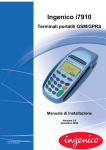
I7910
Payment Application
For Emergis
User Manual
Merchant name:
Password:
Address:
Target IP:
Port Number:
Merchant ID:
Context ID:
Terminal ID:
Access Point Name:
Terminal serial number:
Printer serial number:
Service Code:
User Name:
I7910 Payment User Manual for Emergis Host
Document Part Number 0120-07390-0101
Released April 4, 2007
Ingenico
79 Torbarrie Road
Toronto, Ontario, M3L 1G5
Canada
Tel:
416.245.6700
Fax:
416.245.6701
www.ingenico-ca.com
Ingenico
1003 Mansell Road
Atlanta, GA, USA 30076
Tel:
770.594.6000
Fax:
770.594.6003
www.ingenico-us.com
Copyright © 2007 by Ingenico Canada Ltd. All rights reserved.
This document contains information proprietary to Ingenico Canada Ltd. No part of this document may be
reproduced, in any form, or disclosed to third parties without the express written permission of Ingenico
Canada Ltd.
Ingenico Canada Ltd. reserves the right to revise this document and to periodically make changes to the
content hereof, without obligation of Ingenico Canada Ltd. to notify any person or organization of such
revision or changes.
Although this document was reviewed for accuracy, Ingenico Canada Ltd. assumes no liability for
damages occurring directly or indirectly from any errors or omissions.
All trademarks, trade names, service marks, or service names owned or registered by any other company
and used in this manual are the property of their respective companies.
Welcome
Welcome!
This Manual is a reference document aimed at retailers who want to operate the I7910 loaded with the
Ingenico Payment Application.
The I7910 is a secure hand-over long range radio frequency terminal for electronic transaction
acceptance and processing.
The Payment Application is a state-of-the-art software application that provides menu-driven selection,
debit and credit transaction processing, end-of-day settlement and several customizable features.
See the table of contents and Introduction (page 9) for more details.
We strive to provide a complete and helpful manual, but if you notice something that should be corrected,
or if you would like to make any suggestions, please write or e-mail us at the address below. Include the
following in your correspondence:
•
The suggestion or correction
•
The section name and page number
•
Your manual release date: April 4, 2007
•
The version of your application software (see page 19 on how to obtain the version number)
Please send your e-mail message or letter to:
Address:
Ingenico Canada Ltd.
Technical Support Dept.
79 Torbarrie Road
Toronto, Ontario
M3L 1G5
E-mail address:
[email protected]
0120-07390-0101
v
Table of Contents
INTRODUCTION........................................................................................................................................... 9
FINDING INFORMATION ................................................................................................................................ 9
HELP DESK INFORMATION ........................................................................................................................... 9
SET-UP STEPS .......................................................................................................................................... 10
CONFIGURATION...................................................................................................................................... 11
HARDWARE SET-UP .................................................................................................................................. 12
Terminal.............................................................................................................................................. 12
Power Supply Connection .................................................................................................................. 12
Battery ................................................................................................................................................ 13
Maintenance and Operating Conditions............................................................................................. 13
Terminal Cleaning..........................................................................................................................................14
Replacing the Paper Roll ...............................................................................................................................14
Replacing the Battery.....................................................................................................................................15
Replacing the SIM Card.................................................................................................................................16
Keyboard ............................................................................................................................................ 17
Data Entry Keys.............................................................................................................................................17
Function Keys ................................................................................................................................................18
Screen-addressable Function Keys ...............................................................................................................18
Special Key Sequences .................................................................................................................................19
SOFTWARE SET-UP ................................................................................................................................... 19
Start-up Messages ............................................................................................................................. 19
Change Password .........................................................................................................................................20
Parameter Configuration................................................................................................................................21
Terminal Initialization .....................................................................................................................................23
Key Exchange................................................................................................................................................24
Password Control ..........................................................................................................................................25
Lock Terminal ................................................................................................................................................26
Unlock Terminal.............................................................................................................................................26
Backlight ........................................................................................................................................................27
Terminal Language – English or French ........................................................................................................27
Printer and Receipt Configuration..................................................................................................................28
Date and Time Display...................................................................................................................................30
Terminal Configuration List ............................................................................................................................31
Terminal Help List ..........................................................................................................................................33
FINANCIAL TRANSACTIONS ................................................................................................................... 35
FEATURES ................................................................................................................................................ 35
Starting a Sale or Pre-authorization from Idle Screen........................................................................ 35
Credit and Debit Cards....................................................................................................................... 35
Refunds and Voids ............................................................................................................................. 35
Credit Forced Posts............................................................................................................................ 35
Credit Pre-authorizations and Pre-authorization Completions........................................................... 36
Card Entry .......................................................................................................................................... 36
Security Check on Swiped Credit Cards ........................................................................................................37
Manual Entry of Credit Cards.........................................................................................................................37
Cancelling a Transaction.................................................................................................................... 37
Host Authorization, Approved and Declined Transactions................................................................. 38
TRAINING BEFORE GOING LIVE .................................................................................................................. 38
CREDIT TRANSACTIONS ............................................................................................................................. 40
0120-07390-0101
vii
I7910 Payment – User Manual
Credit Sale.......................................................................................................................................... 40
Credit Sale Without Tip ..................................................................................................................................40
Credit Sale With Tip .......................................................................................................................................42
Credit Sale With Wireless Fee .......................................................................................................................44
Credit Refund ..................................................................................................................................... 46
Credit Sale Void.................................................................................................................................. 48
Credit Refund Void ............................................................................................................................. 50
Credit Forced Post.............................................................................................................................. 52
Credit Pre-authorization ..................................................................................................................... 54
Initial Credit Pre-authorization........................................................................................................................54
Initial Credit Pre-authorization with Wireless Fee ..........................................................................................56
Consecutive Credit Pre-authorization ............................................................................................................58
Credit Pre-authorization Completion .................................................................................................. 60
DEBIT TRANSACTIONS ...............................................................................................................................62
Debit Sale ........................................................................................................................................... 62
Debit Sale Without Tip or Cashback ..............................................................................................................62
Debit Sale With Tip ........................................................................................................................................64
Debit Sale With Cashback .............................................................................................................................66
Debit Refund....................................................................................................................................... 68
Debit Sale Void................................................................................................................................... 70
Debit Refund Void .............................................................................................................................. 72
BUSINESS FUNCTIONS............................................................................................................................ 75
TRANSACTION INQUIRY .............................................................................................................................. 75
INCOMPLETE PRE-AUTHORIZATION INQUIRY ................................................................................................ 77
TERMINAL TOTALS .................................................................................................................................... 79
CLOSE BATCH ........................................................................................................................................... 81
CLOSED TOTALS INQUIRY .......................................................................................................................... 82
HOST TOTALS INQUIRY .............................................................................................................................. 83
REPRINT LAST RECEIPT OR REPORT .......................................................................................................... 84
ISSUES AND SOLUTIONS ........................................................................................................................ 85
FREQUENTLY ASKED QUESTIONS ............................................................................................................... 85
TERMINAL ERROR MESSAGES.................................................................................................................... 86
INDEX ......................................................................................................................................................... 89
viii
0120-07390-0101
Introduction
The User Manual is organized as follows:
•
The table of contents;
•
Introduction – this chapter;
•
Configuration – new terminal configuration and its reconfiguration;
•
Financial Transactions – the transaction flows and receipts;
•
Business Functions – close batch performed at the end of a business day, transaction inquiry and
batch totals;
•
Issues and Solutions – issues and possible solutions together with terminal error messages;
•
Index – alphabetic list of topics covered in the manual.
Finding Information
To locate a topic, try first the table of contents.
If you wish to know about a specific error message, try Terminal Error Messages (page 86).
If you do not have the exact text of the topic or error message, try the Index (page 89) for entries that are
similar to the information you need.
Help Desk Information
Help Desk telephone number:
Help Desk e-mail address:
0120-07390-0101
9
I7910 Payment – User Manual
Set-up Steps
To perform these steps:
...Refer to these titles:
1.
2.
Take the terminal and components out of the box.
Verify the items delivered: the installation guide (in the box) lists
them.
Terminal on page 11
3.
Ensure the terminal battery is fully charged.
Battery on page 13
3.
Insert the Rogers SIM.
Replacing the SIM Card on page 16
4.
Power up the terminal.
Start-up Messages on page 19
5.
Change the default password (“123456”).
Change Password on page 19
6.
Adjust date and time if not set to current date and time.
Date and Time Display on page 33
7.
Enter the Ethernet parameters.
Parameter Configuration on page 21
8.
Perform a parameter initialization with the host.
Terminal Initialization on page 27
9.
Perform a key exchange if debit cards are to be accepted.
Key Exchange on page 28
10. Perform training transactions to understand how the terminal
works.
At this point, the terminal is ready to perform debit and credit
transactions.
You may further customize the terminal to your needs: continue
with the following steps.
11. Define which options will have password control.
Training Before Going Live on page 40
Financial Transactions on page 37
Password Control on page 28
Lock Terminal on page 29
12. Learn how to lock and unlock the terminal.
Unlock Terminal on page 29
13. Configure the other parameters.
Other Configuration Parameters on
page 25
Terminal Configuration List on page 33
14. Print parameters and help lists (optional).
Terminal Help List on page 35
15. Configure the backlight (optional).
Backlight on page 30
16. Change the language for displays, receipts and reports (optional).
Terminal Language – English or French
on page 30
17. Configure the printer and the receipts.
Printer and Receipt Configuration on
page 31
10
0120-07390-0101
Configuration
This chapter gives the steps to be followed from the moment you take the terminal out of the box until it is
ready to perform financial transactions.
For the initial set-up, see the following titles:
•
Hardware Set-up (page 12) – hardware description and installation;
•
Maintenance and Operating Conditions (page 13) – terminal and base cleaning and paper roll
replacement;
•
Change Password (page 20);
•
Parameter Configuration (page 21);
•
Terminal Initialization (page 23);
•
Key Exchange (page 24);
For the rest of the configuration and the configuration reports:
•
Password Control (page 25) – sets up the options having password control;
•
Lock Terminal (page 26);
•
Unlock Terminal (page 26);
•
Backlight (page 27);
•
Terminal Language – English or French (page 27);
•
Printer and Receipt Configuration (page 28);
•
Date and Time Display (page 30);
•
Terminal Configuration List (page 31);
•
Terminal Help List (page 33).
As a last step before starting normal operation, see Training Before Going Live (page 38), the training
mode.
0120-07390-0101
11
I7910 Payment – User Manual
Hardware Set-up
Terminal
I7910
Terminal components:
•
LCD display with backlight – the liquid crystal display has a configurable backlight feature (see
instructions on page 27);
•
Screen-addressable function keys – these three function keys are located below the display and allow
easy menu selection and screen navigation;
•
Keyboard – the number keys are arranged in the same fashion as a telephone. Both number and
letter entry can be enabled where required (see backlight instructions on page 27);
•
Bi-directional MSR – the magnetic stripe reader allows card swipe in both directions. When the card
is swiped, the magnetic stripe at the back of the card must face down and to the rear of the terminal;
•
Thermal printer – the thermal printer is integrated to the terminal (see paper loading on page 14).
Power Supply Connection
Perform these steps to connect the power supply:
1. Connect the radial jack of the external power supply cable to
the power supply connector of the i7910.
Power
Supply
connector
12
2. Connect the power supply to the cigarette lighter socket or to
a wall electric socket.
0120-07390-0101
Configuration
You must use the power supply that comes with the terminal. Many power supplies appear similar and plug into the base
unit but will not work properly, causing erratic behaviour or damaging the terminal or the base.
Battery
The i7910 comes with rechargeable lithium-ion battery. Only use the battery supplied with your terminal.
Make sure that i7910 is turned off and that power supply is disconnected before handling the battery
pack. Do not touch the contacts on the battery pack or on the i7910.
Do not remove battery from i7910 unless installing or removing a SIM card.
Always charge the battery at temperatures between 0° and 45°C.
It is important to perform the full battery charge before using i7910 for the first time – charge the battery
without interruptions until i7910 terminal indicates the end of charging process (no moving bars on the
battery status icon).
The i7910 with a fully charged battery can perform up to 200 transactions (depending of the ticket size,
transaction duration, time between transactions and backlight usage).
The battery status is updated on the i7910 display (the indicator depends of the application running on
i7910):
1 bar represents 25 % of full capacity,
2 bars represent 50 % of full capacity,
3 bars represent 75 % of full capacity,
4 bars represent full capacity.
To prolong battery life:
- Avoid frequent full discharges. Shallow (partial) discharges and frequent charges are preferred. Full
discharge and charge is recommended after every 30-40 short charge/discharge cycles.
- Protect batteries from high temperatures (for example, avoid leaving them in a vehicle on a hot summer
day).
New batteries must have a complete charge before they are put in use.
Maintenance and Operating Conditions
Always use the system components within the specified conditions. Always use the correct supplies.
Misuse of the system components or the use of incorrect supplies may result in equipment damage.
You can perform the maintenance described below on site:
•
Terminal Cleaning (page 14);
•
Replacing the Paper Roll (page 14);
•
Replacing the SIM Card (page 16);
•
Replacing the Battery (page 15).
For any other maintenance issue, call the Help Desk (see page 9).
0120-07390-0101
13
I7910 Payment – User Manual
The terminal is specified to operate under these conditions:
•
Temperature: +5 to +40 degrees Celsius (+40 to +104 Fahrenheit)
•
Humidity: 20% to 90% relative humidity, with no condensation
Do not spill liquids on the system components.
Terminal Cleaning
The i7910 must be off for all cleaning operations.
Do not clean the i7910 with water but with a dry or only slightly damp cloth. Do not use solvent, detergent
or abrasive products.
If the terminal has battery charging problem, clean the contacts on the battery and on the terminal with a
damp cloth. Do not scratch or scrape the surface of the contacts.
If the print quality deteriorates, clean the print head to remove accumulated paper dust. The print head
must be cleaned with the terminal powered off, using ethanol applied on a lint-free cloth.
Be aware of the sharp paper cutter and hot printer parts. Ensure that the ethanol has completely
evaporated before switching the terminal back on.
Do not use Isopropyl alcohol-based cleaning products.
Replacing the Paper Roll
The paper roll usually has a low paper warning.
When a coloured stripe (usually red or green)
appears on the receipts or reports, it is time to
replace the paper roll:
1. Push the button on the paper compartment cover
toward the back and lift the cover.
2. Remove the empty paper roll.
3. The end of the paper ribbon is usually glued to
the rest of the new roll. Separate it so that it
becomes loose.
4. Place the new paper roll into the compartment. The loose end of the paper roll should come from the
lower side of the roll.
5. Close the cover, press it until it snaps.
6. Power up the unit and press the blue ‘Paper Feed’ key to verify the paper feeds properly.
7. Tear off the excess of paper coming out from the printer.
14
0120-07390-0101
Configuration
Always use thermal paper having these specifications:
•
Single ply thermal sensitive – POS or facsimile grade
•
Basis Weight:
(lb/rm 17 ins. X 22 ins. – 500) --- 14.5 +/- 5%
(GSM) --- 55% +/- 5%
•
Calliper: 2.4 +/- 0.2 Mils or 60 +/- 5 Microns
•
Brightness: Min. 85%
•
Smoothness (Bekk Minimum): 300 s
•
Roll Width: 2.25 +/- 0.020 in (58 mm +/- 0.5 mm)
•
Roll diameter: 2.0 in (51 mm) maximum
•
Roll core ID: 0.500 in (13 mm) nominal
•
Roll core OD: 0.625 in (16 mm) nominal
For best performance, Ingenico recommends the following sources/brands:
•
KANZALI
•
APPLETON T1012A
•
KOEHLER
P300
K55
When stored, thermal paper should not be exposed to:
•
Vinyl, plastics, adhesives, shrink-wraps, wet-toner copies or certain carbon papers
•
Office light, UV light
•
High humidity (above 65% relative humidity)
•
Temperatures above 25 degrees Celsius (72 degrees Fahrenheit)
Replacing the Battery
The terminal is automatically charged while it is connected to a power supply. If a high number of
transactions are performed daily, you may need more than one battery for each terminal. During business
hours, you will then replace the battery when its charge gets low.
Battery and Terminal
1. To replace the battery, turn the bottom of the terminal to you with the smart card reader facing down,
as shown.
2. Press down the battery latch to release it. Remove the battery.
0120-07390-0101
15
I7910 Payment – User Manual
3. Take the new battery. Insert the two small teeth that come out from the lower part of the battery into
the two notches near the lower part of the terminal.
4.
Press the upper part of the new battery against the terminal until it clicks in its place. Ensure that
the battery and the terminal are firmly attached.
Battery replacement guidelines:
•
Replace the battery always with the model approved by the terminal manufacturer
•
Dispose of used batteries according to the manufacturer’s instructions
Battery security guidelines:
•
Keep batteries out of reach of children. In case of ingestion, seek medical assistance immediately
•
Do not try to recharge the battery by any other means than the terminal charging base
•
Do not disassemble batteries
•
Do not try to manipulate if the battery is leaking
•
Do not heat or throw batteries in a fire
•
Do not short-circuit batteries. Pay attention to positive and negative polarities
•
Do not keep nickel metallic hydride (Ni-MH) batteries in an airtight box
•
Do not close Ni-MH battery security valves (located under the positive poles)
Replacing the SIM Card
The SIM card is a small integrated circuit card that allows your terminal to access the mobile
telecommunications network. Before the SIM card slot can be accessed, you need to remove the terminal
battery.
Two card connectors are located under the battery. The SIM card connector is the white one.
Terminal with Battery Removed
SIM Card
Connector
1. The SIM card is locked in its place by a small sliding metal bar. Using your nail, slide the metal bar
upwards (open position) to release the SIM card case (notice the small arrows and the printed labels
– OPEN and LOCK).
2. Turn the card case outwards around its hinges located on the upper side.
16
0120-07390-0101
Configuration
3. Remove the card if there is one.
4. Insert the new card. The card slides in between the metal bar and the plastic case. The golden metal
electrical contacts on the card should face the terminal. The cut-out corner on the card is positioned
at the lower right.
5. Press the case back to its position and bring the metal bar down to lock the case.
6. Slide the SIM card slot cover back to its place, closing the slot.
7. Reinsert the battery. Insert the two small teeth that come out from the lower part of the battery into
the two notches near the lower part of the terminal.
8. Press the upper part of the battery against the terminal until it clicks in its place. Ensure that the
battery and the terminal are firmly attached.
Keyboard
I7910 Keyboard
Data Entry Keys
Data Entry Key
Description
[1 QZ]
Number 1, space, and letters Q, Z.
[2 ABC]
Number 2 and letters A, B, C.
[3 DEF]
Number 3 and letters D, E, F.
[4 GHI]
Number 4 and letters G, H, I.
[5 JKL]
Number 5 and letters J, K, L.
[6 MNO]
Number 6 and letters M, N, O.
[7 PRS]
Number 7 and letters P, R, S.
[8 TUV]
Number 8 and letters T, U, V.
[9 WXY]
Number 9 and letters W, X, Y.
[0 * # , . ]
Number 0 and the special characters “asterisk”, “pound sign”, “comma” and “period”.
0120-07390-0101
17
I7910 Payment – User Manual
The letters in the table above are used only for those terminal prompts where alphanumeric data entry is
performed. You do this by using the [ADMIN] key together with the data entry keys. The following example
shows how to enter the alphanumeric sequence “D1N33”:
Key
Pressed
Text
Displayed
(Blank)
Description
[3]
3
The initial display is empty in this example.
“3” is the digit key initially pressed when entering the letter D.
[ADMIN]
D
[ADMIN] displays the next letter in the sequence: D.
[1]
D1
[6]
D16
[ADMIN]
D1M
[ADMIN] displays the next letter in the sequence: M.
[ADMIN]
D1N
[ADMIN] displays the next letter in the sequence: N.
[3]
D1N3
[3]
D1N33
[OK]
(Next prompt)
“6” is the digit key initially pressed when entering the letter N.
Data entry is complete: “D1N33”.
[OK] is pressed to accept data entry, taking the terminal to the next prompt.
Function Keys
Function Key
[CAN/ANN]
[CORR]
[OK]
[
]
[ADMIN]
Description
The Cancel (red) key cancels the current transaction or function (see Cancelling a
Transaction, page 37).
The Correction (yellow) key is used:
• To correct an entry. It erases the last letter or number entered;
• At certain prompts directed to the customer, the Correction key leads to the
previous prompt, allowing the customer to correct a previous entry;
• During PIN entry, the Correction key erases the customer PIN entirely or, if there
is no PIN displayed, it leads the customer to the previous prompt.
The OK (green) key is used to accept the information entered at a prompt or to
confirm an option.
The Paper Feed key advances the paper roll when at the idle screen.
When pressed at the idle screen, the Admin key leads to the administrative function
menu.
At prompts requiring entry of letters or special characters, this key switches between
the letters/special characters available. See Data Entry Keys (page 17) for more.
Screen-addressable Function Keys
The terminal has three screen-addressable function keys located below the display. The application uses
only the two side keys. The middle key is not used. Those keys are used to:
•
Scroll up and down when menus are displayed (referred to as [
•
Select between two options displayed.
] and [
]);
Whenever a screen-addressable function key is mentioned in the manual, the option or menu text is used
to refer to the key, for example: “Select [YES] to enable tip entry or [NO] otherwise”. In this example, the
terminal displays YES on the left and NO on the right.
18
0120-07390-0101
Configuration
Special Key Sequences
The following key sequences, enabled at the idle screen, allow easy access to these options:
•
Help List – by pressing [ADMIN] followed by [0];
•
Change terminal Language – by pressing [ADMIN] followed by [1];
•
Reprint last receipt or report – by pressing [ADMIN] followed by [2];
•
Backlight – by pressing [ADMIN] followed by [3];
•
Date and time – by pressing [ADMIN] followed by [4].
•
Power Off Terminal – by pressing [ADMIN] followed by [9].
When the terminal is locked, print help list, change language, backlight and date can still be performed without entering
the password.
Software Set-up
Start-up Messages
After pressing the OK key, the terminal displays several Operating System messages before displaying
the application messages below.
1.
The application part and version numbers are displayed:
PPPPP – the Ingenico part number
VVVV – the application version number
2.
The application is checking data files.
3.
The new terminal displays the idle screen.
NO SIM indicates the SIM has not been installed in the terminal.
I7910
PPPPP-VVVV
PLEASE WAIT
?
a
TERMINAL
INITIALIZATION
REQUIRED
NO SIM
a 4.
TERMINAL
INITIALIZATION
REQUIRED
The new terminal displays the idle screen.
SEARCHING. . . indicates that the application is searching for the Rogers network.
a
TERMINAL
INITIALIZATION
REQUIRED
5.
The new terminal displays the idle screen.
CONNECTING. . . indicates that the application is connecting to the Rogers network.
a
TERMINAL
INITIALIZATION
REQUIRED
6.
The new terminal displays the idle screen.
The ICON
indicates that the application has connected to the Rogers network.
a
TERMINAL
INITIALIZATION
REQUIRED
7.
The new terminal displays the idle screen.
SEARCHING
CONNECTING
0120-07390-0101
The ICON
indicates that the application has connected to the Ingenico Gateway.
This ICON only appears after the user selects TERMINAL CONFIG/COMM at least
once.
19
I7910 Payment – User Manual
a
8.
The new terminal displays this idle screen if it is ready to perform transactions.
9.
The terminal displays this idle screen if it was locked. See Unlock Terminal on page 26.
SALE
PRE-AUTH
PRE-AUTH COMP
LOCKED
ENTER PASSWORD
Change Password
a
1.
At the idle screen, press [ADMIN].
If the terminal displays LOCKED, ENTER MANAGER PASSWORD, see Unlock Terminal
(page 26);
If the terminal displays TERMINAL INITIALIZATION REQUIRED, no prior action is
required. Start from step 1 above to change the password;
If your terminal is new, only the change password option is available. You must set up
your password before continuing.
2.
Select [OTHER].
3.
Use [
4.
Enter the current password or, if the terminal is new, enter “123456” (the default).
5.
Enter the current password or, if the terminal is new, enter “123456” (the default).
6.
Enter your own choice for the password (4 to 8 digits).
different than “123456”.
7.
8.
Re-enter the password entered in step 6.
The “admin – other” menu is displayed. Press [CAN/ANN] to return to the idle screen.
SALE
PRE-AUTH
PRE-AUTH COMP
ADMIN - SELECT
REPORTS
OTHER
a
TERMINAL INIT
KEY EXCHANGE
TERMINAL CONFG
MANAGER
PASSWORD
] to highlight CHANGE MGR PWD (change manager password), then press [OK].
********
CURRENT PASSWORD
********
NEW PASSWORD
The password must be
********
REPEAT
NEW PASSWORD
********
If the terminal is new and you changed the password for the first time, continue following the steps in
Software Set-up on page 19.
Depending on the way you configure your terminal, you may not use the password often. It is a good practice to write it
down and keep it in a safe place, away from the terminal and not accessible to the persons who operate it.
Use a password that cannot be uncovered easily, for example: different digits not ordered in any logic sequence.
If you forget the password, call the Help Desk (see page 9).
20
0120-07390-0101
Configuration
Parameter Configuration
To keep the displayed parameter unchanged, just press [OK] without changing the current parameter value.
a
1.
At the idle screen, press [ADMIN].
If the terminal displays LOCKED, ENTER MANAGER PASSWORD, see Unlock Terminal
(page 26);
If the terminal displays TERMINAL INITIALIZATION REQUIRED, no prior action is
required. Start from step 1 above to change the password;
If your terminal is new, only the change password option is available. You must set up
your password before continuing.
2.
Select [OTHER].
3.
4.
Use [ ] to highlight TERMINAL CONFG (terminal configuration), then press [OK].
Enter the password (configurable; see page 25).
5.
Select [COMM].
6.
Enter the service code (1234567 in the example).
7.
Enter the user name (ABCDEFG in the example).
8.
Enter the password (ABCD123 in the example).
9.
Enter the target IP (123.456.789.012 in the example).
SALE
PRE-AUTH
PRE-AUTH COMP
ADMIN - SELECT
REPORTS
OTHER
a
TERMINAL INIT
KEY EXCHANGE
TERMINAL CONFG
CONFIG - SELECT
COMM
OTHER
SERVICE CODE
1234567
USER NAME
ABCDEFG
PASSWORD
ABCD123
TARGET IP
123.456.789.012
10. Enter the port number (34567 in the example).
PORT NUMBER
34567
11. Enter the context ID (4 in the example). Valid values are from 1 to 4.
CONTEXT ID
4
12. Enter the access point name (ABCDEFG123 in the example).
ACCESS POINT
ABCDEFG123
13. Enter the target IP (123.456.789.012 in the example).
BACKUP TARGET IP
123.456.789.012
0120-07390-0101
21
I7910 Payment – User Manual
14. Enter the port number (34567 in the example).
BACKUP PORT NO
34567
15. Select [OTHER].
CONFIG - SELECT
COMM
OTHER
TIP ENTRY
NO
YES
NO
CASHBACK
NO
YES
16. Select [YES] if your business environment requires tip entry or [NO] otherwise. The
terminal displays the current value – NO.
NO
CASHBACK LIMIT
17. Select the cashback option:
[YES] – if your business environment allows for cashback as part of debit sale
transactions (next step 18;
[NO] – for “no cashback” (next step: 19).
The terminal displays the current value – NO.
18. Enter the maximum cashback amount ($20.00 in the example). Entering a zero limit is
the same as selecting [NO] at step 17.
$20.00
CLERK ID
NO
YES
NO
POWER-OFF TIME
19. Select [YES] if your business environment requires keeping track of financial
transactions by staff member (or clerk ID). The clerk ID is entered at each financial
transactions and is printed on receipts and certain reports.
Select [NO] not to control transactions by clerk ID.
20. Enter the number of minutes (from 1 to 99) after which the terminal powers off when left
unattended (2 minutes in the example).
2
A shorter power-off time saves battery.
CREDIT CRD CHECK
ECHO CARD #
LAST 4 DIGITS
NO CHECK
21. Use [ ] and [ ] to highlight the desired type of credit card security and press [OK].
The credit card security check is used to verify the card number when a credit card is
swiped for sale, forced post and pre-authorization transactions. The options are:
ECHO CARD # – the credit card number is displayed after the card swipe. You
compare the number read by the terminal with the number embossed on the card;
LAST 4 DIGITS – you enter the last 4 digits embossed on the card. The terminal
compares it with the number read from the card. The error message DIGITS DO
NOT MATCH is displayed if they are not the same;
NO CHECK – no security check is performed.
See also Security Check on Swiped Credit Cards (page 37).
TAKE IMPRINT
YES
22. Select [YES] to display the “take imprint” warning message during manually entered
credit sales, forced posts and pre-authorizations. Select [NO] if the message is not to
be displayed. The terminal displays the current value – YES. See also Manual Entry of
Credit Cards (page 37).
YES
NO
TERMINAL DATE
(YYYYMMDD)
23. Enter the current date (to set the internal clock) – 20020219 in the example.
20020219
TERMINAL TIME
(HHMM)
24. Enter the current time (1345 in the example). The time is entered in a 24-hour format.
1345
22
0120-07390-0101
Configuration
APPLICATION TYPE
DEBIT/CREDIT
DEBIT ONLY
CREDIT ONLY
25. Select the desired combination of payment types. The terminal highlights the current
value – DEBIT/CREDIT. This parameter establishes the tender types accepted by your
business:
DEBIT/CREDIT – the terminal accepts debit and credit cards (next step 26);
DEBIT ONLY – the terminal accepts debit cards (next step 27);
CREDIT ONLY – the terminal accepts credit cards (next step 26).
DEFAULT TRAN
SALE
26. Select [SALE] if you want a sale to be started when you swipe a card at the idle screen.
Select [PRE-AUTH] if you want a pre-authorization to be started when you swipe a
credit card at the idle screen.
SALE
PRE-AUTH
Since pre-authorizations require a credit card, if you swipe a debit card at the idle screen, the transaction started is always
a sale.
MINIMUM AMOUNT
TO SURCHARGE
27. Enter the minimum amount to apply a sale surcharge. Any debit sale below this value
will not have a surcharge. Enter zero if there is no minimum amount and the surcharge
is to apply if the amount does not exceed the maximum (below).
$0.00
MAXIMUM AMOUNT
TO SURCHARGE
28. Enter the maximum amount to apply a sale surcharge. Any debit sale above this value
will not have a surcharge. Enter zero if there is no maximum amount and the surcharge
is to apply if the amount exceeds the minimum (above). A zero minimum amount
$0.00
combined with a zero maximum amount indicates that all debit sales are subject to a
surcharge.
As an example, a minimum of $5.00 and a maximum of $10.00 indicate that a
surcharge applies only for amounts between $5.00 and $10.00.
29. Enter the level of screen contrast. Valid values are from 1 to 10.
CONTRAST LEVEL
10
30. The “config – select” menu is displayed. Press [CAN/ANN] to return to the idle screen.
Terminal Initialization
You should perform an initialization:
•
When the terminal displays the message TERMINAL INITIALIZATION REQUIRED;
•
When instructed by the Help Desk to do so.
a
1.
At the idle screen, press [ADMIN]. The terminal may display the message TERMINAL
INITIALIZATION REQUIRED rather than the menu shown on the left.
2.
Select [OTHER].
3.
4.
Press [OK] to select TERMINAL INIT (terminal initialization).
Enter the password (configurable; see page 25).
SALE
PRE-AUTH
PRE-AUTH COMP
ADMIN - SELECT
REPORTS
OTHER
a
TERMINAL INIT
KEY EXCHANGE
TERMINAL CONFG
0120-07390-0101
23
I7910 Payment – User Manual
RETAIN SETTINGS?
YES
5.
This prompt is not displayed if the terminal is new and you have never entered
merchant and terminal IDs (in this case proceed to step 6).
If you are not performing initialization for the first time:
Select [YES] if you want to keep the current merchant and terminal IDs (next step:
8);
Select [NO] if you want to change the current settings (next step: 6).
6.
Enter your merchant ID. You may press [OK] to keep the merchant ID displayed
(12345678 in the example). See page iii for the actual ID
7.
Enter your terminal ID. You may press [OK] to keep the terminal ID displayed
(ABCD1234 in the example). See page iii for the actual ID.
The terminal communicates with the host and displays SENDING, RECEIVING and
PROCESSING.
NO
MERCHANT ID
12345678
TERMINAL ID
ABCD1234
8.
9.
CLEAR STORAGE?
YES
NO
If you changed the merchant or terminal ID, the storage is cleared automatically and this
screen is not displayed. Select [YES] if you want to erase any transaction details and
totals currently in the terminal memory or [NO] if you want to keep them. See
below.
10. The terminal returns to the idle screen.
If parameters are changed at the host, it automatically forces an initialization. When this happens, the terminal starts
communicating with the host right after a credit transaction is finished and before displaying the idle screen. Just wait until
the initialization is finished.
The transaction storage is the terminal memory area containing approved financial transactions other than preauthorizations. It can hold a maximum of 500 transactions. No warning message is displayed when the storage area
becomes full. New transactions automatically replace the old ones.
The pre-authorization storage is the terminal memory area containing the pre-authorizations. It can hold a maximum of
400 pre-authorizations. If the storage is full and you try to perform a pre-authorization, this warning message is displayed:
PRE-AUTH MEMORY FULL (see page 88). New pre-authorizations automatically replace the old ones.
The terminal keeps in its memory the totals for the last five closed batches.
Key Exchange
This function is enabled if the terminal is configured to process debit transactions.
You need to perform a key exchange (download security keys):
•
For a new terminal after performing host initialization;
•
If the host starts to reject debit transactions repeatedly;
•
Whenever instructed by the Help Desk to do so.
a
1.
At the idle screen, press [ADMIN].
2.
Select [OTHER].
SALE
PRE-AUTH
PRE-AUTH COMP
ADMIN - SELECT
REPORTS
24
OTHER
0120-07390-0101
Configuration
a
TERMINAL INIT
KEY EXCHANGE
TERMINAL CONFG
3.
4.
5.
6.
Use [ ] to highlight KEY EXCHANGE, then press [OK].
Enter the password (configurable; see page 25).
The terminal communicates with the host and displays SENDING, RECEIVING and
PROCESSING.
The terminal returns to the idle screen.
Password Control
1.
At the idle screen, press [ADMIN].
2.
Select [OTHER].
a
TERMINAL INIT
KEY EXCHANGE
TERMINAL CONFG
3.
4.
Use [ ] to highlight MGR PWD CTRL (manager password control), then press [OK].
Enter the password (configurable; see page 25).
MANAGER
PASSWORD CONTROL
5.
Select [ALL] if you want to apply the password control to all transactions and functions.
Select [DEFAULT] if you want it only for those options in the table below.
The terminal returns to the “admin – other” menu. Press [CAN/ANN] to return to the idle
screen.
a
SALE
PRE-AUTH
PRE-AUTH COMP
ADMIN - SELECT
REPORTS
ALL
OTHER
DEFAULT
6.
If you select [ALL], these options require password:
•
All financial transactions
•
Signal Quality
•
Terminal Initialization
•
Help List
•
Key Exchange
•
Terminal Totals
•
Terminal Configuration
•
Host Totals
•
Password Control
•
Close Batch
•
Lock Terminal
•
Transaction Inquiry
•
Training Mode
•
Pre-authorization Inquiry
•
Backlight
•
Close Batch Totals Inquiry
•
Printer Set-up
•
Terminal Configuration List
If you select [DEFAULT], all the options listed for the ALL option (see above) require password with the exception of:
•
Backlight
•
Help List
•
Pre-authorization Inquiry
•
Sale
•
Pre-authorization
•
Pre-authorization completion
•
Forced post
0120-07390-0101
25
I7910 Payment – User Manual
Lock Terminal
You should lock the terminal when you leave it unattended.
a
1.
At the idle screen, press [ADMIN].
2.
Select [OTHER].
3.
4.
Use [ ] to highlight LOCK, then press [OK].
Enter the password (configurable; see page 25).
5.
The locked idle screen is displayed. Transactions and functions can be accessed only
after the password is entered. See Unlock Terminal (page 26) to unlock the terminal.
SALE
PRE-AUTH
PRE-AUTH COMP
ADMIN - SELECT
REPORTS
OTHER
a
TERMINAL INIT
KEY EXCHANGE
TERMINAL CONFG
LOCKED
ENTER PASSWORD
Unlock Terminal
The terminal goes into the locked state due of any of these reasons:
•
The terminal automatically locks itself when somebody enters the wrong password too many times. In
this case the terminal displays the message LOCKED OUT, ENTER SUPER PASSWORD.
The password does not unlock the terminal in this case. Call the Help Desk (see page 9);
•
The terminal was locked using the function described in Lock Terminal (page 26). In this case,
follow these steps:
1.
LOCKED
ENTER PASSWORD
Enter the password. When you enter the first digit, the screen changes to MANAGER
PASSWORD. The terminal returns to the unlocked state after you enter the password.
When the terminal is locked, these functions can still be performed without entering the password:
26
•
Help List – by pressing [ADMIN] followed by [0];
•
Change Language – by pressing [ADMIN] followed by [1];
•
Backlight – by pressing [ADMIN] followed by [3];
•
Terminal date and time – by pressing [ADMIN] followed by [4].
0120-07390-0101
Configuration
Backlight
1.
At the idle screen, press [ADMIN].
2.
Select [OTHER].
3.
Use [
4.
Use [ ] and [ ] to highlight the desired option and press [OK]:
YES – backlight stays on while the terminal is in use;
NO – backlight off;
ONLY CUSTOMER – backlight turns on only when a customer prompt is displayed.
BACKLIGHT
INTERVAL
5.
30
6.
Enter the number of seconds (from 10 to 30) after which the backlight is turned off when
the terminal is left unattended, or press [OK] to keep the value displayed (30 seconds in
the example).
The “admin – other” menu is displayed. Press [CAN/ANN] to return to the idle screen.
a
SALE
PRE-AUTH
PRE-AUTH COMP
ADMIN - SELECT
REPORTS
OTHER
a
TERMINAL INIT
KEY EXCHANGE
TERMINAL CONFG
BACKLIGHT
YES
NO
ONLY CUSTOMER
] to highlight BACKLIGHT, then press [OK].
A shorter interval saves battery.
From the idle screen, the backlight can be turned on or off by pressing [ADMIN] followed by [3].
Terminal Language – English or French
a
1.
At the idle screen, press [ADMIN].
2.
Press [1].
3.
Press [CAN] to display the idle screen.
4.
The idle screen is displayed in French.
SALE
PRE-AUTH
PRE-AUTH COMP
ADMIN - SELECT
REPORTS
OTHER
ADMIN - CHOISIR
RAPPORTS
AUTRE
a
VENTE
PREAUTORISAT
PREAUTOR COMPL
To return to English, perform the same steps from step 1 above.
0120-07390-0101
27
I7910 Payment – User Manual
The following are issued in the terminal language:
•
Terminal displays addressed to the merchant;
•
Reports;
•
Merchant copies of receipts;
The following are issued in the language of the customer card :
•
Terminal displays addressed to the customer or cardholder;
•
Customer copy of receipts.
Printer and Receipt Configuration
To keep the displayed parameter unchanged, just press [OK] without changing the current parameter value.
1.
At the idle screen, press [ADMIN].
2.
Select [OTHER].
3.
4.
Use [ ] to highlight PRN SET-UP, then press [OK].
Enter the password (configurable; see page 25).
5.
Select [ON] to set the printer on and proceed to step 6. Select [OFF] if printed receipts
or reports are not required (the terminal returns to the “admin – other” menu).
The following functionality is no longer available if the printer is off:
Debit card transactions;
Reprint receipt or report;
Footer and GST options in the Printer Set-up Function;
All reports.
The following screens are displayed if the printer is on.
6.
Select [YES] to change receipt footer lines (next step: 7). Select [NO] if no change is
needed (next step: 13).
CHANGE LINE 1
CHECK OUR SPECIA
LS
YES
NO
7.
Select [YES] to erase the current footer line 1 (CHECK OUR SPECIALS in the example)
and enter a new one (next step: 8). Select [NO] if no change is needed (next step: 9).
FOOTER LINE 1
8.
Enter the new footer line 1 (HAPPY HOLIDAYS in the example). See Data Entry Keys
(page 17) on how to type in letters.
9.
Select [YES] to erase the current footer line 2 (COME AGAIN SOON in the example) and
enter a new one (next step: 10). Select [NO] if no change is needed (next step: 11).
a
SALE
PRE-AUTH
PRE-AUTH COMP
ADMIN - SELECT
REPORTS
OTHER
a
TERMINAL INIT
KEY EXCHANGE
TERMINAL CONFG
PRINTER
ON
ON
OFF
CHANGE FOOTER
YES
NO
HAPPY HOLIDAYS
CHANGE LINE 2
COME AGAIN SOON
YES
28
NO
0120-07390-0101
Configuration
FOOTER LINE 2
10. Enter the new footer line 2 (BIG SALE DAY in the example).
BIG SALE DAY
CHANGE LINE 3
REAL BARGAINS
YES
11. Select [YES] to erase the current footer line 3 (REAL BARGAINS in the example) and
enter a new one (next step: 12). Select [NO] if no change is needed (next step: 13).
NO
FOOTER LINE 3
12. Enter the new footer line 3 (SPECIALS EVERY DAY in the example).
SP
ECIALS EVERY DAY
CHANGE GST #
ABCD1234
YES
NO
ENTER GST #
ABCD1234
NUMBER OF COPIES
13. Select [YES] to erase the current GST number (next step: 14). Select [NO] if no change
is needed (next step: 15).
The terminal displays the current value – ABCD1234.
14. Enter the new GST number (ABCD1234 in the example) or press [OK] without entering
anything if you want to erase an existing number. See Data Entry Keys (page 17) on
how to type in letters.
15. Enter the number of receipt copies to be printed during a financial transaction (2 in the
example). You can enter a value from 1 to 3.
2
PRE-AUTH RECEIPT
WITH TIP? YES
YES
16. Select [YES] to have the tip and total lines printed on pre-authorization receipts or [NO]
if tip and total lines are not required.
NO
CHANGE PRINT
RECEIPTS?
YES
17. Select [YES] to change the print option for the following transactions (next step: 18).
Select [NO] to keep the current print settings (next step: 23).
NO
PRINT COMPLETE
TRANS? YES
YES
18. Select [YES] if you want to print pre-authorization completion transactions or [NO] if no
receipt is required.
NO
PRINT VOID
TRANS? YES
YES
19. Select [YES] if you want to print credit void transactions or [NO] if no receipt is required.
NO
PRINT FORCED
POST TRANS? YES
YES
20. This prompt is displayed if forced transactions are supported. Select [YES] if you want
to print credit forced post transactions or [NO] if no receipt is required.
NO
PRINT DECLINED
TRANS? YES
YES
21. Select [YES] if you want to print credit declined transactions or [NO] if no receipt is
required.
NO
CHANGE PRINT
INTERVAL
10
0120-07390-0101
22. Enter the number of seconds (from 0 to 20) that the terminal waits to print the next
receipt copy – the printing pause (10 seconds in the example). This is the time you have
to detach the receipt:
If you enter zero, the terminal waits until you press [OK] before printing;
If you enter a number of seconds from 1 to 20, the terminal prints the next copy
when you press [OK] or when the number of seconds has passed.
23. The “admin – other” menu is displayed. Press [CAN/ANN] to return to the idle screen.
29
I7910 Payment – User Manual
Date and Time Display
a
1.
At the idle screen, press [ADMIN].
2.
Press [4].
SALE
PRE-AUTH
PRE-AUTH COMP
ADMIN - SELECT
REPORTS
OTHER
2002/04/18 10:08
ABCD1234
I7910 xxxxx-nnnn
30
3. The date and time are displayed on line 1 (2002/04/18 10:08 in the example). The
time is displayed in a 24 hours format. The terminal ID is displayed on line 3 (ABCD1234
in the example). The terminal type and core number/version number is displayed on
line 4. Press [CAN/ANN] to return to the idle screen or the terminal returns
automatically after 10 seconds. See page 22 if you need to update the terminal clock.
0120-07390-0101
Configuration
Terminal Configuration List
a
1.
At the idle screen, press [ADMIN].
2.
Select [REPORTS].
3.
4.
5.
Use [ ] to highlight TERM CNFG LIST (terminal configuration list), then press [OK].
Enter the password (configurable; see page 25).
The terminal displays PRINTING while printing the report (see sample below), then
returns to the idle screen.
SALE
PRE-AUTH
PRE-AUTH COMP
ADMIN - SELECT
REPORTS
OTHER
a
HELP LIST
TERM TOTALS
HOST TOTALS
Terminal Configuration List
CONFIGURATION PARAMETERS
-----------------------BY-THE-LAKE COTTAGES
1001, CLEARWATER RD
HUNTERSTOWN, ONTARIO
CANADA, A1A 2B2
I7910
S/W VERSION
07390-0508
HOST INITIALZATION PARMS
TERM ID
MERC
INIT #
TERM #
ABCD1234
1234ABCD
ABCD12345678
TERMINAL CONFIGURATION
TIP ENTRY
YES
CASHBACK
YES
CASHBACK LIM
20.00
CLERK ID
NO
POWER-OFF TIME
2
CRDT CARD CHECK
4 DGTS
TAKE IMPRINT
YES
TERMINAL DATE
20020225
1132
TERMINAL TIME
APPLICATION TYPE
DB/CR
DEFAULT TRAN
SALE
MIN TO SURCH
0.00
MAX TO SURCH
0.00
DEFA
MANAGER PSW CTRL
NO
TRAINING MODE
BACKLIGHT
ON
30
ENTER BACKL INTERV
SURCH ON SALE
0.75
SURCH CASHBACK
0.05
CONTRAST LEVEL
10
WIRELESS FEE
0.00
HEARTBEAT INTERVAL
8
PRINTER CONFIGURATION
0120-07390-0101
Merchant name and address
Terminal ID
Merchant ID
YES if tip entry is configured or NO otherwise
YES if cashback is configured or NO otherwise
The maximum amount customers can withdraw using cashback
YES if the clerk ID feature is configured or NO otherwise
Number of minutes before the terminal turns itself off
One of these credit card security options:
ECHO – displays the credit card number
4 DGTS – prompts for the last four digits
NO CHK – no checking
YES if the “take imprint” warning is configured for manually entered
credit cards. NO if it is not configured
The current terminal date (YYYYMMDD) and time (HHMM)
DB/CR if the terminal accepts both debit and credit cards, CREDIT if
only credit is accepted, or DEBIT if only debit is accepted.
DEFA if only the default transactions and functions prompt for the
manager password or ALL if the password is required for all
YES if the terminal is in training mode or NO if the terminal is in
production mode
Seconds of inactivity after which the terminal turns off the backlight
Indicates the configured amount for the surcharge. If surcharge is
not configured for any option – sale or cashback –, then this line is
not printed.
ON if the printer is configured or OFF if no receipts or reports are
printed
Shows the contents of each of the footer lines
GST number
Number of receipt copies printed during a transaction
YES if the tip line is printed for pre-authorizations or NO otherwise
YES if pre-authorization completion receipts are printed or NO
otherwise
YES if void receipts are printed or NO otherwise
YES if forced post receipts are printed or NO otherwise
YES if declined transaction receipts are printed or NO otherwise
The time period (seconds) the terminal takes to start printing the
next receipt copy
Service code
User name
31
I7910 Payment – User Manual
PRINTER
YES
FOOTER LINE 1
CHECK OUR DAILY SPECIALS
FOOTER LINE 2
COME AGAIN SOON
FOOTER LINE 3
THANK-YOU
ABCD1234
GST #
NUMBER OF COPIES
2
YES
PRE-AUTH WITH TIP
PRINT COMPLETE
YES
PRINT VOID
YES
YES
PRINT FORCED
YES
PRINT DECLINED
PRINT INTERVAL
10
ETHERNET CONFIGURATION
GPRS password
Target IP address
Port number
Context ID
Access point name
Miscellaneous GPRS parameters configured in the application
Terminal number
Date and time the report was printed (YYYY/MM/DD HH:MM)
Application software version number
Default transaction type: SALE or PREAUTH
Minimum debit sale amount to be surcharged. A zero indicates
there is no minimum amount.
Maximum debit sale amount to be surcharged. A zero indicates
there is no maximum amount.
Initialization phone number – not needed for GPRS
Miscellaneous Ethernet parameters – not needed for GPRS
INGENICO
HOST TYPE
HOST ADR 123.456.789.012
PORT NUMBER
34567
YES
SSL ENABLED
TERMINAL TYPE
PPP
PRI DNS
SEC DNS
CONNECTION TIMEOUT
10
RETRY TIMER
10
GPRS CONFIGURATION
PPP CONFIG
SERVICE CODE
1234567
USERNAM
ABCDEFG
PASSWD
IP ADDR
PORT
ABCD123
123.456.789.012
34567
PDP CONTEXT
4
CONTEXT ID
PDP TYPE
IP
APN
ABCDEFG123
PDP ADDRESS
0
DATA COMPRESSION
HEADER COMPRESSION
0
-----------------------END OF REPORT
2002/02/25 11:32
------------------------
32
0120-07390-0101
Configuration
Terminal Help List
a
1.
At the idle screen, press [ADMIN].
2.
Select [REPORTS].
3.
4.
Press [OK] to select HELP LIST.
The terminal displays PRINTING while printing the report (see sample below), then
returns to the idle screen.
SALE
PRE-AUTH
PRE-AUTH COMP
ADMIN - SELECT
REPORTS
OTHER
a
HELP LIST
TERM TOTALS
HOST TOTALS
Terminal Help List
LIST OF TERMINAL
FUNCTIONS
-----------------------INITIALIZATION
KEY EXCHANGE
TERMINAL CONFIGURATION
CHANGE MANAGER PASSWORD
MANAGER PASSWORD CONTROL
LOCK TERMINAL
TRAINING MODE
BACKLIGHT
PRINTER SET-UP
REPRINT RECEIPT
HELP LIST
TERMINAL TOTALS
HOST TOTALS INQUIRY
CLOSE BATCH
TRANSACTION INQUIRY
INCOMPL PRE-AUTH REPORT
CLOSED TOTALS INQ
TERMINAL CONFIG LIST
DOWNLOAD
SPECIAL FUNCTIONS
HELP LIST
CHANGE LANGUAGE
REPRINT
BACKLIGHT
DATE/TIME
POWER OFF
Function list
Special key sequences available at the idle screen
Transaction list
Date and time the report was printed (YYYY/MM/DD HH:MM)
(ADM+0)
(ADM+1)
(ADM+2)
(ADM+3)
(ADM+4)
(ADM+9)
SALE
PRE-AUTHORIZATION
PRE-AUTH COMPLETION
REFUND
SALE VOID
REFUND VOID
FORCED POST
-----------------------END OF REPORT
2002/02/25 11:32
------------------------
0120-07390-0101
33
Financial Transactions
All transactions are authorized by the Emergis host.
Features
Starting a Sale or Pre-authorization from Idle Screen
When you swipe a card at the idle screen, the terminal starts a sale or a pre-authorization (depending on
the configured default transaction; see page 23).
However, if the card is debit, the terminal always starts a sale since a pre-authorization requires a credit
card.
If you start a sale by selecting SALE at the menu, you must select the payment type before entering the
card. This is not the case when you start a sale by swiping the card at the idle screen.
Credit and Debit Cards
During a credit transaction, you may swipe the credit card or manually enter the credit card account
number and expiration date. Additional security can be set through configuration parameters (credit card
security check and card imprint message, page 22). The credit card receipts provide a line for the
customer signature.
During a debit transaction, the card must be swiped. The debit customer must be present during a debit
transaction and must answer the customer prompts.
Refunds and Voids
A refund transaction returns the refund amount to the customer’s account. The password is required to
perform this transaction.
A void transaction cancels a debit or credit transaction. The password and the original transaction
number are required.
You can configure the terminal not to print credit void transactions (see page 29).
Debit transactions must always be printed.
Credit Forced Posts
This transaction is enabled if supported by the host. A credit forced post is performed to notify the system
about a credit sale performed off-line. In this case, the credit card issuer gives an authorization number
over the telephone. This voice authorization number is entered later when a forced post is performed.
You can configure the terminal not to print forced posts (see page 29).
0120-07390-0101
35
I7910 Payment – User Manual
Credit Pre-authorizations and Pre-authorization Completions
Credit card pre-authorization is a two-step process allowing you to verify the availability of unused credit,
to place a hold on the funds, and to charge the same or a different amount to the customer’s credit card
account (during pre-authorization completion).
When you perform a pre-authorization, the terminal obtains host approval and stores the approved preauthorization in the terminal memory (see page 24).
Depending on the type of business, there are two different ways you can use pre-authorizations:
•
If your business is a restaurant or similar, use this method:
1. Perform a pre-authorization leaving the pre-authorization reference number blank. Enter the total
amount for the bill. The tip amount is unknown at this point.
2. The pre-authorization is stored in the terminal memory under a new pre-authorization reference
number assigned by the host.
3. Hand the receipt to the credit card customer and let them complete the tip line.
4. Perform a pre-authorization completion entering the reference number used in step 2 to retrieve
the original pre-authorization. The final transaction amount includes the tip.
5. After the pre-authorization completion is approved, the original pre-authorization is erased from
the terminal memory.
Note that when the above method is used, each pre-authorization completion refers to only one preauthorization. The pre-authorization completion receipt can be printed or not. See page 29 on how to
configure it.
•
If your business is a hotel, a car rental, or any other requiring consecutive pre-authorizations, use this
method:
1. Perform a pre-authorization leaving the pre-authorization reference number blank. Enter the
amount for the first day of lodging or rent.
2. The pre-authorization is stored in the terminal memory under a new pre-authorization reference
number assigned by the host.
3. For each day that the service is provided, perform an additional pre-authorization using the same
reference number used in step 2 and enter the amount for the current day. The terminal adds the
current day amount to the pre-authorized total stored in the terminal memory. The receipt for a
consecutive pre-authorization includes the total for all pre-authorized amounts.
4. When you perform the pre-authorization completion you must enter the reference number used in
step 2 to retrieve the original pre-authorization and enter the final transaction amount, which
refers to the customer total.
5. After the pre-authorization completion is approved, the original pre-authorization is erased from
the terminal memory.
Note that when the above method is used, one pre-authorization completion may refer to one or
several pre-authorizations.
If your business requires consecutive pre-authorized amounts, you may not need the tip line printed
on the pre-authorization receipt. See page 29 on how to configure it.
Whichever method is used, you can generate a report containing the pre-authorizations (not yet
completed) currently stored in the terminal memory. See Incomplete Pre-authorization Inquiry
(page 77).
Card Entry
Prior to card entry, you may have selected the tender type (debit or credit) depending on the terminal
configuration.
36
0120-07390-0101
Financial Transactions
SALE
SWIPE CARD
Enter the card as follows:
Swipe a debit card;
Swipe or manually enter a credit card (see Manual Entry of Credit Cards below).
Keep this in mind for better card swipes:
•
The terminal card reader is bi-directional. The card can be swiped in either direction;
•
The card must be swiped at constant speed and pressure, ensuring it remains in contact with the bottom of the track
throughout the entire swipe action;
•
The card magnetic stripe must face the terminal.
Security Check on Swiped Credit Cards
The credit security check option (see page 22) applies when a credit card is swiped during a sale, a
forced post or a pre-authorization.
Depending on the security option configured, one of the following prompts is displayed:
VERIFY CARD #
AND ENTER
LAST 4 DIGITS
1234
Displayed if the option configured is “echo card number”.
Compare the credit card number displayed with that embossed on the card and press [OK]
to continue.
Displayed if the option configured is “last four digits”.
Enter the last four digits embossed on the card (1234 in the example). If the message
DIGITS DO NOT MATCH appears, re-enter the last four digits or cancel the transaction.
Manual Entry of Credit Cards
SALE
SWIPE CARD
5446123456789012
EXPIRY DATE
(MMYY)
Enter the credit card number using the terminal keyboard. The card number is displayed on
line 4 (5446123456789012 in the example). If the account number is greater than 16
digits, the left most digits will scroll off the left of the fourth line.
Enter the credit card expiration date in the MMYY format (1203 in the example).
1203
Displayed if the “take imprint” option is set to “yes” (see page 22).
TAKE IMPRINT
OF CREDIT CARD
Cancelling a Transaction
Press [CAN/ANN] to cancel a transaction at any time while performing data entry.
The customer can cancel a transaction by pressing [CAN/ANN].
While the CANCELLED message is displayed, press [CAN/ANN] again to return to the idle screen.
If a cancelled receipt is printed, it contains the message ***CANCELLED***.
0120-07390-0101
37
I7910 Payment – User Manual
After the terminal started to communicate with the host, the transaction can no longer be cancelled. In
such case, wait until the transaction is finished and perform a void if needed.
Host Authorization, Approved and Declined Transactions
After data entry is completed, transactions must go to the host for approval. The terminal displays the
messages SENDING, RECEIVING and PROCESSING while communicating with the host.
TRANS APPROVED
1234567
$10.00
This message is displayed for approved transactions. Note that the approval code (1234567
in the example) and the amount ($10.00 in the example) are displayed.
For pre-authorizations and pre-authorization completions, the reference number is displayed
on line 4 (not shown in the example).
TRANS DECLINED
INVALID CARD
This message is displayed for refused messages (INVALID CARD in the example).
TRANS DECLINED
REFER CUSTOMER T
CREDIT CARD ISSU
>
If the declined message (REFER CUSTOMER TO CREDIT CARD ISSUER in the example) is
larger than the screen, the terminal displays an arrow on the side of the truncation.
Press the screen-addressable key below the arrow to scroll the message.
TRANS DECLINED
EFER CUSTOMER TO
EDIT CARD ISSUER
<
The message is scrolled and the arrow switches to the side of the truncation.
Press the screen-addressable key below the arrow to scroll the message.
During a debit transaction, a customer message (INVALID PIN in the example) is
displayed before the message addressed to you.
INVALID PIN
PRINT
NEXT COPY – OK?
While the approved or declined message is displayed, the terminal prints the receipt. After a
receipt copy is printed and if there are more to print, the terminal pauses for you to detach
the receipt.
Press [OK] after detaching the receipt from the terminal or the terminal resumes printing
after the printing pause elapses. PRINTING is displayed while additional copies are printed.
The printing pause is configurable as well as the number of receipt copies printed and the
printing or not of declined credit transactions. See Printer and Receipt Configuration
(page 28).
Training Before Going Live
The terminal can be set to simulate certain functions and all financial transactions. This is called “training
mode” and is used when the staff needs to practice before performing actual transactions and functions.
Close the batch before going into training mode and before coming out (see page 81).
a
1.
At the idle screen, press [ADMIN].
2.
Select [OTHER].
SALE
PRE-AUTH
PRE-AUTH COMP
ADMIN - SELECT
REPORTS
38
OTHER
0120-07390-0101
Financial Transactions
a
TERMINAL INIT
KEY EXCHANGE
TERMINAL CONFG
3.
4.
Use [ ] to highlight TRAINING MODE, then press [OK].
Enter the password (configurable; see page 25).
a
*SALE*
*PRE-AUTH*
*PRE-AUTH COM*
5.
Press [CAN/ANN] to return to the idle screen. The terminal is now in training mode.
To exit training mode, perform the same steps from step 1 above.
The training mode features:
•
The training mode idle screen has asterisks at both sides of the transaction names to indicate the training status;
•
The terminal does not communicate with the host during training transactions;
•
Since no real transactions or functions are performed, the terminal accepts anything as the password and PIN
number;
•
The transactions are always “approved”;
•
The maximum transaction amount is $1.00.
•
The approval number, the batch number and the transaction sequence number appearing on receipts are all
simulated;
•
The information printed when you perform transaction inquiry or total inquiry is simulated;
•
All receipts and reports are printed with the banner ***TRAINING*** indicating the terminal is in training mode;
•
Some functions are not allowed in training mode. In this case the terminal displays the FUNCTION NOT
AVAILABLE message (see the description for this message on page 87);
•
A batch close must be performed before going in or leaving training mode if the current batch has transactions.
0120-07390-0101
39
I7910 Payment – User Manual
Credit Transactions
Credit Sale
Credit Sale Without Tip
a
SALE
PRE-AUTH
PRE-AUTH COMP
1.
2.
3.
At the idle screen, swipe the credit card if the default transaction is sale (see pages 23
and 35), otherwise press [OK] to select SALE.
Enter the password (configurable; see page 25).
Perform the credit card security (swiped cards, configurable; see page 37).
4.
Enter the clerk ID – 123 in the example (configurable; see page 22).
5.
This screen appears if both card types are configured (see page 23) and if you did not
swipe the card at step 1. Select [CREDIT].
6.
Enter the sale amount ($10.00 in the example).
7.
If you have not done it before, swipe the card or enter the number manually (see page
37) and perform the credit card security (swiped cards, configurable; see page 37).
The terminal communicates with the host and displays SENDING, RECEIVING and
PROCESSING.
CLERK ID
123
SALE
DEBIT
CREDIT
SALE
AMOUNT
$10.00
SALE
SWIPE CARD
8.
TRANS APPROVED
1234567
$10.00
PRINT
NEXT COPY – OK?
40
9.
The terminal displays the response (see page 38) and prints the receipt (see below).
10. Press [OK] after detaching the receipt.
The terminal displays PRINTING while it prints the next copies.
Detach them and press [OK].
The terminal returns to the idle screen.
0120-07390-0101
Financial Transactions
Credit Sale Without Tip
BY-THE-LAKE COTTAGES
1001, CLEARWATER RD
HUNTERSTOWN, ONTARIO
CANADA, A1A 2B2
GST #
1234567890
98765432
MER #
TERM #
01234567
CLERK:567
B:901
AUTH#:678901
TRANS#:0000120
S
-----------------------************9012
CARD
CREDIT/VISA
2002/04/18
DATE
10:08:33
TIME
RECPT 01234567-901-0120
-----------------------PURCHASE
$10.00
AMOUNT
-----------------------TRANSACTION
APPROVED – 0025
THANK YOU
CARDHOLDER WILL PAY
CARD ISSUER ABOVE TOTAL
PURSUANT TO CARDHOLDER
AGREEMENT
Merchant name and address
GST number, if any
Merchant ID
Terminal ID
Clerk ID performing the transaction
Batch number
Authorization number from the host
Transaction sequence number
Card number (masked with asterisks for security reasons)
Card type and brand
S for swiped cards, M for manually entered cards, for consecutive
pre-authorizations and pre-auth completions when the card is not
swiped
Transaction date (YYYY/MM/DD)
Transaction time (HH:MM:SS)
The receipt number contains:
Terminal ID
Batch number
Transaction sequence number
Transaction type
Amount
Approved message with host result code
The customer statement and signature line are printed on the
merchant copy
Indicates whether the copy is for the merchant or the customer
Shows the footer message, if any
-----------------------CARDHOLDER SIGNATURE
MERCHANT COPY
COTTAGES OPEN YEAR ROUND
TEL: 705-987-6543
WWW.BYTHELAKECOTTAGE.COM
0120-07390-0101
41
I7910 Payment – User Manual
Credit Sale With Tip
a
SALE
PRE-AUTH
PRE-AUTH COMP
1.
2.
3.
4.
SALE
At the idle screen, swipe the credit card if the default transaction is sale (see page 23
and 35), otherwise press [OK] to select SALE.
Enter the password (configurable; see page 25).
Perform the credit card security (swiped cards, configurable; see page 37).
Enter the clerk ID – 123 in the example (configurable; see page 22).
5.
This screen appears if both card types are configured (see page 23) and if you did not
swipe the card at step 1. Select [CREDIT].
6.
Enter the sale amount ($10.00 in the example).
SALE
SWIPE CARD
7.
If you have not done it before, swipe the card or enter the number manually (see page
37) and perform the credit card security (swiped cards, configurable; see page 37).
PRESS ENTER AND
PASS TERMINAL
TO CUSTOMER
8.
Press [OK] and pass the terminal to the customer.
Customer screens are displayed if tip is configured (see page 22).
9.
The customer presses [OK] to confirm the transaction amount.
DEBIT
CREDIT
SALE
AMOUNT
$10.00
SALE
$10.00
OK?
TIP?
YES
10. The customer selects [YES] if they want to give a tip (next step: 11) or [NO] otherwise
(next step: 14).
NO
SALE
TIP AMOUNT & OK
11. The customer enters the tip amount ($1.50 in the example).
$1.50
SALE
TOT
TIP
12. The customer confirms the total and the tip amount.
$11.50
$1.50
OK?
PRESS ENTER AND
PASS TERMINAL
TO MERCHANT
TRANS APPROVED
1234567
$11.50
PRINT
NEXT COPY – OK?
42
13. The customer presses [OK] and passes the terminal back to you.
14. The terminal communicates with the host and displays SENDING, RECEIVING and
PROCESSING.
15. The terminal displays the response (see page 38) and prints the receipt (see below).
16. Press [OK] after detaching the receipt.
The terminal displays PRINTING while it prints the next copies.
Detach them and press [OK].
The terminal returns to the idle screen.
0120-07390-0101
Financial Transactions
Credit Sale With Tip
BY-THE-LAKE COTTAGES
1001, CLEARWATER RD
HUNTERSTOWN, ONTARIO
CANADA, A1A 2B2
GST #
1234567890
98765432
MER #
TERM #
01234567
CLERK:567
B:901
AUTH#:678901
TRANS#:0000120
S
-----------------------************9012
CARD
CREDIT/VISA
2002/04/18
DATE
10:08:33
TIME
RECPT 01234567-901-0120
-----------------------PURCHASE
AMOUNT
$10.00
TIP
$1.50
TOTAL
$11.50
-----------------------TRANSACTION
APPROVED – 0025
THANK YOU
CARDHOLDER WILL PAY
CARD ISSUER ABOVE TOTAL
PURSUANT TO CARDHOLDER
AGREEMENT
Merchant name and address
GST number, if any
Merchant ID
Terminal ID
Clerk ID performing the transaction
Batch number
Authorization number from the host
Transaction sequence number
Card number (masked with asterisks for security reasons)
Card type and brand
S for swiped cards, M for manually entered cards, for consecutive
pre-authorizations and pre-auth completions when the card is not
swiped
Transaction date (YYYY/MM/DD)
Transaction time (HH:MM:SS)
The receipt number contains:
Terminal ID
Batch number
Transaction sequence number
Transaction type
These amounts are shown:
Transaction amount before tip
Tip amount
Total amount including tip
Approved message with host result code
The customer statement and signature line are printed on the
merchant copy
Indicates whether the copy is for the merchant or the customer
Shows the footer message, if any
-----------------------CARDHOLDER SIGNATURE
MERCHANT COPY
COTTAGES OPEN YEAR ROUND
TEL: 705-987-6543
WWW.BYTHELAKECOTTAGE.COM
0120-07390-0101
43
I7910 Payment – User Manual
Credit Sale With Wireless Fee
a
SALE
PRE-AUTH
PRE-AUTH COMP
1.
2.
3.
4.
SALE
At the idle screen, swipe the credit card if the default transaction is sale (see page 23
and 35), otherwise press [OK] to select SALE.
Enter the password (configurable; see page 25).
Perform the credit card security (swiped cards, configurable; see page 37).
Enter the clerk ID – 123 in the example (configurable; see page 22).
5.
This screen appears if both card types are configured (see page 23) and if you did not
swipe the card at step 1. Select [CREDIT].
6.
Enter the sale amount ($10.00 in the example).
SALE
SWIPE CARD
7.
If you have not done it before, swipe the card or enter the number manually (see page
37) and perform the credit card security (swiped cards, configurable; see page 37).
PRESS ENTER AND
PASS TERMINAL
TO CUSTOMER
8.
Press [OK] and pass the terminal to the customer.
Customer screens are displayed if tip is configured (see page 22).
ACCEPT WIRELESS
FEE $3.00?
9.
The customer presses [OK] to confirm the wireless fee.
DEBIT
CREDIT
SALE
AMOUNT
$10.00
YES
NO
SALE
$10.00
10. The customer presses [OK] to confirm the transaction amount.
OK?
SALE
TOT
11. The customer confirms the total amount which includes the wireless fee.
$13.00
OK?
PRESS ENTER AND
PASS TERMINAL
TO MERCHANT
TRANS APPROVED
1234567
$13.00
PRINT
NEXT COPY – OK?
44
12. The customer presses [OK] and passes the terminal back to you.
13. The terminal communicates with the host and displays SENDING, RECEIVING and
PROCESSING.
14. The terminal displays the response (see page 38) and prints the receipt (see above).
15. Press [OK] after detaching the receipt.
The terminal displays PRINTING while it prints the next copies.
Detach them and press [OK].
The terminal returns to the idle screen.
0120-07390-0101
Financial Transactions
Credit Sale With Wireless Fee
BY-THE-LAKE COTTAGES
1001, CLEARWATER RD
HUNTERSTOWN, ONTARIO
CANADA, A1A 2B2
GST #
1234567890
98765432
MER #
TERM #
01234567
CLERK:567
B:901
AUTH#:678901
TRANS#:0000120
S
-----------------------************9012
CARD
CREDIT/VISA
2002/04/18
DATE
10:08:33
TIME
RECPT 01234567-901-0120
-----------------------PURCHASE
AMOUNT
$10.00
$3.00
WIRELESS FEE
TOTAL
$13.00
-----------------------TRANSACTION
APPROVED – 0025
THANK YOU
CARDHOLDER WILL PAY
CARD ISSUER ABOVE TOTAL
PURSUANT TO CARDHOLDER
AGREEMENT
-----------------------CARDHOLDER SIGNATURE
MERCHANT COPY
COTTAGES OPEN YEAR ROUND
TEL: 705-987-6543
WWW.BYTHELAKECOTTAGE.COM
0120-07390-0101
Merchant name and address
GST number, if any
Merchant ID
Terminal ID
Clerk ID performing the transaction
Batch number
Authorization number from the host
Transaction sequence number
Card number (masked with asterisks for security reasons)
Card type and brand
S for swiped cards, M for manually entered cards, for consecutive
pre-authorizations and pre-auth completions when the card is not
swiped
Transaction date (YYYY/MM/DD)
Transaction time (HH:MM:SS)
The receipt number contains:
Terminal ID
Batch number
Transaction sequence number
Transaction type
These amounts are shown:
Transaction amount before tip
Tip amount
Total amount including tip
Approved message with host result code
The customer statement and signature line are printed on the
merchant copy
Indicates whether the copy is for the merchant or the customer
Shows the footer message, if any
Wireless fee accepted by customer
45
I7910 Payment – User Manual
Credit Refund
a
1.
Use [ ] to highlight REFUND, then press [OK].
See also Refunds and Voids (page 35).
MANAGER
PASSWORD
2.
3.
Enter the password (configurable; see page 25).
Enter the clerk ID – 123 in the example (configurable; see page 22).
4.
This screen appears if both card types are configured (see page 23). Select [CREDIT].
5.
Enter the transaction amount ($10.00 in the example).
REFUND
SWIPE CARD
6.
7.
Swipe the card or enter the number manually (see page 37).
The terminal communicates with the host and displays SENDING, RECEIVING and
PROCESSING.
TRANS APPROVED
1234567
$10.00
8.
The terminal displays the response (see page 38) and prints the receipt (see below).
9.
Press [OK] after detaching the receipt.
The terminal displays PRINTING while it prints the next copies.
Detach them and press [OK].
The terminal returns to the idle screen.
SALE
PRE-AUTH
PRE-AUTH COMP
********
SALE
DEBIT
CREDIT
REFUND
AMOUNT
$10.00
PRINT
NEXT COPY – OK?
46
0120-07390-0101
Financial Transactions
Credit Refund
BY-THE-LAKE COTTAGES
1001, CLEARWATER RD
HUNTERSTOWN, ONTARIO
CANADA, A1A 2B2
GST #
1234567890
98765432
MER #
TERM #
01234567
CLERK:567
B:901
AUTH#:678901
TRANS#:0000120
S
-----------------------************9012
CARD
CREDIT/VISA
2002/04/18
DATE
10:08:33
TIME
RECPT 01234567-901-0120
-----------------------REFUND
$10.00
AMOUNT
-----------------------TRANSACTION
APPROVED – 0025
THANK YOU
MERCHANT COPY
COTTAGES OPEN YEAR ROUND
TEL: 705-987-6543
WWW.BYTHELAKECOTTAGE.COM
0120-07390-0101
Merchant name and address
GST number, if any
Merchant ID
Terminal ID
Clerk ID performing the transaction
Batch number
Authorization number from the host
Transaction sequence number
Card number (masked with asterisks for security reasons)
Card type and brand
S for swiped cards, M for manually entered cards, for consecutive
pre-authorizations and pre-auth completions when the card is not
swiped
Transaction date (YYYY/MM/DD)
Transaction time (HH:MM:SS)
The receipt number contains:
Terminal ID
Batch number
Transaction sequence number
Transaction type
Amount
Approved message with host result code
Indicates whether the copy is for the merchant or the customer
Shows the footer message, if any
47
I7910 Payment – User Manual
Credit Sale Void
a
1.
Use [ ] to highlight SALE VOID, then press [OK].
This transaction voids a sale, forced post or pre-authorization completion.
See also Refunds and Voids (page 35).
MANAGER
PASSWORD
2.
3.
Enter the password (configurable; see page 25).
Enter the clerk ID – 123 in the example (configurable; see page 22).
4.
This screen appears if both card types are configured (see page 23). Select [CREDIT].
5.
Enter the transaction number printed on the receipt of the original transaction being
voided (4567 in the example).
VERIFY VOID#
ENTER TO CONFIRM
$10.00
1234567890123456
6.
Press [ENTER] after verifying the original transaction data displayed:
Transaction amount ($10.00 in the example);
Card account number (1234567890123456 in the example).
Press [CANCEL] if this is not the desired transaction.
TRANS APPROVED
1234567
$10.00
7.
The terminal displays the response (see page 38) and prints the receipt (see below).
8.
Press [OK] after detaching the receipt.
The terminal displays PRINTING while it prints the next copies.
Detach them and press [OK].
The terminal returns to the idle screen.
SALE
PRE-AUTH
PRE-AUTH COMP
********
SALE VOID
DEBIT
CREDIT
SALE VOID
ORIGINAL TRAN #
4567
PRINT
NEXT COPY – OK?
48
0120-07390-0101
Financial Transactions
Credit Sale Void
BY-THE-LAKE COTTAGES
1001, CLEARWATER RD
HUNTERSTOWN, ONTARIO
CANADA, A1A 2B2
GST #
1234567890
98765432
MER #
TERM #
01234567
CLERK:567
B:901
AUTH#:678901
ORIG TRANS#:0000112
TRANS#:0000120
S
-----------------------CARD
************9012
CREDIT/VISA
DATE
2002/04/18
10:08:33
TIME
RECPT 01234567-901-0120
-----------------------PURCHASE CORRECTION
AMOUNT
$10.00
-----------------------TRANSACTION
APPROVED – 0025
THANK YOU
MERCHANT COPY
COTTAGES OPEN YEAR ROUND
TEL: 705-987-6543
WWW.BYTHELAKECOTTAGE.COM
0120-07390-0101
Merchant name and address
GST number, if any
Merchant ID
Terminal ID
Clerk ID performing the transaction
Batch number
Authorization number from the host
Transaction sequence number
Card number (masked with asterisks for security reasons)
Card type and brand
S for swiped cards, M for manually entered cards, for consecutive
pre-authorizations and pre-auth completions when the card is not
swiped
Transaction date (YYYY/MM/DD)
Transaction time (HH:MM:SS)
The receipt number contains:
Terminal ID
Batch number
Transaction sequence number
Transaction type
Amount
Approved message with host result code
Indicates whether the copy is for the merchant or the customer
Shows the footer message, if any
Shows original transaction sequence number sent to the host.
49
I7910 Payment – User Manual
Credit Refund Void
a
1.
Use [ ] to highlight REFUND VOID, then press [OK].
See also Refunds and Voids (page 35).
MANAGER
PASSWORD
2.
3.
Enter the password (configurable; see page 25).
Enter the clerk ID – 123 in the example (configurable; see page 22).
4.
This screen appears if both card types are configured (see page 23). Select [CREDIT].
SALE
PRE-AUTH
PRE-AUTH COMP
********
REFUND VOID
DEBIT
CREDIT
REFUND VOID 5.
ORIGINAL TRAN #
Enter the transaction number printed on the receipt of the original transaction being
voided (4567 in the example).
4567
VERIFY VOID#
ENTER TO CONFIRM
$10.00
1234567890123456
6.
Press [OK] after verifying the original transaction data displayed:
Transaction amount ($10.00 in the example);
Card account number (1234567890123456 in the example).
Press [CANCEL] if this is not the desired transaction.
TRANS APPROVED
1234567
$10.00
7.
The terminal displays the response (see page 38) and prints the receipt (see below).
8.
Press [OK] after detaching the receipt.
The terminal displays PRINTING while it prints the next copies.
Detach them and press [OK].
The terminal returns to the idle screen.
PRINT
NEXT COPY – OK?
50
0120-07390-0101
Financial Transactions
Credit Refund Void
BY-THE-LAKE COTTAGES
1001, CLEARWATER RD
HUNTERSTOWN, ONTARIO
CANADA, A1A 2B2
GST #
1234567890
98765432
MER #
TERM #
01234567
CLERK:567
B:901
AUTH#:678901
ORIG TRANS#:0001011
TRANS#:0000120
S
-----------------------CARD
************9012
CREDIT/VISA
DATE
2002/04/18
10:08:33
TIME
RECPT 01234567-901-0120
----------------------REFUND CORRECTION
AMOUNT
$10.00
-----------------------TRANSACTION
APPROVED – 0025
THANK YOU
MERCHANT COPY
COTTAGES OPEN YEAR ROUND
TEL: 705-987-6543
WWW.BYTHELAKECOTTAGE.COM
0120-07390-0101
Merchant name and address
GST number, if any
Merchant ID
Terminal ID
Clerk ID performing the transaction
Batch number
Authorization number from the host
Transaction sequence number
Card number (masked with asterisks for security reasons)
Card type and brand
S for swiped cards, M for manually entered cards, for consecutive
pre-authorizations and pre-auth completions when the card is not
swiped
Transaction date (YYYY/MM/DD)
Transaction time (HH:MM:SS)
The receipt number contains:
Terminal ID
Batch number
Transaction sequence number
Transaction type
Amount
Approved message with host result code
Indicates whether the copy is for the merchant or the customer
Shows the footer message, if any
Shows original transaction sequence number sent to the host.
51
I7910 Payment – User Manual
Credit Forced Post
a
SALE
PRE-AUTH
PRE-AUTH COMP
1.
2.
3.
Use [ ] to highlight FORCED POST, then press [OK].
See also Credit Forced Posts (page 35).
Enter the password (configurable; see page 25).
Enter the clerk ID – 123 in the example (configurable; see page 22).
4.
Enter the voice authorization number received from the card issuer (456789 in the
example).
5.
Enter the transaction amount ($10.00 in the example).
FORCED POST
SWIPE CARD
6.
7.
8.
Swipe the card or enter the number manually (see page 37).
Perform the credit card security (swiped cards, configurable; see page 37).
The terminal communicates with the host and displays SENDING, RECEIVING and
PROCESSING.
TRANS APPROVED
1234567
$10.00
9.
The terminal displays the response (see page 38) and prints the receipt (see below).
AUTHORIZATION #
456789
FORCED POST
AMOUNT
$10.00
PRINT
NEXT COPY – OK?
52
10. Press [OK] after detaching the receipt.
The terminal displays PRINTING while it prints the next copies.
Detach them and press [OK].
The terminal returns to the idle screen.
0120-07390-0101
Financial Transactions
Forced Post Sale
BY-THE-LAKE COTTAGES
1001, CLEARWATER RD
HUNTERSTOWN, ONTARIO
CANADA, A1A 2B2
GST #
1234567890
98765432
MER #
TERM #
01234567
CLERK:567
B:901
AUTH#:678901
TRANS#:0000120
S
-----------------------************9012
CARD
CREDIT/VISA
2002/04/18
DATE
10:08:33
TIME
RECPT 01234567-901-0120
-----------------------FORCED POST
$10.00
AMOUNT
-----------------------TRANSACTION
APPROVED – 0025
THANK YOU
CARDHOLDER WILL PAY
CARD ISSUER ABOVE TOTAL
PURSUANT TO CARDHOLDER
AGREEMENT
Merchant name and address
GST number, if any
Merchant ID
Terminal ID
Clerk ID performing the transaction
Batch number
Authorization number from the host
Transaction sequence number
Card number (masked with asterisks for security reasons)
Card type and brand
S for swiped cards, M for manually entered cards, for consecutive
pre-authorizations and pre-auth completions when the card is not
swiped
Transaction date (YYYY/MM/DD)
Transaction time (HH:MM:SS)
The receipt number contains:
Terminal ID
Batch number
Transaction sequence number
Transaction type
Amount
Approved message with host result code
The customer statement and signature line are printed on the
merchant copy
Indicates whether the copy is for the merchant or the customer
Shows the footer message, if any
-----------------------CARDHOLDER SIGNATURE
MERCHANT COPY
COTTAGES OPEN YEAR ROUND
TEL: 705-987-6543
WWW.BYTHELAKECOTTAGE.COM
0120-07390-0101
53
I7910 Payment – User Manual
Credit Pre-authorization
Initial Credit Pre-authorization
2.
3.
4.
At the idle screen, swipe the credit card if the default transaction is pre-authorization
(see pages 23 and 35), otherwise use [ ] to highlight PRE-AUTH, then press [OK].
See also Credit Pre-authorizations and Pre-authorization Completions (page 36).
Enter the password (configurable; see page 25).
Perform the credit card security (swiped cards, configurable; see page 37).
Enter the clerk ID – 123 in the example (configurable; see page 22).
PRESS OK FOR 1ST
PRE-AUTH OR KEY
PRE-AUTH REF #
5.
Press [OK] leaving this prompt blank.
PRE-AUTH
SWIPE CARD
6.
If you have not done it before, swipe the card or enter the number manually (see page
37) and perform the credit card security (swiped cards, configurable; see page 37).
PRE-AUTH
AMOUNT
7.
8.
Enter the transaction amount ($10.00 in the example).
The terminal communicates with the host and displays SENDING, RECEIVING and
PROCESSING.
9.
The terminal displays the response (see page 38) and prints the receipt (see below).
a
SALE
PRE-AUTH
PRE-AUTH COMP
1.
$10.00
TRANS APPROVED
1234567
$10.00
REF# 9876543
PRINT
NEXT COPY – OK?
54
10. Press [OK] after detaching the receipt.
The terminal displays PRINTING while it prints the next copies.
Detach them and press [OK].
The terminal returns to the idle screen.
0120-07390-0101
Financial Transactions
Initial Credit Pre-authorization
BY-THE-LAKE COTTAGES
1001, CLEARWATER RD
HUNTERSTOWN, ONTARIO
CANADA, A1A 2B2
GST #
1234567890
98765432
MER #
TERM #
01234567
CLERK:567
B:901
AUTH#:678901
TRANS#:0000120
S
-----------------------************9012
CARD
CREDIT/VISA
2002/04/18
DATE
10:08:33
TIME
RECPT 01234567-901-0120
9010120
PRE-AUTH REF
-----------------------PRE-AUTHORIZATION
AMOUNT
$10.00
TIP
------------
-----------TOTAL
-----------------------TRANSACTION
APPROVED – 0025
THANK YOU
CARDHOLDER WILL PAY
CARD ISSUER ABOVE TOTAL
PURSUANT TO CARDHOLDER
AGREEMENT
Merchant name and address
GST number, if any
Merchant ID
Terminal ID
Clerk ID performing the transaction
Batch number
Authorization number from the host
Transaction sequence number
Card number (masked with asterisks for security reasons)
Card type and brand
S for swiped cards, M for manually entered cards, for consecutive
pre-authorizations and pre-auth completions when the card is not
swiped
Transaction date (YYYY/MM/DD)
Transaction time (HH:MM:SS)
The receipt number contains:
Terminal ID
Batch number
Transaction sequence number
Pre-authorization reference number (batch and sequence number)
Transaction type
Amount
Tip line if configured (hand-written)
Total transaction amount (hand-written). It is the pre-authorization
amount (line ) added to the hand-written tip amount
Approved message with host result code
The customer statement and signature line are printed on the
merchant copy
Indicates whether the copy is for the merchant or the customer
Shows the footer message, if any
-----------------------CARDHOLDER SIGNATURE
MERCHANT COPY
COTTAGES OPEN YEAR ROUND
TEL: 705-987-6543
WWW.BYTHELAKECOTTAGE.COM
0120-07390-0101
55
I7910 Payment – User Manual
Initial Credit Pre-authorization with Wireless Fee
2.
3.
4.
At the idle screen, swipe the credit card if the default transaction is pre-authorization
(see pages 23 and 35), otherwise use [ ] to highlight PRE-AUTH, then press [OK].
See also Credit Pre-authorizations and Pre-authorization Completions (page 36).
Enter the password (configurable; see page 25).
Perform the credit card security (swiped cards, configurable; see page 37).
Enter the clerk ID – 123 in the example (configurable; see page 22).
PRESS OK FOR 1ST
PRE-AUTH OR KEY
PRE-AUTH REF #
5.
Press [OK] leaving this prompt blank.
PRE-AUTH
SWIPE CARD
6.
If you have not done it before, swipe the card or enter the number manually (see page
37) and perform the credit card security (swiped cards, configurable; see page 37).
PRE-AUTH
AMOUNT
7.
Enter the transaction amount ($10.00 in the example).
a
SALE
PRE-AUTH
PRE-AUTH COMP
1.
$10.00
ACCEPT WIRELESS 8.
FEE $3.00?
9.
YES
NO
TRANS APPROVED
1234567
$15.00
REF# 9876543
PRINT
NEXT COPY – OK?
56
Server accepts the wireless fee ($3.00 in the example).
The terminal communicates with the host and displays SENDING, RECEIVING and
PROCESSING.
10. The terminal displays the response (see page 38) and prints the receipt (see above).
11. Press [OK] after detaching the receipt.
The terminal displays PRINTING while it prints the next copies.
Detach them and press [OK].
The terminal returns to the idle screen.
0120-07390-0101
Financial Transactions
Initial Credit Pre-authorization
BY-THE-LAKE COTTAGES
1001, CLEARWATER RD
HUNTERSTOWN, ONTARIO
CANADA, A1A 2B2
GST #
1234567890
98765432
MER #
TERM #
01234567
CLERK:567
B:901
AUTH#:678901
TRANS#:0000120
S
-----------------------************9012
CARD
CREDIT/VISA
2002/04/18
DATE
10:08:33
TIME
RECPT 01234567-901-0120
9010120
PRE-AUTH REF
-----------------------PRE-AUTHORIZATION
AMOUNT
$10.00
WIRELESS FEE
$3.00
TIP
------------
-----------TOTAL
-----------------------TRANSACTION
APPROVED – 0025
THANK YOU
CARDHOLDER WILL PAY
CARD ISSUER ABOVE TOTAL
PURSUANT TO CARDHOLDER
AGREEMENT
Merchant name and address
GST number, if any
Merchant ID
Terminal ID
Clerk ID performing the transaction
Batch number
Authorization number from the host
Transaction sequence number
Card number (masked with asterisks for security reasons)
Card type and brand
S for swiped cards, M for manually entered cards, for consecutive
pre-authorizations and pre-auth completions when the card is not
swiped
Transaction date (YYYY/MM/DD)
Transaction time (HH:MM:SS)
The receipt number contains:
Terminal ID
Batch number
Transaction sequence number
Pre-authorization reference number (batch and sequence number)
Transaction type
Amount
Tip line if configured (hand-written)
Total transaction amount (hand-written). It is the pre-authorization
amount (line ) added to the hand-written tip amount
Approved message with host result code
The customer statement and signature line are printed on the
merchant copy
Indicates whether the copy is for the merchant or the customer
Shows the footer message, if any
Wireless fee accepted by customer
-----------------------CARDHOLDER SIGNATURE
MERCHANT COPY
COTTAGES OPEN YEAR ROUND
TEL: 705-987-6543
WWW.BYTHELAKECOTTAGE.COM
0120-07390-0101
57
I7910 Payment – User Manual
Consecutive Credit Pre-authorization
a
SALE
PRE-AUTH
PRE-AUTH COMP
1.
2.
3.
Use [ ] to highlight PRE-AUTH, then press [OK].
See also Credit Pre-authorizations and Pre-authorization Completions (page 36).
Enter the password (configurable; see page 25).
Enter the clerk ID – 123 in the example (configurable; see page 22).
PRESS OK FOR 1ST
PRE-AUTH OR KEY
PRE-AUTH REF #
4.
Enter the existing pre-authorization reference number to be retrieved from the terminal
memory (9876543 in the example).
VERIFY PRE-AUTH
ENTER TO CONFIRM
$65.00
4537123456789012
5.
Confirm the previous total and card number ($65.00 and 4537123456789012 in the
example). Press [OK].
PRE-AUTH
AMOUNT
6.
Enter the transaction amount ($10.00 in the example). The amount will be added to the
total previously stored.
The terminal communicates with the host and displays SENDING, RECEIVING and
PROCESSING.
$10.00
TRANS APPROVED
1234567
$75.00
REF# 9876543
PRINT
NEXT COPY – OK?
58
7.
8.
The terminal displays the response (see page 38) and prints the receipt (see below).
9.
Press [OK] after detaching the receipt.
The terminal displays PRINTING while it prints the next copies.
Detach them and press [OK].
The terminal returns to the idle screen.
0120-07390-0101
Financial Transactions
Consecutive Credit Pre-authorization
BY-THE-LAKE COTTAGES
1001, CLEARWATER RD
HUNTERSTOWN, ONTARIO
CANADA, A1A 2B2
GST #
1234567890
98765432
MER #
TERM #
01234567
CLERK:567
B:901
AUTH#:678901
TRANS#:0000120
S
-----------------------************9012
CARD
CREDIT/VISA
2002/04/18
DATE
10:08:33
TIME
RECPT 01234567-901-0120
9010110
PRE-AUTH REF
-----------------------PRE-AUTHORIZATION
PREVIOUS TOT
$65.00
AMOUNT
$10.00
SUBTOTAL
$75.00
-----------------------TRANSACTION
APPROVED – 0025
THANK YOU
CARDHOLDER WILL PAY
CARD ISSUER ABOVE TOTAL
PURSUANT TO CARDHOLDER
AGREEMENT
Merchant name and address
GST number, if any
Merchant ID
Terminal ID
Clerk ID performing the transaction
Batch number
Authorization number from the host
Transaction sequence number
Card number (masked with asterisks for security reasons)
Card type and brand
S for swiped cards, M for manually entered cards, for consecutive
pre-authorizations and pre-auth completions when the card is not
swiped
Transaction date (YYYY/MM/DD)
Transaction time (HH:MM:SS)
The receipt number contains:
Terminal ID
Batch number
Transaction sequence number
Pre-authorization reference number (batch and sequence number)
Transaction type
Shows the previous pre-authorized total stored in the terminal
memory. It does not include the current amount being pre-authorized
Amount. Note that the tip line is not configured in this example
Approved message with host result code
The customer statement and signature line are printed on the
merchant copy
Indicates whether the copy is for the merchant or the customer
Shows the footer message, if any
Sum of the previous lines: previous total and amount
-----------------------CARDHOLDER SIGNATURE
MERCHANT COPY
COTTAGES OPEN YEAR ROUND
TEL: 705-987-6543
WWW.BYTHELAKECOTTAGE.COM
0120-07390-0101
59
I7910 Payment – User Manual
Credit Pre-authorization Completion
a
SALE
PRE-AUTH
PRE-AUTH COMP
1.
2.
3.
Use [ ] to highlight PRE-AUTH COMP, then press [OK].
See also Credit Pre-authorizations and Pre-authorization Completions (page 36).
Enter the password (configurable; see page 25).
Enter the clerk ID – 123 in the example (configurable; see page 22).
4.
Enter the existing pre-authorization reference number to be retrieved from the terminal
memory (9876543 in the example).
VERIFY PRE-AUTH#
ENTER TO CONFIRM
$65.00
4537123456789012
5.
Confirm the previous total and card number ($65.00 and 4537123456789012 in the
example). Press [OK].
PRE-AUTH COMP
AMOUNT
6.
Enter the transaction final amount which includes the tip (67.00 in the example).
7.
The terminal displays the response (see page 38) and prints the receipt (see below).
8.
Press [OK] after detaching the receipt.
The terminal displays PRINTING while it prints the next copies.
Detach them and press [OK].
The terminal returns to the idle screen.
PRE-AUTH REF #
9876543
$67.00
TRANS APPROVED
456789
$67.00
REF# 9876543
PRINT
NEXT COPY – OK?
When a pre-authorization completion is performed, the terminal erases the corresponding pre-authorization record from
the pre-authorization memory storage and creates a new record for a completed transaction in the transaction memory
storage.
60
0120-07390-0101
Financial Transactions
Pre-authorization Completion
BY-THE-LAKE COTTAGES
1001, CLEARWATER RD
HUNTERSTOWN, ONTARIO
CANADA, A1A 2B2
GST #
1234567890
98765432
MER #
TERM #
01234567
CLERK:567
B:901
AUTH#:678901
TRANS#:0000120
S
-----------------------************9012
CARD
CREDIT/VISA
2002/04/18
DATE
10:08:33
TIME
RECPT 01234567-901-0120
9010110
PRE-AUTH REF
-----------------------PRE-AUTH COMPLETION
AMOUNT
$67.00
-----------------------TRANSACTION
APPROVED – 0025
THANK YOU
CARDHOLDER WILL PAY
CARD ISSUER ABOVE TOTAL
PURSUANT TO CARDHOLDER
AGREEMENT
Merchant name and address
GST number, if any
Merchant ID
Terminal ID
Clerk ID performing the transaction
Batch number
Authorization number from the host
Transaction sequence number
Card number (masked with asterisks for security reasons)
Card type and brand
S for swiped cards, M for manually entered cards, for consecutive
pre-authorizations and pre-auth completions when the card is not
swiped
Transaction date (YYYY/MM/DD)
Transaction time (HH:MM:SS)
The receipt number contains:
Terminal ID
Batch number
Transaction sequence number
Pre-auth reference number (batch and sequence number)
For a pre-authorization completion, PRE-AUTH COMPLETION is
printed as the transaction type
These amounts are shown:
Total amount including tip
Approved message with host result code
The customer statement and signature line are printed on the
merchant copy
Indicates whether the copy is for the merchant or the customer
Shows the footer message, if any
-----------------------CARDHOLDER SIGNATURE
MERCHANT COPY
COTTAGES OPEN YEAR ROUND
TEL: 705-987-6543
WWW.BYTHELAKECOTTAGE.COM
0120-07390-0101
61
I7910 Payment – User Manual
Debit Transactions
Debit Sale
Debit Sale Without Tip or Cashback
a
1.
2.
3.
At the idle screen, swipe the debit card or press [OK] to select SALE.
Enter the password (configurable; see page 25).
Enter the clerk ID – 123 in the example (configurable; see page 22).
SALE
4.
This screen appears if both card types are configured (see page 23) and if you did not
swipe the card at step 1. Select [DEBIT].
5.
Enter the sale amount ($10.00 in the example).
PRESS ENTER AND
PASS TERMINAL
TO CUSTOMER
6.
Press [OK] and pass the terminal to the customer.
SALE/VENTE
SWIPE CARD
GLISSER LA CARTE
7.
If this was not done before, the customer swipes the card (see page 37).
SALE
$10.00
8.
The customer presses [OK] to confirm the transaction amount.
9.
The customer presses [OK] to accept the surcharge amount ($1.00 in the example).
If the customer does not accept the surcharge, the transaction needs to be cancelled.
This screen is displayed if surcharge is configured (see page 23).
SALE
PRE-AUTH
PRE-AUTH COMP
DEBIT
CREDIT
SALE
AMOUNT
$10.00
OK?
SALE
SURCHARGE
$1.00
SALE
TOT
OK?
$11.00
10. The customer presses [OK] to accept the total amount including surcharge ($11.00 in
the example).
OK?
SALE
SELECT ACCOUNT
CHQ
11. The customer selects [CHQ] to pay from their chequing account or [SAV/EP] to pay
from their savings account.
SAV
SALE
ENTER PIN & OK
****
12. The customer enters their PIN. Asterisks are echoed.
13. The terminal communicates with the host and displays SENDING, RECEIVING and
PROCESSING.
TRANS APPROVED
THANK YOU
14. The customer approved message is displayed.
PRESS ENTER AND
PASS TERMINAL
TO MERCHANT
15. The customer presses [OK] and passes the terminal back to you.
62
0120-07390-0101
Financial Transactions
TRANS APPROVED
1234567
$11.00
PRINT
NEXT COPY – OK?
16. The terminal displays the response (see page 38) and prints the receipt (see below).
17. Press [OK] after detaching the receipt.
The terminal displays PRINTING while it prints the next copies.
Detach them and press [OK].
The terminal returns to the idle screen.
Debit Sale Without Tip or Cashback
BY-THE-LAKE COTTAGES
1001, CLEARWATER RD
HUNTERSTOWN, ONTARIO
CANADA, A1A 2B2
GST #
1234567890
MER #
98765432
TERM #
01234567
CLERK:567
B:901
AUTH#:678901
TRANS#:1000120
S
-----------------------CARD
************9012
DEBIT/CHEQUING
DATE
2002/04/18
10:08:33
TIME
RECPT 01234567-901-0120
0019010120
REFERENCE
-----------------------PURCHASE
AMOUNT
$10.00
SURCHARGE
$1.00
TOTAL
$11.00
-----------------------TRANSACTION
01 – APPROVED – 025
MERCHANT COPY
COTTAGES OPEN YEAR ROUND
TEL: 705-987-6543
WWW.BYTHELAKECOTTAGE.COM
Merchant name and address
GST number, if any
Merchant ID
Terminal ID
Clerk ID performing the transaction
Batch number
Authorization number from the host
Transaction sequence number
Card number (masked with asterisks for security reasons)
Card type and debit account type
S for swiped debit cards
Transaction date (YYYY/MM/DD)
Transaction time (HH:MM:SS)
The receipt number contains:
S for swiped debit cards
Terminal ID
Batch number
Transaction sequence number
Transaction type
These amounts are shown:
Transaction amount before surcharge
Surcharge amount
Total amount including surcharge
Approved message with ISO and host response codes
Shows the footer message, if any
The reference number contains:
Shift number
Batch number
Transaction sequence number
Indicates whether the copy is for the merchant or the customer
0120-07390-0101
63
I7910 Payment – User Manual
Debit Sale With Tip
a
1.
2.
3.
At the idle screen, swipe the debit card or press [OK] to select SALE.
Enter the password (configurable; see page 25).
Enter the clerk ID – 123 in the example (configurable; see page 22).
SALE
4.
This screen appears if both card types are configured (see page 23) and if you did not
swipe the card at step 1. Select [DEBIT].
5.
Enter the sale amount ($10.00 in the example).
PRESS ENTER AND
PASS TERMINAL
TO CUSTOMER
6.
Press [OK] and pass the terminal to the customer.
SALE/VENTE
SWIPE CARD
GLISSER LA CARTE
7.
If this was not done before, the customer swipes the card (see page 37).
SALE
$10.00
8.
The customer presses [OK] to confirm the transaction amount.
9.
The customer presses [OK] to accept the surcharge amount ($1.00 in the example).
If the customer does not accept the surcharge, the transaction needs to be cancelled.
This screen is displayed if surcharge is configured (see page 23).
SALE
PRE-AUTH
PRE-AUTH COMP
DEBIT
CREDIT
SALE
AMOUNT
$10.00
OK?
SALE
SURCHARGE
$1.00
OK?
TIP?
YES
10. The customer selects [YES] if they want to give a tip (next step: 11) or [NO] otherwise
(next step: 13).
NO
SALE
TIP AMOUNT & OK
11. The customer enters the tip amount ($1.50 in the example).
$1.50
SALE
TOT
TIP
$12.50
$1.50
OK?
SALE
SELECT ACCOUNT
CHQ
12. The customer presses [OK] to accept the total and the tip amount ($12.50 in the
example).
13. The customer selects [CHQ] to pay from their chequing account or [SAV/EP] to pay
from their savings account.
SAV
SALE
ENTER PIN & OK
****
14. The customer enters their PIN. Asterisks are echoed.
15. The terminal communicates with the host and displays SENDING, RECEIVING and
PROCESSING.
TRANS APPROVED
THANK YOU
16. The customer approved message is displayed.
PRESS ENTER AND
PASS TERMINAL
TO MERCHANT
17. The customer presses [OK] and passes the terminal back to you.
64
0120-07390-0101
Financial Transactions
TRANS APPROVED
1234567
$12.50
PRINT
NEXT COPY – OK?
18. The terminal displays the response (see page 38) and prints the receipt (see above).
19. Press [OK] after detaching the receipt.
The terminal displays PRINTING while it prints the next copies.
Detach them and press [OK].
The terminal returns to the idle screen.
Debit Sale With Tip
BY-THE-LAKE COTTAGES
1001, CLEARWATER RD
HUNTERSTOWN, ONTARIO
CANADA, A1A 2B2
GST #
1234567890
MER #
98765432
TERM #
01234567
CLERK:567
B:901
AUTH#:678901
TRANS#:1000120
S
-----------------------CARD
************9012
DEBIT/CHEQUING
DATE
2002/04/18
10:08:33
TIME
RECPT 01234567-901-0120
0019010120
REFERENCE
-----------------------PURCHASE
AMOUNT
$10.00
TIP
$1.50
SURCHARGE
$1.00
TOTAL
$12.50
-----------------------TRANSACTION
01 – APPROVED – 025
COTTAGES OPEN YEAR ROUND
TEL: 705-987-6543
WWW.BYTHELAKECOTTAGE.COM
0120-07390-0101
Merchant name and address
GST number, if any
Merchant ID
Terminal ID
Clerk ID performing the transaction
Batch number
Authorization number from the host
Transaction sequence number
Card number (masked with asterisks for security reasons)
Card type and debit account type
S for swiped debit cards
Transaction date (YYYY/MM/DD)
Transaction time (HH:MM:SS)
The receipt number contains:
Terminal ID
Batch number
Transaction sequence number
Transaction type
These amounts are shown:
Transaction amount before tip and surcharge
Tip amount
Surcharge amount
Total amount including tip and surcharge
Approved message with ISO and host response codes
Shows the footer message, if any
The reference number contains:
Shift number
Batch number
Transaction sequence number
65
I7910 Payment – User Manual
Debit Sale With Cashback
To perform a cashback-only transaction, enter only the cashback amount leaving a zero sale amount.
a
1.
2.
3.
At the idle screen, swipe the debit card or press [OK] to select SALE.
Enter the password (configurable; see page 25).
Enter the clerk ID – 123 in the example (configurable; see page 22).
SALE
4.
This screen appears if both card types are configured (see page 23) and if you did not
swipe the card at step 1. Select [DEBIT].
5.
Enter the sale amount ($10.00 in the example).
If you want to perform a cashback-only transaction, press [OK] without entering a
transaction amount.
6.
Enter the cashback amount ($20.00 in the example).
If there is no cashback, press [OK] without entering an amount.
PRESS ENTER AND
PASS TERMINAL
TO CUSTOMER
7.
Press [OK] and pass the terminal to the customer.
SALE/VENTE
SWIPE CARD
GLISSER LA CARTE
8.
If this was not done before, the customer swipes the card (see page 37).
SALE
$10.00
9.
The customer presses [OK] to confirm the transaction amount.
SALE
PRE-AUTH
PRE-AUTH COMP
DEBIT
CREDIT
SALE
AMOUNT
$10.00
CASHBACK AMOUNT
$20.00
OK?
SALE
CASHBACK
$20.00
10. The customer presses [OK] to confirm the cashback amount ($20.00 in the example).
OK?
SALE
SURCHARGE
$1.00
SALE
TOT
OK?
$31.00
11. The customer presses [OK] to accept the surcharge amount ($1.00 in the example).
If the customer does not accept the surcharge, the transaction needs to be cancelled.
This screen is displayed if surcharge is configured (see page 23).
12. The customer presses [OK] to confirm the total amount including cashback and
surcharge ($31.00 in the example).
OK?
SALE
SELECT ACCOUNT
CHQ
SAV
SALE
ENTER PIN & OK
****
TRANS APPROVED
THANK YOU
66
13. The customer selects [CHQ] to pay from their chequing account or [SAV/EP] to pay
from their savings account.
14. The customer enters their PIN. Asterisks are echoed.
15. The terminal communicates with the host and displays SENDING, RECEIVING and
PROCESSING.
16. The customer approved message is displayed.
0120-07390-0101
Financial Transactions
PRESS ENTER AND
PASS TERMINAL
TO MERCHANT
TRANS APPROVED
1234567
$31.00
PRINT
NEXT COPY – OK?
17. The customer presses [OK] and passes the terminal back to you.
18. The terminal displays the response (see page 38) and prints the receipt (see below).
19. Press [OK] after detaching the receipt.
The terminal displays PRINTING while it prints the next copies.
Detach them and press [OK].
The terminal returns to the idle screen.
Debit Sale With Cashback
BY-THE-LAKE COTTAGES
1001, CLEARWATER RD
HUNTERSTOWN, ONTARIO
CANADA, A1A 2B2
GST #
1234567890
MER #
98765432
TERM #
01234567
CLERK:567
B:901
AUTH#:678901
TRANS#:2000120
S
-----------------------CARD
************9012
DEBIT/CHEQUING
DATE
2002/04/18
10:08:33
TIME
RECPT 01234567-901-0120
0019010120
REFERENCE
-----------------------PURCHASE
AMOUNT
$10.00
CASHBACK
$20.00
SURCHARGE
$1.00
TOTAL
$31.00
-----------------------TRANSACTION
01 – APPROVED – 025
COTTAGES OPEN YEAR ROUND
TEL: 705-987-6543
WWW.BYTHELAKECOTTAGE.COM
0120-07390-0101
Merchant name and address
GST number, if any
Merchant ID
Terminal ID
Clerk ID performing the transaction
Batch number
Authorization number from the host
Transaction sequence number
Card number (masked with asterisks for security reasons)
Card type and debit account type
S for swiped debit cards
Transaction date (YYYY/MM/DD)
Transaction time (HH:MM:SS)
The receipt number contains:
Terminal ID
Batch number
Transaction sequence number
Transaction type
These amounts are shown:
Transaction amount before cashback and surcharge
Cashback amount
Surcharge amount
Total amount including cashback and surcharge
Approved message with ISO and host response codes
Shows the footer message, if any
The reference number contains:
Shift number
Batch number
Transaction sequence number
67
I7910 Payment – User Manual
Debit Refund
a
1.
Use [ ] to highlight REFUND and press [OK].
See also Refunds and Voids (page 35).
MANAGER
PASSWORD
2.
3.
Enter the password (configurable; see page 25).
Enter the clerk ID – 123 in the example (configurable; see page 22).
4.
This screen appears if both card types are configured (see page 23). Select [DEBIT].
5.
Enter the transaction amount ($10.00 in the example).
PRESS ENTER AND
PASS TERMINAL
TO CUSTOMER
6.
Press [OK] and pass the terminal to the customer.
REFUND/REMBOURS
SWIPE CARD
GLISSER LA CARTE
7.
The customer swipes the card (see page 37).
REFUND
$10.00
8.
The customer presses [OK] to confirm the transaction amount.
9.
The customer selects [CHQ] to pay from their chequing account or [SAV/EP] to pay
from their savings account.
SALE
PRE-AUTH
PRE-AUTH COMP
********
REFUND
DEBIT
CREDIT
REFUND
AMOUNT
$10.00
OK?
REFUND
SELECT ACCOUNT
CHQ
SAV
REFUND
ENTER PIN & OK
****
10. The customer enters their PIN. Asterisks are echoed.
11. The terminal communicates with the host and displays SENDING, RECEIVING and
PROCESSING.
TRANS APPROVED
THANK YOU
12. The customer approved message is displayed.
PRESS ENTER AND
PASS TERMINAL
TO MERCHANT
13. The customer presses [OK] and passes the terminal back to you.
TRANS APPROVED
1234567
$10.00
PRINT
NEXT COPY – OK?
68
14. The terminal displays the response (see page 38) and prints the receipt (see below).
15. Press [OK] after detaching the receipt.
The terminal displays PRINTING while it prints the next copies.
Detach them and press [OK].
The terminal returns to the idle screen.
0120-07390-0101
Financial Transactions
Debit Refund
BY-THE-LAKE COTTAGES
1001, CLEARWATER RD
HUNTERSTOWN, ONTARIO
CANADA, A1A 2B2
GST #
1234567890
98765432
MER #
TERM #
01234567
CLERK:567
B:901
AUTH#:678901
TRANS#:0000120
S
-----------------------************9012
CARD
DEBIT/CHEQUING
2002/04/18
DATE
10:08:33
TIME
RECPT 01234567-901-0120
0019010120
REFERENCE
-----------------------REFUND
AMOUNT
$10.00
-----------------------TRANSACTION
01 – APPROVED – 025
COTTAGES OPEN YEAR ROUND
TEL: 705-987-6543
WWW.BYTHELAKECOTTAGE.COM
0120-07390-0101
Merchant name and address
GST number, if any
Merchant ID
Terminal ID
Clerk ID performing the transaction
Batch number
Authorization number from the host
Transaction sequence number
Card number (masked with asterisks for security reasons)
Card type and debit account type
S for swiped debit cards
Transaction date (YYYY/MM/DD)
Transaction time (HH:MM:SS)
The receipt number contains:
Terminal ID
Batch number
Transaction sequence number
Transaction type
These amounts are shown:
Transaction amount
Approved message with ISO and host response codes
Shows the footer message, if any
The reference number contains:
Shift number
Batch number
Transaction sequence number
69
I7910 Payment – User Manual
Debit Sale Void
a
1.
Use [ ] to highlight SALE VOID and press [OK].
See also Refunds and Voids (page 35).
MANAGER
PASSWORD
2.
3.
Enter the password (configurable; see page 25).
Enter the clerk ID – 123 in the example (configurable; see page 22).
4.
This screen appears if both card types are configured (see page 23). Select [DEBIT].
5.
Enter the transaction number printed on the receipt of the original transaction being
voided (4567 in the example).
VERIFY VOID#
ENTER TO CONFIRM
$10.00
1234567890123456
6.
Press [CORR] after verifying the original transaction data displayed:
Last four digits of the account number (0015 in the example);
Transaction date (18th of April in the example);
Transaction time (09:09 in the example);
Transaction amount ($10.00 in the example).
Press [SKIP] if this is not the desired transaction.
PRESS ENTER AND
PASS TERMINAL
TO CUSTOMER
7.
Press [OK] and pass the terminal to the customer.
SALE VD/AN ACHAT
SWIPE CARD
GLISSER LA CARTE
8.
The customer swipes the card (see page 37).
SALE VOID
$10.00
9.
The customer presses [OK] to confirm the transaction amount.
SALE
PRE-AUTH
PRE-AUTH COMP
********
SALE VOID
DEBIT
CREDIT
SALE VOID
ORIGINAL TRAN #
4567
OK?
SALE VOID
SELECT ACCOUNT
CHQ
10. The customer selects [CHQ] to pay from their chequing account or [SAV/EP] to pay
from their savings account.
SAV
SALE VOID
ENTER PIN & OK
****
11. The customer enters their PIN. Asterisks are echoed.
12. The terminal communicates with the host and displays SENDING, RECEIVING and
PROCESSING.
TRANS APPROVED
THANK YOU
13. The customer approved message is displayed.
PRESS ENTER AND
PASS TERMINAL
TO MERCHANT
14. The customer presses [OK] and passes the terminal back to you.
TRANS APPROVED
1234567
$10.00
70
15. The terminal displays the response (see page 38) and prints the receipt (see below).
0120-07390-0101
Financial Transactions
PRINT
NEXT COPY – OK?
16. Press [OK] after detaching the receipt.
The terminal displays PRINTING while it prints the next copies.
Detach them and press [OK].
The terminal returns to the idle screen.
Debit Sale Void
BY-THE-LAKE COTTAGES
1001, CLEARWATER RD
HUNTERSTOWN, ONTARIO
CANADA, A1A 2B2
GST #
1234567890
MER #
98765432
TERM #
01234567
CLERK:567
B:901
AUTH#:678901
TRANS#:0000120
S
-----------------------CARD
************9012
DEBIT/CHEQUING
DATE
2002/04/18
10:08:33
TIME
RECPT 01234567-901-0120
0019010120
REFERENCE
-----------------------PURCHASE CORRECTION
AMOUNT
$10.00
-----------------------TRANSACTION
01 – APPROVED – 025
COTTAGES OPEN YEAR ROUND
TEL: 705-987-6543
WWW.BYTHELAKECOTTAGE.COM
0120-07390-0101
Merchant name and address
GST number, if any
Merchant ID
Terminal ID
Clerk ID performing the transaction
Batch number
Authorization number from the host
Transaction sequence number
Card number (masked with asterisks for security reasons)
Card type and debit account type
S for swiped debit cards
Transaction date (YYYY/MM/DD)
Transaction time (HH:MM:SS)
The receipt number contains:
Terminal ID
Batch number
Transaction sequence number
Transaction type
Amount
Approved message with ISO and host response codes
Shows the footer message, if any
The reference number contains:
Shift number
Batch number
Transaction sequence number
71
I7910 Payment – User Manual
Debit Refund Void
a
1.
Use [ ] to highlight REFUND VOID and press [OK].
See also Refunds and Voids (page 35).
MANAGER
PASSWORD
2.
3.
Enter the password (configurable; see page 25).
Enter the clerk ID – 123 in the example (configurable; see page 22).
4.
This screen appears if both card types are configured (see page 23). Select [DEBIT].
5.
Enter the transaction number printed on the receipt of the original transaction being
voided (4567 in the example).
VERIFY VOID#
ENTER TO CONFIRM
$10.00
1234567890123456
6.
Press [CORR] after verifying the original transaction data displayed:
Last four digits of the account number (0015 in the example);
Transaction date (18th of April in the example);
Transaction time (09:09 in the example);
Transaction amount ($10.00 in the example).
Press [SKIP] if this is not the desired transaction.
PRESS ENTER AND
PASS TERMINAL
TO CUSTOMER
7.
Press [OK] and pass the terminal to the customer.
REF VOID/AN REMB
SWIPE CARD
GLISSER LA CARTE
8.
The customer swipes the card (see page 37).
REFUND VOID
$10.00
9.
The customer presses [OK] to confirm the transaction amount.
SALE
PRE-AUTH
PRE-AUTH COMP
********
REFUND VOID
DEBIT
CREDIT
REFUND VOID
ORIGINAL TRAN #
4567
OK?
REFUND VOID
SELECT ACCOUNT
CHQ
10. The customer selects [CHQ] to pay from their chequing account or [SAV/EP] to pay
from their savings account.
SAV
REFUND VOID
ENTER PIN & OK
****
11. The customer enters their PIN. Asterisks are echoed.
12. The terminal communicates with the host and displays SENDING, RECEIVING and
PROCESSING.
TRANS APPROVED
THANK YOU
13. The customer approved message is displayed.
PRESS ENTER AND
PASS TERMINAL
TO MERCHANT
14. The customer presses [OK] and passes the terminal back to you.
TRANS APPROVED
1234567
$10.00
72
15. The terminal displays the response (see page 38) and prints the receipt (see below).
0120-07390-0101
Financial Transactions
PRINT
NEXT COPY – OK?
16. Press [OK] after detaching the receipt.
The terminal displays PRINTING while it prints the next copies.
Detach them and press [OK].
The terminal returns to the idle screen.
Debit Refund Void
BY-THE-LAKE COTTAGES
1001, CLEARWATER RD
HUNTERSTOWN, ONTARIO
CANADA, A1A 2B2
GST #
1234567890
MER #
98765432
TERM #
01234567
CLERK:567
B:901
AUTH#:678901
TRANS#:1000120
S
-----------------------CARD
************9012
DEBIT/CHEQUING
DATE
2002/04/18
10:08:33
TIME
RECPT 01234567-901-0120
0019010120
REFERENCE
-----------------------REFUND CORRECTION
AMOUNT
$10.00
-----------------------TRANSACTION
01 – APPROVED – 025
COTTAGES OPEN YEAR ROUND
TEL: 705-987-6543
WWW.BYTHELAKECOTTAGE.COM
0120-07390-0101
Merchant name and address
GST number, if any
Merchant ID
Terminal ID
Clerk ID performing the transaction
Batch number
Authorization number from the host
Transaction sequence number
Card number (masked with asterisks for security reasons)
Card type and debit account type
S for swiped debit cards
Transaction date (YYYY/MM/DD)
Transaction time (HH:MM:SS)
The receipt number contains:
Terminal ID
Batch number
Transaction sequence number
Transaction type
Amount
Approved message with ISO and host response codes
Shows the footer message, if any
The reference number contains:
Shift number
Batch number
Transaction sequence number
73
Business Functions
Transaction Inquiry
The terminal has a transaction memory storage that keeps approved financial transactions except for
uncompleted pre-authorizations (see page 24 for more). Those transactions can be listed using two
options:
•
All transactions in the transaction storage
•
Transactions for a specific date
1.
At the idle screen, press [ADMIN].
2.
Select [REPORTS].
a
3.
4.
Use [ ] to highlight TRANS INQUIRY (transaction inquiry), then press [OK].
Enter the password (configurable; see page 25).
TRANS INQUIRY
5.
Select [ALL] to print all the transactions stored – up to 500 (next step: 7). Select
[DATE] to print transactions for a specific date (next step 6).
6.
7.
Enter the date of the transactions to be printed (20020226 in the example).
The terminal displays PRINTING while printing the report (see below). After printing is
done, press [CAN/ANN] to return to the idle screen.
a
SALE
PRE-AUTH
PRE-AUTH COMP
ADMIN - SELECT
REPORTS
OTHER
HELP LIST
TERM TOTALS
HOST TOTALS
ALL
DATE
ENTER DATE
(YYYYMMDD)
20020226
Beware of the time and paper it may take to print all the transactions (up to 500).
0120-07390-0101
75
I7910 Payment – User Manual
Transaction Inquiry
The transactions are printed in the order they were performed. They come from the terminal memory (see
also Incomplete Pre-authorization Inquiry, page 77).
STORED TRANSACTIONS
LIST
-----------------------BY-THE-LAKE COTTAGES
1001, CLEARWATER RD
HUNTERSTOWN, ONTARIO
CANADA, A1A 2B2
TERM
BATCH 001
ABCD1234
02/02/26
CHQ
SALE
************3678
010 0010001
0225 10:35
$35.55
0200123
REFUND
CRD
************0987
010 A09032
0225 10:43
$44.67
0200124
SALE
CRD
************8765
012 A89458
0225 10:48
0200125
$22.89
Merchant name and address
Terminal ID
For the “all” selection, this is the current date. For the “by date”
selection, this is the date entered at the terminal (YY/MM/DD)
Transaction type:
SALE
SALE VOID
REFUND
REF VOID (refund void)
FRCD PST (forced post)
P-A CMPL (pre-authorization completion)
Account type:
CRD (credit card)
CHQ (debit card, chequing account)
SAV (debit card, savings account)
Clerk ID if entered during the transaction
Transaction authorization number
Card number (masked with asterisks for security reasons)
Transaction date (MMDD)
Transaction amount
Batch number (first 3 digits) followed by the transaction sequence
number (last 4 digits)
Transaction time (HH:MM)
Date and time the report was printed (YYYY/MM/DD HH:MM)
Batch number
-----------------------END OF REPORT
2002/02/25 11:32
------------------------
76
0120-07390-0101
Business Functions
Incomplete Pre-authorization Inquiry
The terminal has a pre-authorization memory storage that keeps approved incomplete pre-authorizations
(see page 24). These transactions can be listed using two options:
•
All pre-authorizations in the pre-authorization storage
•
Pre-authorizations for a specific date
1.
At the idle screen, press [ADMIN].
2.
Select [REPORTS].
a
3.
4.
Use [ ] to highlight INCOMP PRE-AUT (pre-authorization inquiry), then press [OK].
Enter the password (configurable; see page 25).
TRANS INQUIRY
5.
Select [ALL] to print all the pre-authorizations stored – up to 400 (next step: 7). Select
[DATE] to print pre-authorizations for a specific date (next step 6).
6.
7.
Enter the date of the pre-authorizations to be printed (20020226 in the example).
The terminal displays PRINTING while printing the report (see below). After printing is
done, press [CAN/ANN] to return to the idle screen.
a
SALE
PRE-AUTH
PRE-AUTH COMP
ADMIN - SELECT
REPORTS
OTHER
HELP LIST
TERM TOTALS
HOST TOTALS
ALL
DATE
ENTER DATE
(YYYYMMDD)
20020226
Beware of the time and paper it may take to print all the pre-authorizations (up to 400).
0120-07390-0101
77
I7910 Payment – User Manual
Incomplete Pre-authorization Inquiry
The pre-authorizations are printed in the order they were performed. They come from the terminal
memory (see also Transaction Inquiry, page 75).
INCOMPLETE PRE-AUTHS
-----------------------BY-THE-LAKE COTTAGES
1001, CLEARWATER RD
HUNTERSTOWN, ONTARIO
CANADA, A1A 2B2
TERM
02/02/26
ABCD1234
************0987
010 A09032
0201001 0225 10:43
$44.67 0200001
************8765
012 A89478
0201002 0225 10:48
$22.89 0200002
Merchant name and address
Terminal ID
For the “all” selection, this is the current date. For the “by date”
selection, this is the date entered at the terminal (YY/MM/DD)
Card number (masked with asterisks for security reasons)
Clerk ID if entered during the transaction
Authorization number
Pre-authorization reference number, composed of batch and
sequence number
Pre-authorization date (MMDD)
Pre-authorization amount
Batch number (first 3 digits) followed by the sequence number (last
4 digits)
Pre-authorization time (HH:MM)
Date and time the report was printed (YYYY/MM/DD HH:MM)
************3489
013 A45638
0201003 0225 10:56
$32.77 0200003
-----------------------END OF REPORT
2002/02/25 11:32
------------------------
78
0120-07390-0101
Business Functions
Terminal Totals
This option gives printed totals for the current batch broken down by card type. The totals come from the
terminal memory.
a
1.
At the idle screen, press [ADMIN].
2.
Select [REPORTS].
3.
4.
5.
Use [ ] to highlight TERM TOTALS (terminal totals), then press [OK].
Enter the password (configurable; see page 25).
The terminal displays PRINTING while printing the report (see below). After printing,
press [CAN/ANN] to return to the idle screen.
SALE
PRE-AUTH
PRE-AUTH COMP
ADMIN - SELECT
REPORTS
OTHER
a
HELP LIST
TERM TOTALS
HOST TOTALS
Terminal Totals
TERMINAL TOTALS
-----------------------BY-THE-LAKE COTTAGES
1001, CLEARWATER RD
HUNTERSTOWN, ONTARIO
CANADA, A1A 2B2
TERM
ABCD1234
BATCH 020
02/02/26
DEBIT
100 SALE
9 REFUND
4 VOID
113 NET TOT
$1000.00
-$90.00
$40.00
$870.00
1 TIP
100 SURCH
1 CASHBACK
VISA
4
1
3
8
SALE
REFUND
VOID
NET TOT
1 TIP
MASTER CARD
100 SALE
9 REFUND
4 VOID
113 NET TOT
1 TIP
AMEX
100 SALE
9 REFUND
4 VOID
0120-07390-0101
Merchant name and address
Terminal ID
Batch number
Current date (YY/MM/DD)
Sale transaction count and amount
Tip count and amount
Refund transaction count and amount
Surcharge count and amount
Cashback count and amount
Void transaction count and amount
Batch net total: sales plus refunds (always negative) minus voids
(could be positive or negative amount)
Date and time the report was printed (YYYY/MM/DD HH:MM)
$50.00
$100.00
$40.00
$50.15
-$15.00
-$4.85
$40.00
(50.15 + (-15.00) – (-4.85)) = 40.00
$2.00
$1000.00
-$90.00
$40.00
$870.00
$50.00
$1000.00
-$90.00
$40.00
79
I7910 Payment – User Manual
113 NET TOT
1 TIP
DINERS CLUB
100 SALE
9 REFUND
4 VOID
113 NET TOT
1 TIP
JCB
100
9
4
113
SALE
REFUND
VOID
NET TOT
1 TIP
TOTAL
504 SALE
46 REFUND
4 VOID
554 NET TOT
6 TIP
100 SURCH
1 CASHBACK
$870.00
$50.00
$1000.00
-$90.00
$40.00
$870.00
$50.00
$1000.00
-$90.00
$40.00
$870.00
$50.00
$5050.15
-$465.00
$195.14
$4389.86
$252.00
$100.00
$40.00
-----------------------END OF REPORT
2002/02/25 11:32
------------------------
80
0120-07390-0101
Business Functions
Close Batch
This option settles the current batch with the host usually at the end of a business day.
1.
At the idle screen, press [ADMIN].
2.
Select [REPORTS].
a
3.
4.
Use [ ] to highlight CLOSE BATCH, then press [OK].
Enter the password (configurable; see page 25).
CLOSE BATCH
5.
Select one of the following options:
[YES] – to close the batch with the host. The terminal communicates with the host and
displays SENDING, RECEIVING and PROCESSING.
[NO] – not to close the batch (the close batch status report is printed either way).
The terminal prints the close batch status report (see below) whether or not the batch is
closed. Press [CAN/ANN] after printing to return to the idle screen.
a
SALE
PRE-AUTH
PRE-AUTH COMP
ADMIN - SELECT
REPORTS
OTHER
HELP LIST
TERM TOTALS
HOST TOTALS
YES
NO
6.
Closed Batch Status Report
CLOSE BATCH STATUS
-----------------------NET TOT
$2.00
$2.00
SETTLD
BATCH 001 CLOSED
BATCH 001 NOT CLOSED
-----------------------END OF REPORT
2002/02/25 11:32
------------------------
0120-07390-0101
This line printed if batch is successfully closed.
This line printed if batch is not successfully closed.
Batch number
This line is returned from the Emergis host and is printed as
received.
This line contains the terminal totals.
Date and time the report was printed (YYYY/MM/DD HH:MM)
81
I7910 Payment – User Manual
Closed Totals Inquiry
This report gives totals for closed batches stored in the terminal memory. You have two options:
•
Print totals for all batches stored in the terminal memory
•
Print totals for a single batch
1.
At the idle screen, press [ADMIN].
2.
Select [REPORTS].
a
3.
4.
Use [ ] to highlight CLOSED TOTALS, then press [OK].
Enter the password (configurable; see page 25).
CLOSED TOTALS
5.
Select [ALL] to print the totals for all closed batches (next step: 7). Select [BATCH #] to
print totals for a specific batch number (next step: 6).
6.
7.
Enter the batch number that you want to print (020 in the example).
The terminal displays PRINTING while printing the report (see below). After printing,
press [CAN/ANN] to return to the idle screen.
a
SALE
PRE-AUTH
PRE-AUTH COMP
ADMIN - SELECT
REPORTS
OTHER
HELP LIST
TERM TOTALS
HOST TOTALS
ALL
BATCH #
ENTER BATCH
NUMBER
020
The terminal holds in memory the totals for the last five closed batches.
Closed Batch Terminal Totals
CLOSED BATCH TERM TOTALS
-----------------------BY-THE-LAKE COTTAGES
1001, CLEARWATER RD
HUNTERSTOWN, ONTARIO
CANADA, A1A 2B2
TERM
ABCD1234
Merchant name and address
Terminal ID
Batch number of closed batch
Date when batch was closed
The batches are printed in chronological order
Net total of closed batch – The “net total” total is “sale” total minus
“refund” total minus “void” total.
Date and time the report was printed (YYYY/MM/DD HH:MM)
Host text string for specified batch.
02/02/26
BATCH 020
NET TOT
$4490.47
SETTLD
$4490.47
-----------------------END OF REPORT
2002/02/25 11:32
------------------------
82
0120-07390-0101
Business Functions
Host Totals Inquiry
This report prints the current batch totals from the host.
a
1.
At the idle screen, press [ADMIN].
2.
Select [REPORTS].
3.
4.
5.
Use [ ] to highlight HOST TOTALS, then press [OK].
Enter the password (configurable; see page 25).
The terminal communicates with the host and displays SENDING, RECEIVING and
PROCESSING.
The terminal displays PRINTING while printing the report (see below). After printing,
press [CAN/ANN] to return to the idle screen.
SALE
PRE-AUTH
PRE-AUTH COMP
ADMIN - SELECT
REPORTS
OTHER
a
HELP LIST
TERM TOTALS
HOST TOTALS
6.
Host Totals Inquiry
HOST OPEN BATCH TOTALS
-----------------------BY-THE-LAKE COTTAGES
1001, CLEARWATER RD
HUNTERSTOWN, ONTARIO
CANADA, A1A 2B2
TERM
ABCD1234
BATCH 020
02/02/26
DEBIT
218 NET TOT
$4490.47
TOTALS NOT MATCHING
VISA
218
NET TOT
$4490.47
MASTER CARD
218 NET TOT
$4490.47
AMEX
218
NET TOT
$4490.47
DINERS CLUB
218 NET TOT
$4490.47
JCB
218
NET TOT
$4490.47
TOTAL
218 NET TOT
$4490.47
Merchant name and address
Terminal ID
Batch number
Current date (YY/MM/DD)
Batch net total: sales minus refunds minus voids
Date and time the report was printed (YYYY/MM/DD HH:MM)
During a host totals inquiry, if any of the terminal totals do not match with
the host, the report shows the message TOTALS NOT MATCHING after
the corresponding total line.
Please note that a pre-authorization must be completed (by a preauthorization completion) before its amount is added to the host totals.
-----------------------END OF REPORT
2002/02/25 11:32
------------------------
0120-07390-0101
83
I7910 Payment – User Manual
Reprint Last Receipt or Report
The reprint functionality is used:
•
When a receipt or report is not printed correctly during the first attempt (printer short of paper,
jammed, etc.)
•
If you need an additional copy for any other reason
A reprinted receipt or report contains the message ***DUPLICATE***. Other than this warning line,
the reprint is the same as the original. Declined transactions can also be reprinted.
a
1.
At the idle screen, press [ADMIN].
ADMIN - SELECT
2.
3.
Press [2].
The terminal displays PRINTING, prints the receipt or report and returns to the idle
screen.
SALE
PRE-AUTH
PRE-AUTH COMP
REPORTS
OTHER
Only receipts that have been printed can be reprinted:
•
If the printer was turned off during the original transaction, you cannot reprint the receipt by turning the printer on and
then attempting to perform a receipt reprint;
•
If the printer was out of paper during the original transaction, then you can reprint it after you replace the paper roll.
Reports that do not make a host connection (local reports) cannot be reprinted. If you need an additional copy, just
perform the report function again.
84
0120-07390-0101
Issues and Solutions
Frequently Asked Questions
I forgot my password. What should I do?
Call the Help Desk to obtain a master password that will allow you to:
•
Change your password back to one you know;
•
Unlock your terminal in the case it locked itself after you attempted to enter the wrong password.
See page 9 for the Help Desk telephone number.
Which cards does the terminal accept?
The card types depend on what is specified at the host for each merchant. The terminal can be
configured via host parameter download to accept all major brand credit cards and direct payment cards
(that is, debit cards).
Who do I call if the totals reported by the host do not match the ones I have?
Call the Help Desk. See page 9 for the telephone number.
How Should I proceed if the host is down and I cannot get transactions approved?
If the host is down, debit transactions cannot be processed. Ask the customer to provide another
payment method.
Perform credit transactions off-line, without using the terminal. Use the credit card manual slips you have
stored. Get a voice authorization number from the credit card issuer. Take an imprint of the credit card
number embossed on the credit card. Ask the customer to sign the manual slip.
When the host connection is re-established, enter the off-line transactions using the forced post
transaction described on page 52. Additional information on forced posts can be found on page 35.
If a receipt was not printed correctly, do I need to perform the transaction again?
Do not perform the transaction again. If the approved transaction message was displayed, the host
processed the transaction regardless of the receipt being printed or not.
If the problem is the paper roll, follow the replacement instructions (page 14) and perform a receipt reprint
(page 84) after you set the printer working. The reprint must be done before you perform the next
transaction or function.
However, if the printer was turned off during the original transaction, you cannot reprint the receipt even if
you turn the printer on and perform a receipt reprint.
0120-07390-0101
85
I7910 Payment – User Manual
Terminal Error Messages
The following is an alphabetic list of the error messages generated by the terminal. Error messages sent
by the host are not listed here.
Message
Possible Causes and Solutions
CANCELLED
This message is displayed when a transaction is cancelled or when the terminal
times out (that is, if it stays too long at a customer prompt). When this message
is displayed, press [CAN/ANN] to return to the idle screen. See Cancelling a
Transaction (page 37).
This message may be caused by a host synchronization problem. In this case,
just retrying the transaction is sufficient. If the problem persists, call the Help
Desk (see page 9).
The card used during a debit refund or void does not match the original
transaction stored in the terminal memory.
You entered a cashback amount that exceeds the maximum configured (the
cashback limit configuration is described on page 22).
This message is displayed:
• When you attempt to go into training mode but the current live or production
batch is not closed;
• When you attempt to come out from training mode but the current training
batch is not closed.
This message is displayed when there is no host response or a bad host
response is received. Call the Help Desk (see page 9).
This message is displayed when the keys in the pinpad do not match the keys
setup on the host. Call the Help Desk (see page 9).
This message is displayed when the terminal is unable to connect to the host.
CANNOT PROCESS
PLEASE RETRY
CARD MISMATCH
CASHBACK LIMIT
EXCEEDED
CLOSE CURRENT
BATCH
COMMUNICATIONS
ERROR (03)
COMMUNICATIONS
ERROR (06)
COMMUNICATIONS
ERROR (09)
DEBIT ONLY
NEED PRINTER
DIGITS DO NOT
MATCH
FAILED TO INIT
CALL HELP DESK
FAILED TO READ
CARD
86
If your configuration is debit only. You need the printer to be turned on. See the
printer configuration parameters in Printer and Receipt Configuration (page
28).
The last four digits embossed on the credit card do not match those read from
the magnetic stripe. Try re-entering the digits carefully. Check the card issuer
specific instructions.
The terminal did not finish the initialization successfully. Retry initializing it 2 or
3 times and check for incorrect settings in your communications parameters.
See these Sections:
• Terminal Configuration List, page 31 to print a configuration list;
• Parameter Configuration, page 21 to change the configuration.
If the problem persists, call the Help Desk (see page 9).
This message is displayed when the terminal cannot read the card magnetic
stripe. Refer to the card swipe instructions on page 37 and to the following
information:
• Debit cards – if you receive the error message repeatedly after trying to
swipe a debit card, ask the customer for another card or payment method.
You may need to re-start the transaction if the alternate tender type is not
debit;
• Credit cards – if you receive the error message repeatedly after trying to
swipe a credit card, perform the steps in Manual Entry of Credit Cards
(page 37).
0120-07390-0101
Issues and Solutions
Message
Possible Causes and Solutions
FUNCTION NOT
AVAILABLE
This message is displayed when the option you selected is not supported by
your current configuration. Some of the possible reasons are:
• If the terminal is not initialized with the host certain options are not
available. Perform an initialization. See Terminal Initialization (page 23);
• If the terminal is in training mode and you attempt to perform a function not
allowed in training;
• If the printer is not configured and you attempt to select an option requiring
printing. See Printer and Receipt Configuration (page 28).
This message is displayed if the terminal encountered a problem in the GSM
module. Call the Help Desk if the message persists (see page 9).
The card number is invalid. Some possible reasons are:
• You swiped a debit card during a transaction that accepts only credit;
• You entered a debit card number manually;
• You made a mistake while typing in a credit card number. Try re-typing it;
• The credit card – even though being a valid credit card – is not accepted by
your business.
You typed in an invalid date. Valid dates follow these rules:
• The date is in the format “YYYYMMDD”;
• The year in the format “19XX” or “20XX”;
• The month is from “01” to “12”;
• The day is a valid day.
Note that the terminal date and time are re-synchronized with the host clock
every time a transaction is performed.
You typed in an invalid expiration date. The month (first 2 digits) must be from
“01” to “12”.
You typed in an invalid time. Valid times follow these rules:
• The time is in the format “HHMM”;
• The hour is from “00” to “23” (that is, a 24-hour clock format);
• The minute is from “00” to “59”.
Note that the terminal date and time are re-synchronized with the host clock
every time a transaction is performed.
This message is displayed when the ‘maximum amount to surcharge’ value is
less than the ‘minimum amount to surcharge’ value.
The terminal automatically locked itself because the wrong password was
entered too many times. To unlock it, you need to call the help desk (see page
9).
The terminal is locked and the password must be entered to unlock it. See
Unlock Terminal (page 26).
INACTIVE GSM
INVALID CARD
INVALID DATE
INVALID EXPIRY
DATE
INVALID TIME
LESS THAN
MINIMUM AMOUNT
LOCKED
CALL HELP DESK
LOCKED
ENTER MANAGER
PASSWORD
MAXIMUM AMOUNT
EXCEEDED
NO RESPONSE
FROM HOST
NO TOTALS
FOUND
0120-07390-0101
The total transaction amount (that is, tip, cashback and surcharge included
where applicable) exceeds the transaction limit or the limit of the transaction
amount prompt. If needed, call the help desk (see page 9) to find out about
the transaction limits applying to your case.
The host response is not received in the specified time length. Retry the
transaction or function 2 or 3 times. Call the Help Desk if needed (see page 9).
You typed in a batch number that does not match any of those stored in the
terminal memory.
87
I7910 Payment – User Manual
Message
Possible Causes and Solutions
NO TRANSACTION
FOUND
This message is displayed:
• When the terminal searches the transaction memory storage but there are
no transactions matching the search criterion selected;
• When the terminal searches the pre-authorization memory storage during a
pre-authorization completion but there are no pre-authorizations matching
the original pre-authorization number entered;
• When the terminal searches the pre-authorization memory storage during a
consecutive pre-authorization but there are no pre-authorizations matching
the original pre-authorization number entered.
You performed a batch close but the batch is empty. There are no transactions
to close.
You performed a reprint but there is no receipt or report to be reprinted. See
page 84 for additional details.
During a debit transaction, the customer entered a PIN that is less than four
digits long. The PIN must have from four to 12 digits.
This is a warning message indicating the storage area for pre-authorizations is
full. It does not prevent you from performing a pre-authorization. Performing a
pre-authorization completion would release some memory space. See page 24
for an explanation on the memory storage.
Your configuration is debit only but you tried to select pre-authorization (a
credit-only transaction) as the default transaction. For debit-only configurations,
only sale can be default.
The card number was typed in and an imprint of the embossed card number is
needed, together with the customer’s signature on the receipt.
The terminal must be initialized with the host to receive new parameters:
• If your terminal is new, you must perform the steps to configure a new
terminal. See Set-up Steps(page 10);
• If you already performed the terminal configuration, see Terminal
Initialization (page 23).
The wrong password was entered. Carefully re-type the password. See also
the message LOCKED, CALL HELP DESK.
This message is displayed if the entered debit sale amount is zero and the clerk
attempts to enter a zero cashback amount.
NOTHING TO CLOSE
NOTHING TO PRINT
PIN TOO SHORT
REENTER
PRE-AUTH
MEMORY FULL
SELECTION NOT
VALID
TAKE IMPRINT
OF CREDIT CARD
TERMINAL
INITIALIZATION
REQUIRED
WRONG PASSWORD
PLEASE RE-ENTER
ZERO AMOUNT
NOT ALLOWED
88
0120-07390-0101
Index
A
Access point name...........................................21
Adding the SIM card.......................See SIM card
Alphanumeric data entry ..................................18
Application version number..............................19
Approved transaction
Host response..............................................38
B
Backlight.....................................................19, 27
Backup Port number ........................................22
Backup Target IP .............................................21
Batch close
Close Batch Status report............................81
Totals not matching .....................................85
Batch Close...............................See Close Batch
Batch total storage ...........................................24
Battery
Replacing .....................................................15
Business functions ...........................................75
C
Cancelling transactions ....................................37
Card reader
Card swipe instructions................................37
Care, terminal...................................................13
Cashback .........................................................22
Change language......................... See Language
Clerk identification............................................22
Clock ......................................See Date and time
Close Batch......................................................81
Closed batch total inquiry ............................82
Host Open Batch Totals...............................83
Closed Batch Terminal Totals
Report sample..............................................82
Closed Totals ...................................................82
Completion ..... See Pre-authorization completion
Configuration
Configuration functions ................................11
New terminal ................................................11
Parameters ..................................................21
Printer configuration.....................................28
Context ID ........................................................21
Corrections to the manual ..................................v
Credit and debit cards, configuration ...............23
0120-07390-0101
Credit card
Card entry.................................................... 36
Card swipe instructions ............................... 37
Manual entry, take imprint warning ............. 22
Security check ............................................. 22
Credit forced post...................... See Forced post
Credit pre-authorization .... See Pre-authorization
Credit pre-authorization completion.......See Preauthorization completion
Credit sale void ...................See Sale void, credit
Customer message............ See Footer message
D
Data entry and keys......................................... 18
ADMIN ......................................................... 18
Alphanumeric entry...................................... 18
CAN/ANN .............................................. 18, 37
CORR .......................................................... 18
DOWN ARROW .......................................... 18
Function keys .............................................. 18
OK................................................................ 18
Special key sequences.......... See Special key
sequences
UP ARROW................................................. 18
Date and time
Date .......................................................22, 30
Time............................................................. 22
Debit and credit cards, configuration ............... 23
Debit card
Accepted when printer turned on ................ 28
Card entry.................................................... 36
Card swipe instructions ............................... 37
Debit sale void .....................See Sale void, debit
Declined transaction
Host response and scrolling ........................ 38
Set credit declined transactions printing on or
off ............................................................ 29
Default password ............................................. 20
Default transaction ........................................... 35
Default Transaction at idle screen ................... 23
Download ...................................See Initialization
E
Echo card number................. See Security check
Employee ............................................. See Clerk
Error messages................................................ 86
89
I7910 Payment – User Manual
F
L
Financial transactions ......................................35
Footer message ...............................................28
Forced post
Security check..............................................22
Set printing on or off ....................................29
System off-line .............................................35
Take imprint .................................................22
Transaction flow...........................................52
Forced Post, credit
Receipt sample ............................................53
Forgotten Password ..................... See Password
French .......................................... See Language
Frequently asked questions .............................85
Function keys ............... See Data entry and keys
Functions
Business ......................................................75
Configuration................................................11
Reporting ...................................... See Report
Language
Change language .................................. 19, 27
Customer displays, receipts ........................ 28
Merchant displays, reports, receipts............ 28
Last 4 digits........................... See Security check
Letters .......................... See Data entry and keys
Lock terminal.................................................... 26
G
M
Maintenance, terminal ..................................... 13
Manager password .......................See Password
Maximum Amount to Surcharge ...................... 23
Merchant identification..................................... 24
Merchant message ............ See Footer message
Minimum Amount to Surcharge ....................... 23
N
GST number.....................................................29
New terminal .................................................... 10
Number of copies............................. See Receipt
H
O
Hardware diagrams and components ..............12
Help desk information ........................................9
Help list.................................................19, 26, 33
Report sample..............................................33
Host communications.......................................38
Host total inquiry ..............................................83
Host Totals Inquiry
Report sample..............................................83
Off-line processing ........................................... 85
Operating conditions, terminal ......................... 14
I
Incomplete pre-authorization inquiry................77
Report sample..............................................78
Initialization ......................................................23
Automatic .....................................................24
Clear storage ...............................................24
Retain current settings.................................24
K
Key exchange ..................................................24
Key sequences........ See Special key sequences
Keyboard diagram............................................17
Keys ..... See Key exchange, See Data entry and
keys
90
P
Paper
Care when storing ....................................... 15
Paper roll replacement ................................ 14
Specification ................................................ 15
Parameter download..................See Initialization
Parameters .........See Configuration, parameters
Password ......................................................... 21
Changing ..................................................... 20
Default password control ............................. 25
Forgotten password..................................... 85
New terminal................................................ 20
Security instructions .................................... 20
Setting password control ............................. 25
Port number ..................................................... 21
Power-off time.................................................. 22
Pre-auth
Default Transaction at idle screen............... 23
Pre-authorization
Erasing original pre-authorization................ 60
Incomplete pre-authorization inquiry ........... 77
Receipt sample, consecutive preauthorization............................................ 59
Receipt sample, initial pre-authorization55, 57
0120-07390-0101
Index
Security check..............................................22
Set tip line on receipt ...................................29
Take imprint .................................................22
Transaction flow, consecutive preauthorization ............................................58
Transaction flow, initial pre-authorization ...54,
56
Using different methods...............................36
Pre-authorization completion
Incomplete pre-authorization inquiry ...........77
Receipt sample ............................................61
Set printing on or off ....................................29
Transaction flow...........................................60
Using different methods...............................36
Pre-authorization storage.................................24
Printer configuration ................See Configuration
Printer on/off.....................................................28
Printing pause
Set printing pause........................................29
R
Receipt
Number of copies.........................................29
Print next copy .............................................38
Printing pause ................... See Printing pause
Reprint last receipt.......................................84
Set printing on or off ..............................28, 29
Refund void, credit
Receipt sample ............................................51
Set printing on or off ....................................29
Transaction flow...........................................50
Refund void, debit
Receipt sample ............................................73
Transaction flow...........................................72
Refund, credit...................................................35
Receipt sample ............................................47
Transaction flow...........................................46
Refund, debit....................................................35
Receipt sample ............................................69
Transaction flow...........................................68
Replacing the SIM card..................See SIM card
Report
Business reports ..........................................75
Closed Batch Terminal Totals......................82
Closed Batch Terminal Totals sample report
.................................................................82
Help list ........................................................33
Host Open Batch Totals...............................83
Host Totals Inquiry sample report................83
Incomplete pre-authorization inquiry ...........77
Reprint last report ........................................84
Terminal configuration list............................31
Terminal Totals ............................................79
Transaction inquiry ......................................75
Reprint..................................................19, 84, 85
0120-07390-0101
S
Sale
Default Transaction at idle screen............... 23
Sale void, credit
Receipt sample............................................ 49
Set printing on or off .................................... 29
Transaction flow .......................................... 48
Sale void, debit
Receipt sample............................................ 71
Transaction flow .......................................... 70
Sale, credit
Receipt sample, with tip......................... 43, 45
Receipt sample, without tip ......................... 41
Security check ............................................. 22
Take imprint................................................. 22
Tip entry....................................................... 22
Transaction flow, with tip ....................... 42, 44
Transaction flow, without tip ........................ 40
Sale, debit
Cashback..................................................... 22
Receipt sample, with cashback ................... 67
Receipt sample, with tip............................... 65
Receipt sample, without tip or cashback ..... 63
Tip entry....................................................... 22
Transaction flow, with cashback.................. 66
Transaction flow, with tip ............................. 64
Transaction flow, without tip or cashback.... 62
Screen-addressable function keys........See Data
entry and keys
Scrolling menus ............................................... 18
Searching user manual topics ........................... 9
Security
Credit card, security checkSee Security check
Lock terminal ...................... See Lock terminal
Password..................................See Password
Security check............................................ 22, 37
Security keys..........................See Key exchange
Service code .................................................... 21
Settlement................................. See Close Batch
Set-up steps..................................................... 10
SIM card
Adding the SIM card .................................... 16
Replacing the SIM card ............................... 16
Special key sequences
Backlight ...................................................... 19
Change language ........................................ 19
Reprint ......................................................... 19
Staff...................................................... See Clerk
Storage area
Batch total storage....................................... 24
Clear storage ............................................... 24
Pre-authorization storage ............................ 24
Transaction storage..................................... 24
Subscriber identification module.... See SIM card
Suggestions to the manual ................................ v
Supplies, terminal ............................................ 13
Surcharge
Maximum Limit ............................................ 23
91
I7910 Payment – User Manual
Minimum Limit..............................................23
T
Table of contents.............................................. vii
Take imprint warning..................................22, 37
Target IP...........................................................21
Terminal configuration list ................................31
Terminal identification ......................................24
Terminal Totals ................................................79
Report sample..............................................79
Thermal paper.....................................See Paper
Time .......................................See Date and time
Tip entry ...........................................................22
Totals not matching..........................................85
Training mode
Entering........................................................38
Exiting ..........................................................39
Features.......................................................39
Transaction inquiry...........................................75
92
Report sample ............................................. 76
Transaction storage ......................................... 24
Transactions .................................................... 35
U
Unbalancing totals ........................................... 85
Unlock terminal ................................................ 26
User manual corrections and suggestions ........ v
User name ....................................................... 21
V
Version number, application ............................ 19
Void.................................... See Sale/refund void
Void, credit ....................................................... 35
Void, debit ........................................................ 35
0120-07390-0101
REMOVE THE REST OF THE DOCUMENT FROM THE PRINTED VERSION
Remove the rest of the document from the printed copy.
Ingenico Generic Application for 7910 – Emergis Host –
User Manual
Document Revision History
Date
Version
Description
April 2, 2007
0100
Initial draft
April 4, 2007
0101
Added QA comments
500
Financial transaction storage max.
400
Pre-auth storage max.
0120-07390-0101
93