1
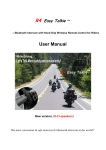
G7 Easy Talkie TM
-----with very powerful functions!
One of the most convenient & safe motorcycle bluetooth intercom in the world!!
User Manual
Special innovative features :
1) Voice dial mobile phone calls via bluetooth on helmet
2) Newest digital signal processing (DSP) wind noise cancellation technology, enables the G7
to work up to 150Km/hour
3) Top sound quality, with high sensitivity sub-bass speakers, perfect for high fidelity stereo
music
4) Intelligent switch between mobile phone calls, group intercom, music.
5) With walkie talkie interface, can connect with walkie talkie while in a larger group trips
Other features :
Maximum talking range is 1000 meters between two riders, real full duplex wireless
communication in 3 riders
Up to 9 hours talking time and up to 11 hours playing time
Safe automatic answer of mobile phone calls
Advanced A2DP & EDR bluetooth profile
Stereo music/audio function (transmits from A2DP enabled mobile phone / MP3 / GPS/Radar)
AUX audio interface for GPS, MP3, radar detector, two-way radio
Water-resistance, full weather protection
Glove-friendly design
Components of retail box
Main unit, bracket with a boom microphone two Hi-Fi speakers, sponge cover for speaker, AC
charger, charging cord, AUX cord, Velcro, screw, user’s manual
-------------------------------------------------------------------------1----------------------------------------------------------------------------
Bluetooth voice dial
What is ‘Bluetooth voice dial’?
With the Bluetooth voice dial function of the G7, you can place a phone call while riding,
without taking out your mobile phone. Whether your phone is an iPhone or Android device,
you only need to speak the name of the person you want to talk to (towards the microphone of
the G7), and it will dial for you.
Note: Although the voice dial function is very functional and brings great convenience to your
trip, always remember to use the G7 in a safe, prudent and legal manner. While riding, please
do not place calls when there are people or vehicles on road, or when you are traveling a
dangerous road, because the phone call may distract you in a way which may compromise
your safety or the safety of others. The manufacturer is not responsible for any injuries or
damage which results from using this product while riding.
How to use the bluetooth voice dial with iPhone?
Press the PHONE button of the G7 about 2-3 seconds, you will hear a sound ‘du’, then you will
hear the indicating voice from iPhone. Speak the name of the person you want to talk to
towards the microphone of the G7, and the G7 will dial the phone numbers for you.
Note: Voice dialing recognition rate depends on the software of the phone, if you want to use
other software, we recommend 'Cyberon speed dial' for iPhone, the recognition of the
‘ Cyberon speed dial’ is very high, it reach 99%you can buy this software on
http://www.apple.com/itunes/
-------------------------------------------------------------------------2 ----------------------------------------------------------------------------
How to use the ‘Bluetooth voice dial’ with a Android mobile phone?
A majority of Android phones have their own voice dial software. You just need to pair the G7
with your phone via Bluetooth, and press the PHONE button about 2-3 seconds on the G7,
when hear a beep, you will hear the indicating voice, speak the name of the person you want
to talk to (towards the microphone of the G7), and the G7 will dial the phone number for you .
Note that not all Android phones have voice dial software, or their voice dial software cannot
be used via Bluetooth. In this case, you can install 3rd party software such as Voice Speed
Dial by Cyberon Corp., in order to use this function.
According to the instruction of the 3rd party software, record the names of the persons you
often contact. There after, you can press the PHONE button about 2-3 seconds on the G7,
when hear a beep, you will hear the indicating voice, speak the name of the person you want
to talk to (towards the microphone of the G7), and the G7 will dial the phone number for you.
Tips: The recognition of the voice dial depends on the voice software installed in the smart
phone. The recognition and accuracy of the Voice Speed dial application by Cyberon is very
high, and it supports voice-dialing via Bluetooth. Please note that many voice dial software do
not support Bluetooth function or they only can work with an Internet connection, which may
generate additional charges from your mobile operator.
How to work at high speed?
The G7 includes the latest DSP technology, which helps the G7 to cancel wind and
background noise while riding. However, to work well at higher speeds, the microphone must
be positioned close to your lips, and your helmet visor should be closed (if equipped).
Note: when riding at high speed please pay attention to traffic safety, do not use Bluetooth
voice dialing, and do not take your hands off the handlebars and motorcycle controls.
-------------------------------------------------------------------------3---------------------------------------------------------------------------
How to maximize the intercom talking range?
The G7 has a pop-up antenna which must be turned towards sky to achieve the maximum
intercom range. Please note that the effective range of the Bluetooth intercom is greatly
influenced by terrain, obstacles, buildings, etc.
How to achieve the best Hi-Fi audio?
This interphone is equipped with stereo Bluetooth A2DP headset functions, and includes the
latest Bluetooth Hi-Fi digital processing technology, with high sensitivity bass response
speakers for the highest quality stereo sound. For the best Hi-Fi results, the helmet
speakers should be mounted as close as possible to your ears.
Operation
Install the G7 on a helmet
First, find the best location for comfortable operation, and then fasten the mounting bracket
to the left side of the helmet.
Second, install the Hi-Fi speakers as close as possible to the ear position in the helmet for the
best audio quality.
Then simply connect the microphone and speaker cables into the correct jacks on the G7.
-------------------------------------------------------------------------4----------------------------------------------------------------------------
Pairing with your Mobile Phone
You will need to pair your G7 with your mobile phone before using for the first time. This
usually only needs to be performed once, as the phone and G7 will automatically reestablish
their Bluetooth connection whenever the devices are within range of each another while
powered on, and Bluetooth is enabled on the mobile phone.
The first step for the initial pairing is to enable the Bluetooth function on your mobile phone.
Put the G7 into “pairing mode” by holding the Power/Phone key until the LED light flashes
intermittently red & blue. Begin the ‘searching for Bluetooth device’ on the mobile phone
according to the phone’s instructions.
When the G7 is discovered, the mobile phone will display “MOTOR COM”.
Select this device and accept the connection. If the mobile phone asks you to input a
password to enable this connection, input password 0000 (four zeros) when prompted. Your
phone will confirm that pairing has succeeded. Note that the LED light on the G7 will flash
blue once every 5 seconds when the mobile phone connection is active.
Basic Operation
Turn on
Press the Power/Phone key for 6 seconds or so, until the red LED illuminates. Promptly
release the Power/Phone key, then the blue LED will flash every 2-5 seconds. On the screen of
your mobile phone the G7 will ask your mobile phone to connect with it, select ‘yes’ on your
phone, then they will connect each other. (For some phones, you will need to connect the G7
by the phone)
Turn off
Press and hold the Power/Phone key for 6 seconds or so, until the red LED flashes, then
release the Power/Phone key and unit will shut off, with no LED lights illuminated.
-------------------------------------------------------------------------5----------------------------------------------------------------------------
Increase the volume Short press the V+ key
Reduce the volume Short press the V- key
Mobile phone functions
1) Receive a mobile phone call automatically
When you receive an incoming call, the G7 will produce a ring tone sound and about 3-5
seconds later, the G7 will receive the call automatically. There is no action required by the
user in order to answer the call, as this will occur automatically.
2) Terminate a mobile phone call
When you finish talking on the mobile phone, a short press the Power/Phone Key, will
terminate
the call.
3) Reject a mobile phone call
When you receive an incoming call, you the ring tone sound. Immediately press the
Phone/Play key within 1 second, and the call will be rejected a few seconds later.
Interphone Function
Set up for bike- to- bike and rider-to-pillion intercom: pairing
Pairing is a one time process that is required for mutual recognition between a G7 and other
G7. once the two headsets are paired, they will retain paired whenever they are within range.
Please note that you can speak via intercom to one buddy headset at a time.
1) Pairing unit A with unit B
To be sure that all the G7 (unit A, B, C) are in status of power off.
simultaneously hold the POWER key on unit A and hold the POWER key on unit B until the red
& blue LED of the two pairing G7 flash, short press the POWER key on one of G7, 5-9 seconds
later the red LED of both G7 will extinguish and the blue LED then will flash briefly every 2-5
seconds, thus they have finished the pairing (now you could talk each other).
2) Pairing unit A with unit C
To be sure that unit A,B,C are in status of power off.
Power on unit A, hold the A key on unit A and hold the POWER key on unit C until the red &
blue LED of the two pairing units flash, short press the A key on unit A or short press the
POWER key on unit C, 5-9 seconds later the red LED of both G7 will extinguish and the blue
LED then will flash briefly every 2-5 seconds, thus they have finished the pairing (now you
could talk each other).
-------------------------------------------------------------------------6-----------------------------------------------------------------------------
3) Pairing unit B with unit C
To be sure that unit A,B,C are in status of power off.
Power on unit B and unit C, hold the A key on unit B and hold the A key on unit C until the red
& blue LED of the two pairing units flash, short press the A key on unit A or short press A key
on unit C, 5-9 seconds later the red LED of both G7 will extinguish and the blue LED then will
flash briefly every 2-5 seconds, thus they have finished the pairing (now you could talk each
other).
4) Choose which rider you will talk with
After you have paired with all the G7, then you can talk with one of the riders at a time.
STEP: after finishing the pairing procedure, confirm that all of G7 have been powered on.
Initiate an intercom call ( a short press POWER key or A key on your G7 ), and then you can
talk with one of other riders.
For example: Short press(< 1 second) the POWER Key on unit A, promptly release your
hand, you will hear a beep “di”, then wait about 3-5 seconds you could talk with rider B. if
then you short press the A key, it will change the communication to talk with rider C.
5) Finish an interphone talking
You only need a short press of same one of the intercom (A or POWER) key, to terminate
communications
Note: to reduce power consumption, when you do not need to talk, don't keep your G7 on
intercom state in a long time
Note: If two G7 were out of range, they may will lose connection. when you come within range,
you only need to initiate a intercom as normal.
Music /Audio function
1) Listen to stereo music from your A2DP enabled cell phone
Playing music via G7 is very easy. Simply power on the G7 main unit, then short press the
power button to start or pause the music.
Please note that only A2DP(stereo bluetooth) enabled cell phone can offer bluetooth music
transmitting service.
Pause / play
Short press the Phone key
Increase the volume
Short press the V+ key
Reduce the volume
Short press the V- key
Previous Track
Hold the V+ key 2-3 seconds
Next Track
Hold the V - key 2-3 seconds
Note: Some mobile phones may require you to choose a ‘play via Bluetooth’ option before
playing music.
-------------------------------------------------------------------------7----------------------------------------------------------------------------
2) Listen to navigation voice prompts and audio from your GPS which has a
built-in Bluetooth transmitter
a) Pair this GPS with your G7
Before pairing, be sure that you have turned off the A2DP on your mobile phone. Follow the
instructions supplied by the GPS manufacturer; pair the GPS with your G7.
b) Enjoy navigation voice prompts and audio from the GPS on the G7,
using the GPS screen to control the music, voice prompts and to adjust the audio volume
level. Alternatively, you can control volume and pause/play of GPS audio on the G7 by a short
press of the Power/Phone key.
2) Listen to audio info /stereo music from your GPS/ MP3 by Wired method
With the included 2.5-3.5mm audio adapter cable and the AUX jack on the G7, you can
connect your G7 with a majority of GPS navigation devices and MP3 players. With the cable
connecting the G7 to the GPS/ MP3, you can listen to the audio info/ music via the speakers of
your G7.
NOTE: you only can adjust the music volume on your GPS/MP3 player.
3) New function AUX jack can link the G7 with two-way radios such as Motorola,
Kenwood, YAESU/Vertex, Icom and more.
This function is useful when a large group riders go out for trips, or when riding with riders
who do not have a G7 system.
NOTE: Yueny Moto stocks the most popular types of connectors for Motorola, Kenwood,
YAESU/Vertex, and ICOM (M1, K1, Y4, S1).
The adapter cable for G7 and Walkie Talkie is option to purchase!
What is Intelligent Switch?
G7 could be the most intelligent Bluetooth intercom and headset compared with similar
products. The G7 will intelligently prioritize different connections including mobile phone
calls, intercom sessions, A2DP music etc. This exclusive technology makes operation more
intelligent and convenient.
For example, when you are enjoying Hi-Fi music from your mobile phone via A2DP Bluetooth
to the G7, if your friend on another motorcycle initiates an intercom call to you, the G7 will
automatically pause the music and switch to intercom status. After the intercom session is
finished, the G7 will resume the music playback automatically. Similarly, if you receive a
mobile phone call while listening to music or talking on intercom, the G7 will prioritize and
answer the mobile call automatically. After you hang up the call, the G7 will return to music
or intercom automatically. These intelligent features make your riding safer and more
convenient than ever before!
-------------------------------------------------------------------------8----------------------------------------------------------------------------
Trouble shooting
1. Unit not working
The battery may need to be recharged. Connect the G7 to the included wall charger for at least
3 hours to fully recharge the battery
2. Reset
In some regions of high RF strength (i.e. near high power TV transmitters, GSM stations or
airport radars), the G7 CPU may be overwhelmed by the strong signal interference and can
lock up. Connect the G7 to the charger for 1 minute, then power the unit on and it will work
normally again.
3. No sound
Be sure the unit volume is not turned all the way down. Physically check to see that the
headset cables have a good connection and the audio plug is firmly inserted in the jack. If this
does not work, connect a working G7 unit to your helmet speakers help localize the problem.
4. Whistling of the speakers
If the microphone is too close to a speaker, the speaker will make a whistling sound.
Move the microphone away from the speaker, and reduce the volume by the V – key.
5. Lost connection with the mobile phone for calls and / or music
In areas of high RF interference, the G7 may lose connection with the mobile phone. A short
press on the Phone/Play key will reestablish the connection. (Also see # 7 below)
6. Unable to connect to your mobile phone
This G7 is compatible with a majority of Bluetooth-enabled mobile phones including iPhone
models and the majority of Android-powered devices, but we cannot guarantee that it is
compatible with all mobile phones. Before purchasing, please confirm that the G7 can
connect with your mobile phone.
7. Final solution
If the suggestions above do not resolve the issue, try turning your mobile phone off and then
on again (On some phone models, you may need to remove the battery to fully power down
the device). Power up the mobile phone and pair again with the G7 to test the functions.
Thank you for choosing Yueny-Moto G7 Easy Talkie BT intercom!
-------------------------------------------------------------------------9----------------------------------------------------------------------------