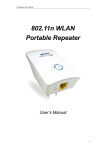
1
WELL WRC7100N User’s Manual
WELL WRC7100N
User’s Manual
1
WELL WRC7100N User’s Manual
Table of Contents
1
Introduction...........................................................5
Features ..................................................................................5
Device Requirements .............................................................5
Using this Document ..............................................................6
Getting Support.......................................................................6
2
Getting to know the device ..................................7
Computer / System requirements..........................................7
Package Contents ..................................................................7
LED meanings & activations..................................................8
3
Computer configurations under
different OS, to obtain IP address
automatically ......................................................11
For Windows 98SE / ME / 2000 / XP ................................. 11
For Windows Vista-32/64.................................................... 16
For Windows 7-32/64 .......................................................... 21
4
Connecting your device .....................................25
Connecting the Hardware ................................................... 25
802.11n WLAN Gigabit Router Configuration ................... 27
Wireless Connection............................................................ 34
5
What the Internet/WAN access of your
own Network now is ...........................................36
Internet/WAN access is the DHCP client........................... 38
Internet/WAN access is the Static IP.................................. 39
Internet/WAN access is the PPPoE client ......................... 41
6
Getting Started with the Web pages .................42
Accessing the Web pages .................................................. 42
Testing your Setup............................................................... 44
Default device settings ........................................................ 44
7
Wide Area Network (WAN) Settings .................46
Static IP (Fixed IP address assignment)............................ 47
DHCP.................................................................................... 48
PPPoE .................................................................................. 49
8
Local Area Network (LAN) Settings...................50
9
Routing Settings.................................................51
Add Routing Rule................................................................. 51
Example of Routing Rule .................................................... 52
10
DHCP Server Settings .......................................53
2
WELL WRC7100N User’s Manual
11
DDNS Settings ...................................................54
12
MAC Address Clone Settings............................55
13
VLAN Settings....................................................56
14
Wireless - Basic Setting.....................................58
WLAN 1 Settings ................................................................. 60
SSID Settings....................................................................... 61
WEP Settings....................................................................... 62
WPA Pre-shared Key / WPA2 Pre-shared Key
Settings................................................................................. 63
WPA / WPA2 Radius Settings ............................................ 64
15
Wireless - Advanced Setting .............................65
16
Wireless - WDS Setting .....................................67
17
Wireless - Universal Repeater Setting ..............68
18
Wireless - WPS Setting .....................................69
19
Security - Firewall Setting ..................................70
20
Security - ACCESS CONTROL LIST
(ACL) SETUP Setting ........................................72
Add Access Control List (ACL) Rule .................................. 73
Example: Filter and block MSN usage............................... 74
21
Security - MAC Access Control Setting.............75
Add MAC Access Control Rule........................................... 76
Example: Bind IP to a MAC ................................................ 77
22
Security - Web Filtering Setting .........................78
Add Web Filtering Rule ....................................................... 79
Example: Block a URL with Keyword................................. 80
23
Bandwidth - INTELLIGENT DYNAMIC
BANDWIDTH MANAGEMENT .........................81
DBM - WAN 1 Settings........................................................ 82
Modify Bandwidth Management Group Rule .................... 83
Add Static Bandwidth Management (SBM)
Rule....................................................................................... 84
24
Bandwidth - Throughput Optimizer ...................85
25
Bandwidth - TurboNAT ......................................86
26
Applications - Port Range Forward ...................87
DMZ - WAN 1 Settings........................................................ 89
Port Range Forwarding Settings ........................................ 89
Add Port Range Forwarding Rule ...................................... 90
27
Applications - Virtual Hosts................................91
Add Virtual Host Rule .......................................................... 92
3
WELL WRC7100N User’s Manual
28
Applications - Streaming / VPN .........................93
Streaming Settings .............................................................. 93
Streaming Settings .............................................................. 94
VPN Pass-through Settings ................................................ 94
29
Applications - UPnP / NAT-PMP .......................95
30
Admin - Management ........................................96
Administration Interface Settings ........................................ 97
Reboot Settings ................................................................... 97
Configuration Settings ......................................................... 98
Firmware Upgrade Settings ................................................ 98
APS Settings ....................................................................... 99
31
Admin - System Utilities ...................................100
Ping Settings ...................................................................... 101
ARPing (Within the same broadcasting
domain) Settings................................................................ 101
Trace Route Settings......................................................... 102
32
Admin - TIME SETUP......................................103
33
Status - Router .................................................104
Router Information Settings .............................................. 105
WAN 1 Settings.................................................................. 105
LAN 1 Settings ................................................................... 106
Wireless Network 1 Settings ............................................. 107
34
Status - User / DHCP.......................................108
35
Status – User / Current ....................................109
36
Status – Log .....................................................110
A
Configuring your Computers............................111
Configuring Ethernet PCs ................................................. 111
B
IP Addresses, Network Masks, and
Subnets ............................................................117
IP Addresses...................................................................... 117
Subnet masks .................................................................... 118
C
UPnP Control Point Software on
Windows ME/XP ..............................................120
UPnP Control Point Software on Windows ME............... 120
UPnP Control Point Software on Windows XP
with Firewall........................................................................ 121
D
Troubleshooting ...............................................124
Troubleshooting Suggestions ........................................... 124
Diagnosing Problem using IP Utilities .............................. 126
4
WELL WRC7100N User’s Manual
E
1
Glossary ...........................................................128
Introduction
Congratulations on becoming the owner of the 802.11n WLAN
Gigabit Router. You will now be able to access the Internet
using your high-speed xDSL/Cable modem connection.
This User Guide will show you how to connect your 802.11n
WLAN Gigabit Router, and how to customize its configuration to
get the most out of your new product.
Features
The list below contains the main features of the device and may
be useful to users with knowledge of networking protocols. If
you are not an experienced user, the chapters throughout this
guide will provide you with enough information to get the most
out of your device.
Features include:
•
10/100/1000 Mbps Ethernet router to provide Internet
connectivity to all computers on your LAN
•
Network address translation (NAT) functions to provide
security for your LAN
•
Network configuration through DHCP Server and DHCP
Client
•
Services including IP route and DNS configuration, RIP,
and IP
•
Supports remote software upgrades
•
Plug & Play, Auto Configuration / Auto Provisioning
•
User-friendly configuration program accessed via a web
browser
The 802.11n WLAN Gigabit Router has the internal Ethernet
switch allows for a direct connection to a 10/100/1000 Mbps
Ethernet network via an RJ-45 interface, with LAN connectivity
for both the 802.11n WLAN Gigabit Router and a co-located PC
or other Ethernet-based device.
Device Requirements
In order to use the 802.11n WLAN Gigabit Router, you must
have the following:
•
One RJ-45 Broadband Internet connection via cable
modem or xDSL modem
•
Instructions from your ISP on what type of Internet access
you will be using, and the addresses needed to set up access
•
One or more computers each containing an Ethernet card
(10/100/1000 Mbps network interface card (NIC))
•
TCP/IP protocol for each PC
•
For system configuration using the supplied
a. web-based program: a web browser such as Internet
5
WELL WRC7100N User’s Manual
Explorer v7 or later. Note that version 7 of each browser is
the minimum version requirement – for optimum display
quality, use Internet Explorer v8
You do not need to use a hub or switch in order to connect more
than one Ethernet PC to your device. Instead, you can connect
up to four Ethernet PCs directly to your device using the ports
labeled Ethernet on the rear panel.
Note
Using this Document
Notational conventions
•
Acronyms are defined the first time they appear in the text
and also in the glossary.
•
For brevity, the 802.11n WLAN Gigabit Router is referred to as
“the device”.
•
The term LAN refers to a group of Ethernet-connected
computers at one site.
Typographical conventions
•
Italic text is used for items you select from menus and dropdown lists and the names of displayed web pages.
•
Bold text is used for text strings that you type when prompted
by the program, and to emphasize important points.
Special messages
This document uses the following icons to draw your attention to
specific instructions or explanations.
Note
Definition
Provides clarifying or non-essential information on the current
topic.
Explains terms or acronyms that may be unfamiliar to many
readers. These terms are also included in the Glossary.
Provides messages of high importance, including messages
relating to personal safety or system integrity.
WARNING
Getting Support
Supplied by:
Helpdesk Number:
Website:
6
WELL WRC7100N User’s Manual
2
Getting to know the device
Computer / System requirements
•
1. Pentium 200MHZ processor or above
•
2. Windows 98SE, Windows Me, Windows 2000, Windows
XP, Windows Vista and Windows 7
•
3. 64MB of RAM or above
•
4. 25MB free disk space
Package Contents
1. 802.11n WLAN Gigabit Router
2. CD-ROM (Software & Manual)
3. Quick Installation Guide
4. Ethernet Cable (RJ-45)
5. Power Adapter
6. Detachable Antenna (Optional)
7
WELL WRC7100N User’s Manual
LED meanings & activations
Front Panel
The front panel contains lights called Light Emitting Diodes
(LEDs) that indicate the status of the unit.
Figure 1:
Front Panel and LEDs
Label
Color
Function
POWER
green
On: device is powered on
Off: device is powered off
WLAN
green
On: WLAN link established and active
Blink: Valid Wireless packet being transferred
WPS
green
Off: WPS link isn’t established and active
Blink: Valid WPS packet being transferred
green
On: 10/100MB Ethernet connection
established and active
Off: No Ethernet connection
Blink: Valid Ethernet packet being transferred
Amber
On: 1000MB Ethernet connection established
and active
Off: No Ethernet connection
Blink: Valid Ethernet packet being transferred
WAN
&
LAN
1/2/3/4
Rear and Right Panel and bottom Side
The rear and right panel and bottom side contains a Restore
Defaults button, the ports for the unit’s data and power
connections.
8
WELL WRC7100N User’s Manual
Figure 2: Rear Panel Connections
* Actual ANTENNA may vary depending on model.
Figure 3:
Right Panel Connections
9
WELL WRC7100N User’s Manual
Figure 4:
Bottom Side for Reset button
Label
Function
ANTENNA
(Optional)
Option 1: 2 fixed ANTENNA
Option 2: 2 detachable ANTENNA
ON/OFF
SWITCH
Power on/off the device
POWER
Connects to the supplied power adaptor
LAN 4/3/2/1
Connects the device via LAN Ethernet to up to 4 PCs
WAN
Connects the device via WAN Ethernet to xDSL / Cable Modem
WLAN
Press this button for at least 2 full second to turn off/on wireless signals
WPS
Press this button for at least 3 full seconds and the WPS LED will flash to
start WPS.
Now go to the wireless adapter or device and press its WPS button. Make
sure to press the button within 120 seconds (2 minutes) after pressing the
router’s WPS button.
If you are using a Wireless adapter connected to a computer, a “WPS
Authentication” screen will appear. Wait until the screen says “Authentication
succeeded.” This may take a few minutes.
RESET
Reset button. RESET the 802.11n WLAN router to its default settings.
Press this button for at least 6 full seconds to RESET device to its default settings.
10
WELL WRC7100N User’s Manual
3
Computer configurations under different OS,
to obtain IP address automatically
Before starting the 802.11n WLAN Gigabit Router configuration,
please kindly configure the PC computer as below, to have
automatic IP address / DNS Server.
For Windows 98SE / ME / 2000 / XP
1. Click on "Start" -> "Control Panel" (in Classic View). In
the Control Panel, double click on "Network Connections"
to continue.
11
WELL WRC7100N User’s Manual
12
WELL WRC7100N User’s Manual
2. Single RIGHT click on "Local Area connection", then click
"Properties".
13
WELL WRC7100N User’s Manual
3. Double click on "Internet Protocol (TCP/IP)".
14
WELL WRC7100N User’s Manual
4. Check "Obtain an IP address automatically" and "Obtain
DNS server address automatically" then click on "OK" to
continue.
5. Click "Show icon in notification area when connected"
(see screen image in 3. above) then Click on "OK" to
complete the setup procedures.
15
WELL WRC7100N User’s Manual
For Windows Vista-32/64
1. Click on “Start” -> “Control Panel” -> “View network
status and tasks”.
16
WELL WRC7100N User’s Manual
2. In the Manage network connections, click on “Manage
network connections” to continue.
17
WELL WRC7100N User’s Manual
3. Single RIGHT click on "Local Area connection", then click
"Properties".
18
WELL WRC7100N User’s Manual
4. The screen will display the information "User Account
Control" and click "Continue" to continue.
5. Double click on "Internet Protocol Version 4 (TCP/IPv4)".
19
WELL WRC7100N User’s Manual
6. Check "Obtain an IP address automatically" and "Obtain
DNS server address automatically" then click on "OK" to
continue.
20
WELL WRC7100N User’s Manual
For Windows 7-32/64
1. Click on “Start” -> “Control Panel” (in Category View) ->
“View network status and tasks”.
2. In the Control Panel Home, click on “Change adapter
settings” to continue.
21
WELL WRC7100N User’s Manual
3. Single RIGHT click on “Local Area Connection”, then click
“Properties”.
22
WELL WRC7100N User’s Manual
4. Double click on "Internet Protocol Version 4 (TCP/IPv4)".
23
WELL WRC7100N User’s Manual
5. Check "Obtain an IP address automatically" and "Obtain
DNS server address automatically" then click on "OK" to
continue.
24
WELL WRC7100N User’s Manual
4
Connecting your device
This chapter provides basic instructions for connecting the
802.11n WLAN Gigabit Router to a computer or LAN and to the
Internet.
In addition to configuring the device, you need to configure the
Internet properties of your computer(s). For more details, see
the following sections:
•
Configuring Ethernet PCs
This chapter assumes that you have already established a
DSL/Cable service with your Internet service provider (ISP).
These instructions provide a basic configuration that should be
compatible with your home or small office network setup. Refer
to the subsequent chapters for additional configuration
instructions.
Connecting the Hardware
This section describes how to connect the device to the wall
phone port, the power outlet and your computer(s) or network.
WARNING
Before you begin, turn the power off for all devices. These
include your computer(s), your LAN hub/switch (if applicable),
and the device.
The diagram below illustrates the hardware connections. The
layout of the ports on your device may vary from the layout
shown. Refer to the steps that follow for specific instructions.
25
WELL WRC7100N User’s Manual
Figure 5:
Overview of Hardware Connections
Step 1. Connect the Ethernet cable to WAN Port
Connect the RJ45 Ethernet cable from your xDSL/Cable
Modem's Ethernet port to 802.11n WLAN Gigabit Router's WAN
Port.
Step 2. Connect the Ethernet cable to LAN Port
Connect the supplied RJ45 Ethernet cable from your PC's
Ethernet port to any of the 4 802.11n WLAN Gigabit Router's
LAN Ports.
Step 3. Attach the power connector
Connect the power adapter to the power inlet “POWER” of the
802.11n WLAN Gigabit Router and turn the power switch
“ON/OFF SWITCH” of your 802.11n WLAN Gigabit Router on.
* Actual ANTENNA may vary depending on model
26
WELL WRC7100N User’s Manual
802.11n WLAN Gigabit Router Configuration
1. Please insert the supplied CD into your CD-ROM drive.
2. The CD should auto-start, displaying the window shown in
3. below. If your CD does not start automatically, go to
Windows Explorer, Select your CD drive and double click
autorun.exe.
3. To configure the device, please click on Advanced
Configuration button.
4. Please enter the Login User Name: admin and Login
Password: admin and then click on Login button.
27
WELL WRC7100N User’s Manual
5. Select the Connection Type DHCP, Static IP or PPPoE
and enter related parameters that your ISP (Internet
Services Provider) or Network Administrator provided and
then click on Save Settings button.
Examples
5-1. PPPoE
Select PPPoE from Connection Type drop-down list
Enter User Name and Password offered by the ISP
Click on Save Settings button
28
WELL WRC7100N User’s Manual
5-2. DHCP
Select DHCP from Connection Type drop-down list
Click on Save Settings button
5-3. Static IP
Select Static IP from Connection Type drop-down list
Config External IP Address, Netmask, Gateway and Static
DNS offered by ISP (Internet Services Provider) or Network
Administrator
Click on Save Settings button
29
WELL WRC7100N User’s Manual
6. Click on Confirm button.
7. From the Wireless menu, click on Basic.
30
WELL WRC7100N User’s Manual
8. Please enter the SSID and if you want to change (the
default settings Wireless Connection= Enable, SSID =
11n_AP_Router).
9. Choose the Security Mode if necessary, as Disable / WEP /
WPA PSK (Pre-Shared Key) / WPA Radius / WPA2 PSK
(Pre-Shared Key) and WPA2 Radius (the default settings
Security Mode = WPA2 PSK (Pre-Shared Key), PreShared Key = 12345678). For example, you choose the
WPA2 PSK Security Mode and configure the Key
(Passphrase).
10. Please click Save Settings button to continue.
31
WELL WRC7100N User’s Manual
32
WELL WRC7100N User’s Manual
11. Please wait... (55 seconds).
12. WLAN Router has been configured completely, and
suitable for Wireless and Internet Connections.
33
WELL WRC7100N User’s Manual
Wireless Connection
For easy installation it is saved to keep the settings. You can
later change the wireless settings via the wireless configuration
menu. (see user manual on the CD – Chapter 14).
1. Double click on the wireless icon on your computer and
search for the wireless network that you enter SSID name.
2. Click on the wireless network that you enter SSID name to
connect. (the default settings Wireless Connection=
Enable, SSID = 11n_AP_Router)
34
WELL WRC7100N User’s Manual
3. If the wireless network isn’t encrypted, click on "Connect
Anyway" to connect.
4. If the wireless network is encrypted, enter the network key
that belongs to your authentication type and key (the
default settings Security Mode = WPA2 PSK (PreShared Key), Pre-Shared Key = 12345678). You can later
change this network key via the wireless configuration
menu. (see user manual on the CD – Chapter 14).
5. Click on "Connect" or "Apply".
6. Now you are ready to use the Wireless Network to Internet
or intranet.
35
WELL WRC7100N User’s Manual
5
What the Internet/WAN access of your own
Network now is
Now you could check what the Internet/WAN access of your
network is to know how to configure the WAN port of 802.11n
WLAN Gigabit Router.
Please follow steps below to check what the Internet/WAN
access if your own Network is DHCP Client, Static IP or PPPoE
Client.
1. Click Start -> Control Panel
36
WELL WRC7100N User’s Manual
2. Double click Network Connections
37
WELL WRC7100N User’s Manual
Internet/WAN access is the DHCP client
If you cannot see any Broadband Adapter in the Network
Connections, your Internet/WAN access is DHCP Client or
Static IP.
1. Click Local Area Connection in LAN or High-Speed
Internet and you could see string Assigned by DHCP in
Details.
38
WELL WRC7100N User’s Manual
Internet/WAN access is the Static IP
If you cannot see any Broadband Adapter in the Network
Connections, your Internet/WAN access is DHCP Client or
Static IP.
2. Click Local Area Connection in LAN or High-Speed
Internet and you could see string Manually Configured in
Details.
39
WELL WRC7100N User’s Manual
3. Right click Local Area Connection and click Properties
and then you could get the IP settings in detail and write
down the IP settings as follow:
IP Address: 192.168.10.110
Subnet mask: 255.255.255.0
Default gateway: 192.168.10.100
Preferred DNS server: 192.168.10.100
Alternate DNS Server: If you have it, please also write it
down.
40
WELL WRC7100N User’s Manual
Internet/WAN access is the PPPoE client
If you can see any Broadband Adapter in the Network
Connections, your Internet/WAN access is PPPoE Client.
1. Click Broadband Adapter in Broadband and you could
see string Assigned by Service Provider in Details.
For PPPoE configuration on 802.11n WLAN Gigabit Router,
you’ll need following information that you could get from your
Telecom, or by your Internet Service Provider.
Username of PPPoE: 1234 for example
Password of PPPoE: 1234 for example
41
WELL WRC7100N User’s Manual
6
Getting Started with the Web pages
The 802.11n WLAN Gigabit Router includes a series of Web
pages that provide an interface to the software installed on the
device. It enables you to configure the device settings to meet
the needs of your network. You can access it through your web
browser from any PC connected to the device via the LAN
ports.
Accessing the Web pages
To access the Web pages, you need the following:
•
A PC or laptop connected to the LAN port on the device.
•
A web browser installed on the PC. The minimum browser
version requirement is Internet Explorer v4 or Netscape v4.
For the best display quality, use latest version of Internet
Explorer, Netscape or Mozilla Firefox.From any of the LAN
computers, launch your web browser, type the following
URL in the web address (or location) box, and press [Enter]
on your keyboard:
http:// 192.168.1.254
The first time that you click on an entry from the lefthand menu, a login box is displayed. You must enter
your username and password to access the pages.
A login screen is displayed:
Figure 6:
Login screen
1. Enter your user name and password. The first time you log
into the program, use these defaults:
Note
User Name:
admin
Password:
admin
You can change the password at any time or you can configure your
device so that you do not need to enter a password. See Password.
42
WELL WRC7100N User’s Manual
2. Click on Login.
This is the first page displayed each time you log in to the Web
pages.
Note
If you receive an error message or the Welcome page is not
displayed, see Troubleshooting Suggestions.
3. Click on Confirm. You are now ready to configure your
device.
The Setup - WAN homepage for the web pages is
displayed:
Figure 7:
Homepage
43
WELL WRC7100N User’s Manual
Testing your Setup
Once you have connected your hardware and configured your
PCs, any computer on your LAN should be able to use the DSL
/Cable connection to access the Internet.
To test the connection, turn on the device, wait for 30 seconds
and then verify that the LEDs are illuminated as follows:
Table 1. LED Indicators
Label
Color
Function
POWER
green
On: device is powered on
Off: device is powered off
WLAN
green
On: WLAN link established and active
Blink: Valid Wireless packet being transferred
WPS
green
Off: WPS link isn’t established and active
Blink: Valid WPS packet being transferred
WAN
green
On: WAN link established and active
Off: No LAN link
Blink: Valid Ethernet packet being transferred
LAN
1/2/3/4
green
On: LAN link established and active
Off: No LAN link
Blink: Valid Ethernet packet being transferred
If the LEDs illuminate as expected, test your Internet connection
from a LAN computer. To do this, open your web browser, and
type the URL of any external website (such as
http://www.yahoo.com). The LED labeled WAN should blink
rapidly and then appear solid as the device connects to the site.
If the LEDs do not illuminate as expected, you may need to
configure your Internet access settings using the information
provided by your ISP. For details, see Internet Access. If the
LEDs still do not illuminate as expected or the web page is not
displayed, see Troubleshooting Suggestions or contact your
ISP for assistance.
Default device settings
In addition to handling the xDSL / Cable modem connection to
your ISP, the 802.11n WLAN Gigabit Router can provide a
variety of services to your network. The device is preconfigured
with default settings for use with a typical home or small office
network.
The table below lists some of the most important default
settings; these and other features are described fully in the
subsequent chapters. If you are familiar with network
configuration, review these settings to verify that they meet the
needs of your network. Follow the instructions to change them if
necessary. If you are unfamiliar with these settings, try using the
device without modification, or contact your ISP for assistance.
44
WELL WRC7100N User’s Manual
We strongly recommend that you contact your ISP prior to
changing the default configuration.
WARNING
Option
Default Setting
Explanation/Instructions
WAN Port IP
Address
DHCP Client
This is the temporary public IP address of the WAN
port on the device. It is an unnumbered interface that
is replaced as soon as your ISP assigns a ‘real’ IP
address. See Network Settings -> WAN Interface.
LAN Port
IP Address
Assigned static IP address:
192.168.1.1
This is the IP address of the LAN port on the device.
The LAN port connects the device to your Ethernet
network. Typically, you will not need to change this
address. See Network Settings -> LAN Interface.
Subnet mask:
255.255.255.0
DHCP (Dynamic
Host Configuration
Protocol)
DHCP server enabled with the
following pool of addresses:
192.168.1.100
through
192.168.1.200
The 802.11n WLAN Gigabit Router maintains a pool
of private IP addresses for dynamic assignment to
your LAN computers. To use this service, you must
have set up your computers to accept IP information
dynamically, as described in Configuring Ethernet
PCs.
45
WELL WRC7100N User’s Manual
7
Wide Area Network (WAN) Settings
The device supports 3 connection types: DHCP, Static IP and
PPPoE. Please ensure which connection type should be used,
and select your internet connection type from the drop-down list.
From the Configuration menu, click on WAN. The following
page is displayed:
46
WELL WRC7100N User’s Manual
Static IP (Fixed IP address assignment)
If you need to assign static IP addresses to the devices in your
network, please remember that the IP address for each
computer or device must be in the same IP address range as all
the devices in the network. Each device must also have the
same subnet mask. For example: Assign the first computer an
IP address of 192.168.0.2 and a subnet mask of 255.255.255.0,
the second device an IP address of 192.168.0.3 and a subnet
mask of 255.255.255.0, and so on.
Field
Description
WAN
Select Enable / Disable to enable/disable WAN.
Connection Type
Static IP
External IP Address
The external IP addresses offered by the ISP.
Netmask
The netmask offered by the ISP.
Gateway
The gateway offered by the ISP.
Static DNS 1
The static DNS 1 offered by the ISP.
Static DNS 2
The static DNS 2 offered by the ISP.
MTU
Maximum Transmission Unit
47
WELL WRC7100N User’s Manual
DHCP
It will auto get the IP address from the DHCP Server. Assign the
length of time for the IP lease, default setting is 86400 seconds.
The Hostname is the name of the device.
Field
Description
WAN
Select Enable / Disable to enable/disable WAN.
Connection Type
DHCP
Host Name
Some ISP and DHCP servers ask for the Host Name of the DHCP
client before assigning an IP address. In this case, please key in
your Host Name.
MTU
Maximum Transmission Unit
Bigpond Login
If you are using “Bigpond” system, please enable this item
Bigpond Login
Server
Please choose the Bigpond server.
Bigpond Login User
Name
Please enter your User Name provided by Bigpond
Bigpond Login
Password
Please enter your Password provided by Bigpond
48
WELL WRC7100N User’s Manual
PPPoE
Please enter the information accordingly provided by ISP.
Field
Description
WAN
Select Enable / Disable to enable/disable WAN.
Connection Type
PPPoE
User Name
The user name offered by the ISP.
Password
The password offered by the ISP.
On Demand: Max
Idle Time
PPPoE On Demand will only be activated when there is traffic.
When there is no traffic within max. idle time (default: 300 seconds),
PPPoE will be disconnected.
Keep Alive
PPPoE Keep Alive will maintain the PPPoE dial up connection.
PPPoE Echo
Interval
PPPoE echo will ensure whether the link is still up or not (default
interval 20 seconds)
PPPoE Retry
Threshold
When PPPoE echo retry exceeds PPPoE Retry Threshold (default
20 times), the dial up connection would be recognized as down.
PPPoE MTU
PPPoE maximum transmission unit: up to 1492 bytes (PPPoE’s
header is 8 bytes)(This value should be less than MTU value at least
8 bytes ).
MTU
Physical Device Maximum Transmission Unit
49
WELL WRC7100N User’s Manual
8
Local Area Network (LAN) Settings
To set up the configuration of LAN interface, private IP of your
router LAN port and subnet mask for your LAN segment.
Default IP is 192.168.1.254.
From the Configuration menu, click on LAN. The following page
is displayed:
Field
Description
Internal IP
Address
The IP of your Router LAN port (default 192.168.1.1).
Netmask
Select Netmask from the drop-down list. Subnet Mask of you LAN
(default 255.255.255.0). All devices on the network must have the same
subnet mask to communicate on the network.
Spanning Tree
Protocol (STP)
Click Enable to avoid cyclic topology caused by incorrect connection of
your internal network. (A cyclic topology will cause network
breakdown.)
MTU
Maximum transmission unit: up to 1500 bytes.
IGMP Proxy
Enable/Disable. IGMP proxy enables the system to issue IGMP host
messages on behalf of hosts that the system discovered through
standard IGMP interfaces. The system acts as a proxy for its hosts.
50
WELL WRC7100N User’s Manual
9
Routing Settings
User can set a route rule (table) in here.
From the Configuration menu, click on Routing. The following
page is displayed:
Field
Routing
Description
Choose Enable/Disable to enable/disable routing policy.
Add Routing Rule
Click on Add. The following page is displayed:
51
WELL WRC7100N User’s Manual
Field
Description
Sequence Number
This defines the sequence of the Routing rules. If a packet fits the
conditions set by the Routing rules, the packet will then be sorted
according to the first Routing rule from the top of the list.
Rule Name
Name of the Routing rule.
Rule Enable
Enable/Disable this Routing rule
External Interface
Please select which External Interface (WAN1 or WAN2) you want
for a packet to go through, IF the packet fits the condition of this
ACL rule.
Internal IP Range
Set up the internal IP range for this ACL rule.
External IP Range
Set up the external IP range for this ACL rule.
Protocol
Set up the protocol (TCP or UDP) for the ACL to be enabled.
Service Port Range
Set up the Service Port Range (e.g., HTTP is TCP/80) for the ACL to
be enabled.
External Interface
Please select which External Interface (WAN1 or WAN2) you want
for a packet to be routed, IF the packet fits the condition of this
Routing rule.
Example of Routing Rule
Rule Name
SMTP outgoing routing
Enable
Enable
Internal IP Range
Blank (applied to all)
External IP Range
Blank (applied to all)
Protocol
TCP
Service Port Range
25:25 (SMTP Port:25)
External Interface
WAN1
52
WELL WRC7100N User’s Manual
10
DHCP Server Settings
The device provides DHCP server service in order to offer IP
addresses to the computers within a LAN.
From the Configuration menu, click on DHCP Server. The
following page is displayed:
Field
Description
DHCP Server
Select Enable/Disable to enable/disable DHCP Server.
DHCP Starting
IP Address
The DHCP starting IP addresses offered by the DHCP Server.
Max DHCP
Clients
The maximum number of the IP addresses supported by the DHCP
server
Lease
Please choose lease time from the drop-down list. You can choose 1
Hour, 3 Hours, 6 Hours, 1 Day, 3 Days, or 7 Days.
Domain
Please enter the domain name.
53
WELL WRC7100N User’s Manual
11
DDNS Settings
DDNS (Dynamic Domain Name Service) allows an “internet
domain name” to be assigned to a computer/router which has a
dynamic IP address. This makes it possible for other internet
devices to connect to the computer/router without needing to
trace the changing IP addresses themselves. To enable DDNS,
you will first need to sign up for DDNS services from
DynDNS.org, TZO.com or ZoneEdit.com.
DDNS is useful when combined with the virtual server feature. It
allows other internet users to connect to your virtual server by
using a domain name, rather than an IP address. The DDNS
service helps users to locate the right IP address by the domain
name.
For example, you wish to set up a personal web server.
However, you obtain a different IP address from your ISP every
time you connect to the internet. The dynamic IP address you
have will cause difficulty for other internet users to find your web
server. In this case, you will need to enable DDNS, so other
users can connect to you through a fixed domain name to
disregard the potential varying IP addresses behind the server.
From the Configuration menu, click on DDNS. The following
page is displayed:
Field
DDNS Service
Description
Select Enable to enable DDNS service.
Select Disable to disable DDNS service.
DDNS Type
Select the desired DDNS service provider from the list.
User Name
Enter your username provided by DDNS Service
Password
Enter your password provided by DDNS Service
Host Name
Apply for a domain name, and make sure it is allocated to you
54
WELL WRC7100N User’s Manual
12
MAC Address Clone Settings
Some ISPs only allow a registered MAC address to access to
the internet. To bypass the rule, you need to set up a cloned
MAC address for the device using the pre-registered MAC
address.
From the Configuration menu, click on MAC Address Clone.
The following page is displayed:
Field
Clone WAN
MAC
Description
If your ISP only grants access to a fixed MAC address, please select
Enable.
If your ISP does not enforce access control, please select Disable.
MAC Address
If the PC you use to configure AXIMCom Mobile Router is the device
which has the right MAC address to access the internet, press Get
Current PC MAC Address button. Or you can type in the MAC Address
which has been granted access by your ISP.
55
WELL WRC7100N User’s Manual
13
VLAN Settings
Port-based VLAN is the simplest approach to VLAN
implementation. The idea is to assign the ports on a switch to
different VLANs, confining the propagation of the packets
received on a port within the particular VLAN. Thus, separation
of broadcast domains and division of virtual groups are
achieved.
From the Setup menu, click on VLAN. The following page is
displayed:
56
WELL WRC7100N User’s Manual
Field
Description
Add
Add a new VLAN rule
Remove
Remove a new VLAN rule
Name
Enter the name of VLAN rule
PVID
Enter the Port VLAN ID
Port tag
Enable or disable Port VLAN tag
57
WELL WRC7100N User’s Manual
14
Wireless - Basic Setting
Multiple SSIDs allow the ability for separate security mode and
key settings to be set by users for both convenience and
increased protection. Users are able to configure their network
devices to access the first SSID with the WPA2 PSK (PreShared Key) and secret key, whilst share the second SSID with
WEP and the periodically changed key for visitors. In addition,
users are able to isolate these SSIDs to avoid malicious attacks
and prevent certain access for visitors using the second SSID.
This then provides users an extremely convenient approach to
share the wireless access, provide access internet access for
visitors, while possessing a strong security protection system at
all times.
From the Wireless menu, click on Basic. The following page is
displayed:
58
WELL WRC7100N User’s Manual
59
WELL WRC7100N User’s Manual
WLAN 1 Settings
Field
Description
Wireless
Connection
Select Enable if you would like to turn on the wireless signal.
Wireless Mode
Select the wireless mode for 802.11b/g/n or mixed use.
Transmission
Power
Select the transmission power class from 10%, 25%, 50%, 75%, and
100%.
Wireless Channel
Select which channel to be located to.
Wireless Isolation
Between SSIDs
Select Enable if you would like to omit the access from one SSID to
another.
Select Disable if you would like to turn off the wireless signal.
Select Disable if you would like to allow the access from one SSID
to another.
Max Station
Connection(Number
1~255, 0:unlimited)
Max Station Connection Number of client
60
WELL WRC7100N User’s Manual
SSID Settings
Users are able to configure each SSID with its own attributes.
Further, various security modes are available based on the
user’s needs and preference: Disable, WEP, WPA Pre-Shared
Key, WPA, WPA2 Pre-Shared Key, and WPA2. However, it is
important to note that all devices under the wireless network
must use the same security mode.
You can configure the security settings of your wireless network
to suit your desired preference. Different methods will grant
different levels of security. Using encryption - data packet is
encrypted before transmission - can prevent data packets from
being intruded on by un-trusted parties. However, please note
that the higher the security level is, the lower the data
throughput becomes.
Field
Wireless SSID
Description
Select Enable if you would like to turn on this SSID.
Select Disable if you would like to turn off this SSID.
Wireless SSID
Name
Enter the wireless station name you would like to have.
Wireless SSID
Broadcasting
The device broadcasts SSID periodically. Select Enable to turn it on or
Disable to turn it off. Enabling SSID Broadcasting brings convenience
for users to find and connect the device. Disabling SSID broadcasting
enhances the security by hiding SSID information.
Wi-Fi
Multimedia
(WMM)
Select Enable to prioritize different traffic types based on their
characteristics. For example, VoIP or video traffic will have higher
priorities over ordinary traffic.
Wireless
Isolation
Select Enable if you would like to omit the access to other network
devices connecting to this SSID. Select Disable if you would like to
allow the access to other network devices connecting to this SSID.
Security Mode
Configure the security to Disable, WEP, WPA Pre-Shared Key, WPA,
WPA2 Pre-Shared Key, and WPA2
61
WELL WRC7100N User’s Manual
WEP Settings
Field
Description
WEP Key Index
WEP Key Index indicates which WEP key is used for data encryption.
WEP Key (1~4)
64-bit WEP: type 10 hexadecimal digits or 5 ASCII characters.
128-bit WEP: type 26 hexadecimal digits or 13 ASCII characters.
62
WELL WRC7100N User’s Manual
WPA Pre-shared Key / WPA2 Pre-shared Key
Settings
Field
Description
Pre-shared Key
Pre-shared Key serves as the credential for the packet encryption.
Encryption
Mode
TKIP/AES are supported.
63
WELL WRC7100N User’s Manual
WPA / WPA2 Radius Settings
Field
Description
Radius Server
IP Address
Enter the RADIUS server’s IP address.
Radius Server
Port
Enter the RADIUS server’s port number. The default port is 1812.
Radius Key
Enter the RADIUS server’s IP Address.
Encryption
Mode
Select TKIP or AES for the packet encryption.
64
WELL WRC7100N User’s Manual
15
Wireless - Advanced Setting
From the Wireless menu, click on Advanced. The following
page is displayed:
65
WELL WRC7100N User’s Manual
Field
Description
Region
Choose the region you are currently located.
Fragmentation
Enter the fragmentation bytes. The default value is 2346 bytes.
RTS
Enter the RTS seconds. The default value is 2347 seconds.
DTim
Enter the DTim seconds. The default value is 1.
Beacon Interval
Enter the interval to send a beacon. The default value is 100
milliseconds.
Header
Preamble
Choose Long or Short header preamble.
TxMode
Choose different transmission mode.
MPDU
MPDU data length. The transmission rate is increase when you choose
a larger number, but usually the max value will be 4 in the wireless card
MSDU
Aggregate
A kind of packet aggregation method, it can improve the transmission
efficiency. Please make sure you Wireless card has this function
supported.
Tx Burst
Some 802.11g wireless card can supported this mode, and the
transmission rate can be increased when enable this function.
Packet
Aggregate
An aggregation method like A-MSDU, it can improve the transmission
efficiency. Please make sure you Wireless card has this function
supported.
HT Control Field
Choose Enable/Disable. It is useful when you need to debug the
wireless network
Reverse
Direction Grant
Choose Enable/Disable. The response time can be shorter when enable
this function.
Link Adapt
Choose Enable/Disable. The function is use to dynamically change the
modulation and encode mechanism between wireless devices.
Short Guard
Interval (SGI)
Choose Enable/Disable. Short GI can improve some transmission rate,
but with less immunity when interference exist.
Operation Mode
Choose Mixed mode or Greenfield. You may choose Greenfield mode to
increase the transmission rate when you using 802.11n wireless
network only.
HT Band Width
Using HT20MHz or HT20/40MHz
Block Ack
Setup
Automatically
Choose Enable/Disable. If your Wifi Card supported Block Ack
mechanism, it can improve the data transmission efficiency when
enable this function.
Block Ack
Window Size
Specify a Block Ack window size
Reject Block
Ack
Choose Enable to reject the request of BA from other Wireless device
MCS
Select transmission (connection) speed.
66
WELL WRC7100N User’s Manual
16
Wireless - WDS Setting
From the Wireless menu, click on WDS. The following page is
displayed:
Field
Description
WDS
Select Enable to enable WDS function. Select Disable to disable WDS
function.
MAC Address
[1~4]
Enter the MAC addresses of the other bridged wireless devices.
Maximum of 4 devices are allowed to be bridged together.
*Please make sure of the following settings in order to allow WDS to work effectively:
(1) WDS bridged devices must use the same radio channel.
(2) WDS bridged devices must use the same encryption mode and encryption keys.
Please Note: If one of the above fails, WDS devices cannot communication with each
other.
67
WELL WRC7100N User’s Manual
17
Wireless - Universal Repeater Setting
The Universal Repeater function is similar with WDS in that it is
used to essentially enlarge the area of wireless network
coverage. However, unlike WDS, Universal Repeater offers
simplicity in configuration requirements, as users only need to
configure the current AP as a client, and to connect it to the
second AP’s SSID (or BSSID). However, you need to ensure
that the two APs are using the same wireless channel and
security mode (and key) for Universal Repeater to work
effectively.
From the Wireless menu, click on Universal Repeater. The
following page is displayed:
Field
Description
Universal
Repeater
Select Enable to enable Universal Repeater function. Select Disable to
disable Universal Repeater function.
Target SSID
Enter the target SSID to connect to.
Target BSSID
(MAC)
Enter the target BSSID to connect to. The BSSID is optional if you setup
the target SSID.
Security Mode
Choose the security mode the target AP uses, and enter the key if
needed.
68
WELL WRC7100N User’s Manual
18
Wireless - WPS Setting
This page allows you to change the setting for WPS (Wi-Fi
Protected Setup). Using this feature could let your wireless
client automatically syncronize its setting and connect to the
Access Point in a minute without any hassle.
From the Wireless menu, click on WPS. The following page is
displayed:
Field
Description
WPS Enable
Select Enable to enable WPS function. Select Disable to disable WPS
function.
WPS Router PIN
Code
“WPS Router PIN Code” is AP’s PIN. Whenever users want to change
AP’s PIN, they could click “Regenerate PIN” and then click “ Apply
Changes”. Moreover, if users want to make their own PIN, they could
enter four digit PIN without checksum and then click “ Apply Changes”.
However, this would not be recommended since the registrar side
needs to be supported with four digit PIN.
WPS Push
Button
Clicking this button will invoke the PBC method of WPS. It is only used
when AP acts as a registrar.
WPS Client Pin
Code Connect:
It is only used when users want their station to join AP’s network. The
length of PIN is limited to four or eight numeric digits. If users enter
eight digit PIN with checksum error, there will be a warning message
popping up. If users insist on this PIN, AP will take it.
69
WELL WRC7100N User’s Manual
19
Security - Firewall Setting
This page allows you to change the setting for WPS (Wi-Fi
Protected Setup). Using this feature could let your wireless
client automatically syncronize its setting and connect to the
Access Point in a minute without any hassle.
From the Security menu, click on Firewall. The following page is
displayed:
Field
Description
SPI Firewall
Protection
Select Enable to enable SPI Firewall Protection. Select Disable to
disable SPI Firewall Protection.
TCP SYN DoS
Protection
Check to enable TCP SYN DoS Protection.
Uncheck to disable TCP SYN DoS Protection.
TCP SYN DoS attack sends a flood of TCP/SYN packets. Each of these
packets are like a connection request, causing the server to consume
computing resources (e.g. memory, CPU) to reply and to continuously
wait for the incoming packets. Without TCP SYN Dos Protection, the
resources in the server will be easily consumed completely. This will
then consequently result in the dysfunction of the server.
The device is able to detect TCP SYN DoS attacks and limits the
resource consumption by lowering the incoming request rate by fast
recycling the resource. Therefore, The device is still able to serve
normal traffic while it is under such an attack.
ICMP
Broadcasting
Protection
Check to enable ICMP Broadcasting Protection.
Uncheck to disable ICMP Broadcasting Protection.
ICMP broadcasting attack is a type of DoS attacks. A flood of ICMP
broadcasting packets is generated and sent to a server (like AXIMCom
Mobile Router). Consequently, this server will suffer from a huge
amount of interruptions and consumption of computing resources.
70
WELL WRC7100N User’s Manual
The device is able to stop responding to ICMP broadcasting echo
packets in order to avoid a potential ICMP broadcasting DoS attack.
ICMP Redirect
Protection
Check to enable ICMP Redirect Protection.
Uncheck to disable ICMP Redirect Protection.
An ICMP redirect message is a way to change the existing routing path.
Generally, ICMP redirect packets should not be sent, and so when there
is the occurrence that ICMP redirect packets are sent, it is important to
note that it is very likely to be used as a means for a network attack.
71
WELL WRC7100N User’s Manual
20
Security - ACCESS CONTROL LIST (ACL)
SETUP Setting
This page allows you to change the setting for WPS (Wi-Fi
Protected Setup). Using this feature could let your wireless
client automatically syncronize its setting and connect to the
Access Point in a minute without any hassle.
From the Security menu, click on ACCESS CONTROL. The
following page is displayed:
Field
Description
ACL
Select Enable to enable ACL. Select Disable to disable ACL.
Default ACL
Action
Check Enable to enable a specific MAC Filter rule.
Uncheck Enable to disable a specific MAC Filter rule. Type the MAC
address to permit a device to access to the network.
* Enabling MAC filtering blocks all MAC addresses which are not listed
in the MAC Filter Rule. Be aware that adding the MAC address of your
managing computer is required in order to access to the device.
72
WELL WRC7100N User’s Manual
Add Access Control List (ACL) Rule
Click on Add. The following page is displayed:
Field
Description
Sequence
Number
This defines the sequence of the ACL rules. If a packet fits the
conditions set by the ACL rules, the packet will then be sorted
according to the first ACL rule from the top of the list.
Rule Name
Name of the ACL rule.
Rule Enable
Enable/Disable this ACL rule
External
Interface
Please select which External Interface (WAN1 or WAN2) you want a
packet to go through, IF the packet fits the condition of this ACL rule.
Internal IP
Range
Set up the internal IP range for this ACL rule.
External IP
Range
Set up the external IP range for this ACL rule.
Protocol
Set up the protocol (TCP or UDP) for the ACL to be enabled.
Service Port
Range
Set up the Service Port Range (e.g., HTTP is TCP/80) for the ACL to be
enabled.
Action
Select ALLOW / DENY
73
WELL WRC7100N User’s Manual
Example: Filter and block MSN usage
For example, a company does not wish to allow employees to
use MSN. The system administrator can set up an ACL action:
rejecting the traffic going out to External IP Range at
207.46.110.*/24.
Field
Description
Rule Name
MSN Blocking
Rule Enable
Enable
External
Interface
* (All complies)
Internal IP
Range
Keep it blank (All complies)
External IP
Range
207.46.110.1:207.46.110.1.254 (IP address range for MSN server)
Protocol
TCP
Service Port
Range
Keep it blank (All complies)
Action
DENY
74
WELL WRC7100N User’s Manual
21
Security - MAC Access Control Setting
From the Security menu, click on MAC Access Control. The
following page is displayed:
Field
Description
MAC Access
Control
Choose Enable/Disable to enable/disable MAC access Control
Default MAC
Access Control
Action
The default ACL action of the ACL rules. When you add the individual
rules, it can be viewed as exceptions and take effects relating to the
default action.
If the action of the adding rule is the same as the default action, then
this rule will not work.
75
WELL WRC7100N User’s Manual
Add MAC Access Control Rule
Click on Add. The following page is displayed:
Field
Description
Sequence
Number
This defines the sequence (priority) of all the MAC ACL actions.
Rule Name
Name of the MAC access rule.
MAC
Set up the MAC Address to which you would like to enable the MAC
ACL action.
Action
Choose ALLOW/DENY to ALLOW/DENY
ACL Enable
Enable/Disable this MAC access rule
Static ARP
Enable
Enable/Disable this Static ARP rule
Static DHCP
Enable
Enable/Disable this Static DHCP rule
IP
The IP address corresponds to static ARP or static DHCP.
76
WELL WRC7100N User’s Manual
Example: Bind IP to a MAC
If users need to bind a IP to a specified MAC (network device),
one can follow the settings as below.
Field
Description
Sequence
Number
User1
Rule Name
Enable
MAC
00:33:44:55:66:77
Action
Allow Access
ACL Enable
Enable
Static ARP
Enable
Enable
Static DHCP
Enable
Enable
IP
192.168.1.100
77
WELL WRC7100N User’s Manual
22
Security - Web Filtering Setting
From the Security menu, click on Web Filtering. The following
page is displayed:
Field
Description
Web Filtering
Choose Enable/Disable to enable/disable Web Filtering
Activex Filtering
Choose Enable/Disable to enable/disable Activex Filtering
Java/JavaScript
Filtering
Choose Enable/Disable to enable/disable Java/JavaScript Filtering
Proxy Filtering
Choose Enable/Disable to enable/disable Proxy Filtering
78
WELL WRC7100N User’s Manual
Add Web Filtering Rule
Click on Add. The following page is displayed:
Field
Description
Sequence
Number
This defines the sequence (priority) of all the Web Filtering rules.
Rule Enable
Choose Enable/Disable to enable/disable Web Filtering rule
Filter Keyword
Enter the Keyword
Filter Type
Choose URL or Sever
Action
Select ALLOW / DENY
79
WELL WRC7100N User’s Manual
Example: Block a URL with Keyword
If one need to block Facebook related web page, can follow the
settings as below.
80
WELL WRC7100N User’s Manual
23
Bandwidth - INTELLIGENT DYNAMIC
BANDWIDTH MANAGEMENT
Intelligent Bandwidth Management (iDBM) provides two
powerful and unique mechanisms to manage bandwidth: Static
Bandwidth Management (SBM) and Dynamic Bandwidth
Management (DBM). SBM provides users with the option to
allocate a fixed amount of bandwidth for a specific computer or
a particular application, while DBM intellectually manages the
rest of the bandwidth while all the time satisfying the
complicated bandwidth requirements/settings of SBM.
The essential configuration needed by iDBM is to specify
accurately the bandwidth you have. iDBM would then dispatch
bandwidth according to this information. Please Note: Improper
bandwidth assignment may cause iDBM to work ineffectively.
From the Bandwidth menu, click on iDBM. The following page is
displayed:
81
WELL WRC7100N User’s Manual
DBM - WAN 1 Settings
Please adjust your bandwidth type according to your bandwidth
(download/upload) subscribed from your ISP. Due to the
unstable nature of network bandwidth supported by ISP, users
are recommended to reserve a portion of bandwidth for
buffering usage, and iDBM would then arrange the reserved
bandwidth under heavy traffic.
Field
Description
Bandwidth Type
(Download/Upload)
Select the correct bandwidth type according to your Internet service
subscription. If the bandwidth type is not available on the list, select
Custom.
Upload Bandwidth
Enter the value to customize upload bandwidth.
Reserved
Buffering
Bandwidth
Enter the value to provide bandwidth buffer.
82
WELL WRC7100N User’s Manual
Modify Bandwidth Management Group Rule
Click on one of Bandwidth Management Group and then click
on Modify. The following page is displayed:
Field
Description
Sequence
Number
Enter the Sequence Number
Group Name
Enter the Group Name
Upload
(Minimum)
rate(%)
Enter the Minimum rate of bandwidth
Upload
(Maximum)
ceil(%)
Enter the Maximum rate of bandwidth
83
WELL WRC7100N User’s Manual
Add Static Bandwidth Management (SBM) Rule
Click on Add. The following page is displayed:
Field
Description
Sequence
Number
This defines the sequence of the SBM rules. If a packet fits the
conditions set by the SBM rules, the packet will then be sorted
according to the first SBM rule from the top of the list.
Rule Name
Name of the SBM rule.
Rule Enable
Enable/Disable this SBM rule
Internal IP
Set up the internal IP for this SBM rule.
Protocol
Set up the protocol (TCP or UDP) for the ACL to be enabled.
Service Port
Range
Set up the Service Port Range (e.g., HTTP is TCP/80) for the SBM to be
enabled.
Bandwidth
Allocation
By Ratio, Group or By Bandwidth
Ratio
The ratio of the whole bandwidth according to the External Interface.
Utilize
Bandwidth More
than
Guaranteed
Check this box if you wish to allow the traffic confirming this SBM rule
to be able to utilize the whole bandwidth when the bandwidth is idle.
DSCP
Select the DSCP from the drop-down list
Remark DSCP
Select the remark DSCP from the drop-down list
84
WELL WRC7100N User’s Manual
24
Bandwidth - Throughput Optimizer
The device built in iDBM transmits the important packets in high
priority to optimize the network utilization. You can specify the
types of packets for high priority.
From the Bandwidth menu, click on Throughput Optimizer. The
following page is displayed:
Field
Description
TCP ACK
Select Enable/Disable to enable/disable TCP ACK priority
ICMP
Select Enable/Disable to enable/disable ICMP priority
DNS
Select Enable/Disable to enable/disable DNS priority
SSH
Select Enable/Disable to enable/disable SSH priority
Telnet (BBS)
Select Enable/Disable to enable/disable Telnet (BBS) priority
TCP Max Segment
Size
Select Enable/Disable to enable/disable TCP Max Segment Size
85
WELL WRC7100N User’s Manual
25
Bandwidth - TurboNAT
NAT is often the performance bottleneck in an IP sharing
device. Generic routers are generally insufficient when dealing
with a high-speed broadband network. Therefore, TurboNAT is
designed to solve this problem. By accelerating the NAT
performance, TurboNAT allows the device to fulfill the higher
speed network and to reserve the system performance for other
features such as ACL and VPN servers.
From the Bandwidth menu, click on TurboNAT. The following
page is displayed:
Field
Description
Hardware NAT
Select Enable/Disable to enable/disable Hardware NAT.
TurboNAT
Select Enable/Disable to enable/disable TurboNAT.
86
WELL WRC7100N User’s Manual
26
Applications - Port Range Forward
By activating the port range forwarding function, remote users
can access the local network via the public IP address. Users
can assign a specific external port range to a local server.
Furthermore, users can specify an internal port range
associated in a port range forwarding rule. When the device
receives an external request to access any one of the
configured external ports, it will redirect the request to the
corresponding internal server and change its destination port to
one of the internal ports specified. Therefore, if users do not
wish for destination port to be changed for a request, the
internal port range should be left empty.
Certain applications in a LAN are available only after activating
the port range forwarding, including servers and online gaming.
When an Internet request wants to access a port, the device will
dispatch it to the IP specified. Due to security reasons, users
are suggested to limit the use of port range forwarding, and
cancel it when the application is not used.
By enabling DMZ Host Function, you can set up a DMZ host at
a particular computer exposed to the Internet. In this way, some
applications, especially online games (if the traffic port numbers
of the applications are always changing), can be easily
accessed.
From the Applications menu, click on Port Range Forward. The
following page is displayed:
87
WELL WRC7100N User’s Manual
88
WELL WRC7100N User’s Manual
DMZ - WAN 1 Settings
Field
DMZ
Description
Select Enable to enable DMZ function.
Select Disable to disable DMZ function.
DMZ mode
Select DMZ or Super DMZ mode
DMZ IP Address
Enter the IP address of a particular host in your LAN which will
receive all the packets originally going to the WAN port / Public IP
address above.
DMZ MAC Address
Enter the MAC address of a particular host in your LAN which will get
the same Public IP address of WAN port and receive all the packets
going to this Public IP address.
Port Range Forwarding Settings
Field
Port Forwarding
Description
Select Enable / Disable to enable/disable Port Forwarding
89
WELL WRC7100N User’s Manual
Add Port Range Forwarding Rule
Click on Add. The following page is displayed:
Field
Description
Sequence Number
This defines the sequences (priorities) of the port forwarding rules. If
a packet fits the conditions setup by the port forwarding rules, the
packet will then be forwarded according to the 1st rule from the top
of the list.
Rule Name
Enter the name of the port forwarding rule.
Rule Enable
Check/Uncheck to enable/disable this port forwarding rule.
External Interface
Choose WAN1 as the External port forwarding interface.
Protocol
Choose TCP, UDP or TCP/UDP for the rule to be applied.
External Port
Range
Set up the External Port Range for the rule to be applied.
Internal IP
Set up the Internal IP for the rule to be applied.
Internal Port
Range
Set up the Internal Port Range for the rule to be applied.
90
WELL WRC7100N User’s Manual
27
Applications - Virtual Hosts
From the Applications menu, click on Virtual Hosts. The
following page is displayed:
Field
Virtual Hosts
Description
Select Enable/Disable to enable/disable Virtual Hosts.
91
WELL WRC7100N User’s Manual
Add Virtual Host Rule
Click on Add. The following page is displayed:
Field
Description
Sequence Number
This defines the sequences (priorities) of the Virtual Host rules.
Rule Name
Enter the name of the Virtual Host rule.
Rule Enable
Check/Uncheck to enable/disable this Virtual Host rule.
External Interface
Choose WAN1 as the External Virtual Host interface.
External IP
Address
Set up the External IP Address for the rule to be applied.
Mapped LAN IP
Address
Set up the mapped Mapped LAN IP Address for the rule to be
applied.
92
WELL WRC7100N User’s Manual
28
Applications - Streaming / VPN
You can enhance your media streaming quality by enabling
RTSP, MSS, and H.323 protocols. Moreover, VPN Passthrough functionality can also be enabled.
From the Applications menu, click on Streaming / VPN. The
following page is displayed:
Streaming Settings
Field
Description
RTSP
Select Enable/Disable to enable/disable RTSP
MMS
Select Enable/Disable to enable/disable MMS
93
WELL WRC7100N User’s Manual
Streaming Settings
Field
H.323
Description
Select Enable/Disable to enable/disable H.323
VPN Pass-through Settings
Field
Description
IPSec Passthrough
Select Enable/Disable to enable/disable IPSec Pass-through
PPTP Passthrough
Select Enable/Disable to enable/disable PPTP Pass-through
94
WELL WRC7100N User’s Manual
29
Applications - UPnP / NAT-PMP
From the Applications menu, click on UPnP / NAT-PMP. The
following page is displayed:
Field
Description
UPnP
Select Enable/Disable to enable/disable UPnP
NAT-PMP
Select Enable/Disable to enable/disable NAT-PMP
UPnP Port
Enter the number for UPnP port.
95
WELL WRC7100N User’s Manual
30
Admin - Management
From the Admin menu, click on Management. The following
page is displayed:
96
WELL WRC7100N User’s Manual
Administration Interface Settings
Field
Description
Language
Select the language of administration Interface you wish to use.
Administrator
Password
Maximum input is 36 alphanumeric characters (case sensitive)
* Please change the administrator’s password if the remote
management is enabled. Otherwise, a malicious user can access the
management interface. This user can then have the ability to change
the settings and damage your network access.
Re-type Password
Enter the password again to confirm.
Remote
Management
Select Enable to enable Remote Management.
Select Disable to disable Remote Management
If the remote management is enabled, users who are not in the LAN
can connect to the device and configure it from the Internet.
Management Port
HTTP port which users can connect to. (default port is 80)
SNMP
Select Enable to enable SNMP.
Select Disable to disable SNMP.
Reboot Settings
Field
Reboot
Description
Click this button to reboot the device.
97
WELL WRC7100N User’s Manual
Configuration Settings
Field
Description
Configuration
Export
Click this button to save your current configuration settings in a file.
Default
Configuration
Restore
Click this button to recover the default system settings.
Configuration
Import
Click Browse and Import to load previous configuration settings.
Firmware Upgrade Settings
Field
Firmware Upgrade
Description
Click Browse and Upgrade button to upgrade the firmware.
98
WELL WRC7100N User’s Manual
APS Settings
Field
Description
Configuration Host
Enter the IP Address of the TFTP Server
Configuration
Config Name
Enter the configuration config file name and then click Import button
to update configuration config from TFTP Server
Upgrade Host
Enter the IP Address of the TFTP Server
Upgrade Firmware
Name
Enter the firmware file name and then click Upgrade button to update
firmware from TFTP Server
99
WELL WRC7100N User’s Manual
31
Admin - System Utilities
From the Admin menu, click on System Utilities. The following
page is displayed:
100
WELL WRC7100N User’s Manual
Ping Settings
Field
Description
Interface
Select the interface that use to ping to, ie. LAN, WAN.
Target Host
Enter the IP address to ping to
Number of Packets
Specify the number of the ICMP packets to send out
Ping
Press the tab to start the “ping” actions
ARPing (Within the same broadcasting domain)
Settings
Field
Description
Interface
Select the interface that use to ARPing to, ie. LAN, WAN.
Target Host
Enter the MAC address to ARPing to
Number of Packets
Specify the number of the ARP request packets to send out
ARPing
Press the tab to start the “ARPing” actions
101
WELL WRC7100N User’s Manual
Trace Route Settings
Field
Description
Interface
Select the interface that use to Trace Route to, ie. LAN, WAN.
Target Host
Enter the destination IP address / domain name to trace
Hop Count
Specify the Hop number you need to trace
Trace route
Press the tab to start the “Trace Route” actions
102
WELL WRC7100N User’s Manual
32
Admin - TIME SETUP
From the Admin menu, click on TIME. The following page is
displayed:
Field
Description
Time
Synchronization
Select Enable/Disable to enable/disable Time Synchronization
Time Server Type
Select Time Server Pool /Manual
Time Server Area
Select Time Server according to your location. You can choose from
Automatic, Asia, Europe, North America, South America, or Africa.
Time Server IP
Address
Enter the IP Address of the Time Server
Time Zone
Select Time Zone according to your location. (Daylight Saving Time
has been calculated and included in the selection).
Periodic
Synchronization
Select Enable/Disable to enable/disable Periodic Synchronization
Synchronization
interval
Select from Every Hour, Every 6 Hours, Every 12 Hours, Every Day,
and Every Week.
Action
Click Update button to Sync the time immediately
103
WELL WRC7100N User’s Manual
33
Status - Router
From the Status menu, click on Router. The following page is
displayed:
104
WELL WRC7100N User’s Manual
Router Information Settings
Field
Description
Model Name
Product model name is shown.
Firmware Version
The firmware version this device is running.
License
“Authorized” should be shown. If “Unauthorized” is shown, please
contact the seller for a replacement.
Current Time
Current system time
Running Time
The period of time that the device has been running.
WAN 1 Settings
Field
Description
MAC Address
MAC Address
Connection Type
The current connection type (PPPoE, Static IP, and DHCP)
IP Address
WAN IP Address
Subnet Mask
Number of subnet mask.
Gateway
IP address of the gateway
105
WELL WRC7100N User’s Manual
LAN 1 Settings
Field
Description
MAC Address
MAC Address
IP Address
Internal IP Address
Subnet Mask
The number of subnet mask in the internal network
DHCP Service
DHCP service enabled or disabled
DHCP Start IP
Address
DHCP Start IP address
DHCP End IP
Address
DHCP End IP address
Max DHCP Clients
The maximum IP addressed which can be assigned to PCs
connecting to the network
106
WELL WRC7100N User’s Manual
Wireless Network 1 Settings
Field
Description
Wireless Channel
Wireless Channel in use (default is 6)
Wireless SSID 1
SSID 1 of this Wi-Fi station
MAC Address
MAC Address
Wireless SSID 2
SSID 2 of this Wi-Fi station
MAC Address
MAC Address
Wireless SSID 3
SSID 3 of this Wi-Fi station
MAC Address
MAC Address
Wireless SSID 4
SSID 4 of this Wi-Fi station
MAC Address
MAC Address
107
WELL WRC7100N User’s Manual
34
Status - User / DHCP
From the Status menu, click on User / DHCP. The following
page is displayed:
Field
Description
Name
DHCP client name
IP Address
IP address which is assigned to this client
MAC Address
MAC address of this client
Expiration Time
The remaining time of the IP assignment
108
WELL WRC7100N User’s Manual
35
Status – User / Current
From the Status menu, click on User / Current. The following
page is displayed:
Field
Description
IP Address
IP address which is assigned to this client
MAC Address
MAC address of this client
Expiration Time
The remaining time of the IP assignment
109
WELL WRC7100N User’s Manual
36
Status – Log
From the Status menu, click on Log. The following page is
displayed:
110
WELL WRC7100N User’s Manual
A
Configuring your Computers
This appendix provides instructions for configuring the Internet
settings on your computers to work with the 802.11n WLAN
Gigabit Router.
Configuring Ethernet PCs
Before you begin
By default, the 802.11n WLAN Gigabit Router automatically
assigns the required Internet settings to your PCs. You need to
configure the PCs to accept this information when it is assigned.
Note
In some cases, you may want to assign Internet information
manually to some or all of your computers rather than allow the
802.11n WLAN Gigabit Router to do so. See Assigning static
Internet information to your PCs for instructions.
•
If you have connected your LAN PCs via Ethernet to the
802.11n WLAN Gigabit Router, follow the instructions that
correspond to the operating system installed on your PC:
•
Windows® XP PCs
•
Windows 2000 PCs
•
Windows Me PCs
•
Windows 95, 98 PCs
•
Windows NT 4.0 workstations
Windows® XP PCs
1. In the Windows task bar, click the Start button, and then
click Control Panel.
2. Double-click the Network Connections icon.
3. In the LAN or High-Speed Internet window, right-click on
the icon corresponding to your network interface card (NIC)
and select Properties. (Often, this icon is labeled Local Area
Connection).
The Local Area Connection dialog box is displayed with a
list of currently installed network items.
4. Ensure that the check box to the left of the item labeled
Internet Protocol TCP/IP is checked and click Properties.
5. In the Internet Protocol (TCP/IP) Properties dialog box, click
the radio button labeled Obtain an IP address automatically.
Also click the radio button labeled Obtain DNS server
address automatically.
6. Click OK twice to confirm your changes, and then close the
Control Panel.
Windows 2000 PCs
First, check for the IP protocol and, if necessary, install it:
1. In the Windows task bar, click the Start button, point to
Settings, and then click Control Panel.
2. Double-click the Network and Dial-up Connections icon.
111
WELL WRC7100N User’s Manual
3. In the Network and Dial-up Connections window, right-click
the Local Area Connection icon, and then select Properties.
The Local Area Connection Properties dialog box is
displayed with a list of currently installed network
components. If the list includes Internet Protocol (TCP/IP),
then the protocol has already been enabled. Skip to step
10.
4. If Internet Protocol (TCP/IP) does not display as an installed
component, click Install…
5. In the Select Network Component Type dialog box, select
Protocol, and then click Add…
6. Select Internet Protocol (TCP/IP) in the Network Protocols
list, and then click OK.
You may be prompted to install files from your Windows
2000 installation CD or other media. Follow the instructions
to install the files.
7. If prompted, click OK to restart your computer with the new
settings.
Next, configure the PCs to accept IP information assigned by
the 802.11n WLAN Gigabit Router:
8. In the Control Panel, double-click the Network and Dial-up
Connections icon.
9. In the Network and Dial-up Connections window, right-click
the Local Area Connection icon, and then select Properties.
10. In the Local Area Connection Properties dialog box, select
Internet Protocol (TCP/IP), and then click Properties.
11. In the Internet Protocol (TCP/IP) Properties dialog box, click
the radio button labeled Obtain an IP address automatically.
Also click the radio button labeled Obtain DNS server
address automatically.
12. Click OK twice to confirm and save your changes, and then
close the Control Panel.
112
WELL WRC7100N User’s Manual
Windows Me PCs
1. In the Windows task bar, click the Start button, point to
Settings, and then click Control Panel.
2. Double-click the Network and Dial-up Connections icon.
3. In the Network and Dial-up Connections window, right-click
the Network icon, and then select Properties.
The Network Properties dialog box displays with a list of
currently installed network components. If the list includes
Internet Protocol (TCP/IP), then the protocol has already
been enabled. Skip to step 11.
4. If Internet Protocol (TCP/IP) does not display as an installed
component, click Add…
5. In the Select Network Component Type dialog box, select
Protocol, and then click Add…
6. Select Microsoft in the Manufacturers box.
7. Select Internet Protocol (TCP/IP) in the Network Protocols
list, and then click OK.
You may be prompted to install files from your Windows Me
installation CD or other media. Follow the instructions to
install the files.
8. If prompted, click OK to restart your computer with the new
settings.
Next, configure the PCs to accept IP information assigned by
the 802.11n WLAN Gigabit Router:
9. In the Control Panel, double-click the Network and Dial-up
Connections icon.
10. In Network and Dial-up Connections window, right-click the
Network icon, and then select Properties.
11. In the Network Properties dialog box, select TCP/IP, and
then click Properties.
12. In the TCP/IP Settings dialog box, click the radio button
labeled Server assigned IP address. Also click the radio
button labeled Server assigned name server address.
13. Click OK twice to confirm and save your changes, and then
close the Control Panel.
Windows 95, 98 PCs
First, check for the IP protocol and, if necessary, install it:
1. In the Windows task bar, click the Start button, point to
Settings, and then click Control Panel.
2. Double-click the Network icon.
The Network dialog box displays with a list of currently
installed network components. If the list includes TCP/IP,
and then the protocol has already been enabled. Skip to
step 9.
3. If TCP/IP does not display as an installed component, click
Add…
The Select Network Component Type dialog box displays.
4. Select Protocol, and then click Add…
The Select Network Protocol dialog box displays.
113
WELL WRC7100N User’s Manual
5. Click on Microsoft in the Manufacturers list box, and then
click TCP/IP in the Network Protocols list box.
6. Click OK to return to the Network dialog box, and then click
OK again.
You may be prompted to install files from your Windows
95/98 installation CD. Follow the instructions to install the
files.
7. Click OK to restart the PC and complete the TCP/IP
installation.
Next, configure the PCs to accept IP information assigned by
the 802.11n WLAN Gigabit Router:
8. Open the Control Panel window, and then click the Network
icon.
9. Select the network component labeled TCP/IP, and then
click Properties.
If you have multiple TCP/IP listings, select the listing
associated with your network card or adapter.
10. In the TCP/IP Properties dialog box, click the IP Address
tab.
11. Click the radio button labeled Obtain an IP address
automatically.
12. Click the DNS Configuration tab, and then click the radio
button labeled Obtain an IP address automatically.
13. Click OK twice to confirm and save your changes.
You will be prompted to restart Windows.
14. Click Yes.
Windows NT 4.0 workstations
First, check for the IP protocol and, if necessary, install it:
1. In the Windows NT task bar, click the Start button, point to
Settings, and then click Control Panel.
2. In the Control Panel window, double click the Network icon.
3. In the Network dialog box, click the Protocols tab.
The Protocols tab displays a list of currently installed
network protocols. If the list includes TCP/IP, then the
protocol has already been enabled. Skip to step 9.
4. If TCP/IP does not display as an installed component, click
Add…
5. In the Select Network Protocol dialog box, select TCP/IP,
and then click OK.
You may be prompted to install files from your Windows NT
installation CD or other media. Follow the instructions to
install the files.
After all files are installed, a window displays to inform you
that a TCP/IP service called DHCP can be set up to
dynamically assign IP information.
6. Click Yes to continue, and then click OK if prompted to
restart your computer.
Next, configure the PCs to accept IP information assigned by
the 802.11n WLAN Gigabit Router:
114
WELL WRC7100N User’s Manual
7. Open the Control Panel window, and then double-click the
Network icon.
8. In the Network dialog box, click the Protocols tab.
9. In the Protocols tab, select TCP/IP, and then click
Properties.
10. In the Microsoft TCP/IP Properties dialog box, click the
radio button labeled Obtain an IP address from a DHCP
server.
11. Click OK twice to confirm and save your changes, and then
close the Control Panel.
Assigning static Internet information to your PCs
If you are a typical user, you will not need to assign static
Internet information to your LAN PCs because your ISP
automatically assigns this information for you.
In some cases however, you may want to assign Internet
information to some or all of your PCs directly (often called
“statically”), rather than allowing the 802.11n WLAN Gigabit
Router to assign it. This option may be desirable (but not
required) if:
•
You have obtained one or more public IP addresses that
you want to always associate with specific computers (for
example, if you are using a computer as a public web
server).
•
You maintain different subnets on your LAN (subnets are
described in Appendix B).
Before you begin, you must have the following information
available:
•
The IP address and subnet mask of each PC
•
The IP address of the default gateway for your LAN. In
most cases, this is the address assigned to the LAN port on
the 802.11n WLAN Gigabit Router. By default, the LAN port
is assigned the IP address 192.168.1.1. (You can change
this number or another number can be assigned by your
ISP. See Addressing for more information.)
•
The IP address of your ISP’s Domain Name System (DNS)
server.
On each PC to which you want to assign static information,
follow the instructions relating only to checking for and/or
installing the IP protocol. Once it is installed, continue to follow
the instructions for displaying each of the Internet Protocol
(TCP/IP) properties. Instead of enabling dynamic assignment of
the IP addresses for the computer, DNS server and default
gateway, click the radio buttons that enable you to enter the
information manually.
Note
Your PCs must have IP addresses that place them in the same
subnet as the 802.11n WLAN Gigabit Router’s LAN port. If you
manually assign IP information to all your LAN PCs, you can follow
the instructions in Addressing to change the LAN port IP address
accordingly.
115
WELL WRC7100N User’s Manual
B
IP Addresses, Network Masks, and
Subnets
IP Addresses
This section refers only to IP addresses for IPv4 (version 4 of the
Internet Protocol). IPv6 addresses are not covered.
Note
This section assumes basic knowledge of binary numbers, bits,
and bytes.
IP addresses, the Internet's version of telephone numbers, are
used to identify individual nodes (computers or devices) on the
Internet. Every IP address contains four numbers, each from 0
to 255 and separated by dots (periods), e.g. 20.56.0.211. These
numbers are called, from left to right, field1, field2, field3, and
field4.
This style of writing IP addresses as decimal numbers
separated by dots is called dotted decimal notation. The IP
address 20.56.0.211 is read "twenty dot fifty-six dot zero dot
two-eleven."
Structure of an IP address
IP addresses have a hierarchical design similar to that of
telephone numbers. For example, a 7-digit telephone number
starts with a 3-digit prefix that identifies a group of thousands of
telephone lines, and ends with four digits that identify one
specific line in that group.
Similarly, IP addresses contain two kinds of information:
•
Network ID
Identifies a particular network within the Internet or intranet
•
Host ID
Identifies a particular computer or device on the network
The first part of every IP address contains the network ID, and
the rest of the address contains the host ID. The length of the
network ID depends on the network's class (see following
section). The table below shows the structure of an IP address.
Field1
Class A
Class B
Field2
Network ID
Field4
Host ID
Network ID
Class C
Field3
Host ID
Network ID
Host ID
Here are some examples of valid IP addresses:
Class A: 10.30.6.125 (network = 10, host = 30.6.125)
Class B: 129.88.16.49 (network = 129.88, host = 16.49)
Class C: 192.60.201.11 (network = 192.60.201, host = 11)
Network classes
The three commonly used network classes are A, B, and C.
(There is also a class D but it has a special use beyond the
117
WELL WRC7100N User’s Manual
scope of this discussion.) These classes have different uses
and characteristics.
Class A networks are the Internet's largest networks, each with
room for over 16 million hosts. Up to 126 of these huge
networks can exist, for a total of over 2 billion hosts. Because of
their huge size, these networks are used for WANs and by
organizations at the infrastructure level of the Internet, such as
your ISP.
Class B networks are smaller but still quite large, each able to
hold over 65,000 hosts. There can be up to 16,384 class B
networks in existence. A class B network might be appropriate
for a large organization such as a business or government
agency.
Class C networks are the smallest, only able to hold 254 hosts
at most, but the total possible number of class C networks
exceeds 2 million (2,097,152 to be exact). LANs connected to
the Internet are usually class C networks.
Some important notes regarding IP addresses:
•
The class can be determined easily from field1:
field1 = 1-126:
Class A
field1 = 128-191:
Class B
field1 = 192-223:
Class C
(field1 values not shown are reserved for special uses)
•
A host ID can have any value except all fields set to 0 or all
fields set to 255, as those values are reserved for special
uses.
Subnet masks
Definition
mask
A mask looks like a regular IP address, but contains a pattern of
bits that tells what parts of an IP address are the network ID and
what parts are the host ID: bits set to 1 mean "this bit is part of the
network ID" and bits set to 0 mean "this bit is part of the host ID."
Subnet masks are used to define subnets (what you get after
dividing a network into smaller pieces). A subnet's network ID is
created by "borrowing" one or more bits from the host ID portion
of the address. The subnet mask identifies these host ID bits.
For example, consider a class C network 192.168.1. To split this
into two subnets, you would use the subnet mask:
255.255.255.128
It's easier to see what's happening if we write this in binary:
11111111. 11111111. 11111111.10000000
As with any class C address, all of the bits in field1 through
field3 are part of the network ID, but note how the mask
specifies that the first bit in field4 is also included. Since this
extra bit has only two values (0 and 1), this means there are two
subnets. Each subnet uses the remaining 7 bits in field4 for its
host IDs, which range from 1 to 126 hosts (instead of the usual
0 to 255 for a class C address).
Similarly, to split a class C network into four subnets, the mask
is:
118
WELL WRC7100N User’s Manual
255.255.255.192 or
11111111.11000000
11111111. 11111111.
The two extra bits in field4 can have four values (00, 01, 10, 11),
so there are four subnets. Each subnet uses the remaining six
bits in field4 for its host IDs, ranging from 1 to 62.
Sometimes a subnet mask does not specify any additional
network ID bits, and thus no subnets. Such a mask is called a
default subnet mask. These masks are:
Note
Class A:
Class B:
Class C:
255.0.0.0
255.255.0.0
255.255.255.0
These are called default because they are used when a network is
initially configured, at which time it has no subnets.
119
WELL WRC7100N User’s Manual
C
UPnP Control Point Software on
Windows ME/XP
This appendix provides instructions for configuring the UPnP on
your computers to work with the 802.11n WLAN Gigabit Router.
UPnP is an architecture for pervasive peer-to-peer network
connectivity of intelligent appliances, Wireless devices, and PCs
of all form factors. It is designed to bring easy-to-use, flexible,
standards-based connectivity to ad-hoc or unmanaged
networks whether in the home, in a small business, public
spaces, or attached to the Internet. UPnP is a distributed, open
networking architecture that leverages TCP/IP and the Web
technologies to enable seamless proximity networking in
addition to control and data transfer among networked devices
in the home, office, and public spaces.
UPnP is more than just a simple extension of the plug and play
peripheral model. It is designed to support zero-configuration,
"invisible" networking, and automatic discovery for a breadth of
device categories from a wide range of vendors. This means a
device can dynamically join a network, obtain an IP address,
convey its capabilities, and learn about the presence and
capabilities of other devices. DHCP and DNS servers are
optional and are used only if available on the network. Finally, a
device can leave a network smoothly and automatically without
leaving any unwanted state behind.
UPnP Control Point Software on Windows ME
To install the control point software on Windows ME:
1. In the Control Panel, select "Add/Remove Programs".
2. In the "Add/Remove Programs Properties" dialog box, select
the "Windows Setup" tab. In the "Components" list, double click
on the "Communications" entry.
3. In the "Communications" dialog box, scroll down the
"Components" list to display the UPnP entry. Select the entry,
click "OK".
4. Click "OK" to finish the "Add/Remove Programs" dialog.
5. Reboot your system.
Once you have installed the UPnP software and you have
rebooted (and your network includes the IGD system), you
should be able to see the IGD controlled device on your
network.
120
WELL WRC7100N User’s Manual
UPnP Control Point Software on Windows XP with
Firewall
On Windows XP versions earlier than SP2, Firewall support is
provided by the Windows XP Internet Connection Firewall. You
cannot use the Windows XP Internet Connection Firewall
support on a system that you intend to use as a UPnP control
point. If this feature is enabled, although the control point
system may display controlled devices in the list of network
devices, the control point system cannot participate in UPnP
communication. (This restriction also applies to controlled
devices running on Windows XP systems earlier than SP2.)
On Windows XP SP2 and later, Firewall support is provided by
Windows Firewall. Unlike earlier versions, Windows XP SP2
can be used on a system that you intend to use as a UPnP
control point.
To turn off the Firewall capability on any version of Windows
XP, follow the steps below:
1. In the Control Panel, select "Network and Internet
Connections".
2. In the "Network and Internet Connections" dialog box, select
"Network Connections".
3. In the "Network Connections" dialog box, right-click on the
local area connection entry for your network; this will display a
menu. Select the "Properties" menu entry.
4. In the "Local Area Connection Properties" dialog box, select
the "Advanced" tab. Disable the Internet Connection Firewall by
de-selecting the entry with the following label:
"Protect my computer and network by limiting or preventing
access to the computer from the Internet".
5. Click "OK".
SSDP requirements
You must have SSDP Discovery Service enabled on your
Windows XP system to use the UPnP Control point software.
SSDP Discovery Service is enabled on a default installation of
Windows XP. To check if it is enabled on your system, look in
Control Panel > Administrative Tools > Services).
Installation procedure
To install the Control point software on Windows XP, follow the
steps below:
1. In the Control Panel, select "Add/Remove Programs".
2. In the "Add or Remove Programs" dialog box, click the "Add /
Remove Windows Components" button.
3. In the "Windows Component Wizard" dialog box, scroll down
the list to display the "Networking Services" entry. Highlight
(select) the entry, and click on the "Details" button.
121
WELL WRC7100N User’s Manual
4. The “Networking Services” window is displayed.
The subcomponents shown in the Networking Services window
will be different depending on if you are using Windows XP,
Windows XP (SP1), or Windows XP (SP2).
If you are using Windows XP SP2, the Networking Services
window will display the following list of sub-components:
5. Select the following entries from the “Networking Services”
window and then click "OK":
If you are using Windows XP, select:
• "Universal Plug and Play".
If you are using Windows XP SP1, select:
• "Internet Gateway Device discovery and Control Client".
• "Universal Plug and Play".
If you are using Windows XP SP2, select:
• "Internet Gateway Device discovery and Control Client".
• "UPnP User Interface".
6. Reboot your system.
Once you have installed the UPnP software and you have
rebooted (and your network includes the IGD system), you
should be able to see the IGD controlled device on your
network.
122
WELL WRC7100N User’s Manual
For example, from the Network Connections window you should
see the Internet Gateway Device:
123
Chyba! Styl není definován. User’s Guide
D
Troubleshooting
Troubleshooting
This appendix suggests solutions for problems you may
encounter in installing or using the 802.11n WLAN Gigabit
Router, and provides instructions for using several IP utilities to
diagnose problems.
Contact Customer Support if these suggestions do not resolve
the problem.
Troubleshooting Suggestions
Problem
Troubleshooting Suggestion
LEDs
Power LED does not
illuminate after
product is turned on.
LINK LAN LED does
not illuminate after
Ethernet cable is
attached.
Verify that you are using the power cable
provided with the device and that it is
securely connected to the 802.11n WLAN
Gigabit Router and a wall socket/power
strip.
Verify that the Ethernet cable is securely
connected to your LAN hub or PC and to
the 802.11n WLAN Gigabit Router. Make
sure the PC and/or hub is turned on.
Verify that your cable is sufficient for your
network requirements. A 100 Mbit/sec
network (10BaseTx) should use cables
labeled CAT 5. A 10Mbit/sec network may
tolerate lower quality cables.
Internet Access
My PC cannot access
the Internet
My LAN PCs cannot
display web pages
on the Internet.
Web pages
Use the ping utility (discussed in the
following section) to check whether your PC
can communicate with the device’s LAN IP
address (by default 192.168.1.1). If it
cannot, check the Ethernet cabling.
If you statically assigned a private IP
address to the computer, (not a registered
public address), verify the following:
•
Check that the gateway IP address
on the computer is your public IP
address (see Current Status for
instructions on viewing the IP
information.) If it is not, correct the
address or configure the PC to
receive IP information
automatically.
•
Verify with your ISP that the DNS
server specified for the PC is valid.
Correct the address or configure
the PC to receive this information
automatically.
Verify that the DNS server IP address
specified on the PCs is correct for your ISP,
as discussed in the item above. If you
specified that the DNS server be assigned
dynamically from a server, then verify with
your ISP that the address configured on the
802.11n WLAN Gigabit Router is correct,
then You can use the ping utility, to test
connectivity with your ISP’s DNS server.
WELL WRC7100N User’s Manual
Problem
Troubleshooting Suggestion
I forgot/lost my user
ID or password.
If you have not changed the password from
the default, try using “admin” the user ID
and “administrator“ as password. Otherwise,
you can reset the device to the default
configuration by pressing the Reset Default
button on the Rare panel of the device (see
Rare Panel). Then, type the default User ID
and password shown above. WARNING:
Resetting the device removes any custom
settings and returns all settings to their
default values.
Use the ping utility, discussed in the
following section, to check whether your PC
can communicate with the device’s LAN IP
address (by default 192.168.1.1). If it
cannot, check the Ethernet cabling.
Verify that you are using Internet Explorer or
Netscape Navigator v4.0 or later.
Verify that the PC’s IP address is defined as
being on the same subnet as the IP address
assigned to the LAN port on the 802.11n
WLAN Gigabit Router.
I cannot access the
web pages from my
browser.
My changes to the
web pages are not
being retained.
Be sure to use the Confirm Changes/Apply
function after any changes.
125
WELL WRC7100N User’s Manual
Diagnosing Problem using IP Utilities
ping
Ping is a command you can use to check whether your PC can
recognize other computers on your network and the Internet. A
ping command sends a message to the computer you specify. If
the computer receives the message, it sends messages in
reply. To use it, you must know the IP address of the computer
with which you are trying to communicate.
On Windows-based computers, you can execute a ping
command from the Start menu. Click the Start button, and then
click Run. In the Open text box, type a statement such as the
following:
ping 192.168.1.1
Click OK. You can substitute any private IP address on your
LAN or a public IP address for an Internet site, if known.
If the target computer receives the message, a Command
Prompt window is displayed:
Figure 8:
Using the ping Utility
If the target computer cannot be located, you will receive the
message Request timed out.
Using the ping command, you can test whether the path to the
802.11n WLAN Gigabit Router is working (using the
preconfigured default LAN IP address 192.168.1.1) or another
address you assigned.
You can also test whether access to the Internet is working by
typing an external address, such as that for www.yahoo.com
(216.115.108.243). If you do not know the IP address of a
particular Internet location, you can use the nslookup command,
as explained in the following section.
From most other IP-enabled operating systems, you can
execute the same command at a command prompt or through a
system administration utility.
nslookup
You can use the nslookup command to determine the IP
address associated with an Internet site name. You specify the
126
WELL WRC7100N User’s Manual
common name, and the nslookup command looks up the name
in on your DNS server (usually located with your ISP). If that
name is not an entry in your ISP’s DNS table, the request is
then referred to another higher-level server, and so on, until the
entry is found. The server then returns the associated IP
address.
On Windows-based computers, you can execute the nslookup
command from the Start menu. Click the Start button, and then
click Run. In the Open text box, type the following:
Nslookup
Click OK. A Command Prompt window displays with a bracket
prompt (>). At the prompt, type the name of the Internet address
that you are interested in, such as www.microsoft.com.
The window will display the associate IP address, if known, as
shown below:
Figure 9:
Using the nslookup Utility
There may be several addresses associated with an Internet
name. This is common for web sites that receive heavy traffic;
they use multiple, redundant servers to carry the same
information.
To exit from the nslookup utility, type exit and press [Enter] at
the command prompt.
127
WELL WRC7100N User’s Manual
E
Glossary
10BASE-T
A designation for the type of wiring used by Ethernet
networks with a data rate of 10 Mbps. Also known as
Category 3 (CAT 3) wiring. See data rate, Ethernet.
100BASE-T
A designation for the type of wiring used by Ethernet
networks with a data rate of 100 Mbps. Also known as
Category 5 (CAT 5) wiring. See data rate, Ethernet.
ADSL
Asymmetric Digital Subscriber Line
The most commonly deployed "flavor" of DSL for home users
is asymmetrical DSL. The term asymmetrical refers to its
unequal data rates for downloading and uploading (the
download rate is higher than the upload rate). The
asymmetrical rates benefit home users because they
typically download much more data from the Internet than
they upload.
analog
An analog signal is a signal that has had its frequency
modified in some way, such as by amplifying its strength or
varying its frequency, in order to add information to the
signal. The voice component in DSL is an analog signal. See
digital.
ATM
Asynchronous Transfer Mode
A standard for high-speed transmission of data, text, voice,
and video, widely used within the Internet. ATM data rates
range from 45 Mbps to 2.5 Gbps. See data rate.
authenticate
To verify a user’s identity, such as by prompting for a
password.
binary
The "base two" system of numbers, that uses only two digits,
0 and 1, to represent all numbers. In binary, the number 1 is
written as 1, 2 as 10, 3 as 11, 4 as 100, etc. Although
expressed as decimal numbers for convenience, IP
addresses in actual use are binary numbers; e.g., the IP
address 209.191.4.240 is
11010001.10111111.00000100.11110000 in binary. See bit,
IP address, network mask.
bit
Short for "binary digit," a bit is a number that can have two
values, 0 or 1. See binary.
bps
bits per second
bridging
Passing data from your network to your ISP and vice versa
using the hardware addresses of the devices at each
location. Bridging contrasts with routing, which can add more
intelligence to data transfers by using network addresses
instead. The 802.11n WLAN Gigabit Router can perform both
routing and bridging. Typically, when both functions are
enabled, the device routes IP data and bridges all other
types of data. See routing.
broadband
A telecommunications technology that can send different
types of data over the same medium. DSL is a broadband
technology.
broadcast
To send data to all computers on a network.
128
WELL WRC7100N User’s Manual
DHCP
Dynamic Host Configuration Protocol
DHCP automates address assignment and management.
When a computer connects to the LAN, DHCP assigns it an
IP address from a shared pool of IP addresses; after a
specified time limit, DHCP returns the address to the pool.
DHCP relay
Dynamic Host Configuration Protocol relay
A DHCP relay is a computer that forwards DHCP data
between computers that request IP addresses and the DHCP
server that assigns the addresses. Each of the 802.11n
WLAN Gigabit Router's interfaces can be configured as a
DHCP relay. See DHCP.
DHCP server
Dynamic Host Configuration Protocol server
A DHCP server is a computer that is responsible for
assigning IP addresses to the computers on a LAN. See
DHCP.
digital
Of data, having a form based on discrete values expressed
as binary numbers (0's and 1's). The data component in DSL
is a digital signal. See analog.
DNS
Domain Name System
The DNS maps domain names into IP addresses. DNS
information is distributed hierarchically throughout the
Internet among computers called DNS servers. For example,
www.yahoo.com is the domain name associated with IP
address 216.115.108.243. When you start to access a web
site, a DNS server looks up the requested domain name to
find its corresponding IP address. If the DNS server cannot
find the IP address, it communicates with higher-level DNS
servers to determine the IP address. See domain name.
domain name
A domain name is a user-friendly name used in place of its
associated IP address. Domain names must be unique; their
assignment is controlled by the Internet Corporation for
Assigned Names and Numbers (ICANN). Domain names are
a key element of URLs, which identify a specific file at a web
site. See DNS.
download
To transfer data in the downstream direction, i.e., from the
Internet to the user.
DSL
Digital Subscriber Line
A technology that allows both digital data and analog voice
signals to travel over existing copper telephone lines.
encryption keys
See network keys
Ethernet
The most commonly installed computer network technology,
usually using twisted pair wiring. Ethernet data rates are 10
Mbps and 100 Mbps. See also 10BASE-T, 100BASE-T,
twisted pair.
FTP
File Transfer Protocol
A program used to transfer files between computers
connected to the Internet. Common uses include uploading
new or updated files to a web server, and downloading files
from a web server.
Gbps
Abbreviation of Gigabits per second, or one billion bits per
second. Internet data rates are often expressed in Gbps.
host
A device (usually a computer) connected to a network.
129
WELL WRC7100N User’s Manual
HTTP
Hyper-Text Transfer Protocol
HTTP is the main protocol used to transfer data from web
sites so that it can be displayed by web browsers. See web
browser, web site.
Hub
A hub is a place of convergence where data arrives from one
or more directions and is forwarded out in one or more
directions. It connects an Ethernet bridge/router to a group of
PCs on a LAN and allows communication to pass between
the networked devices.
ICMP
Internet Control Message Protocol
An Internet protocol used to report errors and other networkrelated information. The ping command makes use of ICMP.
IEEE
The Institute of Electrical and Electronics Engineers is a
technical professional society that fosters the development of
standards that often become national and international
standards.
Internet
The global collection of interconnected networks used for
both private and business communications.
intranet
A private, company-internal network that looks like part of the
Internet (users access information using web browsers), but
is accessible only by employees.
IP
See TCP/IP.
IP address
Internet Protocol address
The address of a host (computer) on the Internet, consisting
of four numbers, each from 0 to 255, separated by periods,
e.g., 209.191.4.240. An IP address consists of a network ID
that identifies the particular network the host belongs to, and
a host ID uniquely identifying the host itself on that network.
A network mask is used to define the network ID and the
host ID. Because IP addresses are difficult to remember,
they usually have an associated domain name that can be
specified instead. See domain name, network mask.
ISP
Internet Service Provider
A company that provides Internet access to its customers,
usually for a fee.
LAN
Local Area Network
A network limited to a small geographic area, such as a
home or small office.
LED
Light Emitting Diode
An electronic light-emitting device. The indicator lights on the
front of the 802.11n WLAN Gigabit Router are LEDs.
MAC address
Media Access Control address
The permanent hardware address of a device, assigned by
its manufacturer. MAC addresses are expressed as six pairs
of hex characters, with each pair separated by colons. For
example; NN:NN:NN:NN:NN:NN.
mask
See network mask.
Mbps
Abbreviation for Megabits per second, or one million bits per
second. Network data rates are often expressed in Mbps.
NAT
Network Address Translation
A service performed by many routers that translates your
network’s publicly known IP address into a private IP address
for each computer on your LAN. Only your router and your
130
WELL WRC7100N User’s Manual
LAN know these addresses; the outside world sees only the
public IP address when talking to a computer on your LAN.
network
A group of computers that are connected together, allowing
them to communicate with each other and share resources,
such as software, files, etc. A network can be small, such as
a LAN, or very large, such as the Internet.
network mask
A network mask is a sequence of bits applied to an IP
address to select the network ID while ignoring the host ID.
Bits set to 1 mean "select this bit" while bits set to 0 mean
"ignore this bit." For example, if the network mask
255.255.255.0 is applied to the IP address 100.10.50.1, the
network ID is 100.10.50, and the host ID is 1. See binary, IP
address, subnet.
NIC
Network Interface Card
An adapter card that plugs into your computer and provides
the physical interface to your network cabling. For Ethernet
NICs this is typically an RJ-45 connector. See Ethernet, RJ45.
packet
Data transmitted on a network consists of units called
packets. Each packet contains a payload (the data), plus
overhead information such as where it came from (source
address) and where it should go (destination address).
ping
Packet Internet (or Inter-Network) Groper
A program used to verify whether the host associated with an
IP address is online. It can also be used to reveal the IP
address for a given domain name.
port
A physical access point to a device such as a computer or
router, through which data flows into and out of the device.
PPP
Point-to-Point Protocol
A protocol for serial data transmission that is used to carry IP
(and other protocol) data between your ISP and your
computer. The WAN interface on the 802.11n WLAN Gigabit
Router uses two forms of PPP called PPPoA and PPPoE.
See PPPoA, PPPoE.
PPPoA
Point-to-Point Protocol over ATM
One of the two types of PPP interfaces you can define for a
Virtual Circuit (VC), the other type being PPPoE. You can
define only one PPPoA interface per VC.
PPPoE
Point-to-Point Protocol over Ethernet
One of the two types of PPP interfaces you can define for a
Virtual Circuit (VC), the other type being PPPoA. You can
define one or more PPPoE interfaces per VC.
protocol
A set of rules governing the transmission of data. In order for
a data transmission to work, both ends of the connection
have to follow the rules of the protocol.
remote
In a physically separate location. For example, an employee
away on travel who logs in to the company’s intranet is a
remote user.
RIP
Routing Information Protocol
The original TCP/IP routing protocol. There are two versions
of RIP: version I and version II.
RJ-11
Registered Jack Standard-11
The standard plug used to connect telephones, fax
131
WELL WRC7100N User’s Manual
machines, modems, etc. to a telephone port. It is a 6-pin
connector usually containing four wires.
RJ-45
Registered Jack Standard-45
The 8-pin plug used in transmitting data over phone lines.
Ethernet cabling usually uses this type of connector.
routing
Forwarding data between your network and the Internet on
the most efficient route, based on the data’s destination IP
address and current network conditions. A device that
performs routing is called a router.
SDNS
Secondary Domain Name System (server)
A DNS server that can be used if the primary DSN server is
not available. See DNS.
subnet
A subnet is a portion of a network. The subnet is
distinguished from the larger network by a subnet mask that
selects some of the computers of the network and excludes
all others. The subnet's computers remain physically
connected to the rest of the parent network, but they are
treated as though they were on a separate network. See
network mask.
subnet mask
A mask that defines a subnet. See network mask.
TCP
See TCP/IP.
TCP/IP
Transmission Control Protocol/Internet Protocol
The basic protocols used on the Internet. TCP is responsible
for dividing data up into packets for delivery and
reassembling them at the destination, while IP is responsible
for delivering the packets from source to destination. When
TCP and IP are bundled with higher-level applications such
as HTTP, FTP, Telnet, etc., TCP/IP refers to this whole suite
of protocols.
Telnet
An interactive, character-based program used to access a
remote computer. While HTTP (the web protocol) and FTP
only allow you to download files from a remote computer,
Telnet allows you to log into and use a computer from a
remote location.
TFTP
Trivial File Transfer Protocol
A protocol for file transfers, TFTP is easier to use than File
Transfer Protocol (FTP) but not as capable or secure.
TKIP
Temporal Key Integrity Protocol (TKIP) provides WPA with a
data encryption function. It ensures that a unique master key is
generated for each packet, supports message integrity and
sequencing rules and supports re-keying mechanisms.
triggers
Triggers are used to deal with application protocols that create
separate sessions. Some applications, such as NetMeeting,
open secondary connections during normal operations, for
example, a connection to a server is established using one port,
but data transfers are performed on a separate connection. A
trigger tells the device to expect these secondary sessions and
how to handle them.
Once you set a trigger, the embedded IP address of each
incoming packet is replaced by the correct host address so that
NAT can translate packets to the correct destination. You can
specify whether you want to carry out address replacement, and
if so, whether to replace addresses on TCP packets only, UDP
packets only, or both.
132
WELL WRC7100N User’s Manual
twisted pair
The ordinary copper telephone wiring used by telephone
companies. It contains one or more wire pairs twisted
together to reduce inductance and noise. Each telephone
line uses one pair. In homes, it is most often installed with
two pairs. For Ethernet LANs, a higher grade called Category
3 (CAT 3) is used for 10BASE-T networks, and an even
higher grade called Category 5 (CAT 5) is used for
100BASE-T networks. See 10BASE-T, 100BASE-T,
Ethernet.
unnumbered interfaces
An unnumbered interface is an IP interface that does not
have a local subnet associated with it. Instead, it uses a
router-id that serves as the source and destination address
of packets sent to and from the router. Unlike the IP address
of a normal interface, the router-id of an unnumbered
interface is allowed to be the same as the IP address of
another interface. For example, the WAN unnumbered
interface of your device uses the same IP address of the
LAN interface (192.168.1.1).
The unnumbered interface is temporary – PPP or DHCP will
assign a ‘real’ IP address automatically.
upstream
The direction of data transmission from the user to the
Internet.
VC
Virtual Circuit
A connection from your DSL router to your ISP.
VCI
Virtual Circuit Identifier
Together with the Virtual Path Identifier (VPI), the VCI
uniquely identifies a VC. Your ISP will tell you the VCI for
each VC they provide. See VC.
VPI
Virtual Path Identifier
Together with the Virtual Circuit Identifier (VCI), the VPI
uniquely identifies a VC. Your ISP will tell you the VPI for
each VC they provide. See VC.
WAN
Wide Area Network
Any network spread over a large geographical area, such as
a country or continent. With respect to the 802.11n WLAN
Gigabit Router, WAN refers to the Internet.
Web browser
A software program that uses Hyper-Text Transfer Protocol
(HTTP) to download information from (and upload to) web
sites, and displays the information, which may consist of text,
graphic images, audio, or video, to the user. Web browsers
use Hyper-Text Transfer Protocol (HTTP). Popular web
browsers include Netscape Navigator and Microsoft Internet
Explorer. See HTTP, web site, WWW.
Web page
A web site file typically containing text, graphics and
hyperlinks (cross-references) to the other pages on that web
site, as well as to pages on other web sites. When a user
accesses a web site, the first page that is displayed is called
the home page. See hyperlink, web site.
Web site
A computer on the Internet that distributes information to
(and gets information from) remote users through web
browsers. A web site typically consists of web pages that
contain text, graphics, and hyperlinks. See hyperlink, web
page.
133
WELL WRC7100N User’s Manual
WWW
World Wide Web
Also called (the) Web. Collective term for all web sites
anywhere in the world that can be accessed via the Internet.
134