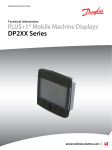
1
User Manual DP2xx series – EIC Engine Information Center powersolutions.danfoss.com User Manual EIC-Engine Information Center – DP2xx Contents Before You Start ..........................................................................................................................4 The Engine Information Center (EIC) ..................................................................................5 Brightness/Contrast Adjustment .........................................................................................6 Navigation Using Soft Keys ....................................................................................................6 EIC DP2xx Force and Inhibit Regeneration software function description..........8 Main Menu ..................................................................................................................................10 Setup Options ...........................................................................................................................27 J1939 Monitor Controls ..........................................................................................................31 LED Indicators ...........................................................................................................................35 Installation/Mounting Instructions .................................................................................. 36 Connection/Pinout settings ................................................................................................42 DP2xx Series Accessories ..................................................................................................... 44 Important Safety Information .............................................................................................47 2 11032748_Rev DA_Sep2014 User Manual EIC-Engine Information Center – DP2xx 11032748_Rev DA_Sep2014 3 User Manual EIC-Engine Information Center – DP2xx Before You Start Thank you for purchasing the Danfoss DP2xx Series Graphical Terminal. This package contains the following items: yy yy yy yy yy One (1) DP2xx Series Graphical Terminal One (1) Panel Seal Gasket One (1) Mounting Bracket Four (4) Bracket Mounting Screws One (1) DP2xx Series Graphical Terminals User Manual Please ensure all parts are included prior to use. 4 11032748_Rev DA_Sep2014 User Manual EIC-Engine Information Center – DP2xx The Engine Information Center (EIC) The DP2xx Series Graphical Terminal comes installed with the powerful and flexible Danfoss Engine Information Center (EIC) J1939 engine monitor software application. Use the application to customize the look and feel of your individual engine monitoring needs by creating and controlling analog and digital display information in the screen configurations that work best for your performance requirements. Navigate through diagnostic information and configuration screens with ease by using the four context-dependent soft keys located at the front of the display. Choose from 50 different monitoring parameter profiles to customize the DP2xx terminal. Up to four signals can be monitored on each screen. Use the Engine Information Center software to configure the DP2xx for alarms and alerts. 11032748_Rev DA_Sep2014 5 User Manual EIC-Engine Information Center – DP2xx Brightness/Contrast Adjustment Adjust brightness and contrast levels by pressing soft key 2. This will display the brightness and contrast soft key bar. The bar will disappear after 3 seconds of inactivity. Navigation Using Soft Keys The DP2xx Series Graphical Terminal is controlled by navigation through a set of four soft keys located at the lower front of the display. The keys are context dependent. Soft key selection options are displayed above each key and are dependent on the current navigation location within the engine monitor software program. As a general rule, the far right soft key is the selector button and the far left soft key is the step back one screen key. To optimize full screen use, the on-screen selections are not displayed when not in use. Press any soft key to display current selection options. The selection options will be displayed for three seconds. 6 11032748_Rev DA_Sep2014 User Manual EIC-Engine Information Center – DP2xx Navigation Using Soft Keys Next Menu Brightness/ Contrast Initiate Switch Inhibit Switch Exit/Back One Screen Navigate Up Navigate Down Select Exit/Back One Screen Navigate Up Navigate Down Next Brightness/ Navigate ContrastUp Navigate Down Next Screen Navigation Brightness/Contrast Navigate Up Navigate Down Main Menu Exit/Back one screen Select Next Initiate Switch Inhibit Switch Previous Press to access brightness and contrast settings Press up to move up through menu items or screens Press up to move down through menu items or screens Press to go to Main Menu screen Press to go back one screen Press to accept selection Press to select next digit or screen element Press to force regeneration of particulate filter Press to inhibit particulate filter regeneration Press to navigate to previous menu 11032748_Rev DA_Sep2014 7 User Manual EIC-Engine Information Center – DP2xx EIC DP2xx Force and Inhibit Regeneration software function description While the unit is displaying one of the Monitor Screens, pressing any soft key will show the available Navigation actions in an action menu. There are two separate action menus on this level; the first one to appear contains the following actions (from left to right): yy yy yy yy Next Menu Screen Brightness/Contrast Initiate Switch (Force Regeneration) Inhibit Switch (Inhibit Regeneration) Selecting ‘Next Menu’ will display the second action menu with actions unrelated to the function described herein. Pressing it again will show the first set of actions once more. If no soft keys are pressed and released for 2.5 seconds while the action menu is shown the menu will disappear and the actions are no longer available. Pressing (and releasing) any soft key will activate the first menu once more. 8 11032748_Rev DA_Sep2014 User Manual EIC-Engine Information Center – DP2xx yy Force Regeneration action If the user selects the Force Regeneration action while the action menu is being displayed; bit 2 (out of 0-7) in byte 5 (out of 0-7) will be set to 1 (true) in the J1939 message PGN 57344 bound for the engine. This change prompts the message to be transmitted. The bit will stay like this for the duration of the soft key press or for the 2.5 second countdown to soft key inactivity, whichever occurs first. The bit is then reset to 0 (false). The soft key press also prompts the display to show a popup lasting for 5 seconds. This popup simply says “Regeneration Forced”. If the display does not receive an acknowledgement from the engine on the change to message PGN 57344 the last half of the popup will say “No Engine Signal”. This acknowledgement is the command that lights up the Forced Regeneration LED on the display unit housing. yy Inhibit Regeneration action If the user instead selects the Inhibit Regeneration action while the action menu is being displayed the same function as described above will be executed, with some differences; –– Bit 0 (out of 0-7) in byte 5 (out of 0-7) is set to 1 (true) instead. –– The popup says “Regeneration Inhibit” instead. –– The acknowledgement lights up the Regeneration Inhibit LED instead. 11032748_Rev DA_Sep2014 9 User Manual EIC-Engine Information Center – DP2xx Main Menu Start Menu Start Menu – Main Menu The Main Menu screen is the starting point for configuring the DP2xx Series Graphical Terminal. Main Menu Basic Setup Diagnostics Screen Setup System Setup 10 Use to set Time/Date, Language and Units Use to set System Info, access Fault Log and J1939 lists. Use to set Parameters, choose number of screens and select screen. (PIN protected) Use to reset trip and default settings, access CAN information, select display settings and set PIN information. (PIN protected) 11032748_Rev DA_Sep2014 User Manual EIC-Engine Information Center – DP2xx Main Menu Basic Setup Overview Use the Basic setup screen to set time, language and display units for the DP2xx series terminal. Basic Setup Time/Date Language Units Use Time/Date to set, date and display style for time and date information. Use Language to set the system language. The default language is English. Use Units to set speed, distance, pressure, volume, temperature, fuel rate and economy settings. 11032748_Rev DA_Sep2014 11 User Manual EIC-Engine Information Center – DP2xx Main Menu Basic Setup Time/Date Use Time/Date screen to set Time, Date, calendar style and time style. Use up, down select and next soft keys to navigate. Language Use Language screen to select program language. Languages available, English, French, German, Italian, Swedish and Spanish. The default language setting is English. 12 11032748_Rev DA_Sep2014 User Manual EIC-Engine Information Center – DP2xx Main Menu Basic Setup Units Use the up, down, select and next soft keys to define unit measurements. Unit Selection Options Speed Distance Pressure Volume Temperature Fuel Economy Fuel Rate km/h, mph km, mi kPa, bar, lbs/sq in l, gal, imp gal °C, °F 1/100 km, mpg, mpig l/h, g/h, ig/h 11032748_Rev DA_Sep2014 13 User Manual EIC-Engine Information Center – DP2xx Main Menu Diagnostics Overview Use the Diagnostics screen to display current system information, view and monitor fault logs and display all J1939 devices connected to the graphical terminal. Diagnostics System Info Fault Log Device List Quick Data 14 Selecting System Info will display hardware, software, system and node information for connected devices. Use Fault Log to view and monitor current and previous fault information. The Device List will list all currently connected J1939 devices. Use Quick Data to set up a customized signal list that can be quickly scrolled through in one signal per page format. 11032748_Rev DA_Sep2014 User Manual EIC-Engine Information Center – DP2xx Main Menu Diagnostics System Info The system info screen displays the hardware system serial number, current software version, current system version and node number. Only information is displayed in the System Info window. No changes can be made. Fault Log Fault information is saved and stored to the fault log. Select either Active or Previous Faults to monitor fault activity. Select specific faults to list more information. 11032748_Rev DA_Sep2014 15 User Manual EIC-Engine Information Center – DP2xx Main Menu Diagnostics Fault Log: Active and Previous Faults Selecting Active Faults in the Fault Menu will display all active faults on the CAN network. Selecting Previous Faults in the Fault Menu will display all previously active faults on the CAN network. 16 11032748_Rev DA_Sep2014 User Manual EIC-Engine Information Center – DP2xx Main Menu Diagnostics Fault Pop-Up Alarms When a fault is detected on the CAN network, a flashing red warning alarm will be activated and a fault information pop-up window will be displayed listing current fault information. Warning lights will flash when a pop-up alarm occurs and will stay flashing until acknowledged. Warning lights will remain lit until the fault is no longer on the CAN network. Fault pop-up soft key actions Select to clear pop-up and return directly to previous display information ▼ Select to go to next fault information ▲ Select to go to previous pop- up information ✔ Select to clear pop-up and go to the current active fault complete information screen 11032748_Rev DA_Sep2014 17 User Manual EIC-Engine Information Center – DP2xx Main Menu Diagnostics Fault Pop-Up Alarms yy Faults that have been acknowledged and are no longer active will be shown in the Currently Active Faults log in italics. yy Faults no longer active will also be displayed in the Previous Faults log. yy Pop-up fault alarms can be disabled by setting the Fault Pop-Up to off in the CAN section of the System Setup menu. 18 11032748_Rev DA_Sep2014 User Manual EIC-Engine Information Center – DP2xx Main Menu Diagnostics Device List The Device List page will list all J1939 devices and addresses that are currently being monitored on the network. 11032748_Rev DA_Sep2014 19 User Manual EIC-Engine Information Center – DP2xx Main Menu Diagnostics Quick Data The Quick Data function allows selected signals to be monitored in a scrollable single view display. To select signals for display, press the far right soft key. Quick Data softkey Scroll through signal list using the up and down arrow soft keys and select/deselect signals for Quick View monitoring by pressing the far right (check mark) soft key. Signals selected for display will show an asterisks to the left of the signal name. 20 11032748_Rev DA_Sep2014 User Manual EIC-Engine Information Center – DP2xx Main Menu Screen Setup Overview Use Screen Setup to enter parameter settings, select number of signal screens and select individual screens for setup. Screen Setup Parameters Number of Screens Select Screen Set Parameters for RPM, Speed, Fuel, Wheel and Pulse/ Revolutions information. Select Number of Screens for information display. Select from 1 to 4 screens for display. Use to Select Screen to set up signal information. Number of screens available are dependent on number of screens selected. 11032748_Rev DA_Sep2014 21 User Manual EIC-Engine Information Center – DP2xx Main Menu Screen Setup Parameters Define system parameter ranges for revolutions per minute, speed, fuel, wheel diameter and pulses per revolution display settings. Number of Screens Select number of screens for display. Choose from 1 to 4 screens. See page 22 for detailed screen set up tutorial. Select Screen Select screen to customize. See page 27 for detailed screen setup tutorial. 22 11032748_Rev DA_Sep2014 User Manual EIC-Engine Information Center – DP2xx Main Menu System Setup Overview Use System Setup to monitor and control application systems. Reset to default settings, make CAN selections, control display settings, set PIN configurations and reset trip functions. System Setup Reset Defaults CAN Display PIN Setup Trip Reset Select to reset all system information to the default settings status. Select to customize CAN settings. Select to customize display settings. Use to set custom PIN settings. Select to reset all trip information. 11032748_Rev DA_Sep2014 23 User Manual EIC-Engine Information Center – DP2xx Main Menu System Setup Reset Defaults Select Reset Defaults to reset all EIC settings to original factory default settings. CAN Settings Use the CAN settings selection to make the following selections: CAN Settings Engine Address CAN Fault Popup 24 Select engine address. Selection range is 0–253. Select 1, 2 or 3 to determine how to interpret non-standard fault messages. Consult engine manufacturer for correct setting. Select on or off to enable or disable on screen popup messages. 11032748_Rev DA_Sep2014 User Manual EIC-Engine Information Center – DP2xx Main Menu System Setup Display Setting Startup Screen Buzzer Output Demo Mode 11032748_Rev DA_Sep2014 Select to enable/disable logo display at startup Select to enable/disable warning buzzer functionality. Select on/off to enable demonstration mode. 25 User Manual EIC-Engine Information Center – DP2xx Main Menu PIN Protection Change PIN Code To reduce the potential for errors, Screen Setup and System Setup menu options can only be accessed after entering a PIN code. The default code is 1-2-3-4. The PIN number can be changed by using PIN Setup located in the System Setup menu. Trip Reset Select Yes to reset all trip data. 26 11032748_Rev DA_Sep2014 User Manual EIC-Engine Information Center – DP2xx Setup Options Selecting Screen Number and Types 1. Select from one to four screens for signal monitoring. Navigate to Main Menu>Screen Setup>Number of Screens. 2. Select screen type for each of the screens selected. Navigate to Main Menu>Screen Setup>Select Screen. Choose from three types of screen setups. Select screen type and press the far right soft key (check mark) to go to signal monitoring options. 11032748_Rev DA_Sep2014 27 User Manual EIC-Engine Information Center – DP2xx Setup Options Screen Variants Screen Type 1 Type 1 is a two-up screen view with two signal capacity. Screen Type 2 Type 2 is a three-up screen view with one large and two small signal display capacities. Screen Type 3 Type 3 is a four-up display with four small signal display capacity. 28 11032748_Rev DA_Sep2014 User Manual EIC-Engine Information Center – DP2xx Setup Options Selecting J1939 Monitor Signals 3. After screen type selection, select signals to monitor. Use the up and down arrow soft keys to cycle through available signal selections. 4. After making a signal selection, press the right arrow (Next) soft key to go to the next selection area. Use the up, down arrow, next and select soft keys to select signal. Select the right arrow soft key to move to the next selection area. 11032748_Rev DA_Sep2014 29 User Manual EIC-Engine Information Center – DP2xx Setup Options Selecting J1939 Monitor Signals 5. Using the right arrow soft key will rotate through the selections in a clockwise rotation. When finished with all screen signal selections press the exit (door symbol) soft key to return to previous menus. 6. Navigate back for more screen selections or press the Exit soft key 5 times to display current selections. 30 11032748_Rev DA_Sep2014 User Manual EIC-Engine Information Center – DP2xx J1939 Monitor Controls The following tables list the J1939 engine and transmission parameters that are available and can be monitored in the DP2xx Graphical Terminal. For more information on setting up monitor controls in using the Engine Information Center, please refer to Selecting J1939 Signals on page 29. 11032748_Rev DA_Sep2014 31 User Manual EIC-Engine Information Center – DP2xx J1939 Monitor Controls Symbols Signal monitor functions Symbol 32 Name/Function Actual Engine Torque Units % Engine Air Inlet Temperature Pa × 1000 Engine Coolant Level % Engine Coolant Pressure Pa × 1000 Engine Coolant Temperature °C Engine Exhaust Gas Temperature °C Engine Hours Hours Engine Intake Manifold Temperature °C Engine Oil Level Max = 100, min = 0 Engine Oil Pressure Pa × 1000 Engine Oil Temperature °C Engine RPM RPM Engine Turbocharger Boost Pressure Pa × 1000 Fuel Level % Wheel-based Vehicle Speed kph/mph 11032748_Rev DA_Sep2014 User Manual Symbol EIC-Engine Information Center – DP2xx Name/Function Units Accelerator Pedal Position % Alternator Current Amp Alternator Voltage Volts Auxiliary Temperature °C Average Fuel Economy km/l Trip Average Fuel Rate l/h Barometric Pressure Pa × 1000 Current Gear N/A Distance Remaining Undefined Engine Air Filter Differential Pressure Pa × 1000 Engine Air Inlet Temperature °C Engine Injector Metering Rail 1 Pressure MPa Engine Injector Metering Rail 2 Pressure MPa Engine Intercooler Temperature °C Engine Turbocharger Oil Temperature °C Fan Speed % Engine Fuel Delivery Pressure Pa × 1000 Fuel Rate l/h 11032748_Rev DA_Sep2014 33 User Manual Symbol % Soot % Ash 34 EIC-Engine Information Center – DP2xx Name/Function Units Fuel Remaining % Engine Fuel Temperature 1 °C Instantaneous Fuel Economy km/l Internal Voltage Volts Net Battery Current Amps Selected Gear N/A Torque Convertor Lock-up Engaged Conditional Total Distance Variable Engine Total Fuel Used Variable Transmission Input Shaft Speed RPM Transmission Oil Pressure Pa × 1000 Transmission Oil Temperature °C Transmission Output Shaft Speed RPM Trip Distance km Trip Engine Hours hrs Trip Fuel l Soot level percent Ash level percent % % 11032748_Rev DA_Sep2014 User Manual EIC-Engine Information Center – DP2xx LED Indicators Lamps Particulate Filter Lamp Stage 1 The right Amber LED indicates the initial need for regeneration. The lamp is on solid. Stage 2 The right Amber LED indicates an urgent regeneration. Lamp flashes with 1 Hz. Stage 3 Same as Stage 2 but check engine lamp will also turn on. High Exhaust System Temperature Lamp The left Amber LED indicates the increase of exhaust system temperature due to regeneration. Regeneration Disabled Lamp The left Amber LED indicates that the regeneration disabled switch is active. 11032748_Rev DA_Sep2014 35 User Manual EIC-Engine Information Center – DP2xx Installation/Mounting Instructions Panel Bracket Assembly Mounting and fastening Installation yy Fastening hole depth: 11 mm yy May be threaded M3/ST3 and used with standard screws. Reassembly with self-tapping screws may damage existing threads in housing. yy Maximum torque: 0.9 Nm. 36 11032748_Rev DA_Sep2014 W Caution: Excessive screw torque force may cause damage to housing. User Manual EIC-Engine Information Center – DP2xx Installation/Mounting Instructions Surface Mount Panel mounting bracket DP2xx - 10105917 DP250 - 11072811 Panel gasket seal DP200 -10107631 DP211 - 10107355 DP250 - 11075186 Mounting screws DP2xx - M3×10 screw (×4) - 10107464 DP250 - ST3×12 screw (×4) - 11089413 11032748_Rev DA_Sep2014 37 User Manual EIC-Engine Information Center – DP2xx Installation/Mounting Instructions Panel Gasket Dimensions 100.5 mm [3.95 in] (±0.7 mm [0.27 in]) 105.5 mm [4.15 in] (±0.7 mm[0.027 in]) yy Gasket seal area crosshatched yy Panel thickness: 2-5 mm yy Interior edges chamfered 0.2- 0.5 mm 38 11032748_Rev DA_Sep2014 User Manual EIC-Engine Information Center – DP2xx DP200 Series Model Code Variants A Model Name DP200 B Inputs/Outputs 00 01 04 C E No RTC, full LTF RTC and LTF Flash Memory/Application Key 02 2MB without Application Key 03 2MB with Application Key Application Log 00 04 F 1 CAN port, 2 DIN/AIN 1 CAN port, 6 DIN/AIN 2 CAN ports, 2 DIN/AIN Real Time Clock/ Low Temperature Functionality 00 01 D Graphical Display, IP 67 above panel None 4 MB USB Port Type 00 01 None USB Device 11032748_Rev DA_Sep2014 39 User Manual EIC-Engine Information Center – DP2xx DP211 Series Model Code Variants A Model Name DP211 B Inputs/Outputs 04 C E 02 2MB without Application Key 03 2MB with Application Key Application Log 2 MB USB Port Type 01 40 RTC and LTF Flash Memory/Application Key 04 F 2 CAN ports, 2 multifunction Real Time Clock/ Low Temperature Functionality 01 D Graphical Display with integrated USB port USB Device 11032748_Rev DA_Sep2014 User Manual EIC-Engine Information Center – DP2xx DP250 Series Model Code Variants Model Name DP250 Color Graphical Display Inputs/Outputs (All models have 2 multifunction 00 1 CAN port 01 1 CAN port, 4 DIN/AIN 04 2 CAN ports 05 User Configurable 2 CAN, 2 DIN/AIN or 1 CAN port, 4 DIN/AIN 06 User Configurable: 1 RedCAN port, 1 CAN port or 1 RedCAN port, 2 DIN/AIN Real Time Clock/ Low Temperature Functionality 00 No RTC and LTF 01 RTC and LTF Flash Memory/Application Key 04 05 16 MB without Application Key 16 MB with Application Key Application Log 00 05 None 16 MB USB Port Type 00 01 02 None USB Device in front USB Device in rear 11032748_Rev DA_Sep2014 41 User Manual EIC-Engine Information Center – DP2xx Connection/Pinout settings DP200 Series- Deutsch Connector 7 12 6 1 DP200 Series pin assignments 1 2 3 4 5 6 7 8 9 10 11 12 42 Power ground– Power supply+ CAN 0+ CAN 0– AIN/ CAN Shield See Code B option See Code B option See Code B option See Code B option DIN/AIN/FREQ IN/CURRENT IN DIN/AIN/FREQ IN/CURRENT IN DOUT (0.5A) Code B 00 Code B 01 Code B 04 N/C N/C N/C N/C DIN/AIN DIN/AIN DIN/AIN DIN/AIN N/C N/C CAN 1+ CAN 1– 11032748_Rev DA_Sep2014 User Manual EIC-Engine Information Center – DP2xx Connection/Pinout settings DP250 Series- Deutsch Connector 7 12 6 1 DP250 Series pin assignments 1 Power ground2 Power supply+ 3 CAN 0+ 4 CAN 0– 5 AIN/ CAN Shield 6 See Code B option/TI 7 See Code B option/TI 8 See Code B option/TI 9 See Code B option/TI 10 DIN/AIN/FREQ IN/CURRENT IN, RHEOSTAT 11 DIN/AIN/FREQ IN/CURRENT IN, RHEOSTAT 12 DOUT (0.5A) 11032748_Rev DA_Sep2014 43 User Manual EIC-Engine Information Center – DP2xx Connection/Pinout settings Related Parts & Kits DP200 Series Related Products Part Numbers 10100944 Deutsch Mating Connector Bag Assembly (20-24 AWG) 10102025 Deutsch Mating Connector Bag Assembly (16-20 AWG) Electrical Connection Kits 10100944 12-pin Deutsch connection Kit Contents: 10100738 DTM06-12SA 12-pin Deutsch connector 10100743 Deutsch terminal 10100741 WM 12S locking plug Connection Tools 10100744 Deutsch stamped contacts terminal crimp tool, size 20 10100745 Deutsch solid contacts terminal crimp tool 44 11032748_Rev DA_Sep2014 User Manual EIC-Engine Information Center – DP2xx Connection/Pinout settings Related Parts & Kits (Continued) DP200 Mounting Kit 10107354 DP200 Series Mounting Hardware Kit Contents: 10107464 Mounting screws (×4), M3 × 10 10107631 Panel gasket seal 10105917 Panel mounting bracket DP211 Mounting Kit 10107264 DP211 Series Mounting Hardware Kit Contents: 10107464 Mounting screws (×4), M3 × 10 10107355 Panel gasket seal 10105917 Panel mounting bracket DP250 Mounting Kit 11079236 DP250 Series Mounting Hardware Kit Contents: 11089413 Mounting screws (×4), ST3 × 12 11075786 Panel gasket seal 11072811 Panel mounting bracket 11032748_Rev DA_Sep2014 45 User Manual EIC-Engine Information Center – DP2xx Connection/Pinout settings Related Parts & Kits (Continued) Software 10101000 46 PLUS+1 GUIDE Software Application ( including Service Tool and Screen Editor) 11032748_Rev DA_Sep2014 User Manual EIC-Engine Information Center – DP2xx W Important Safety Information yy Disconnect your machine’s battery power before connecting power and signal cables to the DP2xx. yy Before doing any electrical welding on your machine, disconnect all power and signal cable cables connected to the DP2xx. yy Do not exceed the DP2xx power supply voltage ratings. Using higher voltages may damage the DP2xx and can create a fire or electrical shock hazard. yy Do not use or store the DP2xx where flammable gases or chemicals are present. yy Using or storing the DP2xx where flammable gases or chemicals are present may cause an explosion. yy Software configures the keypad buttons on the DP2xx. Do not use these buttons to implement critical safety features. Use separate mechanical switches to implement critical safety features such as emergency stops. yy Design systems that use the DP2xx so that a communication error or failure between the DP2xx and other units cannot cause a malfunction that might injure people or damage material. yy The protective glass over the DP2xx display screen will break if hit with a hard or heavy object. Install the DP2xx to reduce the possibility of it being hit by hard or heavy objects. yy If you break the protective glass of the DP2xx screen, remove the DP2xx and immediately return it to Danfoss for service. yy Storing or operating a DP2xx in an environment that exceeds the DP2xx specified temperature or humidity rating may damage the DP2xx. yy Always clean the DP2xx with a soft, damp cloth. Use a mild dishwashing detergent as needed. yy The DP2xx is not user serviceable. Return the DP2xx to the factory in case of failure. 11032748_Rev DA_Sep2014 47 Hydraulic Power Steering Integrated Systems Joysticks and Control Handles Microcontrollers and Software Open Circuit Axial Piston Pumps Products we offer: Bent Axis Motors Closed Circuit Axial Piston Pumps and Motors Displays Electrohydraulic Power Steering Electrohydraulics Hydraulic Power Steering Integrated Systems Joysticks and Control Handles Microcontrollers and Software Open Circuit Axial Piston Pumps Orbital Motors PLUS+1® GUIDE Proportional Valves Sensors Steering Transit Mixer Drives Bent Axis Motors excel in the harsh operating cond applications expertise, we work c Closed Circuit Axial Wherever off-highway vehicles arePiston at work, so is Danfoss. broad range of off-highway vehic Pumps and Motors We offer expert worldwide support for our customers, ensuring the best possib Displays We help OEMs around the world outstanding performance. And with an extensive network of Global Service Par market faster. Electrohydraulic Power comprehensive global service for all of our components. Danfoss – Your Strongest Partner Steering Please contact the Danfoss Power Solutions representative nearest you. Electrohydraulics Go to www.powersolutions.da Hydraulic Power Steering Wherever off-highway vehicles a Integrated Systems Orbital Motors Joysticks and Control We offer expert worldwide suppo PLUS+1® GUIDE Danfoss Power Solutions is a global manufacturer and supplier of high-quality outstanding hydraulic andperformance. And w Handles Proportional Valves We specialize in providing state-of-the-art technology and electronic components. solutions thatglobal service for comprehensive Microcontrollers and excel in the harsh operating conditions of the mobile off -highway market. Building on our extensive Sensors Software to ensure exceptional performance for a applications expertise, we work closely with our customers Please contact the Danfoss Powe Steering broad range of off-highway vehicles. Open Circuit Axial Piston Pumps Transit Mixer Drives We help OEMs around the world speed up system development, Orbital Motors reduce costs and bring vehicles to market faster. PLUS+1® GUIDE Danfoss – Your Strongest Partner in Mobile Hydraulics. Proportional Valves Go to www.powersolutions.danfoss.com for further product information. Sensors Wherever off-highway vehicles are at work, so is Danfoss. Steering Comatrol Transitensuring Mixer Drives www.comatrol.com We offer expert worldwide support for our customers, the best possible solutions for outstanding performance. And with an extensive network of Global Service Partners, we also provide Schwarzmüller-Inverter Local address: comprehensive global service for all of our components. www.schwarzmuellerinverter.com Please contact the Danfoss Power Solutions representative nearest you. Turolla www.turollaocg.com Valmova www.valmova.com Comatrol www.comatrol.com Hydro-Gear www.hydro-gear.com Schwarzmüller-Inverter www.schwarzmuellerinverter.com Daikin-Sauer-Danfoss www.daikin-sauer-danfoss.com Local address: Turolla www.turollaocg.com Valmova www.valmova.com Danfoss Comatrol Power Solutions (US) Company 2800 East 13th Street www.comatrol.com Ames, IA 50010, USA Danfo Power Danfoss Danfoss Hydro-Gear Danfoss (Shang Power Solutions (US) Company Power Solutions GmbH & Co. OHG Power Solutions ApS Buildin www.hydro-gear.com Danfoss 2800 East 13th Street Krokamp 35 Nordborgvej 81 Jin Qia Power Solutions Daikin-Sauer-Danfoss Ames, IA 50010, USA D-24539 Neumünster, Germany DK-6430 Nordborg, Trading Denmark Shang Danfoss Danfoss (Shanghai) Co.,2222 Ltd. Phone: +1 515 239 6000 Phone: +49www.daikin-sauer-danfoss.com 4321 871 0 Phone: +45 7488 Phone Power Solutions GmbH & Co. OHG Power Solutions ApS Building #22, No. 1000 Jin Hai Rd Krokamp 35 no responsibility for possible errors inNordborgvej 81 and other printed material. Danfoss Jin Qiao, Pudong District Danfoss can accept catalogues, brochures reserves the rightNew to alter its products without notice. already on order provided that such alterations can be made withoutNordborg, changes beingDenmark necessary in specificationsShanghai, already agreed. D-24539 Neumünster, Germany DK-6430 China 201206 All Phone: trademarks in this material companies. and the Danfoss logotype arePhone: trademarks of Danfoss A/S.5200 All rights reserved. +49 4321 871are 0 property of the respective Phone: +45 Danfoss 7488 2222 +86 21 3418 Schwarzmüller-Inverter Phone: +1 515 239 6000 Local address: www.schwarzmuellerDanfoss can accept no responsibility for possible errors in catalogues, brochures and other printed material. Danfoss reserves the right to alter its products without notice. This also applies to products inverter.com already on order provided that such alterations can be made without changes being necessary in specifications already agreed. Danfoss Danfoss All trademarks in this material are property of the respective companies. Danfoss and the Danfoss logotype are trademarks of Danfoss A/S. All rights reserved. Turolla www.turollaocg.com 11032748_Rev DA_Sep2014 Valmova www.valmova.com Power Solutions (US) Company 2800 East 13th Street www.danfoss.com Ames, IA 50010, USA Phone: +1 515 239 6000 Power Solutions GmbH & Co. OHG Krokamp 35 © Danfoss A/SGermany D-24539 Neumünster, Phone: +49 4321 871 0 Danfoss can accept no responsibility for possible errors in catalogues, brochures and other printed m


![G2 Decoder [obsolete] Second Generation User Manual](http://vs1.manualzilla.com/store/data/005963661_1-2c18e92993151caf68904a7a924089ff-150x150.png)