1
BASIC OPERATION
4.3.2 Event Search
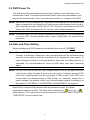
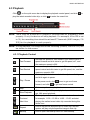
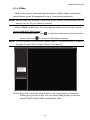
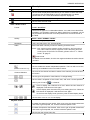
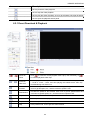
Click
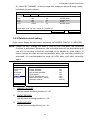
to quickly search the recorded files by event lists: RECORD / MOTION /
ALARM / TIME, or select FULL to show all the event logs.
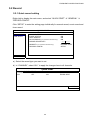
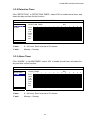
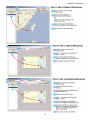
To quickly search the time you want, select “QUICK SEARCH”. Set the time range you
want, and select “SUBMIT” to play the recorded video clip during the specified time.
4.3.3 Audio Playback
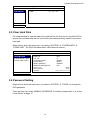
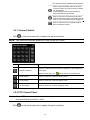
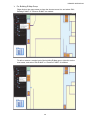
In the playback mode, click
on the quick menu bar as many times as needed to
select live or playback audio from audio channel 1~4.
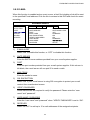
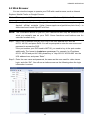
Live audio from audio channel 1~4
(indicated in white).
Playback audio from audio channel 1~4
(indicated in yellow).
Audio channel unselected
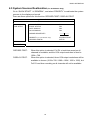
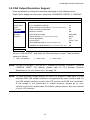
Note: For 4CH models, “VGA OUTPUT” appears only when “PRIORITY” is set to
“DISPLAY FIRST”. For details, please refer to “4.5 System Sources
Reallocation (For 4CH Models Only)”.
Note: To make a video backup with audio, make sure the camera which supports
the audio function is connected to the video-in channel and audio-in
channel. For example, the audio data from audio CH1 will be recorded with
the video data from video CH1.
4.4 User Level Switch
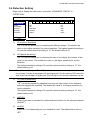
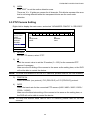
In the key lock mode ( ), move your USB mouse to display the password input keypad.
There are two user levels for accessing the DVR: Administrator ( ) & Operator ( ).
When the administrator password is entered,
will be shown on the status bar of the
screen and all operations are allowed. The default administrator password is 0000.
When the operator password is entered,
will be shown on the status bar of the
screen, and the main menu is NOT allowed to access. The operator user level needs to
be set in the main menu “SYSTEM”
“TOOLS”.
To switch between these two user levels, click the current user level icon to switch to the
key lock mode, and move your mouse to show the password input keypad, and enter the
password of the user level you want.
17