1
User’s Guide
LEGAL NOTICES
Copyright © 2009 Nuance Communications, Inc. All rights reserved. No part of this
publication may be transmitted, transcribed, reproduced, stored in any retrieval
system or translated into any language or computer language in any form or by any
means, mechanical, electronic, magnetic, optical, chemical, manual, or otherwise,
without prior written consent from Nuance Communications, Inc., 1 Wayside Road,
Burlington, Massachusetts 01803-4609.
The software described in this book is furnished under license and may be used or
copied only in accordance with the terms of such license.
IMPORTANT NOTICE
Nuance Communications, Inc. provides this publication "As Is" without warranty of
any kind, either express or implied, including but not limited to the implied
warranties of merchantability or fitness for a particular purpose. Some states or
jurisdictions do not allow disclaimer of express or implied warranties in certain
transactions; therefore, this statement may not apply to you. Nuance reserves the
right to revise this publication and to make changes from time to time in the content
hereof without obligation of Nuance to notify any person of such revision or changes.
TRADEMARKS AND CREDITS
Nuance, ScanSoft, OmniPage, PaperPort, True Page, Direct OCR, Logical Form Recognition,
RealSpeak are registered trademarks or trademarks of Nuance Communications, Inc.,
in the United States of America and/or other countries. All other company names or
product names referenced herein may be the trademarks of their respective holders.
THIRD PARTY LICENSES/NOTICES
Please see acknowledgements/notices at the end of this guide.
Nuance Communications, Inc.
1 Wayside Road
Burlington, MA 01803-4609
U.S.A.
Nuance Communications International BVBA
International Headquarters
Guldensporenpark 32
Building D
BE-9820 Merelbeke
Belgium
C
O N T E N T S
5
WELCOME
New features in OmniPage 17
INSTALLATION
AND SETUP
System requirements
Installing OmniPage
Setting up your scanner with OmniPage
How to start the program
Registering your software
Activating OmniPage
Uninstalling the software
11
11
12
14
16
17
18
18
20
USING OMNIPAGE
OmniPage Documents
The OmniPage Desktop and Views
Basic Processing Steps
How to use OmniPage with PaperPort
PROCESSING
7
DOCUMENTS
Processing methods
Defining the source of page images
Describing the layout of the document
Preprocessing Images
Zones and backgrounds
20
21
28
29
30
30
34
40
42
48
AND EDITING
56
The editor display and formatting levels
Proofreading OCR results
Verifying text
The Character Map
56
57
58
59
PROOFING
OmniPage 17 User’s Guide
3
User dictionaries
Languages
Training
Text and image editing
On-the-fly editing
Marking and redacting
Reading text aloud
Creating and editing forms
SAVING
60
61
63
65
67
68
69
71
74
AND EXPORTING
Saving and Exporting
Saving original images
Saving recognition results
Sending pages by mail
Sending to Kindle
Other export targets
74
75
76
81
82
84
85
WORKFLOWS
Workflow Assistant
Batch Manager
Creating new jobs
Watched folders
Watched mailboxes
Barcode processing
File-it Assistant
TECHNICAL
88
90
91
96
97
98
100
102
INFORMATION
Troubleshooting
Supported file types
102
106
108
INDEX
Contents
4
Welcome
Welcome to this OmniPage® 17 text recognition program, and thank
you for choosing our software! The following documentation has
been provided to help you get started and give you an overview of
the program.
This User’s Guide
This guide introduces you to using OmniPage 17. It includes
installation and setup instructions, a description of the program’s
commands and working areas, task-oriented instructions, ways to
customize and control processing, and technical information.
Descriptions are based on the Windows VistaTM operating system.
In line with Nuance’s environmental policy, the Guide is supplied as
a PDF file only. To have a printed copy on normal sized paper, we
recommend double-sided printing with two pages per sheet.
This guide is written with the assumption that you know how to
work in the Microsoft Windows environment. Please refer to your
Windows documentation if you have questions about how to use
dialog boxes, menu commands, scroll bars, drag and drop
functionality, shortcut menus, and so on.
We also assume you are familiar with your scanner and its
supporting software, and that the scanner is installed and working
correctly before it is setup with OmniPage 17. Please refer to the
scanner’s own documentation as necessary.
Welcome
5
How-to-Guides
The How-to-Guides can be accessed from the Help menu. They are
a series of mini-guides that help you get started easily by providing
concise overviews of key program areas, such as getting input, image
improvement, zoning, recognition, editing, proofreading, new
features, and the like.
Electronic Help
OmniPage Help contains information on features, settings, and
procedures. It also has a comprehensive glossary, with its own
alphabetical index and a table of contents. The HTML help system
has been designed for quick and easy information retrieval. Help is
available after you install OmniPage.
Comprehensive context-sensitive help aims to provide just
enough assistance to let you keep working without delay.
It is available from dialog boxes. Press F1 in any dialog box
to access it, or click the help button if the dialog box has one.
Readme File
The Readme file contains last-minute information about the
software. Please read it before using OmniPage. To open this HTML
file, choose Readme in the OmniPage Installer or afterwards in the
Help menu.
Scanning and other information
The Nuance® web site at www.nuance.com provides timely
information on the program. The Scanner Guide
(http://www.nuance.com/scannerguide/) contains up-dated
information about supported scanners and related issues; Nuance
tests the 25 most widely used scanner models. Access Nuance’s web
site from the OmniPage 17 Installer or afterwards from the Help
menu.
Welcome
6
Tech Notes
The web site at www.nuance.com contains Tech Notes on
commonly reported issues using OmniPage 17. Web pages may also
offer assistance on the installation process and troubleshooting.
New features in OmniPage 17
If you are upgrading from version 16, you benefit from the following
innovations. Click the links to for more information.
•
Asian recognition: OCR services are provided for
Japanese, Korean, Simplified Chinese and Traditional
Chinese, with support for both horizontal and vertical text
flow and embedded English texts. Results can be viewed
and verified in the Text Editor. See “Asian language
recognition” on page 61.
•
Vertical non-Asian texts: Auto-detection of vertical texts
in two rotations functions inside table cells and anywhere
on PDF or XPS pages, and in certain cases on other image
file types. New tools allow vertical text zones to be drawn
manually. Texts display vertically and can be edited in the
Text Editor, using the True Page® formatting level. In other
levels the texts are displayed horizontally. See “Automatic
zoning” on page 48. and See “Zone types and properties”
on page 49.
•
Easy Loader: This provides a Windows Explorer-like
display of the file system in one of the OmniPage windows,
to keep files visible during your work and deliver full
Explorer functionality, yielding quick file selections; a
dialog box with a lock facility lets a file set be built up
before loading starts. With Quick Convert View it allows
New features in OmniPage 17
7
not only fast file loading but also 'one-click' total
processing: load > recognize > save. See “Input via Easy
Loader” on page 36.
•
Expanded ECM support: New links are available to
Hummingbird from OpenText and iManage from
Interwoven. When using SharePoint, the server, login and
password information must be provided only once per
session, and is offered in each subsequent session.
•
Improved support for Office 2007: The Direct OCR
buttons now appear on a separate Nuance OCR tab
instead of being mixed with all other Add-Ins.
•
More robust batch processing: The Batch Manager
automatically skips files that cannot be processed –
including those blocked by password requirements –
without stopping the main flow of work. The Job results
window indicates which files were not processed.
•
Running: The program’s launch speed is increased and
performance is considerably improved on multi-core
computers. Support for quad-core machines is introduced.
•
Linking workflows to scanner buttons: OmniPage
functions and workflows can be associated with scanner
buttons, so the whole pre-processing, recognition and
storage of documents can be launched from the scanner.
See “Scanning to OmniPage and workflows” on page 39.
•
Output to Kindle: The new Kindle Assistant lets you
create workflows to send recognition results to a Kindle
account at Amazon and receive them displayed on a Kindle
device registered with that account. See “Sending to
Kindle” on page 82.
Welcome
8
•
Other improvements: Advances to image pre-processing
provide better layout retention and overall accuracy –
particularly in XPS files and document-to-document
conversions. HD photo (JPEG XR) image loading is now
supported. Integration with Microsoft Word, Excel and
PowerPoint is enhanced. Linearized PDF files can be
created, so they are optimized for faster web viewing.
Form layout description is now available in Quick Convert
View.
New features in OmniPage 16
If you are upgrading from version 15, you will also benefit from the
following innovations:
•
Three screen views: Choose from Classic (as in OmniPage
15), Flexible and Quick Convert View (all main controls on
a single panel). See Chapter 2.
•
Multiple documents: In Classic or Flexible View you can
have two or more documents open at one time, for easy
cross-document editing.
•
Digital camera processing: perform OCR on digital
camera images with special algorithms. See Chapter 3.
•
2007 programs: OmniPage supports the latest Word and
Excel inside Office 2007 (DOCX and XLSX), and also
provides links for SharePoint 2007 and Outlook 2007.
•
PDF Enhancements: these include support for PDF
version 1.6, faster processing speed, higher accuracy,
improved output quality, and the MRC high compression
technology for certain PDF flavors.
•
Legal documents: OmniPage offers high-quality handling
and recognition of legal documents.
New features in OmniPage 17
9
•
Customizable shortcut menus in Windows Explorer:
send image files or PDFs directly to major Windows
programs, process them with your own workflows, or use
the Convert Now Wizard for easy conversion control.
•
General improvements: these include faster processing,
better quality output page layout (font matching, table
detection, etc.); and a new, intuitive Workflow Assistant.
Key features unique to OmniPage Professional.
•
Extracting data from filled forms: A workflow step
allows data to be extracted from sets of forms and exported
to databases, based on a PDF form template. The forms can
be active PDF forms, static forms in a range of image
formats or scanned paper forms.
•
Marking and redacting: Text can be highlighted,
struckout or redacted (made unreadable) in the Text
Editor. Redacting is useful for legal documents or for those
with confidential content.
•
File-it Assistant: A more efficient aid for creating and
using barcode cover page workflows. These allow for
automatic processing and storage of documents driven by
the push of just one scanner button.
A more complete list of features, and the differences between
various OmniPage versions appears in Help.
This icon is used throughout the guide to denote features
that are available only in OmniPage Professional 17.
OmniPage 17 is supplied in Enterprise versions for network use. It is
also supplied in Special Editions for selected scanner manufacturers
and other resellers. The feature set in these editions may vary, in line
with each vendor's requirements.
Welcome
10
Installation and setup
This chapter provides information on installing and starting
OmniPage.
System requirements
The minimum requirements to install and run OmniPage 17 are:
•
A computer with an Intel® Pentium® III processor or
equivalent. Dual-core or Quad-core support recommended.
•
Windows® XP 32-bit (from Service Pack 3) with 400 MHz
processor, or Windows® VistaTM 32-bit (SP1) or 64-bit
(SP1) with a 1 GHz processor.
•
256MB of memory (RAM), 1GB recommended for
advanced performance.
•
230MB of free hard disk space for application and sample
files plus 70MB working space during installation.
Additionally:
•
170MB for all Nuance RealSpeak® modules
(80MB for RealSpeak® Solo American English
language module, additional 9-11MB per
RealSpeak Solo other language modules)
•
95MB for Nuance PDF Create! (Supplied with
OmniPage Professional 17 only).
150MB for PaperPort® (Supplied with OmniPage
Professional 17 only).
1024x768 pixel color monitor with 16-bit color or greater
video card.
•
•
•
A sound card and speaker for reading text aloud.
Installation and setup
11
•
A CD-ROM drive for installation or web access suitable
for download.
•
A Windows compatible pointing device.
•
2 megapixel digital camera or higher for digital camera text
capture. See Help for details.
•
A compatible scanner with its own scanner driver
software, if you plan to scan documents. See the Scanner
Guide at Nuance’s web site (www.nuance.com) for a list of
supported scanners.
•
Web access is needed for product activation and
registration, Scanner Wizard database updating and
obtaining live updates for the program.
•
East Asian language handling must be installed in the
operating system to view Japanese, Chinese or Korean
documents. (Control Panel / Regional and Language
Options).
•
To save DOCX and XPSX files (for Microsoft Office 2007
Word and Excel) or to load and save XPS files (XML Paper
Specification), you should have or install Microsoft .NET
Framework 3.0. The link to the Microsoft download page
can be found in the Release Notes, or in the application
About box, if enabled under Options / General.
Alternatively, click the OmniPage .Net Framework balloon
tooltip.
Installing OmniPage
OmniPage 17’s installation program takes you through installation
with instructions on every screen.
Before installing OmniPage:
•
Close all other applications, especially anti-virus
programs.
•
Log into your computer with administrator privileges.
Installing OmniPage
12
•
If you own a previous version of OmniPage, or if you are
upgrading from demonstration software or an OmniPage
Special Edition, the installer asks your consent to uninstall
that product.
To install OmniPage:
1. Download the program file and choose Run when the
download is completed, or insert the OmniPage CD-ROM in
your CD-ROM drive. The installation program should start
automatically. If it does not start, locate your CD-ROM drive in
Windows Explorer and double-click the Autorun.exe program
at the top-level of the CD-ROM.
2. Choose a language to use during installation. Accept the EndUser License Agreement and enter the serial number you
receive by e-mail or find on the CD envelope.
3. Choose a complete or a custom installation. A complete
installation installs all RealSpeakTM Text-to-Speech language
modules (currently 9). Custom installation lets you exclude or
add modules. To exclude a module, click its down arrow and
select ‘This feature will not be available’.
4. Follow the instructions on each screen to install the software.
All files needed for scanning are copied automatically during
installation.
Unless deselcted in the OmniPage Professional installation, Nuance
PDF Create 5 installation starts as soon the installation of
OmniPage is completed. Document-to-document conversions
depend on PDF Create being present.
OmniPage Professional is supplied with a complimentary copy of
the Nuance PaperPort® document management product. This must
be installed separately and has its own system requirements.
Installing OmniPage
13
Setting up your scanner with OmniPage
All files needed for scanner setup and support are copied
automatically during the program’s installation, but no scanner
setup occurs at installation time. Before using OmniPage 17 for
scanning, your scanner should be installed with its own scanner
driver software and tested for correct functionality. Scanner driver
software is not included with OmniPage.
Scanner setup is done through the Scanner Setup Wizard.
You can start this yourself, as described below. Otherwise,
it appears when you first attempt to perform scanning.
Proceed as follows:
•
•
Choose Start > All Programs > Nuance > OmniPage 17 >
Scanner Setup Wizard
or click the Setup button in the Scanner panel of the
Options dialog box.
or choose Scan in the Get Page drop-down list in the
OmniPage Toolbox and click the Get Page button.
The Scanner Setup Wizard starts. If you have a web
connection, the first panel invites you to update the
scanner database supplied with the wizard. Choose Yes or
No and click on Next.
•
Choose ‘Select and test scanner or digital camera’, then
click Next. If you have a single installed scanner, it
appears, along with any scanners previously set up with
OmniPage. If the required scanner is not listed, click Add
Scanner... .
•
You see a list of all detected scanner drivers in the
checkmarked categories. This can include network
devices. Select one and click OK. To install a second device,
you must run the Scanner Wizard again.
Setting up your scanner with OmniPage
14
•
The wizard reports whether the chosen scanner model
already has settings in the scanner database. If it does, you
do not need to test it. If it does not, you should test it. Click
on Next.
•
If you chose not to test, click Finish. If you chose testing,
click Next to have the scanner connection tested. If the
connection is in order, you see a menu of further tests.
Choose which testing steps you want to run. The Basic test
scan is recommended.
•
By default OmniPage uses its own scanning interface,
located in the Scanner panel of the Options dialog box. If
you want to use your scanner’s own interface instead,
choose Advanced settings... and select this. Click Hint
editor... and choose Edit hints... only if you are experienced
in configuring scanners or have been advised by Technical
Support to do so.
•
Click Next to start the tests. For the Basic scan test, insert
a test page into your scanner. The wizard will scan using
your scanner manufacturer’s software. Click on Next. Your
scanner’s native user-interface will appear.
•
Click on Scan to begin the sample scan.
•
If necessary, click on Missing Image… or Improper
Orientation... and make the appropriate selections.
•
Once the image appears correctly in the window, click on
Next.
•
Move through the remaining requested tests, following the
instructions on the screen.
•
When all the requested tests have been completed
successfully, the Scanner Wizard reports and invites you
to click on Finish.
•
You have successfully configured your scanner to work
with OmniPage 17!
Setting up your scanner with OmniPage
15
To change the scanner settings at a later time, or to setup or remove
a scanner, reopen the Scanner Setup Wizard from the Windows
Start menu or from the Scanner panel of the Options dialog box.
To test and repair an improperly functioning scanner, open the
wizard and select ‘Test the current scanner or digital camera’ in the
second panel, then work through the procedure described above,
maybe using advice received from Technical Support.
To specify a different default scanner, open the wizard to reach the
list of setup scanners. Move the highlight to the desired scanner and
be sure to close the wizard with Finish.
To get updated settings for your current scanner, open the wizard,
request a fresh database download in the first screen, then choose
‘Use current settings with current device’, click Next and then
Finish.
How to start the program
To start OmniPage 17 do one of the following:
•
Click Start in the Windows taskbar and choose All
Programs > Nuance > OmniPage 17 > OmniPage
[Professional] 17.
•Double-click the OmniPage icon in the
program’s installation folder or on the Windows
desktop if placed there.
•Double-click an OmniPage Document (OPD)
icon or file name; the clicked document is loaded
into the program. See “OmniPage Documents” in
the next chapter.
•
Right click one or more image file icons or file names for a
shortcut menu. Select Open With... OmniPage application.
The images are loaded into the program.
How to start the program
16
On opening, OmniPage’s title screen is displayed and then a view
selection panel. OmniPage has three basic view types. For details,
see The OmniPage Desktop and Views in the next chapter. It
provides an introduction to the program’s main working areas.
There are several ways of running the program with a limited
interface:
•
Use the Batch Manager program. Click Start in the
Windows taskbar and choose All Programs > Nuance >
OmniPage 17 > OmniPage Batch Manager. See the
Workflows chapter.
•
Click Acquire Text from the File menu of an application
registered with the Direct OCR™ facility. See “How to set
up Direct OCR” in the Processing Documents chapter.
•
Right-click on one or more image file icons or file names in
Wndows Explorer for a shortcut menu. Select OmniPage
17 and choose a target format, or the Convert Now Wizard
or a workflow from its sub-menu. The files will be
processed according to the workflow instructions. See the
Workflows chapter.
•
•
Click the OmniPage Agent icon
on the taskbar.
Choose a workflow to start the program and run the
workflow.
Use OmniPage 17 with Nuance’s PaperPort document
management product, to add OCR services. See “How to
use OmniPage with PaperPort” in the Using OmniPage
chapter.
Registering your software
Nuance’s online registration runs at the end of installation. Please
ensure web access is available. We provide an easy electronic form
that can be completed in less than five minutes. When the form is
filled, click Submit. If you did not register the software during
Registering your software
17
installation, you will be periodically invited to register later. You
can go to www.nuance.com to register online. Click on Support and
from the main support screen choose Register in the left-hand
column. For a statement on the use of your registration data, please
see Nuance’s Privacy Policy.
Activating OmniPage
You will be invited to activate the product at the end of installation.
Please ensure that web access is available. Provided your serial
number is found at its storage location and has been correctly
entered, no user interaction is required and no personal information
is transmitted. If you do not activate the product at installation
time, you will be invited to do this each time you invoke the
program. OmniPage 17 can be launched only five times without
activation. We recommend Automatic Activation.
Uninstalling the software
Sometimes uninstalling and then reinstalling OmniPage will solve a
problem. The OmniPage Uninstall program will not remove files
containing recognition results or any of the following user-created
files:
Zone templates (*.zon)
Image enhancement templates (*.ipp)
Training files (*.otn)
User dictionaries (*.ud)
OmniPage Documents (*.opd)
Job files (*.opj)
Workflow files (*.xwf)
To uninstall you must be logged into your computer with
administrator privileges.
Activating OmniPage
18
To uninstall or reinstall OmniPage:
•
Close OmniPage.
•
Click Start in the Windows taskbar and choose the
Control Panel and then Uninstall a program (in earlier
Windows versions: Add/Remove Programs).
•
Select OmniPage and click Uninstall (in earlier Windows
versions: Remove).
•
Click Yes in the dialog box that appears to confirm
removal.
•
Select Yes to restart your computer immediately, or No if
you plan to restart later.
•
Follow instructions until the process is finished.
When you uninstall OmniPage, the link to your scanner is also
uninstalled. You must setup your scanner again with OmniPage if
you reinstall the program. All RealSpeak modules that were
installed with the program will also be uninstalled.
With OmniPage 17 Professional, Nuance PDF Create 5 and
PaperPort must be uninstalled separately.
Uninstalling the software
19
Using OmniPage
OmniPage 17 uses optical character recognition (OCR)
technology to transform text from scanned pages or image files into
editable text for use in your favorite computer applications.
In addition to text recognition, OmniPage can retain the following
elements and attributes of a document through the OCR process.
Graphics (photos, logos)
Form elements (checkboxes, radio buttons, text fields)
Text formatting (character and paragraph)
Page formatting (column structures, table formats, headings,
placing of graphics).
Documents in OmniPage
A document in OmniPage consists of one image for each document
page. After you perform OCR, the document will also contain
recognized text, displayed in the Text Editor, possibly along with
graphics, tables and form elements.
OmniPage Documents
An OmniPage Document (.opd) contains the original page
images (optionally pre-processed) with any zones placed
on them. After recognition, the OPD also contains the
recognition results.
An OmniPage Document can contain an embedded user dictionary,
training file, zone template file, or an image enhancement template
file. This can increase file size considerably but makes the OPD
Using OmniPage
20
more portable. To embed a file, open the relevant dialog box from
the Tools menu, select the desired file and click Embed. Use the
Extract button to get a local copy of an embedded file inside an OPD
you have received.
When you open an OmniPage Document, its settings are applied,
replacing those existing in the program.
The OmniPage Desktop and Views
OmniPage comes with three different views to suit your task.
•
Classic View - This view has a similar look and feel to
previous versions of OmniPage.
•
Flexible View - This view provides an alternate layout of
the OmniPage function panels stacked in a tabbed view to
give each panel more space.
•
Quick Convert View - This view is designed for quick and
easy document conversion without having to learn a lot.
The most important conversion options are clearly visible
on one screen.
Use the Window menu to switch between views and to save your
own custom view (see later). On starting a new session you
receive the view and screen arrangement that was in force when the
program was last closed.
Program Panels
OmniPage has seven panels that can be docked (tabbed or tiled),
floated, resized, minimized and restored separately: Thumbnails,
Page Image, Text Editor, Document Manager, Easy Loader,
Workflow Status, and Help. To float a panel double-click its title
bar or tab. To restore the floating panel to its previous docked
The OmniPage Desktop and Views
21
position, double-click its title bar. To dock it to a new location, drag
it to an edge. A purple rectangle shows the docking position release the mouse button to dock it. To move a floating panel
without docking displays, keep CTRL pushed while dragging. To
see all possible docking positions one after the other (tiles and
tabs), drag the panel over the OmniPage main window, holding
down the left mouse button and pressing the spacebar repeatedly.
When the desired location shows purple, release the mouse button.
Classic View
In Classic View, the default OmniPage Desktop has four main tiled
working areas, separated by splitters: the Document Manager, the
Page Image, Thumbnails and the Text Editor. The Page Image has
an Image toolbar and the Text Editor has a Formatting toolbar.
Standard
Toolbar
OmniPage
Toolbox
Formatting toolbar
Thumbnails
Image
toolbar
Document
Manager
Page Image
Text Editor
The OmniPage Desktop and Views
22
OmniPage toolbox: This Toolbox lets you drive the processing.
Thumbnails panel: This displays page thumbnails.
Document Manager: This provides an overview of your document
with a table. Each row represents one page. Columns present
statistical or status information for each page, and (where
appropriate) document totals.
Page Image: This displays the image of the current page with its
zones. When a page is displayed, the Image toolbar is available.
Text Editor: Displays recognition results from the current page.
Panels can be re-arranged freely - horizontally or vertically; use the
Window menu to open the Easy Loader, Workflow Status or Help
panels. Panels can be minimized or closed, but not tabbed. To
restore the default Classic View appearance, choose Reset Current
View in the Window menu.
Flexible View
Use this view to set up the OmniPage workspace so that it fits your
task optimally. By default all panels appear. There are five tabs: Page
Image (including Thumbnails), Text Editor, Easy Loader,
Workflow Status and Help. The Document Manager appears in a
horizontal panel at the base of the working area. You can undock,
move, minimize, group or close panels as already described. Drag a
tab onto the working area to convert it to a Classic-type tiled panel.
Drag it back to the tab bar to revert to a tabbed panel, or use the
Spacebar as already described. If panels are grouped, the tab name
shows the active one. To restore the default Flexible View
appearance, choose Reset Current View in the Window menu.
Easy Loader provides a Windows Explorer type file listing and
functionality that can remain open during the session, allowing
quick file selection and assembly (see Chapter 3).
The OmniPage Desktop and Views
23
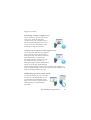
Suggested scenarios:
Maximizing workspace (single screen)
Load a document. Open the panels you
want to use. Grab them by their
captions one by one, and drag them so
that they dock behind the active one as
tabs. You can also dock Help to avoid
handling two separate windows.
Working with recognition results (single screen)
Load a document and have it recognized.
Close all panels except the Document
Manager and the Text Editor. Maximize
both horizontally, scale down the
Document Manager and dock it to the
top or bottom. You can now step
through the pages double-clicking them
one by one in the Document Manager,
inspecting recognition results in the Text Editor. The number of
suspect words and reject characters in the Document Manager will
help you identify problematic pages.
Handling large documents (dual-screen)
Load the document you want to work
on. Move its Thumbnail View to your
second monitor and maximize it for a
large scale overview of your document
and far more space for thumbnail
operations.
The OmniPage Desktop and Views
24
Verifying (dual-screen)
Place the Page Image on one screen and
the Text Editor on the other. This gives
you more space for editing and proofing.
The Page Image is always available for
verifying recognition and for performing
on-the-fly zoning and editing.
The scenarios presented above are only examples to give you
an idea of what you can do in Flexible View.
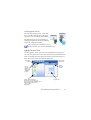
Quick Convert View
Use the Quick Convert View for fast recognition and saving. You
can switch to Quick View only when you have no opened document
and it can handle only one input file and one output document at a
time. The picture shows the default appearance.
Page Image
panel title
Processing
buttons
Quick
Convert
toolbar
Quick
Convert
Options on
toggled tab
with Easy
Loader
Quick Convert Options:
document source and layout
output text format, formatting level
output folder and file name
saving options
page range
Page Image
The OmniPage Desktop and Views
25
The Easy Loader is by default on a tab that toggles with the Quick
Convert Options panel. A Help panel can be added, but further
panels are not available in this view. You can change tabs to
separate panels and minimize them, as in other views.
After loading a file, you should convert it before loading the next
file. When an image conversion is finished, you do not need to
explicity close the image; just load a new file.
The Easy Loader in Quick View provides an additional feature: ‘oneclick’ processing. Choose the Easy Loader sub-menu in the Process
menu and choose either Load Files or Get and Convert. When the
latter is chosen, multiple files can be selected – these files are
loaded, recognized and saved using the current settings. For this,
set the output file names to be the same as the source file names.
See Chapter 3 and Help for detail.
The Quick View Page Image panel includes the Quick Convert
toolbar, offering the most useful image handling operations. To
access advanced functionality, such as image file saving, SET tools,
on-the-fly zoning, zone reordering and manual zone drawing for
vertical text, a different view should be used.
Custom views
For a custom view, arrange the panels and toolbars as you wish,
then choose Window > Custom Views > Manage. Click Add and
name your view. Your screen layouts will be displayed in the
Custom Views submenu with a checkmark beside the active one.
Resetting to a default is not available for custom views.
Changing views
Use the Window menu to change views. Panels are shown or
hidden and arranged as they were when the chosen view was last
The OmniPage Desktop and Views
26
used. The Help topic on display remains unchanged regardless of
view. Easy Loader retains its file location regardless of view and the
Workflow Status continues to display information on the last
workflow run. On program restart, Help displays the Welcome
topic, Easy Loader the default folder location and Workflow status
is empty.
The Toolbars
The program has eleven main toolbars. Use the View menu to show,
hide or customize them. Status bar texts at the bottom edge of the
OmniPage program window explain the purpose of all tools.
Standard toolbar: Performs basic functions.
Image toolbar: Performs image, zoning and table operations. Three
of its tool groups can now be handled separately (mini-toolbars):
•
Zones toolbar: Offers zoning tools.
•
Rotate toolbar: Provides rotating tools.
•
Table toolbar: Inserts, moves and removes row and column
dividers.
Formatting toolbar: Formats recognized text in the Text Editor.
Verifier toolbar: Controls the location and appearance of the
verifier.
Reorder toolbar: Modifies the order of elements in recognized
pages.
Mark Text toolbar: Performs text marking and redacting.
Form Drawing toolbar: Creates new form elements.
Form Arrangement toolbar: Arranges and aligns form elements.
All toolbars can be moved and customized in each view to your
particular needs, including use of a secondary monitor.
The OmniPage Desktop and Views
27
The Form toolbars and the Mark Text toolbar (for details
see Chapter 4) appear only in OmniPage Professional 17.
Basic Processing Steps
There are three ways of handling documents: with automatic,
manual or workflow processing. The basic steps for all processing
methods are broadly the same:
1. Bring a set of images into OmniPage. You can scan a
paper document with or without an Automatic
Document Feeder (ADF) or load one or more image
files.
2. Perform OCR to generate editable text. After OCR,
you can check and correct errors in the document using
the OCR Proofreader and edit the document in the
Text Editor.
3. Export the document to the desired location. You can
save your document to a specified file name and type,
place it on the Clipboard, send it as a mail attachment
or publish it. You can save the same document repeatedly to
different destinations, different file types, with different settings
and levels of formatting.
Using OmniPage, you can choose from the following processing
methods: Automatic, Manual, Combined, or Workflow. You can
start recognition from other applications, using Direct OCR and can
also schedule processing to run at a later time.
Processing methods are detailed in the next chapter and in Help.
Settings
The Options dialog box is the central location for OmniPage
settings. Access it from the Standard toolbar or the Tools
menu. Context-sensitive help provides information on each setting.
Basic Processing Steps
28
How to use OmniPage with PaperPort
The PaperPort® program is a paper management
software product from Nuance. It lets you link
pages with suitable applications. Pages can contain
pictures, text or both. If PaperPort exists on a
computer with OmniPage, its OCR services
become available and amplify the power of
PaperPort. You can choose an OCR program by
right-clicking on a text application’s PaperPort
link, selecting Preferences and then selecting
OmniPage 17 as the OCR package. OCR settings
can be specified, as with Direct OCR.
PaperPort provides the easiest way to turn paper into organized
digital documents that everybody in an office can quickly find and
use. PaperPort works with scanners, multifunction printers, and
networked digital copiers to turn paper documents into digital
documents. It then helps you to manage them along with all other
electronic documents in one convenient and easy-to-use filing
system.
PaperPort’s large, clear item thumbnails allow you to visually
organize, retrieve and use your scanned documents, including
Word files, spreadsheets, PDF files and even digital photos.
PaperPort’s Scanner Enhancement Technology tools ensure that
scanned documents will look great while the annotation tools let
you add notes and highlights to any scanned image.
PaperPort is included in the OmniPage Professional
package. For application information, refer to
PaperPort’s own documentation. PaperPort must be
installed and uninstalled separately from OmniPage.
How to use OmniPage with PaperPort
29
Processing documents
This tutorial chapter describes different ways you can process
a document and also provides information on key parts of
this processing.
Processing methods
Using OmniPage, you can choose from the following processing
methods:
Automatic
A fast and easy way to process documents is to
let OmniPage do it automatically for you. Select
settings in the Options dialog box and in the
OmniPage Toolbox drop-down lists and then click Start. It will take
each page through the whole process from beginning to end, when
possible running in parallel. It will typically auto-zone the pages.
Manual
Manual processing gives you more precise
control over the way your pages are handled.
You can process the document page-by-page
with different settings for each page. The
program also stops between each step:
acquiring images, performing recognition,
exporting. This lets you, for instance, draw
zones manually or change recognition language(s). You start each
step by clicking the three buttons on the OmniPage Toolbox.
Processing documents
30
1. Use button one to get a set of images.
2. Manually zone pages where you want to process only part of
the page or if you want to give precise zoning instructions. Use
ignore backgrounds or zones to exclude areas from processing.
Use process backgrounds or zones to specify areas to be autozoned.
3. Use button two to have the pages recognized.
4. Do proofing and editing as desired.
5. Use button three to save your results.
The default for manual processing is to have all entered pages
automatically selected. This way you can have all new pages
recognized by a single mouse click. You can remove this default in
the Process panel of the Options dialog box.
Combined
You can process a document automatically and view results in the
Text Editor. If most pages are in order, but a few have not turned
out as expected, you can switch to manual processing to adjust
settings and re-recognize just those problem pages. Alternatively,
you can acquire images with manual processing, draw zones on
some or all of them, and then send all pages to automatic processing
by pressing the Start button and choosing to process existing pages.
Workflow
A workflow consists of a series of steps and their
settings. Typically it will include a recognition step,
but it does not have to. It does not have to conform
to the 1-2-3 pattern of traditional processing. Workflows are listed
in the Workflow drop-down list – sample workflows plus any you
create. Workflows allow you to handle recurring tasks more
efficiently, because all the steps and their settings are pre-defined.
You can choose to place the OmniPage Agent icon on your taskbar.
Chapter 3
31
Its shortcut menu lists your workflows. Click a workflow to launch
OmniPage and have it run.
Let the Workflow Assistant guide you in creating new workflows.
It provides a choice of steps and the settings they need. Click Next
after each step to add another one. You can use the Assistant just to
get more guidance when doing automatic processing. See
“Workflow Assistant” in Chapter 6.
At a later time
You can schedule OCR jobs or other processing jobs in
OmniPage Batch Manager to be performed
automatically at a later time, when you may not even be
present at your computer. This is done through the
Batch Manager. It does not matter if your computer is turned off after
the job is set up, so long as it is running at job start time. If you are
scanning pages, your scanner must be functioning at job start time,
with the pages loaded in the ADF.
When you choose New Job, first the Job Wizard, and then the
Workflow Assistant appears - the latter with a slightly modified set
of choices and settings. In the first panel of the Job Wizard, you
define your job type and name your job; next you are to specify a
starting time, a recurring job or watched folder instructions.
A job incorporates a workflow with timing instructions added. See
“Batch Manager” in Chapter 6.
Processing from other applications
You can use the Direct OCR™ feature to call on the recognition
services of OmniPage while you work in the following applications:
Microsoft Office XP or higher, Corel WordPerfect 12 or X3. First
you must check the Enable Direct OCR check box under
Tools > Options > General. Then, two buttons in Office 2007's
Processing methods
32
Nuance OCR tab, or in an OmniPage toolbar open the door to OCR
facilities.
How to set up Direct OCR
Start the application you want connected to OmniPage. Start
OmniPage, open the Options dialog box at the General panel and
select Enable Direct OCR.
In the target application, use the
Acquire Text Settings button
in the OmniPage toolbar (in Office 2007 go to the Nuance OCR
tab). Select options in the following panels:
•
OCR: languages, dictionaries, layout, fonts.
•
Process: Image pre-processing, choices for PDF opening,
feature retention.
•
Output format: Set a formatting level
•
Direct OCR: Automatic or manual zoning, perform or
skip proofing, image source.
•
Scanner: Set-up or change scanner settings.
These function for future Direct OCR work until you change them
again; they are not applied when OmniPage is used on its own.
How to use Direct OCR
1. Open your application and work in a document. To acquire
recognition results from scanned pages, place them correctly in
the scanner.
2. Use the OmniPage toolbar button
Acquire Text Settings
or the same item in the target application’s File menu (or the
Nuance OCR tab in Office 2007) to review your recognition
settings, if necessary; the Direct OCR panel lets you specify
input from scanner, image file or digital camera image files.
Chapter 3
33
3. Use the OmniPage toolbar button
Acquire Text or the
same item in the File menu (use the Nuance OCR tab in Office
2007) to acquire images from the specified source.
4. If you selected Draw zones automatically in the Direct OCR panel
of the Options dialog box, under Acquire Text Settings,
recognition proceeds immediately.
5. If Draw zones automatically is not selected, each page image will
be presented to you, allowing you to draw zones manually.
Click the Perform OCR button to continue with recognition.
6. If proofing was specified, this follows recognition. Then the
recognized text is placed at the cursor position in your
application, with the formatting level specified in the Output
Format panel under Acquire Text Settings.
Defining the source of page images
There are three possible image sources: from image files, from a
digital camera and from a scanner. There are two main types of
scanners: flatbed or sheetfed. A scanner may have a built-in or
added Automatic Document Feeder (ADF), which makes it easier to
scan multi-page documents. The images from scanned documents
can be input directly into OmniPage or may be saved with the
scanner’s own software to an image file, which OmniPage can later
open.
Input from image files
You can create image files from your own scanner, or receive them
by e-mail or as fax files. OmniPage 17 can open a wide range of image
file types. Select Load Files in the Get Pages drop-down list. Files are
specified in the Load Files dialog box. This appears when you start
automatic processing. In manual processing, click the Get Page
Defining the source of page images
34
button or use the Process menu. The lower part of the dialog box
provides advanced settings, and can be shown or hidden.
The minimum width or height for an image file is 16 by 16 pixels; the
maximum is 8400 pixels (71cm or 28 inches at the resolution 201 to
600 dpi). See Help for pixel limits.
You can govern how PDF files are opened under Tools / Options /
Process: open with the text layer or as image, import tag
information to assist layout retention and whether to use PDF fonts
or the mapped system fonts.
In OmniPage Professional 17, files can also be imported
from FTP locations, Microsoft SharePoint 2003 and 2007,
Hummingbird, iManage and ODMA-compliant sources.
Input from digital camera
You can bring digital camera photos of documents for
recognition into OmniPage. First, make sure that your
device driver is installed properly. Then connect the
camera and download images. Click Load Digital Camera Files in
the Get Page drop-down list. If you use this, 3D Deskew, resolution
enhancement and straightening text lines are automatically
performed on images. You can also do manual 3D deskewing, see the
section “Image Enhancement tools” later in this Chapter.
To acquire digital camera photos containing text from Direct OCR
or PaperPort, mark the Load as digital camera image checkbox. The
above mentioned automatic enhancements will apply.
For tips and advice on working with digital camera images see the
How-to-Guides and Help.
Chapter 3
35
Input via Easy Loader
This provides the Windows Explorer interface in an OmniPage
window. In Flexible and Quick Views it appears by default. Choose
Easy Loader in the Window menu to add it to Classic View or to
show or hide it in other views. It lets you browse your whole file
system and efficiently select files to be loaded into OmniPage.
Choose Process / Easy Loader / Folder to view files as Lists,
Thumbnails, Tiles, Icons (arranged as desired) or Details, as you do
in Explorer. The Loader can remain displayed as you work.
Easy Loader is driven from the Process menu. Instead of selecting
files to send them straight to OmniPage you can choose Queue
Window to get a dialog box with a lock. Turn the lock on to build
up and re-order a list of files, maybe coming from different folders.
The lock applies to all files collected to enter the currently open
document. When the list is ready, turn the lock off to start loading.
If the lock is off from the start, files are listed only if they are
selected faster than OmniPage can load them. Practically, you can
load a few files, send them to recognition and while that is
underway, build up the rest of the input list.
Turning on the menu item Show/hide Queue Window automatically
causes the window to appear whenever files are listed but not yet
loaded and to be closed as soon as the list is empty.
Easy Loader can be used in Classic and Flexible Views to compile
files for multiple documents. Engage the lock, make document 1
active and collect files. Then make document 2 active and collect its
files, and so on. When all is ready, remove the lock. Each document
has its own lock, but the Process menu offers Lock all and Unlock all
to lock or release all files destined for all documents. You can
remove selected files with Delete, or all files in the current
document’s list with Delete All or Clear in the Process menu. Use
Clear all to clear all files destined for all open documents. See a
tutorial in Help on loading files for multiple documents.
Defining the source of page images
36
Easy Loader is available as a panel in Quick Convert View. The
Process menu has two commands unique to Quick View.
•
Get and Convert offers 'one-button' processing - files are
loaded, passed through recognition and saved to files using
existing settings. Only in this case, multiple file selection is
allowed with Quick View; the result is one output
document for each input file – before starting you should
choose under Output file name Same as the source file name.
Load Files performs file loading without recognition, as in
other views. In Quick View it allows only one file to be
loaded at a time - it should be processed before selecting a
new input file. In this case the Queue Window and its lock
play no useful role.
Easy Loader can process digital camera images. Set this in the Quick
Convert Options panel before invoking Easy Loader. If Scan is set as
input, this setting is temporarily ignored and pages are loaded as
normal (non-camera) images.
All Windows Explorer functionality is available in Easy Loader. For
instance, you can also select files and use the shortcut menu item
OmniPage 17 to send them via background processing to MS Excel,
MS Word, PDF, RTF, Text and WordPerfect. Existing settings are
used and by default generated files are placed in the input folder.
Use the Convert Now Wizard to access basic settings, such as
whether or not to view results in the target application. This wizard
lets you do immediate conversions or call the Workflow Assistant
to access all settings, for instance to change target file names and
locations. This shortcut menu item also offers all workflows that
have image file input.
•
Chapter 3
37
Input from scanner
You must have a functioning, supported scanner correctly installed
with OmniPage 17. You have a choice of scanning modes. In making
your choice, there are two main considerations:
•
Which type of output do you want in your export
document?
•
Which mode will yield best OCR accuracy?
Scan black and white
Select this to scan in black-and-white. Black-and-white
images can be scanned and handled quicker than others
and occupy less disk space.
Scan grayscale
Select this to use grayscale scanning. For best OCR
accuracy, use this for pages with varying or low
contrast (not much difference between light and dark)
and with text on colored or shaded backgrounds.
Scan color
Select this to scan in color. This will function only with
color scanners. Choose this if you want colored
graphics, texts or backgrounds in the output document.
For OCR accuracy, it offers no more benefit than
grayscale scanning, but will require much more time,
memory resources and disk space.
Brightness and contrast
Good brightness and contrast settings play an important role in
OCR accuracy. Set these in the Scanner panel of the Options dialog
box or in your scanner’s interface. After loading an image, check its
appearance. If characters are thick and touching, lighten the
brightness. If characters are thin and broken, darken it. Then rescan
Defining the source of page images
38
the page. If your scanning results are still not satisfactory, open the
scanned image in the Image Enhancement window to edit it using a
range of different tools.
Scanning with an ADF
The best way to scan multi-page documents is with an Automatic
Document Feeder (ADF). Simply load pages in the correct order
into the ADF. You can scan double-sided documents with an ADF.
A duplex scanner will manage this automatically.
Scanning without an ADF
Using OmniPage’s scanner interface, you can scan multi-page
documents efficiently from a flatbed scanner, even without an ADF.
Select Automatically scan pages in the Scanner panel of the Options
dialog box, and define a pause value in seconds. Then the scanner
will make scanning passes automatically, pausing between each
scan by the defined number of seconds, giving you time to place the
next page.
Scanning to OmniPage and workflows
Go to Tools / Options / Scanners to choose an action to be
performed when a button on your local scanner is pushed. This can
be simple scanning resulting in images loaded into OmniPage. It is
also possible to select a scanner-based workflow from those you
have created or choose to be prompted to select a workflow
whenever the button is pressed. Use the Control Panel button to
associate OmniPage with a scanner event (a scanner button being
pressed). Then a button press launches OmniPage, runs the
workflow and sends the results to the defined target, with or
without interaction.
In OmniPage Professional this feature can also be used to initiate
barcode-driven workflows (see Chapter 6).
Chapter 3
39
Document-to-document conversion
In OmniPage Professional 17 you can open not only
image files, but also documents created in wordprocessing and similar applications. Supported file
types include .doc, .xls, .ppt, .rtf, .wpd and others. Click the Load
Files button in the OmniPage Toolbox or select the Load Files
command under Get Page, in the File menu. In the Load Files
dialog box, choose Documents. When you are finished, you can
choose from a wide variety of document file types for saving. These
conversions require Nuance PDF Create to be installed.
Describing the layout of the document
Before starting recognition you are requested to describe the layout
of the incoming pages to assist the auto-zoning process. When you
do automatic processing, auto-zoning always runs unless you
specify a template that does not contain a process zone or
background. When you do manual processing, auto-zoning
sometimes runs. See online Help: When does auto-zoning run? Here are
your input description choices:
Automatic
Choose this to let the program make all auto-zoning
decisions. It decides whether text is in columns or not,
whether an item is a graphic or text to be recognized and
whether to place tables or not.
Single column, no table
Choose this setting if your pages contain only one column of
text and no table. Business letters or pages from a book are
normally like this.
Describing the layout of the document
40
Multiple columns, no table
Choose this if some of your pages contain text in columns
and you want this decolumnized or kept in separate
columns, similar to the original layout.
Single column with table
Choose this if your page contains only one column of text
and a table.
Spreadsheet
Choose this if your whole page consists of a table which you
want to export to a spreadsheet program, or have treated as
single table.
Form
Choose this if your whole page consists of a form and you
want form elements auto-recognized. After recognition, you
can modify form element properties, create new ones, or edit
form layout. This option is available in OmniPage
Professional 17 only.
Legal pleading
Choose this to recognize legal documents. Legal headers are
detected and removed. Choose to have pleading numbers
retained or dropped.
Custom
Choose this for maximum control over auto-zoning. You can
prevent or encourage the detection of columns, graphics and
tables. Make your settings in the OCR panel of the Options
dialog box.
Chapter 3
41
Template
Choose a zone template file if you wish to have its
background value, zones and properties applied to all
acquired pages from now on. The template zones are also
applied to the current page, replacing any existing zones.
If auto-zoning yielded unexpected recognition results, use manual
processing to rezone individual pages and re-recognize them.
Preprocessing Images
To improve OCR results, you can enhance your images before
zoning and recognition using the Image Enhancement tools. To
open the Image Enhancement window, click the SET - Enhance
Image button in the Image Toolbar, or click Tools and choose SET Enhance Image. You can also build Image Enhancement steps into
your workflows by choosing the Enhance Images step.
The input for Image Enhancement is the Primary image.
We must distinguish three types of image:
Original image: The image created by your scanner or contained in
a file before it enters the program.
Primary image: The state of the original image after it has been
loaded into OmniPage, possibly modified by automatic or manual
pre-processing operations.
OCR image: A black-and-white image derived from the primary
image, optimized for good OCR results.
Some tools affect the Primary image, others the OCR image. Be sure
you know which image you are editing.
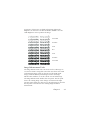
Good brightness and contrast settings play an important role in
OCR accuracy. Set these in the Scanner panel of the Options dialog
box or in your scanner’s interface. The diagram illustrates an
optimum brightness setting. After loading an image, check its
Preprocessing Images
42
appearance. If characters are thick and touching, lighten the
brightness. If characters are thin and broken, darken it. Use the
OCR Brightness tool to optimize the image.
Unsuitable
Tolerable
Good
Best
Good
Tolerable
Unsuitable
Image Enhancement Tools
The Image Enhancement tools can also be used to edit images to
save and use them as image files. Note that some these tools work
on the Primary image, others on the one used for OCR (OCR
image). Click the Primary/OCR Image button in the Image
Enhancement window, to see the current state of either image.
The Image Enhancement window has two panels. The left panel
shows the starting image. Your changes are shown in the right
preview panel. When you click Accept, the right image is moved to
the left panel to become the new starting image for further
enhancement.
Chapter 3
43
The following tools are accessible on the toolbar; their usage is
detailed as follows:
P - affects Primary image only.
O - affects OCR image only.
PO - can be applied to either the Primary or OCR image (or both)
P+O - a single action is applied to both the Primary and OCR image.
P/O - affects both images.
WH - applies to whole images only.
AR - can be applied to selected image areas.
Pointer (F5) - the Pointer is a neutral tool carrying out
different operations under different circumstances (for
example, to pick a color for the Fill operation, or to catch the
deskew line.) PO.
Zoom (F6) - click the tool then use the left mouse button to
zoom in on your image or the right mouse button to zoom out.
You can also use the mouse wheel for zooming in and out even in the inactive view. In the active view the "+" and "-"
buttons serve the same purpose. P+O. WH.
Select Area (F7) - click this, then on a tool that can work on a
page area (marked AR) and draw your selection on the image.
Image enhancement tools by default work on the whole page.
Selection has three modes (in the View menu): Normal,
Additive, and Subtractive. PO. AR.
Primary/OCR Image - click this tool to switch between the
primary and the OCR image in the active view. Primary
images can be of any image mode, while an OCR image is its
black-and-white version, generated purely for OCR purposes.
P/O. WH.
Preprocessing Images
44
Synchronize Views - click this tool to zoom and scroll the
inactive view to the same zoom value and scroll position as
the active view. To make the inactive view dynamically follow
the focus of the active one, click View then choose the Keep
Synchronized command. PO. WH.
The following SET tools allow you to modify image contents:
Brightness and Contrast - click this tool to adjust the
brightness and contrast of your primary image or a selected
part of it. Use the sliders in the tool area to achieve the desired
effect. P. AR.
Hue / Saturation / Lightness - click this tool then use the
sliders to modify the hue, saturation and lightness of your
primary image. P. AR.
Crop - to use only a part of your image, click the Select Area
tool, then the Crop tool and select the area to keep – the rest
of the image will be removed. P+O. WH > AR
Rotate - click this tool to rotate (by 90, 180 or 270 degrees)
and/or flip your image. P+O. WH.
Despeckle - click this tool to remove stray dots from your
image. Despeckle works on the OCR image at 4 levels of
severity. You can also use this tool not to remove noise from
the page but to strengthen letter outlines: to do this mark the
checkbox Inverse despeckling. O. AR.
OCR Brightness - use this tool the set Brightness and
Contrast of your OCR image. See the diagram of optimum
brightness under Preprocessing Images above. O. AR.
Dropout color - click this tool and select Red, Green, Blue or
choose a color from the primary image with the Select Area
tool. Sections of the scanned image in this color will be set
transparent. The tool has its effect on the OCR image. P/O. WH.
Chapter 3
45
Resolution - use this tool to decrease the resolution of your
primary image in percentages. Note that you cannot adjust a
resolution higher than that of the original one. P. WH.
Deskew - sometimes pages are scanned crookedly. To
straighten the lines of text manually, use the Deskew tool.
(Auto-deskew is also available in the Process panel of
Options.) P+O. WH.
3D Deskew - use this tool to remove perspective distortion
from digital camera images. This is particularly useful when
you want to check the results of automatic 3D Deskew or you
prefer to do 3D deskew manually after a Load Files step. P+O.
WH.
Fill - use this tool to apply a color to the image or a selected
part of it. PO. AR.
3D Deskew works by snapping the distorted image to a grid. All
you need to do is to manually straighten this grid, and image
coordinates will follow - see illustration below (before - after 3D
Deskew).
Using Image Enhancement History
To commit or undo your image edits (one by one or all the steps),
use the History panel in the Image Enhancement window. Once you
have modified the original image, its preview displays the changes,
Preprocessing Images
46
but they are not done until you click the Apply button next to the
History list. Modifications not added to the History by clicking the
Add button will not be applied.
Any time you want to see what output a certain step resulted in,
double click it in the History list.
To discard changes you have performed with a given tool, but before
applying it, select the step in the list, then click the Reset button.
To restore the image as it was before you started the current
enhancement session, click the Discard all changes button.
Saving and applying templates
If you have a number of similar images to enhance, you can build up
a list of enhancement steps to apply to all of them.
To create and store an image enhancement template, first bring an
image file into the Image Enhancement window, then carry out your
preprocessing steps and add them to the History clicking the Apply
button. When you are done, choose Save Enhancement Template
from the File menu. Browse to your preferred destination and save
the template file (with the extension .ipp).
To carry out the set of modifications saved in the template file on
another image, simply open the new image in the Image
Enhancement window and choose Load Enhancement Template
from the File menu.
Image Enhancement in Workflows
To incorporate image enhancement in a workflow
choose its icon in the Workflow Assistant. The
following options are available:
Display images for manual enhancement - during the execution of a
workflow, each loaded image will be displayed for manual editing.
Chapter 3
47
Apply enhancement template - an already saved enhancement
template will be applied automatically to the image while being
processed by the workflow.
Apply enhancement template and display - the workflow will apply
the selected image enhancement template, and will also display the
image so that you can make further edits to it.
Zones and backgrounds
Zones define areas on the page to be processed or ignored. Zones are
rectangular or irregular, with vertical and horizontal sides. Page
images in a document have a background value: process or ignore
(the latter is more typical). Background values can be changed with
the tools shown. Zones can be drawn on page backgrounds with
the tools shown under Zone Types and Properties (see later).
Process areas (in process zones or backgrounds) are auto-zoned
when they are sent to recognition.
Ignore areas (in ignore zones or backgrounds) are dropped from
processing. No text is recognized and no image is transferred.
Automatic zoning
Automatic zoning allows the program to detect blocks of text,
headings, pictures and other elements on a page and draw zones to
enclose them.
You can Auto-zone a whole page or a part of it. Automatically
drawn zones and template zones have solid borders. Manually
drawn or modified zones have dotted borders.
Auto-zone a page background
Acquire a page. It appears with a process background. Draw a
zone. The background changes to ignore. Draw text, table or
graphic zones to enclose areas you want manually zoned. Click the
Zones and backgrounds
48
Process background tool (shown) to set a process background.
Draw ignore zones over parts of the page you do not need. After
recognition the page will return with an ignore background and
new zones round all elements found on the background.
Auto-zoning vertical text
If you set Japanese, Korean or Chinese as the recognition language,
auto-zoning will find text blocks and detect the text direction.
Vertical Asian text appears horizontally in the Text Editor, but can
be exported as vertical - see Chapter 5.
Auto-zoning detects vertical texts in non-Asian languages in table
cells and anywhere on Normal PDF or XPS pages. Multi-line
detection is possible in these cases.
For image-only PDF and XPS files, and for all other image file or
scanner input, auto-detection works with the following conditions:
•
It must be only a single line of text
•
It must be on the left or right of a diagram or picture or
•
It must be situated on the left or right edge of the page - it
does not have to extend over the full height of the page.
Vertical text outside tables can be manually zoned, as described
below. This allows multiple vertical lines to be handled correctly.
Vertical texts can be viewed and edited with a vertical cursor in the
Text Editor using True Page. In other formatting levels the text is
placed horizontally.
Zone types and properties
Each zone has a zone type. Zones containing text can also have a
zone contents setting: alphanumeric or numeric. The zone type and
zone contents together constitute the zone properties. Right-click
in a zone for a shortcut menu allowing you to change the zone’s
Chapter 3
49
properties. Select multiple zones with Shift+clicks to change their
properties in one move.
The Image toolbar provides zone drawing tools, one for each type.
Process zone
Use this to draw a process zone, to define a page area where
auto-zoning will run. After recognition, this zone will be
replaced by one or more zones with automatically
determined zone types.
Ignore zone
Use this to draw an ignore zone, to define a page area you do
not want transferred to the Text Editor.
Text zone
Use this to draw a text zone. Draw it over a single block of
text. Zone contents will be treated as flowing text, without
columns being found. Use it for texts using the Latin, Greek
or Cyrillic alphabets and for horizontal texts in the Asian
languages.
Vertical Asian text zone
Use this to draw text zones for vertical text in Japanese or
Chinese. Zones should be rectangular.
Vertical left-rotated text zone
Use this to draw text zones for vertical text that is left
rotated (non-Asian languages only). The zones should be
rectangular.
Vertical right-rotated text zone
Use this to draw a text zone for vertical text that is right
rotated (non-Asian languages only). The zones should be
rectangular.
Zones and backgrounds
50
Table zone
Use this to have the zone contents treated as a table. Table
grids can be automatically detected, or placed manually.
Table zones should be rectangular. Vertical texts in tables
cannot be zoned manually – they can be auto-detected in
gridded tables.
Graphic zone
Use this to enclose a picture, diagram, drawing, signature or
anything you want transferred to the Text Editor as an
embedded image, and not as recognized text.
Form zone
Use this to enclose an area of your document containing
form elements such as a checkbox, radio button, text field or
anything you want transferred to the Text Editor as a form
element. Afterwards, in True Page, you can edit form layout,
and modify the properties of form elements. Form zones are
available in OmniPage Professional 17 only.
Working with zones
The Image toolbar provides zone editing tools.
Grouped tools can be undocked/floated an redocked as a separate mini toolbar for
convenience. One is always selected. When you
no longer want the service of a tool, click a different tool. Some tools
on this toolbar are grouped. If docked as a single tool, only the last
selected tool from the group is visible. To select a visible tool,
click it.
To draw a single zone select the zone drawing tool of the desired
type, then click and drag the cursor.
Chapter 3
51
To resize a zone, select it by clicking in it, move the cursor to a side
or corner, catch a handle and move it to the desired location. It
cannot overlap another zone.
To make an irregular zone by addition draw a partially overlapping
zone of the same type.
To join two zones of the same type draw an overlapping zone of the
same type (drawn zones on the left, resulting zone on the right).
To make an irregular zone by subtraction draw an overlapping zone
of the same type as the background.
To split a zone draw a splitting zone of the same type as the
background.
A full set of zoning diagrams appear in Help.
When you draw a new zone that partly overlaps an existing zone of
a different type, it does not really overlap it; the new zone replaces
the overlapped part of the existing zone.
The following zone types are prohibited:
Speed zoning lets you do manual zoning quickly. Activate the zone
selection cursor, then move the cursor over the page image. Shaded
areas will appear showing the auto-detected zones. Double-click to
transform a shaded area into a zone.
Zones and backgrounds
52
Table grids in the image
After automatic processing you may see table zones placed
on a page. They are denoted with a table zone icon in the
top left corner of the zone. To change a rectangular zone to
or from a table zone, use its shortcut menu. You can also
draw table type zones, but they must remain rectangular.
You draw or move table dividers to determine where
gridlines will appear when the table is placed in the Text
Editor. You can draw or resize a table zone (provided it
stays rectangular) to discard unneeded columns or rows
from the outer edges of a table.
Using the table tools you can insert row and column dividers; move
and remove dividers. Click the Place/Remove all dividers tool to
have dividers in a table auto-detected and placed.
You can specify line formatting for table borders and grids from a
shortcut menu. You will have greater choice for editing borders and
shading in the Text Editor after recognition.
Using zone templates
A template contains a page background value and a set of zones and
their properties, stored in a file. A zone template file can be loaded
to have template zones used during recognition. Load a template file
in the Layout Description drop-down list or from the Tools menu.
You can browse to network locations to load templates created by
others.
When you load a template, its background and zones are placed:
•
on the current page, replacing any zones already there
•
on all further acquired pages
•
on pre-existing pages sent to (re-)recognition without any
zones.
Chapter 3
53
With manual processing the template zones in the first two cases
can be viewed and modified before recognition.
With automatic processing the template zones can be viewed and
modified only after recognition.
With workflow processing, use the zone images step. This
combines two steps: load templates and manual zoning. To use a
zone template, click the Add button in the appropriate panel of the
Workflow Assistant, and select the zone template file to use. Then
make your choice between displaying images for manual zoning;
applying the zone template; or applying it and display the images.
Templates accept ignore and process zones and backgrounds. They
can therefore be useful to define which parts of the pages to process
with auto-zoning, and which parts to ignore. Process zones or
process background areas from a template may be replaced during
recognition by a set of smaller zones; specific zone types will be
assigned to these zones.
How to save a zone template
Select a background value and prepare zones on a page. Check their
locations and properties. Click Zone Template... in the Tools menu.
In the dialog box, select [zones on page] and click Save, then assign a
name and optionally a different path. Choose a network location to
share the template file. Click OK. The new zone template remains
loaded.
How to modify a zone template
Load the template and acquire a suitable image with manual
processing. The template zones appear. Modify the zones and/or
properties as desired. Open the Zone Template Files dialog box.
The current template is selected. Click Save and then Close.
Zones and backgrounds
54
How to unload a template
Select a non-template setting in the Layout Description drop-down
list. The template zones are not removed from the current or
existing pages, but template zones will no longer be used for future
processing. You can also open the Zone Template Files dialog box,
select [none] and click the Set As Current button. In this case, the
layout description setting returns to Automatic.
How to replace one template with another
Select a different template in the Layout Description drop-down
list, or open the Zone Template Files dialog box, select the desired
template and click the Set As Current button. Zones from the new
template are applied to the current page, replacing any existing
zones. They are also applied as explained above.
How to remove a template file
Open the Zone Template Files dialog box. Select a template and
click the Remove button. Zones already placed by this template are
not removed. Template files can be deleted only from the operating
system.
How to include a template file in an OPD
Open a document, then click Tools and choose Zone Template.
Select the one you want to include and click Embed. Then save the
document to the OPD format. This means the template will travel
with the OPD if it is sent to a new location. When the OPD file is
opened later, the included zone template will be shown in the Zone
Template Files dialog box as [embedded] and can be saved to a new
named template file at the new location by using the Extract
button.
Chapter 3
55
Proofing and editing
Recognition results are placed in the Text Editor. These can be
recognized texts, tables, forms and embedded graphics. This
WYSIWYG (What You See Is What You Get) editor is detailed in
this chapter. Asian text handling is in some respects different from
other languages. See “Asian language recognition” on page 61.
The editor display and formatting levels
The Text Editor displays recognized texts and can mark words that
were suspected during recognition with red, wavy underlines. They
are displayed with red characters in the OCR Proofreader.
A word may be suspect because it was not found in any active
dictionary: standard, user or professional. It may also be suspect as a
result of the OCR process, even if it is found in the dictionary. If the
uncertainty stems from certain characters in the word, these are
shown with a yellow highlight, both in the Editor and the OCR
Proofreader.
Choose to have non-dictionary words marked or not in the Proofing
panel of the Options dialog box. All markers can be shown or
hidden as selected in the Text Editor panel of the Options dialog
box. You can also show or hide non-printing characters and header/
footer indicators. The Text Editor panel also lets you define a unit of
measurement for the program and a word wrap setting for use in all
Text Editor formatting levels except Plain Text.
OmniPage 17 can display pages with three levels of formatting. You
can switch freely between them with the three buttons at the
bottom left of the Text Editor or from the View menu.
Proofing and editing
56
Plain Text
This displays plain decolumnized left-aligned text in a single
font and font size, with the same line breaks as in the original
document.
Formatted Text
This displays decolumnized text with font and paragraph
styling.
True Page
True Page® tries to conserve as much of the formatting of the
original document as possible. Character and paragraph styling
is retained. Reading order can be displayed by arrows.
Proofreading OCR results
After a page is recognized, the recognition results appear in the
Text Editor. Proofreading starts automatically if that was requested
in the Proofing panel of the Options dialog box. You can start
proofing manually any time. Work as follows:
1. Click the Proofread OCR tool in the Standard toolbar, or
choose Proofread OCR... in the Tools menu.
2. Proofing starts from the current page, but skips text already
proofed. If a suspected error is detected, the OCR Proofreader
dialog box colors the suspect word in its context, adds a yellow
highlight to any suspect characters and provides a picture of
how the word originally looked in the image. The explanation
says ‘Suspect word’ or ‘Non-dictionary word’.
3. If the recognized word is correct, click Ignore or Ignore All to
move to the next suspect word. Click Add to add it to the
current user dictionary and move to the next suspect word.
4. If the recognized word is not correct, modify the word in the
Edit panel or select a dictionary suggestion. Click Change or
Chapter 4
57
Change All to implement the change and move to the next
suspect word. Click Add to add the changed word to the
current user dictionary and move to the next suspect word.
5. Color markers are removed from words in the Text Editor as
they are proofread. You can switch to the Text Editor during
proofing to make corrections there. Use the Resume button to
restart proofing. Click Page Ready to skip to the next page and
Document Ready or Close to stop proofreading before the end
of the document is reached.
6. A page is marked with the proofed icon
on its thumbnail
and in the Document Manager if proofing ran to the end of the
page. Choose Recheck Current Page... from the Tools menu to
re-proof a page.
Verifying text
After performing OCR, you can compare any part of the recognized
text against the corresponding part of the original image, to verify
that the text was recognized correctly.
The verifier tool is in the Formatting toolbar. The verifier can
also be controlled from the Tools menu. Hover the cursor
over a verifier display to obtain the verifier toolbar. Use it as
follows:
How much context for
dynamic verifier?
• one word
• three words (current + neighbors)
• whole image line
zoom in/out
Verifying text
58
To turn the Verifier on, click the Verifier tool or press F9. To turn it
off, click the Verifier tool again, press F9 again, or press Esc.
A full list of verifier keyboard shortcuts is available in Help.
The Character Map
The Character Map is a dockable tool giving you aid in
proofing. It is used for essentially two purposes:
•
to insert characters during proofing and editing that are
not or not easily accessible from your keyboard. In this
respect, it is very similar to the system Character Map.
•
to show all characters validated by the current recognition
languages.
To access the Character Map, click its button in the Formatting
Toolbar, or choose Character Map from the View menu and click
Show.
Under the Character Map menu item, you can also choose to display
recent characters only, or different character sets (by default only
two are displayed). Asian characters are not supported.
You can access the Character Map in other ways, such as:
•
Click Tools > Options and choose the OCR tab. Click the
Additional Characters button to select characters to be
included in proofing. Similarly, you can modify the Reject
Character by using the Character Map.
•
Select Train Character under the Tools menu. Click the
(...) button beside the Correct field.
•
Select Train Character from the shortcut menu of a
suspect or non-dictionary word in the Text Editor.
Chapter 4
59
User dictionaries
The program has built-in dictionaries for many languages. These
assist during recognition and may offer suggestions during proofing.
They can be supplemented by user dictionaries. You can save any
number of user dictionaries, but only one can be loaded at a time. A
dictionary called Custom is the default user dictionary for
Microsoft Word.
Starting a user dictionary
Click Add in the OCR Proofreader dialog box with no user dictionary
loaded or open the User Dictionary Files dialog box from the Tools
menu and click New.
Loading or unloading a user dictionary
Do this from the OCR panel of the Options dialog box or from the
User Dictionary Files dialog box.
Editing or removing a user dictionary
Add words by loading a user dictionary and then clicking Add in the
OCR Proofreader dialog box. You can add and delete words by
clicking Edit in the User Dictionary Files dialog box. You can also
import words from OmniPage user dictionaries (*.ud). While editing
a user dictionary, you can import a word list from a plain text file to
add words to the dictionary quickly. Each word must be on a
separate line with no punctuation at the start or end of the word. The
Remove button lets you remove the selected user dictionary from the
list.
To embed a user dictionary in an OmniPage Document, load your
input file, choose Tools > User Dictionary; select the user dictionary
you want to use, click Embed, and name it. Then save to the file type
OmniPage Document.
User dictionaries
60
Languages
The program can read over 120 languages with multiple alphabets:
Latin, Greek, Cyrillic, Chinese, Japanese and Korean. See the full
language list in the OCR panel of the Options dialog box. It shows
which languages have dictionary support. A listing is also provided
on the Nuance web site.
In addition to user dictionaries, specialized dictionaries are
available for certain professions (currently medical, legal and
financial) for some languages. See the list and make selections in the
OCR panel of the Options dialog box.
Asian language recognition
Four languages with Asian alphabets are supported: Japanese,
Korean, Traditional Chinese and Simplified Chinese. The ideal font
size for body text is 12 points, scanned at 300 dpi, resulting in
characters with around 48 x 48 pixels. Minimum is 30 x 30, that is
10.5 points at 300 dpi. For smaller characters, 400 dpi should be
used. Asian texts can be horizontal (left-to-right) or vertical (topto-bottom, right-to-left). Operating systems supported by
OmniPage 17 can handle Asian languages, but if East Asian language
support was not selected during system install, it must be added
from Control Panel / Regional and Language Settings / Languages /
Supplemental language support / Install files for East Asian
languages. You may be required to insert a Windows system disk.
The four Asian languages are listed alphabetically with the others in
the Options/OCR panel. You should select only one of these
languages at a time and avoid a multiple selection with other
languages. Asian OCR can handle short embedded English texts
without English being explicitly set; this is not designed for longer
English texts or for texts in other Western languages. Vertical text
is typical in Japanese and Chinese - English may be embedded there
Chapter 4
61
in different orientations. The program can handle these; in the
output they appear right-rotated.
Beside the language list the option Verify language choices invokes
automatic language detection that warns of differences between a
detected language and the language setting. It works at page-level
and identifies four categories: Japanese, Chinese, Korean and nonAsian. It cannot distinguish between Traditional and Simplified
Chinese or between non-Asian languages. The last category means
Japanese, Chinese or Korean characters were not detected.
Verification takes place during image pre-processing, so the
required recognition language must be set before image loading.
Auto-layout and auto-zoning are recommended for Asian pages.
This places all detected texts into text zones; by choosing an Asian
recognition language you set Asian OCR to run in these zones and
that can automatically detect and transmit the text direction,
coping with mixed areas of horizontal and vertical texts on a page.
However, the zoning tool
lets you force vertical Asian
recognition by manual zoning. Please draw rectangular zones with
this tool. To manually zone horizontal Asian text, use the usual text
zone type. Do not use the two other vertical-text tools on Asian
texts. Drawing a vertical Asian zone does not automatically enable
an Asian language, nor influence the language auto-detection.
Digital camera images are accepted for Asian languages. However,
the automatic 3D deskew algorithm is unlikely to be useful certainly not for vertical texts. Preferably use the standard image
loading command and perform manual 3D deskewing with the
relevant SET tool if required. In general, SET tools can be used on
Asian images.
Recognized Asian pages appear in the Text Editor, provided your
system has support for East Asian languages - always with
horizontal text direction. There is no need to specify Asian fonts
Languages
62
under Options/OCR, a default font is automatically applied typically Arial Unicode MS. Other Asian-capable fonts on your
system can be chosen in the Text Editor. Editor support allows text
viewing and verifying - Formatted Text is recommended as
formatting level. Large-scale editing and spell-checking are better
done in the target application. Proofing, training and dictionary
support are not available for Asian texts. Therefore, prior to
performing Asian OCR, go to the Proofing panel under Options and
disable dictionary word marking, automatic proofreading and
IntelliTrain and ensure that no training file is loaded. Redaction can
be applied to Asian texts, either by selection or searching. The
workflow step Form Data Extraction should not be applied to
Asian pages.
Typical output converters for Asian texts are RTF, Microsoft Word,
Searchable PDF or XPS. The text direction will be as detected
during pre-processing. Changes made in the Text Editor - where
text is horizontal - will be exported, also to vertical text. Plain Text
converters are available (Unicode TXT, Notepad) but here text
direction will always be horizontal.
Training
Training is the process of changing the OCR solutions assigned to
character shapes in the image. It is useful for uniformly degraded
documents or when an unusual typeface is used throughout a
document. OmniPage 17 offers two types of training: manual
training and automatic training (IntelliTrain). Data coming from
both types of training are combined and available for saving to a
training file.
When you leave a page on which training data was generated, you
will be asked how to apply it to other existing pages in the
document.
Chapter 4
63
Manual training
To do manual training, place the insertion point in front of the
character you want to train, or select a group of characters (up to
one word) and choose Train Character... from the Tools menu or the
shortcut menu. You will see an enlarged view of the character(s) to
be trained, along with the current OCR solution. Change this to the
desired solution and click OK. The program takes this training and
examines the rest of the page. If it finds candidate words to change,
the Check Training dialog box lists these. Incorrect words should
be re-trained before the list is approved.
IntelliTrain
IntelliTrain is an automated form of training. It takes input from the
corrections you make during proofing. When you make a change, it
remembers the character shape involved, and your proofing change.
It searches other similar character shapes in the document,
especially in suspect words. It assesses whether to apply the user
correction or not.
You can turn IntelliTrain on or off in the Proofing panel of the
Options dialog box. IntelliTrain remembers the training data it
collects, and adds it to any manual training you have done. This
training can be saved to a training file for future use with similar
documents.
For examples of IntelliTrain, see Help.
Training files
Whenever you close a document or switch to another one when
unsaved training data exists, a dialog box appears allowing you to
save it. To save a training file into an OPD, load it from Tools >
Training File, click Embed, and save to the file type OmniPage
Document.
Training
64
Saving training to file, loading, editing and unloading training files
are all done in the Training Files dialog box.
Unsaved training can be edited in the Edit Training dialog box, an
asterisk is displayed in the title bar in place of a training file name.
Save it in the Training Files dialog box.
A training file can be also edited; its name appears in the title bar. If
it has unsaved training added to it, an asterisk appears after its
name. Both the unsaved and the modified training are saved when
you close the dialog box.
The Edit Training dialog box displays frames containing a character
shape and an OCR solution assigned to that shape. Click a frame to
select it. Then you can delete it with the Delete key, or change the
assignation. Use arrow keys to move to the next or previous frame.
You are
editing your
unsaved
training.
This frame has
been deleted.
To undelete it,
select it again
and press the
Delete key.
This frame is
selected.
Top part: image shape.
Bottom part: OCR
Double-click frame or
press Enter to change its
OCR solution.
Text and image editing
OmniPage has a WYSIWYG Text Editor, providing many editing
facilities. These work very similarly to those in leading word
processors.
Chapter 4
65
Editing character attributes
In all formatting levels except Plain Text, you can change the font
type, size and attributes (bold, italic, underlined) for selected text.
Editing paragraph attributes
In all formatting levels except Plain Text, you can change the
alignment of selected paragraphs and apply bulleting to paragraphs.
Paragraph styles
Paragraph styles are auto-detected during recognition. A list of styles
is built up and presented in a selection box on the left of the
Formatting toolbar. Use this to assign a style to selected paragraphs.
Graphics
You can edit the contents of a selected graphic if you have an image
editor in your computer. Click Edit Picture With in the Format
menu. Here you can choose to use the image editor associated with
BMP files in your Windows system, and load the graphic.
Alternatively, you can use the Choose Program... item to select
another program. This will replace the Default Image Editor item.
Edit the graphic, then close the editor to have it re-embedded in the
Text Editor. Do not change the graphic’s size, resolution or type,
because this will prevent the re-embedding. You can also edit images
before recognition using the Image Enhancement tools.
Tables
Tables are displayed in the Text Editor in grids. Move the cursor into
a table area. It changes appearance, allowing you to move gridlines.
You can also use the Text Editor’s rulers to modify a table. Modify the
placement of text in table cells with the alignment buttons in the
Formatting toolbar and the tab controls in the ruler.
Hyperlinks
Web page and e-mail addresses can be detected and placed as links in
recognized text. Choose Hyperlink... in the Format menu to edit an
existing link or create a new one.
Text and image editing
66
Editing in True Page
Page elements are contained in text boxes, table boxes and picture
boxes. These usually correspond to text, table and graphic zones in
the image. Click inside an element to see the box border; they have
the same coloring as the corresponding zones. The Help topic True
Page provides details on the operations summarized here.
Frames have gray borders and enclose one or more boxes. They are
placed when a visible border is detected in an image. Format frame
and table borders and shading with a shortcut menu or by choosing
Table... in the Format menu. Text box shading can be specified from
its shortcut menu.
Multicolumn areas have orange borders and enclose one or more
boxes. They are auto-detected and show which text will be treated
as flowing columns when exported with the Flowing Page
formatting level.
Reading order can be displayed and changed. Click the Show
reading order tool in the Formatting toolbar to have the order
shown by arrows. Click again to remove the arrows.
Click the Change reading order tool for a set of reordering
buttons in place of the Formatting toolbar. A changed order is
applied in the formatting levels Plain Text and Formatted
Text. It modifies the way the cursor moves through a page
when it is exported as True Page.
On-the-fly editing
This allows you to modify a recognized page through re-zoning,
without having to re-process the whole page. When on-the-fly
editing is enabled, zone changes (deleting, drawing, resizing,
changing type) immediately make changes in the recognized page.
Conversely, when you modify elements in the Text Editor’s True
Page formatting level, this changes the zones on that page.
Chapter 4
67
Two linked tools on the Image toolbar control on-the-fly zoning.
One of these tools is always active whenever no recognition is in
progress.
Click this to activate on-the-fly editing. The red signal shows
there are no stored zoning changes.
Click this to turn on-the-fly editing off. Your zoning changes
are stored; the on-the-fly tool displays a green signal to show
there are stored changes. To activate these changes, do one of
the following:
Click the on-the-fly tool with a green signal. The zoning
changes will cause changes in the Text Editor.
Click the Perform OCR button to have the whole page
(re)recognized, including your zone changes.
For details on how changes are handled in on-the-fly zoning and their
effects in the Text Editor, see On-the-fly processing in Help.
Marking and redacting
The Mark Text toolbar gives you tools to
mark (highlight or strike-out); and to
redact text. Use the View menu to have
this toolbar displayed. You can float or
dock this tool group. Each tool has its
equivalent menu item in the Format menu
or the Text Editor shortcut menu.
Redacting is blacking out confidential information. It is unreadable
and unsearchable. To mark and redact text manually, click the
Mark for Redacting tool and use its cursor to select all the text parts
you want to redact. They appear with a gray highlight. When you
are ready, click the Redact Document tool. Choose to do redaction
in a copy (safer) or the original document. If you choose to redact a
Marking and redacting
68
copy, both the copy and the original remain open in OmniPage,
ready to be saved.
WARNING: If you redact the original document, you cannot
retrieve the information you have blacked out.
To find and redact text by searching, select Find and Mark Text
from the Edit menu to display the Find, Replace and Mark Text
dialog box. Search for text to be marked for redaction. Step through
all occurrences and decide for each case whether to redact
immediately or mark for redaction. In the latter case, perform the
redaction by choosing Close and Redact Document in the Mark
Text dialog box or later click the Redact Document button.
You can apply highlighting and striking out either by selection or
searching.
Reading text aloud
The Nuance RealSpeak® speech facility is provided for the visually
impaired, but it can also be useful to anyone during text checking
and verification. The speaking is controlled by movements of the
insertion point in the Text Editor which can be mouse or keyboard
driven.
To hear text:
Use these keys:
One character at a time, forward or
back
Right or left arrow. Letter, number or
punctuation names are spoken.
Current word
Ctrl + Numpad 1
One word to the right
Ctrl + right arrow
One word to the left
Ctrl + left arrow
A single line
Place the insertion point in the line
Next line
Down arrow
Chapter 4
69
Previous line
Up arrow
Current sentence
Ctrl + Numpad 2
From insertion point to end of
sentence
Ctrl + Numpad 6
From start of sentence to insertion
point
Ctrl + Numpad 4
Current page
Ctrl + Numpad 3
From top of current page to
insertion point
Ctrl + Home
From insertion point to end of
current page
Ctrl + End
Previous, next or any page
Ctrl + PgUp, PgDown or navigation
buttons
Typed characters
Each typed character is pronounced
separately.
The Text-to-Speech facility is enabled or disabled with the Tools
menu item Speech Mode or with the F10 key. A second menu item
Speech Settings... allows you to select a voice (for example, male or
female for a given language), a reading speed and the volume. You
must ensure the language selection is appropriate for the text you
want to hear.
You also have the following keyboard controls:
To do this:
Use this:
Pause/Resume
Ctrl + Numpad 5
Set speed higher
Ctrl + Numpad +
Set speed lower
Ctrl + Numpad –
Restore speed
Ctrl + Numpad *
Reading text aloud
70
All speech systems will be installed with OmniPage 17 if you choose
a complete installation. If you perform a custom installation, you
can choose the languages you need.
Creating and editing forms
You can bring paper or static electronic forms (distributed
mainly as PDF in an office environment) into OmniPage
Professional 17, recognize them and edit their content,
layout or both - in True Page. Draw form zones over the
relevant areas of your image before recognition, or choose Form as
recognition layout, then use the two toolbars: Form Drawing and
Form Arrangement to make modifications and produce a fillable
form and save it in the following formats: PDF, RTF, or XSN
(Microsoft Office InfoPath 2003 format). Static forms can be saved
to HTML. OmniPage Professional 17 uses the Logical Form
RecognitionTM technology to create fillable forms from static ones.
Please note that OmniPage supports form creation and editing,
however the tools available here are not designed to fill in forms.
The Form Drawing Toolbar
This is a dockable toolbar, displayed in the Text Editor that allows
you to create a range of form elements using the following tools:
Selection: Click this tool to be able to select, move, or resize
elements in your form.
Text: Use the text tool to add fixed text descriptions on your
form such as titles, labels and headers.
Line: The Line tool is mainly used in layout design: click it and
draw lines to separate distinct sections in your form.
Rectangle: Click this tool to create rectangles in your form for
design purposes.
Chapter 4
71
Graphic: Use this tool to select areas of your form that are to be
treated as graphics.
Fill text: Click this tool to create fillable text fields. These are
fields where you want people to enter text.
Comb: Use this tool to create a text field consisting of boxes.
This is typically used for information such as ZIP codes.
Checkbox: Click this tool and draw Checkboxes - typically for
Yes/No questions and marking one or more choices.
Circle text: Its function is similar to the Checkbox element
(above): the Circle text tool creates elements that get encircled
when selected.
Table: This tool creates tables in your form.
You can also create form elements by right-clicking an existing form
element in your recognized form, and choose the Insert Form Object
menu item.
The Form Arrangement Toolbar
The tools on this toolbar can be used to line up form elements or to
set which one is on top of the others when they overlap. This latter
function is useful for example if you want to create a background
graphic design for your form.
To set the order of overlapping elements, use the
“Bring to Front” and “Send to Back” buttons.
To align the right/left, top/bottom edges or the centers of the
selected form elements
horizontally - use the horizontal alignment tools
vertically - use the vertical arrangement tools.
The commands of the Form Arrangement toolbar are also accessible
from the shortcut menu of any form element.
Creating and editing forms
72
Editing Form object properties
To edit a form object directly select it then right-click the given
element to display its shortcut menu. You can edit the appearance
or the properties of any form element here. Use the following
commands:
Form Object Appearance - use the tabs Borders, Shading and
Shadow to design the look of your form elements in a similar way as
you would do in a text-editing application.
Form Object Properties - this command gives you access to the
element properties such as size, position, name. Properties
dynamically vary depending on what type of element you select.
Extracting Form Data
Form data extraction (FDE) is a workflow step. Data is
extracted from elements such as fillable fields, check boxes,
and option buttons. FDE is a simplified implementation of
the full Logical Form Recognition technology.
To create a workflow that contains form data extraction:
• Define the processing input and its settings. Input types
include: image PDF, PDF form, image files and forms
scanned from paper.
• Choose Extract Form Data in place of recognition, and
specify its settings. Set an active PDF form as template. It
can be single or multi-page, filled or unfilled. The program
determines the location and type of the form fields based
on this form template.
• Finish the workflow with a saving step.
OmniPage will extract data from incoming forms, using the
specified template. Export is to a comma-separated value text file
(.csv) ready to be loaded into a spreadsheet.
Once you select Form Data Extraction in a workflow, only saving
steps will follow.
Chapter 4
73
Saving and exporting
Once you have acquired at least one image for a document,
you can export the image to file. Once you have recognized at least
one page, you can export recognition results. After further
recognition you can save a single page, selected pages or the whole
document by saving to file, copying to Clipboard or sending to a
mailing application. Saving as an OmniPage Document is always
possible. OmniPage provides comprehensive support for Office
2007 applications and formats, so long as you have Microsoft .NET
Framework 3.0 installed.
A document remains in OmniPage after export. This allows you to
save, copy or send its pages repeatedly, for example with different
formatting levels, using different file types, names or locations. You
can also add or re-recognize pages or modify the recognized text.
With automatic processing and in Batch Manager jobs, you specify
where to save first before processing starts.
A workflow may contain one or more saving steps, even to different
targets (for instance, to file and to mail). A Batch Manager job must
contain at least one saving step. See Chapter 6, “Workflows”.
Saving and Exporting
If you want to work with your document again in OmniPage in a
later session, save it as an OmniPage Document. This is a special
output file type. It saves the original images together with the
recognition results, settings and training.
Exporting is done through button 3 on the OmniPage Toolbox. It
lists available export targets. Some appear only if access to the
target is detected on your computer. Select the desired target then
Saving and exporting
74
click the Export Results button to begin export. You can also
perform exporting through the Process menu.
Saving original images
You can save original images to disk in a wide variety of file types
with or without image enhancement (using the Image
Enhancement Tools).
1. Choose Save to File in the Export Results drop-down list. In
the dialog box that appears, select Image under Save as.
2. Choose a folder location and a file type. Type in a file name.
3. Select to save the selected zone image(s) only, the current page
image, selected page images or all images in the document. For
multiple zones or multiple pages, you can have all images in a
single multi-page image file, providing you set TIFF, MAX,
DCX, JB2 or Image-only PDF or XPS as file type. Otherwise
each image is placed in a separate file. OmniPage adds
numerical suffixes to the file name you provide, to generate
unique file names.
4. Click Options... if you want to specify a saving mode (blackand-white, grayscale, color or ‘As is’), a maximum resolution
and other settings. For TIFF files, you specify the compression
method here.
5. Click OK to save the image(s) as specified. Zones and
recognized text are not saved with the file.
Saving original images
75
Saving recognition results
You can save recognized pages to disk in a wide variety of file types.
1. Choose Export Results... in the File menu, or click the Export
Results button in the OmniPage Toolbox with Save to File
selected in the drop-down list.
2. The Save to File dialog box appears. Select Text under Save as.
3. Select a folder location and a file type for your document. Select
a page range, file options, naming options and a formatting level
for the document. See “Selecting a formatting level” on this
page.
4. Type in a file name. Click Options... if you want to specify
precise settings for the export. See “Selecting converter
options” later in this chapter.
5. Click OK. The document is saved to disk as specified. If View
Result is selected, the exported file will appear in its target
application; that is the one associated with the selected file
type in your Windows system or in the advanced saving
options for your selected file type converter.
Selecting a formatting level
The formatting level for export is defined at export time, in the
saving dialog box (Save to File, Copy to Clipboard, Send in Mail or
other dialog box). Three of the levels correspond to the format
views of the same name in the Text Editor. However, the level to be
applied for saving is independent of the formatting view displayed
in the Text Editor. When exporting to file or mail, first specify a file
type. This determines which formatting levels are available.
Saving recognition results
76
The formatting levels are:
Plain Text
This exports plain decolumnized left-aligned text in a
single font and font size. When exporting to Text or
Unicode file types, graphics and tables are not
supported. You can export plain text to nearly all file
types and target applications; in these cases graphics,
tables and bullets can be retained.
Formatted Text
This exports decolumnized text with font and
paragraph styling, along with graphics and tables.
This is available for nearly all file types.
Flowing Page
This keeps the original layout of the pages, including
columns. This is done wherever possible with column
and indent settings, not with text boxes or frames.
Text will then flow from one column to the other,
which does not happen when text boxes are used.
True Page
This keeps the original layout of the pages, including
columns. This is done with text, picture and table
boxes and frames. This is offered only for target
applications capable of handling these. True Page
formatting is the only choice for XML export and for
all PDF export, except to the file type ‘PDF Edited’.
Spreadsheet
This exports recognition results in tabular form,
suitable for use in spreadsheet applications. This
places each document page onto a separate
worksheet.
Saving recognition results
77
When exporting to Microsoft Excel, 'Spreadsheet' is good for saving
whole-page tables. Prefer 'Formatted Text' if your document
contains smaller tables: each table will be placed on a separate
worksheet with non-table parts placed in an index worksheet with
hyperlinks to each relevant worksheet
Selecting converter options
Click the Options... button in a saving dialog box to have precise
control over the export. This brings up a dialog box with the name
of the converter associated with the current file type. It presents a
series of options tailored to this file type. First, confirm or change
the formatting level, because this influences which other options are
presented. Select options as desired. Help details how to do this.
To make changes apply to all future export done with the given
converter, select the checkmark Make changes permanent. If this is not
selected, changes are applied to the current export only and are not
saved for future use. Export settings can be changed and saved
without a document save – choose Tools/Saving Preferences... .
Using multiple converters
Multiple converters allow you to export to two or more file types in
one export step. Choose Multiple in the saving dialog box:
To make your own multiple converter, open the Saving Preferences
dialog box from the Tools menu. Choose the heading Multiple
converters. Select a converter and click Create from... . This will
make a copy of the selected converter that you can freely modify
without overwriting the original one.
The new converter appears in the list. Select it and click Options...
to specify its settings. You receive a list of all text converters,
Saving recognition results
78
followed by all image converters. Checkmark the desired ones.
Optionally specify sub-folder paths for each file type.
You can save pages with different formatting levels or file options to
the different file types, as defined in their simple converters. A few
saving operations cannot be done with multiple converters. These
are:
Saving OmniPage Documents
Use a workflow with two saving steps, or perform two separate
saves.
Saving to two targets
For instance, you cannot use a multiple converter to save a
document to file and also send it in mail. Use a workflow with two
saving steps, or perform two separate saves.
Saving different page ranges
You cannot save different page ranges to different file types, because
only one set of selected pages can exist at saving time. For the same
reason, a single workflow cannot be used either. Perform two
separate saves or use two workflows.
Saving to PDF
You have five choices when saving to Portable Document Format
(PDF) files. The first four are presented as Text converters, the last
one is listed among the Image converters.
PDF (Normal):
Pages are exported as they appeared in the Text Editor in True Page
view. The PDF file can be viewed and searched in a PDF viewer and
edited in a PDF editor.
PDF Edited:
Use this if you have made significant editing changes in the
recognition results. You have three formatting level choices,
Saving recognition results
79
including True Page. The PDF file can be viewed, searched and
edited.
PDF Searchable Image (formerly PDF Image on Text):
The PDF file is viewable only and cannot be modified in a PDF
editor. The original images are exported, but there is a linked text
file behind each image, so the text can be searched. A found word is
highlighted in the image.
PDF with image substitutes:
As for PDF (Normal), but words containing reject and suspect
characters have image overlays, so these uncertain words display as
they were in the original document. The PDF file can be viewed,
searched and edited.
PDF Image (formerly PDF, image only):
The original images are exported. The PDF file is viewable only and
cannot be modified in a PDF editor and text cannot be searched.
Besides the above flavors, you can use other parameters in defining
your PDF output by clicking Options:
PDF 1.6
Save to PDF version 1.6 for enhanced security, markup and
attachment embedding functionality.
PDF/A
Choose to create PDF/A compliant files to be confident that files
display identically regardless of the computer environment and
remain readable even after many years of technological evolution.
Tagged PDF
Create a tagged PDF file to preserve its structure. This will ensure
logical reading order, correct table structure and more.
Saving recognition results
80
PDF MRC
Use this high compression technology for good quality and smaller
file size. Available for color and grayscale PDF Images or PDF
Searchable Images.
Linearized PDF
Choose this to create PDF files optimized for fast loading and
display when embedded in web pages.
Password protection
In OmniPage Professional you can set a type and level of encryption
and then define an Open password and/or a Permissions password
for PDF files.
A smaller range of choices is available for saving to XPS files,
provided that you have Microsoft .NET Framework 3.0 installed.
Converting from PDF
To extract text content from a PDF file, load it into OmniPage,
recognize it, and save the results to a text format.
A variety of outputs is also available from a PDF file shortcut menu:
Word, Excel, RTF, WordPerfect or text. For more options, use the
Convert Now Wizard.
Creating PDF files from other applications
The Nuance PDF Create product supplied with OmniPage
Professional provides the ability to create Normal PDF files from
documents in any print-capable application on your system. Click
File / Print and select the printer ScanSoft PDF Create! Adjust
properties as desired and click OK and supply a file name and
location. If View resulting PDF is selected, your default PDF viewer
displays the result.
Saving recognition results
81
Sending pages by mail
You can send page images or recognized pages as one or more files
attached to a mail message if you have installed a MAPI-compliant
mail application, such as Microsoft Outlook. To send pages by
e-mail:
• With automatic processing, select Send in Mail as the
setting in the Export Results drop-down list on the
OmniPage Toolbox. The Export Options dialog box
appears as soon as the last available page in the document
is recognized or proofed. After export options are
specified, an empty mail message appears with file(s)
attached - add recipients and message text as desired.
• With manual processing, select Send in Mail as the setting
in the Export Results drop-down list and then click its
button. The Export Options dialog box appears
immediately and then the mail message with the
attachment(s).
• Workflows and jobs accept a Send in Mail export step, but
they require the recipients and message text to be specified
as workflow settings, so the workflow can be run
unattended.
Sending to Kindle
A Kindle reader is an electronic book product from Amazon. The
Kindle Assistant in the Tools menu lets you create a simple
workflow that sends recognition results to a Kindle account at
Amazon; these results are optimized for reader display and appear
on the Kindle device registered to that account.
To prepare a Kindle workflow:
1. Have your Kindle reader and its associated e-mail address on
hand.
Sending pages by mail
82
2. Choose Kindle Assistant in the Tools menu.
3. Type in a name for the new workflow.
4. Choose a document source: Scan, Load files or Load digital
camera files. With file input, you will be prompted to choose
input files when the workflow starts running.
5. Enter the e-mail address linked to your Kindle reader.
6. Provide a name for the output file. All recognition results enter
a single file.
7. Choose Save to save the workflow for later use, or Save and Run
to immediately run the workflow and transfer its results to
your Kindle device.
This simple workflow has three steps: acquire images, perform
OCR and send to Kindle. Recognition is done in English. All other
settings take either default values or values optimized for Kindle.
When you run the Kindle Assistant for the first time, a customized
output converter is created, called 'Kindle Document'. It converts
colored items to grayscale, pictures to 72 dpi and sets Formatted
Text to remove any columns. This converter is then available for
later processing - with or without workflows.
You can modify the Kindle workflow using the Workflow
Assistant, to add other steps and change settings. For instance you
can specify a page range or add more saving steps, so the file is not
only sent to Kindle, but also saved to file with different settings (for
instance with Flowing Page and color retention). Take care not to
make modifications that are unsuitable for Kindle - e.g. creating
multiple output files, setting non-supported languages etc.
You can also compile workflows targeting Kindle with the
Workflow Assistant; set a Send in Mail step, choose the Kindle
output converter in its settings and enter the Kindle e-mail address.
You can do the same without using a workflow by choosing Send in
Mail in the Export results drop-down list.
Sending to Kindle
83
Please note that at the moment (May 2009) this Kindle service is
available from Amazon only in the United States of America.
Therefore the Kindle Assistant appears only if English is set as the
program interface language.
Other export targets
Turn recognized text into an audio wave file for later listening,
using Nuance RealSpeak. A multiple converter is useful for this,
allowing you to save the document to file and generate the wave file
in one saving step. You must specify the reading language in the
converter options for the wave file type.
In OmniPage Professional 17 you can export files to other
targets. You can save files to a central server (an FTP site),
to Microsoft SharePoint 2003 and 2007, to Hummingbird
(Open Text) or iManage (Interwoven). Exporting choices are made
in the Export Options dialog box. When you click OK you are
directed to FTP or SharePoint log-in and invited to specify the
required path.
When using SharePoint, the server, login and password information
must be provided only once per session, and it is offered in each
subsequent session.
If an ODMA-compliant Document Management System (DMS) is
detected in your computing environment, it will be offered. If you
have access to more than one DMS, the system default will apply.
The ODMA server must be pre-configured to accept the file types to
be exported from OmniPage Professional, as defined by their
extensions.
See Help for more information on these targets.
Other export targets
84
Workflows
A workflow contains a series of processing steps and their settings.
It can be saved for repeated use whenever you have a task needing
the same processing. Workflows usually begin with a scanning or
loading step, but they can also start from the document currently
open in OmniPage. After that, they do not have to conform to the
traditional 1-2-3 processing pattern. Usually a workflow will
include a recognition step, but this is not compulsory. For instance,
page images can be saved to image files in a different file type or to
an OmniPage Document. With or without OCR, any number of
saving steps are possible, even to different targets, each with their
own export settings.
Workflows are designed for efficient whole-document processing.
They can also handle recognizing or saving single or selected pages
from a document.
Some workflows run without user interaction. Workflows needing
interaction are those with a manual image enhancement step, a
manual zoning step, a proofing/editing step, the ones when runtime prompting is requested for input or output file names and
paths, or scanning workflows prompting for more pages.
Batch Manager jobs are closely related to workflows. Jobs are
created in the Job Wizard which uses the Workflow Assistant in
the creation process. Jobs run workflows according to the job
parameters (mostly timing instructions) and it is more typical for
them to run unattended.
Workflows
85
Sample workflows
Sample workflows are provided with OmniPage 17 to offer you
typical work processes. Choose one in the Workflow drop-down
list at the left side of the OmniPage Toolbox.
Click the Workflow Assistant button
see its steps and settings.
in the Standard toolbar to
Running workflows
Here is how to run a sample workflow or one you have created:
1. If your workflow takes input from scanner, place your
document in its ADF or its first page on the scanner bed.
2. Select the desired workflow from the
Workflow drop-down list.
3. Press the Start button. The OmniPage Toolbox displays the
steps in the workflow and acts as a progress monitor. The
Workflow Status panel shows progress in more detail. To stop
the workflow before it completes, press the Stop button.
4. If run-time input selection is specified, the Load Files dialog
box awaits your choice of files.
5. If you requested a step requiring interaction (image
enhancement, manual zoning, or proofing) the program
presents pages for attention.
6. When a page is enhanced, zoned or proofed,
click the Page Ready button in the Toolbox or
appropriate dialog box to move to the next
page.
7. When the last page is enhanced, zoned or
proofed, or when you no longer want to do
zoning or proofing, press the appropriate
86
Document Ready button on the Toolbox. Any pages without
zones will be auto-zoned.
8. The After Completion menu under Process / Workflows gives
you three options to end a workflow. You can choose to close
the document, close OmniPage, or shut down your computer.
These settings are typically applied if the workflow runs
unattended - if your workflow is so, remember to include a
saving step.
You can also run workflows from an OmniPage Agent icon
on the Windows taskbar. Right-click it for a shortcut menu listing
your workflows. Select one to run it. OmniPage will be launched if
necessary. If it is running with a document loaded, the Start
Workflow dialog box displays where you can choose what to
process from the current document: only the Workflow-defined
pages, all pages, selected pages, or the current page.
If you do not see the OmniPage Agent icon, enable it in the General
panel of the Options dialog box or choose Start > All Programs >
Nuance OmniPage 17 > OmniPage Agent.
You can launch some workflows from your desktop, from Windows
Explorer or the Easy Loader. Right click on an image file icon or file
name for a shortcut menu. Multiple file selection is possible. Choose
OmniPage 17 and a workflow name from the sub-menu. This submenu also provides quick access to six target formats using default
settings: Word, Excel, PDF, RTF, TXT and WordPerfect. To
customize which workflows you would like to see here, click the
Add and Remove Workflows menu item. Only workflows with runtime prompting for input files are listed here.
Pressing Stop while a workflow is running pauses it. Click Start to
resume processing. If you pause a workflow, maybe do some manual
processing, and then save the document as an OmniPage Document,
when you later open that OmniPage Document, the interrupted
workflow will resume.
87
Workflow Assistant
This allows you to create and modify workflows. The Job Wizard
also uses this to create or modify workflows that jobs execute - see
the next section. The Assistant offers one or more steps, each with a
drop-down list. This left panel of the Workflow Assistant dialog
box lets you build your workflow.
.
This shows the
steps you have
chosen.
This drop-down list
shows the possible
steps at any given
workflow position.
Use this to add a new step
to your workflow.
Specify settings for
the current step here.
Click the Close button to delete a workflow step.
All subsequent, dependent steps will also be removed.
To change a step, click this arrow and select
from the ones in the drop-down list.
Workflow Assistant
88
At any moment in the process, the Assistant drop-down menu
offers all steps that are logically possible at that point.
In OmniPage 17 Professional, additional steps are available: Extract
Form Data and Mark Text.
Creating workflows
Select New Workflow... in the Workflow drop-down list, or
from the Process menu. Or click the Workflow Assistant
button in the Standard toolbar when no workflow is selected.
The opening Assistant panel offers two starting points:
Choose Fresh Start to begin with no steps in the workflow diagram
on the right. Accept or change the default workflow name. Then
click Next and choose your first step. Choose an image loading step
that can take input from file, scanner or digital camera files. Specify
settings on the right. Then move on to build your workflow: it can
include a variety of different steps. When done, click Finish.
Choose Existing Workflows to see a list of existing workflows.
These are the sample workflows plus any you have created. Select
one as source. Its steps will appear in the workflow diagram on the
right. Enter a name for your new workflow. Click Next to proceed;
modify its steps and settings as described in the next section. The
changed settings apply to the new workflow only and are not
written back to the workflow used as the source. Any changed
settings enter the new workflow, but do not affect the settings in
the program. Finally, select Finish to complete your new workflow.
Workflow Assistant
89
Modifying workflows
Select the workflow you want to modify in the Workflow
drop-down list and click the Workflow Assistant button in
the standard toolbar. Or choose Workflows... in the Tools
menu, select the desired workflow and click Modify... . The first
panel of the Workflow Assistant appears with the workflow
loaded. Click the icon in the workflow diagram that represents the
step you want to modify. Click the downward pointing arrow
under the icon to replace this step with another one. Continue
modifying steps and/or settings as desired. Remember that deleting
or modifying a step may result in later, dependent steps being
removed. Click Next to replace removed steps or to add new ones.
Click Finish to confirm the changes to your workflow.
After creating or modifying a workflow, you must either run a
workflow or select the 1-2-3 item in the Workflow drop-down list,
to return to normal processing.
Workflow to Kindle
The Kindle Assistant in the Tools menu helps you create a simple
workflow that will accept input, perform OCR and send the results
in a suitable format to a Kindle account at Amazon; it will then
appear on the Kindle device registered to that account. See “Sending
to Kindle” on page 82.
Batch Manager
The Batch Manager is a separate but integrated program
to let you create jobs to be processed immediately, or at
some time in the future. By choosing steps carefully, you
can set up jobs that can run unattended. A job executes a
Batch Manager
90
workflow according to the job settings. Jobs are created in the Job
Wizard.
In OmniPage Professional 17 you have the following
additional Batch Manager capabilities:
•
•
•
•
•
Setting job timing and recurrence
Folder watching for incoming image files
E-mail inbox watching for incoming attachments
(Outlook and Lotus Notes)
E-mail notification of job completion to specified
recipients
Driving workflows with barcodes.
Creating new jobs
Open the Batch Manager from the Process Menu or from your
system, by choosing Start > All Programs > Nuance OmniPage 17 >
OmniPage Batch Manager or from the OmniPage Agent on the
taskbar.
Creating a job is basically timing a workflow. To do this,
start the Batch Manager (as described above) and click the
Create Job icon or choose Create Job from the File menu.
The Job Wizard starts. First you need to define your job type. You
can create five different types, instances of two basic categories:
Normal and Watch type.
Normal and Watch type jobs may have a recurrence pattern. The
latter are tailored to monitor a specified folder or e-mail inbox for
incoming images to be processed in OmniPage. A specific type
within this category is Barcode cover page jobs, where barcode
cover pages are used to identify which workflow to carry out.
Creating new jobs
91
Normal job: Set starting time and specify or create the
Workflow to be run. If you select ‘Do not start now’ use the
Activate button in the Batch Manager to start it.
Job types available in OmniPage Professional 17 only:
Barcode cover page job: This is a special type of folder
watching job (see below). It monitors a folder for incoming
barcode pages, then processes subsequently incoming
images with the workflow identified by the barcode. For
details, see Barcode processing later in this chapter.
Folder watching job: Select this job type and browse to the
folder(s) to be watched for incoming image files.
Outlook mailbox watching job: This job watches an
Outlook e-mail inbox for incoming image attachments of
a specified type.
Lotus Notes mailbox watching job: Same as above, but a
Lotus Notes inbox is watched.
Name your job and click Next.
The next panel shows Start and Stop Options. Specify Start and
End Time, set whether input files are to be deleted or saved when
the job is completed. If you have a job requiring user interaction,
choose whether to allow it or not with the checkmark Run job without
any prompts. This lets you run such jobs in two ways, avoiding the
need to create two jobs. If you plan to be at the computer as the job
runs, de-select the checkmark. If you want to run the job without
being present, select the checkmark. Then only automatic image
enhancement will run, auto-zoning will replace manual zoning and
proofing is skipped. In this case you must ensure that the input and
saving file sets and locations are pre-defined.
In OmniPage Professional you can set a recurrency pattern and
request e-mail notification when the job is completed.
Creating new jobs
92
From the next panel onwards, you can construct your job (except
for barcode cover page jobs) as you normally do with Workflows.
Set your starting point (Fresh Start or Existing Workflows) and
proceed as described in the Workflows topic.
The Options dialog box in the Batch Manager is in the Tools menu.
Its General panel has an option Enable OmniPage Agent on system tray at
system startup. By default it is on. It must remain selected for jobs to
run at their scheduled time. The option is provided so it is possible
to prevent all jobs from running without having to disable them
individually. Its state also governs the running of barcode cover
page jobs.
The General panel lets you limit the number of pages allowed in an
output document, even if the file option Create one file for all pages is
selected. When the limit is reached, a new file is started,
distinguished by a numerical suffix.
Click Finish to confirm job creation.
Modifying jobs
Jobs with an inactive status can be modified. Select the job
in the left panel of the Batch Manager and choose Modify
from the Edit menu or click the Modify Job button. First,
modify timing instructions as desired. Then the Workflow
Assistant appears with the workflow steps and settings loaded.
Make the desired changes as already described for workflows. See
“Modifying workflows” above.
Creating new jobs
93
Managing and running jobs
This is done with the Batch Manager. It has two panels. The left
panel lists each job, its next run, status and history. The status is:
Waiting:
Scheduled but job start time is in the future.
Running:
Processing is currently underway.
Watching:
Watching is in progress but there is no processing.
Inactive:
Created with timing instruction: Do not start now; or
any deactivated jobs.
Expired:
Scheduled job but start time is in the past.
Collecting:
Watching in progress but the job is waiting for all
incoming files to arrive.
Paused:
User has paused the job and not yet resumed it.
Closing:
Watch type job is saving its result.
Starting:
The status right before Running. Displays when a
job is just being started or when more jobs are about
to run than the number of jobs Batch Manager can
simultaneously run.
Click on a job and a step-by-step analysis of all pages in the job
appears in the right panel. It shows where input was taken from,
the page status and where output was directed to. Click on a plus
icon to see more information about the page. Click on a minus icon
to hide details. For jobs with the error or warning status, the listing
shows which pages failed or what problems occurred.
Activate Job in the File menu serves to activate any inactive
job immediately.
Deactivate Job in the File menu deactivates any active job. If
the job is running, this will stop it before deactivating.
Choose this to close a Watch type job immediately to save its
result.
Creating new jobs
94
Stop Job in the File menu stops a job with status Starting,
Running, or Paused.
Pause Job is available for jobs with status Running or
Starting. To modify such a job’s timing instructions you must
stop it.
Resume Job lets the job continue from its state when it was
paused.
Delete Job in the Edit menu serves to delete the currently
selected job. Only Inactive jobs can be deleted.
Rename Job serves to modify the name of any job.
Use the Edit menu to send a copy of a job’s status report to
Clipboard.
Use Save OPD As... in the File menu to save any intermediate result
of a paused job to an OPD file.
To remove data files click Edit, then choose Clear Occurrence. This
removes files storing the reporting data from the current occurrence
of the current job. Clear All Occurrences removes all data for all job
occurrences of the selected job. These two options are useful to free
disk space, but cleared occurrences cannot be viewed any more, so
use these with caution.
The Workflow viewer
The Workflow viewer, as displayed in the Workflow Status panel,
is integrated into the Batch Manager to the right of the list of your
jobs. Use it to get comprehensive and detailed information about
the processing of each occurrence of the job. The viewer shows the
process in a step-by-step fashion - following the steps of the
workflow. It displays input and output page information at each
stage, allowing you to quickly view any page. Job results are marked
by icons. Drop-down lists give you information about processing
steps.
Creating new jobs
95
Watched folders
In OmniPage Professional 17, you can specify watched
folders and e-mail inboxes (Outlook and Lotus Notes) as job
input. These allow processing to be started automatically
whenever image files are placed in pre-defined folders or
arrive into inboxes as e-mail attachments. This is useful to
have sets of files with predictable content arriving from
remote locations processed automatically on arrival, even if no-one
is in attendance. Typically these are reports or form-like documents
that are delivered repeatedly or at recurring intervals, for example
each week or month.
To use this facility, prepare a set of folders or e-mail folders to be
watched. You should not use these folders for other purposes, not
even for barcode cover page jobs. When setting up such a job,
choose Folder watching job, name it and click Next. In the dialog
box that appears, browse to the folders.
Add a watched
folder to the list
using this Browse for
Folder dialog box.
Specify an image
file type.
Add the desired folders and file types (one type or all types). Click
the checkbox in front of your selected folder to include its
subfolders as well. To enable a number of file types, add the Folder
Watched folders
96
repeatedly, once for each type. Add a checkmark to watch
subfolders of the selected folder as well.
When you reach the next panel of the Job Wizard, you set the
timing instructions: a starting time and an end time for the
watching to occur. You can specify recurrences, for instance to have
the folder(s) watched only during your lunch hour (Start 12.15, End
13.05) every Monday, Wednesday and Friday, or overnight in the
last three days of each month, when you keep your computer
running to collect and process monthly reports arriving from afar.
When files enter a watched folder, the program waits for
approximately the interval specified in Batch Manager Options for
more files to arrive in order to process them together. When files
cease to arrive, processing starts.
To finish the watching early, choose Deactivate Job. Then you can
modify the job freely.
Watched mailboxes
In OmniPage Professional 17, you can specify watched
mailboxes as job input. These allow processing to be
started automatically whenever image files of specified
file types are placed in pre-defined e-mail folders. This
is useful to have sets of files with predictable content
arriving processed automatically on arrival, even if noone is in attendance.
The program supports watching Microsoft Outlook and Lotus
Notes mailboxes.
Watched mailboxes
97
Barcode processing
In OmniPage Professional 17, you can run workflows (sets
of steps and their settings) using barcode cover pages that
define which workflow should run. A barcode cover page
identifies a workflow (with workflow identifier, workflow
name and workflow steps) and contains information on
workflow creation (name of the creator, date of creation,
etc.). Note that barcode processing cannot be recurrent.
There are two ways of doing barcode processing:
Scanner input:
Workflow processing is driven by placing the cover page on top of a
document to be scanned and pushing the scanner's Start button.
Image file input:
Job processing is driven by copying the barcode cover page image
into a watched folder that will receive the document images to be
processed.
For scanner input you have to
1. Create a workflow that contains the processing steps you need
with Scan Images as first step.
2. Print a barcode page that identifies the workflow.
3. Start barcode processing from the scanner.
To scan with a barcode page:
1. Place the barcode cover page on the top of the document in the
ADF.
2. Press the Start button on the scanner.
Barcode processing
98
3. Select “Barcode cover page workflow” as Scanner button
default action on the Scanner tab of Options. You can also set it
to Prompt for workflow. In this case, a dialog box appears with the
available choices: Scanning, Barcode cover page workflow, and
all scanning workflows.
All available pages will be processed by the specified workflow, or
until a new barcode page is encountered. The result will be saved as
specified by the workflow.
For image input you must create a barcode cover page job.
A barcode cover page job uses a special kind of watched folder.
Always use a separate folder for barcode processing. The starting
time for the workflow is defined by the moment the barcode cover
page enters a watched folder.
For a barcode cover page job processing you need to
1. Create a workflow that contains the processing steps you need.
Select Load Files as input with “Select files for loading each
time this workflow is started” selected.
2. Save a barcode cover page that identifies the workflow.
3. Define timing instructions for barcode folder watching in the
Batch Manager by creating a barcode cover page job.
To process with a barcode cover page job:
1. Make sure that the job is running at the required time.
2. The folder is being monitored and the workflow will be started
as soon as a barcode cover page is placed in the specified
watched folder.
3. The workflow will process image files arriving in the folder
after the cover page.
Barcode processing
99
4. The workflow will be completed at the specified end time of
the job, or each time a new barcode cover page is detected.
You can copy the barcode cover page image and the image files into
the watched barcode folder yourself, or direct others to do this. You
can also place just a barcode cover page image file in the watched
folder, then have a network scanner make and send image files
there.
File-it Assistant
The File-it Assistant lets you create scanning workflows for
repeated document conversion tasks. The Assistant is for scanning
jobs that require no user interaction during the processing. In a
typical scenario operators at a scanning station prepare documents,
applying the appropriate barcode cover page to each, without
needing to know anything about the later processing or destination
of the documents, because all that is pre-determined. Associate a
button on your scanner with OmniPage (see Chapter 3 under
Scanning) and print a barcode cover page to identify your
workflow. As a result, you can scan, convert and save without
interaction beyond pressing the scanner button.
Create the workflow:
1. Select File-it Assistant from the Tools menu.
2. Name your workflow, choose an output file type, location and
file name.
3. Review and optionally change the workflow settings.
4. Print the barcode cover page.
5. Associate OmniPage with a scanner button (must be done only
once) in the Control Panel. See “Scanning to OmniPage and
workflows” on page 39.
File-it Assistant
100
Use the workflow:
1. Place the printed barcode cover page on top of a document in
your scanner.
2. Push the OmniPage-associated scanner button. The document
will be converted using steps and settings from the referenced
workflow and sent to the location you defined.
It is possible to use barcode cover pages stored as image files to
drive jobs from watched folders. Such jobs permit interactive steps
like manual zoning and proofing that are not available via the File-it
Assistant.
File-it Assistant
101
Technical information
This chapter provides troubleshooting and other technical
information about using OmniPage 17. Please also read the Readme
file and other help topics, or visit the Nuance web pages.
Troubleshooting
Although OmniPage is designed to be easy to use, problems
sometimes occur. Many of the error messages contain selfexplanatory descriptions of what to do – check connections, close
other applications to free up memory, and so on.
Please see your Windows documentation or OmniPage Help for
information on optimizing your system and application
performance.
Supported file formats are listed here, Help provides more detail.
Solutions to try first
Try these solutions if you experience problems starting or using
OmniPage:
•
Make sure that your system meets all the listed
requirements. See the Installation and setup chapter.
•
Make sure that your scanner is plugged in and that all
cable connections are secure.
•
Visit the support section of Nuance’s web site at
www.nuance.com. It contains Tech Notes on commonly
reported issues using OmniPage. Our web pages may also
offer assistance on the installation process and
troubleshooting.
Technical information
102
•
•
•
•
Use the software that came with your scanner to verify
that the scanner works properly before using it with
OmniPage.
Make sure you have the correct drivers for your scanner,
printer, and video card. Visit Nuance’s web page through
the Help menu and consult its scanner section for more
information.
Defragment your hard disk. See Windows online Help for
more information.
Uninstall and reinstall OmniPage, as described in the
section, “Uninstalling the software” in the Installation and
setup chapter.
Testing OmniPage
Restarting Windows XP or Vista in its safe mode allows you to test
OmniPage on a simplified system. This is recommended when you
cannot resolve crashing problems or if OmniPage has stopped
running altogether. See Windows online Help for more information.
To test OmniPage in safe mode:
1. Restart your computer in safe mode by pressing F8
immediately after you see the ‘Starting Windows’ message.
2. Launch OmniPage and try performing OCR on an image. Use a
known image file, for instance one of the supplied sample image
files.
• If OmniPage does not launch or run properly in safe mode,
then there may be a problem with the installation.
Uninstall and reinstall OmniPage, and then run it in
Windows safe mode.
Chapter 7
103
• If OmniPage runs in safe mode, then a device driver on
your system may be interfering with OmniPage operation.
Troubleshoot the problem by restarting Windows in
Step-by-Step Confirmation mode. See Windows online
Help for more information.
Text does not get recognized properly
Try these solutions if any part of the original document is not
converted to text properly during OCR:
•
Look at the page image and ensure that all text areas are
enclosed by text zones. If an area is not enclosed by a zone,
it is generally ignored during OCR. See the section on
creating and modifying zones, in the “Processing
documents” Chapter.
•
Make sure text zones are identified correctly. Reidentify
zone types and contents, if necessary, and perform OCR on
the document again. See “Zone types and properties” in the
“Processing documents” Chapter.
•
Be sure you do not have an unsuitable template loaded by
mistake. If zone borders cut through text, recognition is
impaired.
•
Adjust the brightness and contrast sliders in the Scanner
panel of the Options dialog box. You may need to
experiment with different settings combinations to get the
desired results.
•
Use the Image Enhancement Tools to optimize your image
for OCR.
•
Check the resolution of the original image. Hover the
cursor over a page thumbnail for a popup display. If the
resolution is significantly above or below 300 dpi,
recognition is likely to suffer.
Troubleshooting
104
•
•
•
•
•
•
Make sure the correct document languages are selected in
the OCR panel of the Options dialog box. Only languages
included in the document should be selected. In particular,
setting an Asian language for non-Asian texts (and vice
versa) is likely to produce unusable results.
Recognition results in Japanese, Korean and Chinese can
be viewed and saved only if your system has East Asian
language support. See “Asian language recognition” on
page 61.
Turn IntelliTrain on and make some proofing corrections.
This is most likely to help with stylized fonts or uniformly
degraded documents. If IntelliTrain was running, try
turning it off – on some types of degraded documents it
may not be able to help. See “IntelliTrain” on page 64.
Do some manual training, or edit existing training to
remove unsuccessful training.
If you use True Page as the Text Editor formatting level or
for export, recognized text is put into text boxes or frames.
Some text may be hidden if a text box is too small. To view
the text, place the cursor in the text box and use the arrow
keys on your keyboard to scroll to the top, bottom, left, or
right of the box.
Check the glass, mirrors, and lenses on your scanner for
dust, smudges or scratches. Clean if necessary.
Problems with fax recognition
Try these solutions to improve OCR accuracy on fax images:
•
Ask senders to use clean, original documents if possible.
•
Ask senders to select Fine or Best mode when they send
you a fax. This produces a resolution of 200 x 200 dpi.
Chapter 7
105
•
Ask senders to transmit files directly to your computer via
fax modem if you both have one. You can save fax images as
image files and then load them into OmniPage. See “Input
from image files” in the Processing documents Chapter.
System or performance problems during OCR
Try these solutions if a crash occurs during OCR or if processing
takes a very long time:
•
Check image quality. Consult your scanner documentation
on ways to improve the quality of scanned images.
•
Break complex page images (lots of text and graphics or
elaborate formatting) into smaller jobs. Draw zones
manually or modify automatically created zones and
perform OCR on one page area at a time. See “Working
with zones” in the Processing documents Chapter.
•
Restart Windows XP or Vista in safe mode and test
OmniPage by performing OCR on the included sample
image files.
If you are performing multiple tasks at once, such as recognizing
and printing, OCR may take longer.
Supported file types
Supported image file formats for loading are TIFF, PCX, DCX, BMP,
JPEG, JB2, JP2, GIF, PNG, XIFF, MAX, PDF, XPS and HD Photo.
Supported file types for saving recognition results as text are:
HTML 3.2, 4.0
Microsoft Excel 97, 2000, XP, 2003, 2007
Microsoft PowerPoint 97
Microsoft Publisher 98
Microsoft Word 97, 2000, XP, 2003 (WordML), 2007
Supported file types
106
OmniPage Documents
PDF (Normal), Edited, with image on text, with image
substitutes
RTF Word 6.0/95, RTF Word 97, RTF Word 2000, RTF 2000
ExactWord
WordPad
WordPerfect 12, X3
Text, Text with line breaks, Text - Formatted, Text - Comma
Separated
Unicode Text, Unicode Text with line breaks, Unicode Text Formatted, Unicode Text - Comma Separated
Wave Audio Converter (to save recognized text being read aloud)
In OmniPage Professional 17 there is also support for:
eBook, Microsoft InfoPath (for forms), Microsoft Reader, and XML.
Chapter 7
107
Index
Click a page number to
jump to the referenced
item.
(E) = Image Enhancement tool
(F) = Form handling tool
Agent to start OmniPage 17, 87
Alphanumeric zones 50
Amazon Kindle 82
Area definition for SET tools 44
Arial Unicode MS 63
Asian language recognition 61
Asian texts, vertical 49
Assigning OmniPage to scanner buttons
39
Symbols
.NET Framework 3.0
12, 81
Numerics
3D deskew
Attachments to mail 81
Auto-detect layout 40
Automatic Document Feeder (ADF) 34,
39
46
A
Accuracy
improvement 38, 63, 104
influence of brightness 38
influence of despeckling 45
influence of training 63
scanning influence 38
Acquire Text menu items 33
Activating OmniPage 18
Adding
attachments to mail 81
to zones 52
training to training files 65
words to user dictionary 57
workflow steps 90
Additive area selection (E) 44
ADF 34, 39
Advanced saving options 78
Advice on problems 102
Automatic training 64
Auto-sending by mail 81
Auto-zoning 40
Auto-zoning vertical text 49
B
Backgrounds for zoning 48
Barcode processing 98
Basic processing steps 21
Batch Manager 90
Black-and-white
images 75
scanning 38
Blacking out confidential words 68
Bold text 66
Boxes 67
Boxes for recognized text 105
Brightness 38, 104
Brightness / Contrast (E) 45
Bring to Front tool (F) 72
OmniPage 17 User’s Guide
108
C
Changing
part of a page 68
reading order 67
views 21, 26
Changing workflows 90
Character attributes 66
Character Map 59
Characters, suspect 56
Checkbox tool (F) 72
Checking OCR results 58
Chinese 61
Circle text tool (F) 72
Classic View 21, 22
Clipboard
sending recognition results 74
Color
images 75
markers 58
scanning 38
Color dropout for forms 45
Coloring image areas 46
Comb tool (F) 72
Comparing recognized words with originals 58
Composition of workflows 85
Contrast 38, 104
Contrast / Brightness (E) 45
Convert Now Wizard 37, 81
Converters multiple 78
Converting from PDF 81
Converting image files 87
Copying to Clipboard 74
Cover pages for barcode processing 98
Creating
new workflows from existing ones 89
training data 65
workflows 89
Crookedly scanned pages 46
Crop (E) 45
Ctrl to avoid panel redocking 21
Custom Layout 41
Custom views 26
Customizing export converters 78
D
Decreasing image resolution 46
Deleting
jobs 95
training files 65
user dictionaries 60
Describing document layout 40
Deskew (E) 46
Deskewing digital camera images 46
Desktop 21
Desktop launching of workflows 87
Despeckle (E) 45
Dictionaries 57
Digital camera input 35, 46
Direct OCR 32
Disabling job running 93
Disk space 11
DMS 84
Docking panels 21
Docking position display 21
Document Layout, Form 41
Document Manager 21, 22
Document Ready button 86
Documents
double-sided 39
exporting 74
in OmniPage 20
layout description 40
saving 74
OmniPage 17 User’s Guide
109
sending to Clipboard 74
with varied layout 40
Document-to-document conversion
DOCX Word 2007 support 12
Dot removal from images 45
Double-sided documents 39
Drawing zones in Direct OCR 34
Dropout color (E) 45
Dropping graphics from export 76
Dual screens 24
Duplex scanners 39
Dynamic verifier 58
40
E
East Asian language support 12, 61
Easy Loader 21, 23, 36
Easy Loader in Quick View 26, 37
Editing
character attributes 66
form objects 73
graphics 66
in True Page 67
on-the-fly 68
paragraph attributes 66
PDF output 80
recognized text 66
tables 53, 66
training files 65
user dictionaries 60
vertical texts 49
Editor
formatting levels 56
E-mail notification of job completion 91
Embedding items in OPDs 20
Embedding templates in OPD files 54
Enabling OmniPage taskbar icon 87
Encryption for PDF 81
English embedded in Asian texts 61
Error messages from jobs 94, 95
Excel 2007 (XLSX) 12, 106
Existing workflow as new workflow
source 89
Explorer, loading files from 37, 87
Export converters 78
Export Results button 76
Exporting
graphics 76
in Flowing Page 77
in True Page 77
repeated 74
to Clipboard 74
to file 76
to Kindle 82
to mail 81
to PDF 80
Extracting form data 73
Extracting items from OPDs 20
Extracting text from PDF files 81
F
Fast recognition and saving
Fax recognition 105
Features, new 7
File-it Assistant 100
Files
as export target 75
as image source 34
retained on uninstall 18
separation options 76
types for export 76
Fill (E) 46
Fill text tool (F) 72
Financial dictionaries 61
OmniPage 17 User’s Guide
25
110
Finding
non-dictionary words 57
suspect words 57
Finishing
proofing in a workflow 86
workflows 89
zoning in a workflow 86
Flexible View 21, 23
Flipping images 45
Floating panels 21
Flowing Page 77
Form Arrangement toolbar 72
Form data, extracting 73
Form drawing toolbar 71
Form objects, editing 73
Form processing with dropout 45
Form zone 51
Formatted Text 57
Formatted Text level 77
Formatting levels 57, 76
Formatted Text 57
Plain Text 56
True Page 57
Formatting toolbar 21
Frames 67, 77, 105
Framework 3.0 (.NET) 12
Fresh start for new workflow 89
FTP sites 84
G
Get and Convert 37
Graphic tool (F) 72
Graphic zones 51
Graphics
editing 66
in export 76
Grayscale
images 75
scanning 38
Grouping elements
67
H
Header/footer indicators 56
Hearing texts read aloud 70
Help display 21, 27
Hiding / showing markers 56
Highlighting text 68
History of image enhancement 46
Horizontal alignment tools (F) 72
Hue / Saturation (E) 45
Hummingbird 84
Hyperlinks 66
I
Ignore backgrounds 48
Ignore zones 51
Image enhancement
history 46
in workflows 47
tools 43
Image files
conversion 87
input 34
reading order 34
samples 103
Image panel 21
Image requirements 35
Image toolbar 21
Images
backgrounds 48
black-and-white 75
color 75
cropping 45
deskewing 46
OmniPage 17 User’s Guide
111
editing 66
flipping 45
grayscale 75
quality 39
resolution 46, 75, 104
rotating 45
saving 75
size requirements 35
substitutes in PDF 80
iManage 84
Improving accuracy 38, 64,
Increasing memory 104
Input
from digital camera 35
from image files 34
from PDF files 34
from scanners 38
via Easy Loader 36
Installing
OmniPage 12
scanners 14
IntelliTrain 64, 105
Interactive job steps 92
Italic text 66
J
Japanese 61
Jobs
disabling 93
error messages 94, 95
managing 94, 95
modifying 93
notification of completion 91
page limit 93
recurrent 97
running 94, 95
running without prompts 92
status 94, 95
timing instructions
Joining zones 52
97
K
Kindle 8, 82
Korean 61
L
104
Language choices verified 62
Languages 61, 105
Launch
target application 76
workflows from desktop 87
Layout description 40
Layout retention 57
Layout, auto-detect 40
Legal dictionaries 57, 61
Legal documents 41
Letter outline strengthening 45
Levels of formatting 57
Line tool (F) 71
Linearized PDF 81
Links to web pages 66
Loading
Image Enhancement templates 47
image files 34
images from Windows Explorer 37
images with Easy Loader 26, 36
training files 65
user dictionaries 60
zone templates 42, 53
Lotus Notes 91, 92, 97
M
Mail 81
Mailbox watching 97
Managing jobs 94, 95
OmniPage 17 User’s Guide
112
Manual 3D deskewing 46
Manual deskewing 46
Manual training 64
Manual zoning 48
Marked words in Editor 56
Markers 56, 58
Marking text 68
Maximising workspace 24
Maximum image sizes 35
Medical dictionaries 57, 61
Memory requirements 11, 104
Microsoft .NET Framework 74, 81
Microsoft Outlook 81, 91, 92, 97
Microsoft Word, opening PDF files in 81
Minimum image sizes 35
Minimum system requirements 11
Modifying
image quality 42
jobs 93
tables 53, 66
zone templates 54
zones 51
Modifying workflows 90
MRC compression 81
MS Word 2007 support 12
Multicolumn areas 67
Multi-page image files 75
Multiple column pages 41
Multiple converters 78
N
New features 7
Noise removal from images 45
Non-dictionary words 56
Non-printing characters 56
Notification of job completion 91
Numeric zones 50
O
OCR
Batch Manager 90
checking OCR results 58
Direct OCR 32
poor performance in 106
proofreading results 57
settings for Direct OCR 32
OCR Brightness (E) 45
OCR image 42
OCR/Primary image (E) 44
ODMA 84
OmniPage
activating 18
assigning to scanner buttons 39
documents in 20
earlier versions 12
installing 12
new features 10
reinstalling 18
starting 14
testing 103
uninstalling 18
OmniPage Agent 17, 87
OmniPage desktop 21
OmniPage desktop views 21
OmniPage Documents 20
saving as 74
OmniPage Professional 10
OmniPage Toolbox 22
OmniPage Workflow Starter 17, 87
One-button processing 26, 37, 39
On-the-fly editing 68
OPD files
embedding items 20
extracting items 20
template embedding 54
OmniPage 17 User’s Guide
113
Opening image files 34
Operating system requirements 12
Optimized PDF for web display 81
Optimizing brightness 38
Options dialog box 28
Options for proofing 57
Options for saving 78
Order of page elements 67
Original image 42
Original image saving 75
Outlook 91, 92, 97
Overview of processing steps 21
P
Page Image panel 21
Page limit for jobs 93
Page Ready button 86
Pages
deskewing 46
multi-page image files 75
navigation 22
sending as mail 81
sending to Clipboard 74
Panels 21
PaperPort 19, 29
Paragraph
editing attributes 66
styles 66, 76
Passwords for PDF 81
Pausing workflows 87
PDF converting from/to 81
PDF Edited 79
PDF file input 34
PDF flavors 79
PDF linearized 81
PDF to MS Word 81
Pending pages 68
Performance problems during OCR
106
Pixel sizes for images 35
Plain Text in Editor 56, 77
Plain Text for export 77
Pleading numbers 41
Pointer (E) 44
PowerPoint 2007 (PPTX) 106
Preprocessing images 42
Primary image 42
Primary/OCR Image (E) 44
Problems with faxes 105
Process backgrounds 48
Process zones 51
Processing
basic steps of 21
from other applications 32
manual 32
step-by-step 32
steps, overview 21
with workflows 86
Professional dictionaries 57, 61
Professional version 10
Program panels 21
Progress reports from workflows 95
Prohibited zone shapes 52
Proofing
in a workflow 86
options 57
Properties of zones 49
Purpose of training 63
Purpose of workflows 85
Q
Quality of images 39
Quick Convert View 21,
OmniPage 17 User’s Guide
25
114
Quick Convert View with Easy Loader
jobs without prompts
workflows 86
26, 37
92
S
R
Reading order 67
Reading text aloud with RealSpeak 69
Recognition
accuracy 39, 63, 104
languages 61, 105
problems with faxes 105
saving results 76
speeding up 105
Rectangle tool (F) 71
Recurrent jobs 92, 97
Redacting text 68
Redocking panels 21
Reducing image area 45
Registration 17
Reinstalling OmniPage 18
Removing image edges 45
Removing noise from images 45
Removing workflow steps 90
Removing zone templates 54
Repeated exporting 74
Replacing zone templates 54
Requirements for Asian language support 12
Requirements for input images 35
Resetting views 23
Resolution 75, 104
Resolution (E) 46
Retaining paragraph styles 76
Re-training 64
Rotate (E) 45
Running
Batch Manager jobs 93
Safe mode 103
Sample image files 103
Saturation / Hue (E) 45
Saving
and launching 76
as OmniPage Document 74
documents 74
options 78
original images 75
PDF files 79
recognition results 76
text 76
to file 75
to mail 81
to multiple file types 78
training files 65
user dictionaries 60
zone templates 54
Saving and applying Image Enhancement templates 47
Scanners 105
drivers 15
duplex 39
setting up 14
Scanning 38
input from 38
pictures 38
to workflows 39, 100
Wizard 14
Scheduled processing 90
Searchable PDF 80
Searching PDF output 80
Select Area (E) 44
OmniPage 17 User’s Guide
115
Selection tool (F) 71
Send to Back tool (F) 72
Sending
pages by mail 81
to Clipboard 74
to Kindle 82
SET tools 43
defining an area 44
Setting up a scanner 14
Setting up Direct OCR 33
Settings
Acquire Text 33
for Direct OCR 33
Options dialog box 28
zone types 53
Settings for workflows 88
SharePoint 84
Simplified UI 25
Single-column pages with tables 41
Sizes for input images 35
Skipping interactive job steps 92
Slow recognition 106
Smart folders 96, 97
Solutions for poor performance 102
Specialized dictionaries 61
Speed zoning 52
Spreadsheet pages 41
Standard toolbar 22
Starting a user dictionary 60
Starting Batch Manager 91
Starting the program 14
Status of jobs 94, 95
Step-by-step processing 21
Steps for workflows 88
Stopping workflows 87
Storing zoning changes 68
Straightening pages 46
Strengthening letter outlines 45
Striking out text 68
Subtractive area selection (E) 44
Suggestions in proofing 57
Suspect words 56
Synchronize views (E) 45
System or performance problems during
OCR 106
System requirements 11
T
Tabbed panels 21
Table tool (F) 72
Table zones 51
Tables
editing 66
editing dividers 53
in single column pages 41
in Text Editor 66
removing dividers 53
rows in 53
zones 51, 53
Taskbar workflow icon 87
Technical information 102
Template zones 42, 53, 104
Template, form 73
Templates in OPDs 54
Testing OmniPage 103
Text direction 49, 62
Text Editor 21, 56, 66
Text saving 76
Text tool (F) 71
Text-to-Speech facility 70
Thumbnails 21, 22
Tiled panels 21
Timing of jobs 97
Toolbar docking / floating 58
OmniPage 17 User’s Guide
116
Toolbars 27
Training 63
automatic (IntelliTrain) 64
manual 64
training files 65
Troubleshooting 102
True Page 57
True Page editing 67
True Page export 77
TWAIN scanner drivers 15
Types of zones 49
Classic 22
Custom 26
Flexible 23
Quick Convert 25
resetting 23
using Window menu
23
W
U
Underlined text 66
Undocking panels 21
Ungrouping elements 67
Uninstalling the software 18
Unloading
training files 65
user dictionaries 60
zone templates 54
URLs 66
User dictionaries 57, 60
User interaction in workflows 86
Using Direct OCR 33
V
Verifying language choices 62
Verifying text 58
Vertical arrangement tools (F) 72
Vertical dictionaries 61
Vertical text 61
Vertical text, auto-zoning 49
Viewing input or output files 95
Viewing vertical texts 49
Viewing workflow progress 95
Views 21
changing 21, 26
Warning messages from jobs 95
Watched folders 96, 97
Watched mailboxes 97
Web access for activation 12
Web display with PDF files 81
Web page links 66
Window menu for view control 23
Windows Explorer 37, 87
Wizard for direct conversions 37,
Wizard for scanner setup 14
Word 2007 (DOCX) 106
Word files as input 40
Workflow Assistant 32, 88
Workflow Status 21, 27, 95
Workflow viewer 95
Workflows
composition 85
creating 89
finishing 89
for form data extraction 73
image enhancement steps 47
pausing and stopping 87
running 86
started from scanner 39
steps and settings 88
taskbar icon 87
user interaction 86
viewing status 95
Working with zones 51
OmniPage 17 User’s Guide
81
117
Workspace management
24
X
XPS 12, 81, 106
XPSX Excel 2007 12
Z
Zones 50
adding to 52
alphanumeric 50
changing types 51
deleting templates 53
graphic 51
ignore 51
in Direct OCR 34
irregular 52
joining 52
manual 48, 104, 106
modifying templates 53
numeric 50
process 51
prohibited shapes 52
properties 49
replacing templates 54
saving templates 54
table 51, 53
templates 42, 53, 104
types 49, 104
unloading templates 55
vertical Asian text 62
working with 51
Zoning in a workflow 86
Zoning on-the-fly 68
Zoom (E) 44
Zooming displays 22, 58
OmniPage 17 User’s Guide
118
THIRD PARTY LICENSES/NOTICES
The word verification, spelling and hyphenation portions of this product are based in
part on Proximity Linguistic Technology. The Proximity Hyphenation System ©
Copyright 1988. All Rights Reserved. Franklin Electronic Publishers, Inc.
The Proximity/Merriam-Webster American English Linguibases. © Copyright 1982,
1983, 1987, 1988 Merriam-Webster Inc. © Copyright 1982, 1983, 1987, 1988 Franklin
Electronic Publishers, Inc. Words are checked against the 116,000, 80,821, 92,641,
106713, 118,533, 91928, 103,792, 130,690, and 140,713 word Proximity/MerriamWebster Linguibases. The Proximity/Collins British English Linguibases. ©
Copyright 1985 William Collins Sons & Co. Ltd. Legal and Medical Supplements ©
Copyright 1982 Merriam-Webster Inc. © Copyright 1982, 1985 Franklin Electronic
Publishers, Inc. Words are checked against the 80,307, 90,406, 105,785, and 115,784
word Proximity/Collins Linguibases. The Proximity/Collins French, German,
Italian, Portuguese (Brazilian), Portuguese (Continental), Spanish Linguibases. ©
Copyright 1984, 1985, 1986, 1988 William Collins Sons & Co. Ltd. © Copyright 1984,
1985, 1986, 1988 Franklin Electronic Publishers, Inc. Words are checked against the
136,771, 150,893, 178,839, 207,119, 212,565, and 194,393 word Proximity/Collins
Linguibases. The Proximity/Van Dale Dutch Lingubase. © Copyright 1987 Van Dale
Lexicografie bv. © Copyright 1987 Franklin Electronic Publishers, Inc. Words are
checked against the 119,614 word Proximity/Van Dale Linguibase. The Proximity/
Munksgaard Danish Linguibase. © Copyright 1988 Munksgaard International
Publishers Ltd. © Copyright 1988 Franklin Electronic Publishers, Inc. Words are
checked against the 113,000 word Proximity/Munksgaard Linguibase. The
Proximity/IDE Norwegian and Swedish Linguibases. © Copyright 1988 IDE a.s. ©
Copyright 1988 Franklin Electronic Publishers, Inc. Words are checked against the
126,123 and 150,000 word Proximity/IDE Linguibases.
INSO/Vantage Research dictionaries: International CorrectSpell ™ spelling
correction system © 1993 by Lernout & Hauspie.
Slovenian Speller Database, copyright © 2002 Ambeis d.o.o.
Esperanto dictionary based on compilation by Toon Witkam and Stefan MacGill.
Asian OCR capabilities are jointly developed by the Beijing Wintone Information
Technology Corporation Ltd and Nuance Communications, Inc. All rights reserved.
International Components for Unicode (ICU) project Copyright © 1995-2009
International Business Machines Corporation and others.
This software is based, in part, on the work of the Independent JPEG Group, and
Colosseum Builders, Inc.
OmniPage 17 User’s Guide
119
The Independent JPEG Group's software, copyright © 1991-1995, Thomas G. Lane.
Portions of this software are copyright © 2006 The FreeType Project
<www.freetype.org>. All rights reserved. FreeType 2.3.1, Turner, Wilhelm, Lemberg.
Zlib copyright © 1995-1998 Jean-loup Gailly and Mark Adler.
This product was developed using Kakadu software.
Export Options dialog controls from Allan Nielsen, Supergrid control, copyright ©
1999.
This product includes software developed by the OpenSSL project <http://
www.openssl.org/> with software written by Eric Young and Tim Hudson.
Part of this software is derived from the RSA Data Security Inc. MD5 Message-Digest
Algorithm.
AES encryption/decryption for PDF © 2001, Dr Brian Gladman, Worcester, UK.
Amazon's Kindle 2 copyright ©1999-2009.
Components for Asian font handling: copyright © 2009 Adobe Systems Incorporated.
All rights reserved.
Some integration and other components: © 2009 Microsoft Corp. All rights reserved.
PDF creation: ©1993-2009 Zeon Corporation. All Rights Reserved
RealSpeak™ Solo 2002-2009 Nuance Communications, Inc. All rights reserved
OmniPage is protected by one or more of the following United States Patents:
4,700,400; 4,754,489; 4,773,099; 4,918,740; 5,046,114; 5,060,277; 5,077,807; 5,131,053;
5,133,023; 5,235,651; 5,261,009; 5,278,918; 5,278,920; 5,347,595; 5,381,489; 5,436,983;
5,657,397; 5,778,092; 5,862,259; 6,038,342; 6,047,251
© Nuance Communications, Inc., 2009.
All rights reserved. Subject to change without prior notice.
OmniPage 17 User’s Guide
120
OmniPage 17 User’s Guide
121