1
Activating Push-to-talk (PTT) Service
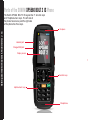
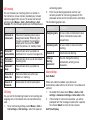
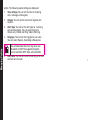
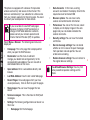
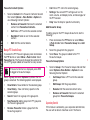
PTT Home Screen
1
2
3
4
5
You can access PTT services only if you
subscribe to PTT from your service provider.
Managing Push-to-talk Services
When you switch ON the phone , the first time, you can
activate your PTT service by :
1.
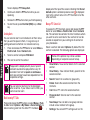
Simply pressing the PTT button (on the left side of
the phone ) OR Select Menu > Push to talk > Select
Yes to activate PTT service.
2.
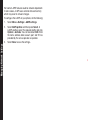
Once registered, a Login successful message is
displayed. A Green Icon is displayed at the top left
corner of the home screen. The PTT service will
retrieve PTT contacts and groups if they exist for
your company or corporation.
Press and release the PTT button located in the
left side of the phone, to use PTT service.
PTT button is enabled by default. To disable
PTT launch from left side button, select Menu
> Settings > Dedicated key > PTT Button >
select Off. PTT button can be disabled only
when PTT is logged out.
Login and Logout of the PTT Service
•
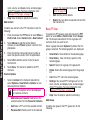
To logout the PTT service, select Menu > Push to
talk > Options > Settings > Logout > Select Yes.
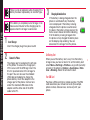
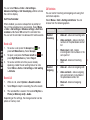
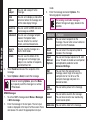
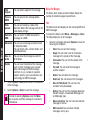
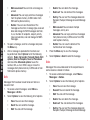
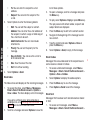
Once you logout the PTT service,
is displayed.
•
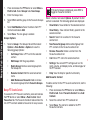
To login, select Menu > Push to talk > Select Yes.
Once you login the PTT service,
is displayed
at the top left corner of the home screen indicating
your available status.
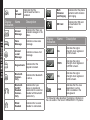
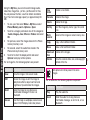
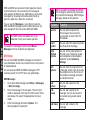
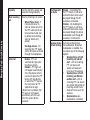
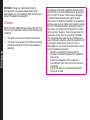
1.
PTT history tab/
Home tab
2.
Presence status
3.
Contacts tab
4.
Groups tab
5.
Favourite tab
PTT Overview
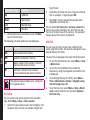
A PTT subscriber can have both public and corporate
contacts. Public contacts are created on the phone. You
can add up to 300 public contacts and 30 public groups
each containing 30 members.
Corporate administrator for the company stores the
Corporate contacts to the phone. You can add up to
1000 contacts and 100 corporate groups each containing
up to 100 members per group.
The maximum number of supported contacts
depends on the software configuration.
You cannot edit or delete corporate contacts and groups.
These are managed by the corporate administrator.
A PTT subscriber will be able to:
69