1
Using i-Picture (cont.)
3. Converting a file
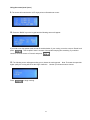
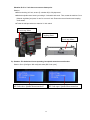
Once your settings have been entered it is time to convert the image to a .gee code file.
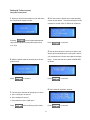
Click Convert to save the file in [.gee] format.
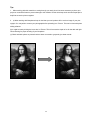
A screen will pop up saying ‘It will take a few minutes, please
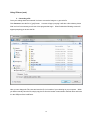
Wait’ and in a few moments you will see a blue progress bar begin. When finished the following screen will
appear prompting you to save the file:
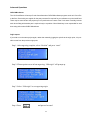
Here you can change the File name and save the file in a location of your choosing on your computer. When
you wish to actually carve the file, simply copy the file from the location it was saved to the flash drive and insert
it in the USB port of the intelliCarve.
18