1
Welcome to the PoolMatePro User Manual
CLOCK
Scrolls through top
line functions
Short press- Start
Hold 2 secs- Stop/exit
current menu
Adjusts settings and
features to display
Contents:
PoolMatePro watch
USB pod
USB lead
Instruction manual
Quickstart/overview guide
Hold for Backlight
3
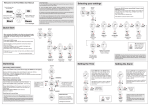
Selecting your settings
SETUP
From main CLOCK screen, press Mode 4 times to show
SETUP. Press Start
Use Mode to scroll through watch settings- Choose metric
or imperial units, Pool Length, Time Set, Alarm Set, Weight,
Left/Right Hand, Reset, Battery level and User number.
Use Up and Down to change value
x4
Hold Start for 2 secs to return to menu
Will show Y for
Yards if set to
imperial units
Will show lbs instead of
KG if set to imperial units
Infra red link to pod
Quick Start
CLOCK
When using the PoolMatePro for the first time the pool
length, your weight and the hand you wear the
PoolMatePro on, must first be set. The default settings are
25m, 65KG and left handed.
1
SETUP
change to
yards and lbs
TIME SET
menu
change pool
length
ALARM SET
menu
change body
weight
x4
From main CLOCK screen
Press Mode 4 times to show SETUP, select by pressing Start.
Hold
Set watch from metric to imperial units if required by pressing
Up/Down.
Set Pool length by pressing Up/Down until correct value is
shown.
Press Mode 3 times to set your weight (again use Up/Down to
select correct value).
Press Mode once to set left or right hand (use Up to select).
Battery level indicator
Shows number from
1(low) to 6 (high).
x3
select hand
watch is
worn on
Hold Start for 2 secs to return to main menu and Mode to return
to CLOCK screen.
You are now ready to Swim!
change to
yards and lbs
change body
weight
To record sets:
Press Start- swim first set
?
Press Start to Pause (a P will appear at the start of the
?
bottom line and the time for your last set will remain for 3
seconds the reset so you can time your rest period).
Press Start again to Restart- swim next set.
?
?
Repeat as required
Hold Start for 2 secs to Stop
?
The PoolMatePro must be put into Pause Mode when drilling
or kicking.
To conserve battery life, if the watch has NOT been PAUSED
and no laps have been detected for 5 minutes, the watch will
stop recording and return to CLOCK screen.
4
Setting the Alarm
From TIME SET in the SETUP menu
Press Start - the hours will flash on the
clock display, press Up and Down to
change value. Press Mode to select
minutes, pressing Mode again will select
Year, then month, then date, then 12/24
hour setting, press Up and Down to
change values as before.
SWIMMING
Hold Start for 2 secs to return to SETUP.
Hold Start again for 2 secs to return to
main menu.
select Hours,
Minutes,Year,
Month,Date
12/24hr
select Hours,
Minutes,
on/off
PAUSED
Hold
change
value
hold for 2
secs to
EXIT
5
From ALARM SET in the SETUP menu
Press Start - the hours will flash on the
clock display, press Up and Down to
change value. Press Mode to select
minutes, pressing Mode again selects on
or off. Press Up and Down to change
value as before.
Hold Start for 2 secs to return to SETUP.
Hold Start again for 2 secs to return to
main menu.
Use Up/Down to scroll
through Laps, Strokes,
Distance, Calories,
Efficiency and Set number
Use Mode to view
Elapsed time and
Actual time whilst
swimming
CAUTION Activating the Reset function will erase the PoolMate
Pro’s memory and delete all stored data files. User settings for all
functions will be replaced with the factory settings your Pool-Mate
Pro was shipped with.
hold Up 2 secs
to reset factory
values and clear
data
Setting the Time
Press Start to begin
Swim your session
Hold Start for 2 seconds to stop.
Press Up and Down to view Laps,
Strokes, Distance, Calories, Efficiency
Index and Time.
change
swimmer *
*Changing swimmer: The PoolMatePro has been designed so up to to 3 swimmers can share one watch or families with more than one watch can use
the same PC to analyse their swims. In either case each swimmer should be assigned a number (1, 2, or 3). The swimmer should set the assigned
number on the watch in the SETUP menu before swimming and change his weight.
change
hand
2
CLOCK
Swimming
?
?
?
change pool
length
TIP: Hold Start for 2
secs at any time to
EXIT or return you
to the main menu
for that function
change
value
Setting the Alarm to ON activates the
bell icon, above seconds on the
display.
The alarm will sound each day at the
set time for one minute or until Mode
is pressed.
Reviewing your sessions on the watch
6
Previous Session
Other sessions
Data can be viewed after swimming directly from the CLOCK screen
by simply using the Up/Down buttons to scroll though Laps, Average
Strokes per lap, Distance, Speed (seconds per 100m or yards),
Calories, Efficiency and Time.
From CLOCK screen press Mode twice to go to LOG
Press Start to enter. Use Up and Down to scroll through recorded
sessions (the PoolMatePro stores each session in the log by
number and date).
Press Start to view selected log details.
Use Mode to scroll through the TOTALS for this session - Swimming
time (without rest periods), Laps, Distance, Calories and Average
Strokes.
LOG
CLOCK
Any SETS can then be viewed. Scroll through SET Time, Laps,
Distance, Average Strokes, Speed, Efficiency Index with Mode.
Hold Start to exit
x2
SWIM icon indicates a Swim log.
No SWIM icon indicates a Chrono log
Deleting files
All sessions are automatically
stored in the LOG however you
can delete individual sessions you
do not want to save.
Select the Log file you wish to
delete then press Mode.
ERASE will flash at the top of the
screen. Press Mode, SURE will
appear press Mode again to
delete the selected file.
SELECT
REQUIRED
LOG
to change set
Use Mode to scroll
through TOTAL Time,
Laps, Distance,
Calories and Average
Strokes.
Chrono
CLOCK
SETS
TOTALS
NOTE: once erased you will lose
this file and it will not be
recoverable.
TIP: To see how specific
metrics vary between
sets (Time, Speed etc)
Select required metric
(eg Time) with Mode
and scroll through Sets
with Up/Down.
The metric will be shown
for each set so you can
compare.
Use Mode to scroll
through SET Time,
Laps, Distance,
Strokes per lap, Speed
and Efficiency Index.
Use the PoolMatePro in this mode when running or cycling
7
The PoolMatePro can also be used in Chrono mode as a 99 lap
timer when not in the pool
CHRONO
From CLOCK screen press Mode to go to CHRONO
Press Start .
Set 1 will show on the display
As when Swimming, pressing Start again will PAUSE, another
press will RESTART and the Set count will increment.
A long press will STOP.
START BUTTON:
Use Mode to
view Elapsed
time and
Actual time
A quick press will START.
A further press will PAUSE.
Another press will RESTART
A long press will STOP.
The session can be viewed in exactly the same way as swim
sessions- using Up/Down immediately after the session or from the
LOG screen. Chrono files are distinguished from Swim files as the
SWIM icon will not show.
NOTE: In Chrono mode the motion sensor will not operate- only
Time is recorded- not Speed or Distance.
Important notes:
1. Your PoolMatePro has been designed for lap swimming in a pool. It has not been designed to work in Open Water.
2. The PoolMatePro detects regular stroking patterns that conform to FrontCrawl, BreastStroke, BackStroke or Butterfly strokes only, the PoolMatePro
must be put into PAUSE mode when doing drill and kick sets.
3. Strokes must only be changed at the end of a lap, not part way through a lap or inaccurate lap and stroke counts may be recorded.
4. The stroke count displayed is the number of strokes taken by the arm you wear the PoolMatePro on. Remember when swimming FrontCrawl and
BackStroke this is half the total number of strokes.
Efficiency
The Efficiency Index is calculated from the distance travelled per stroke
and time per stroke. This index decreases as your efficiency increases.
less than 30
Excellent -Elite athlete
30-40
Very Good
40-50
Above average
50-70
Average
more than 70
Below average
Replacing the battery
The PoolMatePro’s battery (CR2025) has an estimated life expectancy
of over 12 months. The higher your average hours swimming a week,
the shorter the battery life will be. To maintain water resistance and
ensure the warranty remains valid, the PoolMatePro should be returned
to Swimovate Ltd for battery replacement or taken to a qualified watch
maker- do not attempt to change the battery yourself.
Care and maintenance
The PoolMatePro is water resistant to 50m, however the buttons are not
designed to be operated underwater. You should make sure the PoolMate Pro is out of the water before pressing any buttons. Do not dive
wearing the watch. The PoolMatePro should not be used if any fogging
or water droplets appear inside the watch. Never attempt to dismantle or
service your PoolMatePro yourself.
Always protect your PoolMatePro from shocks, hard and sharp objects,
extremes of heat and prolonged exposure to direct sunlight.
If not in use, store your Pool-Mate Pro in a clean, dry environment at
room temperature. Do not store in a damp environment such as a sports
bag.
Do not expose to strong chemicals and cleaning products as they may
damage the PoolMatePro’s seals, case and finish.
If your PoolMatePro needs cleaning, wipe it with a soft damp cloth. Mild
soap may be used if necessary. The Pod and lead are not water resistant
and should not be placed in contact with water.
Warranty
No guarantee is given as to the accuracy of the watch or it’s lap and stroke
counting ability with particular swimmers or strokes. If this product should
fail due to defects in materials or workmanship, Swimovate Ltd will repair
or replace it free of charge for a period of twelve months from the date of
purchase (proof of purchase required). This warranty is only extended to
the original purchaser and covers failures due to defects in materials or
workmanship that occur during normal use. It does not cover battery,
battery replacement, damage or failures resulting from neglect, accident,
misuse, mishandling, alteration or modifications of the product or any
failure caused by the operation of the product outside the scope of its
published specifications. Swimovate Ltd shall in no event be liable for any
incidental or consequential damages arising from the use or inability to use
the product. Swimovate Ltd do not assume any responsibility for losses or
claims by third parties that may arise through the use of this product. If a
claim under warranty appears to be necessary email
[email protected] (or telephone +44 (0)1784 481562) to obtain a
returns number before returning your Pool-Mate Pro. Packages will not be
accepted without a returns number.
Certification- The PoolMatePro has CE and FCC approvals.
The CE mark is used to mark conformity with the European Union EMC
directive 89/336/EEC.The Pool-Mate has been tested and found to
comply with the limits for a Class B digital device, pursuant to part 15 of the
FCC Rules. These limits are designed to provide reasonable protection
against harmful interference in a residential installation.
This User Manual and its contents are intended solely for the use of our
customers to obtain knowledge regarding the operation of the PoolMate
Pro.The contents shall not be disclosed or reproduced without the prior
written consent of Swimovate Ltd. Great care has been taken to ensure the
accuracy of this documentation but it's contents are subject to change at
any time without notice. The latest version of this documentation can be
downloaded from www.pool-mate.com.
Copyright © 2010 Swimovate Ltd
5. Like most sports watches, the buttons are not designed to be operated underwater. You must make sure the Pool-Mate Pro is out of the water before
pressing any buttons. Do NOT dive in wearing the PoolMatePro. Pressures are much greater and water may be forced into the case.
www.pool-mate.com
Automatic Swimming Computer
with PC/Mac Link
Manual
v2.00
Software Installation
8
8.1 Download the latest PoolMatePro V2 installers from www.swimovate.com/downloads.html and save to your computer. Find this location then
double click to run the installer. Follow the steps the installer takes you through, we recommend installing to the default settings.
Once the application has installed the USB drivers will automatically be installed as well.
PC users can run the program from the Start button, select All Programs/Swimovate/PoolMatePro V2
Mac users will find it in the Applications directory
GETTING STARTED
When you have first installed the software you will need to setup your swimmer. From the menu bar at the top of the
screen select SetUp and select your User name and number and the units you wish to use, either Metric (KG and
Metres) or Imperial (Yards and Lbs) and add your weight.
The default settings are User1 and Metric units
Set a default stroke type (the most common one you swim), you can change this in individual sessions if you alter
your stroke later. Click OK to save.
To UPLOAD from the watch, plug your pod into a spare USB port and select Upload from the Menu bar. Make
sure the message box says a COM port number and it will instruct you to put the watch on the pod. You may
need to wait a minute or so for the pod to register.
Place the pod is flat on a table, press Mode 3 times on the watch until it says UPLOAD and place upside down in
the pod making sure the logos are aligned on the watch and the pod. Uploading progress will be shown and
indicated when complete and the message box will automatically close.
Please note, the first time you plug in your USB pod it will take a minute or so to load the drivers and the message
may show Plug in USB pod COM port None until this takes place. Just wait until it tells you to select Upload on
the watch before trying to Upload.
FAQs and troubleshooting
THE SOFTWARE
Q My data won’t upload?
A Plug the pod into a working USB port. Click on Upload on the menu bar and
wait until the message box says “Place watch on USB pod in Upload mode,
COM port x” where x is a number. This may take a minute or so. Then select
UPLOAD on your PoolMate Pro and put on the pod.
If no COM Port number is shown after waiting a minute, please contact
support.
The Pro logos on the watch and the pod should be aligned so the Infrared
transmitter and receiver are lined up. The Pod also needs to be on a flat
surface or upload won’t commence.
Q Do you support 3rd party developers?
A We would like other software developers to add PoolMatePro support in
their applications. Please email [email protected] for more details.
THE WATCH
Q How does the PoolMatePro work?
A The PoolMatePro contains state of the art motion sensors that detect the
motion of your arm. Our unique software algorithms and digital signal
processing techniques analyse the data and extract lap, stroke, distance,
speed and calorie information automatically.
Q Do I need to press a button at the end of each lap like other lap
counters?
A No, The PoolMatePro is fully automatic and will sense when you start a new
lap without you having to do anything.
Q Why do I need to enter my weight?
A The PoolMatePro uses this to work out the calories you expend.
Q I want to swim sets, can the PoolMatePro record each set?
A Yes, you can record all the details from individual sets as well as the details
of the total swim session.
Q The PoolMatePro doesn’t count all my laps
A If you have inaccurate lap results make sure the watch is securely attached
to your wrist and can’t move around. Also try gliding for a longer period at the
start of each lap. This saves you energy and gives the PoolMatePro a little
longer to register the change of laps. Some swimmers may find better results
wearing the PoolMatePro on the other wrist.
Q The PoolMatePro doesn’t work when I’m doing kick sets or some
drills.
A The PoolMatePro must be put into Pause mode when kicking or drilling.
Q Will the PoolMatePro work in Open Water?
A The PoolMatePro has been designed for lap swimming in a pool and this
version will not work in Open Water.
Q Can I wear the PoolMatePro on my right arm?
A Yes, the PoolMatePro will work on either wrist, just change the setting in the
SETUP menu .
Q The PoolMatePro gives strange results when I change strokes mid
lap.
A The PoolMatePro has not been designed to recognise changes of stroke
part way through a lap. If you are going to change strokes you must do it
when you change laps. If a hesitation or interruption in the stroke pattern
occurs mid lap this may also cause inaccurate lap counts.
Q What does the efficiency index measure?
A The efficiency index is based on the recognized Swim Golf method that you
may be familiar with. It is the number of strokes plus the time taken to swim 25
metres. Concentrate on reducing this number to increase your efficiency and
improve your swimming.
Q What units is the Speed measured in?
A We have found that the time to swim 100metres (or yards) is more of a
meaningful measure of swimming speed than metres per second or miles an
hour as swimmers are used to watching the pool clock and judging speed
from it. The Speed shown is the average time in seconds per 100 metres if set
to metric units, or yards if set to imperial units.
Q Will the PoolMatePro work with tumble turns?
A Yes, the PoolMatePro will work with both tumble turns and when pushing off
the wall.
Q How accurate is the PoolMatePro?
A The watch has been tested on a wide variety of swimmers over an 18 month
period prior to launch. We have a 99.75% accuracy rate with our database of
thousands of laps from many swimmers with 1500m times of between 22 and
40 minutes. No guarantee is given for accuracy with individual swimmers and
rates may differ with users whose strokes or abilities differ from the norm.
Q Will the watch work with all pools?
A The watch needs setting to the pool length before use. In order to recognise
you are swimming, the watch needs to detect several swim strokes, if using a
small pool you may reach the end before this occurs if this happens the watch
wont record laps correctly, we recommend you try a larger pool. Best results
will be found in pools over 20m.
For further details and latest software please see the website
www.pool-mate.com
9 PoolMatePro Version 2 Software
9.1
Menu Bar- set up swimmer and upload
The PoolMatePro v2 software is made up of 4 sections
MENU- add swimmer details, select units, import and Upload
CALENDAR- Shows sessions by date, click on a date to select
9.4
When you have first installed the software you will need to setup your swimmer. From the menu bar at
the top of the screen select SetUp and select your User name and number and the units you wish to
use, either Metric (KG and Metres) or Imperial (Yards and Lbs) and add your weight. The default is
User1 and Metric units. Set a default stroke type (the most common one you swim), you can change
this in individual sessions if you alter your stroke later. Click OK to save.
DATA- Shows all metrics in tabular form
GRAPHS- Plots your metrics visually
To UPLOAD from the watch, plug your pod into a spare USB port and select Upload from the
Menu bar. Make sure the message box says a COM port number and it will instruct you to put the
watch on the pod. Make sure the pod is flat on a table, press Mode 3 times on the watch until it
says UPLOAD and place upside down in the pod making sure the logos are aligned on the watch
and the pod.
Uploading progress will be shown and indicated when complete.
GETTING STARTED
To get started setup your swimmer details from SetUp on the
menu bar and Upload some data by clicking Upload in the
software and selecting Upload on the watch and placing in the
pod . You’ll see sessions appear on the calendar, data in the
Summary and entries on the graphs.
9.2
Calendar- select your session
Data- select the different tabs to see your data
SUMMARY
This is the default screen
shown when you first log in
It shows the Total Distance
swum etc since your first
session and Total Calories.
Also shows details of your
Best sessions and when they
were. Click on the date to
take you to that session!
LOGS
Shows Data for the date
selected on the calendar, if
you have more than one
session they will all be
shown, one after the other.
Use the scroll bars that will
appear to see the other
sessions. To select another
Log click on a row within
that session
SETS
Shows data for the sets
within the selected session
POOL
Shows Pool details for that
session, click to change the
value.
EDITING AND ADDING
When you have downloaded some sessions from your PoolMate
Pro the data appears on the calendar on the date it was
undertaken.
SWIM sessions appear in blue with the distance swum,
CHRONO sessions are red and show the duration of the session,
Green is today’s date, Blue is the currently selected date.
To Add a log, from the Menu
bar, select Add Log, input the
Time of day, Duration, Laps
and Average Strokes per lap.
The other metrics will be
calculated for you.
Clicking on a session will select it and the data appear in the
Data area and on the graph below.
To Delete a log, from within
the Data area, select the Log
tab, right click anywhere over
the data and select Delete
Log. Click Save changes.
You can navigate between months and years using the arrows at
the top or the scroll bar.
9.3
Graphs
Progress Volume
Progress Technique
Hover over a point to show the value, click on it to see the data
for that session. You can turn off any data sets you aren’t interested
in by unticking the boxes at the bottom.
Smoothing can be turned on or off and you can filter by stroke type
Shows Duration, Distance and Calories for all sessions (smoothing on)
Shows Technique related data- Average strokes, Speed, Efficiency, Stroke length and Stroke Rate
for all data over time (smoothing off)
Monthly volume
Log
To Add a Set at the end of a
swim From the Set tab, right
click anywhere over the data
and select Add Set, input the
Set Duration, Laps and
Average Strokes per lap. Click
Save changes and the other
metrics will be calculated for
you.
To Insert a Set in the middle of a swim, From the Set tab, right click over
the set you want to insert a set before and select Insert Set, input the Set
Duration, Laps and Average Strokes per lap. Click Save changes and the
other metrics will be calculated for you.
To Delete a Set, From the Set tab, right click over the set you want to delete
and select Delete Set. Click Save changes.
IMPORTING
To import data from the previous version of the software you need to export
data from the old software and save in a known location. To do this open the
old PoolMate Pro application and select the magnifier icon. Then click the red
arrow at the right of the window. Open the new PoolMate Pro v2 software and
select File/Import from the menu bar. Select the file you just exported and it
will be imported.
Shows Duration, Distance and Calories totals by month so you can see how much you have swam
Shows Duration, Distance, AverageStrokes, Speed, Stroke Length and Rate, Efficiency and Calories for
the session. If you have swam sets you can see how you have progressed through each set.
EXPORTING
To export to a .csv file, select File/Export from the menu bar. Select an
appropriate location and file name and click save.