1
u650.book Page 58 Thursday, August 28, 2008 4:33 PM
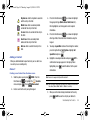
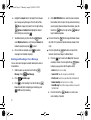
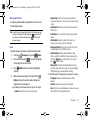
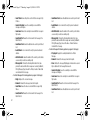
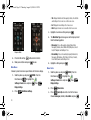
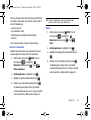
• Edit Text Format: Allows you to edit the text size, alignment, style,
color, and background color.
• Priority Level: Save the message with a High or Normal priority.
• Callback #: Provides the ability to send a callback # with the
message.
• Enh. Delivery Ack: Displays a pop-up screen notifying the
message sent has been received.
• Cancel Message: Cancels the message and allows you to save it
in the Drafts folder.
Directional key
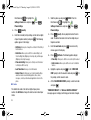
. Press
Messaging
New Message.
2.
Press
Picture Message.
3.
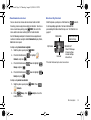
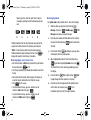
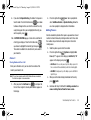
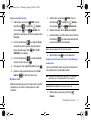
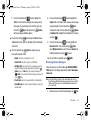
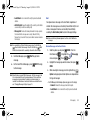
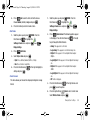
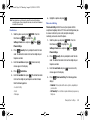
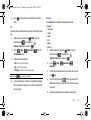
Enter the phone number or Email address of the recipient.
At any point while entering your recipient(s) phone number
or Email address, press the left soft key
right soft key
䊳
Note: If you do not select an option press the
message.
to highlight the
menu and press
to return to your
123 or the
Add soft keys for additional options.
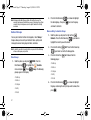
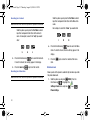
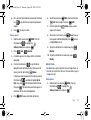
Press the left soft key
123 to change Text Entry Mode.
Choose T9Word, Abc, ABC, 123, Symbols or Domain
Extensions modes of text entry.
6.
Press the Directional key
Press
to highlight an option.
to perform the function for the option, or to
䊳
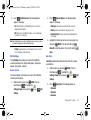
Press the right soft key
Add to add a recipient From
Contacts, Groups, Recent Calls or To Online Album.
enter its sub-menu.
7.
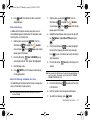
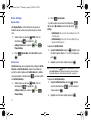
To send the message, press
SEND.
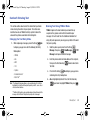
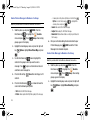
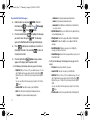
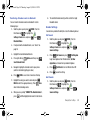
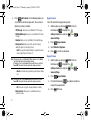
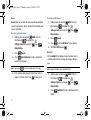
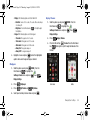
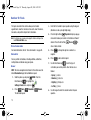
Creating and Sending Picture Messages
Note: Only available within Verizon Wireless Enhanced Services Area.
Note: If you do not select an option press the
4.
Press the
to return to your message.
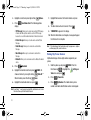
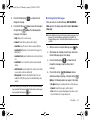
key to move to the Text field. In the text
field, compose your message using the keypad. At any
point while composing a message, press the left soft key
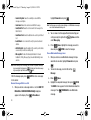
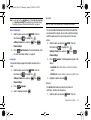
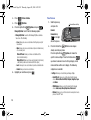
Picture Message combines text, picture, and sound creating an
intuitive message. This is also known as Multimedia Messaging
(MMS).
1.
Slide the phone up and press
Abc or the right soft key
Options soft keys to
display additional options.
MENU. Press the
Messaging
58