1
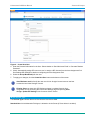
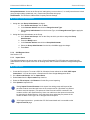
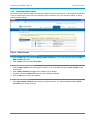
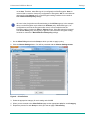
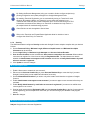
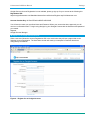
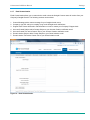
Librestream OAM User Manual Users and Groups Figure 4 – Create New User 4. Enter the Personal Information for the User. Select whether to ‘Send Welcome Email’ or ‘Generate Random Password’. 5. Check ‘Automatically assign SIP account to user’ to assign a SIP Account from the Auto-Assignment Pool. See Settings-SIP Settings for details on configuring the Auto-Assignment Pool. 6. Select the Group Membership for the user. 7. To apply your changes, click the Create New User button at the bottom of the screen. Send Welcome email will notify the new user of their Onsight Connect account and how to download and install Onsight Connect. Existing Users can have their SIP Settings assigned or updated from the AutoAssignment Pool by accessing the Users Client Settings page and pressing AutoAssign / Update SIP Settings in the Common Actions section. User Account Type: The Account Type indicates what level of access the User has to OAM. Standard User: No Administration Privileges, is allowed to invite Guests (if Guest Invites is enabled) 9