1
Control panel overview
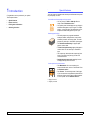
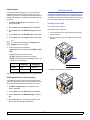
Finding more information
You can find information for setting up and using your printer from the
following resources, either printed or onscreen.
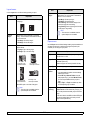
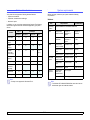
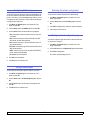
1
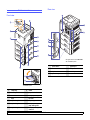
Menu: Enters Menu mode and scrolls through the available
menus.
2
Scroll buttons: Scroll through the options available in the
selected menu, and increase or decrease values.
3
OK: Confirms the selection on the display.
4
Back: Sends you back to the upper menu level.
5
Toner Save: Allows you to save on toner by using less toner
in printing. See page 2.6.
6
Demo: Prints a demo page.
7
Stop: Stops an operation at any time.
8
Status: Indicates the status of your printer. See page 9.6.
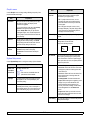
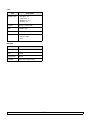
Quick Install
Guide
Provides information on setting up your printer
and, therefore, be sure to follow the
instructions in the guide to get the printer
ready.
Online User’s
Guide
Provides you with step-by-step instructions for
using your printer’s full features, and contains
information for maintaining your printer,
troubleshooting, and installing accessories.
This user’s guide also contains the Software
section providing you with information on how
to print documents with your printer on various
operating systems, and how to use the
supplied software utilities.
Note
• You can access the user’s guides in
other languages from the Manual
folder on the printer driver CD.
1.4
Network Printer
User’s Guide
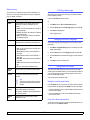
Contained on the network utilities CD,
provides you with information on setting up
and connecting your printer to a network.
Printer Driver
Help
Provides you with help information on printer
driver properties and instructions for setting up
the properties for printing. To access a printer
driver help screen, click Help from the printer
properties dialog box.
Samsung
Website
If you have Internet access, you can get help,
support, printer drivers, manuals, and order
information from the Samsung website,
www.samsungprinter.com.
<Introduction>