1
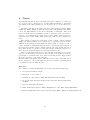
4. open Eclipse, set a workspace and click on Help → Install New software.
5. click on Add..., fill in Name: GNU ARM Eclipse Plug-ins. Location:
http://gnuarmeclipse.sourceforge.net/updates and press OK
6. select all but the Freescale Project Templates, click Next and install.
7. In Eclipse, go to Window → Preferences. C/C++ → Build → Global
Tools Paths
8. Select GNU Tools for ARM Embedded Processors, locate the toolchain
and enter the path in Toolchain folder.
2.2.2
STLink flasher for Linux
The STLink Utility provided by STMicroelectronics is Windows only, but an
open source alternative is available on GitHub.
1. Go to http://github.com/texane/stlink, download the Zip file
2. Extract the zip file to a preferred location.
3. In a terminal cd to the directory the files are in, and build stlink using:
./autogen.sh
./configure
make
sudo make install
4. get the path of st-flash using:
whereis st-flash
5. In Eclipse, click Run → External Tools → External Tools Configurations
6. Click on Program, and then on New. Name the new configuration st-linkv2
flash, and paste the path to st-flash in the Location field.
Working directory: ${project_loc}/Release
Arguments: write ${project_name}.bin 0x8000000
7. Click Apply and close.
2.2.3
Debugger - OpenOCD
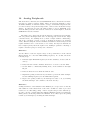
This is optional, but a debugger might help you a lot. We’re using OpenOCD
as it’s available for all platforms, and easily integrates with the Eclipse plugins
we installed.
1. Download the latest development (0.9.*) version of OpenOCD for your architecture from http://sourceforge.net/projects/gnuarmeclipse/
files/OpenOCD/GNULinux/.
2. Extract the package to a directory.
3. In Eclipse go to Window → Preferences → Run/Debug → String Substitutions
7