1
QUICK REFERENCE MANUAL of
GPS 315, Sportrak and Sportak Pro
This reference manual is culled out from the guidelines apparently being developed by the GIS
specialist in the application of GIS and GPS on LUB-BDP. Only the relative functionalities that
will be used during the perimeter survey were reflected in this manual. Irrelevant functionalities
which you prefer to learn are found in the user manual of the GPS unit.
Please return this manual to the GPS unit box for reference of the next LGU.
Basic GPS unit operations and maintenance
NOTE: All the instructions, technical steps and operations in this annex are assumed
that you are using Magellan GPS units having models GPS315, Sportrak
and Sportrak Pro. If not, you can find similar functionality on the current
model of GPS unit you have.
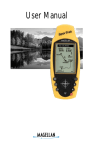
I. GPS UNIT USER INTERFACES
GPS 315
Sportrak
Sportrak Pro
As the GPS unit improves its features and interface, some of its buttons has slightly
been repositioned and redesigned. For the purpose of creating a general term for
these buttons, this annex used a general term in relation to the buttons used by
each model of GPS units. Kindly refer to the “Button Name” indicated below and the
corresponding button used by your GPS unit.
Button Name
POWER
QUIT
ENTER
NAV
MARK
GPS 315
Sportrak
Sportrak Pro
Press 2 to 3 seconds
MENU
GOTO
LIGHT
Press 2 to 3 seconds
ARROW KEYS
MARKING A WAYPOINT using GPS315/SporTrak
Step 1) Getting a Fixed Position.
NOTE:
If you are getting only
landmarks, be sure that your
tracking is turned off (See
Tracking Roads/Rivers on
how to set the tracking
mode of the GPS unit off)
Step 1.1) After turning your GPS
unit ON, wait for a few seconds
for the unit to acquire signal
from the satellites.
You will
know the progress of the signal
acquisition on the STATUS
screen.
Step 1.2) Once the unit has
computed a fixed position, the
POSITION
screen
will
be
displayed. You have to wait for
at least three minutes for the
satellites to compute your final
coordinate.
1.1)
1.2)
2.1)
2.2)
NOTE: In cases where there are weak
satellite signals and the unit does
not get a fixed position, press the
NAV button of the unit until your
screen is like the image in your 1.2.
When it is not yet in averaging
mode, do not proceed to the next
step. You have to wait until the
unit is in averaging mode for your
location to be computed.
Step 2) Marking a Waypoint.
Step 2.1) When the averaging
reaches three minutes, you may
save your position by clicking
the MARK button. This will stop
the averaging but do not move
from your position yet.
Step 2.2) Highlight the given
waypoint name just like image
2.1 and change it by clicking the
ENTER button (This will enable
you to change the waypoint
name). Enter the characters of
the
waypoint
by
pressing
UP/DOWN
ARROW
KEYS.
Press
LEFT/RIGHT
ARROW
KEYS if you want to move from
one character to another.
If
finished, press ENTER button
Step 2.3) Press the DOWN ARROW
KEY and highlight the
DESCRIPTION menu.
Step 2.4) Press the ENTER button.
Enter a very brief description of
the
waypoint
by
pressing
UP/DOWN ARROW KEYS for
displaying the characters and
LEFT/RIGHT ARROW KEYS for
creating
or
replacing
a
character. Repeat the process
until you are have entered the
waypoints description.
NOTE : If you are finished entering
the description of the waypoint,
reflect the waypoint name,
coordinates
(latitude
and
longitude)
and
detailed
description of the waypoint on
the form provided for the GPS
surveyors.
2.3)
2.4)
Step 2.8) Press ENTER if finished
and press the DOWN ARROW KEY
to highlight the SAVE LMK menu.
Step 2.9) Click the ENTER button.
This time, the waypoint has been
saved in the GPS unit.
2.8)
TRACKING ROADS/RIVERS using GPS315/SporTrak
Step 1) Turning the tracking on/off
Step 1.1) After turning your GPS
unit ON, wait for a few seconds
for the unit to acquire signal
from the satellites. You will
know the progress of the signal
acquisition on the STATUS
screen.
Step 1.2) To know whether you can
start tracking, click the NAV
button until the display is
similar to the image in 1.2. If
it is in averaging mode, you
can continue to the next step.
However, if not, try to wait for
a few minutes for the GPS unit
to acquire satellite signals.
1.1)
1.2)
Step 1.3) If it is in the averaging
mode, click the NAV button
until you reach the PLOT
screen (see image 1.3).
Step 1.4) From the PLOT screen,
click the MENU button. Select
TRACK HIST.
Press ENTER
button
1.3)
1.4)
1.5)
1.6)
Step 1.5) If you want to turn on
the tracking of the GPS unit,
select an interval on the list.
Step 1.6) If you want to turn off
the tracking of the GPS unit,
select OFF on the list. Press
ENTER button
NOTE:
1) If you will delineate a boundary or just getting the waypoint of the landmarks,
turn-off the tracking of your GPS unit. If it is turned on, it will continuously get
the track wherever you go.
2) If you want to start getting the reading of the river or road, turn on the tracking
of the GPS unit at the actual location where you will start traversing. Turn it off at
the end of the river/road. In your form, indicate the river/roads name and its
type (Provincial/municipal/sitio etc)
Step 2) Clearing the track data
NOTE: Perform this function if you
have downloaded the
existing tracks in your
computer.
Step 2.1) Click the NAV button
until you reach the PLOT
screen
Step 2.2) Click the MENU button
and highlight CLR TRACK.
Press ENTER button
Step 2.3) Highlight the YES option
and press the ENTER button
2.1)
2.3)
2.2)
MARKING A WAYPOINT using SporTrak Pro
Step 1) Getting a Fixed Position.
NOTE:
If you are getting only
landmarks, be sure that your
tracking is turned off
Step 1.1) After turning your GPS
unit ON, press ENTER button
three times to go to the screens
of the GPS unit. Wait for a few
seconds for the unit to acquire
signal from the satellites. Click
the NAV button to go to the
STATUS screen (shown in image
1.1)
Step 1.2) If the GPS unit is already
acquiring signals from multiple
satellites, go to the POSITION
screen by clicking the NAV
button several times until the
screen is similar to the image in
1.2.
NOTE: You have to wait until the GPS
unit starts averaging your position.
If the word AVERAGING or WAAS
AVG. is not being displayed in the
unit, do not make the mark yet.
1.1)
1.2)
Step 1.3) If the status of the GPS
unit is already in averaging
mode,
wait
until
the
averaging reaches 3 to 5
minutes.
Step 1.4) Once the GPS units
averaging
reaches
3-5
minutes, click the MENU
button and highlight the
MARK menu as shown in
image 1.4.
Step 1.5) Once the MARK menu has
been highlighted, click the
ENTER button.
The GPS
unit
will
display
the
coordinate of your current
location as well as the
provided
name
of
the
waypoint.
To rename the
waypoint name, highlight the
given waypoint name as
shown in image 1.5 and click
ENTER button
1.4)
1.5)
1.6)
1.7)
Step 1.6) To enter the user-defined
name of the waypoint, highlight
the character you want to reflect
on the new name of the
waypoint by moving the ARROW
KEYS.
Step 1.7) If you have selected the
character, press the ENTER
button. Notice that it will be
reflected on the name of the
waypoint.
Step 1.8) Repeat steps 1.6 to 1.7
until
you
complete
the
characters for your waypoint
name. If finished, click the OK
key.
NOTE: If you want to delete the
character you have entered,
highlight the BACK key and
press ENTER button.
Step 1.9) Move the ARROW KEY
down and highlight the CREATE
MESSAGE.
Step 1.10) Same procedure with
renaming a waypoint.
Press
ENTER button and enter the
message using the keyboard
keys.
Highlight the OK key
when characters of the message
have been reflected.
1.9)
NOTE: After saving the waypoint,
reflect the waypoint name,
coordinate and description on the
form provided to the GPS surveyor.
Step 1.11) Finally, click the SAVE
button to save the waypoint.
1.11)
1.10)
TRACKING ROADS/RIVERS using SporTrak Pro
Step 1) Turning the tracking on/off
Step 1.1) After turning your GPS
unit ON, wait for a few seconds
for the unit to acquire signal
from the satellites. You will
know the progress of the signal
acquisition on the STATUS
screen.
Step 1.2) Click the NAV button
until the GPS unit is similar to
the MAP screen as shown in
image 1.2.
NOTE : Before setting the track
mode, be sure the icon located
at the middle of the MAP
screen is an arrow. If the icon
is in hourglass, wait for a few
minutes more. It means that
the unit has not yet acquired
the signal of the satellites.
Step 1.3) Once the icon in the
middle of the MAP screen has
turned into arrow, click the
MENU button and select MAP
SETUP. Press ENTER button
1.1)
1.2)
Step 1.4) Move your ARROW KEY
down and highlight the Track
Mode as shown in image 1.4.
1.3)
Step 1.5) If you want to turn on
the tracking of your GPS unit,
press the ENTER button and
select an interval. Otherwise,
select OFF in the tracking
mode.
Step 1.6) Once the track mode has
been set, click the QUIT
button to return to the MAP
screen
NOTE: (1) Since the roads/rivers to
be track is a barangay-level, we
recommend the interval of 0.01
km. to display the details of the
road/river.
1.5)
1.4)
(2) You can zoom in/out on the
map screen by clicking the zoom
in button. You can also pan the
map by pressing the ARROW
KEYS
to
your
designated
direction.
NOTE:
1) If you will delineate a boundary or just getting the waypoint of the landmarks,
turn-off the tracking of your GPS unit. If it is turned on, it will continuously get
the track wherever you go.
2) If you want to start getting the reading of the river or road, turn on the tracking
of the GPS unit at the actual location where you will start traversing. Turn it off at
the end of the river/road. In your form, indicate the river/roads name and its
type (Provincial/municipal/sitio etc)
Step 2) Clearing the track data
NOTE: Perform this function if you
have downloaded the
existing tracks in your
computer.
Step 2.1) Click the NAV button
until you reach the MAP screen
Step 2.2) Once the display is in the
MAP screen, click the MENU
button and highlight CLEAR
TRACK and press the ENTER
button.
Step 2.3) Select YES and press
ENTER.
2.1)
2.2)




![Section VII - Technical Specifications [ 920 KB]](http://vs1.manualzilla.com/store/data/005668651_1-8dca2c6e1104d59f56f239e80ee70ed9-150x150.png)