1
Installation
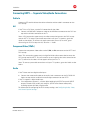
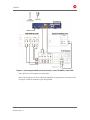
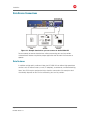
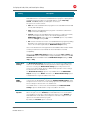
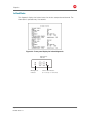
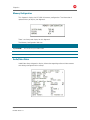
Connecting HDTV — Separate Video/Audio Connections
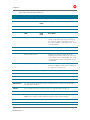
Cable In
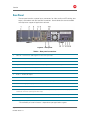
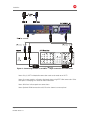
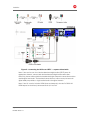
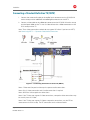
Connect an RF coaxial cable to the cable wall outlet and the cable in connector on the
DCX set-top.
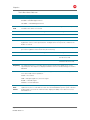
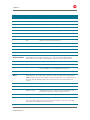
DVI
If the TV has a DVI input, use the DVI connection for the video:
x
Connect a HDMI-to-DVI adapter or cable to the HDMI out connector on the DCX settop and the dvi-hdtv connector on the TV.
Note: A DVI connection supports only the video connection between the DCX set-top
and the HDTV. To connect your audio connections with your TV speakers, go to the
Audio section below. To connect the audio connections for an A/V receiver, go to
Connecting the DCX Set-top to an A/V Receiver — Audio.
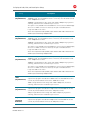
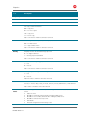
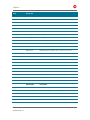
Component Video (YPbPr)
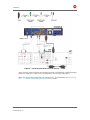
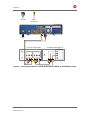
Connect the component video cables to the Y, Pb, and Pr connectors on the HDTV and
DCX set-top.
Note: This connection supports only the High-Definition video connection between the
DCX set-top and the HDTV. Be sure to match up each signal to the same connection on
the TV, otherwise the colors will not appear correctly on the TV.
Note: To connect your audio connections with your TV speakers, go to the Audio section
below.
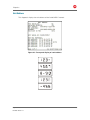
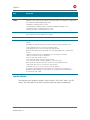
Audio
If the TV does not have digital audio inputs:
x
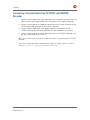
Connect the stereo audio cable to the audio l and r connectors on the DCX3501-M
Series set-top and the audio left and audio right connectors on the HDTV.
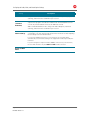
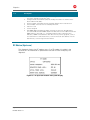
If the TV supports a digital audio input:
x
If the equipment supports it, use the digital audio optical S/PDIF or coaxial S/PDIF
outputs instead of the audio l and r outputs. S/PDIF offers better audio quality,
including support for Dolby® Digital audio.
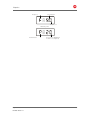
For information on configuring the DCX set-top settings, see Configuring Audio, Video,
and Closed Caption Settings.
High-Definition DVR DCX3501-M tInstallation Manual
365-095-16528-x.2
17