1
TEW-718BRM
TRENDnet User’s Guide
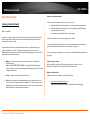
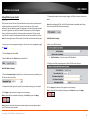
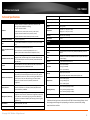
Wireless Status Information
Packet Statistics Information
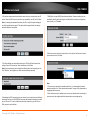
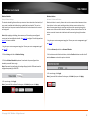
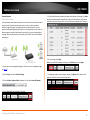
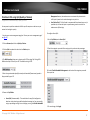
The table displays the amount of octets, unicast, and multicast packets sent and
received on your router’s WAN (Internet), LAN, and WLAN interfaces.
•
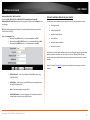
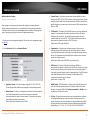
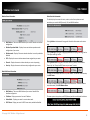
MAC Address – The current MAC address of your router’s wireless or interface
configuration.
•
Wireless Operation Mode – Displays the current wireless operation mode
configuration of your router.
•
Wireless mode – Displays if the router wireless interface is currently enabled or
disabled.
•
SSID – Displays the current wireless network name assigned to your router.
•
Channel – Displays the current wireless channel your router is operating.
•
Security – Displays the current wireless security configured on your router.
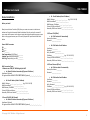
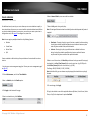
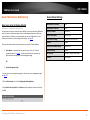
Wired LAN Status Information
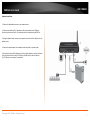
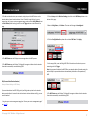
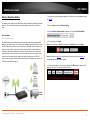
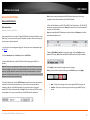
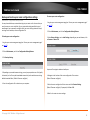
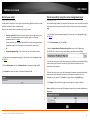
Clicking Refresh at the bottom of the page will refresh the information on the status
page.
Clicking View Log will bring you to log page (Maintenance > Syslog > Web Log). See the
“View your router log” section.
Clicking Clients List will bring you to the DHCP Clients List (Setup > Local Network >
Clients List). See “Set up the DHCP server on you router” section.
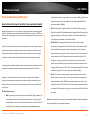
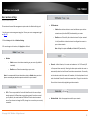
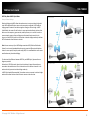
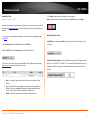
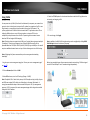
The router will also display the current TCP/UDP sessions. To view the current sessions,
click NAT Status.
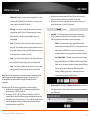
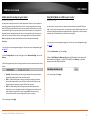
The router will display details ADSL Modem Status information. To view the modem
status information, click ADSL Modem Status.
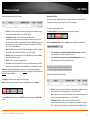
•
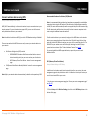
MAC Address – The current MAC address of your router’s wired LAN or
interface configuration.
•
IP Address - Displays your router’s current IP address.
•
Subnet Mask – Displays your router’s current subnet mask.
•
DHCP Server - Display your router’s DHCP server status, enabled or disabled.
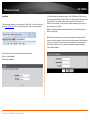
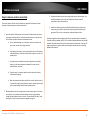
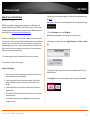
The router system time, uptime, and CPU/Memory load info are displayed the bottom.
© Copyright 2013 TRENDnet. All Rights Reserved.
58