1
SETTING
Logo
Logo
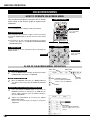
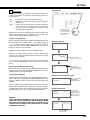
This function allows you to customize the screen logo with Logo
select, Capture, and Logo PIN code lock functions.
Logo select
This function decides the start-up display as follows:
User . . . the image you captured
Default . the factory-set logo
Off . . . . count-down only
Capture
This function enables you to capture the image being projected
and use it for a starting-up display.
After capturing the projected image, go to the Logo select function
and set it to “User.” Then the captured image will be displayed
when turning on the projector the next time.
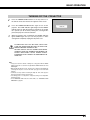
To capture the image, select [Yes]. To cancel the Capture
function, select [No].
Select [Yes] to
capture the
projected image.
NOTE:
• Before capturing an image, select Standard in the IMAGE SELECT Menu to
capture proper image. (See pages 29 and 33.)
• A signal from a computer can be captured up to XGA (1024 X 768).
• Certain signals may not be captured properly.
• When capturing the image that has been adjusted by the Keystone function,
the adjusted data is automatically reset and the projector captures an image
without keystone correction.
• When starting to capture a new image, the previously stored image is cleared
even if you cancel the capturing.
• Once you exit the Logo Menu after setting the Logo lock to "On," you are
required to enter the PIN code every attempting to change the Logo setting.
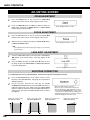
Select [Yes] to stop
capturing.
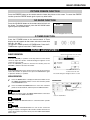
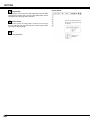
Logo PIN Code Lock Dialog Box
Logo PIN code lock
Pointer
This function prevents an unauthorized person from changing the
Logo setting.
Off . . . . the Logo setting can be changed freely from the Logo
function.
On . . . . the Logo setting cannot be changed without a Logo
PIN code.
Quit
After a correct Logo PIN code is entered, the following dialog box
appears.
If you want to change the Logo PIN code lock setting, enter a
Logo PIN code by following the steps below. The initial Logo PIN
code is set to “4321” at the factory.
To Enter a Logo PIN code
Select a number by pressing the POINT LEFT/RIGHT buttons and
fix the number with the SELECT button. The number changes to
“✳.” If you fixed a wrong number, move the pointer to “Set” or
“Clear” once by pressing the POINT DOWN button, then return to
“Logo PIN code.” Enter the correct number.
Repeat this step to complete entering a four-digit number.
When the four-digit number is fixed, the pointer automatically
moves to “Set.” Press the SELECT button so that you can change
the Logo PIN code lock setting.
If you entered a wrong Logo PIN code, “Logo PIN code” and the
number (✳✳✳✳) turn red and disappear. Enter a Logo PIN code
all over again.
Select On/Off by pressing the POINT LEFT/RIGHT buttons or
change the Logo PIN code.
To Change the Logo PIN code
Logo PIN code can be changed to your desired
four-digit number. Select “Logo PIN code change”
with the POINT DOWN button and press the
SELECT button. Set a new Logo PIN code.
Be sure to write down the new Logo PIN code and
keep it at hand. If you lost the number, you could
no longer change the Logo PIN code setting. For
details on the PIN code setting, refer to the
relevant instructions of the PIN code lock function
on page 43.
39