1
Register
your
product
and
get
support
at
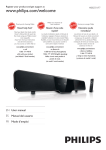
HSB2351/F7
www.philips.com/welcome
Philipsvousremercie de
votre confiance,
Thankyou for choosingPhilips,
Besoin d'une aide
Need help fast?
Owner's Manual first for quick tips
more enjoyable,
If you have read your instructions
and still need assistance,
you may access our online help at
Necesita
ayuda
inmediata?
rapide?
Read your Quick Use Guide and/or
that make using your Philips product
Gracias pot escoger Philips
LesGuide d'utilisation rapide et Manuel de
I'utilisateur regorg_ntd'astucesdestinies
simplifierI'utilisation de votre produit Philips,
Toutefois,si vousne parvenez pas _ r_soudre
votre probl_me,vouspouvez acceder
notre aide en ligne _ I'adresse
Lea primero la Gufa de uso rdpido o el
Manual del usuario, en donde encontrard
consejos que le ayudardn a disfrutar
plenamente
de su producto Philips,
Si despuds de leerlo a4n necesita ayuda,
consulte nuestro servicio de
asistencia en Ifnea en
www.philips.com/welcome
or call
1 866
771 4018
while with your product.
(and Model / Serial number)
www.philips.com/welcome
ou formez le
www.philips.com/welcome
1 800 661 6162 (Francophone)
o Ilame al tel6fono
1 866 771 4018
1 866
771 4018 (English speaking)
Veillez 8 avoir votre produit 8
port6e de main.
y tenga a mano el producto.
(y n_mero de model / serial)
(et model / serial nombre)
EN User manual
ES
Manual del usuario
FR
Mode d'emploi
Pl-lil il)S
Registering your model with PHILIPS makes you eligible for all of the valuable benefits listed below, so
don't miss out. Complete and return your Product Registration Card at once, or register online at
www.philipSoCOm/welcome
to ensure:
iiiiii
ijjjjjjjj
Know these
Sa etysymbols
Congratulations
on your purchase,
and welcome
to the "family!'"
RISK
CAUTION:
Dear
PHILIPS
product
owner:
Thank you for your confidence in PHILIPS.
You've selected one of the best-built, bestbacked products available today.We'll
do
everything in our power to keep you happy
with your purchase for many years to come.
As a member of the PHJLIPS "family" you're
entitled to protection
by one of the most
comprehensive
warranties
and outstanding
service networks
in the industry.What's
more, your purchase guarantees you'll
receive all the information
and speda[ offers
for which you qualify, plus easy access to
accessories from our convenient
home
shopping
network.
Host importantly, you can count on our
uncompromising
commitment
to your total
satisfaction.
All of this is our way of saying welcome and thanks for investing in a PHILIPS prodUCt.
P.S. To get the most
purchase, be sure to
return
your Product
at once, or register
from your PHiLIPS
complete
and
Registration
Card
online at:
www.philips.com/welcome
TO REDUCE
OF ELECTRIC
SHOCK
DO NOT OPEN
THE RiSK DE ELECTRIC
SHOCK,
DO NOT
REMOVE COVER (OR SACK). NO USER-SERVICEABLE
PARTS
iNSiDE. REFER SERVICING TO QUALiFiED
SERVICE PERSONNEL.
This "bolt of lightning" indicates uninsulated material within your unit may
cause an electrical shock. For the safety of
everyone in your household, please do not
remove product covering.
The "exclamation point" calls attention
to features for which you should read
the enclosed literature closely to prevent
operating and maintenance problems.
WARNING:
To reduce the risk of fire or
electric shock, this apparatus should not be
exposed to rain or moisture and objects
filled with liquids, such as vases, should not
be placed on this apparatus.
CAUTION:
To prevent electric shock, match
wide blade of plug to wide slot, fully insert.
ATTENTION:
Pour 6viter les choc 61ec-
triques, introduire [a lame [a plus large de [a
fiche dans la borne correspondante
de [a
prise et pousser jusqu'au fond.
For Customer
Use
Enter below the Serial No. which is located
on the rear of the cabinet. Retain this
information
for future reference.
Model No.
Serial No.
EN
3
WARRANTY
PHiLiPS
below.
COVERAGE:
warranty
Philips, or (d) if any Philips
obligation
is limited
to the terms
set forth
product
WHO
serial number
has been removed
defaced, or (e) product,
accessories
or consumables
without
warranty
of any kind by including refurbished
sold "AS IS" by some
retailers.
IS COVERED:
Philips warrants the product to the original purchaser
or the person receiving the product as a gift against defects in materials and
This Limited
Warranty
does not cover:
• Shipping charges to return
defective product
workmanship
("Warranty
°
as based on the date of original purchase
Period")
from an Authorized
Dealer. The original
sales receipt showing the product
name and the purchase
from an authorized
retailer is considered
such proof.
WHAT
date
repair of antennalsignal
Product
repair andlor
source systems
part replacement
outside of the product.
because of improper
installation
or maintenance,
connections
to improper
voltage
supply, power line surge, lightning damage, retained
images or
IS COVERED:
screen markings resulting from viewing fixed
tent for extended
periods, product
cosmetic
within
repair
due to normal wear and tear, unauthorized
cause not within the control
of Philips.
the Warranty
Period. At its option, Phihps will either
the product at no charge, using new or refurbished
(I)
replacement
parts, or (2) exchange the product
with a product
that is new or which has been manufactured
from new, or set=
•
Damage or claims for products
for lost data or lost software.
viceable used parts and is at least functionally
comparable
to the original product in Philips
•
Damage from mishandled
shipments
returning
product to Philips.
equivalent
or most
current
inventory,
or (3) refund the original purchase price of the product.
Philips warrants
replacement
products
or parts provided
provides
longer
coverage
for you. When
a product
part is exchanged, any replacement
item becomes your
and the replaced item becomes Philips' property.
When
is given, your product
becomes Philips' property.
Replacement
product
can only
requirements
are met.
can result in delay.
Failure
be sent
to
if all
follow
all
•
or
COVERED
•
This Limited Warranty
applies
only to the new products
factured
by or for Philips that can be identified
trade name, or logo affixed to it. This Limited
apply to any non-Philips
if packaged or sold with
can be provided.
Failure to operate
LIMI-
hardware
product
or any software,
even
the product.
Non-Philips
manufacturers,
is not liable for any damage
for their
to or loss of any programs,
data, or other information
stored on any media contained
within
the product,
or any non-Philips
product
or part not covered by
this warranty.
Recovery
or reinstallation
other information
is not covered under
does not apply
of programs,
data or
this Limited Warranty.
(a) to damage
caused
by accident,
abuse, misuse, neglect, misapplication,
or non=Philips product,
(b)
to damage caused by service performed
by anyone other than
Philips or Philips Authorized
Service Location,
(c) to a product or
a part that has been modified
without
the written
accidents
when
to enable
for which
per Owner's
or
receipt
Manual.
OBTAIN
ASSISTANCE
PUERTO
IN CANADA...
I 800 661 6162 (French Speaking)
I 866 771 4018 (English or Spanish Speaking)
REPAIR OR REPLACEMENT AS PROVIDED UNDER THIS
WARRANTY IS THE EXCLUSIVE REMEDY FOR THE CONSUMER. PHILIPS SHALL NOT BE LIABLE FOR ANY INCIDENTAL OR CONSEQUENTIAL DAMAGES FOR BREACH OF
ANY EXPRESSOR IMPLIED WARRANTY ON THIS PRODUCT. EXCEPT TO THE EXTENT PROHIBITED BY APPLICABLE
LAW, ANY IMPLIED WARRANTY OF MERCHANTABILITY OR
FITNESS FOR A PARTICULAR PURPOSE ON THIS PRODUCT
IS LIMITED IN DURATION TO THE DURATION OF THIS
WARRANTY.
Some
This warranty
for use, or
manu=
by the trademark,
Warranty
does not
suppliers,
or publishers
may provide a separate warranty
own products
packaged with the bundled product.
or transit
TO OBTAIN
ASSISTANCE
IN THE U.S.A.,
RICO, OR U.S. VIRGIN ISLANDS...
Contact Philips Customer Care Center at:
1 866 771 4018
warranty
AND
available
or
requirements
- EXCLUSIONS
or other
it was designed, manufactured,
approved and/or authorized,
repair of products
damaged by these modifications.
A product used for commercial
or institutional
purposes
TO
WHAT
IS NOT
TATIONS:
repair
(including
but not limited to rental purposes).
Product lost in shipment and no signature verification
property
a refund
Note:
Any product
sold and identified
as refurbished
renewed
carries
a ninety
(90) day limited
warranty.
not being
stationary
conappearance
items
A product that requires modification
or adaptation
it to operate in any country
other than the country
under
this warranty
against defects in materials and workmanship
from
the date of the replacement
or repair for ninety (90) days or for
the remaining
portion
of the original product's
warranty,
whichever
to Philips.
Labor charges for installation
or setup of the product,
adjustment of customer
controls
on the product,
and installation
or
The Philips warranty
covers new products if a defect in material
or workmanship
occurs and a valid claim is received by Philips
Philips
or
sold "AS IS"
Philips
permission
states do not allow
tal or consequential
the exclusions
damages,
or allow
implied warranty
lasts, so the above
not apply to you.
or limitation
limitations
limitations
of inciden-
on how long an
or exclusions
may
of
This warranty gives you specific legal rights. You may have other rights which vary from state/province to state/province.
3121 233 48802
4
EN
Contents
1
2
3
7
Important
6
Safety
Notice
6
7
radio
stations
automatically
2_8
Program
radio
stations
manually
28
station
28
Tune to a preset
radio
Adjust
29
level and sound
volume
effect
29
29
Introduction
9
Mute sound
29
What's
9
in the box
Overview
of the main unit
10
Overview
of the remote
11
control
Connect
13
Place the unit
13
13
speakers
to the main unit
9
devices
30
Listen to an audio player
30
Connect
10 Product
other
information
31
31
Specifications
Supported disc formats
USB playability information
32
Connect
audio cables
13
15
Connect
FM antenna
15
Connect
power
15
11 Troubleshooting
33
12 Appendix
Mount to a wall
35
13 Glossary
37
Use Philips EasyLint<
17
17
17
17
17
18
18
18
Play
20
Get
started
Prepare the
Turn on
remote
Find the correct
Select menu
Turn
display
on Progressive
Play from
USB
Play DivX
video
control
viewing
Select the correctTV
channel
system
language
Scan
Play control
Play discs
21
Play options
22
Picture
view
options
Adj ust settings
General setup
Audio setup
Video setup
Preference setup
32
35
20
20
20
21
Play jvlP3/WlVlA/picture
6
Program
Adjust volume level
Select a sound effect
System
Co n n ect TV
S
28
9
Your DVD Home Theater
Attach
4
8
Tune to FM radio stations
files
23
24
24
25
25
26
EN
5
iiiiiiiiii
iiiiiii
t
®
Im 3ortant
Do not block any ventilation
openings.
Install in accordance
with the
manufacturer's
®
Safety
Do
not
instructions.
install
as radiators,
other
Know these safety symbols
RISK OF ELECTRIC
SHOCK
any
heat
heat
sources
registers,
apparatus
produce
®
near
such
stoves,
(including
or
amplifiers)
that
heat.
Do
not
defeat
the
polarized
the
safety
purpose
of
or grounding-type
plug.
DO NOT OPEN
A polarized
CAUTION: TO REDUCETHE RISKOF ELECTRICSHOCK, DO NOT
REMOVE COVER (OR BACK). NO USER-SERVICEABLEPARTS
one
INSIDE REFERSERVICING TO QUALIFIED SERVICE PERSONNEL.
plug has two
wider
type
than
prong
are
If the
provided
outlet,
in your
household, please do not remove product
covering.
The 'exclamation
point' calls attention
to
features for which you should read the enclosed
literature
closely to prevent operating
and
©
walked
on or pinched,
where
Only
use
by the
Use
with
only
such as vases, should not be placed on this
fit into
cord
for
outlet.
from
being
particularly
at
exit
from
and
the
the
apparatus.
manufacturer.
the
or table
cart,
or sold
with
is used,
the
cart/apparatus
injury
from
stand,
specified
a cart
moving
avoid
safety.
attachments/accessories
manufacturer
rain or moisture and objects filled with liquids,
not
receptacles,
they
specified
When
shock, this apparatus should not be exposed to
apparatus.
CAUTION:To
power
point
for your
obsolete
the
convenience
or the
an electrician
of the
plugs,
a third
blade
does
Protect
bracket,
maintenance problems.
WARNING:To
reduce the risk of fire or electric
and
provided
consult
with
grounding
wide
plug
replacement
shock. For the safety of everyone
blades
prong.The
third
your
material within your unit may cause an electrical
other.A
plug has two
grounding
This 'bolt of lightning' indicates uninsulated
the
blades
use
tripod,
by the
the
apparatus.
caution
when
combination
tip-over.
prevent electric shock, match
wide blade of plug to wide slot, fully insert.
Safety Instructions
Important
G
G
®
G
®
Read
these
Keep
these
Heed
all warnings.
Follow
@
Unplug this apparatus
Do
not
®
all instructions.
EN
use
this
only with
apparatus
dry
during lightning
storms or when unused for long periods
of time.
instructions.
Refer
all servicing
personnel.
Clean
6
instructions.
cloth.
near
water.
to qualified
Servicing
the apparatus
is required
when
has been damaged
way, such as power-supply
is damaged,
service
liquid
cord
in any
or plug
has been spilled
or
to
objects
@
have
fallen
into
apparatus
has
been
moisture,
does
not
has
dropped.
been
Grounding
exposed
to rain
operate
normally,
with
alternating-current
one
line plug
blade
wider
than
plug will fit into the
only
one
way.This
unable
to insert
into
outlet,
try
plug should
your
Do
not
of the
polarized
or
product
to comply
the
other).
device,
outlet
These
the
has been tested
with the limits for a Class B digital
pursuant
limits are designed
installation,This
equipment
the
uses and can radiate
plug.
and, if not installed
cabinet
are
provided
and to ensure
the instructions,
safety
purpose
to radio communications,
the
product
not
never
product
similar
not
and
be blocked
should
operation
these
be blocked
surface.This
by placing
product
Reorient
•
Increase
•
installation
or rack
ventilation
is provided
adhered
•
or the
have
to.
the separation
Where the MAINS plug or an appliance coupler is used
as the disconnect device, the disconnect device shall
Consult
the dealer
radio/TV
technician
number:
mounting
of the apparatus
only be performed
The apparatus
by qualified
wall bracket
and on a
apparatus,
can
in severe
injury
for help,
HSB2351/F7
Party:
Electronics
GA 30006-0026
(744-5477)
Any changes or modifications
of the
result
or an experienced
personal,
wall that can safely hold the weight
Improper
the
should
must only be mounted
on an appropriate
that to which
on
Philips
1-800-PHILIPS
Wall
the
into an outlet
from
PHILIPS
Philips Consumer
R O, Box 671539
Marietta,
remain readily operable,
antenna,
and receiver,
is connected,
Responsible
Warning
measures:
between
the equipment
Name:
or
the interference
the receiving
receiver
Model
is
to radio
of the following
different
•
Trade
to correct
a circuit
been
there
off and on, the user is
or relocate
Connect
unless
interference
can be determined
the equipment
by one or more
with
If this equipment
which
reception,
equipment
should
as a bookcase
instructions
the
installation,
to try
energy
will not occur
television
rug, or other
in a built-in
manufacturer's
openings
interference
interference
encouraged
must
However,
does cause harmful
by turning
it from
openings
on a bed, sofa,
proper
of
or covered.The
be placed
such
for ventilation
and to protect
overheating,
in the
generates,
frequency
may cause harmful
that
in a
and used in accordance
obsolete
openings
reliable
radio
your
no guarantee
and
reasonable
residential
plug.
- Slots
to provide
plug fully
in a particular
Ventilation
to Part 15 of the FCC Rules,
interference
If
WJJ
and found
against harmful
reversing
defeat
iiiiii
protection
feature.
the
iiiiiiiiii
Notice
of compliance
For USA:
This equipment
power
to replace
outlet.
or
still fail to fit, contact
electrician
Notice
(a plug
is a safety
you are
the
-This
the
a polarized
This
If the
®
apparatus,
or Polarization
may be equipped
having
the
wall mounting
made to this
device that are not expressly
approved
Philips Consumer
may void the
user's authority
Electronics
to operate
by
the equipment,
or damage,
EN
7
Recyding
local regulations
packaging
regarding
materials,
the disposal
exhausted
of
batteries
and old
equipment.
Your product
is designed and manufactured
with high quality materials and components,
which can be recycled and reused,
When you see the crossed-out wheel bin
symbol attached to a product, it means the
The
making
of unauthorized
protected
material,
product is covered by the European Directive
2002/96/EC:
programs,
files, broadcasts
recordings,
copyrights
copies
including
computer
and sound
may be an infringement
and constitute
This equipment
should
of copy-
of
a criminal
offence
not be used for such
purposes
I-,1111:31"1"111TM
Never dispose of your product with other
household waste, Please inform yourself about
the local rules on the separate collection
electrical and electronic
products,The
disposal of your old product
correct
HDMI, and HDMI logo and High-Definition
Multimedia Interface are trademarks or
registered trademarks
of HDMI
licensing LLC,
helps prevent
potentially negative consequences
environment and human health,
Your product
of
_IGH-DE_INmO_
MULtIMedIA
I_E_AC_
DOLB¥
on the
PRO LOGICll I
contains batteries covered by the
European Directive
2006/66/EC,
which cannot
be disposed of with normal household
waste,
When you see the crossed-out wheel bin
symbol with the chemical symbol 'Pb', it means
Manufactured
under
license from
Dolby
Laboratories,
Dolby,
Pro Logic, and the double-D
trademarks
of Dolby
symbol
are
Laboratories,
that the batteries compl 7 with the requirement
set by the directive for lead:
I=il=ltlt't,i t:II:
ENERGY STAR and the ENERGY STAR mart(
Please inform
yourself
about
the
local rules on
separate
collection
of batteries,The
correct
disposal
of batteries
helps prevent
potentially
negative
consequences
human
and
information
All unnecessary
have tried
separate
packaging
foam
(bags, protective
Your system
materials:
easy to
cardboard
(box),
(buffeO and polyethylene
Note
foam sheet.)
consists
of materials
be recycled
and reused
a specialized
company.
EN
has been omitted.
to make the packaging
into three
polystyrene
8
This apparatus includes this label:
health,
Environmental
We
on the environment
are registered US marl(s
which
if disassembled
Please observe
can
by
the
.
The type plate is located on the bottom of the
apparatus,
2 Your DVD
The unit
Home Theater
supports
these
C OM PACT
media/disc
formats:
COMPACT
COMPACT
!i!i!i!
System
DIGITAL AUDIO
IDIGITALVlDEOI
ijjjjjjjjjjjj
COMPACT
Congratulations
welcome
support
on your purchase, and
JReWritable J
ISUPERvloeo I
to Philips!To fully benefit from the
that Philips offers, register your product
Plays
Windows
Media _M
at www.philips.com/welcome.
This DVD HomeTheater
System is designed
to complement your home perfectly. Enjoy the
DVD HomeTheater
surround
SUPER AUDIO CD
System with multi-channel
sound and excellent picture quality.
VmDEO
Introduction
With
•
You can pla7 DVD discs with the following
region codes:
this unit, you can:
watch
video
R
from
DVD/VCD/SVCD
or
DVD region code
Countries
USB devices
•
enjoy audio from discs or USB devices
•
view pictures
•
listen to FM radio
•
Control
EasyLink-compliant
through
a single remote
•
from
Sync audio output
You can enrich
sound
__
U,S,A. and Canada
discs or USB devices
devices
control
with the video
sound
output
with
output
these
What's in the box
effects:
•
Surround
•
Preset sound
sound
exprience
modes
Check
and identify
the contents
of your
package:
•
Main unit
•
Speakers
•
Power
adaptor
•
Power
cord
•
•
Remote control
(with
FM wire antenna
•
AV cable (red/white!yellow)
•
USB extension
•
Wall
(x 2)
mount
for the main unit
batteries)
cable
bracket
and screws
(x4)
EN
9
Overview
of the main unit
/
P
PHILIPS
L_J
U
Caution
Open
Use of controls or adjustments or performance
procedures other than herein may result in hazardous
radiation exposure or other unsafe operation
(_)
(_
SOURCE
•
Select a source
MP3 LINK
•
Jack for an external audio device
Turn on the unit or switch to standby
mode
@
®
[]
•
Stop play
•
Erase a preset
VOL
radio
station
-/+
o
Adjust
o
Skip to the
volume
®
previous/next
title/
chapter/track
Select a preset
I0
EN
radio
station
the disc compartment
of
1_11
Start
(_)
Disc
(_
Remote
(_)
Display
or pause play
compartment
control
sensor
panel
•
Display
current
•
USB socket
status
Overview
control
of the remote
(_
Source selection keys
•
Select a source.
(_)
@ OPTIONS
•
@
/
A/v
tt
For menus: navigate
tt
Move
an enlarged
tt
Rotate
or invert
x
'
.....
@
I
I
J
Access or exit the system setup menu,
up/down.
picture
up/down,
pictures,
L ....
(_)
OPTIONS
@
OK
•
®
®
Confirms
an entry or selection.
_/_ (_/_)
•
For menus, navigate left!right.
Search within a track or disc.
•
Move
•
Tune to a radio station.
an enlarged
picture
left/right.
I:::DINFO
•
For video/audio play, display
information about the current status
or the disc.
•
For pictures, display a thumbnail
view
of picture files.
®
Skip to the previous/next
title/
chapter/track.
SURROUND
__oo=
Select a preset
(_)
@
@
HOME THEATER SYSTEM
J
(_
•
Stop
•
Erase a preset
TREBLE
0
e
(_
Turn on the unit or switch
mode,
to standby
play,
radio
station,
/ BASS
Selects treble
or bass mode.
Press z:l
+/- to set the
level for treble
or bass.
Numeric
keypad
•
Select a title/chapter/track
•
Select a preset radio station directly.
AUDIO
•
@
Start or pause play.
[]
•
PH|I.|PS
station,
_||
•
@
radio
directly.
SYNC
Access audio delay setting.
SOUND
•
Selects a predefined
sound effect.
EN
II
(_)
ZOOM
•
®
REPEAT A-B
•
@
(_
Repeat a specific section within a
track/disc.
REPEAT/PROG RAM
•
Selects or turns off repeat or shuffle
mode,
•
Program radio stations,
SUBTITLE
•
®
For pictures or video: zoom in/out.
Select DVD or DivX subtitle language.
SURROUND
•
Enable/disable DolbyVirtual
Speakers
(DVS) sound effect,
(_)
zl+/_
•
Adjust volume,
Mute
@
or restore
volume.
MENU/BACK
•
•
Return to the previous screen.
For video discs: access or exit the disc
menu.
•
For video discs with playback
control(PBC):
turn on/off PBC,
@ AUDIO
•
ForVCD,
select stereo,
mono-right
•
For DVD/DivX
language.
I2_
EN
mono-left
or
channel.
video, select an audio
3 Connect
iiiiiiii
iiiii
Place the unit
WJJJ
2.
Attach
the
t
2.
main
left speaker
to the
left side
of
unit,
Place the unit near to theTV.
Keep the speakers
ear-level
and directly
listening
area.
at the normal
listening
parallel to the
"
To avoid magnetic interference or unwanted noise,
never place this apparatus and speakers too close to
any radiation devices,
"
"
Never place this unit in an enclosed cabinet,
Install this unit near the AC outlet where the AC power
plug can be easily reached,
Attach
unit
t
the
speakers
3
Repeat
4
Insert
step
the
2 to attach
supplied
the
studs
right
into the
speaker.
holes,
to the main
Connect
TV
Place the main unit on a soft and flat
surface.
•
Ensure that the rear side faces
Option 1" Connect
Basic quality
through AV cable -
upwards.
AV out provides
basic analogue
connectivity.
EN
I3
®
®
®
q}
Connect
an HDMI
cable
(not
supplied)
to:
t
Connect
one end of the AV cable (red/
white/yellow)
the TV.
2
to the AV input
sockets
on
•
- the HDMI
socket
•
- the HDMI
input
on this unit.
socket
on theTV.
Connect the other end to the AV OUT
(VIDEO,
AUDIO
L/R) sockets on the unit.
If yourTV has only a DVI connection, connect through
a HDMI/DVI adaptonAn extra audio connection is
needed to complete this connection,
Mote
"
If you want to listen to sound from the unit instead of
from TV, connect the video cable (yellow) only, Do not
connect the audio cable (red and white),
Option 3: Connect through
component
- Higher quality
Component
Option 2: Connect
Highest quality
through
uncompressed,
HDMI
interface
TV and the unit. Both audio
are combined
in one HDMI
provides
between
and video
cable.
your
signals
This unit is HDMI CEC compatible, It enables the
connected TV/device to control each other over H DMI,
EN
provides
better
picture
than AV out connections,Though
is analogue,
an
To use Philips EasyLink, you must use HDMI connection
(see"Use Phlips EasyLink"),
I4
video
video
signals, picture
Full high-definition
connection.
digital
quality
component
If you want to experience
video, use HDMI
HDMI -
supports
quality
high-definition
is lower
than
HDMI
and
Connect
FM antenna
®
®
o This unit does not support
ivlW radio reception,
®
®
@
Connect
blue/green
•
a component
video cable (red/
- not supplied) to:
- the COMPONENT
(Pr/Cr
Pb/Cb
Y) sockets on this unit.
•
- the component
t h e TV.
Connect
input sockets on
audio cables
Connect
the supplied
FM ANT
socket
FM antenna
to the
on the unit.
Connect power
-
U
Caution
Risk of product damage] Ensure that the power supply
voltage corresponds to the voltage printed on the back
or the underside of the unit,
•
Risk of electric shock! When you unplug the AC powe_
always pull the plug from the socket, Never pull the
cord,
Before you connect the AC poweq ensure you have
completed all other connections,
t
To play sound from theTV
through this
unit, connect audio cables (red/white
supplied) to:
•
the AUX
•
- not
L/R sockets on this unit.
the audio output
sockets on theTV.
EN
I5
C
DC IN
Connect
power
the power
cord, then
outlet.
I6
EN
adaptor
connect
with
main unit and
the plu£ to the wall
4
_[_
"
Get started
Caution
Use of controls or adjustments or performance
of
procedures other than herein may result in hazardous
radiation exposure or other unsafe operation.
Always follow the instructions
in this chapter in
sequence,
If you contact Philips, you will be asked for the
Turn on
model and serial number of this apparatus,The
model number and serial number are on the
back of the apparatus, Write
Model No,
Serial No,
Prepare
H
the
remote
L_ The unit switches to the last selected
the numbers here:
source,
control
Caution
"
Risk of explosion] Keep batteries away from heat,
sunshine or fire. Never discard batteries in fire.
•
Risk of decreased battery life] Never mix different
brands or types of batteries,
Risk of product damage! When the remote control is
•
Press nO,
Find the correct
channel
viewing
t
Press DISC to switch to disc mode,
_-
Press the source button repeatedly
on the
remote control of yourTV,
not used for long periods, remove the batteries,
"
The video-in channel may be called AV, VIDEO, HDbll
etc. See theTV user manual on how to select the
correct input on theTV.
Note
Perchlorate Material - special handling may apply. See
www.dtsc.ca.gov/h azard ouswaste/perch Iorate.
Select the correct
t
Open
the
_-
Insert
two
correct
3
battery
compartment,
R03 orAAA
polarity
Close the battery
(+/-)
batteries
as indicated,
compartment,
Change
with
correctly,
most
this setting
By default,
common
if the video
does not appear
this setting
matches
setting
forTVs
t
Press Q OPTIONS,
_-
Select [Video Setup].
3
Select [TVType]
4
Select a setting
•
TV system
in your
the
country,
and then press I_,
and then
press OK,
[PAL] - ForTV with PAL color system.
EN
I7
[NTSC]
- ForTV with NTSC color
system,
[Multi] - ForTV that is compatible
with both PAL and NTSC,
5
•
If a blank/distorted screen is displayed, wait for 15
seconds for auto recovery or turn off progressive scan
manually,
To exit the menu, press Q OPTIONS.
9
Select menu display language
Turn on the progressive scan mode on the
TV,
t
Press Q OPTIONS.
Turn off progressive scan manually
2
Select [General
t
Setup].
3
Select [OSD
Language]
and then
4
Select a setting
5
To exit the menu, press ID OPTIONS.
and then
Turn offthe
press 1_.
2
3
press OK.
progressive
4
Turn on Progressive Scan
Press A/T
to select
frames
per seconds
(ordinaryTV
number
than
system). With
nearly
of lines, progressive
picture
resolution
Before
you turn
•
TheTV
the number
interlaced
double
the
higher
ensure
progressive
that:
scan
signals.
•
You have connected
TV through
t
2
Turn
4
5
6
Ensure that theTV
(see the TV user manual).
press
menu, press ID OPTIONS.
This unit supports
uses the HDNI
Control)
Philips EasyLink, which
CEC (Consumer
protocol.
that are connected
Electronics
EasyLink-compliant
through
devices
HDMI connectors
by a single remote control.
Note
,
Press A/T
Philips does not guarantee 100% interoperability
all HDNI CEC devices,
Turn on the HDMI
TV or other
Press ID OPTIONS,
to select
A warning
with
CEC operations
connected
on the
devices, SeeTVs/
devices manual for details,
[Video
Setup]
in the
press _.
Select [Progressive]
2
You can now
EasyLink
> [On],
then
press
message
is displayed.
To proceed, select [Ok] and press OK,
EN
then
viewing
L_ The progressive setup is complete,
I8
> [Off],
Use Philips EasyLink
scan mode
OK.
8
To exit the
Press DISC,
L_
Select [Progressive]
can be controlled
video,
progressive
Switch theTV to the correct
channel for this unit.
menu, then
7
press 1_.
on theTV,
is deactivated
3
this unit with the
component
in the
of
and quality.
supports
Setup]
scanning
scan offers
on this feature,
[Video
OK.
5
scan displays twice
on the
Press Q OPTIONS,
menu, then
Progressive
scan mode
TV,
enjoy the following
controls,
Philips
One touch play[Auto WakeupTV]
When you press_|l, this unit will wake up
from standbymode and start discplay (if a
video disc is found in the disccompartment).
At the sametime, yourTV will alsobe turned
on and be switchedto the correct viewing
channel.
iiiiiiiiii
iiiiii
ijjjjjjjj
One touch power-off[System Standby]
When you connect this unit to devicesthat
support standbymode, you can usethe
remote control of this unit to switch this unit
and all connected HDPII devicesto standby
mode.You can also usethe remote control
from any of the connected HDPll devicesto
perform one-touch standby.
One touch audio play[SystemAudio Control]
When
CEC
you connect
this unit to HDPll
compliant devices, the unit can switch
automatically
connected
to play audio from
the
device.
EN
19
5
To return to the main menu, press A
until the 'Previous' folder is selected,
Play
then press OK.
_Note
e
To stop play, press m.
e
To pause or resume play, press _1|.
e
To skip to the previous/next
I,/_1.
, With some disc/file types, play may differ:
file, press
Play DivX video
Play from USB
You can play DivX
RW, recordable
/1 N°te
,
files copied
DVD
t
Insert
_-
Select a source:
Ensure that the USB device contains playable music,
pictures or video,
Connect
the supplied
USB extension
cable
a CD-R/
or USB device.
a disc or connect
a USB device.
For discs, press DISC.
For USB devices,
t
onto
3
press USB.
Select a title to play, then
To stop play, press
to:
press I_ Ill
m.
the USB device
To pause or resume
play, press _1111.
the _
To change
SUBTITLE.
language,
socket
a subtitle
press
You can only play DivX videos rented or purchased
through the DivX registration code of this unit,
Subtitle files with the following filename extensions (,srt,
.smi, ,sub, ,ssa,,ass) are supported but do not appear on
the file navigation menu,
The subtitle filename has to be the same as the file
name of the video,
Play MP3/WMA/picture
You can play MP3/WjVlA/picture
onto
a CD-R/RW,
files
files copied
recordable
DVD
or USB
device.
2
Press USB to select the USB source.
L_
A contents
menu
t
2
is displayed.
3
Select a folder, then
press OK.
4
Select a file to play, then
20
EN
pressl_ll.
3
Insert
a disc or connect
a USB device.
Select a source:
•
For discs, press DISC,
•
For USB devices,
•
A contents
menu
Select a folder, then
press USB.
is displayed,
press OK,
4
Select a file to play, then
•
To return
to the main menu, press A
until the 'Previous'
then
press I_1|.
folder
Resume
video
play from
last stopped
point
is selected,
press OK.
!i@
_Note
•
To stop play, press
•
To pause or resume
•
To skip to the previous/next
iiiiiiiiiii
II.
" This feature is only availablefor video play,
play, press I_11.
file, press
I,/_1,
t
In stop mode and when the disc has not
been removed, press OK.
To cancel resume mode and stop play
Play control
completely:
t
Select
t
repeat/shuffle
In stop mode, press m.
play options
During play, press REPEAT/PROGRAM
repeatedly to select a repeat option or the
Play discs
shuffle play mode,
•
To resume normal play, press
REPEAT/PROG RAM repeated ly until
[Repeat Off] is displayed,
Caution
•
Repeat A-B (DVD/VCD/CD/MP3/
WMA)
t
R
Never look at the laser beam inside the unit,
Risk of product damage! Never play discs with
accessories such as disc stabilizer rings or disc
treatment sheets,
•
Never put any objects other than discs into the disc
compartment,
During music or video play, press REPEAT
A-B at the start point.
_-
Press REPEATA-B
at the end point.
L__ The selected section starts to play
repeated ly`
•
t
2
3
To cancel repeat play, press REPEAT
Press A_on the main set to open
and
press !_ III.
4
The section A and B can be set only within the same
track/title,
the disc
Place a disc into the disc compartment
L_
_Note
DISC source,
compartment.
A-B again.
•
Press DISC to select the
Ensure that the
label faces outwards.
Play starts automatically,
•
To stop play, press II,
•
To pause or resume play, press !_11,
•
To skip to the previous/next
chapter/track,
title/
press I,/_1.
If play does not start automatically:
Select a title/chapter/track
1_11.
Search forward/backward
t
During play, press 4/_
(,_/_1_)
and then press
repeatedly
to select a search speed.
•
To resume play at normal speed, press
I_11.
" To play a locked DVD, enter the 4-digit parental control
password,
EN
2I
Use the disc menu
When
you load a DVD/(S)VCD
may be displayed
To return
t
Sync audio outputwith video play
on theTV
to the menu
disc, a menu
screen.
during
If the video play is slower than the audio output
(sound does not match with the pictures), you
can delay the audio output to match the video,
play:
t
Press MENU/BACK.
Press and hold AUDIO
SYNC until
'AUDIO SYNC XXX' is displayed.
L_ 'XXX' denotes the delay time.
Note
• To seethe disc menu of aVCD disc,you must turn on
PlayBackControl (PBC) feature of the disc.
DiVx
video
During
+/- to set
language
on DVDs,
Display play information
orVCDs.
During play, press Q INFO
disc play, press AUDIO.
L__ The language
selected
options
disc audio
repeatedly to
display play information.
appear. If the
audio channels
the default
is unavailable,
channel
is used.
Zoom
t
in/out
image
During video/picture
play, press ZOOM
repeatedly to zoom in/out the image,
•
When the image is zoomed in, you
Note
•
five seconds, press _
the delay time for audio output.
t
t
Within
Play options
Select an audio language
You can select an audio
_-
For some DVDs, the language can only be changed
from the disc menu. Press MENU/BACK to access the
can press 4/I_/A/T
to pan through
the image,
menu,
Change the audio channel
Select
a subtitle
language
Note
You can select a subtitle language on DVDs or
DivX@ Ultra discs.
•
"
This feature is only available forVCD/DivX
play,
During play, press SUBTITLE.
During play, press AUDIO repeatedly to
select an audio channel available on the
disc:
For some DVDs, the language can only be changed
from
the
menu,
22
EN
disc menu, Press MENU/BACK
to access the
•
lono
Left
•
Nono Right
Stereo
Start
Select an audio language
musical slideshow
You can play MP3/WMA
Note
photo
. This feature is only availablefor DVDs/DivX videos
recorded with multiple audio languages.
t
Press AUDIO
repeatedly to select an
files simultaneously
slideshow, The
be stored
Play IP3/WMA
_-
Navigate
to the
iiiiiiiiii
and JPEG files must
music,
photo
to start
L__ Slideshow
L__ Audio
the
folde#album
slideshow
continues
folder
and
play.
begins and continues
end of the photo
language
musical
on the same disc or USB device,
press _||
Select a subtitle
to create
MP3/WMA
t
audio language,
music files and JPEG
till the
or album,
to play till the end of
disc.
/1 N°te
L__ To return to the menu, press MENU/
BACK.
. This feature is only availablefor DVDs/DivX videos
recorded with multiple audio languages.
t
Press SUBTITLE
repeatedly
available
language,
subtitle
to select
an
3
To stop slideshow
play, press [],
4
To stop music play, press [] again.
Picture view options
Start
t
slideshow
During
of pictures
play, press
L__ The thumbnails
_.
of 12 pictures
are
displayed.
2_
Select a file, then
slideshow
•
press _ l| to start
play.
To go to previous or next screen
display, press I_/_1.
•
To select a picture,
buttons.
press the cursor
•
To displa 7 the selected
photo
only,
press OK,
Rotate
t
pictu
re
During play, press A/T to rotate the
picture anti-clockwise/clockwise,
EN
23
6
Adjust
t
Press
_-
Select
a setup
3
Select
an option
4
Select a setting
•
settings
_Note
You must turn on the HDNI CEC operations on the
TV/devices before you can enjoy the EasyLink controls.
See theTV/devices manual for details,
ID OPTIONS.
To return
page.
and
then
and then
press
Philips does not guarantee
i_,
interoperability
devices.
press OK,
to the previous
menu, press
4,
•
To exit the menu, press D
OPTIONS,
[Disc
following
CEC compliant
Set play restriction for specific discs.Before you
start, place the disc in the disc compartment
(maximum 40 discs can be locked).
setup
On [General
all HDMI
Loci<]
•
General
with
100%
•
Setup Page], you can set the
[Loci<]
- Restrict
access to the
current
disc.You
need to enter
password
to unlock
[Unlock]
- Play all discs.
a
and play the disc.
options:
[EasyLink]
If this unit is connected
compliantTV/devices,
to HDNI
CEC
all connected
can respond to the following
" To set or change the password, go to [Preference
Setup] > [Password],
devices
commands
simultaneously:
[Display
Option
Description
[One
Touch
When you press _,1111,
theTV
Play]
[System
Standby]
Changes the brightness level of the display
and
this unit are turned on. Disc play
starts if there is a disc in the unit.
panel on this unit.
•
[100%] - Normal
[70%] - Medium brightness.
When you press and hold dO
, connected HDMI CEC devices
•
[40%] - Dimmest
simultaneously switch to standby,
To disable this feature, select
[OSD
[Decline],
display.
Select the preferred
Control]
devices, this unit switches to
[Screen
the corresponding
The
audio source
automatically,
To enable this feature, select [On].
Then proceed to [Audio
Saver]
damage
due to prolonged
the TV screen
exposure
to a static
image,
Input
•
[On]
- Enable the screen
•
[Off]
- Disable
[Audio
When you map the audio input
[Sleep Timer]
Input
correctly, this unit switches to
Switches
Mapping]
the audio from the played device
preset
EN
language for on-screen
screen saver protects
Mapping] to scan and map all the
connected devices.
automatically,
display.
Language]
Audio
24
brightness.
•
When you play audio that is
routed from the connected
[System
Dim]
to standby
time.
saver,
the screen saver.
automatically
after the
[I S mins], [30 mins], [45 mins], [60
rains] - selectthe count down time
before the apparatusswitchesto
standby.
[Off] - disablesleep mode,
[DivX(R)
VOD
setup
On [Video
following
Setup
Page], you can set the
iiiiiiiiiii
options:
iiiiiii
[TV Type]
iiiiiiiiiii
Change this setting if the video does not appear
correctly. By default, this setting matches the
Code]
Display the DivX®
Video
registration
most common
code.
setting forTVs
in your country.
•
[PAL] - ForTY with PAL color system.
•
[NTSC]
- ForTV with NTSC color
system.
•
Enter this DivX registration code when you rent or
purchase video from www, divx, com/vod,The DivX
videos rented or purchased through the DivX® VOD
(Video On Demand) service can be played only on the
device to which it is registered,
[Multi] - ForTV that is compatible
with both PAL and NTSC.
[TV Display]
TheTV
format determines
the aspect ratio of
display according to the type of TV you have
connected.
Audio setup
On [Audio
following
Setup Page], you can set the
i_
options:
4:3 Pan Scan (PS)
4:3 Letter Box (LB)
_¸ _
•
16:9 (Wide Screen)
[HDMI Audio]
When you connect this apparatus andTV with
[4:3 Pan Scan] - For 4:3 screen TV:
an HDMI cable, select the audio output
for this connection.
full-height display with the trimmed
sides.
•
[On] - the sound is output
setting
through
[4:3 Letter
wide-screen display with black bars on
the top and bottom of the screen.
supported,
[16:9 Wide
it is downmixed
to two-
channel sound (Linear-PCM).
•
Box] - For 4:3 screen TV:
both yourTV and this apparatus. If
the audio format on the disc is not
Screen] - For wide-
screen TV: display ratio 16:9.
[Off] - disable audio output from the
TV.The sound is only output through
[Progressive]
this apparatus.
Turn
on or off progressive
[Picture
[Night
Mode]
level louder
movies
level softer
and soft sound
so that you can watch
at a low volume,
without
the
or customize
DVD
disturbing
others.
•
[Off]
- enjoy
full dynamic
•
[On]
(DVDs
Settings]
Select a predefined
Make loud sound
- enjoy
only).
surround
sound
with
range.
quiet
its
your
•
[Standard]
•
[Bright]
•
[Soft]
•
[Personal]
set of picture
personal
- vibrant
- warm
at night
contrast,
color
settings
setting.
- original
color
color
color
setting.
setting.
setting.
- customize
setting. Adjust
viewing
scan mode.
the color
the level of brightness,
sharpness/tint
and color
saturation,
EN
25
[HDMIVideo]
-Select
the HDMI video output
resolution that is compatible
display capability,
with yourTV
[Parental]
Restricts access to discs that are unsuitable for
children.These
types of discs must be recorded
with ratings.
Option
Description
[Auto]
Detect
and
select
the best supported
video resolution
2) Select a rating level, then press OK.
automatically,
password.
[480p],
Select a video
[576p],
resolution
that is best
[720p],
supported
by yourTV,
D080i],
See yourTV
for details.
D0S0p]
1) Press OK.
3) Press the numeric keys to enter the
_Note
manual
"
•
[Closed
Caption]
Turn off or on display captions.
•
[On] - show the sound effects in
subtitles. Applicable only to discs with
Closed Caption information included
and theTV that supports this feature,
•
Rated discs above the level you set in [Parental]
require a password to be played.
The ratings are country-dependent.To
allow all discs to
play, select '8'.
Some discs have ratings printed on them but are not
recorded with ratings.This function has no effect on
such discs.
[Off] - turn off closed caption,
"
Preference
On [Preference
options:
setup
Page], you can set the following
[Subtitle]
Select the preferred
play,
[Disc Menu]
Select the preferred
[PBC]
Turns on or off the content
menu of VCDs/
SVCDs with PBC (playback control)
•
[On]
feature,
- display index menu when you load
a disc for play,
[Audio]
Select the preferred
You can set or change the password (see [Preference
Setup] > [Password]),
audio language for disc play.
subtitle language for disc
•
[Off] - skip the menu and start play from
the first title,
[btP3/JPEG
Nav]
Select to display the folders
files.
disc menu language,
•
[With
WMA
•
[Without
or display all the
Menu] - display the folders
files.
of IP3/
Menu] - display all the files.
_Note
If the language you have set is not available on the disc,
the disc uses its own default language.
For some discs, the subtitle/audio language can only be
changed from the disc menu.
To select the languages that are not listed in the menu,
select [Others].Then
check the Language Code list at
the back of this user manual and enter the respective
4-digit language code.
26
EN
[Password]
Set or change the password for locked discs
and play restricted
DVDs,
1) Pressthe numeric keysto enter'0000' or
your last set passwordat [Old Password]field,
2) Enter the new passwordat [New
Password] field,
3) Enter the new passwordagainat [Confirm
PWD] field,
4) PressOK to exit the menu,
This information is required when you want to find out
if a newest software version is available at the Philips
website that you may download and install on this
apparatus,
[Default]
Resets all the settings of this apparatus to
factory default, except for [Disc Lock],
//_i_N°te
o If you forget the password, enter'0000'
a new password,
[DivX
before you set
[Password]
and [Parental]
settings,
Subtitle]
Select a character set that supports the DivX
subtitle.
[Standard]
English, Irish, Danish, Estonian,
Finnish, French, German, Italian,
Portuguese, Luxembourgish,
Norwegian
Nynorsk),
Turkish
[Central
Europe]
(Bokm_l and
Spanish, Swedish,
Polish, Czech, Slovak, Albanian,
Hungarian, Slovene, Croatian,
Serbian (Latin script), Romanian
[Cyrillic]
Belarusian, Bulgarian, Ukrainian,
Macedonian, Russian, Serbian
[Greek]
Greek
[Hebrew]
Hebrew
Ensure that the subtitle file has the exact same file
name as the movie file. If for example the file name of
the movie is 'Hovie.avi', then you will need to name the
text file 'Movie.sub' or 'Hovie.srt'.
[Version Info]
Display the software
version of this apparatus,
EN
27
7 Tune to FM
radio stations
t
Ensure that you have connected
extended
2
3
4
the supplied
Program radio stations
manually
You can program a maximum of 20 preset radio
stations,
and fully
FM antenna.
Press RADIO.
Press and hold
When
41/_ (,_/1_1_).
the frequency
indication
starts to
t
Tune to a radio
2
Press REPEAT/PROGRAM
The FM tuner
strong
5
Repeat
To tune
reception
to a station
with
3
Press 14/!_1 to allocate
automatically.
steps 3-4 to tune to more
(_/!_t_)
repeatedly
a number
from
1 to 20 to this radio station, then
REPEAT/PROGRAM
stations.
L_
to a weal< station:
Press 4/_
optimal
tunes
to activate
programming.
change, release the button.
L_
station.
until you find
reception.
The
preset
number
of the preset
4
Program radio stations
automatically
Repeat the above
stations.
press
to confirm.
station
and the frequency
are displayed.
steps to program
To overwrite a programmed
station in its place,
other
station, store another
_Note
• You can program a maximum of 20 preset radio
stations.
Tune to a preset
t
2
Press I(/I)1 to select a preset number to
Press I_/1_1 to select
start programing.
that you want.
radio
a preset
station
number
Press and hold REPEAT/PROGRAM
for 2 seconds to activate automatic
programming.
L_ [AUTO] (auto) is displayed briefly.
L_ All available stations are programmed
in the order of waveband
reception
strength.
L_ The last programed
broadcast
28
EN
radio station is
automatically.
"
You can also use the numerical keypad to select a
preset station directly.
8 Adjust volume
Within
level for high tones
level and sound
effect
t
During
Select
or low tones
!!!!!!!!!!!!!
iiiiiiiiiiiiiiiiiii
..
sound
During play, press ,_ to mute/unmute
sound,
+/- to increase/
the volume
a sound
(treble)
+/- to set the
!i!i!i
level
play, press _
decrease
press _
(bass).
Mute
Adjust volume
5 seconds,
level.
effect
_lNote
• You cannot use different sound effects at the same
time.
Select
t
sound effect
a preset
During
play, press
SOUND
repeatedly
to
select:
•
[CLASSIC]
•
[ROCK]
(Action)
•
[Sports]
(Gaming)
•
[Lounge]
•
[Night]
Select
(Concert)
(Drama)
surround
sound
DVS (DolbyVirtual
creates
Speaker)technology
a highly compelling
experience
from
space for multiple
During
on/off
Adjust
t
Press
5.1-channel
as few as two
ideal entertainment
t
effect
solution
speaker
speakers.
for locations
setup
play, press SURROUND
surround
treble/bass
TREBLE
listening
sound
It is an
where
is limited,
to turn
effect.
level
or BASS.
EN
29
9 Connect
other
devices
Listen to an audio player
You can listen to an audio player throu£h
unit,
t
this
Connect the audio player,
•
For audio players with red/white
audio output
sockets:
Connect a red/white
supplied) to the AUX
audio cable (not
IN L/P, sockets
and to the audio output
sockets on
the audio player,
•
For audio players with headphone
sockets:
Connect a 3,5mm audio cable (not
supplied) to the MP3 LINK socket
and to the headphone
socket on the
audio player,
•
For audio players with optical sockets:
Connect an optical cable (not
supplied) to the OPTICAL
and to the optical output
IN socket
socket on
the audio player,
2.
Select the AUDIO
SOURCE or MP3 LINK
SOUrCe,
3
Start play on the audio player,
30
EN
t0 Product
information
Note
,
Product information is subjectto changewithout prior
notice.
Tuner (FM)
Tuning Range
87,5 - 108MHz
Tuning grid
50KHz
Sensitivity
- Mono, 26dB S/N Ratio
<2_2 dBf
Search Selectivity
>28dBf
Total Harmonic
<3%
Distortion
Signal to Noise Ratio
!i!i!i!
iiiiiiii
>50dB
Speakers
Specifications
Amplifier
Rated Output
Power
2XSOWRHS
Frequency Response
20 -20kHz,-i-3dB
Signal to Noise Ratio
>67dB
Aux Input
500mv RMS, 20kohm
Speaker Impedance
2x8ohm
Speaker Driver, base
3" woofer
Speaker Driver,
tweeter
19ram tweeter
Sensitivity
>83dB/m/W
4dB/m/W
General
information
AC power
Disc
120V, 60Hz
Operation
Power
LaserType
Semiconductor
Consumption
Disc Diameter
12cm/8cm
Normal
Video Decoding
HPEG-1 / HPEG-2 /
DivX
Consumption
Video DAC
12Bits
Consumption
Signal System
Video Format
PAL/NTSC
4:3 / 16:9
Composite
Video S/N
>48dB
USB Direct
Audio DAC
24Bits / 96kHz
Dimensions
Total Harmonic
<1%
- Main Unit (W x H x D)
Standby power
Low Power Standby power
HDMI
_+
Video Output
(CEC) Output
45W
<4W
<IW
1.0Vp-p, 75ohm
1,3a
Version 2.0
260 x 140 x 95
mm
Distortion
Frequency
4Hz - 20kHz (44.1kHz)
Response
4Hz - 22kHz (48kHz)
S/N Ratio
4Hz - 24kHz (96kHz)
>67dBA
310 x 120 x 95
- Speakers
mm
Weight
-With
Packing
5 kg
- Main
Unit
1 kg
- Speaker
Box
2 x 0,8 kg
EN
3I
Supported
Supported discformats
formats:
USB or memory
FAT1 6, FAT32
•
Digital Video Discs (DVDs)
•
Video CDs (VCDs)
•
SuperVideo
•
Digital Video Discs + Rewritable
(DVD+RW)
and variable
o
o
Compact
•
Picture (Kodak, JPEO) files on CDR(W)
•
•
•
DivX(R) disc on CD-R(W):
DiMX 3.11,4.x and 5.x
WMA
Discs (CDs)
Max. title number plus album: 255.
Max. nested directory: 8 levels.
Max. album number: 32.
•
Max. MP3 track number: 999.
•
Supported sampling frequencies
disc: 32 kHz, 44.1 kHz, 48 kHz.
o
ID3 tag v2,0 or later
o
File name
of tracks/titles:
in Unicode
maximum
maximum
999
UTF8
length: 128 bytes)
Unsupported
Non-English Album/Title
name
•
Discs recorded
•
NP3 Pro and NP3 with ID3 tag
in Joliet format
USB devices:
USB flash memory
(USB 2.0 or
USBI.1)
•
USB flash players (USB 2.0 or USBq i)
•
memory cards (requires an additional
card reader to work with this
files, and is not be shown in the
display.
Unsupported
for MP3
•
formats:
Empty albums: an empty album is an
album that does not contain NP3/
WMA
The following formats are not supported:
•
Files like ÷,VMA, ÷,AAC, ÷,DLF, ÷,M3U,
•
÷.PLS, ÷.WAV
EN
of albums/folders:
name: 12 characters
USB playability information
32
up to a maximum
Number
file formats are skipped.
For example,Word
documents (.doc)
or MP3 files with extension .dlf are
Bit-rates of MP3 disc are: 32, 64,
apparatus)
nesting
o
96, 128, 192, 256 (kbps),
•
Directory
(maximum
•
•
•
Compatible
v9 or earlier
Number
formats;
Max, title/album
•
WMA
Kbps
bit rate
99
•
Supported
size: 512 bytes)
of 8 levels
•
•
(sector
FAT12,
MP3 bit rate (data rate): 32-320
CDs (SVCDs)
Supported
MP3-CD
•
ISO 9660
file format
o
o
ignored and not played.
AAC,WAV, PCM audio files
DRM protected
WMA
files (.wav,
.m4a, .m4p, .rap4, .aac)
WMA files in Lossless format
t t Troubleshooting
No
disc
detected
.
Insert
a disc,
.
Check
if the
label
side of the
disc faces
iiiiiiiiii
iiiiii
outwards,
Warning
.
Never remove the casingof this apparatus.
To keep the warranty
the system
valid, never
apparatus,
problems
when
check the following
try to repair
requesting
service,
If the problem
unsolved,
go to the
Philips web
philips,com/welcome,When
ensure
that the apparatus
model
number
Replace
.
Use a finalized
you contact Philips,
and the
picture
theTV
.
A distorted
picture
progressive
scan setup,
aspect
display
a slight picture
ratio
even
color
distortion
may appear
during
of the TV screen
though
you
have
may
cannot
set the
be
iV
format.
"
Ensure that there
outlet,
is power
at the AC
.
The aspect
DVD disc,
ratio
if fixed
.
As a power-saving
feature,
the system
.
The aspect
ratio
may not be changed
switches
track
off automatically
play reaches
15 minutes
No
the end and no control
No picture
Check
.
Turn
the video
on theTV
Progressive
Adjust
the volume,
.
Check
that the speakers
.
to the correctVideo-ln
but the TV
.
does not support progressive scan,
USB device
.
The
not
is incompatible
unit,Try another
Cannot
.
display
The
number
device
.
files in USB device
of folders
a certain
The formats
"
.
supported,
on HDMI
•
if the
Check
new
•
HDNI
HDNI
video
resolution
cable
is faulty, Replace
cable,
If this happens
when
you change
resolution,
until the
that contains
If there
is no sound
the
playable
music,
in the AV mode,
that you have connected
to the system
control
Before
does
AV
correctly,
not
work
you press any function
source
Reduce
the distance
control
and the unit,
Insert
the battery
signs) aligned
connection.
HDMI
device
a USB
button,
first
with the remote
control,
limit, This
of these files are not
No picture
in the USB mode,
that you have connected
select the correct
or files in the USB
has exceeded
are connected
ensure
Remote
phenomenon is not a malfunction,
.
is no sound
devices
with the
one,
some
If there
ensure
supported
USB device
for
correctly.
connection,
scan is activated
loaded
sound
"
channel,
.
on the
some TV systems,
after
is operated,
.
disc,
(PAUNTSC),
appear, This is not a malfunction,
Clean the disc,
changed
of the unit is
standard
format
.
are available,
properly.
connected
ijjjjjjjj
at
disc,
or correct
Sometimes
The
Ensure that the AC cord
the
CD
.
site www,
and serial number
or clean
system
No power
.
.
before
remains
is nearby
condensation
Black and white or distorted
.
The disc does not match
using this
points
until the moisture
the lens has cleared,
yourself,
If you encounter
Wait
a
with
the remote
its polarities
(+/-
as indicated,
.
Replace the batteries,
.
Aim the
sensor
between
remote
control
on the front
directly
at the
of the unit,
select the correct
picture appears,
EN
33
Disc does not play
,
Insert a readablediscand ensurethat the
label sidefacesoutwards.
,
Checkthe disctype, color systemand
regionalcode. Check for any scratchesor
smudgeson the disc.
,
Press@ OPTIONS to exit the system
setup menu.
,
Disablethe passwordfor parental control
or changethe rating level.
,
Moisture hascondensedinsidethe system.
Removethe discand leavethe system
turned on for about an hour Disconnect
and reconnect the AC power plug,and
then turn on the systemagain.
,
As a power-savingfeature,the system
turns off automatically15 minutesafter
disc playreachesthe end and no control is
operated.
Poor radio reception
"
Increasethe distancebetween the unit and
yourTV orVCR.
,
Fullyextend the FMantenna.
,
Connect an outdoor FMantenna instead.
Unable to select ProgressiveScan
,
Ensurethe component video mode is set
to [YUV].
No sound
•
on HDMI
connection.
You may not hear any sound
connected
device
is non-HDCP
if the
compliant
or only DVI-compatible.
Audio
,
or subtitle
subtitles
,
34
languages
cannot
The disc is not recorded
in multiple
be set
sound
or
languages.
The audio
or subtitle
prohibited
on the disc.
EN
with
language
setting
is
Mount
t 2 Appendix
H
Mount to a wall
the main unit and speakers
Caution
" To find a suitable mounting location, make the
necessary physical and wireless connections.
• Mount the main unit and speakers to a solid concrete
wall or plaster board wall only!
U
Caution
Risk of product damage! Always consult professional
You can use the supplied bracket to mount the
personnel to safely mount the product to a wall,
Risk of injury! Ensure that no supply ducts such as gas,
water or electricity are harmed when you drill the
holes,
main unit and speakers to the wall,
t
Align the bracket in the chosen location
on a wall. Use a pencil to mart< the drilling
positions.
What's
in the supplied
mounting
kit
1 x wall mount bracket for the main unit and
speakers
2
Drill holes as marked,
3
Secure the wall mount
4 X screws
What
else you'll
•
Electric drill
•
Screwdriver
•
Pencil
need
bracket onto the
wall with 4 supplied screws,
EN
35
4
Hook the main unit and speakersin place,
36
EN
DivX@
t 3 Glossary
The DivX®
codec
based video
compression
by DivX®,
is a patent-pending,
technology
NPEG-4
developed
Inc. It can shrink the file size of digital
A
video
Analog audio
Sound that has not been turned
Dolby Digital Pro Logic II
An advanced, matrix decoding technology
into numbers.
Analog sound is available when you use the
AUDIO
LEFT/RIGHT.These
red and white jacks
and still maintain
the high visual quality.
that expands any two channel audio, such as
CDs and stereo encoded videocassettes, video
send audio through two channels, the left and
games andTV broadcasts to a five channel full
right.
bandwidth
Aspect ratio
Aspect ratio refers to the length to height ratio
of TV screens.The ratio of a standard TV is 4:3,
while the ratio of a high-definition
or wideTV
is 16:9.The letter box allows you to enjoy a
picture with a wider perspective
4:3 screen.
on a standard
(range) playback (Left/Center/Right/
Left Surround/Right Surround), resulting in a
surround sound experience.
E
EasyLink
Philips Easylink complies to the HDM
CEC industry standard protocal to share
functionalities between this unit and its
AUX
Auxiliary
input that allows you to connect
connected
portable
audio devices.
if you connect this unit to a HDMI compliant
device with a HDMI cable,
C
devices,This feature is only available
H
Composite
video (CVBS)
A single video signal commonly
consumer
HDCP
used in most
High-bandwidth
video products.
Digital Content
Protection.
This is a specification that provides a secure
D
transmission
Digital Audio
copyright.)
Digital Audio is a sound signal that has been
HDMI
converted
High-Definition
different devices (to prevent unauthorized
into numerical values. Digital sound
can be transmitted
through
multiple channels.
Analog sound can only be transmitted
two channels.
through
sounds,
a DVD.
display that allows
subtitles,
multi-angles,
election
Multimedia
Interface is a
high-speed digital interface that can transmit
uncompressed
high definition
video and digital
multichannel audio. It delivers high quality
picture and sound quality, completely free from
Disc menu
A screen
of digital contents between
of images,
etc., recorded
on
noise. HDMI
DVI.
As required
is fully backward-compatible
with
by the HDMI standard, connecting
to HDMI or DVI products without
(High-bandwidth
Digital Content
will result in noVideo
orAudio
HDCP
Protection)
output.
EN
37
J
S
JPEG
Surround
A very common
still-picture
digital
still picture
data compression
by the Joint Photographic
features
small decrease
system
Expert
by their
A
proposed
Group,
in image quality
spite of its high compression
recognized
format.
which
in
ratio. Files are
file extension
'.jpg' or'.jpeg.'
bt
FtP3
A file format with a sound data compression
system, MP3 is the abbreviation
Picture Experts Group
of Notion
1 (or NPEG-1) Audio
Layer 3,With the NP3 format, one CD-R or
CD-RW can contain about 10 times more data
than a regular CD,
P
Parental control
A function of the DVD to limit playback of the
disc by the age of the users according to the
limitation level in each country.The limitation
varies from disc to disc; when it is activated,
playback will be prohibited
if the software's
level
is higher than the user-set level.
PBC
Playback
through
menus
enjoy
Control.
aVideo
A system
CD/SuperVCD
that are recorded
interactive
Progressive
where
playback
onto
you navigate
with
on-screen
the disc.You
can
and search.
scan
The progressive scan displays twice the number
of frames per second than in an ordinaryTV
system, It offers higher picture resolution
q ualit),,
38
EN
and
A system that creates realistic, threedimensional sound fields. It is usually achieved
with multiple speakers that are arranged around
the listener.
Philips and Philips Shidd are used under license of Koninklijke
Philips Electronics NV
P&F USA, hc. PO Box 672768 Marietta, GA 30006
All rights reserved.
Document order number:HSB2351
F7 UM V2.1