1
APPENDIX B – Information Hub Admin Guide (basic)
Now, we are going to add an example file from the Workspace to our SASOL
Information Hub collection. The example file we are going to add is located in
the folder ‘toAdd’ on the C-drive of the computer (‘C:\toAdd’) and is named
‘Greenstone tutorial.pdf’. The document contains, as the name implies, a tutorial
about Greenstone.
Note that the file used in this text is just an example file and that we can add
every file available on the computer exactly the same way, only the location to
find the original file is different.
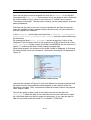
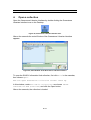
In our Workspace, some folders are listed, like Documents in Greenstone
Collectons, Local Filespace, Home Folder and some other folders may
be listed here.
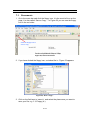
By opening the folder Local Filespace we can access the C-drive of the
computer. First we have to click on the small plus sign on the left-side of the
Local Filespace folder to open this folder. Consequently we can open the Cdrive (‘C:\’) and next the folder ‘toAdd’ exactly the same way.
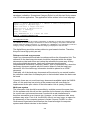
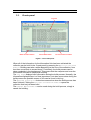
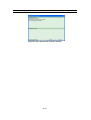
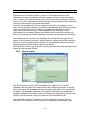
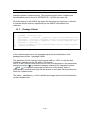
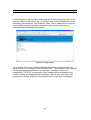
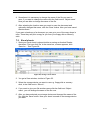
When done properly, the contents of the folder ‘toAdd’ is displayed. In this case
the folder contains only one document: ‘Greenstone tutorial.pdf’ as displayed in
Figure 10.
Figure 10. The folder ‘toAdd’ opened
Note that the contents of Figure 10 may look different on another computer and
the steps to reach the original document depend on the location where the
document is located. Thus, a document located at another location may require
other steps to reach.
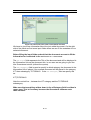
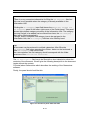
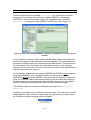
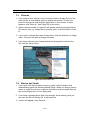
Now we are going to take a look at the folder structure on the right: the
Collection, where the files of our collection can be found. We have to open
the (sub)folder where we want to place our document. In our case we want to
add our document under the folder ICT, subfolder TUTORIALS.
B-12