1
TcpGPS
User Manual
Installation
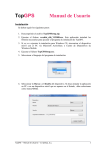
The steps below must be followed:
1.
Decompress the file TcpGPSSetup.zip.
2.
Execute the file vcredist_x86_VS2008.exe. This application will install the
libraries required to execute the TcpGPS installation programme.
3.
If you're going to execute the installation for Windows CE, synchronise the
mobile device with the PC via Microsoft ActiveSync or Windows Mobile
Device Centre.
4.
Execute the file TcpGPSSetup.exe.
5.
Select the installation programme language:
6.
Select the Brand and the Model of the device; if you wish to install the
application on a PC or on a mobile device which does not appear on the list, you
must select Others as the brand.
TcpGPS – User’s Manual - © Aplitop, S.L.
1
7.
Select the Version to be installed. You can choose between Basic or Full.
The difference between both is that the latter includes the road module. For PC
there is a Simulation version distributed free-of-charge with the version for
mobile device which allows works to be prepared on the PC and subsequently
for them to be copied to the device.
8.
Select the Installation Folder by pressing the
button on the right of this
box. On the mobile devices it is recommended to install the programme on
permanent storage cards (SD, Compact Flash, etc). To see the list of those to be
found on the device, the Only show memory cards box must be marked.
TcpGPS – User’s Manual - © Aplitop, S.L.
2
9.
Press the Install TcpGPS button.
10.
Once installation is complete, the following message appears:
TcpGPS – User’s Manual - © Aplitop, S.L.
3
11.
Press Accept and close the installation programme.
Configuration
The first time the program is run, a dialog box will be displayed where at least the
following data should be entered:
1. GNSS receiver brand and model.
2. Communications ports of the device and the GNSS receiver for cable or Bluetooth
connections. The communication parameters (bits per second, parity, flow control, etc.)
should be specified for the former.
This dialog box can also be accessed from the Communications option within
Settings menu.
Starting Up the Program
1. Choose the TcpGPS option from within the Program group or execute the program
shortcut.
2. A new menu containing Last Project, Select Project and New Project will then be
displayed. If it is the first time the program is run, you have to click on New Project.
TcpGPS – User’s Manual - © Aplitop, S.L.
4
Creating a Project
The program requests a name for the project, as well as its location within the file
system. It is highly recommended to save files in stable memory drives such as
Compact Flash or SD memory cards, as otherwise the data will be lost when the device
is rebooted due to a lack of battery power or other reasons. The name of the relevant
folder will vary depending on the mobile device, and could, for instance, be: \Storage
Card or \Flash Disk.
1. Select the folder desired, enter a valid file name and click on
button.
2. A dialog box is then displayed as follow:
Project: Shows the project name and work directory.
CRS: Coordinate Reference System. Shows the datum and the projection system
selected. if you are using a geoid to obtain orthometric altitudes, the vertical CRS is
also shown. (See section Settings > Geodesy).
The current system parameters can be changed by pressing the
TcpGPS – User’s Manual - © Aplitop, S.L.
button
5
Area: Allows the filtering of the coordinate system parameter search,
leaving only the elements of the selected zone. If you do not wish to use
button, the
this filter, the box should be unchecked. By pressing the
following list of continents and countries is shown:
Favourites: If a country is selected, a list is shown of the coordinates'
systems most used in this zone. Each element of this list contains
information about the 4 parameters which are requested below. A new
button and entering a
favourite system can be added by pressing the
name.
Projected CRS: Projected coordinate reference system. With this
parameter the projection system is indicated (UTM, Lambert, etc) and the
datum used. (See section Settings > Geodesy)
Geo. Dat. Shift: Indicates the transformation of geodetic datums used. It
is necessary to transform the geographic coordinates received from the
GNSS receiver at projected coordinates. (See section Settings >
Geodesy)
TcpGPS – User’s Manual - © Aplitop, S.L.
6
Vertical CRS: Vertical coordinate reference system. Indicates the system
used to correct the altitudes on the ellipsoid WGS84 which sends the
GNSS receiver. (See section Settings > Geodesy)
Ver. Dat. Shift: Indicates the transformation of vertical datums used in
the CRS. Only transformations based on geoid files are allowed. (See
section Settings > Geodesy)
Local System: This allows a local transformation to be established in the project to
be adjusted to the work area. (See section Local System)
CDB: Shows the directory and name of the file from the code data base which is
used in the project.
3. The program then creates a project file and displays a confirmation message. An
empty point file, a stations file and a results file for setting out are additionally created
having the same name as project.
Configuring the GNSS Receiver
In the most common case, working in RTK with base and rover, proceed as follows,
unless work styles have previously been configured.
Configuring the Base receiver with Random Coordinates
1. Select the Configure Base > Unknown Position option within the GPS menu.
2. In the next dialog box, an antenna height should be entered and a name assigned to
the station. Then click on Auto button.
3. If the save with Post-Processing box is marked, you have to enter a file name or
accept the file name proposed.
4. Click on the Start button. The message GPS configured in station mode will then
be displayed.
TcpGPS – User’s Manual - © Aplitop, S.L.
7
Configuring the Base Receiver with Known Coordinates
1. Select the Configure Reference option in the GPS menu and on this screen either
the Select from File or Manual Entry options.
2. If the Select from File option is chosen, select the coordinates from the project’s
points or station file.
3. The antenna’s height should be entered in the next dialog box. Then enter the
coordinates desired if Manual Entry was chosen.
4. If the save for Post-Processing box is activated, you have to enter a file name or
accept the file name proposed.
5. Click on the Start button. The message GPS configured in station mode will then
be displayed.
Configuring the Rover Receiver
1. Select the Configure Rover option in the GPS menu.
2. Enter the antenna’s height.
3. Click on
receiver.
button. The program then waits to establish the data link with the base
TcpGPS – User’s Manual - © Aplitop, S.L.
8
Survey
The receivers should have been properly configured in order to start surveying.
Click on the relevant option or the mobile device’s physical key chosen in configuration
to save a point. It is also possible to access the current precision parameters to modify
them at any time.
The following data can be modified for each point:
•
Number of next point to save
•
Antenna height
•
Point’s code (multiple codes are allowed)
Additionally, the current coordinates and the status bar containing essential information
on the receiver’s status are shown in real time. If a number of epochs greater than one
has been chosen in saving style, the deviations reached are shown.
Clicking on the
button displays a graphic showing the points belonging to the file
and the project’s cartography (DXF file, Shape files, image files or WMS) if it exists.
If the type of position and precision values obtained do not correspond with the current
saving style, the program will request the user for confirmation before saving a point.
Local Systems
Various known coordinates at several pairs of source and target points should have been
previously surveyed using the Survey option in the Surveying menu. The project
mustn’t have a local system assigned. If a list of source points in WGS-84 geographic
coordinates is available, it will not be necessary to survey said points. A file with a W84
extension should be created using the following line format, where Code field is
optional:
Name,GLat MLat SLat NS,GLon MLon SLon EO,Altitude,Code
Example: BR1,36 45 5.6754343 N,4 28 6.5456787 W,145.423
TcpGPS – User’s Manual - © Aplitop, S.L.
9
In addition, other points file should have been previously created whose point names
coincide with the points surveyed but in the coordinates of the local system desired.
If these conditions are met, follow the steps set out below to define the local adjustment:
1. Click on New option in the Local System menu.
2. Select the type of local system, 2D, 3D or 2D + 1D, select By Points mode and click
on
button.
3. Click on Source File button and select the GPS coordinates file, and then, click on
Target File button and select local coordinates file.
4. The program does automatically the calculations, shows the transformation
parameters and informs about the mean square error and the maximum error obtained. If
these values are acceptable, click on
button and enter a name for the local system.
It must be saved in the current working folder.
TcpGPS – User’s Manual - © Aplitop, S.L.
10
5. Go to Project > Properties, select the local system created and click on
button.
Setting Out
The program is equipped with a large number of options to set out individual points,
points on a line, line intersections, in addition to other specific options for highways,
such as station and offset, station and code and slopes.
All the options draw a graphic that clearly indicates the current positions and the point
to be set out, in addition to showing the distance to the point and the coordinate
increments.
The user can choose how the program displays numerical information and the way the
different graphic options are displayed through the following dialog box:
Click on the relevant option or the mobile device’s physical key chosen in configuration
to save a point. It is also possible to access the current precision parameters to modify
them at any time.
Any points set out are automatically saved in the project’s results file.
Points
The program displays a dialog box that allows one to choose the points to be set out. It
has the following options:
•
Individual point by specifying its number or selecting it from the list.
TcpGPS – User’s Manual - © Aplitop, S.L.
11
•
A point specified by its coordinates that are entered manually.
•
Points having a specific code.
•
Point intervals, having to enter the initial and final points.
•
A point chosen from CAD.
•
Individual station selected from any station file.
•
The nearest point to the current position.
Once the dialog box is accepted, the program will start setting out the first point of the
points selected, allowing the user to go to the next or previous point using the
buttons. The program automatically goes to the next nearest point after saving the
current point in the Nearest Point option.
TcpGPS – User’s Manual - © Aplitop, S.L.
12