1
DataTrust Offsite Backup v5.2
User’s Guide
11.6 How to restore Lotus Domino / Notes database(s) / file(s) on
Linux
Please follow the instructions below to restore Lotus Domino server / Notes client database(s) / file(s) from an
Offsite Backup Server.
i.
Install Lotus Domino server / Notes client back to its original folder (if required)
ii.
Install OBM
Please refer to the [Installation] section for information on how to install OBM onto your computer.
iii.
Shutdown Lotus Domino Server
iv.
If you want to perform a full domino restore (restore all databases and files):
a.
Download the backup files to be restored from the Offsite Backup Server and save them back
to its original location. It includes notes.ini, all backup files from the lotus domino data
directory and all archived transaction logs. If you encounter any access problems, please try
restoring using the “root” user.
b.
Make sure that the owner and group permissions of the restored files are the notes user
For example:
# chown –R notes:notes /local/notesdata
This will assign the owner and group to all files and directories within /local/notesdata.
c.
Modify the “DominoRecover.sh” located under the bin directory of the OBM installation to
reflect your setup. You need to specify the data directory and the lotus executable directory.
For example change the DATA_DIR and LOTUS tags to:
DATA_DIR=/local/notesdata
LOTUS=/opt/ibm/lotus
d.
Make sure the current user is the notes user before running the “DominoRecover.sh”.
e.
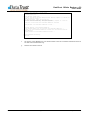
Run “DominoRecover.sh” and press ‘Y’ to continue.
For example: #./usr/local/obm/bin/DominoRecover.sh
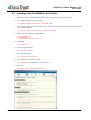
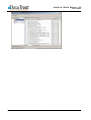
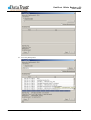
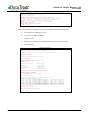
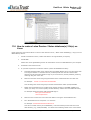
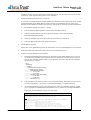
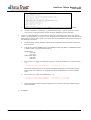
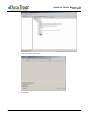
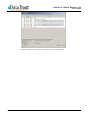
This will run media recovery for all databases (*.nsf and mail.box) found under the Lotus
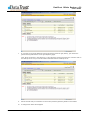
data directory (e.g. /local/notesdata). You should see something similar to the screen below.
© DataTrust Limited
Page 83 of 126
September 2007