1
B Series.book Page 41 Wednesday, April 27, 2005 8:59 AM
User Installable Features
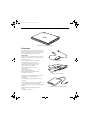
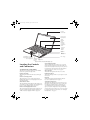
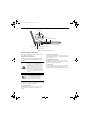
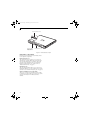
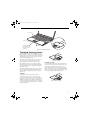
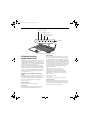
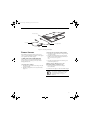
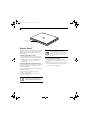
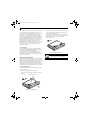
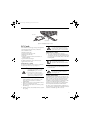
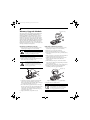
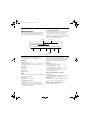
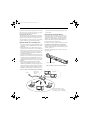
PC Card
Eject Button
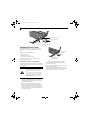
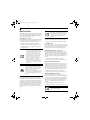
Figure 4-6. Installing/Removing PC Cards
PC Cards
Your LifeBook notebook supports Type I and Type II PC
Cards, which can perform a variety of functions.
Windows has a shutdown procedure for
PC Cards that must be followed before
removing a card. (Review your operating
system manual for the correct procedure)
Some available PC Cards:
■
■
■
■
■
■
Fax/data modem cards.
Local area network (LAN) cards.
IDE solid-state disk cards.
SCSI cards.
Other PC Cards that conform to PCMCIA 2.1 or
CardBus standards.
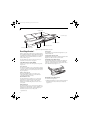
Optional SmartCard adapter
For further information, refer to the instructions
supplied with your PC Card.
INSTALLING PC CARDS
PC Cards are installed in the PC Card slot. To install a
PC Card, follow these easy steps: (Figure 4-6)
■
■
Installing or removing a PC Card during
your notebook’s shutdown or bootup
process may damage the card and/or
your notebook.
Do not insert a PC Card into a slot if
there is water or any other substance on
the card as you may permanently damage the card, your notebook, or both.
1. See your PC Card manual for specific instructions
on the installation of your card. Some PC Cards
may require your notebook to be Off while
installing them.
2. Make sure there is no PC Card currently in the slot.
If there is, see Removing PC Cards.
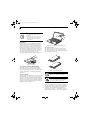
3. Insert your PC Card into the slot, with the product
label facing up.
4. Push the card into the slot firmly until it is seated in
the opening.
REMOVING PC CARDS
To remove a PC Card, follow these easy steps:
1. See your PC Card manual for specific instructions
on removing your card. Some PC Cards may require
your notebook to be in Standby Mode or Off while
removing them.
If the dialog box states that the device
cannot be removed, you must save all of
your open files, close any open
applications and shut down your LifeBook.
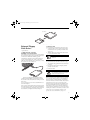
2. Push the Eject button until it pops out, and then
push it in to eject the card. This will allow you to
remove the card.
If the PC Card has an external connector
and cable, do not pull the cable when
removing the card.
SMART CARD READER
An embedded Smart Card Reader is provided on your
LifeBook notebook. Smart Cards are the same size and
shape as credit cards, but they contain an integrated
microprocessor chip. The chip can hold a variety of
information, and provides the user with many possible
options, such as allowing them to make secure
purchases, pay for phone calls, store security information, and provide identification and information.
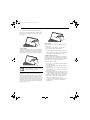
In order to use the embedded Smart Card Reader, you
must purchase an optional Smart Card holder for installation into an available Type II PC Card slot.
41