1
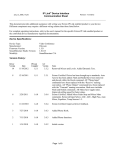
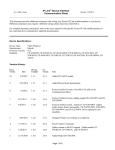
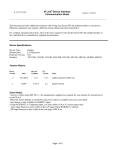
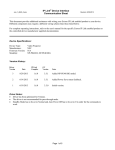
IP Link® Device Interface Communication Sheet poly_12_6418_13.pke Revision: 8/3/2015 This document provides additional assistance with wiring your Extron IP Link enabled product to your device. Different components may require a different wiring scheme than those listed below. For complete operating instructions, refer to the user's manual for the specific Extron IP Link enabled product or the controlled device manufacturer supplied documentation. Device Specifications: Device Type: Manufacturer: Firmware Version: Model(s): Video Conference Polycom 4.1.3 RealPresence Group 700 Version History: Driver Version Date IP Link Compiler GC Version Notes 13 7/31/2015 1.6.0 3.5.2 Updated Power management to stop polling when Sleep is executed. 12 1/14/2015 1.6.0 3.5.2 Added Selfview control. 7 4/08/2014 1.6.0 3.5.2 Extron Certified. Tested on Group 700. Added IR Remote Emulation. Ringing status no longer supported with firmware 4.1.3. For Ringing status use Ethernet driver. 4 10/18/2013 1.6.0 3.5.1 Added Call Type for Video or Analog. 2 7/09/2013 1.6.0 3.5.1 Fixed Ringing Status and Camera Control. 1 2/28/2013 1.5.1 3.3.2 Initial version. Driver Notes: The driver includes optimization to the features listed below: a. Dynamic Text b. Dialing Feedback c. Volume Power Management: Sleep will stop polling to prevent device from waking up. Any action from the driver will disable Sleep and polling will resume. Page 1 of 8 poly_12_6418_13.pke IP Link® Device Interface Communication Sheet Revision: 8/3/2015 Dialing Configuration: The Keypad is configured to display the digits on the field located at the top of the page. When the desired number is entered, press the Call button and that will connect you with the number you entered. When in a call, the keypad will be used the same as the DTMF tone where each number press will get sent out immediately. The Delete button will delete the last number displayed on the touch panel and is configured with the press/repeat functionality. The Clear button will clear all numbers entered. The Label on the top of the page, “Please enter a number and press Call”, is configured in GUI Configurator with an ID of 50000-50020 and with the Dynamic text parameter enabled. Page 2 of 8 IP Link® Device Interface Communication Sheet poly_12_6418_13.pke Revision: 8/3/2015 Control Commands & States: Auto Answer On Off Auto Show Content On Off Call Type Video Audio Camera 1 – 4 Input Content People Do Not Disturb Camera Preset Recall (Far) 0 – 15 Camera Preset Recall (Near) 0 – 99 Camera Preset Save (Far) 0 – 15 Camera Preset Save (Near) 0 – 99 Conference Mode Auto Presentation Discussion Full Screen Content 1–4 Content Mode Start Stop 2,3,4,6 Dial Keypad 0–9 * # . Delete Clear Dynamic Text ID 50000 – 50020 Far Site (Level) -20 to 30 in steps of 1 Far Site (Step) Up Down Hook On Off Input (Far) 1–4 Input (Near) 1–4 IR Remote Emulation 0–9 # * . Up Down Left Right Select Back Call Graphics Hang Up Help Mute Volume Up Volume Down Delete Directory Home Keyboard Page 3 of 8 IP Link® Device Interface Communication Sheet poly_12_6418_13.pke Revision: 8/3/2015 Continued PIP Preset Period Info Microphones Enable Disable Mute (Near) On Off Toggle Up Down Left Right Stop Up Down Right Stop 1 Pan-Tilt (Far and Near) Pan-Tilt (Near) 1 Left People 1–4 Phone Call Answer End Video Call Power Management Wake Sleep Reboot Execute Selfview On Volume (Discrete) 0 to 50 in steps of 1 Volume (Step) Up Down In Out Stop In Out Stop Zoom (Far) 1 Zoom (Near) 1 End All Calls Off 1) Should be configured as Press and Release Page 4 of 8 IP Link® Device Interface Communication Sheet poly_12_6418_13.pke Revision: 8/3/2015 Status Available: Auto Answer On Off Auto Show Content On Off Call Status Status Unavailable Connected Connecting Disconnecting Not In Call Ringing Camera 1 – 4 Input Content People Conference Mode Auto Presentation Full Screen Connection Status Connected Disconnected Content Mode Start Stop Far Site (Level) -20 to 30 in steps of 1 Microphones Enable Disable Mute (Near) On Off Selfview On Off Volume (Discrete) 0 to 50 in steps of 1 Page 5 of 8 Do Not Disturb Discussion IP Link® Device Interface Communication Sheet poly_12_6418_13.pke Revision: 8/3/2015 MLC60 Series Supported Commands: Auto Answer On Off Auto Show Content On Off Camera 1 – 4 Input Content People Do Not Disturb Camera Preset Recall (Far) 0 – 15 Camera Preset Recall (Near) 0 – 99 Camera Preset Save (Far) 0 – 15 Camera Preset Save (Near) 0 – 99 Conference Mode Auto Presentation Discussion 2,3,4,6 Full Screen Content 1–4 Content Mode Start Stop Far Site (Step) Up Down Input (Far) 1–4 Input (Near) 1–4 IR Remote Emulation 0–9 # * . Up Down Left Right Select Back Call Graphics Hang Up Help Mute Volume Up Volume Down Delete Directory Home Keyboard PIP Preset Period Info Microphones Enable Disable Mute (Near) On Off Toggle Pan-Tilt (Far) 1 Up Down Left Right Stop Page 6 of 8 IP Link® Device Interface Communication Sheet poly_12_6418_13.pke Revision: 8/3/2015 Continued Pan-Tilt (Near) 1 Up Down Left Right Stop Phone Call Answer End Video Call Power Management Wake Reboot Execute Selfview On Volume (Discrete) 0 to 50 in steps of 1 Volume (Step) Up Down Zoom (Far) 1 In Out Stop Zoom (Near) 1 In Out Stop End All Calls Off 1) Should be configured as Press and Release Page 7 of 8 poly_12_6418_13.pke IP Link® Device Interface Communication Sheet Cable and Adapter Requirements: F/F RS232 DB9 Null Modem Cable Notes for the Device: To enable RS232 Control. Admin Setting General Settings Serial Ports = Control. Serial communication: Port Type: RS-232 Baud Rate: 9600 Data Bits: 8 Parity: None Stop Bits: 1 Flow Control: None Pin Assignments Diagram: Note: Captive screw connector may also be used as a serial connection. General Notes: Page 8 of 8 Revision: 8/3/2015