1
Flow and Results-Oriented Design
ACAM’s results-oriented design also provides the user with an clear and easy to follow path for completing an
ACAM Report. This is achieved with three interface designs: the status panel, check and status forms, and numbered status tabs.
The Status Panel
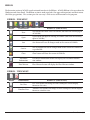
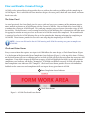
As stated previously, the Status Panel gives the user a quick and easy to use summary of the minimum requirements needed to generate an ACAM Report with the current ACAM file. You can think of the Status Panel as
a roadmap for creating an ACAM Report. This road map contains two great features that makes using ACAM
fast and easy. The first feature is every warning listed in the ACAM Warnings list is a button that will either open
the approprate window or navigate a user to the area in ACAM that needs to be completed. The second feature
is warnings listed in the ACAM Warnings list are in the optimal order, from top to bottom, for completing an
ACAM file. These features provide the user with a one stop shop for completing an ACAM file.
NOTE: A user can click on the first ACAM warning until all of the warnings are gone to complete an
ACAM file.
Check and Status Forms
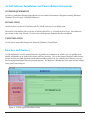
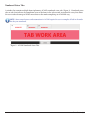
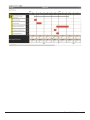
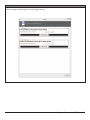
Every screen or form that requires user input in ACAM follows the same design; a Check Form Button (Figure
2) at the bottom of the form and a Form Completion Status Indicater (Figure 2) at the top of the form. Clicking
on the check button will start a validation process in which ACAM will check the entire form for correctness and
completion. If any field is incorrectly filled out or empty, ACAM will highlight the field(s) in red and the form
completion status indicater will display “Incomplete”. If all fields are filled out correctly, ACAM will update the
form completion status indicater with “Complete”. Check and Status Forms provide the user with immediate
feedback on the correctness and completion of all user inputs for any given form in ACAM.
1 Form Completion Status Indicater
2 Check Form Button
Figure 2 - ACAM Check and Status Forms
Introduction | 7