1
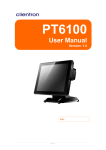
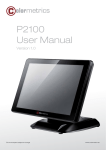
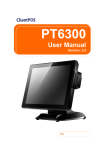
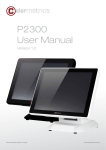
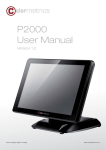
P3300
User Manual
Version 1.0
Errors excepted; subject to change
www.colormetric.net
COPYRIGHT
Copyright 2014 Publishing. All Rights Reserved.
This manual, software and firmware described in it are copyrighted by their respective owners and
protected under the laws of the Universal Copyright Convention. You may not reproduce, transmit,
transcribe, store in a retrieval system, or translate into any language, in any form or by any means,
electronic, mechanical, magnetic, optical, chemical, biological, molecular, manual, or otherwise, any part
of this publication without the express written permission of the publisher.
All products and trade names described within are mentioned for identification purpose only. No
affiliation with or endorsement of the manufacturer is made or implied. Product names and brands
appearing in this manual are registered trademarks of their respective companies.
The information published herein has been checked for accuracy as of publishing time. No representation
or warranties regarding the fitness of this document for any use are made or implied by the publisher. We
reserve the right to revise this document or make changes in the specifications of the product described
therein at any time without notice and without obligation to notify any person of such revision or change.
2
Colormetrics P3300
www.colormetric.net
SAFETY INSTRUCTIONS
1. Read these instructions carefully. Keep these instructions for future reference.
2. P
lease disconnect this equipment from AC outlet before cleaning. Don’t use liquid or sprayed
detergent for cleaning. Use moisture sheet or cloth for cleaning.
3. Please keep this equipment from humidity.
4. Lay this equipment on a reliable surface when install. A drop or fall could cause injury.
5. M
ake sure power cord such a way that people can not step on it. Do not place anything over the
power cord.
6. All cautions and warnings on the equipment should be noted.
7. If the equipment is not used for long time, disconnect the equipment from main to avoid being
damaged by transient over voltage.
8. Never pour any liquid into opening, this could cause fire or electrical shock.
9. If one of the following situations arises, get the equipment checked by a service personnel:
a. The power cord or plug is damaged.
b. Liquid has penetrated into the equipment.
c. The equipment has been exposed to moisture.
d. The equipment does not work well or you can not get it work according to user manual.
e. The equipment has dropped and damaged.
10. D
o not leave this equipment in an environment unconditioned, storage temperature below -20°C or
above 60°C, it may damage the equipment.
11. Unplug the power cord when doing any service or adding optional kits.
Lithium Battery Caution:
Danger of explosion can happen if the battery is incorrectly replaced, Replace only the original or equivalent
type recommended by the manufacture. Dispose used batteries according to the manufacture’s instructions.
Do not remove the cover, and ensure no user serviceable components are inside. Take the unit to the
service center for service and repair.
www.colormetric.net
Colormetrics P3300
3
TABLE OF CONTENTS
COPYRIGHT
2
SAFETY INSTRUCTIONS
3
1 PACKING LIST
5
1-1. Standard Accessories
5
1-2. Optional Accessories
5
2 SYSTEM VIEW
6
2-1. Front/Rear View 6
2-2. Specification
7
3 PIN DEFINITION
8
4 REAR I/O INTERFACE
11
5 SYSTEM ASSEMBLY & DISASSEMBLY
14
5-1. HDD
14
5-2. Memory
14
5-3. MSR
14
5-4. VFD
15
5-5. 2nd HDD Kit
15
5-6. 8” 2nd Monitor
5-7. Adapter
16
17
5-8. 1D / 2D / i-Button with RFID module
18
6 DEVICE DRIVER INSTALLATION
19
6-1. Resistive Type Touch Panel & P-Cup
19
6-2. MagStripe Card Reader Configuration Utility 25
6-3. Fingerprint Reader
42
6-4. RFID
6-5. Configuration Utility of I-Button Reader
6-6. Installation and Testing of Smart Card Reader
52
58
66
7 BIOS/UTILITY SETUP
71
7-1. Advanced
72
7-2. Chipset 83
7-3. Boot
87
7-4.Security88
7-5.Save & Exit
89
8 LCD SURFACE CLEANING
4
Colormetrics P3300
90
www.colormetric.net
PACKING LIST
1-1. Standard Accessories
MODULES*:
MSR
1D/ 2D BARC
NER
RFID (13,56M
IBUTTON
SMARTCARD
FINGERPRINT
a. System (with stand)
b. Power Adapter
c. Power Cord
d. Driver Bank
e. Cable Cover
1-2. Optional Accessories
Modules*:
Accessories:
MSR
Build-in VFD
1D/2D barcode scanner
Pole VFD
RFID (13,56 MHz)
8” pole customer display
iButton
15” pole customer display
Smart card reader
UPS battery
Fingerprint reader
*Note: Nearly all modules are also available as 2-in-1 or 3-in-1 solution.
www.colormetric.net
Colormetrics P3300
5
2 SYSTEM VIEW
2-1. Front/Rear View
Item
1.19V DC Input
2.COM2
3.COM1
4.E-SATA&USB
5.USB 2.0 X2
6.VGA
7.LAN port
8.Line-out
9.Mic-in
10.PS2(K/B)
11.USB 2.0 X 2
12.RJ45(COM3)
13.RJ11(Cash Drawer)
14.Parallel port (Option)
15.Power Button
16.MSR/Smart Card/i-Button
/Fingerprint /RFID (Option)
17. HDD Cover
18.Antenna Cover
19.8” 2nd Display/VFD Cover
20.Memory Cover
21.Power LED
22.Cover for Internal access of 2nd
HDD/Adapter
6
Colormetrics P3300
* Please make sure 19V DC plug in the right
direction before plugging in DC jack.
www.colormetric.net
2-2. Specification
Processor
Intel® Celeron® G540 processor (2M Cache, 2.50GHz)
Chipsets: North Bridge/South Bridge
H61
Memory
One SO-DIMM socket supports DDR3 1066/1333MHZ up to 8GB
Audio
Line-out/Mic-in
Network
RJ45 10/100/1000 Base-T
USB
5*USB 2.0
Storage
2.5” SATA HDD / SSD
BIOS
AMI BIOS
Power
DC 19V 150W Adaptor
Thermal Solution
Heat sink + Fan X1
Dimension
410 (W) x 385.2 (H) x 296.4 (D) mm
Operating Temperature
0°C ~ 35°C
Storage Temperature
-20°C ~ 60°C
Storage Humidity
20% ~ 80%, non-condensing
Display
LCD Panel Size
17-inch TFT Active Matrix Display
Resolution
1028*1024 Pixels
Brightness
250 cd/m2 /350cd/m2 (Optional)
Touch Panel
5-wire Resistive Type / Projected Capacitive Type optional
Tilt Angle
30°~90°
www.colormetric.net
Colormetrics P3300
7
3 PIN DEFINITION
1. COM 5 for Touch Panel (CN 7)
Pin
Function
Pin
Function
Pin
Function
1
2
T_UR
3
T_SG
5
T_LR
T_UL
4
T_LL
2. Parallel J1
8
Pin NO.
Pin Name
Description
Pin NO.
Pin Name
Description
1
STB#
Printer Strobe
14
AFD#
Printer Auto Line Feed
2
PD0
Parallel Port DATA0
15
ERR#
Printer Error
3
PD1
Parallel Port DATA1
16
INIT#
Printer Initialize
4
PD2
Parallel Port DATA2
17
SLIN#
Printer Select Input
5
PD3
Parallel Port DATA3
18
GND
Ground
6
PD4
Parallel Port DATA4
19
GND
Ground
7
PD5
Parallel Port DATA5
20
GND
Ground
8
PD6
Parallel Port DATA6
9
PD7
Parallel Port DATA7
10
ACK#
Printer Acknowledge
11
BUSY
Printer Busy
12
PE
Printer Paper End
13
SLCT
Printer Select
Colormetrics P3300
www.colormetric.net
3. Lin-out J3
Pin NO.
Pin Name
Description
1
GND
Ground
2
GND
Ground
3
Line OUT R
Line out
4
Line OUT L
Line out
5
Detect
Detect
4. VFD Connector CN9
Pin NO.
Description
1
RTS#
2
GND
3
TxD
4
RxD
5
CTS#
6
+5V
7
+5V
8
USB D-
9
USB D+
10
GND
5. Mic
Pin NO.
Pin Name
Description
1
GND
Ground
2
GND
Ground
3
Mic R
Mic
4
Mic L
Mic
5
Detect
Detect
6. Speaker SPK1, SPK2
Pin NO.
Pin Name
Description
1
+
Speaker +
2
-
Speaker -
www.colormetric.net
Colormetrics P3300
9
8. Inverter C14
7. LVDS CN 2
10
Pin NO.
Description
Pin NO.
Pin Name
Description
1
RxECLK+
1
VCC
+12V
2
RxECLK-
2
GND
Ground
3
RxE3+
3
NC
NC
4
RxE3-
4
BKL_CTL
Back Light Brightness
5
RxE2+
5
BKL_EN
Back Light Enable
6
RxE2-
7
GND
8
RxE1+
9
RxE1-
10
RxE0+
11
RxE0-
12
RxO3+
13
RxO3-
14
GND
15
RxOCLK+
16
RxOCLK+
17
GND
18
RxO2+
19
RxO2-
20
RxO1+
21
RxO1-
22
RxO0+
23
RxO0-
24
GND
25
NC, GND for G-type
26
NC
27
NC, GND for G-type
28
+5V
29
+5V
30
+5V
Colormetrics P3300
www.colormetric.net
4 REAR I/O INTERFACE
Rear I/O Drawing
Item
1.19V DC Input
2.COM2
3.COM1
4.E-SATA&USB
5.USB 2.0 X2
6.VGA
7. LAN port
8. Line-out
9.Mic-in
10.PS2(K/B)
11.USB 2.0 X 2
12.RJ45(COM3)
13.RJ11(Cash Drawer)
Jumper for COM4
Voltage Setting
14.Parallel port (Option)
15.Power Button
4
16.MSR/Smart Card/i-Button
/Fingerprint /RFID (Option)
Rear I/O Interface
17. HDD Cover
18.Antenna Cover
1. COM1’ COM2’ COM3 port
19.8” 2nd Display VFD Cover
20.Memory Cover
2.
1. COM1’ COM2’ port
Pin
Signal
Function
1
CD
Carrier Detect (IN)
2
RD
Receive Data (IN)
3
TD
Transmit Data(OUT)
4
DTR
Data Terminal
Ready(OUT)
5
GND
Ground
6
DSR
Data Set Ready (In)
7
RTS
Request To Send (OUT)
8
CTS
Clear To Send (IN)
9
Ring/5V/12V
Setting by BIOS
Pi
n
1
2
3
4
Signal
Function
CD
RD
TD
DTR
GND
Carrier Detect (IN)
Receive Data (IN)
Transmit Data(OUT)
Data Terminal Ready(OUT)
Ground
S
6
7
8
9
D
R
C
R
5
COM4 port . Warning!! COM4 (RJ45 Connector )
network
device. If you are using on the network de
2. RJ45 VFD
1 2 3 4 5 6 78
Pin 1: +5V / +12V
Pin 2: DSR#
Pin 3: GND
Pin 4: DTR#
Pin 5: RTS#
Pin 6: CTS#
Pin 7: TxD
Pin 8: RxD
VGA port
www.colormetric.net
Pin
Colormetrics P3300
11
3. VGA port
Pin
I/O
Function
Pin
I/O
Function
1
OUT
Red Video
9
-
Key (Plugged Hole)
2
OUT
Green Video
10
-
Sync Ground
3
OUT
Blue Video
11
In
Monitor ID 0
4
IN
Monitor ID 2
12
In
Monitor ID 1
5
-
TTL Ground (Monitor Self Test)
13
Out
Horizontal Sync
6
-
Red Analogue Ground
14
Out
Vertical Sync
7
-
Green Analogue Ground
15
In
Monitor ID 3
8
-
Blue Analogue Ground
4. USB port
Pin
Signal Name
Wire Colour
Comment
1
VCC
Red
Cable Power
2
- Data
White
Data Transfer
3
+ Data
Green
Data Transfer
4
Ground
Black
Cable Ground
Shell
Shield
-
Drain Wire
5. PS/2 K/B port
6. LAN port
Pin
Signal Name
Pin
Wire Colour
Description
1
Data from Device
1
White / Orange
D0+
2
Not Connected
2
Orange
D0-
3
Ground
3
White / Green
D1+
4
+5V DC
4
Blue
D1-
5
Clock
5
White / Blue
D2+
6
Not Connected
6
Green
D2-
7
White / Brown
D3+
8
Brown
D3-
7. RJ11 port (for Cash Drawer)
12
Pin
Signal Name
Direction
1
Frame GND
-
2
Drawer Kick-out drive signal 1
Output
3
Cash Drawer Status
Input
4
+12V
-
5
N/C
-
6
Signal GND
-
Colormetrics P3300
Example DOS COMMAND
for Cash Drawer:
1.Create the file: TEST.TXT
2.Input below contents in TEST.
TXT CONTEXT-“000.0”
MODE COM5:300
3. Run COMMAND under DOS mode COPY TEST.TXT COM 5
www.colormetric.net
8. DC Jack
Pin
Signal Name
1
DC IN 19V
2
Ground
3
N/C
9. eSATA&USB connector
Pin
Description
Pin
Description
1
GND
U1
+5V
2
TX +
U2
D-
3
TX -
U3
D+
4
GND
U4
GND
5
RX-
6
RX+
7
GND
www.colormetric.net
Colormetrics P3300
13
5 SYSTEM ASSEMBLY & DISASSEMBLY
5-1. HDD
1
2
1. Unscrew 2 screws and remove the HDD cover
2. Install HDD with 4 screws
5-2. Memory
1
2
1. Unscrew 1 screw and remove the memory cover
2. Install HDD with 4 screws
5-3 MSR
1
2
1. Remove MSR cover
2. Install MSR with two screws
14
Colormetrics P3300
www.colormetric.net
5-4 VFD
1
2
3
1. Remove the cover
2. Plug VFD cable into the 1*6 pin connector
3. Install VFD with two screws
5-5 2nd HDD Kit
1
www.colormetric.net
2
Colormetrics P3300
15
3
1. Fix the e-SATA cable as the position shown in the picture 1
2. Install HDD kit with two screws
3. Plug e-SATA cable into the position shown in the picture 3
5-6 8” 2nd Monitor
1
2
3
1.Remove the cover
2. Plug cable into the 1*4 pin connector
3.Install 8” 2nd Monitor with two screws
16
Colormetrics P3300
www.colormetric.net
5-7 Adapter
1. Unlock two screws and then remove the cover
2. Assemble the adapter bracket with two screws
3. Assemble the back cover the stand with two screws
Note:
The adapter bracket of P3300 is only for P3300 standard adapter
(Model name: FSP150, 150W). Please don’t assemble other type adapter into the stand.
www.colormetric.net
Colormetrics P3300
17
5-8 1D / 2D / i-Button with RFID module
1. Cable installation.
For I-Button / RFID /1D/2D barcode scanner, please connect the cable as shown in figure
2. Fix the screws as shown in below figure.
18
Colormetrics P3300
www.colormetric.net
6. DEVICE DRIVER INSTALLATION
6-1. Resistive Type Touch Panel and P-CAP
1. Click “Next”
2. Click “Next”
www.colormetric.net
Colormetrics P3300
19
3. Click “Next”
4. Select “None”, Click “Next”.
5. Click “OK”
20
Colormetrics P3300
www.colormetric.net
6. Select “Support Multi-Monitor System”, Click “Next”.
7. Click “Next”.
www.colormetric.net
Colormetrics P3300
21
8. Click “Next”.
9 Click “Next”
22
Colormetrics P3300
www.colormetric.net
10. Select “Create a eGalaxTouch Utility shortcut on desktop”, Click “Next”.
www.colormetric.net
Colormetrics P3300
23
11. Would you do 4 point calibration now? Click “Yes”.
12. Do 4 points aligrment to match display
13. Calibration utility
24
Colormetrics P3300
www.colormetric.net
6-2. MagStripe Card Reader Configuration Utility
1 Combo USB HID MSR
The MagStripe Card Reader Configuration Utility is used to set up the output format of HIDMSR-20
Installation
Below steps guide you how to install the Utility program.
1 Insert the setup CD
2 Run the HIDMSR-20 Utility.exe setup file that is located in the Software folder of CD.
3 Follow the wizard to complete the installation.
Launching Program
Below steps guide you how to load the Utility program.
1 From Start/Programs, click HIDMSR20 folder
2 Click MagStripe Card Reader Configuration Utility to launch the program.
1 The utility program will detect the connected reader. If detected, all the input text boxes
will be enabled.
2 If the reader has not been connected to PC yet, please connect the reader and then click
Refresh to get connected.
www.colormetric.net
Colormetrics P3300
25
Configuration
Below is the main window of Utility program.
For the settings, there are:
1 L
anguage: The language defines the code positions of the keyboard. Each language should use its own
settings. Wrong language selected will cause the wrong character displayed.
2 P
refix/Suffix: Defines the data string which you would like to append in front or end of the MSR data
string.
3 Error Message: Indicates which track number cause the error.
4 Delimiter: Indicates the swipe result.
5 ISO: Define start and end sentinel character.
6 Decode Mode: Determines the way of outputting the three tracks data.
26
Colormetrics P3300
www.colormetric.net
Shown below is the data structure of the output string for MSR.
PP PR1 SS1 TK1 ES1 SU1 PR2 SS2 TK2 ES2 SU2 PR3 SS3 TK3 TK3 SU3 SU DM
• PP: Prefix for package.
• SU2: Suffix for track 2.
• PR1: Prefix for track 1.
• PR3: Prefix for track 3.
• SS1: Start sentinel for track 1.
• SS3: Start sentinel for track 3.
•
TK1: Data for track 1, if error happens, using
Error Message instead.
•TK3: Data for track 3, if error happens, using
Error Message instead..
• ES1: End sentinel for track 1.
• ES3: End sentinel for track 3.
• SU1: Suffix for track 1.
• SU3: Suffix for track 3.
• PR2: Prefix for track 2.
• SU: Suffix for package.
• SS2: Start sentinel for track 2.
• DM: Delimiter for the swipe result.
•TK2: Data for track 2, if error happens, using
Error Message instead.
• ES2: End sentinel for track 2.
Prefix/Suffix
In default, the prefix and suffix settings are all keep blank. There are 4 kinds of prefix and suffix to be
defined, which are:
• P
ackage: For the prefix string, it is appended in the front of the whole MSR data. For the suffix, it is
appended in the end of the whole MSR data. In most case, the suffix for package is always to be the
“Enter” or “Tab” character. The max data length of the prefix and suffix for the package can be up to
127.
• T
K1: For the prefix string, it is appended in the front of the start sentinel of track 2. For the suffix, it is
appended in the end of the end sentinel of track 2. The max data length of the prefix and suffix for the
TK1 can be up to 127.
• T
K2: For the prefix string, it is appended in the front of the start sentinel of track 2. For the suffix, it is
appended in the end of the end sentinel of track 2. The max data length of the prefix and suffix for the
TK1 can be up to 127.
• T
K3: For the prefix string, it is appended in the front of the start sentinel of track 3. For the suffix, it is
appended in the end of the end sentinel of track 3. The max data length of the prefix and suffix for the
TK1 can be up to 127.
www.colormetric.net
Colormetrics P3300
27
ISO
This group defines the start and end sentinel for each track. The sentinel is always used to extract the
track data from the whole MSR data string. The data length for each sentinel is fixed to one character.
Because there is ISO standard that defining the start and end sentinel for the three tracks. For the
compatible reason, please do not modify the default value if possible.
Decode Mode
For this group, it contains two kinds of settings, which are:
l Track Data Filtering: Determine which track to be, not to be output or needed to be output.
l Switch Output Order: Change the output order of track 1 ~ 3.
Track Data Filtering
Shown below is the filter setting for track 1. This provides a fool-proofing method in case of receiving
unwanted or uncompleted track data.
These three filter settings are:
1 Enable: If selected, the data of specified track will be packaged in the MSR data string. If the specified
track data is not decoded, it will leave blank in the MSR data string.
2 Required: If selected, which means the output MSR data string must contain the specified track data. If
the specified track data is not decoded, even MSR data string contains other track data, it will still not
to be output.
3 Disable: If selected, the data of specified track will not be packaged in the MSR data string. No matter
it is decoded or not.
28
Colormetrics P3300
www.colormetric.net
Switch Output Order
Show below is the selection of the three track data output order (sequence). The default order is Track
1–Track 2–Track 3.
There 6 orders allow to be selected. Please select one to fit your application needs.
Update Settings
Once complete the settings, click Update to update the settings to connected HID MSR reader.
Save Settings
To save the settings to a file, click Save; specify the file name and location to be saved.
Open Settings
To load pre-saved settings, click Open, specify the settings file, and then click OK to load into program.
Restore MSR Reader Settings
To load restore settings of connected MSR reader, click Restore ES2: End sentinel for track.
www.colormetric.net
Colormetrics P3300
29
2. SINGLE MSR
The MagSwipe Configuration Utility is used to set up the output format of MagSwipe
Installation
1 Insert the setup CD
2 Run the 80066804-006_Magswipe_Configuration_Software_V2_1_A setup file that is located
in the Software folder of CD.
3 Follow the wizard to complete the installation.
Launching Program
Below steps guide you how to load the Utility program.
1 From Start/Programs, click MagSwipe folder
2 Click MagSwipe Configuration Utility to launch the program.
30
Colormetrics P3300
www.colormetric.net
Configuration
Select Reader Interface
The reader to be configured should be connected. Select the corresponding
connected reader interface and click the Continue button
www.colormetric.net
Colormetrics P3300
31
After the interface selection is made, click the Continue button. The utility attempts to communicate
with the connected reader. If successful, the Home Menu Page is displayed. The Home Menu Page
is shown below
Change Basic Reader Setting
After selecting the appropriate interface for the reader, select one of the Home Menu Page buttons to
proceed with the Magnetic Stripe Reader (MSR) configuration process. The „Basic Reader Settings“
group defines the basic operating parameters and data output format of the reader.
32
Colormetrics P3300
www.colormetric.net
Button Definitions
Send To MSR
When all the setting parameters are selected, use the „Send To MSR...“ button to send configuration data
to the reader device. When the reader has received the data correctly, the settings take effect immediately.
Load From File
The configuration data can be loaded into the configuration utility from a file that has been previously
saved. Select this command, start a „File Open“ dialog, which allows selection of the file.
www.colormetric.net
Colormetrics P3300
33
Save To File
The configuration data can be saved as a file and being used later to configure other readers.
When saving a configuration the „File Save“ dialog is opened as shown below. Input a filename
and file location.
Default All
This button sets the reader with the default configuration parameters (the default factory settings).
The settings take effect immediately. The default parameters affect all reader configurations settings.
Close
Close this dialog and return to the Home Menu Page.
General Settings
This group of configuration settings defines the basic operating parameters of the reader.
34
Colormetrics P3300
www.colormetric.net
MSR Reading
This option will turn on or off the MSR. If MSR is disabled no data is sent out to host in any case.
The default is MSR Reading Enabled.
Decoding Method Settings
This option gives four kinds of decoding methods.
Raw Data (output in both forward and reverse directions)
Decoding in Both Directions (forward and reverse reading)
Decoding in Forward Direction only (card entering slot from LED end)
Decoding in Reverse Direction only (card entering slot from end opposite LED)
With the bi-directional operation, the user can swipe the card in both swipe directions and the data encoded
on the magnetic stripe will be output. In the single swipe direction selections, the card can only be swiped in
one specified direction to read the card. The default setting will decoding card data with the card swiped in
either the forward or the reverse direction.
www.colormetric.net
Colormetrics P3300
35
„Raw Data“ is an output of the decoded magnetic stripe data in hexadecimal format (no ASCII character
conversion is performed). In the Raw Data setting, the reader outputs all
track-decoded data. The MSR will represent the raw data with two ASCII characters: the first ASCII
character is for high bits of the raw data byte and the second is for the low bits. For example, the two
ASCII characters „4“and „1“represent raw data byte 41h(01000001).
Beep Volume
The Beep volume can be adjusted to four loudness levels or off. Four loudness levels are:
Quick High
Quick Low
High
Low
The default is High beep.
Terminal Type
NoteBook
IBM-PC/AT
IBM-PC/AT, External keyboard
IBM-PC/AT, No External keyboard
The firmware can be programmed to interface as a keyboard wedge to 4 different types of terminals. The
default is IBM-PC/AT.
Inter-Charater Delay :
2ms, 5ms, 10ms, 20ms, 50ms, 100ms;
This is the time period the reader will delay between sending successive characters. Some terminals or
computers (host) require an inter-character delay to simulate the effects of keystroke delays. Choosing
a longer inter-character delay causes the characters to be sent at a slower rate. If the host system is not
capable of receiving characters as fast as the reader
36
Colormetrics P3300
www.colormetric.net
can transmit, setting an appropriate inter-character delay will keep the reader from overrunning the host
input buffer. The default is 2ms.
Default Page Button
After you click the Default Button, the general settings page will change back to the default value.
Settings are not sent to MSR until the „Send to MSR“ button is clicked.
Help Button
Click the help button to open the help index for this section.
Pre/Postamble
Preamble
Characters can be added to the beginning of the reader‘s output string of data. These can be special
characters for identifying a specific reading station, to format a message header expected by the
receiving host, or any other character string. Up to nine ASCII characters can be defined for the
Premable.
Postamble
The Postamble serves the same purpose as the Preamble, except the extra characters are added to the
end of a data string. The Postamble can be added only after a terminator character, if specified.
Track Prefix and Suffix
For some Host applications, it may be convenient to start or end a string of reader data with a Sentinel
or terminator character.The maximum Prefix/Suffix string is six charecters and its default is NULL(no
prefix or suffix).
Track Start Sentinels
Characters can be added to the beginning of each track data string to simulate the start of the track
data. These can be special characters for identifying a specific track.
End Sentinel
The magnetic stripe End Sentinel character can be added to the end of a magnetic stripe data string.
This character simulates the end of character for track1, track2 or track3. This default is ‚?‘
www.colormetric.net
Colormetrics P3300
37
Track Settings
Track Selection
There are three tracks of info
rmation possible on a magnetic stripe. This option selects the tracks that will be decoded (read).
Note that the magnetic stripe reader must have the hardware configuration (read head and circuits)
for reading the specified tracks. If a single or dual track reader is used, the heads must be positioned to
read the tracks selected by this option. The default is Any Track.(All tracks written on the card will
be read).
Track Separator Selection
This option allows the user to select the character to be used to separate data decoded by a multipletrack reader. The default value is CR
38
Colormetrics P3300
www.colormetric.net
Send Start/End Sentinel
The reader can send the Start/End sentinel for a track, decoded without error.
Send LRC in Card Data
The reader can send the track LRC for a properly decoded track.
For Track 2 only Send Account Number
The reader can only send account Number if it is true. And if it is false, the reader sends all Track 2
data.
Send Error Indication
This option let reader to send out [SS]E[ES] if failed to read or missing data on a selected track.The
default is off.
The error output for track 1 is „%E?“.
The error output for track 2 is „;E?“.
The error output for track 3 is „+E?“.
Keyboard Settings
www.colormetric.net
Colormetrics P3300
39
Keyboard Settings
There are keybroad settings information on a magnetic stripe. MiniMag II will support following foreign
language keyboard and function key output for PS/2 and USB HID Keyboard Interface.
Language Option
This option allows the user to select the keyboard language of US, Swiss, Swedish, Norwegian, Italian,
Spanish(Mexico), German, French, Japanese, UK and Universal. Universal language sends out all the
data as a series of ALT keyped sequence.
Function Key Output
The function key output be used to support the special key to delay card data output.
USB HID KB Polling Interview
The user can input the number between 1 to 255 for the delay of output.
Check Current Reader Setting
After you connect the device, the current reader configuration can be displayed by selecting this button.
The configuration data of the connected reader will be displayed like in the example:
40
Colormetrics P3300
www.colormetric.net
www.colormetric.net
Colormetrics P3300
41
6-3. Fingerprint Reader
Step 1 Check Fingerprint reader be detected by “Device manager”
Step 2 Select SDK folder.
42
Colormetrics P3300
Step 3 Run Setup.exe.
www.colormetric.net
Step 4 Click “Next”.
Step 5 Select “ I accept the terms in the license agreement” and click “Next”.
www.colormetric.net
Colormetrics P3300
43
Step 6 Click “Next”.
Step 7 Click “Next”.
44
Colormetrics P3300
www.colormetric.net
Step 8 Click “Install”.
Step 9 Click “Finish”.
www.colormetric.net
Colormetrics P3300
45
Step 10 Restart system
Step 11 Check Fingerprint reader in Device Manager.
46
Colormetrics P3300
www.colormetric.net
Step 12 Launch Fingerprint reader from start menu
Step 13 Select “COM-ActiveX”
www.colormetric.net
Colormetrics P3300
47
Step 14 Select “Sample”
Step 15 Select ”VB6’
48
Colormetrics P3300
www.colormetric.net
Step 16 Select “Enrollment Sample”.
Step 17 Enroll the fingerprint by the “Enrollment“
www.colormetric.net
Colormetrics P3300
49
Step 18 Select “Fingerprint Enrollment”
50
Colormetrics P3300
www.colormetric.net
Step 19 Put your finger on fingerprint reader and follow the direction to enroller your fingerprint
it need scan your fingerprint 4 times
Step 20 after enroller finish it will popup a dialog box
www.colormetric.net
Colormetrics P3300
51
6-4. RFID
1. Install
1.1 Check the Device Manager to verify the status of RFID reader.
Computer Management -> Device Manager -> Other devices
(The device will show a question mark if the installation is not done properly.)
1.2 Double-click to Update driver.
52
Colormetrics P3300
www.colormetric.net
1.3. Select “Browse my computer for driver software.”
1.4 Click Browse to select file called HFF320U \Driver\FTD\x64
And click Next.
1.5. Install the driver
www.colormetric.net
Colormetrics P3300
53
1.6 Install complete and then click “close”
1.7 Restart the computer
54
Colormetrics P3300
www.colormetric.net
2. Install framework 4.0
2.1 Double-click to install.
2.2 Select “I have read and accept the license terms. And click Install..
www.colormetric.net
Colormetrics P3300
55
2.3 Click Finish.
3. Quick Start with Demonstration Software
3.1. The demonstration software is “MP Studio.exe” provided in the folder “Demo
Software”. There is no software setup required; just double click the”MP Studio.exe”.
The demonstration software can run either from CD or a copy on hard drive.
The GUI of software is shown in below picture and ready to use.
3.2 Following steps, as shown in below picture, demonstration a simple usage in reading UID of
ISO14443A card for quick understanding.
56
Colormetrics P3300
www.colormetric.net
www.colormetric.net
Colormetrics P3300
57
6-5 Configuration Utility of I-Button Reader
Notice: For the i-Button Reader device positioned at side MSR, there are two installation
guides for two different i-Button reader device, please select correct installation guide
before installation
1. The installation guide of I-Button Reader positioned at side MSR
The i-Button Reader Configuration Utility is used to set up the output format of HID MSR
Installation
Below steps guide you how to install the Utility program.
- Insert the setup CD
- Run the HIDMSR-20 Utility.exe setup file that is located in the Software folder of CD.
- Follow the wizard to complete the installation.
Launching Program
Below steps guide you how to load the Utility program.
- From Start/Programs, click HIDMSR-20 Utility folder
- Click MagStripe Card Reader Configuration Utility to launch the program.
58
Colormetrics P3300
www.colormetric.net
• The utility program will detect the connected reader. If detected, all the input text boxes
• If the reader has not been connected to PC yet, please connect the reader and then click Refresh to
get connected.
Configuration
Below is the main window of i-Button Utility program.
www.colormetric.net
Colormetrics P3300
59
For the settings, there are:
• Prefix/Suffix: Defines the data string which you would like to append in front or end of the i-Button key string.
• Error Message: Indicates error message when i-Button key read fail.
• Message: Indicates message when i-Button key read correctly.
• SS/ES : Define Start and End sentinel byte for the i-Button ID string.
• Length : i-Button ID length request from 0~16.
• Output order : 5 formats could be select at Attach /Remove i-Button ID
0. 0-All
1- CRC.ID
2- ID, FC
3- ID
4-Disabled
Update Settings
Once complete the settings, click Update to update the settings to connected HID MSR reader.
Save Settings
To save the settings to a file, click Save; specify the file name and location to be saved.
Open Settings
To load pre-saved settings, click Open, specify the settings file, and then click OK to load into program.
Restore MSR Reader Settings
To load restore settings of connected MSR reader, click Restore ES2: End sentinel for track.
60
Colormetrics P3300
www.colormetric.net
2. The installation guide of I-Button Reader positioned at bottom case and side MSR
Installation
Below steps guide you how to install the Utility program.
• Insert the setup CD.
• Run the Colormetrics i-Button Utility.exe setup file that is located in the Software folder of CD.
• Follow the wizard to complete the installation.
1. Setup IButton _V1.0.exe software
www.colormetric.net
Colormetrics P3300
61
62
Colormetrics P3300
www.colormetric.net
2. To execute “IButton_V1.0.exe” for setup communication between software and iButton module.
• The utility program will detect the connected reader. If detected, all the input text boxes will be enabled.
• If the reader has not been connected to PC yet, please connect the reader and then click Refresh to get
connected.
www.colormetric.net
Colormetrics P3300
63
Configuration
Below is the main window of i-Button Utility program.
For the settings, there are:
• Prefix/Suffix: Defines the data string which you would like to append in front or end of the i-Button key string.
64
Colormetrics P3300
www.colormetric.net
• Error Message: Indicates error message when i-Button key read fail..
• Message: Indicates message when i-Button key read correctly.
• SS/ES : Define Start and End sentinel byte for the i-Button ID string.
iButton data formate:
SS + iButton 64- Bit Registration Number + ES
• Length : i-Button ID length request from 0~16
• Output order : 4 formats could be select at Attach /Remove i-Button ID.
iButton 64- Bit Registration Number: 8-Bit CRC + 48-Bit ID + 8-Bit FC
DEMO SETUP&OUTPUT
OUTPUT DATA :
a!ab00000003bdfa01?
b!ab00000003bdfa01?
www.colormetric.net
Colormetrics P3300
65
6-6 Installation and Testing of Smart Card Reader
1. Check smart card reader be detected by “Device manager”.
2. Install the SCR driver.
66
Colormetrics P3300
www.colormetric.net
3. Run Setup.exe.
4. Click “Yes”.
www.colormetric.net
Colormetrics P3300
67
5. Restart systems.
6. Check SCR reader in Device Manager.
68
Colormetrics P3300
www.colormetric.net
7. Run the testing program – EZ100test.
8. Conferm that SCR can be detected by the testing program, the Start Testing
www.colormetric.net
Colormetrics P3300
69
9. Follow dialog boxes displayed to remove and insert card.
10. After finishing the testing, the dialog box will show “oK”.
70
Colormetrics P3300
www.colormetric.net
BIOS/UTILITY SETUP
7 BIOS/Utility setup BIOS/Utility setup
Press <DEL > / <F2> key to enter BIOS SETUP UTILITY when system boot up. ☆
Please press <DEL > / <F2> key tenderly and slowly.
Date and Time
The Date and Time items show the current date and time on the computer. If you are running a Windows
OS, these items are automatically updated whenever you make changes to the Windows Date and Time
Properties utility.
WARNING!
Setting the wrong values in the sections below may cause the system to malfunction. Make sure
that the settings made are compatible with the hardware.
www.colormetric.net
Colormetrics P3300
71
7-1 Advanced
Use the Advanced menu to configure the system for basic operation through the following sub-menus:
72
Colormetrics P3300
www.colormetric.net
7-1-1 ACPI Configuration
The ACPI Configuration menu configures the Advanced Configuration and Power Interface (ACPI) options
ACPI Sleep State
Use the ACPI Sleep State option to specify the sleep state the system enters when it is not being used.
1. Suspend Disabled
Use the ACPI Sleep State option to specify the sleep state the system enters when it is not being used.
2. S1 (CPU Stop Clock)
DEFAULT The system enters S1 (POS) sleep state. The system appears off. The CPU is stopped;
RAM is refreshed; the system is running in a low power mode.
3. S3 (Suspend to RAM)
The caches are flushed and the CPU is powered off. Power to the RAM is maintained. The computer
returns slower to a working state, but more power is saved.
www.colormetric.net
Colormetrics P3300
73
7-1-2 S5 RTC Wake Settings
Enable or disable system wake on alarm event. When enabled, system will wake
on the hr::min::sec specified.
74
Colormetrics P3300
www.colormetric.net
7-1-3 CPU Configuration
Use the CPU Configuration menu to enter the CPU Information submenu or setup Intel CPU parameter.
www.colormetric.net
Colormetrics P3300
75
7-1-4 SATA Configuration
Use the SATA Configuration menu to change and/or set the configuration of the SATA devices installed
in the system.
7-1-4 SATA Configuration
Use the SATA Mode option to configure SATA devices as normal IDE devices.
Disable
Disables SATA devices.
IDE Mode
Configures SATA devices as normal IDE device.
RAID Mode Configures SATA devices as RAID device.
76
Colormetrics P3300
www.colormetric.net
7-1-5 Intel IGD SWSCI OpRegion Configuration
Use the Configuration menu to change and/or set the configuration of the internal graphics devices
installed in the system.
DVMT Mode
Use the DVMT Mode option to configure internal graphics device.
DVMT/FIXED Memory
Use the option to configure memory size of internal graphics device.
www.colormetric.net
Colormetrics P3300
77
7-1-6 USB Configuration
Use the USB Configuration menu to read USB configuration information and configure
the USB settings.
USB Devices
The USB Devices Enabled field lists the USB devices that are enabled on the system.
Legacy USB Support [Enabled]
Use the Legacy USB Support BIOS option to enable USB mouse and USB keyboard support. Normally
if this option is not enabled, any attached USB mouse or USB keyboard does not become available
until a USB compatible operating system is fully booted with all USB drivers loaded. When this option is
enabled, any attached USB mouse or USB keyboard can control the system even when there is no USB
driver loaded onto the system.
Disabled
Legacy USB support disabled.
Enabled Legacy USB support enabled.
78
Colormetrics P3300
www.colormetric.net
7-1-7 IT8783F Super IO Configuration
Use the Super IO Configuration menu to set or change the configurations for parallel ports
and serial ports.
www.colormetric.net
Colormetrics P3300
79
Serial Port Configuration
Use the Serial Port Configuration menu to configure the serial port.
Serial Port [Enabled]
Use the Serial Port option to enable or disable the serial port.
Disabled
Disable the serial port.
Enabled Enable the serial port.
Change Settings [Auto]
Use the Change Settings option to change the serial port IO port address and interrupt address.
Auto The serial port IO port address and interrupt address are automatically detected.
80
Colormetrics P3300
www.colormetric.net
7-1-8 Parallel Port Configuration
Use the Parallel Port Configuration menu to configure the parallel port.
www.colormetric.net
Colormetrics P3300
81
7-1-9 H/W Monitor
The H/W Monitor menu shows the operating temperature and fan speeds.
82
Colormetrics P3300
www.colormetric.net
7-2 Chipset
Use the Chipset menu to access the Northbridge and Southbridge configuration menus.
WARNING!
Setting the wrong values for the Chipset BIOS selections in the Chipset BIOS menu may
cause the system to malfunction.
www.colormetric.net
Colormetrics P3300
83
7-2-1 Northbridge Configuration
Use the Northbridge Chipset Configuration menu to configure the Northbridge chipset.
Initiate Graphic Adapter [PEG/IGD]
Use the Initiate Graphic Adapter option to select the graphics controller used as the primary boot
device. Select either an integrated graphics controller (IGD) or a combination of PCI graphics controller,
a PCI express (PEG) controller or an IGD. Configuration options are listed below:
IGD
PCI/IGD
PCI/PEG
PEG/IGD DEFAULT
PEG/PCI
IGD Memory [64 M]
Use the IGD Memory option to specify the amount of system memory that can
be used by the internal graphics device
84
Colormetrics P3300
www.colormetric.net
7-2-2 Southbridge Configuration
Use the Southbridge Configuration menu to configure the Southbridge chipset.
Serial Port 1/2 Voltage Select [STD]
Select „COM1/2 PIN9 Function“ and press <Enter> to setup COM 1/2 PIN9 function.
ITEM
Option
Descriptions
COM1 PIN9 Function
STD (Default)
5V
12V
COM1/2 Pin9 select RING function
COM2 PIN9 Function
www.colormetric.net
COM1/2 Pin9 select 5V/12V function
Colormetrics P3300
85
7-2-3 ME Subsystem
Use the ME Subsystem menu to configure the Intel® Management Engine (ME) configuration options.
86
Colormetrics P3300
www.colormetric.net
7-3 Boot
Use the Boot menu to configure system boot options.
Bootup NumLock State [On]
Use the Bootup NumLock State BIOS option to specify if the number lock setting must be modified
during boot up.
Quiet Boot [Enabled]
Use the Quiet Boot BIOS option to select the screen display when the system boots.
www.colormetric.net
Colormetrics P3300
87
7-4 Security
Use the Security menu to set system and user passwords.
Administrator Password
Use the Administrator Password to set or change an administrator password.
User Password
Use the User Password to set or change a user password.
88
Colormetrics P3300
www.colormetric.net
7-5 Save & Exit
Use the Save & Exit menu to load default BIOS values, optimal failsafe values and to
save configuration changes.
www.colormetric.net
Colormetrics P3300
89
8 LCD SURFACE CLEANING
LCD Surface Cleaning
1. How to clean the LCD surface properly?
Do not spray any liquids on the LCD screen directly, and do not use paper towels, this can cause the LCD
screen to become scratched.
Always apply the solution to your cloth first, not directly to the parts you are cleaning. You want to avoid
dripping the solution directly into your computer or laptop.
Stroke the cloth across the display in one direction, moving from the top of the display to the bottom.
2. What are some of the basic supplies needed to clean an LCD screen?
A soft cotton cloth. When cleaning the LCD screen it is important to use a soft cotton cloth, rather than
an old rag. Some materials, such as paper towels, could cause scratches and damage the LCD screen.
Solution of water and isopropyl alcohol. This solution can be used along with the soft cotton cloth.
Computer wipes. Only use these if they specifically state on the package they are designed for LCD
laptop screens. Computer wipes can come in handy for fast clean-ups or when you want to avoid mixing
up a cleaning solution yourself.
3. What types of cleaners are acceptable?
• Water
• Vinegar (mixed with water)
• Isopropyl Alcohol
NOTICE: The following cleaners are unacceptable:
• Acetone
• Ethyl alcohol
• Ethyl acid
• Ammonia
• Methyl chloride
90
Colormetrics P3300
www.colormetric.net
CE Notice
This device complies with the requirements of the CE directive.
FCC Notice
This equipment has been tested and found to comply with the limits for a Class B digital device, pursuant
to Part 15 of the FCC rules. These limits are designed to provide reasonable protection against harmful
interference in a residential installation. This equipment generates, uses and can radiated radio frequency
energy and, if not installed and used in accordance with the instructions, may cause harmful interference
to radio communications. However, there is no guarantee that interference will not occur in a particular
installation. If this equipment does cause harmful interference to radio or television reception, which
can be determined by turning the equipment off and on, the user is encouraged to try to correct the
interference by one or more of the following measures:
• Reorient or relocate the receiving antenna.
• Increase the separation between the equipment and receiver.
• Connect the equipment into an outlet on a circuit different from that to which the receiver is connected.
• Consult the dealer or an experienced radio/TV technician for help.
Shielded interface cables must be used in order to comply with emission limits.
Changes or modifications not expressly approved by the party responsible for compliance could void the
user’s authority to operate the equipment.
WEEE Notice
This appliance is labelled in accordance with European Directive 2002/96/EC concerning waste electrical
and electronic equipment (WEEE). The Directive determines the framework for the return and recycling of
used appliances as applicable throughout the European Union. This label is applied to various products to
indicate that the product is not to be thrown away, but rather reclaimed upon end of life per this Directive.
www.colormetric.net
Colormetrics P3300
91