1
You should have the following components:
• Protective travel case
•One 990 USB microphone
•A 10-foot USB 2.0 high speed cable
•A desktop microphone stand plus the mounting ring
•Owners manual
•Microphone applications guide
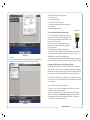
Figure #11
5. Click OK.
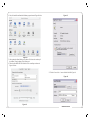
6. To select an audio input source for Garage Band, click on Garage Band from the top menu bar and select Preferences as shown in Figure #12 below.
Figure #1
Using the Supplied Desktop Microphone Stand
1.After opening the stand’s tripod leg system and placing it on the table or desk, loosen the angle adjuster and
orient the large portion of the microphone holder so that
it faces upward, or horizontal.
2.Place the base of the microphone into the microphone holder with one hand while holding it upright
with your other hand.
3.While holding the microphone upright and firmly
in one hand, secure the microphone to the desktop stand by screwing the black
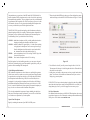
mounting ring into the microphone’s base as shown in Figure #1. The microphone should now sit securely in the desktop stand.
4.At this point, attach the end of the USB cable that matches the microphone’s
connector. The other end of the cable will connect to your computer’s USB port.
Connecting the Microphone to Your Computer (Windows)
The MXL 990 USB microphone will operate with both USB 2.0 (high speed
USB) and USB 1.1 data buses. We recommend you connect your microphone
directly to the computer’s USB port as opposed to using a USB hub. USB hubs
have been known to interfere with the performance of various USB devices.
PLEASE NOTE: Audio and video recording can be very taxing to a computer’s
resources. For this reason, you should close any and all running applications that
are non essential.
Please take the following steps to get connected:
1.If open, close your audio recording application. You will open it after the
microphone is connected and operational.
2.Connect the remaining end of the USB cable to the computer’s USB port.
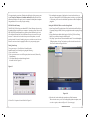
Windows will display the New Hardware Found dialog message and your
system may make a sound if your computer uses Window’s system sounds.
3.Allow Windows time to identify the device.
Figure #12
10
www.mxl-usb.com
3