1
AVerStudio
User Manual
Version 1.0.0
2011-11-22
Disclaimer
All the screen shots in this documentation are only example images. The images may vary
depending on the product and software version. Information presented in this documentation has
been carefully checked for reliability; however, no responsibility is assumed for inaccuracies. The
information contained in this documentation is subject to change without notice.
Copyright
©2011 by AVerMedia Technologies, Inc. All rights reserved.
No part of this document may be reproduced or transmitted in any form, or by any means without
the prior written permission of AVerMedia Technologies Inc. AVerMedia Technologies Inc. reserves
the right to modify its models, including their characteristics, specifications, accessories and any
other information stated herein without notice. The official printout of any information shall prevail
should there be any discrepancy between the information contained herein and the information
contained in that printout.
"AVerMedia" is a trademark (or registered trademark) of AVerMedia Technologies, Inc. Apple, the
Apple logo, iPod, iPhone and Apple TV are trademarks of Apple Inc., registered in the U.S. and
other countries. iPad is a trademark of Apple Inc. Other trademarks used herein for description
purpose only belong to each of their companies.
International Headquarters
Address
No.135, Jian 1st Rd., Zhonghe Dist., New Taipei City 23585, Taiwan
(R.O.C.)
Website
www.avermedia.com/
Telephone
886-2-2226-3630
US Office
Website
www.avermedia-usa.com/AverTv
AVerTV for Mac User’s Manual
Table of Contents
Table of Contents ................................................................................................................ i
Introduction ........................................................................................................................ 1
Activating AVerStudio ................................................................................................................................ 1
Interface Overview .................................................................................................................................... 2
AVerStudio Capture Application ...........................................................................................................................................2
Image Capture .................................................................................................................... 3
Other Settings .................................................................................................................... 8
Application Information ............................................................................................................................. 8
Application Preferences ............................................................................................................................ 8
Customer Support ..................................................................................................................................... 8
i
AVerTV for Mac User’s Manual
Introduction
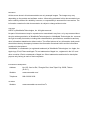
Welcome to use the AVerStudio capture application. The AVerStudio is a light and handy capture
application that comes with the AVerMedia capture device you purchased. With AVerStudio, it can’t be any
easier to capture, edit, and share your favorite moments of various videos within just few steps. Follow the
instructions below and you can carry the exported video clips with you all around on various mobile devices,
show them as pieces of your personal artwork, present them as live contents to impress people at work, or
share them with the whole world by uploading them to the most popular social network services.
Note: Please note that the following screenshots may not be the same as the actual screens due to different
application versions.
Activating AVerStudio
To launch AVerStudio application, click
on the Dock, or go to Application -> AVerStudio -> and click
.
1
AVerTV for Mac User’s Manual
Interface Overview
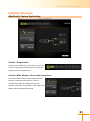
AVerStudio Capture Application
Section 1 Progress Bar
Progress bar indicates the current step you are at. As
you move along with the instructions on-screen, the
progress bar moves rightward too.
Section 2 Main Window: Current Step Instructions
The main window content changes along with each
progress. Follow the instructions on-screen to
complete the capture and editing process from
hardware connection, file selection, video capture and
editing to file exportation and sharing.
2
AVerTV for Mac User’s Manual
Image Capture
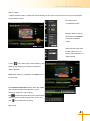
Step 1: Select Source
1. Please confirm first the media type that you are going to use.
Tip: Move the cursor on the options of the left pane and see an example connection illustration on the right.
2. Click Next to move to the next step when there is video appearing on the playback screen on the right.
Note: If you are going to use a video file, click Video File and then a drop-down window appears from the top.
Select the video file from the window.
3
AVerTV for Mac User’s Manual
Step 2: Capture
1. Adjust the aspect ratio, contrast and capture duration for the video using the icons on the right of the display
window before capture.
16:9 wide screen
4:3 traditional screen
Drag the slider to change
each value. Click Default
to reset to the default
values.
Select a preset value from
the drop-down menu, or
enter a desired duration of
capture period.
2. Click
on the lower right to start capturing; click
again to stop capturing if you haven’t specified a
capture duration.
Note: When capture is completed, click Next to go to
the next step.
Tip: Hard Disk Information section down the middle
of the window provides the information on the
remaining capacity for video capture.
Tip:
provides the information on the right and left
channels of the currently playing video. Or you can
click
to proceed silent recording.
Step 3: Clip
4
AVerTV for Mac User’s Manual
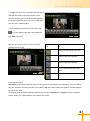
1. In Clip, 10 frames of the captured video are evenly
selected and shown on the lower section of the
window. Drag the green bar at both sides (indicating
the beginning and the end of the video) to see frame
by frame of the captured video.
2. When finalizing the frames for both sides, click
to cut the selected clip as the final video and
click Next to proceed.
Tip: You can use the tool bar on the right of the
playback screen to edit.
Click
To…
Restore to the original video clip.
Redo the previous operation.
Undo the previous operation.
Cut the selected clip as the final
video.
Play the video.
Important Information
AVerStudio segments the captured video of H.264 format into several files automatically by a limit of 4 GB for
each file; therefore, the video file ready to be edited in Clip is the latest captured segment if the total captured
file size is over 4GB.
To locate and edit the earlier captured segments, please go to Preferences > Capture to check the default
location where your captured files are and start a new project.
5
AVerTV for Mac User’s Manual
Step 4: Export
Select the device or destination where you want this
video clip to export to on the left, enter a name in the
box after Filename for the video clip, and click
to proceed.
Note:
For MPEG 2 file format, please use QuickTime
player or iTunes add-on Codec for playback.
When export is completed, clicking Finish will exit the
AVerStudio application.
Tip: To change export file destination, click
to call up Finder.
Tip: To decide how the exported file is displayed,
check the box on the right.
Note: If Toast is installed in the operation system, the
export display option for Toast will be available.
6
AVerTV for Mac User’s Manual
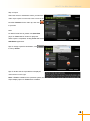
Tip: To upload the edited video clip to YouTube or
Facebook, please make sure the Internet is available
and then log in with your account and password.
7
AVerTV for Mac User’s Manual
Other
Settings
Application Information
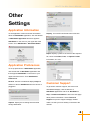
To see application version and other information
Display: Turn on/off Color Enhancement function.
about the AVerStudio application, click the title bar
of AVerStudio application and there appears
AVerStudio on the menu to your upper left of the
screen. Go to AVerStudio > About AVerStudio.
Export: Specify a prefix to the name of the exported
file, check to add Date, Time, or Capture Format
information, etc. here.
Application Preferences
To set up preferences of AVerStudio application,
click the title bar of AVerStudio application and
there appears AVerStudio on the menu to your
upper left of the screen. Go to AVerStudio >
Preferences.
General: Choose to hide/show display Help and
whether to launch AVerStudio when the device is
Customer Support
plugged in.
To get online customer support, link to the local
AVerMedia webpage, click the title bar of
AVerStudio application and Go to AVerStudio >
Help > Product Information to link to the web page
about product information. Select Technical
Support to open the support webpage. Please
Capture: Specify the recording format and file
make sure that you have already connected to the
storage destination.
Internet.
8
AVerTV for Mac User’s Manual
Hot Keys
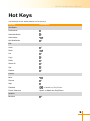
The followings are the default definitions of the hot keys:
Hot Key
Description
AVerStudio
Preferences
,
Hide AVerStudio
H
Hide Others
Quit AVerStudio
H
Q
Edit
Undo
Z
Redo
Z
Cut
X
Copy
C
Paste
V
Select All
A
Clip
T
Restore
E
Control
↓
Mute
Record
R
Stop
.
Playback
Pause (Resume)
P, or Media key Play/Pause
Space, or Media key Play/Pause
Window
Minimize
M
9