1
FEATURES
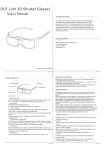
AG-S350 are 3D glasses that use RF(2.4GHz) wireless communication.
■ If the device is connected to the TV that supports the RF glasses, you can enjoy the vivid 3D images.
■ You can enjoy movies or pictures made as 3D.
■ If you are using your 3D glasses for the first time, make sure that the battery is fully charged.
ACCESSORIES
ENGLISH
3D Glasses
Nose Pad
8-pin mini USB
cable
Manual CD
Quick Start
Guide
Pouches
! NOTE ▶ The pictures shown in this manual may differ from the actual appearances.
PART NAMES
Nose Pad
Power Button
3D Glasses’ Lenses
LED indicator
USB port (charging port)
8-pin mini USB cable
Pairing 3D Glasses with Your 3D TV *1
*1
Pairing means establishing a wireless connection between the 3D TV and 3D glasses.
If there is more than one TV in range, please place the 3D glasses within 10 cm of the 3D TV you want to pair the glasses with.
The 3D glasses will pair with the 3D TV which has the strongest wireless signal.
Recommended pairing
distance (10cm)
How to pair the glasses
1. Turn the 3D TV on and switch the TV to
3D mode.
2. Place your 3D glasses within the recommended
pairing distance and turn them on.
3. During pairing, the red and green LED
lights will blink alternately.
4. When the pairing is complete, the LED light
goes off and the 3D glasses start working.
͢͡ʹ
Ξ
How to re-pair the glasses
1. Press and hold the power button on the
3D glasses for more than 8 seconds, the
green LED light should come on.
2. The green LED light will blink three times
and then 3D glasses are ready to pair.
3. Turn the TV on and switch to 3D mode.
4. Place your 3D glasses within the recommended
pairing distance and turn them on.
5. During pairing, the red and green LED
lights will blink alternately.
5. The 3D glasses will not need to be
paired with the same 3D TV again.
6. When the pairing is complete, the
LED light goes off and pairing with the
second 3D TV is complete.
! NOTE
2
▶ The device recognizes the unique ID of the TV to which it is connected. Thus, IDs of other TVs are not recognized by the
device. If you wish to re-connect the device to other TVs, please see “How to re-connect the glasses”.