1
02
Controls and displays
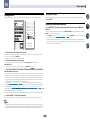
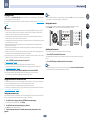
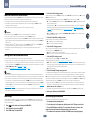
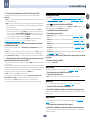
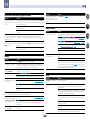
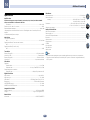
10 PHONES jack
Front panel
1
Use to connect headphones. When the headphones are connected, there is no sound output from the speakers.
2
3
ADVANCED
MCACC
4
5
6
3
FL OFF
HDMI
7
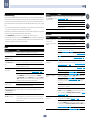
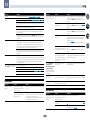
11 Listening mode buttons
8
! AUTO SURR/ALC/STREAM DIRECT – Switches between Auto Surround (page 45), Auto Level Control and
Stream Direct mode (page 46).
! STANDARD SURROUND – Press for Standard decoding and to switch various modes (2 Pro Logic, Neo:6,
Stereo etc.) (page 45).
! ADVANCED SURROUND – Use to switch between the various surround modes (page 45).
iPod iPhone iPad
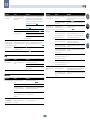
12 MCACC SETUP MIC jack
SPEAKERS
CONTROL – MULTI-ZONE – ON/OFF
BAND
AUTO SURR/ALC/
STREAM DIRECT
TUNER EDIT
STANDARD
SURROUND
TUNE
ADVANCED
SURROUND
PRESET
Use to connect the supplied microphone (page 33).
ENTER
13 iPod iPhone iPad USB terminals
iPod iPhone iPad
SOUND
RETRIEVER AIR DIRECT CONTROL
Use to connect your Apple iPod/iPhone/iPad as an audio and video source (page 30), or connect a USB device for
audio and photo playback (page 30).
MASTER
VOLUME
INPUT
SELECTOR
STANDBY /ON
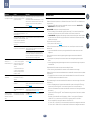
14 HDMI input connector
PHONES
MCACC
SETUP MIC
VIDEO
iPod
iPhone
iPad
PUSH
OPEN
USB
Use for connection to a compatible HDMI device (Video camera, etc.) (page 30).
HDMI 5 INPUT
15 SOUND RETRIEVER AIR
9 10 11
1
12
13
14
15
When the button is pressed, the input switches to ADAPTER PORT and the listening mode is automatically set to
SOUND RETRIEVER AIR (page 43).
16
16 iPod iPhone iPad DIRECT CONTROL
Change the receiver’s input to the iPod and enable iPod operations on the iPod (page 39).
u STANDBY/ON
This switches between standby and on for this receiver.
2
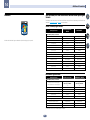
Removing the front cover
INPUT SELECTOR dial
Use to select an input function.
3Indicators
CONTROL
! ADVANCED MCACC – Lights when EQ is set to ON in the AUDIO PARAMETER menu (page 58).
! FL OFF – Lights when “off” (nothing displayed) is selected with the display’s dimmer adjustment (page 63).
! HDMI – Blinks when connecting an HDMI-equipped component; lights when the component is connected
(page 23).
! iPod iPhone iPad – Lights to indicate iPod/iPhone/iPad is connected (page 30).
4
2
Character display
See Display on page 13.
6
TUNER controls
! BAND – Switches between AM and FM radio bands (page 41).
! TUNER EDIT – Use with TUNE i/j, PRESET k/l and ENTER to memorize and name stations for recall
(page 41).
! TUNE i/j – Find radio frequencies (page 41).
! PRESET k/l – Find preset stations (page 42).
7
Remote sensor
Receives the signals from the remote control (page 8).
8
iPod
iPhone
iPad
USB
iPod
iPhone
iPad
USB
Attaching the front cover
MULTI-ZONE controls
If you’ve made MULTI-ZONE connections (page 28) use these controls to control the sub zone from the main zone
(page 62).
5
ON / OFF
MASTER VOLUME dial
9SPEAKERS
Use to change the speaker terminal (page 62).
14
1