1
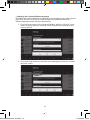
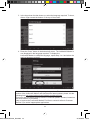
Touch screen settings
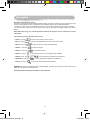
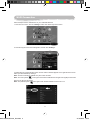
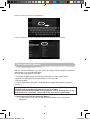
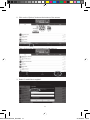
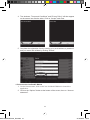
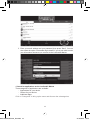
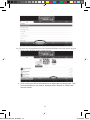
When first using, you need to adjust the sensitivity of the touch screen. Follow the on-screen instructions.
Rotating the touch screen
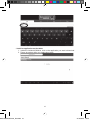
Turn the screen 180° in a clockwise direction (to the right), then lower it over the keyboard to transform it into
a tablet PC.
Note: In tablet PC mode, you can view the screen in four directions. This is not the case when in computer
mode and using the integrated keyboard.
Connecting headphones/earphones
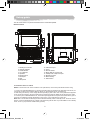
A headphone input is located on the left had side of the device (14). This input is suitable for all audio
headphones/earphones equipped with a 3.5mm jack. Using headphones/earphones deactivates the speakers.
WARNING: Prolonged exposure to high volume levels, in particular when wearing headphones or earphones,
may lead to a temporary or permanent loss of hearing. For this reason, please lower the volume before
plugging in headphones or earphones.
Connecting an external mouse
A USB port for a mouse is located on the right had side of the device (10). This port is suitable for all USB
mice (not supplied).
Note: The LapTab® right and left mouse buttons, which have the same functions, allow you to select icons etc.
SD card reader
To increase storage capacity, you can insert an SD card (up to 32GB, sold separately) into the built-in reader
located on the front side of the device (12).
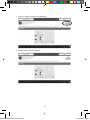
1. Insert an SD card into the reader in the correct direction (the metal connectors on the card facing down).
2. To remove the card, simply press and release. Then take hold of the card and gently remove it from the slot.
Charging the built-in battery
The Lexibook® tablet PC is equipped with a rechargeable lithium battery that powers your tablet when you
don’t have access to a power socket.
The battery must be charged for at least 8 to 12 hours before its first use.
1. To charge the battery, plug the DC mains adapter (supplied) into the DC input on the side of the Lexibook®
tablet PC and into the power socket.
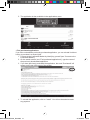
2. The battery charging symbol
remains on while charging and shows the level. The red charging indicator
LED (2) remains on while charging.
Note: You can use the device while it is charging. It is possible that charging the battery will take longer.
3. When the battery is fully charged the
and the power socket.
symbol turns completely blue), you can unplug the power adapter
Note:
• Only use the device with the adapter supplied. Do not use any other adapter to power the tablet PC.
• If possible, leave the adapter plugged into the tablet and power socket to recharge the battery.
• Always wait at least 5 seconds after turning off the device before restarting it. Switching the device off and on
immediately can damage the electrical circuits.
• The power socket into which the device is plugged must be close and accessible at all times.
The life of the battery varies according to how much the device is used.
MFC140ENQSG1432_V09.indd 6
6
22/10/2012 10:53