1
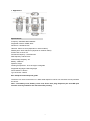
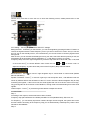
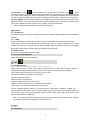
4. Input method Keypad definition OK key: It is used to confirm the information you input, or choose Options, send messages and save information, etc. Left key: it usually represents the function displayed at the left bottom corner of the screen. Right key: it is used to return, cancel or clear the information you input. Navigation keys: it includes up/down/left/right navigation keys, these four keys are used to move the cursor. * key: It is used to show symbols when you edit your text. Digital key (2-9): It stands for different letters on each key in the input mode of English or smart English. # key: it is used for switching among different input methods Input method 1. English input method Each key is used for inputting different letters. Repeat and press the key quickly to switch among the letters you need. Press * key or numeric ‖1‖ key to enter a special symbol, or go to options--- method input---choose input method by up/down key, or choose to insert symbols. Switch input method by # key. Press 0 key to input a Space. Clear input error by right key, or press the right key till all the contents are cleared. 2. Smart English input Type English letters: press 2-9 numeric keys to input English letters, the mobile phone selects all possible word combinations according to the input letters, for example, if press 2 key four times, multiple options are ‗cabb‘, ‗babb‘, etc. and press left or right key to select the word. 3. Hand-writing input 1. Click the icon of input method on the editing interface to decide the type of characters that you will put. 2. The place where the cursor stays is the inputting area, use the pen to write in the writing area, the LCD will indicate the automatic result once you pause a moment, and the candidate will also be displayed in the waiting area. click or show or hide the soft keyboard Click Click to show or hide the soft symbol keyboard to enter a space. Click Click to clear the letters move the cursor to the next line. Trouble Shooting 20