1
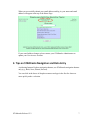
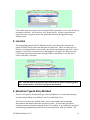
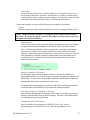
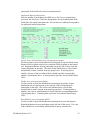
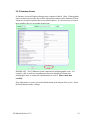
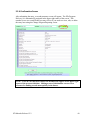
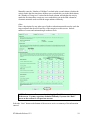
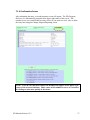
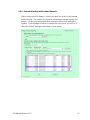
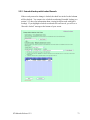
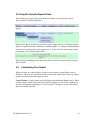
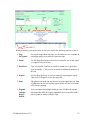
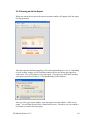
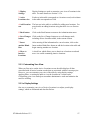
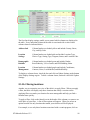
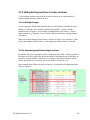
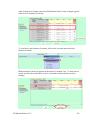
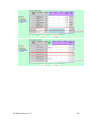
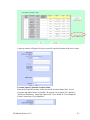
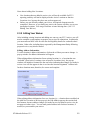
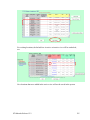
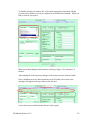
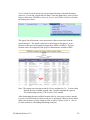
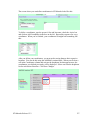
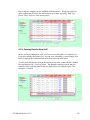
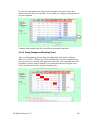
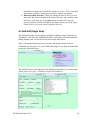
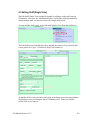
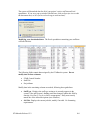
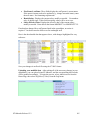
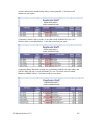
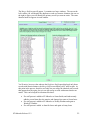
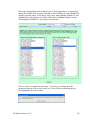
table, correct the spelling (change Projet to Project), check the Update box at the end of the row, and proceed to the next row. Error 4: Staff Type not found. (This error refers to row 2 in the import file). Using strategy #1, double-click on the value in the Staff Type column, change Cost Shares to Cost Share, and check the Update box. After making these corrections, the error table will look like this: Click on Process to update rows 1, 3 and 4 and delete row 2; the import is complete. Notes about Import Staff. Keep the following notes in mind when planning and executing staff imports: Effective Date. When staff records are added to STARtracks using Import Staff, the effective date for the hourly salary is set to the date the import procedure is performed. You can update effective dates manually if needed, however, using Add/Edit Staff (Table View). Staff at Multiple Locations. With Import Staff, staff records can be associated with one location record only. If a staff person performs SNAP-Ed activities at more than one location, use Add/Edit Staff (Table View) to add the additional locations. 4.5 Deleting Staff Records Staff records in STARtracks cannot be deleted. However, if a staff person has ceased to be associated with your SNAP-Ed project, s/he can be deactivated using the Add/Edit Staff table (see. 4.1.2b). NOTE: If a staff record needs to be deleted because it is a duplicate of another staff record, use Merge Staff instead to eliminate duplicate entries (see 4.7). STARtracks Release 12.2 162