1
PCAN-PCI
CAN Interface for PCI
User Manual
Document version 2.4.0 (2015-06-09)
PCAN-PCI – User Manual
Products taken into account
Product Name
Model
Part Number
PCAN-PCI Single Channel
One CAN channel
IPEH-002064
PCAN-PCI Dual Channel
Two CAN channels
IPEH-002065
PCAN-PCI Single Channel
opto-decoupled
One CAN channel, galvanic
isolation for CAN connection
IPEH-002066
PCAN-PCI Dual Channel
opto-decoupled
Two CAN channels, galvanic
isolation for CAN connections
IPEH-002067
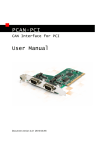
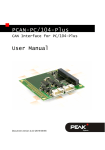
The cover picture shows the product PCAN-PCI Dual Channel opto-decoupled. Other
product versions have an identical form factor but vary in equipment.
CANopen® and CiA® are registered community trade marks of CAN in Automation
e.v.
All other product names mentioned in this manual may be the trademarks or
registered trademarks of their respective companies. They are not explicitly marked
by “™” and “®”.
Copyright © 2015 PEAK-System Technik GmbH
Duplication (copying, printing, or other forms) and the electronic distribution of this
document is only allowed with explicit permission of PEAK-System Technik GmbH.
PEAK-System Technik GmbH reserves the right to change technical data without
prior announcement. The general business conditions and the regulations of the
license agreement apply. All rights are reserved.
PEAK-System Technik GmbH
Otto-Roehm-Strasse 69
64293 Darmstadt
Germany
Phone: +49 (0)6151 8173-20
Fax:
+49 (0)6151 8173-29
www.peak-system.com
[email protected]
Document version 2.4.0 (2015-06-09)
2
PCAN-PCI – User Manual
Contents
1
1.1
1.2
1.3
Introduction
5
Properties at a Glance
System Requirements
Scope of Supply
2
Installing the Software and the Card
3
Connecting the CAN Bus
5
6
6
7
10
3.1
3.2
D-Sub Connector
Supplying External Devices via the CAN
Connector
3.3 Cabling
3.3.1
Termination
3.3.2
Example of a Connection
3.3.3
Maximum Bus Length
11
13
13
13
14
4
15
Software and API
10
4.1 Monitor Software PCAN-View
4.1.1
Receive/Transmit Tab
4.1.2
Trace Tab
4.1.3
PCAN-PCI Tab
4.1.4
Status Bar
4.2 Linking Own Programs with PCAN-Basic
4.2.1
Features of PCAN-Basic
4.2.2
Principle Description of the API
4.2.3
Notes about the License
15
18
20
21
21
22
23
24
25
5
26
Technical Specifications
Appendix A
CE Certificate
28
3
PCAN-PCI – User Manual
Appendix B
Dimension Drawing
29
Appendix C
Quick Reference
30
4
PCAN-PCI – User Manual
1
Introduction
The PCAN-PCI card enables the connection of a PC with PCI slots to
CAN networks. The card is available as a single or dual-channel
version. The opto-decoupled versions also guarantee galvanic
isolation of up to 500 Volts between the PC and the CAN sides.
Device drivers and programming interfaces exist for different
operating systems, so programs can easily access a connected CAN
bus.
Tip: At the end of this manual (Appendix C) you can find a
Quick Reference with brief information about the installation
and operation of the PCAN-PCI card.
1.1
Properties at a Glance
PC plug-in card for PCI slot
1 or 2 High-speed CAN channels (ISO 11898-2)
Bit rates from 5 kbit/s up to 1 Mbit/s
Compliant with CAN specifications 2.0A (11-bit ID)
and 2.0B (29-bit ID)
CAN bus connection via D-Sub, 9-pin
(in accordance with CiA® 102)
NXP SJA1000 CAN controller, 16 MHz clock frequency
NXP PCA82C251 CAN transceiver
Galvanic isolation on the CAN connection up to 500 V (only
opto-decoupled versions), separate for each CAN channel
5-Volt supply to the CAN connection can be connected through a
solder jumper, e.g. for external bus converter
5
PCAN-PCI – User Manual
Extended operating temperature range from -40 to 85 °C
(-40 to 185 °F)
Note: This manual describes the use of the PCAN-PCI card with
Windows. You can find device drivers for Linux and the
corresponding application information on the provided DVD in
the directory branch Develop and on our website under
www.peak-system.com/linux.
1.2
System Requirements
A vacant PCI slot in the computer
Operating system Windows 8.1, 7, Vista (32/64-bit)
or Windows CE 6.x (x86 and ARMv4 processor support)
or Linux (32/64-bit)
1.3
Scope of Supply
PCAN-PCI card
Device drivers for Windows 8.1, 7, Vista and Linux (32/64-bit)
Device driver for Windows CE 6.x
(x86 and ARMv4 processor support)
PCAN-View CAN monitor for Windows 8.1, 7, Vista (32/64-bit)
PCAN-Basic programming interface consisting of an interface
DLL, examples, and header files for all common programming
languages
Manual in PDF format
6
PCAN-PCI – User Manual
2
Installing the Software and
the Card
This chapter covers the software setup for the PCAN-PCI card under
Windows and the installation of the card in the computer.
Setup the driver before installing the PCAN-PCI card.
Do the following to install the driver:
1.
Insert the supplied DVD into the appropriate drive of the
computer. Usually a navigation program appears a few
moments later. If not, start the file Intro.exe from the root
directory of the DVD.
2.
In the main menu, select Drivers, and then click on
Install now.
3.
Confirm the message of the User Account Control regarding
the "Installer Database of PEAK Drivers".
The setup program for the driver is started.
4.
Follow the instructions of the program.
7
PCAN-PCI – User Manual
Do the following to install the PCAN-PCI card in the computer:
Attention! Electrostatic discharge (ESD) can damage or destroy
components on the PCAN-PCI card. Take precautions to avoid
ESD when handling the card.
Figure 1: Position of the CAN connectors CAN 1 (lower position)
and CAN 2 (upper position). In the Single Channel version,
CAN 1 remains at the same position
1.
Shut down the computer.
2.
Disconnect the computer from the power supply.
3.
Open the computer's casing.
4.
Insert the PCAN-PCI card into an empty PCI slot. For details
please refer to the documentation of the computer.
5.
Close the computer's casing.
6.
Reconnect the power supply of the computer.
8
PCAN-PCI – User Manual
Do the following to complete the initialization:
1.
Turn on the computer and start Windows. Make sure that
you are logged in as user with administrator privileges.
Windows notifies that new hardware has been detected. The
drivers are found and installed by Windows.
After the initialization process is finished successfully, you can find
the entry “PCAN-PCI” in the branch “CAN-Hardware” of the
Windows Device Manager.
9
PCAN-PCI – User Manual
3
Connecting the CAN Bus
3.1
D-Sub Connector
A High-speed CAN bus (ISO 11898-2) is connected to the 9-pin
D-Sub connector. The pin assignment for CAN corresponds to the
specification CiA® 102.
Figure 2: Pin assignment of High-speed CAN connection
(view onto a male connector on the PCAN-PCI card)
With the pins 1 and 9 devices with low power consumption (e.g. bus
converters) can be directly supplied via the CAN connector. At delivery these pins are not assigned. You can find a detailed description
in the following section 3.2.
Tip: You can connect a CAN bus with a different transmission
standard via a bus converter. PEAK-System offers different bus
converter modules (e.g. PCAN-TJA1054 for a Low-speed CAN
bus according to ISO 11898-3).
10
PCAN-PCI – User Manual
3.2
Supplying External Devices via the CAN
Connector
A 5-Volt supply can optionally be routed to pin 1 and/or pin 9 of a DSub connector by setting solder bridges on the PCAN-PCI card
(independently for each connector on the Dual Channel versions).
Thus devices with low power consumption (e.g. bus converters) can
be directly supplied via the CAN connector.
When using this option the 5-Volt supply is connected to the power
supply of the computer and is not fused separately. The optodecoupled versions of the card contain an interconnected DC/DC
converter. Therefore the current output is limited to about 50 mA.
Proceed as follows to activate the 5-Volt supply:
Attention! Electrostatic discharge (ESD) can damage or destroy
components on the PCAN-PCI card. Take precautions to avoid
ESD when handling the card.
Set the solder bridge(s) on the PCAN-PCI card according to the
desired settings. During this procedure take especially care not to
produce unwanted short circuits on the card.
Figure 3 shows the positions of the solder fields on the PCAN-PCI
card. The table below contains the possible settings.
11
PCAN-PCI – User Manual
Figure 3: PCAN-PCI card, LJ21 (lower marker) and LJ22 (upper marker)
5-Volt supply →
None
Pin 1
Pin 9
Pin 1 + Pin 9
LJ21 (CAN channel 1) /
LJ22 (CAN channel 2)
Attention! Risk of short circuit! If the option described in this
section is activated, you may only connect or disconnect CAN
cables or peripheral systems (e.g. bus converters) to or from
the PCAN-PCI card while the computer is de-energized.
12
PCAN-PCI – User Manual
3.3
3.3.1
Cabling
Termination
A High-speed CAN bus (ISO 11898-2) must be terminated on both
ends with 120 Ohms. Otherwise, there are interfering signal
reflections and the transceivers of the connected CAN nodes (CANinterface, control device) will not work.
The PCAN-PCI card does not have an internal termination. Use the
card on a terminated CAN bus.
3.3.2
Example of a Connection
Figure 4: Simple CAN connection
In this example, the PCAN-PCI card is connected with a control unit
by a cable that is terminated at both ends.
13
PCAN-PCI – User Manual
3.3.3
Maximum Bus Length
High-Speed-CAN networks may have bit rates of up to 1 Mbit/s. The
maximum bus length depends primarily on the bit rate.
The following table shows the maximum possible CAN bus length
at different bit rates:
Bit rate
Bus length
1 Mbit/s
40 m
500 kbit/s
110 m
250 kbit/s
240 m
125 kbit/s
500 m
50 kbit/s
1.3 km
20 kbit/s
3.3 km
10 kbit/s
6.6 km
5 kbit/s
13.0 km
The listed values have been calculated on the basis of an idealized
system and can differ from reality.
14
PCAN-PCI – User Manual
4
Software and API
This chapter covers the provided software PCAN-View and the
programming interface PCAN-Basic.
4.1
Monitor Software PCAN-View
PCAN-View is simple Windows software for viewing, transmitting,
and logging CAN- and CAN FD messages.
Note: This chapter describes the use of PCAN-View with a CAN
adapter.
Figure 5: PCAN-View for Windows
15
PCAN-PCI – User Manual
Do the following to start and initialize PCAN-View:
1.
Open the Windows Start menu or the Windows Start page
and select PCAN-View.
The dialog box for selecting the hardware and for setting
the parameters appears.
Figure 6: Selection of the specific hardware and parameters
2.
From the list Available PCAN hardware, select the desired
interface to be used.
3.
Select the bit rate that is used by all nodes on the CAN bus
from the drop-down list Bit rate. Use the button to the right
of the drop-down list to create User-defined bit rates.
4.
Under Filter settings you can limit the range of CAN IDs to
be received, either for standard frames (11-bit IDs) or for
extended frames (29-bit IDs).
16
PCAN-PCI – User Manual
5.
Activate the Listen-only mode if you do not actively
participate in the CAN traffic and just want to observe. This
also avoids an unintended disruption of an unknown CAN
environment (e.g. due to different bit rates).
6.
Finally, confirm the settings in the dialog box with OK. The
main window of PCAN-View appears (see Figure 7).
17
PCAN-PCI – User Manual
4.1.1
Receive/Transmit Tab
Figure 7: Receive/Transmit tab
The Receive/Transmit tab is the main element of PCAN-View. It
contains two lists, one for received messages and one for the
transmit messages. Representation of CAN data is in hexadecimal
format.
Do the following to transmit a CAN message with PCAN-View:
1.
Select the menu command Transmit > New Message
(alternatively
or Ins).
The dialog box New Transmit Message is shown.
18
PCAN-PCI – User Manual
Figure 8: Dialog box new transmit message
2.
Enter the ID and the data for the new CAN message.
3.
The field Cycle Time indicates if the message shall be
transmitted manually or periodically. If you want to transmit
the message periodically, you must enter a value greater
than 0. For a manual-only transmission enter 0.
4.
Confirm the entries with OK.
The created transmit message appears on the
Receive/Transmit tab.
5.
You trigger selected transmit messages manually with the
menu command Transmit > Send (alternatively Space bar).
The manual transmission for CAN messages being
transmitted periodically is carried out additionally.
Tip: Using the menu command File > Save the current transmit
messages can be saved to a list and loaded for reuse later on.
19
PCAN-PCI – User Manual
4.1.2
Trace Tab
Figure 9: Trace tab
On the Trace tab the data tracer of PCAN-View is used for logging
the communication on a CAN bus. During this process the CAN
messages are cached in the working memory of the PC. Afterwards
they can be saved to a file.
The tracer can be configured to run in linear or in ring buffer mode.
In linear buffer mode the logging is stopped as soon as the buffer is
filled completely. In ring buffer mode the oldest messages are
overwritten by incoming ones.
20
PCAN-PCI – User Manual
4.1.3
PCAN-PCI Tab
Figure 10: PCAN-PCI tab
On the PCAN-PCI tab various information about your hardware is
displayed, like the current device driver version.
4.1.4
Status Bar
Figure 11: Display of the status Bar
The status bar shows information about the current CAN
connection, about error counters (Overruns, QXmtFull) and shows
error messages.
You can find further information about the use of PCAN-View in the
help which you can invoke in the program via the menu Help or the
F1 key.
21
PCAN-PCI – User Manual
4.2
Linking Own Programs with PCAN-Basic
Figure 12: PCAN-Basic
On the provided DVD you can find files of the programming
interface PCAN-Basic in the directory branch Develop. This API
provides basic functions for linking own programs to CAN- and CAN
FD interfaces by PEAK-System and can be used for the following
operating systems:
Windows 8.1, 7, Vista (32/64-bit)
Windows CE 6.x (x86/ARMv4)
Linux (32/64-bit)
The API is designed for cross-platform use. Therefore software
projects can easily ported between platforms with low efforts. For
all common programming languages examples are available.
Beginning with version 4, PCAN-Basic supports the new CAN FD
standard (CAN with Flexible Data Rate) which is primarily
characterized by higher bandwidth for data transfer.
22
PCAN-PCI – User Manual
4.2.1
Features of PCAN-Basic
API for developing applications with CAN and CAN FD
connection
Access to the CAN channels of a PCAN-Gateway via the new
PCAN-LAN device type
Supports the operating systems Windows 8.1, 7, Vista
(32/64-bit), Windows CE 6.x, and Linux (32/64-bit)
Multiple PEAK-System applications and your own can be
operated on a physical channel at the same time
Use of a single DLL for all supported hardware types
Use of up to 16 channels for each hardware unit (depending on
the PEAK CAN interface used)
Simple switching between the channels of a PEAK CAN interface
Driver-internal buffer for 32,768 messages per CAN channel
Precision of time stamps on received messages up to 1 μs
(depending on the PEAK CAN interface used)
Supports PEAK-System’s trace formats version 1.1 and 2.0 (for
CAN-FD applications)
Access to specific hardware parameters, such as listen-only
mode
Notification of the application through Windows events when a
message is received
Extended system for debugging operations
Multilingual debugging output
Output language depends on operating system
Debugging information can be defined individually
23
PCAN-PCI – User Manual
An overview of the API functions is located in the header files. You
can find detailed information about the PCAN-Basic API on the
provided DVD in the text and help files (file name extensions .txt
and .chm).
4.2.2
Principle Description of the API
The PCAN-Basic API is the interface between the user application
and device driver. In Windows operating systems this is a DLL
(Dynamic Link Library).
The sequence of accessing the CAN interface is divided into three
phases:
1. Initialization
2. Interaction
3. Completion
Initialization
A channel must be initialized before using it. This is done by the
simple call of the function CAN_Initialize for CAN and
CAN_InitializeFD for CAN-FD. Depending on the type of the CAN
hardware, up to 16 CAN channels can be opened at the same time.
After a successful initialization the CAN channel is ready for
communication with the CAN hardware and the CAN bus. No
further configuration steps are required.
Interaction
For receiving and transmitting messages the functions CAN_Read and
CAN_Write as well as CAN_ReadFD and CAN_WriteFD are available.
Additional settings can be made, e.g. setting up message filters to
confine to specific CAN IDs or setting the CAN controller to listenonly mode.
24
PCAN-PCI – User Manual
When receiving CAN messages, events are used for an automatic
notification of an application (client). This offers the following
advantages:
The application no longer needs to check for received messages
periodically (no polling).
The response time at reception is reduced.
Completion
To end the communication the function CAN_Uninitialize is called in
order to release the reserved resources for the CAN channel, among
others. In addition the CAN channel is marked as "Free" and is
available to other applications.
4.2.3
Notes about the License
Device drivers, the interface DLL, and further files needed for linking
are property of the PEAK-System Technik GmbH and may be used
only in connection with a hardware component purchased from
PEAK-System or one of its partners. If a CAN hardware component
of third-party suppliers should be compatible to one of PEAKSystem, then you are not allowed to use or to pass on the driver
software of PEAK-System.
If a third-party supplier develops software based on the PCAN-Basic
and problems occur during the use of this software, consult the
software provider.
25
PCAN-PCI – User Manual
5
Technical Specifications
Connectors
Computer
PCI bus (Rev. 2.2), PC98, 32-bit bus width, for 3.3 V and
5 V systems
CAN
D-Sub (m), 9 pins
Pin assignment according to specification CiA® 102
CAN
Specification
ISO 11898-2, High-speed CAN
2.0A (standard format) and 2.0B (extended format)
Bit rates
5 kbit/s - 1 Mbit/s
Controller
NXP SJA1000
Transceiver
NXP PCA82C251
Galvanic isolation
PCAN-PCI: none
PCAN-PCI opto: up to 500 V, separate for each Channel
Supplying external
devices
PCAN-PCI: D-Sub pin 1 /pin 9; 5 V, max. 100 mA
PCAN-PCI opto: D-Sub pin 1 /pin 9; 5 V, max. 50 mA
Not assigned at delivery
Termination
none
Supply
Supply voltage
3.3 V - 5 V
Current consumption
PCAN-PCI Single Channel:
PCAN-PCI Dual Channel:
PCAN-PCI Single Ch. opto:
PCAN-PCI Dual Ch. opto:
max. 150 mA
max. 280 mA
max. 260 mA
max. 490 mA
Measures
Size
PCB: 93 x 120 mm
See also dimension drawing in Appendix B on page 29
Weight
PCAN-PCI Single Channel:
PCAN-PCI Dual Channel:
PCAN-PCI Single Ch. opto:
PCAN-PCI Dual Ch. opto:
Continued on the next page
26
54 g
63 g
55 g
65 g
PCAN-PCI – User Manual
Environment
Operating temperature
-40 - 85 °C (-40 - 185 °F)
Temperature for storage
and transport
-40 - 125 °C (-40 - 257 °F)
Relative humidity
15 - 90 %, not condensing
EMC
EN 55024:2011-09
EN 55022:2011-12
EC directive 2004/108/EG
27
PCAN-PCI – User Manual
Appendix A
CE Certificate
28
PCAN-PCI – User Manual
Appendix B
Dimension Drawing
Figure 13: Dimension drawing PCAN-PCI
The figure doesn’t show the actual size of the product.
29
PCAN-PCI – User Manual
Appendix C
Quick Reference
Software/Hardware Installation under Windows
Before installing the PCAN-PCI card into the computer set up the
corresponding software package from the supplied DVD (with
administrator privileges). Afterwards, insert the PCAN-PCI card into
a vacant PCI slot of the switched off computer. The PCAN-PCI card
is recognized by Windows and the driver is initialized. After the
installation process is finished successfully you can find the entry
“PCAN-PCI” in the branch “CAN-Hardware” of the Windows Device
Manager.
Getting Started under Windows
Run the CAN monitor PCAN-View from the Windows Start menu as
a sample application for accessing the PCAN-PCI card. For
initialization of the PCAN-PCI card select the desired CAN channel
and the CAN bit rate.
High-speed CAN connector (D-Sub, 9 pins)
30