1
Setting Up
the Machine
Windows®
USB
Step 1
Windows®
Parallel
Setting Up the Machine
Step 2
Windows
NT® 4.0
Parallel
USB
Network
Windows®
Network
For
Administrators
For the latest drivers and to find the best solution for your problem or question, access the Brother
Solutions Center directly from the driver or go to http://solutions.brother.com
Keep this “Quick Setup Guide” , User’s Guide and supplied CD-ROM in a convenient place for
quick and easy reference at all times.
Macintosh®
Setup is Complete!
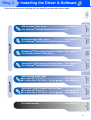
Installing the Driver & Software
Installing the Driver & Software
Macintosh®
MFC-8220
Quick Setup Guide
Before you can use the MFC, you must set up the hardware and install the driver.
Please read this “Quick Setup Guide” for proper set up and installation instructions.
Warning
Indicates warnings that
must be observed to
prevent possible
personal injury.
Hint
Indicates cautions that
must be observed to use
the MFC properly or to
prevent damage to the
MFC.
Indicates notes and
useful tips to remember
when using the MFC.
User’s Guide
Indicates reference to the
User’s Guide.
■ Getting Started
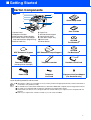
Carton Components
1
2
MFC
7
8
3
9
4
5
10
Quick Setup Guide
11
6
5
1. Control Panel
2. Telephone Handset
3. ADF Document Output Support
4. Face-down Output Tray Support
Flap with Extension (Support Flap)
5. Manual Feed Tray
6. Paper Tray
7. ADF Document Support
8. Control Panel Cover
9. Face-down Output Tray
10.Front Cover
11.Power Switch
User’s Guide
CD-ROM
For Windows®
ADF Document Support
ADF Document Output Support
CD-ROM
For Macintosh®
Drum Unit Assembly
Telephone Handset
Handset Curled Cord
Telephone
Line Cord
Telephone Line Cord Adapter
(For Australia only)
(including Toner Cartridge)
Power Cord
Carton components may differ from one country to another.
Save all packing materials and the carton.
■ The interface cable is not a standard accessory. Please purchase the appropriate interface cable for the interface
you intend to use (Parallel or USB).
■ For Parallel use a bi-directional shield interface cable that is IEEE 1284-compliant, and not longer than 2 meters.
■ For USB: use a Hi-Speed USB 2.0 interface cable that is not longer than 2 meters.
■ Please make sure that you use a Hi-Speed USB 2.0 certified cable if your computer uses a Hi-Speed USB 2.0
interface.
■ Even if your computer has a USB 1.1 interface, you can connect the MFC.
1
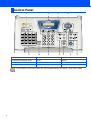
Control Panel
1
2
11
10
9
3
4
8
7
6
1. Print keys
5. Fax and telephone keys
9. Dial Pad
2. Liquid Crystal Display (LCD)
6. Start
10. Shift
3. Mode keys
7. Stop/Exit
11. One-Touch keys
4. Navigation keys
8. Copy keys (Temporary Settings)
5
For the details of the control panel, see "Control panel overview" in Chapter 1 of the User’s Guide.
2
Table of Contents
Setting Up the Machine
Step 1
1.
2.
3.
4.
5.
6.
7.
8.
9.
Step 2
Attaching the Supports .............................................................................................. 4
Installing the Handset ................................................................................................. 4
Installing the Drum Unit Assembly............................................................................ 5
Load Paper in the Paper Tray .................................................................................... 6
Installing the Power Cord and Phone Line ............................................................... 7
Set Your Country (For Australia / New Zealand Customer Only) ........................... 8
Setting the Date and Time .......................................................................................... 9
Setting Your Station ID ............................................................................................. 10
Selecting a Receive Mode ........................................................................................ 11
Installing the Driver & Software
Supplied CD-ROM (MFL-Pro Suite)............................................................................. 12
For USB Interface Cable Users
(For Windows® 98/98SE/Me/2000 Professional/XP) .................................................. 14
■ For Windows® 98/98SE/Me Users Only .......................................................... 17
■ For Windows® 2000 Professional Users Only ...............................................19
■ For Windows® XP Users Only .........................................................................23
For Parallel Interface Cable Users
(For Windows® 95/98/98SE/Me/2000 Professional/XP) .............................................26
■ For Windows® 95/98/98SE/Me Users Only .....................................................29
■ For Windows® 2000 Professional Users Only ...............................................31
■ For Windows® XP Users Only .........................................................................35
For Windows NT® Workstation Version 4.0 Users .................................................... 38
For Optional NC-9100h Network Interface Users
(For Windows® 95/98/98SE/Me/NT/2000 Professional/XP) ....................................... 41
For USB Interface Cable Users ...................................................................................46
■ For Mac OS® 8.6 to 9.2 .....................................................................................46
■ For Mac OS® X 10.1/10.2.1 - 10.3 or greater ................................................... 48
For Optional NC-9100h Network Interface Users ......................................................50
■ For Mac OS® 8.6 to 9.2 .....................................................................................50
■ For Mac OS® X 10.1/10.2.1 - 10.3 or greater ................................................... 52
■ For Administrators
Network User's Guide Chapter Map (NC-9100h) .......................................................54
Installing the BRAdmin Professional Configuration Utility
(Windows® Users Only) .............................................................................................55
Web BRAdmin...............................................................................................................55
Setting your IP Address, Subnet Mask and Gateway using BRAdmin Professional
(Windows® Users Only) .............................................................................................56
Options ..........................................................................................................................57
Replacement Consumables......................................................................................... 57
3
Step 1
Setting Up the Machine
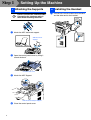
1 Attaching the Supports
DO NOT connect the interface cable.
Connecting the interface cable is
done when installing the driver.
1
Attach the ADF document support.
ADF Document
Support
2
Open the control panel cover by lifting it
toward the back.
Control Panel Cover
3
Attach the ADF Support.
ADF Document Output Support
4
4
Close the control panel cover.
2 Installing the Handset
1
\
Connect the curled handset cord to the MFC
and the other end to the handset.
Rock it from side to side several times to
distribute the toner evenly inside the
assembly.
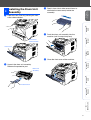
4
Push the drum unit assembly into the
machine (until it snaps into place).
5
Close the front cover of the machine.
Open the front cover by pressing the front
cover release button.
Windows®
Parallel
Windows®
USB
1
3
Setting Up
the Machine
Installing the Drum Unit
3
Assembly
Front Cover
Release Button
Unpack the drum unit assembly.
Remove the protective part.
Macintosh®
USB
Drum Unit
Assembly
Macintosh®
Network
Protective Part
For
Administrators
2
Windows®
Network
Windows
NT® 4.0
Parallel
Front Cover
5
Step 1
Setting Up the Machine
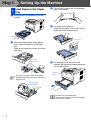
Load Paper in the Paper
4
Tray
1
3
Fan the stack of paper well to avoid paper
jams and misfeeds.
4
Put paper in the paper tray.
Check that the paper is flat in the tray and
below the maximum paper mark.
Pull the paper tray completely out of the
machine.
Up to here.
2
While pressing the paper guide release
lever, slide the adjusters to fit the paper
size.
Check that the guides are firmly in the slots
on the tray.
Paper Guide
Release Lever
5
Put the paper tray firmly back in the
machine and unfold the support flap before
you use the machine.
Support
Flap
For Legal size paper, press the universal
guide release button and pull out the rear of
the paper tray.
Universal Guide
Release Button
For details on supported paper
specifications, see “About paper” in Chapter
2 of the User’s Guide.
6
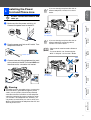
If you are sharing one phone line with an
external telephone, connect it as shown
below.
Setting Up
the Machine
Installing the Power
5
Cord and Phone Line
DO NOT connect the Parallel or USB
cable yet.
Make sure that the power switch is off.
Connect the power cord to the MFC.
Windows®
USB
1
2
Plug the power cord into an AC outlet. Turn
the power switch on.
Windows®
Parallel
(Example
for Australia)
If you are sharing one phone line with an
external telephone answering device,
connect it as shown below.
Windows
NT® 4.0
Parallel
Please set the receive mode to External
TAD.
For more details, see “Connecting the
MFC” in Chapter 1 of the User’s Guide.
Power Cord
TAD
Connect one end of the telephone line cord
to the socket on the MFC marked LINE and
the other end to a modular wall socket.
Windows®
Network
3
TAD
Macintosh®
USB
(Example
for Australia)
Warning
For
Administrators
Macintosh®
Network
■ The MFC must be grounded using a 3-prong plug.
■ Since the MFC is grounded through the power
outlet, you can protect yourself from potentially
hazardous electrical conditions on the telephone
network by keeping the power switched on when
you connect it to a telephone line. Similarly, you
can protect yourself when you want to move your
MFC by disconnecting the telephone line first and
then the power cord.
7
Step 1
Setting Up the Machine
Set
Dial pad
6
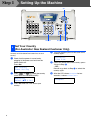
Set Your Country
(For Australia / New Zealand Customer Only)
You must set your country so that the MFC works
correctly on local telecommunication lines in each
country.
1
Check that the power is turned on by
plugging in the power cord and turn the
power switch on.
Press Set.
4
Press
or
to select the country
(AUSTRALIA or NEWZEALAND).
Australia
Select ▲▼ & Set
3
8
Press Set when the LCD shows your
country.
The LCD prompts you to make sure of the
country again.
Australia?
1.Yes 2.No
5
If the LCD shows the correct country, press
1 to go to Step 6.
—OR—
Press 2 to go back to Step 1 to select the
country again.
6
After the LCD shows Accepted for two
seconds, it shows Please Wait.
Set Country
Press Set Key
2
Stop/Exit Menu
Accepted
Press
.
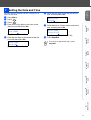
Date/Time
Day:01
Press
.
(e.g. Enter 0, 1.)
Enter the last two digits of the year on the
dial pad, and then press Set.
7
Date/Time
Year:2004
Date/Time
Time:15:25
(e.g. Enter 0, 4 for 2004.)
Enter the two digits for the month on the dial
pad, and then press Set.
Date/Time
Month:03
(e.g. Enter 1, 5, 2, 5 for 3:25 P.M.)
8
Press Stop/Exit.
If you want to repeat from step1, press
Stop/Exit.
Macintosh®
USB
Windows®
Network
Windows
NT® 4.0
Parallel
(e.g. Enter 0, 3 for March.)
Macintosh®
Network
5
Enter the time in 24-hour format on the dial
pad, and then press Set.
Windows®
USB
Press Menu.
Enter the two digits for the day on the dial
pad, and then press Set.
For
Administrators
1
2
3
4
6
Windows®
Parallel
The MFC displays the date and time, and prints it on
every fax you send.
Setting Up
the Machine
7 Setting the Date and Time
9
Step 1
Setting Up the Machine
Set
Dial pad
Stop/Exit Menu
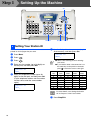
8 Setting Your Station ID
You should store your name and fax number to be
printed on all fax pages that you send.
1
2
3
4
Press Menu.
Press
.
Press
.
Enter your telephone number (up to 20
digits) on the dial pad, and then press Set.
(If your telephone number and fax number
are the same, enter the same number
again.)
Station ID
Tel:_
Use the dial pad to enter your name (up to
20 characters), and then press Set.
Station ID
Name:_
■ Refer to the following chart for entering
your name.
■ If you need to enter a character that is on
the same key as the previous character,
Enter your fax number (up to 20 digits) on
the dial pad, and then press Set.
Station ID
Fax:_
5
6
press
Press
key
2
3
4
5
6
7
8
9
to move the cursor to the right.
One
time
A
D
G
J
M
P
T
W
Two
times
B
E
H
K
N
Q
U
X
Three
times
C
F
I
L
O
R
V
Y
Four
times
2
3
4
5
6
S
8
Z
For more details, see “Setting the Station
ID” in Chapter 4 of the User's Guide.
7
10
Press Stop/Exit.
Setting Up
the Machine
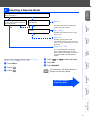
9 Selecting a Receive Mode
Are you connecting an external telephone or external telephone answering
device to the MFC?
No
Are you using the voice message
function of your external telephone
answering device?
Do you want to receive a fax
automatically?
No
You control the phone line and must
answer every call yourself.
Yes
Yes
Manual
No
Do you use the MFC for the fax
use only?
Yes
Windows®
USB
Yes
Fax Only
The MFC automatically answers every
call as a fax.
No
Windows®
Parallel
Fax/Tel
The MFC controls the line and
automatically answers every call. If the
call is not a fax, it will ring for you to pick
up the call.
External TAD
.
Press
.
to select the mode.
Press Set.
Windows®
Network
Press
or
Press Stop/Exit.
For more details, see “Setup Receive” in
Chapter 5 of the User’s Guide.
Macintosh®
USB
Press Menu.
Press
Go to Next page to
install the driver
Macintosh®
Network
1
2
3
4
5
6
For
Administrators
There are four possible receive modes: Fax Only,
Fax/Tel, Manual and External TAD.
Windows
NT® 4.0
Parallel
Your external telephone answering
device (TAD) automatically answers
every call. Voice messages are stored on
the external TAD. Fax messages are
printed.
11
Step 2
Installing the Driver & Software
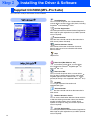
Supplied CD-ROM (MFL-Pro Suite)
You can find a variety of information on the CD-ROM.
Install Software
You can install the printer, PC-FAX Send/Receive,
scanner drivers and the various utility items, including
PaperPort® and TextBridge® OCR.
On-Line Registration
You will be pointed to the Brother Product Registration
Web Page for quick registration of your MFC (Internet
access required).
Documentation
View the User’s Guide and other documentation in
PDF format (Viewer included).
Brother Solutions Center
View contact information for Brother Customer
Service and how to locate a Brother Authorized
Service Center.
Help
Helpful hints.
Start Here (Mac OS® 8.6 - 9.2)
You can install the printer driver, scanner driver,
PC-FAX Send and Presto!® PageManager ® for
Mac OS® 8.6 - 9.2.
Start Here OSX
You can install the printer driver, scanner driver,
PC-Fax Send, remote setup program and Presto!®
PageManager® for Mac OS® 10.1/10.2.1 - 10.3 or
greater (Scanning is not supported in Mac OS® 10.1).
ReadMe!
You can get important information and
troubleshooting tips.
Documentation
View the User’s Guide and other documentation in
PDF format.
Brother Solutions Center
You can access the Brother Solutions Center which is
a Web site offering information about your Brother
product including FAQs, User’s Guides, Driver
updates and Tips for using your machine (Internet
access required).
On-Line Registration
You will be pointed to the Brother Product Registration
Web Page for quick registration of your MFC (Internet
access required).
12
Step 2
Installing the Driver & Software
Setting Up
the Machine
Follow the instructions on this page for your operating system and interface cable.
Windows®
USB
USB Interface Cable Users.................................. Go to page 14
(For Windows® 98/98SE/Me/2000 Professional/XP)
Windows®
Parallel
Parallel Interface Cable Users............................. Go to page 26
(For Windows® 95/98/98SE/Me/2000 Professional/XP)
Windows®
Network
Windows
NT® 4.0
Parallel
Windows NT® Workstation Version 4.0 Users... Go to page 38
(For Parallel Interface Cable Users)
Optional NC-9100h Network Interface Users..... Go to page 41
(For Windows® 95/98/98SE/Me/NT/2000 Professional/XP)
Macintosh®
USB
USB Interface Cable Users
■ For Mac OS® 8.6 to 9.2 .................................... Go to page 46
■ For Mac OS® X 10.1/10.2.1 - 10.3 or greater ... Go to page 48
For
Administrators
Macintosh®
Network
Optional NC-9100h Network Interface Users
■ For Mac OS® 8.6 to 9.2 .................................... Go to page 50
■ For Mac OS® X 10.1/10.2.1 - 10.3 or greater ... Go to page 52
For Administrators............................................... Go to page 54
13
Step 2
Installing the Driver & Software
For USB Interface Cable Users
(For Windows® 98/98SE/Me/2000 Professional/XP)
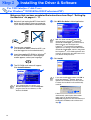
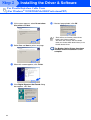
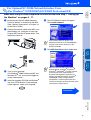
Make sure that you have completed the instructions from Step 1 “Setting Up
the Machine” on pages 4 - 11.
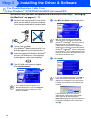
1
Switch off and unplug the MFC from the AC
outlet and disconnect it from your computer,
if you already connected an interface cable.
2
Turn on your computer.
(For Windows® 2000 Professional/XP, you
must be logged on as the administrator.)
3
Insert the supplied CD-ROM for Windows®
into your CD-ROM drive. If the language
screen appears, select your language.
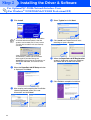
4
5
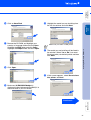
Click MFL-Pro Suite in Main Application.
MFL-Pro Suite includes Printer Driver,
Scanner Driver, ScanSoft® PaperPort®,
ScanSoft® TextBridge®, PC-FAX software,
Remote Setup and TrueType fonts.
PaperPort® is a document management
application for viewing scanned documents.
ScanSoft® TextBridge®, which is integrated
into PaperPort®, is an OCR application that
converts an image into text and inserts it into
your default word processor.
6
Click Install.
The CD-ROM main menu will appear.
Click Install Software.
If this window does not appear, use
Windows® Explorer to run the setup.exe
program from the root directory of the
Brother CD-ROM.
If you see the following screen, click OK to
install the Windows® updates. After the
updates are installed your PC may restart.
If it does the installation will automatically
continue.
If the installation does not continue
automatically, please open the installer
menu again by double-clicking the
setup.exe program from the root directory of
the Brother CD-ROM, and continue from
Step 4.
14
Setting Up
the Machine
Step 2
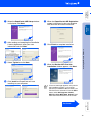
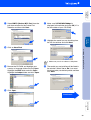
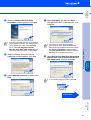
When the PaperPort 8.0 SE Setup window
is displayed, click Next.
8
After reading and accepting the ScanSoft®
License Agreement, enter your user
information and click Next.
A
When the PaperPort 8.0 SE Registration
screen is displayed, make your selection
and follow the on-screen instructions.
B
Click Finish to complete installation.
C
When the Brother MFL-Pro Suite
Installation window appears, click Next.
0
Select Typical and click Next.
Click Install and PaperPort® will start
installing on your computer.
If an error message appears at this point in
the installation process, or if you have
previously installed the MFL-Pro Suite, you
will first have to uninstall it. From the Start
menu, select All Programs, Brother,
MFL-Pro Suite MFC-8220, UnInstall, and
then follow the instructions on the screen.
For
Administrators
9
Installing the Driver & Software
Windows®
USB
7
Continued...
15
Step 2
Installing the Driver & Software
For USB Interface Cable Users
(For Windows® 98/98SE/Me/2000 Professional/XP)
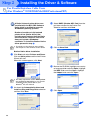
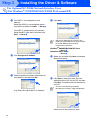
D
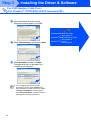
When the Brother Software License
Agreement window appears, click Yes.
E
Select Local Interface, and then click Next.
F
Select Standard, and then click Next.
The application files will be copied and
installed to your computer.
If you want to install the PS Brother
(PostScript®) driver, select Custom and
then follow the on-screen instructions. When
the Select Components screen appears,
check PS Printer Driver, and then continue
following the on-screen instructions.
16
Windows® 98/98SE/Me Users
➝ Go to page 17
®
Windows 2000 Professional Users
➝ Go to page 19
Windows® XP Users
➝ Go to page 23
Setting Up
the Machine
Step 2
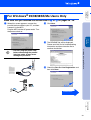
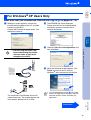
For Windows® 98/98SE/Me Users Only
It will take a few seconds for the installation
screen to appear.
The installation of the Brother drivers will
automatically start. Follow the instructions
on the screen.
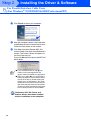
H
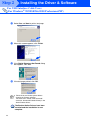
Select BRUSB: USB Printer Port, and then
click Next.
I
Accept the default Printer name by selecting
Yes, and then click Next.
J
Select Yes (recommended), and then click
Finish. A test page will be printed so you
can check the print quality.
K
If the test page is printed correctly, click
Yes. If you click No, follow the prompts on
the screen to correct the problem.
If the README file shown in step L
appears, close the README.WRI file and
then click Finish after printing the page.
Continued...
For
Administrators
When this screen appears, connect the
USB interface cable to your PC, and then
connect it to the MFC.
Plug the MFC into the AC power outlet. Turn
the power switch on.
Installing the Driver & Software
G
Windows®
USB
Make sure that you followed the instructions in 1 to F on pages 14 - 16.
17
Step 2
Installing the Driver & Software
For USB Interface Cable Users
(For Windows® 98/98SE/Me/2000 Professional/XP)
L
M
N
18
The README file will be displayed.
Please read this file for troubleshooting
information and then close the file to
continue installation.
Check the Run On-Line Registration and
then click Next.
Click Finish to restart your computer.
O
After the computer restarts, click Yes to
have the Control Center load each time
Windows® is started. The Control Center
will appear as an icon in the task tray.
If you click No the Scan key on the MFC will
be disabled.
■ If you checked the box in step M, the
screen for On-Line Registration will
appear. Please complete your registration.
■ Even if you select No, you will be able to
launch the Brother Control Center later to
use the Scan key by double-clicking the
SmartUI icon on the desktop. This loads
the Brother Control Center to the task tray.
See AutoLoad the Brother Control Center,
Chapter 4 in the Documentation (Software
User’s Guide) located on the CD-ROM.
The Brother PC-FAX, Printer and
Scanner drivers have been installed
and the installation is now complete.
Setting Up
the Machine
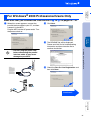
For Windows® 2000 Professional Users Only
When this screen appears, connect the
USB interface cable to your PC, and then
connect it to the MFC.
Plug the MFC into the AC power outlet. Turn
the power switch on.
I
The README file will be displayed.
Please read this file for troubleshooting
information and then close the file to
continue installation.
J
Check the Run On-Line Registration and
then click Next.
K
Click Finish to restart your computer.
Installing the Driver & Software
G
Windows®
USB
Make sure that you followed the instructions in 1 to F on pages 14 - 16.
It will take a few seconds for the installation
screen to appear.
The installation of the Brother drivers will
automatically start. Follow the instructions
on the screen.
If the Digital Signature Not Found dialog
boxes appear, click Yes to install the driver.
Continued...
For
Administrators
H
19
Step 2
Installing the Driver & Software
For USB Interface Cable Users
(For Windows® 98/98SE/Me/2000 Professional/XP)
L
After the computer restarts, click Yes to
have the Control Center load each time
Windows® is started. The Control Center
will appear as an icon in the task tray.
If you click No the Scan key on the MFC will
be disabled.
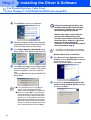
Brother Native driver Installation
M
Click Start, select Settings and then
Printers. Click on Add Pinter and the Add
Printer Wizard will start.
When this screen appears, click Next.
N
Un-check the Automatically detect and
install my Plug and Play printer selection
and then click Next.
O
Select USBXXX from the pull down window
for the Printer Port Selection and then click
Next.
..
■ If you checked the box in step J, the
screen for On-Line Registration will
appear. Please complete your registration.
■ Even if you select No, you will be able to
launch the Brother Control Center later to
use the Scan key by double-clicking the
SmartUI icon on the desktop. This loads
the Brother Control Center to the task tray.
See AutoLoad the Brother Control Center,
Chapter 4 in the Documentation (Software
User’s Guide) located on the CD-ROM.
A Basic Universal printer driver was
installed with the MFL-PRO Software
Suite which is certified for use with
Windows® operating systems.
Brother also offers a fully featured
printer driver (Native driver) that
includes more features than the Basic
Universal driver. However, this driver
does not include a Windows®
certificate. To install the Brother Native
driver proceed to step M.
For details on what features are available,
see chapter 2 of the Software User's Guide.
20
Setting Up
the Machine
Q
Browse the CD-ROM and highlight your
country or language folder and click Open.
Highlight the W2K folder and click Open.
Highlight the Addprt folder and click Open.
S
Highlight the model you are installing from
the list of machines and click Next.
Make sure you select a USB printer.
U
The model you are installing will be listed in
the window. Select Yes or No if you want
this driver to be your default printer and then
click Next.
V
If this screen appears, select Do not share
this printer and Next.
Click Open.
Make sure X:\ENG\W2K\Addprt is
displayed in the window and click OK (X:\ is
the drive letter of your CD-ROM).
Continued...
For
Administrators
R
T
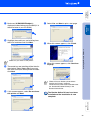
Windows®
USB
Click on Have Disk.
Installing the Driver & Software
P
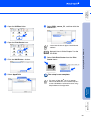
21
Step 2
Installing the Driver & Software
For USB Interface Cable Users
(For Windows® 98/98SE/Me/2000 Professional/XP)
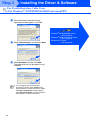
W
Select Yes and Next to print a test page.
X
When this screen appears, click Finish.
Y
If the Digital Signature Not Found dialog
box appears, click Yes.
Z
If the test page printed, click OK.
There will be two Brother printer drivers
listed in the Printers selection.
The driver with "Printer" after the model
name (ex. Brother MFC-8220 Printer) is the
Brother Native Driver.
The Brother Native Drivers have been
installed and the installation is now
complete.
22
Setting Up
the Machine
For Windows® XP Users Only
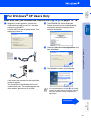
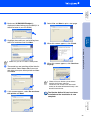
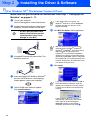
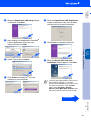
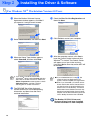
It will take a few seconds for the installation
screen to appear.
The installation of the Brother drivers will
automatically start. The screens appear one
after another, please wait for a while.
H
The README file will be displayed.
Please read this file for troubleshooting
information and then close the file to
continue installation.
I
Check the Run On-Line Registration and
then click Next.
J
Click Finish to restart your computer.
If you checked the box in Step I, the screen
for On-Line Registration will appear after the
computer restarts. Please complete your
registration.
Continued...
For
Administrators
When this screen appears, connect the
USB interface cable to your PC, and then
connect it to the MFC.
Plug the MFC into the AC power outlet. Turn
the power switch on.
Installing the Driver & Software
G
Windows®
USB
Make sure that you followed the instructions in 1 to F on pages 14 - 16.
23
Step 2
Installing the Driver & Software
For USB Interface Cable Users
(For Windows® 98/98SE/Me/2000 Professional/XP)
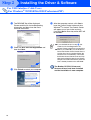
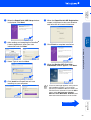
M
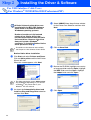
Select USBXXX from the pull down window
for the Printer Port Selection and then click
Next.
N
Click on Have Disk.
O
Browse the CD-ROM, highlight your country
or language folder and click Open. Highlight
the WXP folder and click Open. Highlight
the Addprt folder and click Open.
P
Click Open.
A Basic Universal printer driver was
installed with the MFL-PRO Software
Suite which is certified for use with
Windows® operating systems.
Brother also offers a fully featured
printer driver (Native driver) that
includes more features than the Basic
Universal driver. However, this driver
does not include a Windows®
certificate. To install the Brother Native
driver proceed to step K.
For details on what features are available,
see chapter 2 of the Software User's Guide.
Brother Native driver Installation
K
Click Start and select Printers and Faxes.
Click on Add a printer and the Add Printer
Wizard will start.
When this screen appears, click Next.
The Steps required to access Add a printer
may be different depending on your version
of Windows® XP, please refer to your
Windows® XP user manual.
L
24
Un-check the Automatically detect and
install my Plug and Play printer selection
and then click Next.
Setting Up
the Machine
R
Highlight the model you are installing from
the list of machines and click Next.
U
Select Yes and Next to print a test page.
V
When this screen appears, click Finish.
W
When this screen appears, click Continue
Anyway.
Windows®
USB
Make sure X:\ENG\WXP\Addprt is
displayed in the window and click OK (X:\ is
the drive letter of your CD-ROM).
Make sure you select a USB printer.
S
The model you are installing will be listed in
the window. Select Yes or No if you want
this driver to be your default printer and then
click Next.
Installing the Driver & Software
Q
There will be two Brother printer drivers
listed in the "Printers" selection.
The driver with Printer after the model name
(ex. Brother MFC-8220 Printer) is the
Brother Native Driver.
If this screen appears, select Do not share
this printer and Next.
The Brother Native Drivers have been
installed and the installation is now
complete.
For
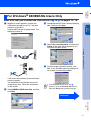
Administrators
T
25
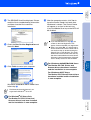
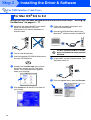
Step 2
Installing the Driver & Software
For Parallel Interface Cable Users
(For Windows® 95/98/98SE/Me/2000 Professional/XP)
Make sure that you have completed the instructions from Step 1 “Setting Up
the Machine” on pages 4 - 11.
1
Switch off and unplug the MFC from the AC
outlet and disconnect it from your computer,
if you already connected an interface cable.
2
Turn on your computer.
(For Windows® 2000 Professional/XP, you
must be logged on as the administrator.)
3
Insert the supplied CD-ROM for Windows®
into your CD-ROM drive. If the language
screen appears, select your language.
4
5
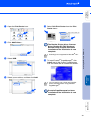
Click MFL-Pro Suite in Main Application.
MFL-Pro Suite includes Printer Driver,
Scanner Driver, ScanSoft® PaperPort®,
ScanSoft® TextBridge®, PC-FAX software,
Remote Setup and TrueType fonts.
PaperPort® is a document management
application for viewing scanned documents.
ScanSoft® TextBridge®, which is integrated
into PaperPort®, is an OCR application that
converts an image into text and inserts it into
your default word processor.
6
Click Install.
The CD-ROM main menu will appear.
Click Install Software.
If you see the following screen, click OK to
install the Windows® updates. After the
updates are installed your PC may restart.
If it does the installation will automatically
continue.
If this window does not appear, use
Windows® Explorer to run the setup.exe
program from the root directory of the
Brother CD-ROM.
If the installation does not continue
automatically, please open the installer
menu again by double-clicking the
setup.exe program from the root directory of
the Brother CD-ROM, and continue from
Step 4.
26
Setting Up
the Machine
8
After reading and accepting the ScanSoft®
License Agreement, enter your user
information and click Next.
0
When the PaperPort 8.0 SE Registration
screen is displayed, make your selection
and follow the on-screen instructions.
B
Click Finish to complete installation.
C
When the Brother MFL-Pro Suite
Installation window appears, click Next.
Select Typical and click Next.
Click Install and PaperPort® will start
installing on your computer.
If an error message appears at this point in
the installation process, or if you have
previously installed the MFL-Pro Suite, you
will first have to uninstall it. From the Start
menu, select All Programs, Brother,
MFL-Pro Suite MFC-8220, UnInstall, and
then follow the instructions on the screen.
Continued...
For
Administrators
9
A
Windows®
Parallel
When the PaperPort 8.0 SE Setup window
is displayed, click Next.
Installing the Driver & Software
7
27
Step 2
Installing the Driver & Software
For Parallel Interface Cable Users
(For Windows® 95/98/98SE/Me/2000 Professional/XP)
D
When the Brother Software License
Agreement window appears, click Yes.
E
Select Local Interface, and then click Next.
F
Select Standard, and then click Next.
The application files will be copied to your
computer.
If you want to install the PS Brother
(PostScript®) driver, select Custom and
then follow the on-screen instructions. When
the Select Components screen appears,
check PS Printer Driver, and then continue
following the on-screen instructions.
28
Windows® 95/98/98SE/Me Users
➝ Go to page 29
Windows® 2000 Professional Users
➝ Go to page 31
®
Windows XP Users
➝ Go to page 35
Setting Up
the Machine
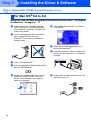
For Windows® 95/98/98SE/Me Users Only
When this screen appears, connect the
parallel interface cable to your PC, and then
connect it to the MFC.
Plug the MFC into the AC power outlet. Turn
the power switch on.
H
Click Next.
I
The README file will be displayed.
Please read this file for troubleshooting
information and then close the file to
continue installation.
J
Check the Run On-Line Registration and
then click Next.
• DO NOT plug the power cord
before connecting the parallel
interface cable. It may cause
damage to your MFC.
Installing the Driver & Software
G
Windows®
Parallel
Make sure that you followed the instructions in 1 to F on pages 26 - 28.
.
For
Administrators
Continued...
29
Step 2
Installing the Driver & Software
For Parallel Interface Cable Users
(For Windows® 95/98/98SE/Me/2000 Professional/XP)
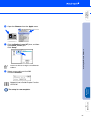
K
Click Finish to restart your computer.
L
After the computer restarts, the installation
of the Brother drivers will automatically start.
Follow the instructions on the screen.
M
Click Yes to have the Brother MFL-Pro
Control Center load each time Windows® is
started. The Control Center will appear as
an icon in the task tray.
If you click No the Scan key on the MFC will
be disabled.
■ If you checked the box in step J, the
screen for On-Line Registration will
appear. Please complete your registration.
■ Even if you select No, you will be able to
launch the Brother Control Center later to
use the Scan key by double-clicking the
SmartUI icon on the desktop. This loads
the Brother Control Center to the task tray.
See AutoLoad the Brother Control Center,
Chapter 4 in the Documentation (Software
User’s Guide) located on the CD-ROM.
The Brother PC-FAX, Printer and
Scanner drivers have been installed
and the installation is now complete.
30
Setting Up
the Machine
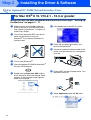
For Windows® 2000 Professional Users Only
H
Click Next.
I
The README file will be displayed.
Please read this file for troubleshooting
information and then close the file to
continue installation.
J
Check the Run On-Line Registration and
then click Next.
• DO NOT plug the power cord
before connecting the parallel
interface cable. It may cause
damage to your MFC.
Continued...
For
Administrators
When this screen appears, connect the
parallel interface cable to your PC, and then
connect it to the MFC.
Plug the MFC into the AC power outlet. Turn
the power switch on.
Installing the Driver & Software
G
Windows®
Parallel
Make sure that you followed the instructions in 1 to F on pages 26 - 28.
31
Step 2
Installing the Driver & Software
For Parallel Interface Cable Users
(For Windows® 95/98/98SE/Me/2000 Professional/XP)
K
Click Finish to restart your computer.
A Basic Universal printer driver was
installed with the MFL-PRO Software
Suite which is certified for use with
Windows® operating systems.
L
After the computer restarts, the installation
of the Brother drivers will automatically start.
Follow the instructions on the screen.
M
If the Digital Signature Not Found dialog
boxes appear, click Yes to install the driver.
Brother also offers a fully featured
printer driver (Native driver) that
includes more features than the Basic
Universal driver. However, this driver
does not include a Windows®
certificate. To install the Brother Native
driver proceed to step O.
For details on what features are available,
see chapter 2 of the Software User's Guide.
Brother Native driver Installation
N
Click Start and select Settings and then
Printers. Click on Add Printer and the Add
Printer Wizard will start.
When this screen appears, click Next.
P
Un-check the Automatically detect and
install my Plug and Play printer selection
and then click Next.
Click Yes to have the Control Center loaded
each time Windows® is started. The Control
Center will appear as an icon in the task
tray.
If you click No the Scan key on the MFC will
be disabled.
■ If you checked the box in step J, the
screen for On-Line Registration will
appear. Please complete your registration.
■ Even if you select No, you will be able to
launch the Brother Control Center later to
use the Scan key by double-clicking the
SmartUI icon on the desktop. This loads
the Brother Control Center to the task tray.
See AutoLoad the Brother Control Center,
Chapter 4 in the Documentation (Software
User’s Guide) located on the CD-ROM.
32
O
Setting Up
the Machine
Make sure X:\ENG\W2K\Addprt is
displayed in the window and click OK (X:\ is
the drive letter of your CD-ROM).
V
Highlight the model you are installing from
the list of machines and click Next.
Windows®
Parallel
U
Click on Have Disk.
Make sure you do not select a USB printer.
S
Browse the CD-ROM and highlight your
country or language folder and click Open.
Highlight the W2K folder and click Open.
Highlight the Addprt folder and click Open.
T
Click Open.
W
The model you are installing will be listed in
the window. Select Yes or No if you want
this driver to be your default printer and then
click Next.
Continued...
For
Administrators
R
Select BMFC (Brother MFL Port) from the
pull down window for the Printer Port
Selection and then click Next.
Installing the Driver & Software
Q
33
Step 2
Installing the Driver & Software
For Parallel Interface Cable Users
(For Windows® 95/98/98SE/Me/2000 Professional/XP)
X
Y
If this screen appears, select Do not share
this printer and Next.
Select Yes and Next to print a test page.
\
If the test page printed, click OK.
There will be two Brother printer drivers
listed in the Printers selection.
The driver with "Printer" after the model
name (ex. Brother MFC-8220 Printer) is the
Brother Native Driver.
The Brother Native Drivers have been
installed and the installation is now
complete.
34
Z
When this screen appears, click Finish.
[
If the Digital Signature Not Found dialog
box appears, click Yes.
Setting Up
the Machine
For Windows® XP Users Only
Make sure that you followed the instructions in 1 to F on pages 26 - 28.
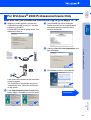
When this screen appears, connect the
parallel interface cable to your PC, and then
connect it to the MFC.
Plug the MFC into the AC power outlet. Turn
the power switch on.
H
The README file will be displayed.
Please read this file for troubleshooting
information and then close the file to
continue installation.
I
Check the Run On-Line Registration and
then click Next.
J
When the following screen appears, click
Finish and wait as the PC restarts
Windows® and continues the installation.
• DO NOT plug the power cord
before connecting the parallel
interface cable. It may cause
damage to your MFC.
Installing the Driver & Software
Windows®
Parallel
G
.
For
Administrators
The installation of the Brother drivers will
automatically start. The screens appear one
after another, please wait for a while.
If you checked the box in Step I, the screen
for On-Line Registration will appear after the
computer restarts. Please complete your
registration.
Continued...
35
Step 2
Installing the Driver & Software
For Parallel Interface Cable Users
(For Windows® 95/98/98SE/Me/2000 Professional/XP)
A Basic Universal printer driver was
installed with the MFL-PRO Software
Suite which is certified for use with
Windows® operating systems.
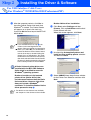
M
Select BMFC (Brother MFL Port) from the
pull down window for the Printer Port
Selection and then click Next.
N
Click on Have Disk.
O
Browse the CD-ROM, highlight your country
or language folder and click Open. Highlight
the WXP folder and click Open. Highlight
the Addprt folder and click Open.
P
Click Open.
Brother also offers a fully featured
printer driver (Native driver) that
includes more features than the Basic
Universal driver. However, this driver
does not include a Windows®
certificate. To install the Brother Native
driver proceed to step K.
For details on what features are available,
see chapter 2 of the Software User's Guide.
Brother Native driver Installation
K
Click Start and select Printers and Faxes.
Click on Add a printer and the Add Printer
Wizard will start.
When this screen appears, click Next.
The Steps required to access Add a printer
may be different depending on your version
of Windows® XP, please refer to your
Windows® XP user manual.
L
36
Un-check the Automatically detect and
install my Plug and Play printer selection
and then click Next.
Setting Up
the Machine
R
Highlight the model you are installing from
the list of machines and click Next.
Make sure you do not select a USB printer.
S
U
Select Yes and Next to print a test page.
V
When this screen appears, click Finish.
W
When this screen appears, click Continue
Anyway.
The model you are installing will be listed in
the window. Select Yes or No if you want
this driver to be your default printer and then
click Next.
Windows®
Parallel
Make sure X:\ENG\WXP\Addprt is
displayed in the window and click OK (X:\ is
the drive letter of your CD-ROM).
Installing the Driver & Software
Q
There will be two Brother printer drivers
listed in the Printers selection.
The driver with "Printer" after the model
name (ex. Brother MFC-8220 Printer) is the
Brother Native Driver.
If this screen appears, select Do not share
this printer and Next.
The Brother Native Drivers have been
installed and the installation is now
complete.
For
Administrators
T
37
Step 2
Installing the Driver & Software
For Windows NT® Workstation Version 4.0 Users
Make sure that you followed the instructions from Step 1 “Setting Up the
Machine” on pages 4 - 11.
1
Turn on your computer.
You must be logged on as the Administrator.
2
Connect the parallel interface cable to your
computer, and then connect it to the MFC.
• DO NOT plug the power cord
before connecting the parallel
interface cable. It may cause
damage to your MFC.
3
If this window does not appear, use
Windows® Explorer to run the setup.exe
program from the root directory of the
Brother CD-ROM.
6
MFL-Pro Suite includes Printer Driver,
Scanner Driver, ScanSoft® PaperPort®,
ScanSoft® TextBridge®, PC-FAX software,
Remote Setup and TrueType fonts.
PaperPort® is a document management
application for viewing scanned documents.
ScanSoft® TextBridge®, which is integrated
into PaperPort®, is an OCR application that
converts an image into text and inserts it into
your default word processor.
Plug the MFC into the AC power outlet. Turn
the power switch on.
7
4
5
Click MFL-Pro Suite in Main Application.
Click Install.
Insert the supplied CD-ROM for Windows®
into your CD-ROM drive. If the language
screen appears, select your language.
The CD-ROM main menu will appear.
Click Install Software.
If you see the following screen, click OK to
install the Windows® updates. After the
updates are installed your PC may restart.
If it does the installation will automatically
continue.
If the installation does not continue
automatically, please open the installer
menu again by double-clicking the
setup.exe program on the Brother
CD-ROM, and continue from Step 5.
38
Setting Up
the Machine
After reading and accepting the ScanSoft®
License Agreement, enter your user
information and click Next.
0
Select Typical and click Next.
A
Click Install and PaperPort® will start
installing on your computer.
When the PaperPort 8.0 SE Registration
screen is displayed, make your selection
and follow the on-screen instructions.
C
Click Finish to complete installation.
D
When the Brother MFL-Pro Suite
Installation window appears, click Next.
Windows
NT® 4.0
Parallel
9
B
If an error message appears at this point in
the installation process, or you have
previously installed MFL-Pro Suite, you will
first have to uninstall it. From the Start
menu, select Programs, Brother,
MFL-Pro Suite MFC-8220, Uninstall, and
then follow the instructions on the screen.
Continued...
For
Administrators
When the PaperPort 8.0 SE Setup window
is displayed, click Next.
Installing the Driver & Software
8
39
Step 2
Installing the Driver & Software
For Windows NT® Workstation Version 4.0 Users
E
When the Brother Software License
Agreement window appears, click Yes If
you agree to it and go to next screen.
F
Select Local Interface, and then click Next.
G
When the Setup Type window appears,
select Standard, and then click Next.
If you want to install the PS Brother
(PostScript®) driver, select Custom and then
follow the on-screen instructions. When the
Select Components screen appears, check
PS Printer Driver, and then continue
following the on-screen instructions.
H
The README file will be displayed.
Please read this file for troubleshooting
information and then close the file to
continue installation.
I
Check the Run On-Line Registration and
then click Next.
J
Click Finish to restart your computer.
K
After the computer restarts, click Yes to
have the Control Center load each time
Windows® is started. The Control Center
will appear as an icon in the task tray.
If you click No the Scan key on the MFC will
be disabled.
■ If you checked the box in step I, the
screen for On-Line Registration will
appear. Please complete your registration.
■ Even if you select No, you will be able to
launch the Brother Control Center later to
use the Scan key by double-clicking the
SmartUI icon on the desktop. This loads
the Brother Control Center to the task tray.
See AutoLoad the Brother Control Center,
Chapter 4 in the Documentation (Software
User’s Guide) located on the CD-ROM.
The Brother PC-FAX, Printer and
Scanner drivers have been installed
and the installation is now complete.
40
Setting Up
the Machine
For Optional NC-9100h Network Interface Users
(For Windows® 95/98/98SE/Me/NT/2000 Professional/XP)
Make sure that you have completed the instructions from Step 1 “Setting Up
the Machine” on pages 4 - 11.
1
Make sure that the NC-9100h (Network
Print/Fax Server) is installed into the MFC.
(See "Optional accessories" in Chapter 13
of the User's Guide.)
2
Connect the network cable to the MFC, and
then connect it to a free port on your hub.
Plug the MFC into the AC power outlet. Turn
the power switch on.
5
The CD-ROM main menu will appear.
Click Install Software.
3
Turn on your computer.
(For Windows® 2000 Professional/XP and
Windows NT® 4.0, you must be logged on
as the administrator.)
4
Insert the supplied CD-ROM for Windows®
into your CD-ROM drive. If the language
screen appears, select your language.
MFL-Pro Suite includes Printer Driver,
Scanner Driver, ScanSoft® PaperPort ®,
ScanSoft® TextBridge®, PC-FAX software
and TrueType fonts. PaperPort® is a
document management application for
viewing scanned documents. ScanSoft®
TextBridge®, which is integrated into
PaperPort ®, is an OCR application that
converts an image into text and inserts it into
your default word processor.
Windows
NT® 4.0
Parallel
Windows®
Network
Click MFL-Pro Suite in Main Application.
Continued...
For
Administrators
6
Installing the Driver & Software
If this window does not appear, use
Windows® Explorer to run the setup.exe
program from the root directory of the
Brother CD-ROM.
41
Step 2
Installing the Driver & Software
For Optional NC-9100h Network Interface Users
(For Windows® 95/98/98SE/Me/NT/2000 Professional/XP)
7
Click Install.
If you see the following screen, click OK to
install the Windows® updates. After the
updates are installed your PC may restart.
If it does the installation will automatically
continue.
If the installation does not continue
automatically, please open the installer
menu again by double-clicking the
setup.exe program from the root directory of
the Brother CD-ROM, and continue from
Step 5.
8
9
42
0
Select Typical and click Next.
A
Click Install and PaperPort® will start
installing on your computer.
B
When the PaperPort 8.0 SE Registration
screen is displayed, make your selection
and follow the on-screen instructions.
C
Click Finish to complete installation.
When the PaperPort 8.0 SE Setup window
is displayed, click Next.
After reading and accepting the ScanSoft®
License Agreement, enter your user
information and click Next.
Setting Up
the Machine
G
If an error message appears at this point in
the installation process, you will first have to
uninstall MFL-Pro Suite. From the Start
menu, select All Programs, Brother,
MFL-Pro Suite MFC-8220, UnInstall, and
then follow the instructions on the screen.
F
When the Brother Software License
Agreement window appears, click Yes.
If you want to install the PS Brother
(PostScript®) driver, select Custom and
then follow the on-screen instructions. When
the Select Components screen appears,
check PS Printer Driver, and then continue
following the on-screen instructions.
H
Select Search the network for devices and
choose from a list of discovered devices
(Recommended), and then click Next.
Select Network Interface, and then click
Next.
If you see the following screen, click OK.
Continued...
For
Administrators
E
Select Standard, and then click Next.
The application files will be copied to your
computer.
Windows®
Network
When the Brother MFL-Pro Suite
Installation window appears, click Next.
Installing the Driver & Software
D
43
Step 2
Installing the Driver & Software
For Optional NC-9100h Network Interface Users
(For Windows® 95/98/98SE/Me/NT/2000 Professional/XP)
I
If the MFC is un-configured for your
network:
Select the APIPA or un-configured device
from the list and then click Next. → Go to J
L
Click Next.
If the MFC is configured for your network:
Select the MFC from the list and then click
Next. → Go to M
See the For Administrator section of this
guide or the NC-9100h User's Guide located
on the CD-ROM for more network
configuration information.
Windows® 98/98SE/Me/2000/XP Users
➝ Go to M
Windows® 95/NT Users
➝ Go to P
J
Click Configure IP Address.
K
Enter the proper IP Address information for
your network, and then click OK.
(e.g. Enter 192.168.0.105 for IP Address)
M
Select yes and then click Next to configure
Network Scanning.
N
Click Next or enter the name you want
displayed on the LCD for your PC and then
click Next. The default name is the name of
your PC.
You can avoid receiving unwanted
documents by setting a 4-digit PIN Number.
Please wait for the window to open.
44
Setting Up
the Machine
Click Finish to restart your computer.
After the computer restarts, click Yes to
have the Control Center load each time
Windows® is started. The Control Center
will appear as an icon in the task tray.
If you click No the Scan key on the MFC will
be disabled.
■ If you checked the box in step P, the
screen for On-Line Registration will
appear. Please complete your registration.
■ Even if you select No, you will be able to
launch the Brother Control Center later to
use the Scan key by double-clicking the
SmartUI icon on the desktop. This loads
the Brother Control Center to the task tray.
See AutoLoad the Brother Control Center,
Chapter 4 in the Documentation (Software
User’s Guide) located on the CD-ROM.
For Windows® 98/98SE/Me/2000 Users
The Brother PC-FAX, Printer and
Scanner drivers have been installed
and the installation is now complete.
Windows®
Network
Q
Check the Run On-Line Registration and
then click Next.
R
For Windows® 95/NT Users
The Brother PC-FAX and Printer drivers
have been installed and the installation
is now complete.
Windows® 95/98/98SE/Me/NT/2000 Users
follow step Q.
The Network Scanning feature is not
supported in Windows® 95 or NT.
For Windows® XP Users Only
The Brother PC-FAX, Printer and
Scanner drivers have been installed
and the installation is now complete.
For
Administrators
P
The README file will be displayed. Please
read this file for troubleshooting information
and then close the file to continue
installation.
Installing the Driver & Software
O
45
Step 2
Installing the Driver & Software
For USB Interface Cable Users
For Mac OS® 8.6 to 9.2
Make sure that you have completed the instructions from Step 1 “Setting Up
the Machine” on pages 4 - 11.
1
2
3
4
5
46
Switch off and unplug the MFC from the AC
outlet and disconnect it from your
Macintosh® if you already connected an
interface cable.
6
Follow the on-screen instructions, and
restart your Macintosh®.
7
Connect the USB interface cable to your
Macintosh®, and then connect it to the MFC.
DO NOT connect the MFC to a USB
port on a keyboard or a non powered
USB hub.
Turn on your Macintosh®.
Insert the supplied CD-ROM for Macintosh®
into your CD-ROM drive.
8
Plug the MFC into the AC power outlet. Turn
the power switch on.
9
From the Apple® menu, open the Chooser.
Double-click the Start Here icon to install
the printer, scanner and PC-FAX Send
drivers. If the language screen appears,
select your language.
Click Install next to the MFL-Pro Suite for
your country.
Setting Up
the Machine
Click the Brother Laser icon you installed.
On the right side of the Chooser, select the
printer to which you want to print.
Close the Chooser.
To install Presto!® PageManager®, click
Install next to the Presto! PageManager
icon and follow the on-screen instructions.
You can easily scan, share and organize
photos and documents using Presto!®
PageManager®.
Presto!® PageManager® has been
installed and the installation is now
complete.
For
Administrators
A
Macintosh®
USB
The Brother PC-FAX Send, Printer and
Scanner drivers have been installed.
Installing the Driver & Software
0
47
Step 2
Installing the Driver & Software
For USB Interface Cable Users
For Mac OS® X 10.1/10.2.1 - 10.3 or greater
Make sure that you have completed the instructions from Step 1 “Setting Up
the Machine” on pages 4 - 11.
1
Turn off and unplug the MFC from the AC
outlet and disconnect it from your
Macintosh® if you already connected an
interface cable.
7
Connect the USB interface cable to your
Macintosh®, and then connect it to the MFC.
DO NOT connect the MFC to a USB
port on a keyboard or a non powered
USB hub.
2
3
Turn on your Macintosh®.
8
Plug the MFC into the AC power outlet. Turn
the power switch on.
9
Select Applications from the Go menu.
0
Open the Utilities folder.
Insert the supplied CD-ROM for Macintosh®
into your CD-ROM drive.
4
5
6
48
Double-click the Start Here OSX icon to
install the printer driver, Scanner driver,
Brother PC-FAX Send and Remote Setup
program. If the language screen appears,
select your language (Scanning is not
supported in Mac OS® 10.1).
Click Install next to the MFL-Pro Suite.
Follow the on-screen instructions, and
restart your Macintosh®.
Setting Up
the Machine
Click Add Printer....
Select Quit Print Center from the Print
Center menu.
The Brother Printer driver, Scanner
driver, Brother PC-FAX Send and
Remote Setup Program have been
installed and the installation is now
complete.
Scanning is not supported on Mac OS® 10.1.
C
Select USB.
D
Select your machine, and then click Add.
F
To install Presto!® PageManager®, click
Install next to the Presto! PageManager
icon and follow the on-screen instructions.
Macintosh®
USB
B
E
You can easily scan, share and organize
photos and documents using Presto!®
PageManager®.
Presto!® PageManager® has been
installed and the installation is now
complete.
For
Administrators
Open the Print Center icon.
Installing the Driver & Software
A
49
Step 2
Installing the Driver & Software
For Optional NC-9100h Network Interface Users
For Mac OS® 8.6 to 9.2
Make sure that you have completed the instructions from Step 1 “Setting Up
the Machine” on pages 4 - 11.
1
Make sure that the NC-9100h (Network
Print/Fax Server) is installed into the MFC.
(See "Optional accessories" in Chapter 13
of the User's Guide.)
2
Turn off and unplug the MFC from the AC
outlet and disconnect it from your
Macintosh® if you already connected an
interface cable.
3
4
5
50
6
Click Install next to the MFL-Pro Suite for
your country.
7
Follow the on-screen instructions, and
restart your Macintosh®.
8
Connect the network interface cable to the
printer, and then connect it to a free port on
your hub.
9
Plug the MFC into the AC power outlet. Turn
the power switch on.
Turn on your Macintosh®.
Insert the supplied CD-ROM for Macintosh®
into your CD-ROM drive.
Double-click the Start Here icon to install
the printer, scanner and PC-FAX Send
drivers. If the language screen appears,
select your language.
Setting Up
the Machine
Open the Chooser from the Apple menu.
A
Click the Brother Laser (AT) icon, and then
select BRN_xxxxxx_P1.
Click Setup.
xxxxxx are the last six digits of the Ethernet
address.
Select your model and click OK.
Close the Chooser.
Macintosh®
Network
Network User's Guide Chapter 7 on the
CD-ROM.
The setup is now complete.
For
Administrators
B
Installing the Driver & Software
0
51
Step 2
Installing the Driver & Software
For Optional NC-9100h Network Interface Users
For Mac OS® X 10.1/10.2.1 - 10.3 or greater
Make sure that you have completed the instructions from Step 1 “Setting Up
the Machine” on pages 4 - 11.
1
Make sure that the NC-9100h (Network
Print/Fax Server) is installed into the MFC.
(See "Optional accessories" in Chapter 13
of the User's Guide.)
2
Turn off and unplug the MFC from the AC
outlet and disconnect it from your
Macintosh® if you already connected an
interface cable.
3
4
5
52
6
Click Install next to the MFL-Pro Suite.
7
Follow the on-screen instructions, and
restart your Macintosh®.
8
Connect the network interface cable to the
printer, and then connect it to a free port on
your hub.
9
Plug the MFC into the AC power outlet. Turn
the power switch on.
0
Select Applications from the Go menu.
Turn on your Macintosh®.
Insert the supplied CD-ROM for Macintosh®
into your CD-ROM drive.
Double-click the Start Here OSX folder to
install the printer driver and Remote Setup
program. If the language screen appears,
select your language.
Setting Up
the Machine
A
Open the Utilities folder.
B
Open the Print Center icon.
E
Select BRN_xxxxxx_P1, and then click the
Add button.
Network User's Guide Chapter 7 on the
CD-ROM.
D
Select AppleTalk.
Select Quit Print Center from the Print
Center menu.
The setup is now complete.
For users of Mac OS® 10.2.2 or greater
Please see Network User's Guide Chapter 7
on the CD-ROM for information about using
Simple Network Configuration.
Macintosh®
Network
Click the Add Printer... button.
For
Administrators
F
C
Installing the Driver & Software
xxxxxx are the last six digits of the Ethernet
address.
53
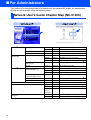
■ For Administrators
This section is for using the printer on a network with the optional NC-9100h. An administrator
should set up the printer using the following steps.
Network User's Guide Chapter Map (NC-9100h)
Windows® 95/98/Me Peer-to-Peer
Windows NT®
Chapter 3
Peer-to-Peer Printing
NetBIOS
Chapter 4
NetBIOS Peer-to-Peer Printing
Brother Internet Print
TCP/IP
Chapter 5
Configuring Internet Print for Windows®
Netware
IPX/SPX
Chapter 6
Novell Netware Printing
Peer-to-Peer
TCP/IP
Chapter 2
TCP/IP Printing
NetBIOS
Chapter 4
NetBIOS Peer-to-Peer Printing
DLC/LLC
Chapter 8
DLC Printing
Brother Internet Print
(NT® 4.0 only)
TCP/IP
Chapter 5
Configuring Internet Print for Windows®
Netware
IPX/SPX
Chapter 6
Novell Netware Printing
Peer-to-Peer
(Windows® 2000 only)
TCP/IP
Chapter 2
TCP/IP Printing
NetBIOS
Chapter 4
NetBIOS Peer-to-Peer Printing
DLC/LLC
Chapter 8
DLC Printing
IPP
(Internet Printing Protocol)
TCP/IP
Chapter 2
TCP/IP Printing
Brother Internet Print
TCP/IP
Chapter 5
Configuring Internet Print for Windows®
Netware
IPX/SPX
Chapter 6
Novell Netware Printing
UNIX/Linux
TCP/IP
Chapter 1
UNIX Printing
Macintosh®
AppleTalk
Chapter 7
Apple talk (Ether Talk TCP/IP Printing)
TCP/IP
Chapter 7
Apple talk (Ether Talk TCP/IP Printing)
Windows® 2000/XP
OS2 Warp Server
LAN Server
54
TCP/IP
Simple
Chapter 7
Network
Configuration
Simple Network Configuration
TCP/IP
Chapter 2
TCP/IP Printing
NetBIOS
Chapter 4
NetBIOS Peer-to-Peer Printing
Setting Up
the Machine
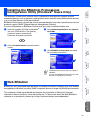
Installing the BRAdmin Professional
Configuration Utility (Windows® Users Only)
Insert the supplied CD-ROM for Windows®
into your CD-ROM drive. The opening
screen will appear automatically.
Follow the on-screen instructions.
2
Click the Install Software icon on the menu
screen.
3
Click Network Applications for Optional
NC-9100h.
4
Click BRAdmin Professional and follow
the on-screen instructions.
Windows®
Network
Windows
NT® 4.0
Parallel
Windows®
Parallel
1
Windows®
USB
The BRAdmin Professional software utility is designed to manage your Brother network
connected devices such as network-ready printers and/or network-ready Multifunction devices
in a Local Area Network (LAN) environment.
BRAdmin Professional can also be used to manage devices from other manufacturers whose
products support SNMP (Simple Network Management Protocol).
For more information on BRAdmin Professional go to http://solutions.brother.com
Macintosh®
USB
The default password for the print server is
“access”.
You can use BRAdmin Professional or a web
browser to change this password.
Web BRAdmin
Macintosh®
Network
Brother has also developed Web BRAdmin, an enterprise network software utility that enables
management of Brother and other SNMP compliant devices in larger LAN/WAN environments.
For
Administrators
This software is Web server based and requires the installation of Microsoft's Internet
Information Server and Sun's Java client software. To learn more about the Web BRAdmin
software or to download it, please go to http://solutions.brother.com/webbradmin
55
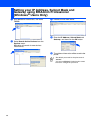
Setting your IP Address, Subnet Mask and
Gateway using BRAdmin Professional
(Windows® Users Only)
1
2
Start BRAdmin Professional, and select
TCP/IP.
3
Double-click the new device.
4
Enter the IP Address, Subnet Mask and
Gateway, and then click the OK button.
5
The address information will be saved to the
printer.
Select Search Active Devices from the
Devices menu.
BRAdmin will search for new devices
automatically.
The default password for the print server is
“access”.
You can use BRAdmin Professional or a web
browser to change this password.
56
Setting Up
the Machine
Options
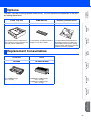
The MFC has the following optional accessories. You can expand the capabilities of the MFC
by adding these items.
Lower Tray Unit
DIMM Memory
NC-9100h
Second lower paper tray expands total
input capacity by another 250 sheets to a
total input capacity of 500 sheets.
For more details, see “Memory Board” in
Chapter 13 of the User’s Guide.
Windows®
Parallel
Windows®
USB
LT-5000
Network Print/Fax Server
The optional Network Print/FAX Server
(NC-9100h) transforms your MFC into a
Network Multi Function Center, offering
Network Printing / Network PC-FAX send
and Network Scanning capability.
Toner
DR-3000
TN-3030/TN-3060
Macintosh®
Network
TN-3030: Up to 3,500 A4 pages
@ 5% coverage.
TN-3060: Up to 6,700 A4 pages
@ 5% coverage.
For
Administrators
Up to 20,000 A4 pages
@ 5% coverage.
Macintosh®
USB
Windows®
Network
Drum Unit
Windows
NT® 4.0
Parallel
Replacement Consumables
57
Trademarks
The Brother logo is a registered trademark of Brother Industries, Ltd.
Brother is a registered trademark of Brother Industries, Ltd.
Multi-Function Link is a registered trademark of Brother International Corporation.
© Copyright 2004 Brother Industries, Ltd. All rights reserved.
Windows, Microsoft and Windows NT are registered trademarks of Microsoft in the U.S. and other countries.
Macintosh, QuickDraw, iMac and iBook are trademarks or registered trademarks of Apple Computer, Inc.
PostScript and PostScript Level 3 are registered trademarks or trademarks of Adobe Systems Incorporated.
PaperPort and TextBridge are registered trademarks of ScanSoft, Inc.
Presto! PageManager is a registered trademark of NewSoft Technology Corporation.
Each company whose software title is mentioned in this manual has a Software License Agreement specific to its
proprietary programs.
All other brand and product names mentioned in this manual are registered trademarks of their respective
companies.
Compilation and Publication
Under the supervision of Brother Industries Ltd., this manual has been compiled and published, covering the latest
product descriptions and specifications.
The contents of this manual and the specifications of this product are subject to change without notice.
Brother reserves the right to make changes without notice in the specifications and materials contained herein and
shall not be responsible for any damages (including consequential) caused by reliance on the materials presented,
including but not limited to typographical and other errors relating to the publication.
This product is designed for use in a Professional Environment.
©2004 Brother Industries, Ltd.
ARL/ASA/NZ
Version A