1
26
VLT Common Configuration - User Manual - 2.0
VLT-MAN-ESO-17210-0855
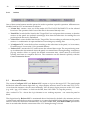
The following section presents quick instructions how to operate the panel. A more detailed description of the usage of each corresponding part in the panel is given later in section 5.4.
5.3
Example of Usage
This describes how to modify a LCU Environment with vccConfigLcu.
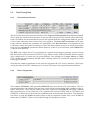
1. Start the vccConfigLcu panel and select your LCU from the ‘Target LCU’ selector.
2. Press the ‘Read Files’ action button to parse the contents of existing target files.
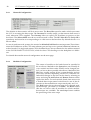
3. If you want to remove some of the User Modules:
a. select the module to be removed in the ‘User Mod’ listbox
b. press the ‘Remove’ button on the right
c. repeat this for each module
d. eventually also adjust contents of the ‘PROCESSES’ listbox
Examples:
• if you don’t have motors, remove: mac4, vme4sa, mot, motci
• if you have a TIM board and don’t need NTP, remove: xntpd
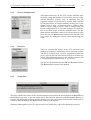
4. If you don’t want automatic device installation, but explicit installation checks:
a. select each device in the ‘Devices’ listbox
b. set the ‘Count’ scale to the expected number of devices
5. After your modifications, press the ‘Write Files’ action button to generate the files listed in the
‘Target Files’ box, and confirm overwriting for each file.
6. Press the ‘Configure LCU’ action button.
This will re-program the boot-line of the LCU. You can see the values in the terminal window.
Note that no other session must lock the LCU’s shell!
7. Press the Reboot LCU action button.
This will reboot the LCU using the new bootScript. You can see the output during the reboot in
the terminal window. A temporary pop-up window lets you adjust the connection time.
Note that no other session must lock the LCU’s shell! See also section 5.5 in case of problems.
Near the end, “LCC INITIALISATION SUCCESSFULL” should be listed. A possible start-up error
message about timeOpenDevice can be ignored if no TIM board is installed.
The bootScript will be aborted if anything goes wrong.
After the selected time the connection is closed. You cannot rlogin to the LCU’s shell before that, unless you press the ‘Cancel Connection’ button in the pop-up dialog.