1
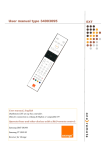
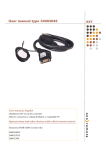
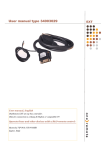
OneRemote converter Type 34003122 User Manual Operate with Beolink AppleTV MAC PC 34003122u2uk Everyday use O OK E R Menu/ Back Play/ Pause *1 AS DF Left/ right Up/ down *1 press 4 seconds to power off the MAC device. Beolink 1000 control g x Play/ Pause Menu/ Back OneRemote - www.oneremote.dk 1 Congratulations. The EXT controller from www.oneremote.dk can fully operate your device using your Bang & Olufsen remote control terminal, via any Bang & Olufsen TV. Beo4 Beo5, Beo6 or Beolink 1000 remote controls can be used. This guide explains how. This EXT controller is ready for use, plug & play. See page 1 regarding daily operation. OneRemote - www.oneremote.dk 2 EXT controller. When a scart type connected source is selected with a Bang & Olufsen remote control, the B&O TV starts to parse control data from the remote control to the attached device, via the scart cable. The OneRemote EXT controller captures these data and converts these into IR data, that can operate the specific device. The converted IR data is being transmitted via a small IR-emitter that has to placed in front of the device to be controlled. Here it emits the same IR data into the front of the device, that it was made to receive from its own remote control. Two examples of Apple devices with a mounted IR-emitter, a MAC Mini and an Apple TV. This converter can control any Apple device that can be controlled with a standard Apple remote control. OneRemote - www.oneremote.dk 3 Option programming There are no options to be programmed in this converter. Installation – troubleshooting If your Bang & Olufsen TV is equipped with a HDMI socket. Connect the Apple device using a HDMI-HDMI cable, for both audio and video transfer. Connect the OneRemote converter to the Scartsocket on the Bang & Olufsen TV, that you have programmed for the Apple device, for control. Leave the three RCA plugs of the OneRemote cable unconnected. If your Bang & Olufsen TV is equipped with a DVI socket and no HDMI socket. Connect the Apple device using a HDMI-DVI cable, for video transfer. Connect the OneRemote converter to the Scartsocket on the Bang & Olufsen TV, that you have programmed for the Apple device, for control. Connect the red and white RCA plug of the OneRemote converter to a digtital-to-analog sound converter, connected to the Apple device. If your Bang & Olufsen TV has no HDMI or DVI socket. Use a HDMI-to-Scart converter between the Apple device and the OneRemote cable. The OneRemote converter can be connected to a Scart socket on a B&O TV, that is set up as a DVD, VMEM, VTAPE, SAT, DTV, VAUX source. OneRemote - www.oneremote.dk 4 The EXT cable is equipped with a control LED build in to the scartplug, that is inserted in to the device. This LED assists in faultfinding if something is not operating correctly. Control LED indications Continous red or green flashing. When power is applied to the EXT controller, the LED will start flashing. The flash indicates that the EXT controller has not received a command data from the TV, since power on. As soon as a command is received from the TV, the LED will stop flashing and light solid red or green. If the control LED continues flashing after you have selected the source on the TV where the cable is attached, the socket does not include control data or the TV has not been set up correctly. Refer to the TV’s user manual. LED - colour. The EXT controller will light red when it has detected a device that is powered on. It will either flash or light solid red. The EXT controller will light green when it is not connected to a device or if it is connected to a device that is powered off. If not connected to the TV output socket of a device, the EXT controller will not be able to measure if the device is powered on and therefore always light green. LED - short flash off. During use the LED will light red or green, depending on the powerstatus of the device. When receiving a controldata from the TV, the control LED will shortly go out to indicate this. If a button is pressed on the TV’s remotecontrol supposed to operate the device and teh LED does not indicate this, the TV has not been correctly set up. OneRemote - www.oneremote.dk 5