1
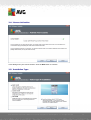
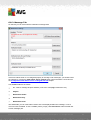
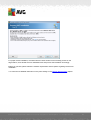
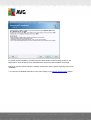
Import data into the database from a folder
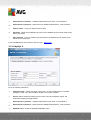
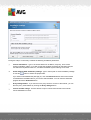
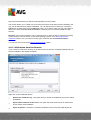
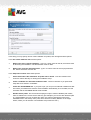
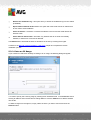
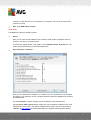
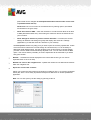
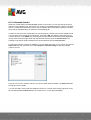
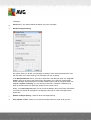
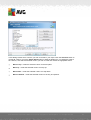
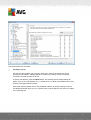
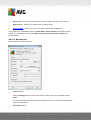
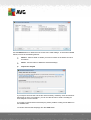
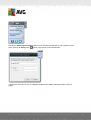
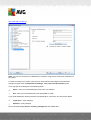
To do so, tick the Import data into the database from folder checkbox. The folder selection
field becomes available. Choose your backup folder by clicking this button
folder, where the original files for import are stored.
and find the
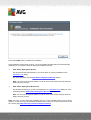
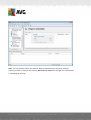
If you are currently upgrading from the former 2011 version, you can import your AVG
DataCenter 2011 data in this dialog. For more information please consult Importing Stations
and Settings from AVG DataCenter 2011 chapter.
Note: AVG Admin Server creates by default automatic database backups to the following
folder:
C:\Documents and settings\All users\Application Data\AVG2012\Admin Server
Data\DatabaseBackup
Therefore, if you have previously used AVG Remote Administration and wish to use former
database backup, you can find the backup files there, unless you switched the backup feature
off. The backup files are saved in format avgexport.dce (but can be renamed if you wish so).
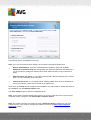
Confirm your choice by clicking the Next button.
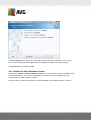
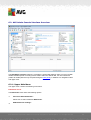
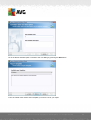
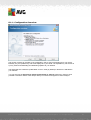
3.9. DataCenter Role - Server Access
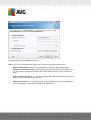
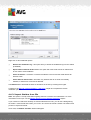
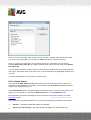
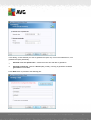
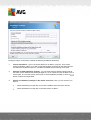
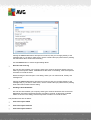
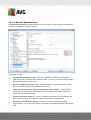
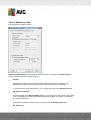
In this step you can optionally check the Username and Password checkboxes and fill-in your
preferred user name and password that will be required each time you launch the AVG Admin
Console, AVG Admin Server Deployment Wizard or process stations update.
A V G I nternet Sec urity Bus ines s E dition 2 0 1 2 © 2 0 1 2 C opyright A V G T ec hnologies C Z, s .r.o. A ll rights res erved.
32