1
Meijer.com
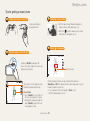
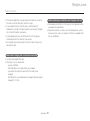
Selecting a resolution and quality
Learn how to change the image resolution and quality settings.
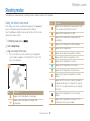
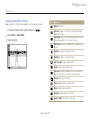
Selecting a resolution
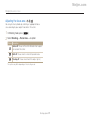
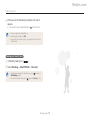
When recording a video
As you increase the resolution, your photo or video will include
more pixels, so it can be printed on larger paper or displayed on
a larger screen. When you use a high resolution, the file size also
increases.
].
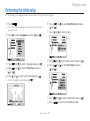
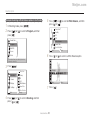
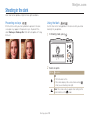
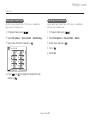
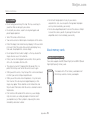
1 In the mode, press [
Select
Movie
→
Movie
Size
→
an option.
2
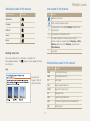
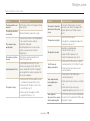
Option Description
1280 X 720 HQ: For high-quality play back on an HDTV.
When taking a photo
].
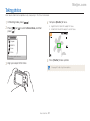
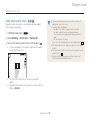
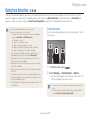
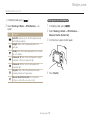
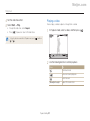
1 In Shooting mode, press [
Select
Shooting
→
Photo
Size
→
an option.
2
640 X 480: For play back on a standard, analog TV.
320 X 240: To post on a web page.
Option Description
4320 X 3240: Print on A1 paper (23" x 34").
4320 X 2880: Print on A1 paper (23" x 34") in wide ratio
(3:2).
4320 X 2432: Print on A2 paper (17" x 22") in panorama
ratio (16:9) or play back on an HDTV.
3648 X 2736: Print on A3 paper (12" x 17").
2592 X 1944: Print on A4 paper (8 1/2" x 11").
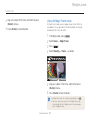
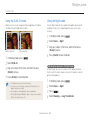
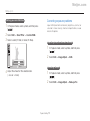
Selecting image quality
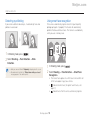
The camera compresses and saves the photos you take in JPEG
format. Higher quality images result in larger file sizes.
].
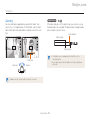
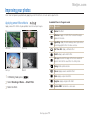
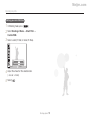
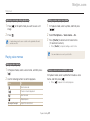
1 In Shooting mode, press [
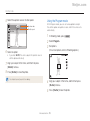
2 Select Shooting → Quality → an option.
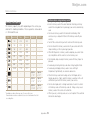
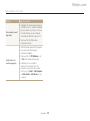
Option Description
1984 X 1488: Print on A5 paper (5 3/4" x 8 1/2").
Super Fine: Capture photos in super high quality.
1920 X 1080: Print on A5 paper in panorama ratio (16:9)
or play back on an HDTV (5 3/4" x 8 1/2").
Fine: Capture photos in high quality.
1024 X 768: Attach to email.
Normal: Capture photos in normal quality.
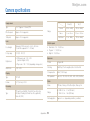
The paper sizes in inches are approximate.
The options may differ depending on the shooting mode.
Shooting options
41