1
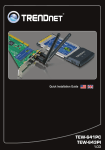
Quick Installation Guide
TEW-641PC
TEW-643PI
H/W: V1.0R
Table ofofContents
Table
Contents
English .....................................................................................................
1. Before You Start ................................................................................
2. How to Install .....................................................................................
3. Using the Wireless Adapter ..............................................................
1
1
2
6
Troubleshooting ........................................................................................ 8
Version 06.19.2008
1. Before You Start
Package Contents
?
TEW-641PC/TEW-643PI
?
Utility & Driver CD-ROM
?
Multi-Language Quick Installation
Guide
?
2 x 2dbi Detachable Antennas
(TEW-643PI only)
System Requirements
?
32-bit CardBus Type II Card slot (TEW-641PC)
?
32-bit PCI 2.2 slot (TEW-643PI)
?
CD-ROM Drive
?
CPU: 300MHz or above / 800MHz or above (Windows Vista)
?
Memory: 256MB RAM or above / 512MB RAM or above (Windows Vista)
?
Windows 2000/XP/Vista
Application
Notebook with
Wireless N PC Card
Workstation with
Wireless N PCI Adapter
(TEW-641PC)
(TEW-643PI)
Wireless N
Home Router
(TEW-652BRP)
Workstation with
Wireless N USB Adapter
(TEW-644UB)
Internet
Cable/DSL
Modem
N Speed
1
English
2. How to Install
Important! DO NOT install the PCI adapter or PC Card in the computer until
instructed to do so.
For Windows Users
1. Insert the Utility & Driver
CD-ROM into your computer's
CD-ROM Drive and then click
Install Utility.
2. Click Run autorun.exe (Windows
Vista only).
3. Follow the InstallShield Wizard
instructions. Then click Next.
4. Click Finish.
2
English
Note: Please refer to your computer's user manual regarding hardware
installation. Then proceed to the appropriate section below.
TEW-641PC
5. Shutdown your computer.
6. Insert PC Card firmly into an
available PC Card slot of the
notebook PC and then turn ON the
computer and wait until the
Windows desktop appears.
7. Go to Step 11.
TEW-643PI
8. Shutdown your computer.
9. Open your computer's case.
10. Insert PCI Card firmly into an
available PCI Card slot of the
desktop PC, attach the included
antenna, and then turn ON the
computer and wait until the
Windows desktop appears.
3
English
Windows Vista/2000
11. Windows Vista/2000 will
automatically detect and install
the appropriate drivers.
Windows XP
12. The Found New Hardware
Wizard appears. Select No, not
this time and then click Next.
13. Click Install the software
automatically (Recommended)
and then click Next.
4
English
14. Click Finish.
Your installation is now complete.
For detailed information regarding the TEW-641PC/TEW-643PI configuration
and advanced settings, please refer to the User's Guide included on the Utility
& Driver CD-ROM or TRENDnet's website at www.trendnet.com
5
English
3. Using the Wireless Adapter
Note:
1. Windows XP Wireless Zero Configuration utility must first be disabled as
shown in step 1 and 2. If it is already disabled, then go to Step 3.
2. For Windows 2000/Vista, proceed to Step 3.
1. Go into the Control Panel and
double-click Network
Connections icon. Right-click
Wireless Network Connection
icon and click Properties.
2. Click the Wireless Networks tab,
uncheck Use Windows to
configure my wireless network
settings, and then click OK.
3. Double-click the Wireless
computer icon in your system tray.
4. Click Site Survey.
6
English
5. Click the SSID that matches your
wireless access point and then
click Connect.
6. If encryption is enabled on your
wireless network, the proper
Authentication type and
Encryption type will be selected
automatically. Enter the encryption
key and click Apply.
Wireless configuration is now complete.
For detailed information regarding the TEW-641PC/TEW-643PI configuration
and advanced settings, please refer to the User's Guide included on the Utility
& Driver CD-ROM or TRENDnet's website at www.trendnet.com
Register Your Product
To ensure the highest level of customer service and support, please take a moment to
register your product Online at: www.trendnet.com/register
Thank you for choosing TRENDnet
7
English
Troubleshooting
Q1: I inserted the Utility & Driver CD-ROM into my computer's CD-ROM Drive and
the installation menu does not appear automatically. What should I do?
A1: If the window does not appear automatically, click Start, click Run, and type
D:\autorun where "D" in "D:\autorun.exe" is the letter assigned to your CD-ROM
Drive, and then press the ENTER key on your keyboard.
Q2: I completed all the steps in the quick installation guide, but my Wireless PC
Adapter is not connecting to my access point. What should I do?
A2: First, verify that the Network Name (SSID) matches your wireless router or
access point's Network Name (SSID). Second, please check with your network
administrator for security key in order to access a secured wireless access point or
router. Please refer to the User's Guide for more information regarding wireless
network security. Third, check your TCP/IP properties to ensure that Obtain an IP
address automatically is selected. Fourth, double-click the Wireless Configuration
Utility icon, click Site Survey and then click Refresh. Check to see if there are any
available wireless networks listed.
Q3: Windows is unable to recognize my hardware. What should I do?
A3: Make sure your computer meets the minimum requirements as specified in
Section 1 of this quick installation guide. Also, you must install the wireless
configuration utility BEFORE you physically install your network card. Lastly, move
the Wireless Adapter to a different PCI/PC Card Slot.
Q4:I cannot open the wireless configuration utility. What should I do?
A4: Access your device manager to make sure the adapter is installed properly. If
you see a networking device with a yellow question mark or exclamation point, you
will need to reinstall the device and/or the drivers. To access your device manager,
right-click My Computer, click Properties, click the Hardware tab, and then click
Device Manager.
If you still encounter problems or have any questions regarding the TEW-641PC/
TEW-643PI, please refer to the User's Guide included on the Utility & Driver CD-ROM or
contact TRENDnet's Technical Support Department.
8
Certifications
This equipment has been tested and found to comply with FCC and CE Rules.
Operation is subject to the following two conditions:
(1) This device may not cause harmful interference.
(2) This device must accept any interference received. Including interference that may
cause undesired operation.
Waste electrical and electronic products must not
be disposed of with household waste. Please
recycle where facilities exist. Check with you Local
Authority or Retailer for recycling advice.
NOTE: THE MANUFACTURER IS NOT RESPONSIBLE FOR ANY RADIO OR TV
INTERFERENCE CAUSED BY UNAUTHORIZED MODIFICATIONS TO THIS
EQUIPMENT. SUCH MODIFICATIONS COULD VOID THE USER’S AUTHORITY TO
OPERATE THE EQUIPMENT.
ADVERTENCIA
En todos nuestros equipos se mencionan claramente las caracteristicas del adaptador de
alimentacón necesario para su funcionamiento. El uso de un adaptador distinto al
mencionado puede producir daños fisicos y/o daños al equipo conectado. El adaptador
de alimentación debe operar con voltaje y frecuencia de la energia electrica domiciliaria
existente en el pais o zona de instalación.
Product Warranty Registration
Please take a moment to register your product online.
Go to TRENDnet’s website at http://www.trendnet.com/register
20675 Manhattan Place
Torrance, CA 90501
USA
Copyright ©2008. All Rights Reserved. TRENDnet.