1
Standalone DVR User’s Manual
Max 4
©2009 IC Realtime, Inc.
1
Table of Contents
1
FEATURES AND SPECIFICATIONS
10
SPECIFICATIONS................................................................
CATIONS
1.1
Features
Features ................................................................................................................................................ 10
1.2
Specifications ....................................................................................................................................... 10
2
OVERVIEW AND CONTROLS
CONTROLS ......................................................................... 13
2.1
Front Panel ........................................................................................................................................... 13
2.2
Rear Panel............................................................................................................................................
14
Panel
2.2.1
Overview .......................................................................................................................................... 14
2.2.2
Connection Sample ........................................................................................................................ 15
2.3
Remote Control....................................................................................................................................
Control
16
2.4
Mouse Control......................................................................................................................................
17
Control
2.5
Virtual Keyboard
18
Keyboard & Front Panel.........................................................................................................
Panel
2.5.1
Virtual Keyboard.............................................................................................................................. 18
2.5.2
Front Panel ...................................................................................................................................... 18
3
INSTALLATION AND CONNECTIONS
19
CONNECTIONS.............................................................
NECTIONS
3.1
Check Unpacked DVR ........................................................................................................................ 19
3.2
HDD Installation ................................................................................................................................... 19
3.2.1
Choose HDDs.................................................................................................................................. 19
3.2.2
Calculate HDD Size........................................................................................................................ 19
3.2.3
HDD Installation .............................................................................................................................. 19
©2009 IC Realtime, Inc.
2
3.3
CD/DVD Burner Installation ....................................................................Error! Bookmark not defined.
3.4
Desktop and Rack Mounting..............................................................................................................
20
Mounting
3.4.1
Desktop Mounting ........................................................................................................................... 20
3.4.2
Rack Mounting .................................................................................Error! Bookmark not defined.
3.5
Connecting Power Supply .................................................................................................................. 20
3.6
Connecting
Connecting Video Input and Output Devices .................................................................................. 21
3.6.1
Connecting Video Input.................................................................................................................. 21
3.6.2
Connecting Video Output............................................................................................................... 21
3.7
Connecting Audio Input & Output, Bidirectional Audio .................................................................. 22
3.7.1
Audio Input/Audio Output............................................................................................................... 22
3.7.2
Alarm Input and Relay Output....................................................................................................... 23
3.7.3
Alarm Input....................................................................................................................................... 23
3.7.4
Alarm Output.................................................................................................................................... 23
3.7.5
Alarm Input and Output Details..................................................................................................... 23
3.7.6
Relay Output Description............................................................................................................... 24
3.8
RS232....................................................................................................................................................
RS232
26
3.9
RS485....................................................................................................................................................
26
RS485
3.10
Other Interfaces ................................................................................................................................... 26
4
OVERVIEW OF NAVIGATION
NAVIGATION AND CONTROLS LOGIN,
LOGIN, LOGOUT & MAIN
MENU.......................................................................................................................
28
MENU
4.1
Login, Logout & Main Menu ............................................................................................................... 28
4.1.1
Login ................................................................................................................................................. 28
4.1.2
Main Menu ....................................................................................................................................... 28
4.1.3
Logout............................................................................................................................................... 29
4.1.4
Auto Resume after Power Failure ................................................................................................ 29
4.1.5
Replace CMOS Battery.................................................................................................................. 29
©2009 IC Realtime, Inc.
3
4.2
Recording Operation ........................................................................................................................... 29
4.2.1
Live Viewing..................................................................................................................................... 29
4.2.2
Manual record.................................................................................................................................. 30
4.3
Search & Playback .............................................................................................................................. 32
4.3.1
Search Menu ................................................................................................................................... 32
4.3.2
Basic Operation............................................................................................................................... 34
4.3.3
Calendar........................................................................................................................................... 36
4.4
Record Setup (Schedule) ................................................................................................................... 37
4.4.1 Schedule Menu .................................................................................................................................... 37
4.4.2 Basic Operation .................................................................................................................................... 37
4.5
Detect .................................................................................................................................................... 38
4.5.1 Detect Menu.......................................................................................................................................... 38
4.5.2 Motion Detect........................................................................................................................................ 38
4.5.3 Video Loss............................................................................................................................................. 40
4.5.4 Camera Masking .................................................................................................................................. 41
4.6
Alarm Setup and Alarm Activation .................................................................................................... 42
4.6.1
Alarm Menu...................................................................................................................................... 42
4.6.2
Alarm setup...................................................................................................................................... 42
4.7
Backup .................................................................................................................................................. 44
4.7.1 Detect Device....................................................................................................................................... 44
4.7.1
4.8
Backup.............................................................................................................................................. 45
PTZ Control and Color Setup ............................................................................................................ 46
4.8.1 Cable Connection................................................................................................................................ 46
4.8.2 PTZ Setup ............................................................................................................................................ 46
4.8.3 3D Intelligent Positioning Key............................................................................................................ 48
4.9
Preset/ Patrol/Pattern/Scan................................................................................................................
48
Patrol/Pattern/Scan
4.9.1Preset Setup ......................................................................................................................................... 49
4.9.2 Activate Preset..................................................................................................................................... 50
4.9.3 Patrol setup (Tour Setup)................................................................................................................... 50
4.9.4 Activate Patrol (tour) ........................................................................................................................... 50
4.9.5 Pattern Setup ....................................................................................................................................... 50
4.9.6 Activate Pattern Function ................................................................................................................... 51
4.9.7 Auto Scan Setup ................................................................................................................................. 51
©2009 IC Realtime, Inc.
4
4.9.8 Activate Auto Scan.............................................................................................................................. 51
4.10
5
Flip ......................................................................................................................................................... 51
UNDERSTANDING THE MENU:
MENU: OPERATION AND CONTROL
CONTROL ..................... 53
5.1
Menu Tree ............................................................................................................................................ 53
5.2
Main Menu ............................................................................................................................................ 53
5.3
Setting ................................................................................................................................................... 54
5.3.1
General............................................................................................................................................. 54
5.3.2
Encode ............................................................................................................................................. 56
5.3.3
Schedule .......................................................................................................................................... 57
5.3.4
RS232............................................................................................................................................... 57
5.3.5
Network ............................................................................................................................................ 58
5.3.6
Alarm................................................................................................................................................. 65
5.3.7
Detect ............................................................................................................................................... 65
5.3.8
Pan/Tilt/Zoom .................................................................................................................................. 65
5.3.9
Display.............................................................................................................................................. 65
5.3.10
Default.......................................................................................................................................... 67
5.4
Search ................................................................................................................................................... 68
5.5
Advanced .............................................................................................................................................. 68
5.5.1
HDD Management .......................................................................................................................... 68
5.5.2
Abnormity ......................................................................................................................................... 69
5.5.3
Alarm Output.................................................................................................................................... 70
5.5.4
Manual Record ................................................................................................................................ 70
5.5.5
Account............................................................................................................................................. 71
5.5.6
Auto Maintain................................................................................................................................... 71
5.5.7
TV Adjust.......................................................................................................................................... 72
5.6
Information............................................................................................................................................
72
Information
5.6.1
HDD Information ............................................................................................................................. 73
5.6.2
BPS ................................................................................................................................................... 73
5.6.3
Log .................................................................................................................................................... 73
5.6.4
Version ............................................................................................................................................. 74
5.6.5
Online Users .................................................................................................................................... 74
©2009 IC Realtime, Inc.
5
5.7
6
Exit ......................................................................................................................................................... 75
CONTROLLING PAN/TILT/ZOOM
PAN/TILT/ZOOM CAMERAS ................................................. 76
6.1
Go to Pan/Tilt/Zoom Menu ................................................................................................................. 76
6.1.1
6.2
3D Intelligent Positioning Key ....................................................................................................... 76
Preset /Patrol / Pattern /Border Function........................................................................................
77
Function
6.2.1
Preset Setup .................................................................................................................................... 78
6.2.2
Activate Preset ................................................................................................................................ 78
6.2.3
Tour Setup ....................................................................................................................................... 78
6.2.4
Activate Tour.................................................................................................................................... 79
6.2.5
Pattern Setup................................................................................................................................... 79
6.2.6
Activate Pattern Function............................................................................................................... 79
6.2.7
Border Setup.................................................................................................................................... 79
6.2.8
Activate Border Function ............................................................................................................... 79
6.2.9
Flip..................................................................................................................................................... 79
7
WEB CLIENT OPERATION .................... ERROR! BOOKMARK NOT DEFINED.
7.1
Network Connection.................................................................................Error!
Bookmark not defined.
Connection
7.2
Login ...........................................................................................................Error! Bookmark not defined.
7.2.1
Real-time Monitor.............................................................................Error! Bookmark not defined.
7.2.2
PTZ ....................................................................................................Error! Bookmark not defined.
7.2.3
Color ..................................................................................................Error! Bookmark not defined.
7.2.4
Picture Path and Record Path .......................................................Error! Bookmark not defined.
7.2.5
Menu Interface Switch.....................................................................Error! Bookmark not defined.
7.3
Setup ..........................................................................................................Error! Bookmark not defined.
7.3.1
System Information..........................................................................Error! Bookmark not defined.
7.3.2
Setting................................................................................................Error! Bookmark not defined.
7.4
Playback.....................................................................................................Error!
Bookmark not defined.
Playback
7.4.1
Download ..........................................................................................Error! Bookmark not defined.
7.4.2
Watermark.........................................................................................Error! Bookmark not defined.
7.5
Event...........................................................................................................Error!
Bookmark not defined.
Event
©2009 IC Realtime, Inc.
6
7.6
Info ..............................................................................................................Error! Bookmark not defined.
7.7
Log out .......................................................................................................Error! Bookmark not defined.
7.8
UnBookmark not defined.
Un-install Web Control.............................................................................Error!
Control
8
ENTERPRISE PROFESSIONAL
PROFESSIONAL SURVEILLANCE SYSTEM
SYSTEM ................ ERROR!
BOOKMARK NOT DEFINED.
8.1
Log in..........................................................................................................Error!
Bookmark not defined.
in
8.2
Add New Device .......................................................................................Error! Bookmark not defined.
8.3
Viewing Live Cameras .............................................................................Error! Bookmark not defined.
9
RS232 OPERATION ............................... ERROR! BOOKMARK NOT DEFINED.
9.1
Network Connection.................................................................................Error!
Bookmark not defined.
Connection
9.2
Keyboard....................................................................................................Error!
Bookmark not defined.
Keyboard
10 FAQ.........................................................
ERROR! BOOKMARK NOT DEFINED.
FAQ
APPENDIX A HDD CAPACITY CALCULATION
CALCULATION ........... ERROR! BOOKMARK NOT
DEFINED.
APPENDIX B COMPATIBLE USB DRIVE LIST ............ ERROR! BOOKMARK NOT
DEFINED.
APPENDIX C COMPATIBLE CD/DVD BURNER
BURNER LIST..
LIST ERROR! BOOKMARK NOT
DEFINED.
©2009 IC Realtime, Inc.
7
APPENDIX D COMPATIBLE SATA HDD LIST ............. ERROR! BOOKMARK NOT
DEFINED.
Welcome
Thank you for purchasing our DVR!
This operating manual is designed to be a reference tool for the installation and
operation of your system.
Here you can find information about this series DVR, its features and functions, as
well as a detailed menu tree.
Before installation and operation, please read the following safeguards and warnings
carefully!
©2009 IC Realtime, Inc.
8
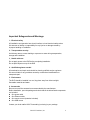
Important Safeguards and Warnings
1.
.Electrical safety
All installation and operation here should conform to local electrical safety codes.
We assume no liability or responsibility for any injuries or damage caused by
improper handling or installation.
2.
.Transportation security
Avoid heavy stress, excess shaking or exposure to water during transportation,
storage and installation.
3.
.Handle with care
Do not apply power to the DVR before completing installation.
Do not place objects on top of the DVR
4.
.Qualified engineers needed
All examination and repair work should be done by qualified service engineers.
We are not liable for any problems caused by unauthorized modifications or
attempted repair.
5.
.Environment
The DVR should be installed in a cool, dry place away from direct sunlight,
flammable materials and water.
6. Accessories
Be sure to use all the accessories recommended by the manufacturer.
Before installation, open the package and check that all the below listed components
are included:
One power cable
One Ethernet cable
One remote control (batteries included)
One USB mouse
Contact your local retailer ASAP if something is missing in your package.
©2009 IC Realtime, Inc.
9
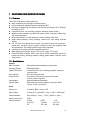
1 FEATURES AND SPECIFICATIONS
1.1 Features
This series DVR has the following features:
Most competitive price and high cost effectiveness
H.264 compression algorithm ideal for standalone DVR
Real-time live display up to 4 cameras, 100/120 fps recording for CIF & 25/30 fps
recording for 4CIF
Pentaplex function: live, recording, playback, backup & remote access
Multiple control methods: front panel, IR remote control, keyboard, USB mouse
and network keyboard.
Smart video detection: motion detection, camera masking, video loss.
Smart camera settings: privacy masking, camera lock, color setting, and title
display
Pan Tilt Zoom and Speed Dome Control: more than 60 protocols supported preset, scan, auto pan, auto tour, pattern, auxiliary functions are supported. And
with speed dome, 3D intelligent positioning function supported.
4-channel audio inputs and bidirectional talk supported
Alarm triggering screen tips, buzzer, PTZ preset, e-mail, FTP upload.
Powerful network software: built-in web server, EPSS. Networking access for
remote live viewing, recording, playback, setting, system status, event log, e-mail
& ftp function.
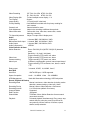
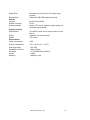
1.2 Specifications
Specifications
System
Main Processor
Operating System
System Resources
User Interface
Control Device
Input Method
System Status
High performance embedded microprocessor
Embedded LINUX
Pentaplex function: live, recording, playback, backup &
remote access
GUI, on-screen menu tips.
Front panel, USB mouse, keyboard, IR remote
control, network keyboard,.
Numeral/Character/Denotation
HDD status, data stream statistics, log record, BIOS
version, on-line user and etc.
Video
Video Input
4-Channel, BNC, 1.0Vp-p, 75Ω
Video Output
2-channel TV output BNC, 1.0Vp- p, 75Ω; 1 VGA output
Video Standards
PAL(625Line,50f/s),NTSC(525Line,60f/s)
Video Compression
Video Resolution
H.264
Format
D1(4CIF)
CIF
NTSC
704*480
352 *240
©2009 IC Realtime, Inc.
PAL
704 * 576
352 *288
10
Video Recording
Video Display Split
Tour Display
Image Quality
Privacy Masking
Camera Lock
Color Adjustment
Video Information
TV Output Adjustment
Audio
Audio Input
Bidirectional Audio Input
Audio Output
Audio Compression
Video Detection & Alarm
Motion Detection
Video Loss
Camera masking
Alarm Input
Relay output
Hard Disk
Hard Disk
Space Occupation
CIF: PAL 1f/s~25f/s NTSC 1f/s~30f/s
D1: PAL 1f/s~6f/s NTSC 1f/s~7f/s
Full and multiple screen display, 1 / 4
Support
1~6 level (level 6 is the best)
8 self-defined four-sided zone for privacy masking for
each camera
Camera locked for users
Adjust color according to different time periods
Camera title, time, video loss, camera lock, motion
detection, recording
Adjust TV output color & display zone
4-channel, BNC, 200-2800mV, 30KΩ
1-channel, BNC, 200-2800mV, 30KΩ
1-channel, BNC, 200-3000mv, 5KΩ
ADPCM
Zones: PAL 396 (22*18)/NTSC 330(22*15) detection
zones
Sensitivity: 1~6 (level 6 is highest)
Trigger recording, PTZ preset, tour, alarm
Trigger recording, PTZ preset, tour, alarm
Trigger recording, PTZ preset, tour, alarm
4-channel, programmable, ground, manual open/closed
Trigger recording, PTZ movement, tour, alarm, e-mail &
FTP
3-channel, 30VDC, 1A, NO/NC, form-C,
1 SATA HDD port, 1 HDD supported.
Audio :14.4MB/H Video :56~400MB/H
HDD Management
Hard disk hibernation technology, HDD faulty alarm
Record, Playback & Backup
Recording Mode
Manual, continuous, video detection (including motion
detection, camera masking, video loss), Alarm
Recording Priority
Manual >Alarm >Video Detection >Continuous.
Recording Interval
1 to 120 minutes (default: 60 minutes)
Overwrite Mode
Supported
Raid Function
Supported
Search Mode
Time/Date, Alarm, Motion Detection & exact search
(accurate to second)
Playback
4-channel playback simultaneously, Play, pause, stop,
rewind, fast play, slow play, next file, previous file,
next camera, previous camera, full screen, repeat,
shuffle, backup selection.
©2009 IC Realtime, Inc.
11
Digital Zoom
Backup Mode
Network
Interface
Network Functions
Remote operation
Auxiliary Interface
USB Interface
RS232
RS485
Environmental
Power Consumption
Selected zone can zoom into full screen during
playback
Flash disk/ USB HDD/ network download
RJ-45 Port (10/100M)
TCP/IP
Monitor, PTZ control, playback, system setting, file
download, log information
Two USB 2.0 ports, one for mouse control, one for
backup
Keyboard, PC communication
PTZ control
25W
Working Temperature
0℃~+55℃ (14°F ~ 130°F)
Working Humidity
Atmosphere Pressure
Dimension
Weight
Mounting
10%~90%
86kpa~106kpa
1U, 375x285x45mm (W*D*H)
3.25Kg
Desktop or rack
©2009 IC Realtime, Inc.
12
2 Overview and Controls
This section provides information about the front panel and the rear panel.
Please refer to this section first after installation.
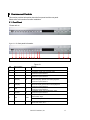
2.1 Front Panel
Please refer to
Figure 2-1 for front panel information.
1
2
3
4
5 6
7 8
9
10 11
12
13
Figure 2-1
SN
Button Name
1
2
USB Port
Icon
Play/pause
II
3
Reverse/pause
II
4
Fast play
5
Slow play
6
Next
I
7
Previous
I
►
8
Shift
Shift
Function
Connect to USB port
In playback mode: play or pause video.
In text box: input number 5.
In playback mode: reverse play video.
In text box: input number 6.
In playback mode: click this button to switch between
various fast play speeds and normal playback.
In text box: input number 7.
In playback mode: click this button to switch between
various slow play speeds and normal playback.
In text box: input number 8.
In playback mode: play the next video.
In text box: input number 9.
In playback mode: play the previous video.
In text box: input number 0.
In input mode, switch between numeral/character and
other function keys.
In four-window preview mode, it can work as Fn button.
9
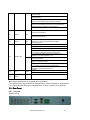
Assistant
Fn
In 1-ch monitor mode: pop up assistant function:PTZ
control and Video color
©2009 IC Realtime, Inc.
13
14
In motion detection interface, working with direction keys
to finish setup.
Clear: Press Fn for 1.5 seconds to clear all contents in
current text box.
In preview interface (There is no other menu), click this
button for 3 seconds to switch between TV/VGA.
In text box input mode, press this button to switch
between numeral/English character (small/capitalized).
Special combined operation in some menus.
Go back to previous menu or cancel current operation in
function menu interface.
Cancel
Esc
11
Record
Rec
12
Direction key
<
>
10
< >
13
O.K
14
Power
Enter
In video playback mode, click this button to go back to
real-time monitor mode.
Enable or disable record function manually. In record
control menu, use the direction keys to select
recording channel.
Move cursor
In text box: increase or decrease numerals.
In dropdown list, modify current setup.
In monitor mode, click this button to go to the 1st channel-1
or 4th channel. (Single-channel monitor mode).
In text box input mode, press SHIFT and then use
up/down key to input number 1 or 4.
In the main menu or sub-menu interface, click left or right
key to move cursor.
In playback mode: Click left/right key to select corresponding
option in the function menu.
In monitor mode, click left/right key to go to 2nd channel
or 3rd channel (single-window monitor mode)
In text box input mode, press SHIFT and then use
left/right key to input number 2 or 3.
Confirm
Go to the main menu
Boot up or shut down the DVR
Note: Some models may be equipped with a jog/shuttle.
Turn shuttle (outer ring) clockwise to navigate right, counter clockwise to navigate left.
Turn jog (Inner dial) clockwise to navigate down, counter clockwise to navigate up.
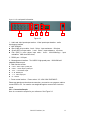
2.2 Rear Panel
2.2.1 Overview
Please refer to
©2009 IC Realtime, Inc.
14
Figure 2-2 for real panel information.
1
2
3
4
5
6
Figure 2-2
1、Audio and video input/output section:Video input/output interface、audio
input/output interface;
2、LINE SPK MIC:
Blue (LINE) is input cable:Level:2Vrms,Input resistance:10k ohms
Green (SPK) is output cable: Level:2Vrms,Input resistance:10k ohms
Pink (MIC) is micro phone input cable : Level : 10mV-200mVp-p , Input
resistance:600k ohms-20k ohms;
3、RS232 port、VGA port;
4、Mouse/network interface:Two USB 2.0 high-speed ports、10M/100M selfadaptable Ethernet port
5、Main function section:
C1/O1:Alarm output 1 public port
C2/O2 : Alarm output 2 public port
+12V: +12V/100mA output
A~B:RS485 port
1~4: Alarm input port
G :Ground
6、Power control section: Power socket(AC 100V-240V 50HZ/60HZ);
Please pay attention to the ethernet connection, you need to use crossover cable to
connect DVR to PC. You need to use straight-throught to connect DVR via hub or
switch.
2.2.2 Connection Sample
Here is a connection sample for your reference. See Figure 2-3.
©2009 IC Realtime, Inc.
15
Figure 2-3
2.3 Remote Control
Control
The remote control interface is shown as in Figure 2-4.
Figure 2-4
Serial Number
1
Function
remote switch
©2009 IC Realtime, Inc.
16
2
3
4
5
6
7
8
9
10
11
12
13
14
15
16
Multiple-window switch
0-9 number key
Record
Function key
Confirm /menu key
Cancel
Direction key
forward
Previous
Back
Next
Slow play
Stop
Fast play
Play/Pause
2.4 Mouse Control
Left click
In real-time monitor mode, you can go to the main menu.
mouse
When you have selected a menu item, left click the mouse to view the
content within that menu.
Execute the control operation.
Modify checkbox or motion detection status.
Expand drop-down menus
In the input box, you can select different input methods. By left clicking the
corresponding button on the panel you can input upper and lower case
letters, numbers and symbols. Also note, the _ represents a space, and ←
works as a backspace or delete.
To input symbols, you can use the corresponding numeral in the front panel.
For example, click number 1 to input “/” , or you can click the number in the
on-screen keyboard directly.
Double left
During playback, double click a file to start the selected playback.
click mouse
In multiple-window mode, double click one channel to view in full-window.
Double left click current video again to go back to previous multiple-window
mode.
©2009 IC Realtime, Inc.
17
Right click
mouse
In real-time monitor mode, right click pops up a shortcut menu.
From here, you can change window views as well as Pan/Tilt/Zoom controls,
and color settings for the currently selected channel. Also, if you are in
multiple-window access mode, the system automatically switches to the
corresponding channel.
Exit current menu without saving any changes. Back out of current menu.
Scroll wheel
In numeral input box: Increase or decrease numeral value.
Switch the items in the check box.
Page up or page down
Move
Control the mouse cursor
mouse
Click & Drag
Select motion detection zone
mouse
Select privacy mask zone
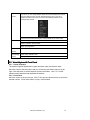
2.5 Virtual Keyboard & Front Panel
2.5.1 Virtual Keyboard
The system supports Alphanumeric (upper and lower case) and symbols input.
Move the cursor to the text column and you will see the input button pops up on the
right. Click that button to switch between numbers and letters. Use > or < to shift
between small characters and capitalized characters.
2.5.2 Front Panel
Move the cursor to the text column. Click Fn key and use direction keys to select the
desired number. Press enter button to input, once finished.
©2009 IC Realtime, Inc.
18
3 Installation and Connections
Note: All the installation and operation should conform to your local electric
safety rules.
3.1 Check Unpacked DVR
Upon receipt of the DVR from the courier, please check whether there is any visible
damage to the DVR appearance. The protective materials used for the package of
the DVR can protect most accidental clashes during transportation. Then you can
open the box to check the accessories.
Please check the items in accordance with the list on the warranty card. Finally you
can remove the protective film of the DVR.
3.2 HDD Installation
3.2.1 Choose HDDs
We recommend Seagate/IBM/Hitachi HDD of 7200rpm or higher.
3.2.2 Calculate HDD Size
You can use 120G-1500G HDD to guarantee higher recording durations.
The formula of total HDD size is:
Total Capacity (MB) = Camera Amount * Recording Hours * HDD Usage Per Hour
(M/h)
H.264 compression is ideal for standalone DVRs. It can save more than 30% HDD
capacity over MPEG4 part 1. When you calculate the total HD capacity, you should
estimate the average HDD capacity per hour for each channel.
For example, for a 4-ch DVR, the average capacity of HDD usage per hour per
channel is 200M/h. If you want the DVR to record video 12 hours each day for 30
days, the total space needed on your HDDs is: 4 channels * 30 days * 12 hours *
200 M/h = 288G which requires one 320G HDD or 2 160G HDDs.
3.2.3 HDD Installation
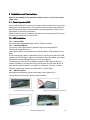
Data ribbons and fastening screws are provided in the accessory box.
Please follow the instructions below to install hard disk.
2
1. Loosen the screws of the upper cover.
2. Remove the HDD bracket from internal unit.
©2009 IC Realtime, Inc.
19
3. Dismantle the upper HDD bracket.
4. Install the HDD. Note the HDD is placed
upside down.
Make sure bracket is in
correct position.
If the HDD amount is less than four, you do not need to install the HDD bracket.
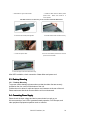
5. Screw the two bracket parts together.
6. Put HDD bracket back and then fix firmly.
8
7. Loosen the power cable.
8. Connect to the SATA ports and then connect
power cord to the HDDs.
9. Place the upper cover back and screw firmly .
After HDD installation, check connection of data ribbon and power cord.
3.3 Desktop Mounting
3.3.1 Desktop Mounting
To prevent surface damage, please make sure that the rubber feet are securely
installed on the four corners of the bottom of the unit.
Position the unit to allow for cable and power cord clearance at the rear of the unit.
Please make sure that the air flow around the unit is not obstructed.
3.4 Connecting Power Supply
Please check the input voltage and device power button is match or not.
We recommend you use UPS to guarantee steady operation, DVR life span, and
other peripheral equipments operation such as cameras.
©2009 IC Realtime, Inc.
20
Formatted: Bullets and Numbering
3.5 Connecting Video
Video Input
Input and Output
Output Devices
Devices
3.5.1 Connecting Video Input
The DVR automatically detects the video standard (PAL or NTSC) whenever you
connect a video input. It accepts both color and black-and-white video.
NOTE:
Enabling line lock on cameras may cause video distortion. There may be noise in
the camera’s power source. If video from one or more cameras is distorted, we
recommend you disable the line lock on the camera.
If a video distribution amplifier is installed between the video source and the DVR,
do not set the output video level above 1 Vp-p.
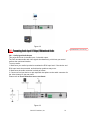
To connect each video input:
1. Connect a coaxial cable to the camera or other analog video source.
2. Connect the coaxial cable to the video in connector on the rear panel.
Please refer to Error! Reference source not found. for more information.
NOTE:
You need to use a BNC installation tool to connect coaxial cables to the rear panel.
Figure 3-1
3.5.2 Connecting Video Output
This section provides information about physically connecting video display devices
to the DVR. See Error! Reference source not found..
If you connect the DVR with a TV monitor or VGA monitor, the DVR can automatically
detect the monitor type. Without any output device, by default, the DVR is configured
to use a TV monitor. If your application requires a VGA monitor, you need to hold
“FN2” or Shift on the front panel for about 5 seconds, in order to change display
modes.
NOTE:
Video output 1 and VGA can’t display at the same time. But Video output 2 can
display properly with Video Output 1 or VGA.
©2009 IC Realtime, Inc.
21
Formatted: Bullets and Numbering
Figure 3-2
Formatted: Bullets and Numbering
3.6 Connecting Audio Input & Output,
Output, Bidirectional Audio
3.6.1 Audio Input/Audio Output
This series DVR has 4-ch audio input, 2-ch audio output.
The DVR encodes audio and video signals simultaneously, which lets you control
audio at the monitored location.
To set up audio:
1. Make sure your audio input device matches the RCA input level. If the device and
RCA input levels do not match, audio distortion problems may occur.
2. Make sure the audio connector is wired as follows:
3. Connect a line input device or pre-amplified microphone to the audio connector for
the video channel on the rear panel.
Please refer to Error! Reference source not found..
Figure 3-3
©2009 IC Realtime, Inc.
22
3.6.2 Alarm Input and Relay Output
The DVR offers 4 alarm inputs for external signaling devices, such as door contacts
or motion detectors. Each alarm input can normally open or normally close. Once
configured, an alarm input can invoke many different activities, including triggering a
relay device, sending an alert to a security office or store pre-alarm video to the DVR.
3.6.3 Alarm Input
For this series DVR, a grounding signal is needed for alarm input.
If you need to connect two units or one DVR and other device, use a relay to
separate them.
Please refer to Figure 3-4 for more information.
Figure 3-4
3.6.4 Alarm Output
Do not connect alarm output ports directly with high power loads (no more than 1 A).
You can use the co-contactor to realize the connection between the alarm output port
and the load. Please refer to Figure 3-5 for more information.
Figure 3-5
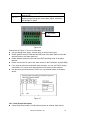
3.6.5 Alarm Input and Output Details
You can refer to the following sheet and Figure 3-6 for more information.
Parameter
0404 L(N)(Grounding Alarm)
G
Ground line
C1/O1:C2/O2 These are two alarm output ports(Normal Open)
©2009 IC Realtime, Inc.
23
485 A、B
+12(C)
485 communication port. They are used to control devices
such as PTZ.
Provide 100mA power to the main board. You need to provide
external power if the power is more than 100mA, otherwise it
will damage PC power.
A, B connection
Screw
Figure 3-6
Please refer to Figure 3-7 for more information.
4-ch grounding alarm inputs. (Normal open or Normal close type)
Please parallel connect COM end and GND end of the alarm detector (Provide
external power to the alarm detector).
Please parallel connect the Ground of the DVR and the ground of the alarm
detector.
Please connect the NC port of the alarm sensor to the DVR alarm input(ALARM)
If you need to reset the touched-off alarm remotely, you can use DVR to supply
controllable 12 V power to the alarm detector such as the smoke detector.
Use the same ground with that of DVR if you use external power to the alarm
device.
Figure 3-7
3.6.6 Relay Output Description
4 ways relay alarm output. Provide external power to external alarm device.
©2009 IC Realtime, Inc.
24
To avoid over loading, read the following relay parameters sheet carefully. (See
below table)
The controllable +12v can be used to restore the smoke detector.
Please refer to Figure 3-8 for alarm input module information.
Figure 3-8
Please refer to Figure 3-9 for alarm output module information.
Figure 3-9
Relay Specification
Model:
Material of
the touch
Rating
(resistance
load)
Insulation
JRC-27F
Silver
Rated switch capacity
Maximum switch power
Maximum switch voltage
Maximum switch currency
between touches with
same polarity
between touches with
different polarity
30VDC 2A, 125VAC 1A
125VA 160W
250VAC, 220VDC
1A
1000VAC 1minute 50/60Hz
1000VAC 1minute 50/60Hz
©2009 IC Realtime, Inc.
25
Surge
voltage
Length of
open time
Length of
close time
Longevity
Temperature
between touch and winding 1000VAC 1minute 50/60Hz
between touches with
1500V (10×160us)
same polarity
3ms max
3ms max
50×106 times (3Hz)
Mechanical
200×103 times (0.5Hz)
Electrical
-40°C ~+70°C (-40°F ~ +158°F)
Formatted: Bullets and Numbering
3.7 RS232
You can connect the DVR with POS (point of sale systems) or Keyboard through the
RS232. With POS systems, the DVR can communicate through RS232 and network.
For the POS system, the DVR can integrate the text content and even search the
record through the info. The series DVR also support network keyboard operation.
You can operate the DVR from the keyboard controls instead of using the control pad
on the front panel of the unit.
To connect a NETWORK KEYBOARD to the DVR:
1. Assemble the keyboard according to the instructions in its accompanying
installation manual.
2. Connect the keyboard into one of the RS232 ports on the DVR or through network.
3.8 RS485
When the DVR receives a camera control command, it transmits that command up
the UTP cable to the PTZ device. RS485 is a single-direction protocol; the PTZ
device can’t return any data to the unit. To enable the operation, connect the PTZ
device to the RS485(A,B) input on the DVR. Since RS485 is disabled by default for
each camera, you must enable the PTZ settings first. This series DVR support
multiple protocols such as Pelco-D, Pelco-P.
To connect PTZ devices to the DVR:
1. Connect RS485 A,B on the DVR rear panel. A is RS-485 Positive & B is RS-485
negative
2. Connect the other end of the cable to the proper pins in the connector on the
camera.
3. Follow the instructions for configuring a camera to enable each PTZ device on the
DVR.
3.9 Other Interfaces
There are still other interfaces on the DVR, such as USB ports. You can refer to
the Figure 3-10 for more information.
©2009 IC Realtime, Inc.
26
Formatted: Bullets and Numbering
Formatted: Bullets and Numbering
Figure 3-10
©2009 IC Realtime, Inc.
27
4 Overview of Navigation
Navigation and Controls Login, Logout & Main
Menu
Before operation, please make sure you have properly installed HDDs and all the
cable connections.
4.1 Login, Logout & Main Menu
4.1.1 Login
When the system boots up, the default video display is a multiple-window view.
Click Enter or left click mouse, you can see the login interface. See Figure 4-1.
Figure 4-1
There are 4 default accounts.
Username: admin Password: admin (administrator, local and remote)
Username: guest Password: guest (low authority user, local and remote)
Username: user Passwords: user (low authority user who can monitor live feed,
playbacks, and backups)
Username: default Password: default (hidden user – view cameras only)
For your system security, please modify password after your first login.
You can input your password by using the front panel keys, the remote control or a
USB mouse which is recommended. Click
to switch between numbers,
letters, and symbols.
Note: Three unsuccessful login attempts within 30 minutes will result in system
alarm. Five unsuccessful login attempts will result in an account lock.
4.1.2 Main Menu
After you logged in, the main menu is shown as in
Figure 4-2.
There are total six icons: search, information, setting, backup, advanced and
shutdown.
You can move the cursor to highlight the icon, and then left click mouse to enter
the sub-menu.
©2009 IC Realtime, Inc.
28
Figure 4-2
4.1.3 Logout
There are two ways for you to shut down. One is from the menu option:
In the main menu, click shutdown you can see an interface is shown as below.
See Figure 4-3.
Figure 4-3
There are several options for you. See Figure 4-4.
Figure 4-4
The other ways is to press the power button on the front panel for at least 3
seconds - system will stop all operations. Then you can click the power button in
the rear panel to turn off the DVR.
4.1.4 Auto Resume after Power Failure
The system can automatically backup video and resume previous working status
after power failure.
4.1.5 Replace CMOS Battery
Please make sure to use battery model CR-2032. We recommend you replace it
regularly (such as once every 2-3 years) to guarantee system time accuracy.
4.2 Recording
Recording Operation
Operation
4.2.1
Live Viewing
©2009 IC Realtime, Inc.
29
After you logged in, the system is in a live viewing mode. You will see system
date, time and channel name. If you want to change the system date and time,
you can refer to general settings (Main Menu->Setting->General). If you want to
modify the channel name, please refer to the display settings (Main Menu>Setting->Display)
1
Recording status
3
Video loss
2
Motion detection
4
Camera lock
Note: Please refer to the following sheet for channel status.
stands for enabled
tour function,
stands for a disabled tour.
4.2.2 Manual record
Note:
You need to have proper rights to perform the following operations.
4.2.2.1 Manual record menu
There are two ways to go to the manual record menu.
Right click mouse or go to the Main Menu -> Advanced->Manual Record.
In live viewing mode you can press the record button on the front panel. You can
also press record on the remote control.
4.2.2.2 Basic operation
There are three statuses: schedule/manual/stop. Highlight icon “○” to select
corresponding channel.
Manual: the highest priority. After manual setup, all selected channels will begin
continuous recording.
Schedule: channel records as you defined in the recording setup (Main Menu>Setting->Schedule)
Stop: all channels stop recording.
Note: Manual operation has the highest priority.
Figure 4-5
4.2.2.3 Enable/disable record
Check current channel status: “○” means it is not in recording status, “●”
means it is in recording status.
Use either the mouse or the directional keys to highlight a channel number.
©2009 IC Realtime, Inc.
30
Figure 4-6
4.2.2.4 Enable all channel recording
Highlight ○ below All, to enable recording on all channels.
All channel schedule record
Highlight “ALL” after “Schedule”. See Figure 4-7.
When the system is in schedule recording, all channels will records as you have
previously defined in the schedule. (Main menu->Setting->Schedule).
The corresponding recording LED on the front panel will turn on.
Figure 4-7
All channel manual record
Highlight “ALL” after “Manual.” See Figure 4-8.
When the system is in manual recording, all scheduled recordings previously
defined will be ignored. You will see the recording LED light on the front panel
turn on, and the system will begin manual recording.
Figure 4-8
4.2.2.5 Stop all channel recording
Highlight “ALL” after “Stop”. See Figure 4-9.
©2009 IC Realtime, Inc.
31
The system will stop recording no matter what mode is set in the schedule
interface. (Main menu->Setting->Schedule)
Figure 4-9
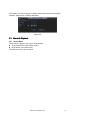
4.3 Search & Playback
4.3.1 Search Menu
There are two ways for you to go to search menu.
Click Pause/Play, in the remote control.
Click search in the main menu.
The search screen is shown below
©2009 IC Realtime, Inc.
32
Figure 4-10.
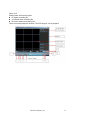
Usually there are three file types:
R: regular recording file.
A: external alarm recording file.
M: motion detection recording file
There are several playback windows. The DVR support 1/4-ch playback
©2009 IC Realtime, Inc.
33
Figure 4-10
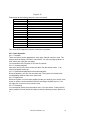
Please refer to the following sheet for more information.
Serial Number
Function
1
Play
2
Backward
3
Stop
4
Slow play
5
Fast play
6
Previous frame
7
Next frame
8
Volume
9
Previous file
10
Next channel
11
Next file
12
Previous channel
13
Search
14
Backup
This series DVR supports 4-channel simultaneous playback.
4.3.2 Basic Operation
4.3.2.1 Playback
There are various search parameters: video type, channel number or time. The
system can max display 128 files in one screen. You can use page up/down, to
view if there are more than one page.
You can double click file name to view the file content.
4.3.2.2 Accurate playback
Input time (h/m/s) in the time column and then click the search button. Your
results will appear at the top.
4.3.2.3 Synchronized playback function when playback
During a playback, you can click a number key. The system can switch to the
corresponding channel video of the same time.
4.3.2.4 Digital zoom
When the system is in full-screen playback mode you can drag your mouse in the
screen to select a section and then left click and drag to digitally zoom in. You
can right click to return to your previous view.
4.3.2.5 File backup
You can backup directly from the search menu. You can draw a √ before the file
name (multiple choices) and click backup to start the backup process. (Button 14
in
©2009 IC Realtime, Inc.
34
Figure 4-10).
4.3.2.6 Slow playback and fast playback
Refer to the following sheet for slow play and fast playback function.
Button
Illustration
Remarks
Frame rate may
Fast play , In playback mode, click this , to
vary due to
switch between various fast play
different DVR
modes such as fast play 1,fast play
2 and more.(Fast play 1 means fast
versions.
play level 1 or not about speed)
Slow play , ► (Or
you can turn the
outer ring counter
clockwise.)
In playback mode, click this , to
switch between various slow play
modes such as slow play 1 or slow
play 2.
In slow playback mode, click this , to
switch between play/pause modes.
In playback mode, you can click 4、Previous/next
and to view previous or next
video in current channel.
4.3.2.7 Fast forward/fast backward and frame by frame playback
Special Functions
Illustration
Remarks
of Shuttle and Jog
Fast forward(outer
In playback mode, turn the shuttle
In forward or
ring clockwise)
(outer ring) clockwise one round to backward mode,
view in fast level 1. Turn it two
double click
rounds to get fast level 2. You can Pause/Play, to get
continue turning it to get different
normal playback.
speeds.
Frame rate may
vary due to
Fast backward(outer In playback mode, turn the shuttle
ring counter
(outer ring) counter clock-wise one different version.
clockwise)
round to play backwards level 1.
Turn it two rounds to get
backwards level 2. You can
continue turning to get different
speeds.
3、Play/Pause►
Manual playback
frame by frame
In playback mode, click play/pause,
slowly turn the jog (inner dial)
clock-wise to view frame by frame,
counter clock wise to view 1 frame
playback.
4.3.2.8 Backward playback and frame by frame playback
©2009 IC Realtime, Inc.
35
Button
Backward play
in playback
interface.
Illustration
In normal playback mode, left click
backward play, system begins backward
playback.
Double click backward play; again,
system goes to pause mode.
Manual
playback frame
by frame.
Click pause n normal playback mode,
slowly turn the jog (inner dial) clock-wise
to view frame by frame, counter clock
wise to view single frame playback.
Remarks
When system is in
backward play or
frame by frame
playback mode,
you can click
play , to go to
normal playback.
Note:
All the operations here (such as playback speed, channel, time and progress)
have relationship with hardware version.
Some series DVRs do not support some functions or playback speeds.
4.3.3 Calendar
Click the calendar icon
in
©2009 IC Realtime, Inc.
36
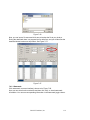
Figure 4-10. This pops up a calendar for your quick reference. Highlighted dates
mean that there are recorded clips. You can click a blue date to view file list.
In Figure 4-11, you can see there are video files in May 13th and 14th. Double
click the date to view file list.
Figure 4-11
4.4 Record Setup (Schedule)
When the system boots up, it is in default 24-hour regular mode. You can set
record type and time in the schedule.
4.4.1 Schedule Menu
In the main menu, from setting to schedule, you can see schedule interface. See
Figure 4-12.
There are three recording types: R-Regular, MD-Motion detection, A- Alarm.
Figure 4-12
4.4.2 Basic Operation
There are a total six periods. See Figure 4-12.
Channel: Select the channel number first. You can select “all” if you want to set
recording for all of your channels.
Week day: There are eight options: ranges from Saturday to Sunday and all.
Record types: There are three types: regular, motion detection (MD) and Alarm.
Please highlight icon
to select the corresponding function.
©2009 IC Realtime, Inc.
37
At the bottom of the menu, there are color bars for your reference. Green stands
for regular recording, yellow stands for motion detection and red stands for alarm
recording.
After completing all the setups please click save button.
4.4.1.1 Quick Setup
This function allows you to copy one channel setup to another. After setting in
channel 1, you can click copy, and turn to channel 2 and then click paste.
You can finish setting for one channel and then click save, or you can finish all
setup and then click save to memorize all the settings.
4.5 Detect
4.5.1 Detect Menu
In the main menu, from Setting to Detect, you can see motion detect interface.
See Figure 4-13. There are three detection types: motion detection, video loss,
camera masking.
4.5.2 Motion Detect
Channel: select the channel you want to configure for motion detection.
Event type: from the dropdown list you can select the detection type.
Record Channel: select the channel to activate recording function once the
detection occurs. Make sure you have set MD record in the schedule menu
(Main Menu->Setting->Schedule
Latch: when detection is complete, the auto trigger continues detecting for a
specified time. The value ranges from 10-300 seconds
Region: Select region from Figure 4-14 and you can specify a motion detection
zone. There are 396(PAL)/330(NTSC) small zones.
Sensitivity: Ranges from 1-6. 1 is the lowest and 6 is the highest level of
sensitivity.
Show message: You can choose to pop up a message to alarm you in the local
screen.
PTZ activation: Here you can set PTZ movement when detection occurs. Such as
go to preset, tour &pattern when there is an alarm. Click “select” - you will see an
interface is shown as in Figure 4-15.
Period: Click set button, you will see an interface is shown as in Figure 4-16.
Here you can assign business days or non-business days. In Figure 4-16, click
set to see the interface shown in Figure 4-17.
Anti-dither: Here you can set anti-dither time.
Alarm output: when alarm occurs, the DVR enables peripheral alarm devices.
Tour: Here you can enable the tour function when alarm occurs. It is a onewindow tour.
Highlight icon
to select the corresponding function. After configurations are made,
choose “save” to save and the system will go back to the previous menu.
Note: In motion detection mode, you can not use the copy/paste feature to set
channel setup. The recorded video option of each channel may not be the same.
©2009 IC Realtime, Inc.
38
In Figure 4-14, you can left click mouse and drag it to set a region for motion
detection. Click Fn to switch between active/passive motion detection. The red grid
squares are your active motion zones – everything else is a passive zone. After
competing setup, please press enter to exit or right click to return to the previous
menu
Figure 4-13
Figure 4-14
©2009 IC Realtime, Inc.
39
Figure 4-15
Figure 4-16
Figure 4-17
4.5.3 Video Loss
In Figure 4-13, select video loss from the type list. You can see an interface is
shown as in Figure 4-18. This function allows you to be informed when video loss
occurs. You can enable alarm output channel and then enable show message
function also.
Channel: select the channel you want to configure for motion detection.
Event type: from the dropdown list you can select the detection type.
©2009 IC Realtime, Inc.
40
Record Channel: select the channel to activate recording function once the
detection occurs. Make sure you have set MD record in the schedule menu
(Main Menu->Setting->Schedule
Latch: when detection is complete, the auto trigger continues detecting for a
specified time. The value ranges from 10-300 seconds
Show message: You can choose to pop up a message to alarm you in the local
screen.
PTZ activation: Here you can set PTZ movement when detection occurs. Such as
go to preset, tour &pattern when there is an alarm. Click “select” you can see an
interface is shown as in Figure 4-15.
Period: Click set button, you can see an interface is shown as in Figure 4-16.
Here you can assign business days or non-business days. In Figure 4-16, click
set to see the interface shown in Figure 4-17.
Anti-dither: Here you can set anti-dither time.
Alarm output: when alarm occurs, the DVR enables peripheral alarm devices.
Tour: Here you can enable the tour function when alarm occurs. It is a onewindow tour. Please go to chapter 5.3.9 Display for tour interval setup.
Figure 4-18
4.5.4 Camera Masking
When someone viciously masks the lens, the system can alert you to guarantee
video continuity or to trigger external peripherals. The camera masking interface
is shown as in Figure 4-19.
Channel: select the channel you want to configure for motion detection.
Event type: from the dropdown list you can select the detection type.
Record Channel: select the channel to activate recording function once the
detection occurs. Make sure you have set MD record in the schedule menu
(Main Menu->Setting->Schedule
©2009 IC Realtime, Inc.
41
Latch: when detection is complete, the auto trigger continues detecting for a
specified time. The value ranges from 10-300 seconds
Show message: You can choose to pop up a message to alarm you in the local
screen.
PTZ activation: Here you can set PTZ movement when detection occurs. Such as
go to preset, tour &pattern when there is an alarm. Click “select” you can see an
interface is shown as in Figure 4-15.
Period: Click set button, you can see an interface is shown as in Figure 4-16.
Here you can assign business days or non-business days. In Figure 4-16, click
set to see the interface shown in Figure 4-17.
Anti-dither: Here you can set anti-dither time.
Alarm output: when alarm occurs, the DVR enables peripheral alarm devices.
Tour: Here you can enable the tour function when alarm occurs. It is a onewindow tour. Please go to chapter 5.3.9 Display for tour interval setup.
Note:
In this interface the copy/paste function is only valid for the same event type. For
example, you can not copy a channel setup in video loss mode to camera
masking mode.
Figure 4-19
4.6 Alarm Setup and Alarm Activation
All alarm devices should be properly connected prior to configuring alarm settings.
4.6.1 Alarm Menu
From the main menu, navigate from Setting then to Alarm. You can see an
interface is shown as in Figure 4-20.
4.6.2 Alarm setup
Alarm interface is shown as below. See Figure 4-20.
©2009 IC Realtime, Inc.
42
Alarm in: Select channel number.
Event type: There are two types: local input/network input.
Type: Normal open or normal close.
PTZ activation: Setup PTZ movement when alarm occurs, such as go to a preset,
tour or pattern when there is an alarm. Click “select” button, you can see an
interface is shown as in Figure 4-21.
Period: Click set button, you can see an interface is shown as in Figure 4-22.
Here you can set business days and non-business days. In Figure 4-22, click set
button, you can see an interface is shown as in Figure 4-23. Here you can set
your own setup for business day and non-business day.
Anti-dither: Here you can set anti-dither time.
Show message: System can provide pop up notifications in the local host screen
if this function is enabled.
Record channel: you can select proper channel to record alarm video (Multiple
choices). At the same time you need to set alarm record in schedule interface
(Main Menu->Setting->Schedule) and select schedule record in manual record
interface (Main Menu->Advance->Manual Record).
Latch: This is where you can set proper delay duration. Value ranges from 10 to
300 seconds. System automatically delays specified seconds in turning off alarm
and activated output after external alarm cancelled.
Tour: Here you can enable tour function when alarm occurs. It is a one-window
tour: Please go to chapter 5.3.9 Display for tour interval setup.
Please highlight icon
to select the corresponding option. After completing all
the setups please click save button, system goes back to the previous menu.
Figure 4-20
©2009 IC Realtime, Inc.
43
Figure 4-21
Figure 4-22
Figure 4-23
4.7 Backup
The DVR supports various backup devices such as CD-RW, DVD drives, USB
backup and network downloads. Here we will introduce a USB backup first. You
can refer to Chapter 7: Web Client Operation for network downloads & backup
operations.
4.7.1 Detect Device
Click backup button, you can see an interface is shown as in Figure 4-24. Here is
for you to view devices information.
©2009 IC Realtime, Inc.
44
Figure 4-24
4.7.1 Backup
Select your desired backup device first, and then specify your channel & time
parameters. Click ‘add’ to start the search. All files matching the search criteria
will populate the list below. The system will automatically calculate the required
and remaining space allotted from the selected device. See Figure 4-25.
The system will only backup files marked with a √ before the channel name. You
can use Fn or cancel to delete √’s after the file serial number.
Click backup when you’re ready to back files to the selected device. There is a
process bar for you reference.
After the backup completed, you can see a dialogue box prompting successful
backup.
.
Figure 4-25
Click start, and the system will begin burning. At the same time, the start button
becomes stop button. You can view the remaining time and process bar at the
bottom left.
©2009 IC Realtime, Inc.
45
See Figure 4-26.
Figure 4-26
Tips:
During the backup process, you can click ESC to exit the current menu; however,
the system will not terminate the backup process.
Note:
When you click stop button during the burning process, there are two conditions
for different devices:
For a CD/DVD burner, the stop function becomes activated immediately and
there will be no data burned.
For a USB device, you will have as much data as processed within the burning
time.
The file name format usually is: SN_CH+channel number+time Y+M+D+H+M+S.
In the file name, the YDM format is the same as you set in general interface.
(Main Menu ->Setting ->General).You can visit our website to view listed CDROM type.
4.8 PTZ Control and Color Setup
Note: All the operations here are based on PELCO D1 protocol.
4.8.1 Cable Connection
Please follow the procedures below to go on cable connection
Connect the dome’s RS485 cable to the DVR’s RS485 port. A is (+)positive. B is
(-) negative
Connect the dome’s video output cable to the DVR’s video input port.
Connect power adapter to the dome.
4.8.2 PTZ Setup
Note: The camera video should be in the current screen. Before setup, please
check the following connections are correct:
PTZ and decoder connection is in place. Decoder address setup is right.
Decoder A (B) line connects with DVR A (B) line.
©2009 IC Realtime, Inc.
46
Boot up the DVR, input user name and password.
In the main menu, click setting, and then click Pan/Tilt Control,. The interface is
shown as in Figure 4-27. Here you can set the following items:
Channel: select the current camera channel.
Protocol: select corresponding PTZ protocol(such as PELCOD)
Address: default address is 1.
Baud rate: select corresponding baud rate. Default value is 9600.
Data bits: select corresponding data bits. Default value is 8.
Stop bits: select corresponding stop bits. Default value is 1.
Parity: there are three options: odd/even/none. Default setup is none.
Figure 4-27
After completing all the setups please click save button.
In single window display mode, right click mouse (or “Fn” on the front panel or
press “Fn” on the remote control) to highlight pan/tilt/zoom sub menu. See Figure
4-28.
Figure 4-28
Click Pan/Tilt/Zoom, the interface is shown as below. See Figure 4-29.
Speed: value ranges fro 1 to 8.
Zoom
Focus
Iris
Click icon and to adjust zoom, focus and iris.
©2009 IC Realtime, Inc.
47
Figure 4-29
In Figure 4-29, click directional arrows (See Figure 4-30) to adjust PTZ position.
There are total 8 directional arrows.
Figure 4-30
4.8.3 3D Intelligent Positioning Key
In the middle of the eight directional arrows, there is a 3D intelligent positioning key.
See Figure 4-31.
Click this key and the system will go back to the single screen mode. Drag the
mouse in the screen to adjust section size. It can realize PTZ automatically.
Figure 4-31
Here is a sheet for you reference.
Name Function
function
key
Zoom
Near
Focus
Near
Iris
close
Shortcut
key
►
Function
key
⊳
function
Shortcut
Key
Far
Far
Open
►
4.9 Preset/
Preset/ Patrol/P
atrol/Pattern
/Pattern/Scan
attern/Scan
In Figure 4-29, click the “set” button. The interface is shown as below. See Figure
4-32.
Here you can set the following items:
Preset
Tour (Patrol)
Pattern
Border
©2009 IC Realtime, Inc.
48
Figure 4-32
In Figure 4-29, click page switch button, the interface is shown as in Figure 4-33.
Here you can activate the following functions:
Preset
Tour (Patrol)
Pattern
Auto scan
Auto pan
Flip
Reset
Page switch
Figure 4-33
Note: The following setups are usually operated in the Figure 4-29,Figure 4-32 and
Figure 4-33 .
4.9.1Preset Setup
In Figure 4-29, use the eight directional arrows to adjust camera to the proper
position.
In Figure 4-32, click preset button and then input the desired preset number. The
interface is shown as in Figure 4-34.
Now you can add this preset to one tour.
©2009 IC Realtime, Inc.
49
Figure 4-34
4.9.2 Activate Preset
In Figure 4-33, input the desired preset number in the No. field and click preset to
activate it.
4.9.3 Patrol setup (Tour Setup)
In Figure 4-32, click patrol. The interface is shown as in Figure 4-35. Input preset
number and add this preset to a patrol (tour). For each patrol (tour), you can input
max 80 presets.
Figure 4-35
4.9.4 Activate Patrol (tour)
In Figure 4-32, input patrol (tour) number in the No. blank and click patrol,
4.9.5 Pattern Setup
In Figure 4-32, click pattern, and then click “begin” to start the pattern’s recording.
The interface is shown as in Figure 4-36. Then you can go to Figure 4-29 to modify
zoom, focus, and iris.
Go back to Figure 4-36 and click “end” button.
Now you can memorize all these operations as pattern 1.
System supports max 255 patterns.
©2009 IC Realtime, Inc.
50
Figure 4-36
4.9.6 Activate Pattern Function
In Figure 4-33, input the desired pattern preset value in the No. field and click pattern
to activate it.
4.9.7 Auto Scan Setup
In Figure 4-32, click border button. You will see an interface is shown as in Figure
4-27.
Go to Figure 4-29. Use the directional arrows to select the camera’s left limit.
Next, go to Figure 4-37 and click left limit.
Repeat the above procedures to set the right limit.
Figure 4-37
4.9.8 Activate Auto Scan
In Figure 4-33 click Auto Scan to begin the auto scan.
Correspondingly, the auto scan button becomes to stop button. Click stop button to
terminate scan operation.
4.10 Flip
In Figure 4-33, click page switch button, you can see an interface is shown as below.
See
Figure 4-38. Here you can set auxiliary functions.
Clicking page switch again, system goes back to Figure 4-29.
©2009 IC Realtime, Inc.
51
Figure 4-38
©2009 IC Realtime, Inc.
52
5 Understanding the Menu:
Menu: Operation and Control
5.1 Menu Tree
This series DVR menu tree is shown as below.
5.2 Main Menu
After you are logged in, the system main menu is shown as below. See Figure 5-1 .
There are a total six icons: Search, Information, Setting, Backup, Advanced and
Shutdown.
Move the cursor to highlight the icon and then left click mouse to enter its sub-menu.
©2009 IC Realtime, Inc.
53
Figure 5-1
5.3 Setting
In the main menu, highlight the setting icon and left click to select.
The system setting menu is shown as below. See Figure 5-2.
Figure 5-2
5.3.1 General
General setup includes the following items. See Figure 5-3.
System time: Set the date and time of the unit.
Date format: there are three types: YYYY-MM-DD: MM-DD-YYYY or DD-MMYYYY.
Date separator: there are three denotations to separate date: dot, line and slash.
DST: Here you can set DST time and date. Enable the DST function and then
click set button. You can see an interface is shown as in Figure 5-4. Here you can
set the start time and end time by setting the corresponding week setup. In Figure
5-4, click date button, you can see an interface is shown as in Figure 5-5. Here
you can set the start time and end time by setting the corresponding date setup.
©2009 IC Realtime, Inc.
54
Time format: there are two types: 24-hour mode or 12-hour mode.
Language: system supports various languages: Chinese (simplified), Chinese
(Traditional), English, Italian, Japanese, French, Spanish (All languages listed
here are optional. Slight difference maybe found in various series.)
HDD full: Here is for you to select working mode when hard disk is full. There are
two options: stop recording or rewrite.
Pack duration: Here is where you specify the duration of recorded files. Default
value is 60 minutes.
DVR No: When you are using one remote control to control several DVRs, you
can give a number to each DVR for your management.
Video standard: There are two formats: NTSC and PAL.
Auto logout: Here is for you to set auto logout interval once login user remains
inactive for a specified time. Value ranges from 0 to 60 minutes.
Note:
Since system time is very important, do not modify time unless there is a must!
After completing all the setups please click save button, system goes back to the
previous menu.
Figure 5-3
Figure 5-4
©2009 IC Realtime, Inc.
55
Figure 5-5
5.3.2 Encode
The encode menu includes the following items. See Figure 5-6.
Note: Some series do not support certain features.
Channel: Select the channel you want.
Compression: The system supports H.264. Or you can select from the dropdown
list.
Resolution: The system supports various resolutions, you can select from the
dropdown list. For this model, we can support D1/CIF.
Bit rate: The system supports two types: CBR and VBR. In VBR mode, you can
set video quality.
Quality: There are six levels ranging from 1 to 6. The sixth level has the highest
image quality.
Frame rate: 1-30 frames per second: 1 f/s,2f/s,3f/s, 6f/s,12f/s,25f/s. (Some series
DVRs only support PAL 25f/s )
Video/audio: you can enable or disable the video/audio.
Overlay: click overlay, you can see an interface is shown as in Figure 5-7.
Cover area (Privacy mask): Here is for you to set window masking regions. You
can drag the mouse to set the proper section size.
Preview/monitor: privacy mask has two types. Preview means the privacy mask
zone can not be viewed by user when system is in preview status. Monitor means
the privacy mask zone can not be view by the user when system is in monitor
status.
Time display: You can select whether the system displays time or not when you
playback.
Channel display: You can select whether the system displays channel number or
not when you playback.
System default setup is:
Channel:1
Compression:H.264
Resolution: CIF
Bit rate: CBR
Quality: 6
Frame rate: 30f/s
Please highlight icon
to select the corresponding function.
©2009 IC Realtime, Inc.
56
Figure 5-6
Figure 5-7
5.3.3 Schedule
Please refer to chapter 4.4 schedule.
5.3.4 RS232
The RS232 interface is shown as below. See Figure 5-8
Function: There are various devices for you to select. The console setting is used
to upgrade the device via a serial connection. The keyboard is for you to use a
special keyboard to control the device.
Baud rate: You can select proper baud rate.
Data bit: You can select proper data bit.
Stop bit: There are three values: 1/1.5/2.
Parity: there are three choices: none/odd/even.
After completing setup, click save button. The system will return to the previous
menu.
©2009 IC Realtime, Inc.
57
Figure 5-8
5.3.5 Network
Here is for you to input network information. See Figure 5-9.
IP address: Here you can specify an IP address.
DHCP: Dynamic Host Configuration – The DVR will lease the IP info from any
DHCP server on the network. When the DHCP function is enabled you can not
modify the IP/Subnet mask /Gateway. If you have not enabled DHCP function you
can modify IP/Subnet mask/Gateway. You would need to disable DHCP function
to view current IP information. Besides, when PPPoE is operating, you can not
modify IP/Subnet mask /Gateway.
TCP port: Default value is 37777. (System server port 37778 is reserved for
network UDP use)
UDP port: Default value is 37778.
HTTP port: Default value is 80.
Max connection: The system supports a maximum of 10 users. 0 means there is
no connection limit.
Transfer mode: Here you can select the priority between fluency/video qualities.
Network download: System can process the downloaded data first if you enable
this function.
After completing setup, click save. The system will return to the previous menu.
©2009 IC Realtime, Inc.
58
Figure 5-9
5.3.5.1 Advanced Setup
The advanced setup interface is shown as in Figure 5-10. Place a check next to
items in order to enable the corresponding function; then double click the item to go
to setup interface.
Figure 5-10
5.3.5.2 IP Filter
The IP Filter interface is shown as in Figure 5-11. You can specify individual IP
addresses to have access to the DVR. System supports a maximum of 64 IP
addresses.
Please note after you enabled this function, only the IP listed below can access
current DVR.
If you disable this function, all IP addresses can access current DVR.
©2009 IC Realtime, Inc.
59
Figure 5-11
5.3.5.3 Multiple Cast Setup
Multiple-cast setup interface is shown as in Figure 5-12.
Figure 5-12
Here you can set a multiple cast group. Please refer to the following sheet for
detailed information.
IP multiple cast group address
-224.0.0.0-239.255.255.255
The higher four-bit of the first byte=”1110”
Reserved local multiple cast group address
-224.0.0.0-224.0.0.255
-TTL=1 When sending out telegraph
-For example
224.0.0.1 All systems in the sub-net
224.0.0.2 All routers in the sub-net
224.0.0.4 DVMRP router
224.0.0.5 OSPF router
224.0.0.13 PIMv2 router
Administrative scoped addressees
-239.0.0.0-239.255.255.255
-Private address space
Like the single broadcast address of RFC1918
Can not be used in Internet transmission
Used for multiple cast broadcast in limited space.
©2009 IC Realtime, Inc.
60
Except the above mentioned addresses of special meaning, you can use other
addresses. For example:
Multiple cast IP: 235.8.8.36
Multiple cast PORT: 3666.
5.3.5.4 PPPoE
The PPPoE interface is shown as in Figure 5-13.
Input “PPPoE name” and “PPPoE password” you get from your ISP (Internet service
provider). Click save then restart the DVR to activate your configuration.
After rebooting, the DVR will connect to the internet automatically. The IP in the
PPPoE is the DVR’s dynamic value. You can then use this IP to access the unit.
Figure 5-13
5.3.5.5 NTP Setup
You will need to install an SNTP server (Such as Absolute Time Server) in your PC
first, or, at least have one running on your network.
NTP setup interface is shown as in Figure 5-14.
Host IP: Input your PC address.
Port: This series DVR supports TCP transmission only. Port default value is 123.
Update interval: minimum value is 15(Unit: minute)
Time zone: select your corresponding time zone here.
Here is a sheet for your time zone setup.
City /Region Name
Time Zone
London
GMT+0
Berlin
GMT+1
Cairo
GMT+2
Moscow
GMT+3
New Deli
GMT+5
Bangkok
GMT+7
Beijing (Hong Kong)
GMT+8
Tokyo
GMT+9
Sydney
GMT+10
Hawaii
GMT-10
Alaska
GMT-9
Pacific Time(P.T)
GMT-8
American Mountain Time(M.T)
GMT-7
American Central Time(C.T)
GMT-6
American Eastern Time(E.T)
GMT-5
Atlantic Time
GMT-4
Brazil
GMT-3
©2009 IC Realtime, Inc.
61
Middle Atlantic Time
GMT-2
Figure 5-14
5.3.5.6 DDNS Setup
The DDNS setup menu is shown as below. See Figure 5-15.
You need a PC with a static IP address in the network. You also need the DDNS
software running on this PC. In other words, this PC is a DNS (domain name server).
In the network DDNS menu, input your PPPoE name you get from you ISP and
server IP (PC with DDNS).
Click save button, system prompts for rebooting to get all setups activated.
After rebooting, open IE and input as below:
http://(DDNS server IP)/(virtual directory name)/webtest.htm
e.g.: http://10.6.2.85/DVR _DDNS/webtest.htm.)
Now you can open DDNSServer web search page.
Figure 5-15
5.3.5.7 Alarm Server
You can configure the alarm in accordance with different alarm protocols.
System can inform the alarm server when alarm occurs. See Figure 5-16.
©2009 IC Realtime, Inc.
62
Figure 5-16
5.3.5.8 FTP
You need to download or buy an FTP utility to establish an FTP server.
Please install Serv-U FTP SERVER first. From “start” -> “program” -> Serv-U FTP
Server -> Serv-U Administator. Now you can set user password and FTP folder.
Please note you need to grant write permissions to the FTP upload user. See Figure
5-17.
Figure 5-17
You can use a PC or FTP login tool to test if the setup is right or not.
For example, you can login user with ZHY to FTP://10.10.7.7 and then test if it can
modify or delete the folder or not. See Figure 5-18.
Figure 5-18
The system also supports the upload of multiple DVRs to one FTP server. You can
create multiple folders under this FTP.
In Figure 5-9, select FTP and then double click mouse. You can see the following
interface. See Figure 5-19.
©2009 IC Realtime, Inc.
63
Figure 5-19
in front of Enable to activate the FTP function.
Please highlight the icon
Now the FTP feature can upload alarm video and motion detection video. Note,
when you are using this function, please make sure the current upload channel is in
motion detection or alarm record status and there is video available.
Here you can input FTP server address, port and etc.
Figure 5-20
File length: upload file length. When the value is larger than the actual file length,
the system will upload the whole file. When this value is smaller than the actual
file length, system only uploads the set length and automatically ignores the left
section.
When interval value is 0, the system will upload all corresponding files.
Period 1 and period 2: you can set two periods: one for each recording type.
System file name is shown as in Figure 5-21.
©2009 IC Realtime, Inc.
64
Figure 5-21
5.3.6 Alarm
Please refer to Chapter 4.6 Alarm Setup and Activation.
5.3.7 Detect
Please refer to Chapter 4.5 Detect.
5.3.8 Pan/Tilt/Zoom
The pan/tilt/zoom setup includes the following items. Please select channel first.
See Figure 5-22.
Protocol: select corresponding PTZ protocol such as PELCOD.
Address: input corresponding PTZ address.
Baud rate: select baud rate.
Data bit: select data bit.
Stop bit: select stop bit.
Parity: there are three options: none/odd/even.
After completing setup, click save. The system will return to the previous menu.
For a detailed setup, please refer to Chapter 4.9 preset/patrol/pattern/scan.
Figure 5-22
5.3.9 Display
The Display setup menu is shown below. See Figure 5-23.
Transparency: Here is for you to adjust the transparency. The value ranges from
128 to 255.
Channel name: Here is for you to modify channel names. Please note all of your
modifications here only apply to the DVR local end. You need to open the web or
client end to refresh channel name.
Time display: You can select to display time or not when the system is in
playback.
Channel display: You can select to channel name or not when the system is in
playback.
©2009 IC Realtime, Inc.
65
Overlay information: System displays some indicator icons on screen for
reference.
Display mode: you can select from the dropdown list: self-adaptive/VGA/TV.
Enable tour: activate tour function.
Interval: Please input proper interval value here. The value ranges from 5-200
seconds. During the tour process, you can use the mouse or press F2 or Shift to
turn on the tour.
Stands for tour enabled,
stands for tour disabled.
Motion tour type: System supports either 1/4 view tour.
Alarm tour type: System supports either 1/4 view tour.
Please highlight icon
to select the corresponding function.
After completing all the setups please click save button, system goes back to the
previous menu.
Figure 5-23
In Figure 5-23, click modify button after channel. You can see an interface is shown
as in Figure 5-24. Please note all your modification here applies to the local display
only. You need to refresh web or client-end to get the latest channel name. System
max support 25-digital character.
©2009 IC Realtime, Inc.
66
Figure 5-24
In tour mode, you can see the following interface. On the right corner, right click
mouse or click shift to control the tour. There are two icons:
enabled and
stands for tour
stands for tour disabled. See Figure 5-25.
Figure 5-25
5.3.10 Default
Here you can restore your system to factory default settings. See Figure 5-26.
Select all
General
Encode
Schedule
RS232
Network
Alarm
Detect
Pan/tilt/zoom
Display
Channel name
Please highlight icon
to select the corresponding function.
After completing all the setups please click save button, system goes back to the
previous menu.
Warning!
System menu color, language, time display mode, video format, and IP address will
not maintain previous setup after default operation!
©2009 IC Realtime, Inc.
67
Figure 5-26
5.4 Search
Search
Please refer to chapter 4.3 Search.
5.5 Advanced
Left click advanced icon in the main window, you will see an interface is shown as in
Figure 5-27. There are total seven submenus: HDD management, alarm output,
abnormity, manual record, account, auto maintain, and TV adjust.
Figure 5-27
5.5.1 HDD Management
Here you can view and manage hard disks. See Figure 5-28.
You can set proper mode for each hard disk from the dropdown list.
After completing all the setups please click save button, system needs to reboot to
get all the modification activated.
©2009 IC Realtime, Inc.
68
Figure 5-28
Click alarm set button, the interface is shown as below. See Figure 5-29. (This
interface is just like the abnormity setup).
Please highlight icon
to select the corresponding function.
You can manually enable one or more alarm setups. Alarm channel number ranges
from 1 to 6. Delay value is from 0 to 240 seconds.
After completing setup, click save. The system will need to reboot to apply the
changes.
Figure 5-29
5.5.2 Abnormity
The Abnormity interface is shown as in Figure 5-30.
©2009 IC Realtime, Inc.
69
Event type: There are several options for event triggers such as disk error, no
disk and etc.
Alarm output: alarm activation output port (multiple choices).
Latch: Here you can set a delay time. The value ranges from 10s-300s. The
system automatically delays the specified seconds in turning off alarm and
activated output after the external alarm ends.
Show message: the system can pop up a message in the local screen to alert
you when an alarm occurs.
Figure 5-30
5.5.3 Alarm Output
Here you can manually configure alarm outputs.
Please highlight icon
to select the corresponding alarm output. See Figure 5-31.
After completing setup, click OK.
Figure 5-31
5.5.4 Manual Record
Please refer to Chapter 4.2.2 manual record.
©2009 IC Realtime, Inc.
70
5.5.5 Account
Here is for the account management console. Here you can:
Add new users
Modify users
Add groups
Modify groups
Modify passwords
For account management, please note:
Accounts are grouped into users and groups. There is no limit to the number of
groups or users.
By default, users are grouped as either admin or user.
The user name and group name can consist of six characters. Each user name
must be unique. There are three default user accounts. Each account’s default
password matches the user name: The “Admin” login has full administrative
rights on the DVR. The “User“ login has viewing and playback rights. Finally,
the “Guest” login allows only live viewing access.
One user can belong to only one group. User rights can not exceed group rights.
Once finished, click save to save your account setup.
Figure 5-32
5.5.6 Auto Maintain
Here you can configure auto-reboot time and the auto-delete of old files. See Figure
5-33.
You can select the options from the dropdown list.
Please click O.K button after you completed the setup.
©2009 IC Realtime, Inc.
71
Figure 5-33
5.5.7 TV Adjust
Here you can adjust the TV output. See Figure 5-34.
Please drag the slider bar to adjust each item.
Please click OK button after you have completed the setup.
Figure 5-34
5.6 Information
Here you can view system information. There are a total of five submenus: HDD
(hard disk information), BPS (data stream statistics), Log and version, and online
user. See Figure 5-35.
Figure 5-35
©2009 IC Realtime, Inc.
72
5.6.1 HDD Information
This menu lists the installed HDD’s as well as the total space, free space, video start
time and status. See Figure 5-36.
Note:
Remove a damaged hard disk before you add a new one.
If there is a hard disk conflict, check weather the hard disk time and system time are
the same. If not, go to “Setting”, and then “General” to modify the system time. At
last, reboot the system to solve this problem.
If a disk is damaged, the system shows as “?”
Figure 5-36
5.6.2 BPS
Here you can view current video data stream (KB/s) and occupied hard disk storage
(MB/h). See Figure 5-37.
Figure 5-37
5.6.3 Log
Here you can view system log file. See Figure 5-38.
©2009 IC Realtime, Inc.
73
Log types include system operation, configuration changes, data management,
alarm event, record operation, and log clear.
Select start time and end time, then click search to view the log files. You can use
page up/down to view the additional files.
Figure 5-38
5.6.4 Version
Here you can view some version information. See Figure 5-39.
Channel
Alarm in
Alarm out
System version:
Build Date
Figure 5-39
5.6.5 Online Users
Here you can manage online users. See Figure 5-40.
You can disconnect one user or block one user if you have the appropriate system
rights.
©2009 IC Realtime, Inc.
74
Figure 5-40
5.7 Exit
Left click exit, you can see a dropdown menu is shown as in Figure 5-41.
Logout menu user: log out menu. You need to input password when you login
the next time.
Restart application: reboot DVR.
Shutdown: system shuts down and turns off power.
Restart system: system begins rebooting.
Switch user: you can use another account to log in.
Figure 5-41
©2009 IC Realtime, Inc.
75
6 Controlling Pan/Tilt/Zoom Cameras
6.1
Go to Pan/Tilt/Zoom
Pan/Tilt/Zoom Menu
In the one-window surveillance mode, right click the mouse (press “fn” in the front
panel or press AUX key in the remote control). The interface is shown as below: See
Figure 6-1.
Figure 6-1
Click Pan/Tilt/Zoom, the interface is shown in Figure 6-2.
Here you can set the following items:
Zoom
Focus
Iris
Click icon and to adjust zoom, focus and Iris.
Figure 6-2
In Figure 6-2, click the directional arrows (See Figure 6-3 ) to adjust the PTZ’s
position. There are total eight directional arrows. (Note: there are only four
directional arrows in DVR front panel.)
Figure 6-3
6.1.1 3D Intelligent Positioning Key
In the middle of the eight directional arrows, there is a 3D intelligent positioning key.
See Figure 6-4 . Click the center to activate this option. The system should now go
back to the single screen mode without the graphical directional pad. Drag the
mouse in the screen to adjust section size.
©2009 IC Realtime, Inc.
76
Figure 6-4
Here is a sheet for you reference.
Name Function
function
key
Zoom
Near
Focus
Near
Iris
Close
Shortcut
key
►
⊳
Function
key
function
Far
Far
Open
Shortcut
key
►
6.2 Preset /Patrol / Pattern /Border
/Border Function
In Figure 6-2 click the set button. The interface is shown as below:
Here you can set the following items:
Preset
Tour (patrol)
Pattern
Border
Figure 6-5
In Figure 6-2, click the page switch button you can see an interface is shown as in
Figure 6-6.
Here you can activate the following functions:
Preset
Tour(Patrol)
Pattern
Auto scan
Auto pan
Flip
Page Switch
©2009 IC Realtime, Inc.
77
Figure 6-6
6.2.1 Preset Setup
Note: The following setups are usually operated in the Figure 6-2, Figure 6-5 and
Figure 6-6.
In Figure 6-2, use the eight directional arrows to adjust the camera to the proper
position you desire.
In Figure 6-5, click preset and input preset number. The interface is shown as in
Figure 6-7.
Add this preset to one patrol number
Figure 6-7
6.2.2 Activate Preset
In Figure 6-6 input your desired preset number in the No. ____, and click preset to
activate it.
6.2.3 Tour Setup
In Figure 6-5, click Patrol button, you can see an interface is shown as in Figure 6-8.
Input preset number and then add this preset to one patrol (tour).
Figure 6-8
©2009 IC Realtime, Inc.
78
6.2.4 Activate Tour
In Figure 6-6, input tour number in the No. ______ and then click patrol (tour) button.
6.2.5 Pattern Setup
In Figure 6-5, click pattern and then click begin to start the pattern recording. The
interface is shown as in Figure 6-9.
Please go to Figure 6-2 to modify zoom, focus, and iris. Go back to Figure 6-9 and
click end button.
You can memorize all these setups as pattern 1.
System supports max 255 different patterns.
Figure 6-9
6.2.6 Activate Pattern Function
In Figure 6-6 input the desired pattern preset mode value in the No. _____, and then
click pattern to activate it.
6.2.7 Border Setup
In Figure 6-5, click border you can see an interface is shown as in Figure 6-10. Go to
Figure 6-2 and use the directional arrows to select the camera’s left limit.
Now go back to Figure 6-10 and click left limit.
Repeat the above procedures to set the right limit.
Figure 6-10
6.2.8 Activate Border Function
In Figure 6-6, click auto scan button, the system begins auto scan. Correspondingly,
the auto scan button becomes to stop button.
Click stop button to terminate scan operation.
6.2.9
Flip
In Figure 6-6, click page switch button, you can see an interface is shown as below.
See
Figure 6-11. Here you can set auxiliary function.
©2009 IC Realtime, Inc.
79
Click page switch button again, system goes back to Figure 6-2.
Figure 6-11
©2009 IC Realtime, Inc.
80
7 WEB CLIENT OPERATION
All the operations listed below are based on a 16-ch DVR. There might be slightly
difference in the interface due to different series.
7.1 Network Connection
Before web client operation, please check the following:
Physical network connection
TCP/IP settings on PC and DVR side. Refer to the network setup (main
menusettingnetwork)
Use the windows command ‘ping ***.***.***.***’(* DVR IP address) to check the
connection. Usually the return TTL value should be less than 255.
The system is compatible with WIN VISTA web control right now, however you
will need to disable user account control. Navigate to StartControl
PanelUser Accounts. Double click user accounts and then disable user
account control. You will need to restart after this.
The system can automatically download the latest web control and the new
version can overwrite the previous one.
If you want to un-install the web control, run uninstall web.bat. Note: before you
un-install, close all web pages; otherwise the un-installation might result in error.
7.2 Login
Begin by launching IE, and input the DVR IP address in the address bar. For
example: if your DVR IP has an IP of 10.10.3.16, then input http:// 10.10.3.16 in IE
address bar. See Figure 7-1
Input your IP
address here.
Figure 7-1
Your browser will prompt you to install “webrec.cab” Click on the information bar,
and choose install. If you can’t download the ActiveX file, modify your security
settings as follows. See Figure 7-2.
©2009 IC Realtime, Inc.
81
Figure 7-2
After installation, you will have the interface shown below. See Figure 7-3.
Input your user name and password. Default factory name is admin and password is
admin. Note: For security reasons, you should modify your password after your first
login.
Figure 7-3
©2009 IC Realtime, Inc.
82
After you logging in, you will see the main window. See Figure 7-6.
This main window can be divided into the following sections.
Section 1: there are five function buttons: setup (chapter 7.3), playback (chapter
7.4), event (chapter 7.5), info (chapter 7.6), log out (chapter 7.7).
Section 2: there are channel number and three function buttons: start dialog,
local play, and refresh.
Section 3: real-time controls for PTZ (chapter 7.2.2), color (chapter 7.2.3) , and
you can also select picture path and record path.
Section 4: real-time monitor window. Note: current preview window is outlined
by a green rectangle.
Section 5: Here you can control the window layout. You can also select video
priority between fluency or real-time.
Supported window layouts include: full screen/1-window/4-window/6window/8-window/9-window/13-window/16-window/20-window/25window/36-window. See Figure 7-4.
Figure 7-4
Preview window switch. The system supports 1/4/8/9/16-window real-time
preview. You will need proper rights to view preview modes.. See Figure 7-5.
Figure 7-5
Section1
Section 3
Section 2
Section 4
Section 5
Figure 7-6
©2009 IC Realtime, Inc.
83
7.2.1 Real-time Monitor
In section 2, select the channel name you want to view. The video will play in the
selected window. For detailed function key information see Figure 7-7.
1 2
3 4 5
6
Figure 7-7
1: Digital zoom: Click this button to enable digital zoom. Now, you can left click
and drag the mouse to select a target. Right click to return.
2: Change show mode: resize or switch to full screen mode.
3: Local record: When you click local record, the system will begin recording to
your PC, and this button will become highlighted. You can go to system local
record to set video file path.
4: Capture picture: You can take a snapshot of important video. All images are
stored in the system client folder \download\picture (default).
5: Audio: Turn on or off audio. (It has no relationship with recording the audio)
6: Close video.
Refer to Figure 7-8 for main stream information.
Figure 7-8
Refresh
You can use this button to refresh camera list.
©2009 IC Realtime, Inc.
84
Start Dialogue
You can click this button to enable two way talking.
Local Play
Click local play, and you will be prompted to open a saved video file. See Figure 7-9.
Figure 7-9
7.2.2 PTZ
Before operating a PTZ, make sure you have configured the PTZ protocol, address,
and Baud Rate. (Refer to chapter 7.3.2 Setting Pan/Tilt/Zoom).
Click the PTZ button, you will see the interface shown in Figure 7-10 .
You can click this icon to
display or hide the PTZ
control platform.
Figure 7-10
7.2.2.1 Direction Key
In Figure 7-10, there are eight direction keys.
©2009 IC Realtime, Inc.
85
7.2.2.2 Speed
System supports eight-level speed. You can select from the dropdown list. Speed 2
is faster than speed 1.
7.2.2.3 Zoom/Focus/Iris
Here is a sheet for reference.
Name
Function
key
Function
Function
key
Function
Zoom
Near
Far
Focus
Near
Far
Iris
close
Open
Click the triangle icon in Figure 7-10, you will see the following interface. See Figure
7-11.
Figure 7-11
In Figure 7-11, click PTZ set, you will see the following interface. See Figure 7-12.
©2009 IC Realtime, Inc.
86
Figure 7-12
7.2.2.4 Auto Scan
In Figure 7-12, move the camera to your desired location and then click left limit.
Next, move the camera again and then click right limit, to set a right limit.
7.2.2.5 Pattern
In Figure 7-12, you can input pattern value and then click start record, to trace PTZ
movement. Go back to Figure 7-11 to begin camera operation. Once finished, you
can click stop record. Now you have set one pattern.
7.2.2.6 Preset
In Figure 7-12, move the camera to your desired location and then input a preset
value. Click add to set this as a preset location.
7.2.2.7 Auto tour
In Figure 7-12, input an auto tour value and a preset value. Click add to set the
preset in the tour.
By repeating the above procedures you can add more presets in one tour.
7.2.2.8 Assistant
You can select the assistant item from the dropdown list. See Figure 7-13.
©2009 IC Realtime, Inc.
87
Figure 7-13
7.2.3 Color
Click color, in section 3, the interface is shown in Figure 7-14.
Here you can select one channel and then adjust its brightness, contrast, hue and
saturation. (The selected channel has a green border).
Alternatively, you can click default, to use the default color setup.
Figure 7-14
7.2.4 Picture Path and Record Path
Click more, in Figure 7-14, and you will see the interface shown in Figure 7-15.
Figure 7-15
©2009 IC Realtime, Inc.
88
Click picture path to choose a directory for snapshots, as in Figure 7-16.
Figure 7-16
Click record path to choose a directory for locally recorded video, as in Figure 7-17.
Figure 7-17
Clicking reboot will prompt you to reboot the system. Click OK to continue.
7.2.5 Menu Interface Switch
Put your mouse on the PTZ control bar until you see the following icon. See Figure
7-18.
Figure 7-18
Left click your mouse and then drag it to the channel control status bar. You will
notice the two menus interface switched positions. See Figure 7-19. You can
compare the following interface with Figure 7-6.
©2009 IC Realtime, Inc.
89
Figure 7-19
7.3 Setup
In the main window, click Setup; you will see an interface as shown in Figure 7-20.
Figure 7-20
7.3.1 System Information
Click device configuration, and you will see the following interface. See Figure 7-21.
©2009 IC Realtime, Inc.
90
Figure 7-21
Version
Click version, and you will see corresponding HDD information for reference. See
Figure 7-22.
Figure 7-22
HDD Information
Here you can view the number of HDD’s, HDD status, total volume and free space.
See Figure 7-23.
©2009 IC Realtime, Inc.
91
Figure 7-23
Log
Click log, you will see an interface as shown in Figure 7-24. Here you can view
current device log information, and filter these results using the ‘Type’ drop-down.
Figure 7-24
7.3.2 Setting
Setting includes the following items:
General
Encode setup
Schedule
RS232
Network
MUL-DDNS
FTP
Alarm setup
Detect
Pan/Tilt/Zoom
Tool
Note: setups for different device series may vary. Refer to the corresponding user’s
manual.
General
General interface is shown as in Figure 7-25.
System time: This is where you can modify the system time. click ‘Save’ after
your changes
Date format: Here you can select the date format from the dropdown list.
Data separator: select separator such as – or /.
©2009 IC Realtime, Inc.
92
Time format: there are two options: 24-H and 12-H.
HDD full: there are two options: stop recording or overwrite the previous files
when HDD is full.
Pack duration: Here you can select file intervals. Default setup is 60 minutes.
Device No.: when you are using one remote control to manage multiple DVRs,
you can give these DVRs unique addresses. Press RC, on your remote control
and then input the correct device number, now you can control that respective
DVR now.
Video standard: NTSC. (for your reference only)
Figure 7-25
Encode
Encode setup includes the following items. See Figure 7-26.
Here you can select
Channel: This is where you can select a channel.
Channel name: Modify channel name.
Data stream: Regular and extra data stream.
AV enable: Video/Audio. System only displays video by default. You need to
manually enable audio function.
Bit rate: There are two options: CBR and VBR. You can only set video quality in
VBR mode.
Frame rate: The value ranges from 1f/s to 25f/s (PAL) and 1f/s to 30f/s (NTSC).
Compression: There is one option: H.264
Resolution: D1/HD1/DCIF/CIF
Quality: The value ranges from 1 to 6. The level 6 is the best video quality.
©2009 IC Realtime, Inc.
93
Figure 7-26
Schedule
Schedule includes the following interface. See Figure 7-27.
When the DVR boots for the first time, it is already set for 24 hour, continuous
recording. In this interface you can set a recording type, recording time and periods.
Record types includes regular record(R), motion detection (MD) and alarm(A).
Channel: select the channel number you desire.
Week: you can select from the dropdown list.
Prerecord: system can record the three to five seconds video before activating
the record operation into the file.(Depends on data size)
Period: There are six periods for you to define. Click set, next to the
corresponding period. See Figure 7-28. note The setup here is based on a 24
hour cycle. E.g. 00.00 to 24.00.
©2009 IC Realtime, Inc.
94
Figure 7-27
Figure 7-28
Tip:
After you finished setup for one channel, you can click “save as”, which will pop up
the following interface. See Figure 7-29.Now you can copy one channels setup to
additional channels.
©2009 IC Realtime, Inc.
95
Figure 7-29
Network
Network interface is shown as in Figure 7-30.
This interface includes the following items:
Max: Here you can set the max number of connections. The value ranges from 0 to
10. 0 means no network connections will be allowed.
TCP port: default setup is 37777. Note port 37778 is for UDP traffic use only.
HTTP port: default setup is 80.
Transfer: Here you can select the priority between fluency/latency qualities.
Enable PPPoE
Select ‘PPPoE’ under the service type to enable PPPoE function, and then input
“PPPoE name” and “PPPoE password” you get from your ISP (Internet service
provider). See Figure 7-30.
Once finished, click save. You will need to restart to activate your configuration.
After rebooting, the DVR will connect to the internet automatically. The IP displayed
in the IP address item is the public IP address. You can use client-end software to
visit current IP now.
Figure 7-30
©2009 IC Realtime, Inc.
96
Enable DDNS
The DDNS setup menu is pictured below. See Figure 5-15.
You will need a PC with a static IP address on the network. You also need the DDNS
software running on this PC. In other words, this PC is a DNS (domain name server).
In the network DDNS menu, input your PPPoE name you get from you ISP and
server IP (PC with DDNS).
Click the save button, the system will prompt you to reboot.
After rebooting, open IE and input the following:
http://(DDNS server IP)/(virtual directory name)/webtest.htm
e.g.: http://10.6.2.85/DVR _DDNS/webtest.htm.)
Now you can open the DDNSServer web search page.
Figure 7-31
RS232
RS232 includes the following items. See Figure 7-32.
Function: There are various devices for you to select. The console setting is used
to upgrade the device via a serial connection. The keyboard setting is for a
special keyboard to control the device.
Baud rate: You can select proper baud rate.
Data bit: You can select proper data bit.
Stop bit: There are three values: 1/1.5/2.
Parity: there are three choices: none/odd/even.
©2009 IC Realtime, Inc.
97
Figure 7-32
Multi-DDNS
Here you can select a DDNS type to run updates with. See Figure 7-33.
Figure 7-33
FTP
©2009 IC Realtime, Inc.
98
After completing all required setup for the FTP server, the system will upload
scheduled data to the specified FTP server regularly.
In Figure 7-34, you need to input the FTP server address, port, log in user name and
password. Also, be sure to specify the destination directory to save files.
File length: upload file length. When the value is larger than the actual file length,
the system will upload the whole file. When this value is smaller than the actual
file length, system only uploads the set length and automatically ignores the
remaining section.
When interval value is 0, the system will upload all corresponding files.
Time period: Click set, you will see an interface as in Figure 7-35. You can check
the box to select the file type. System supports multiple choices.
Figure 7-34
Figure 7-35
©2009 IC Realtime, Inc.
99
Alarm
Note before alarm setup, you will need to properly connect alarm input and output
device, send address and receive address. Click save, confirm current setup.
Alarm setup includes the following items. See Figure 7-36.
Alarm in: Select channel number.
Event type: There are two types: local input/network input.
Type: Normal open or normal close.
PTZ activation: PTZ activation: Here, you can relate a PTZ preset to a detection
event. PTZ presets include functions such as go to a preset location, being a tour
or pattern, etc. Click “select”, and you will see an interface as shown in Figure
4-21.
Period: Click the set button, and you will see an interface as shown in Figure 7-36.
Here you can set business days and non-business days.
Show message: the system can provide pop up notifications on the local screen if
this function is enabled.
Record channel: you can select any channel to record alarm video (or multiple
channels). Make sure alarm recording is configured in the schedule menu (Main
MenuSettingSchedule). Also be sure to select schedule record in the manual
record menu(Main MenuAdvanceManual Record).
Latch: when detection is complete, the auto trigger continues detecting for a
specified time. The value ranges from 10-300 seconds.
Tour: Here you can enable the tour function once an alarm occurs. It is a onewindow tour (full-screen): Please go to chapter 5.3.9 Display for tour interval
setup.
Figure 7-36
©2009 IC Realtime, Inc.
100
Figure 7-37
Detect
Detect interface is shown as in Figure 7-38.
Here includes the following items:
Channel: Select a channel from the dropdown list.
Type: There are three detection types: Motion Detection/Video loss/Camera
mask detection.
Record channel: Here you need to select a channel to record when the event
channel (selected above) has any type of detection (Note: if you do not specify a
record channel, it will not record the event at all). Make sure you have set MD
recording in the schedule interface (Main Menu->Setting->Schedule) and also be
sure your manual record setting is set to schedule. (Main Menu->Advanced>Manual Record)
Period: This is where you can set a secondary record period. Note: this will not
take precedence over the original schedule. Click set, you will see an interface
as shown in Figure 7-39. In Figure 7-39, click time set, you can see an interface
is shown as in Figure 7-40. Here you can set time period.
Sensitivity: There are six levels. The sixth level has the highest sensitivity.
Region: This option is used to set the motion detection zones. The interface is
shown as in Figure 7-41. There are 330 zones (22*15). Double right click your
mouse and you can go to a full-screen display mode. Remember to click OK, in
Figure 7-41 to save your motion detection zone setup.
Alarm output: Here you can select activated external peripheral devices when
alarms occur.
Show message. System can alert you on the local screen if you enabled this
function.
Tour: Here you can enable the tour function when an alarm occurs in the
corresponding channel. The system supports multiple-window tours. Go to
chapter 5.3.9 Display for tour interval setup.
PTZ activation: Click set; you will see an interface as shown in Figure 7-42. The
system can go to a corresponding preset when the alarm occurs.
©2009 IC Realtime, Inc.
101
Figure 7-38
Figure 7-39
©2009 IC Realtime, Inc.
102
Figure 7-40
Figure 7-41
Figure 7-42
©2009 IC Realtime, Inc.
103
Pan/Tilt/Zoom
Pan/Tilt/Zoom interface is shown as in Figure 7-43.
Note: Ensure you have assigned your dome and address at the camera, and all
physical connections are correct.
Channel: Select the channel that has your PTZ video.
Protocol: Select the corresponding dome protocol.(such as Pelco)
Address: Set corresponding dome address. Default value is 8. Note: your setup
here needs to correspond with your dome address; otherwise you can not control
the speed dome.
Baud rate: Select the dome baud rate. Default setup is 9600.
Data bit: Default setup is 8.
Stop bit: Default setup is 1.
Parity: Default setup is none.
Figure 7-43
Tool
Here you can export or import configuration information. See Figure 7-44.
Save configuration data: Click export config, to save the current setup as a .CFG file.
See Figure 7-45.
Load configuration data: Click import config, to load a .CFG setup file.
©2009 IC Realtime, Inc.
104
Figure 7-44
Figure 7-45
7.3.2.1 Advanced
Advanced includes the following items. See Figure 7-46.
Account
Record control
HDD management
Video matrix
Snap & watermark
Auto maintain
Account
Account interface is shown as in Figure 7-46. Here you can add/delete users,
add/delete groups, modify user or group rights, modify users passwords.
©2009 IC Realtime, Inc.
105
Figure 7-46
To add a group, click add group, and you will see the following interface. See Figure
7-47.
Here you can add one new group, and then select corresponding rights for the users
contained within this group.
©2009 IC Realtime, Inc.
106
Figure 7-47
To add a user, click add user, and you will see the following interface. See Figure
7-48.
Here you can input a new username and password, and also select corresponding
rights. Note: Your user and pass have a max limit of 6 characters and are case
sensitive!
Also note that user permissions cannot exceed the group permissions which they are
a part of.
©2009 IC Realtime, Inc.
107
Figure 7-48
Record Control
Record control interface is shown as in Figure 7-49.
Record control: Here you can adjust the record state for a corresponding channel.
Alarm output channel: Here you can select an alarm output channel to trigger. The
DVR output channel can not support a large overload (It must be less than 1A). Too
heavy of a current may result in relay damage. Use contactor if necessary.
©2009 IC Realtime, Inc.
108
Figure 7-49
HDD management
Select the HDD first, and then you can see the items on your right have become
enabled. You can check the corresponding option here. See Figure 7-50.
After you have completed setup, click control HDD – you will see the DVR restart
itself.
©2009 IC Realtime, Inc.
109
Figure 7-50
Auto maintenance
Auto maintenance interface is shown as in Figure 7-51. Here you can enable/disable
auto reboot or the auto deletion of old files. The DVR needs to support this operation
to function properly.
©2009 IC Realtime, Inc.
110
Figure 7-51
Video Matrix
Video matrix interface is shown as in Figure 7-52. The DVR needs to support this
function to work properly. From this menu, you are able to choose certain channels
that you wish to be displayed in a sequential fashion and assign them to a specified
matrix output.
Figure 7-52
Snap & Watermark
Snap & watermark interface is shown as in Figure 7-53. The DVR needs to support
this function to work properly.
©2009 IC Realtime, Inc.
111
Figure 7-53
7.4 Playback
Here you can specify a video type, channel number and a time to search for desired
files you wish to playback.
Click playback, the interface is shown as in Figure 7-54
Once you’ve chosen a time, date, and channel, click on ‘search’. The results will
appear as in Figure 7-54.
Use page up/down key to view the search results.
Double click the file name to start the playback.
Figure 7-54
©2009 IC Realtime, Inc.
112
In the search result interface, you can select one or more files to download to your
local PC.
The playback bar is shown as below. See Figure 7-55.
1: Play
2: Pause
3: Stop
4: Slow play
5: Fast play
Figure 7-55
7.4.1 Download
Select one or more files you want to download and then click download. The System
will pop up a dialogue box asking you to specify a destination directory. See Figure
7-56.
©2009 IC Realtime, Inc.
113
Figure 7-56
Now, you can input a file name and click save to backup the file to your local pc.
During the download, there is a progress bar for reference, and you will also see the
download button becomes a stop button. See Figure 7-57.
Figure 7-57
7.4.2 Watermark
Click watermark, to see an interface is shown as in Figure 7-58.
Here you can select local recorded file and then click verify, to check watermark
information. You can see corresponding information in the watermark juggle column.
©2009 IC Realtime, Inc.
114
Figure 7-58
7.5 Event
Here you can set alarm type and alarm prompt audio file. See Figure 7-59.
Figure 7-59
7.6 Info
Click info to view current web client information. See Figure 7-60.
©2009 IC Realtime, Inc.
115
Figure 7-60
7.7 Log out
Click log out and the system will go back to the log in interface. See Figure 7-61.
Figure 7-61
7.8 UnUn-install Web Control
You can use web un-install tool “uninstall web.bat” to un-install web control.
Note, before you un-install, close all web pages first. Otherwise the uninstallation may result in error.
©2009 IC Realtime, Inc.
116
8 Enterprise Professional
Professional Surveillance System
In this chapter, we introduce how to add devices and how to enable monitoring
function using the client software. For detailed operation, refer to enterprise
professional surveillance system user’s manual.
8.1 Log in
Double click the enterprise professional surveillance platform icon (
)from your
desktop. If it is your first time using the software, you will be prompted to choose a
language. See Figure 8-1.
Figure 8-1
After selecting a language, click ok to proceed to the login screen. Here you can
input a user name and password to log in to your selected server. The log in
interface is shown as in Figure 8-2.
If it is your first time to use the system, click on ‘add’ to add your device. The
defaulted central control server is named ‘Local’.
System default username and password are both admin.
Note: For security reasons, we recommend you modify the password after your first
login.
©2009 IC Realtime, Inc.
117
Figure 8-2
8.2 Add New Device
After successfully logging in, we need to create a new connection for your DVR.
Click Device Management from the icon group towards the right side, above the
device list. Add a new organization first by clicking the add button on the left hand
side. Now, click add under the device list column to add in the host information of
the DVR you wish to connect to. Once finished, select ‘save’ in the upper right part
of your screen. For more information about this operation and more about this
software, please refer to its own manual.
©2009 IC Realtime, Inc.
118
©2009 IC Realtime, Inc.
119
8.3 Viewing Live Cameras
After successfully creating a new connection for the DVR, select the device and then
click connect/disconnect button(
).
Select the channel you wan to view, click connect/disconnect, (
) again.
Section 5
Section 1
Section 2
Section 6
Section 3
Section 4
Figure 8-3
There are total six sections:
Section 1: There are eight function keys: monitor, E-map, record, save, alarm,
configuration, log and system.
Section 2: This is where you can view channel video.
Section 3: This is where you can select display mode. System supports various
display modes. HD item is for you to select priority between network latency and
video fluency.
Section 4: This is where you can view current help information.
Section 5: Here is the display for data flux and CPU status.
Section 6: There are four function buttons: PTZ, color, device, and plan. For
best performance, we recommend resolution 1024*768.
Select a device name and then click connect/disconnect, you will connect to the
current selected DVR. You will notice the red-cross below the name disappeared.
Select a window on you left side (Section-2) and then double click the channel name
on you right hand (Section-6), you will notice the corresponding video in the
highlighted window.
Please refer to Figure 8-4 for connection/disconnection information.
©2009 IC Realtime, Inc.
120
Connected channel
Disconnected channel
Figure 8-4
.
Figure 8-5
Add organization structure
Add device
©2009 IC Realtime, Inc.
121
9 RS232 Operation
9.1 Network Connection
Before serial port operation, connect the matrix device with the DVR through the
RS232 port. Now, set the DVR’s serial port protocol to the corresponding matrix
device protocol.
Note: Contact your local retailer to confirm whether the DVR supports matrix protocol
or not.
9.2 Keyboard
The control keyboard is very convenient for multi-DVR control, menu options and
PTZ control. Select keyboard control from the system setting
RS232
function,
and then set the corresponding baud rate. Connect the DVR RS232 port to the
converters DSub 25-pin RS232 port, and finally specify proper control addresses for
all connected DVRs (Navigate from Main MenuSettingsGeneral). Now you are
able to input the DVR control address and use the keyboard keys to control menu
items, or any PTZ. See Figure 9-1.
Note:The keyboard works only when ACT light is on.
Figure 9-1
©2009 IC Realtime, Inc.
122
10 FAQ
1. DVR does not boot up properly.
These are the possibilities:
Input power is incorrect.
The power cord is incorrectly seated.
Power switch is damaged.
HDD malfunction or something wrong with HDD ribbon.
Seagate DB35.1,DB35.2,SV35 or Maxtor 17-g has compatibility problem.
Upgrade to the latest version to solve this problem.
Front panel circuit board is damaged.
Main board is damaged.
2. DVR often automatically shuts down or stops running.
These are the possibilities:
Input voltage is not stable or it is too low.
HDD malfunction or something wrong with the ribbon cable.
The working environment is too harsh. It’s either operating in too cold or too
hot of an area.
Accumulation of too much dust in the unit.
Hardware malfunction.
3. The system can not detect hard disk.
These are the possibilities:
HDD is broken. Physically or logically damaged.
HDD ribbon is damaged.
HDD cable connection or power connection is loose.
4. There is no video seen whether it is one-channel, multiple-channel or allchannel outputs.
These are the possibilities:
Check all video connections.
There is either no video input signal or it is too weak.
Check if privacy mask setup is turned on for certain channels.
Check for indicator icons on screen. A lock icon represents no right to view,
and a question mark represents no video signal.
DVR hardware malfunction.
5. Video output is distorted.
These are the possibilities:
Use only one primary output at a time. Either the VGA output or the first
composite output.
The DVR and monitor resistance are not compatible.
Video transmission is too long and may be degrading the signal.
The monitor’s color or brightness is not correctly setup.
©2009 IC Realtime, Inc.
123
6. Can not search local records.
These are the possibilities:
HDD ribbon is loose or damaged.
HDD is physically or logically damaged.
The recorded file has been overwritten.
Record function has been disabled.
7. Video is distorted when searching local records.
These are the possibilities:
Video quality setup is too low.
There is a mosaic in full screen. Restart the DVR to solve this problem.
HDD data ribbon malfunction.
HDD malfunction.
DVR hardware malfunction.
8. There is no audio when monitoring. (Live/Playback)
These are the possibilities:
Audio inputs could be loose.
Audio device could have incorrect power.
Audio cable is damaged.
DVR hardware malfunctions.
9. There is audio when monitoring but there is no audio with system playback.
These are the possibilities:
Setup is incorrect. Enable audio recording from the Encode menu.
10. Time display is not correct.
These are the possibilities:
Setup is incorrect. Adjust the current time from the General menu.
CMOS battery failing or depleted. Replace with a CR-2032 style battery.
11. DVR can not control PTZ.
These are the possibilities:
PTZ control setup, connection or installation is incorrect.
PTZ dome setup is incorrect.
PTZ ID and DVR control address don’t match. (Change in
SettingsPan/Tilt/Zoom)
When there are several decoders, add 120 Ohm between the PTZ decoder
A/B cables furthest end to delete the feedback or impedance. Otherwise the
PTZ control will be unstable.
The distance is too far for data communication.
12. Motion detection function does not work.
These are the possibilities:
Period setup is incorrect.
©2009 IC Realtime, Inc.
124
Motion detection zone masking setup is incorrect.
Sensitivity is too low.
13. Can not log in to client-end or web.
These are the possibilities:
Windows 2000 or above are the only supported operating systems.
ActiveX control has been disabled.
DX8.1 or higher is required. Upgrade display card driver to the newest
available.
Network connection error.
Physical network setup error.
Password or user name is invalid.
Client-end is incompatible with the DVR unit.
14. There is only mosaic. No video when preview or playback file remotely.
These are the possibilities:
Network latency is not good.
Client-end resources are limited.
There is privacy mask or channel protection setup.
Current user has no right to monitor.
DVR local video output quality is poor.
15. Network connection is not stable.
These are the possibilities:
The network connection itself is unstable.
IP address conflict.
MAC address conflict.
PC or DVR network card is bad.
16. Burn error /USB backup error.
These are the possibilities:
System is using too much CPU resources. Stop recording first and then
begin backup.
Data amount exceeds backup device capacity. You will receive “Not enough
space!”.
Backup device is not compatible.
Backup device is damaged.
17. Keyboard can not control DVR.
These are the possibilities:
DVR serial port connection is incorrect.
Address is not correctly setup with either the DVR or the keyboard.
When there are several converters, the power supply may not be sufficient.
Transmission distance is too far.
©2009 IC Realtime, Inc.
125
18. Alarm signal can not be disarmed.
These are the possibilities:
Alarm setup is incorrect.
Alarm output has been triggered manually.
Input device error or connection is not correct. Check all terminated
connections.
19. Alarm function can not be armed.
These are the possibilities:
Alarm setup is incorrect.
Alarm cable connection is not properly seated in the respective terminals.
Alarm input signal is incorrect.
There are two loops connected to one alarm device. Correct the loop.
20. The Remote control does not work.
These are the possibilities:
Remote control address is not correct. Press ‘RC’ on the remote, and type
the default address (8)
Distance is too far or control angle is too narrow.
Remote control battery power is low.
Either the remote control is damaged or the DVR front panel is damaged.
21. Record storage period is not enough.
These are the possibilities:
Camera quality is too low. Lens is dirty. Camera is installed against the light.
Camera aperture setup is not correct.
HDD capacity is not enough. Add additional hard drive space.
HDD is damaged.
22. Can not playback the downloaded file.
These are the possibilities:
There is no media player. Refer to our support page to download the newest
version of media player.
Make sure you have the newest graphical driver issued to your video card.
There is no DivX503Bundle.exe control (CODEC) when you play the file
converted to an AVI file via your defaulted media player.
No DivX503Bundle.exe or ffdshow-2004 1012 .exe in Windows XP OS.
23. Lost local menu operation password or network password
Contact your local service engineer or our sales person for help. We can guide you
to solve this problem. Only authorized vendors will be able to receive help on this
topic.
Slight difference may be found in user interface. All the designs and software
here are subject to change without prior written notice.
©2009 IC Realtime, Inc.
126
Appendix A HDD Capacity Calculation
Calculate total capacity needed by each DVR according to video recording (video
recording type and video file storage time).
Step 1: According to Formula (1) to calculate storage capacity qi that is the capacity
of each channel needed for each hour, unit Mbyte.
qi = d i ÷ 8 × 3600 ÷ 1024
(1)
In the formula: d i means the bit rate, unit Kbit/s
Step 2: After video time requirement is confirmed, according to Formula (2) to
calculate the storage capacity mi , which is storage of each channel needed unit
Mbyte.
mi = qi × hi × Di
(2)
In the formula:
hi means the recording time for each day (hour)
Di means number of days for which the video shall
be kept
Step 3: According to Formula (3) to calculate total capacity (accumulation) qT that is
needed for all channels in the DVR during scheduled video recording.
c
(3)
qT = ∑ mi
i =1
In the formula: c means total number of channels in one
DVR
Step 4: According to Formula (4) to calculate total capacity (accumulation) qT that is
needed for all channels in DVR during alarm video recording (including motion
detection).
c
qT = ∑ mi ×a%
(4)
i =1
In the formula:a% means alarm occurrence rate
©2009 IC Realtime, Inc.
127
Appendix B Compatible USB Drive List
NOTE: upgrade the DVR firmware to latest version to ensure the accuracy of the
table below. If you use the USB drive, confirm the format FAT or FAT32.
Manufacturer
Model
Capacity
Sandisk
Cruzer Micro
512M
Sandisk
Cruzer Micro
1G
Sandisk
Cruzer Micro
2G
Sandisk
Cruzer Freedom
256M
Sandisk
Cruzer Freedom
512M
Sandisk
Cruzer Freedom
1G
Sandisk
Cruzer Freedom
2G
Kingston
1G
DataTraveler Ⅱ
Kingston
2G
DataTraveler Ⅱ
Kingston
DataTraveler
1G
Kingston
DataTraveler
2G
Maxell
USB Flash Stick
128M
Maxell
USB Flash Stick
256M
Maxell
USB Flash Stick
512M
Maxell
USB Flash Stick
1G
Maxell
USB Flash Stick
2G
Kingax
Super Stick
128M
Kingax
Super Stick
256M
Kingax
Super Stick
512M
Kingax
Super Stick
1G
Kingax
Super Stick
2G
Netac
U210
128M
Netac
U210
256M
Netac
U210
512M
Netac
U210
1G
Netac
U210
2G
Teclast
Ti Cool
128M
Teclast
Ti Cool
256M
Teclast
Ti Cool
512M
Teclast
Ti Cool
1G
Teclast
Ti Cool
2G
©2009 IC Realtime, Inc.
128
Appendix C Compatible CD/DVD Burner List
NOTE: upgrade the DVR firmware to latest version to ensure the accuracy of the
table below. And you can use the USB cable with the model recommended to set
USB burner.
Manufacturer
Model
Interface
Type
Sony
DRU-835A
IDE
DVD-RW
Sony
DW-Q120A
IDE
DVD-RW
Sony
DW-G120A
IDE
DVD-RW
Sony
CRX-230AE
IDE
CD-RW
Sony
CRX-320A
IDE
CD-RW
Sony
CRX-225E
IDE
CD-RW
BenQ
DW2000
IDE
DVD-RW
BenQ
DW1670
IDE
DVD-RW
BenQ
DW1650
IDE
DVD-RW
BenQ
DW1640
IDE
DVD-RW
BenQ
5232W
IDE
CD-RW
Samsung
TS-H652M
IDE
DVD-RW
LG
GH20NS10
SATA
DVD-RW
PIONEER
DVR-212D
SATA
DVD-RW
Sony
AW-G170S
SATA
DVD-RW
Samsung
TS-H653A
SATA
DVD-RW
Panasonic
SW-9588-C
SATA
DVD-RW
Sony
DRX-S50U
USB
DVD-RW
BenQ
5232WI
USB
DVD-RW
©2009 IC Realtime, Inc.
129
Appendix D Compatible SATA HDD List
NOTE: upgrade the DVR firmware to latest version to ensure the accuracy of the
table below. And SATA HDD should be used for the DVR with SATA port.
Manufacturer
Series
Model
Capacity
Type
Seagate
Barracuda.10
ST3750640AS
750G
SATA
Seagate
Barracuda.10
ST3500630AS
500G
SATA
Seagate
Barracuda.10
ST3400620AS
400G
SATA
Seagate
Barracuda.10
ST3320620AS
320G
SATA
Seagate
Barracuda.10
ST3250620AS
250G
SATA
Seagate
Barracuda.10
ST3250820AS
250G
SATA
Seagate
Barracuda.10
ST3160815AS
160G
SATA
Seagate
Barracuda.10
ST380815AS
80G
SATA
Seagate
Barracuda.9
ST3160811AS
160G
SATA
Seagate
Barracuda.9
ST3120811AS
120G
SATA
Seagate
Barracuda.9
ST380811AS
80
SATA
Seagate
Barracuda.9
ST380211AS
80G
SATA
Seagate
Barracuda.11
ST3750330AS 750G
SATA
Seagate
Barracuda.11
ST3500320AS
500G
SATA
160/250/500/
Hitachi
Deskstar
SV3.5 Series
SATA
750/1TB
Maxtor
DiamondMax 20
STM3320820AS 320G
SATA
Maxtor
DiamondMax 20
STM3250820AS 250G
SATA
Maxtor
DiamondMax 21
STM3160211AS 160G
SATA
Maxtor
DiamondMax 21
STM380211AS 80G
SATA
Maxtor
DiamondMax 21
STM340211AS 40G
SATA
Western Digital
Caviar SE
WD3200JD
320G
SATA
Western Digital
Caviar SE
WD3000JD
300G
SATA
Western Digital
Caviar SE
WD2500JS
250G
SATA
Western Digital
Caviar SE
WD2000JD
200G
SATA
Western Digital
Caviar SE
WD1600JD
160G
SATA
Western Digital
Caviar SE
WD1600JS
160G
SATA
Western Digital
Caviar SE
WD1200JS
120G
SATA
Western Digital
Caviar SE
WD800JD
80G
SATA
Western Digital
Caviar
WD1600AABS
160G
SATA
Western Digital
Caviar
WD800BD
80G
SATA
Western Digital
Caviar SE16
WD7500KS
750G
SATA
Western Digital
Caviar SE16
WD5000KS
500G
SATA
Western Digital
Caviar SE16
WD4000KD
400G
SATA
Western Digital
Caviar SE16
WD3200KS
320G
SATA
Western Digital
Caviar SE16
WD2500KS
250G
SATA
2
2
2
2
2
2
2
2
2
2
©2009 IC Realtime, Inc.
130
©2009 IC Realtime, Inc.
131