1
* Some of the contents in this manual may differ from your phone
depending on the software of the phone or your service provider.
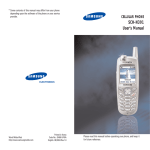
CELLULAR PHONE
SCH-A302
User’s Manual
ELECTRONICS
World Wide Web
http://www.samsungmobile.com
Printed in Korea
Code No. : GH68-02511A
English. 2001/11. Rev.1.0
FCC RF EXPOSURE INFORMATION
In August 1996 the Federal Communications Commission (FCC) of
the United States with its action in Report and Order FCC 96-326
adopted an updated safety standard for human exposure to radio
frequency electromagnetic energy emitted by FCC regulated
transmitters. Those guidelines are consistent with the safety
standard previously set by both U.S. and international standards
bodies. The design of this phone complies with the FCC guidelines
and these international standards.
Use only the supplied or an approved antenna. Unauthorized
antennas, modifications, or attachments could impair call quality,
damage the phone, or result in violation of FCC regulations.
Do not use the phone with a damaged antenna. If a damaged
antenna comes into contact with the skin, a minor burn may result.
Please contact your local dealer for replacement antenna.
Body-worn Operation
This device was tested for typical body-worn operations using the
optional belt-clip/holster placed 0.78 inches (2.0cm) from the body.
To comply with FCC RF exposure requirements, a minimum
separation distance of 0.78 inches (2.0cm) must be maintained
between the user’s body and the phone, including the antenna,
whether extended or retracted. The use of third-party belt-clips/
holsters with no metallic components that provide the minimum
separation distance of 0.78 inches (2.0cm) can be used to satisfy
FCC RF exposure requirements. The use of non-tested accessories
or other body-worn operations may not comply with FCC RF
exposure requirements and should be avoided. Contact your local
dealer for optional accessory items.
Vehicle Mounted External Antenna (optional, if
available.)
A minimum separation distance of 7.9 inches (20cm) must be
maintained between a person and the vehicle mounted external
antenna to satisfy FCC RF exposure requirements.
Table of Contents
Unpacking ................................................................................... 7
Your Phone
Phone Layout ...................................................................................... 8
Display .............................................................................................. 10
Service Light ...................................................................................... 13
Getting Started
Installing Battery ................................................................................ 14
To Install the Battery ...................................................................... 14
To Remove the Battery ................................................................... 15
Charging a Battery ............................................................................. 15
Switching the Phone On/Off ................................................................ 18
Your Phone’s Mode ............................................................................. 19
Call Functions
Making a Call ..................................................................................... 21
Correcting the Number ................................................................... 21
Ending a Call .................................................................................. 21
Emergency Dialing ......................................................................... 22
Prepend Dialing .............................................................................. 22
Making a Call from the Phone Book ................................................ 23
Speed Dialing ................................................................................. 23
Redialing the Last Number ............................................................... 25
Adjusting the Volume ........................................................................... 25
Answering a Call ................................................................................. 26
Viewing Missed Calls ........................................................................... 27
In-Call Options .................................................................................... 27
Call Forwarding .................................................................................. 28
Call Waiting ....................................................................................... 29
Three-Way Calling............................................................................... 30
Quick Switching to Vibration Mode ....................................................... 30
For more information about RF exposure, please visit the FCC web
site at www.fcc.gov
1
Using the Menus
Scheduler
Accessing a Menu Function by Scrolling ................................................ 31
Accessing a Menu Function by Using its Shortcut.................................... 32
List of Menu Functions ......................................................................... 33
Today (MENU 5-1) ........................................................................
View Month (MENU 5-2) ...............................................................
Jump To Date (MENU 5-3) ............................................................
Tasks (MENU 5-4) .........................................................................
World Time (MENU 5-5) ................................................................
Calculator (MENU 5-6) ..................................................................
Calls
Outgoing (MENU 1-1) ...................................................................
Incoming (MENU 1-2) ...................................................................
Erase Logs (MENU 1-3) ..................................................................
Air Time (MENU 1-4)......................................................................
37
38
39
39
Phone Book
Find Name (MENU 2-1) ................................................................ 40
Add Entry (MENU 2-2) .................................................................. 42
Creating a New Entry ....................................................................... 42
Storing Phone Numbers When a Call Ends.......................................... 43
Adding a Number in an Existing Entry .............................................. 43
Entering a Name .............................................................................. 44
Find Entry (MENU 2-3) ................................................................. 45
Memory Status (MENU 2-4) .......................................................... 45
Sounds
Ring (MENU 3-1) ..........................................................................
Key Volume (MENU 3-2) ...............................................................
Alerts (MENU 3-3) ........................................................................
Alarm (MENU 3-4) ........................................................................
Power on/off (MENU 3-5) ............................................................
46
47
48
48
50
Display
Backlight (MENU 4-1) ...................................................................
Banner (MENU 4-2) ......................................................................
Animation (MENU 4-3) .................................................................
Language (MENU 4-4) ..................................................................
My Phone Number (MENU 4-5) .....................................................
Contrast (MENU 4-6) .....................................................................
2
51
51
52
52
53
53
54
55
56
56
57
58
Games ........................................................................................ 59
Setup
Auto Retry (MENU 7-1) .................................................................
Auto Answer (MENU 7-2) ..............................................................
Auto Hyphen (MENU 7-3) .............................................................
Answer Mode (MENU 7-4) .............................................................
Tone Length (MENU 7-5) ...............................................................
SVC Light (MENU 7-6) ...................................................................
Set Time (MENU 7-7) ....................................................................
Set Nam (MENU 7-8) ....................................................................
Data/Fax (MENU 7-9) ..................................................................
Terminal BPS (MENU 7-0) .............................................................
60
60
60
61
61
62
62
63
63
64
GoNext (Web Browser)
About Web Browser ............................................................................
Start Service (MENU 9-1) ..............................................................
Favorites (MENU 9-2) ...................................................................
Address Input (MENU 9-3) ............................................................
Internet Setup (MENU 9-4) ...........................................................
65
66
68
69
69
Security
Lock (MENU 0-1) ..........................................................................
Restrict (MENU 0-2) ......................................................................
Lock Code (MENU 0-3) .................................................................
Emergency Number (MENU 0-4) ...................................................
PIN (MENU 0-5) ...........................................................................
Block Own Number (MENU 0-6) ....................................................
Reset Phone (MENU 0-0) ..............................................................
72
73
73
74
75
76
76
3
Safety Precautions and Important Notices
Messages
Inbox (
Outbox (
-1).................................................................................. 77
-2) ............................................................................... 79
Read these simple guidelines. Failure to comply with
these guidelines may be dangerous or illegal.
Reference Information
For more detailed safety information, see Safety
Information on page 83.
Accessories .......................................................................................... 80
Using the Batteries .............................................................................. 81
Safety Information ............................................................................... 83
ROAD SAFETY COMES FIRST
Glossary .............................................................................. 87
Index .................................................................................. 90
Quick Reference Card........................................................... 93
Do not use a hand-held phone while driving; park the
vehicle first.
SWITCH OFF IN AIRCRAFT
Mobile phones can cause interference. Using them on
aircraft is illegal.
SWITCH OFF NEAR BLASTING
Do not use the phone where a blasting operation is in
progress. Observe restrictions, and follow any
regulations or rules in force.
SWITCH OFF WHEN REFUELLING
Do not use the phone at a refuelling point or near fuels
or chemicals.
INTERFERENCE
All mobile phone may be subject to radio interference,
which may affect their performance.
4
5
Unpacking
QUALIFIED SERVICE
Only qualified service personnel must install or repair
cellular equipment. Use only approved accessories and
batteries.
USE SENSIBLY
Your package contains the following items.
Handset
Battery
Necklace
Ear-microphone
Desktop Charger
User’s Manual
Use only in the normal position (to ear).
Avoid unnecessary contact with the antenna when the
phone is switched on.
IMPORTANT! Use only accessories approved by the
phone manufacturer. This apparatus is intended for use
when supplied with power from SAMSUNG approved
Travel charger. The use of any other types will invalidate
any approval or warranty applying to the phone, and
may be dangerous.
When you disconnect the power cord of any accessory,
grasp and pull the plug, not the cord.
In addition, you can obtain the accessories for your
phone from your local SAMSUNG dealer. For information
on the accessories, see page 80.
6
7
Your Phone
Your Phone
Phone Layout
Top
Antenna
Earphone jack
Service Light
The following illustrations show the main elements of
your phone.
External LCD
Key
Earpiece
Functions
Enters the menu facility. Also, scrolls
through the menu options.
Display
Navigation
keys
Menu key
OK/Messages
Key
End key
Volume keys
Send key
CLR key
Alphanumeric
keys
In the menu facility, scroll through the menu
options and phone book memory.
In Standby mode, enter the following menus
when pressed depending on the direction.
•
•
•
•
: Find Entry in Phone Book
: Find Name in Phone Book
: Games
: GoNext (Web Browser)
Deletes characters from the display.
In the menu facility, returns to the previous
menu level.
Special function
keys
8
In the menu facility, confirms the selection
and input.
In Standby mode, enters the Messages
menu.
Microphone
Makes or answers a call.
In Standby mode, enters the Outgoing Calls
Log.
9
Your Phone
Key
Your Phone
Functions (continued...)
~
Ends a call. Also switches the phone on and
off when pressed and held.
In the menu facility, cancels your input and
returns to the Standby mode.
Enter numbers, letters and some special
characters.
Use these keys for various purpose in
different functions.
(on the left side of the phone)
During a call, adjust the ear-piece volume.
In Standby mode, adjust the key volume.
In the menu facility, scroll through the
menu options.
Icons
Signal strength : Shows the received
signal strength. The greater the number of
bars, the better the signal strength.
Service: Appears when a call is in
progress.
No service: Appears when you are outside
a service area. When it appears, you cannot
make or receive calls. Wait a little while for
a signal or move into an open area.
Roaming: Appears When you are out of
your home area and have registered with a
different network (when travelling in other
countries, for example).
New Message: Appears when a new
message has been received.
Display
The display comprises two areas; an upper line of fixed
icons, and the lower text and graphic area. The
following icons display at power-on:
Icons
Text and
graphic area
10
Alarm: Indicates that you have set an
alarm.
Vibration mode: Appears when vibration
mode is on. An incoming call will vibrate
the phone rather than ring it.
Battery strength: Shows the level of your
battery. The more bars you see, the more
power you have left.
11
Your Phone
Getting Started
External LCD
Service Light
Your phone has an external display on the cover. It
indicates that you have an incoming call or a message,
and notifies you at the specified time when you have
set an alarm.
When you press and hold down the volume keys on the
left side of the phone with the phone closed, the
backlight of the external display illuminates.
The service light is at the top right of the phone. It
flashes to indicate incoming call or message. Also, the
service light flashes for a few seconds when you turn on
the phone.
Indicates that you
are out of the
service area.
Backlight
To activate or deactivate use of the service light, set the
SVC Light menu option (7-6) in the Setup menu: see
page 62 for further details.
The display is illuminated by a backlight. When you
press any key, the backlight illuminates. It turns off if no
key is pressed within a given period of time, depending
on the Backlight option set in the Display menu. The
backlight remains on at all times when the phone is
connected to a car kit (optional).
To specify the length of time for which the backlight is
active, set the Backlight menu option (4-1); see page
51 for further details.
12
13
Getting Started
Getting Started
To Remove the Battery
Installing Battery
To Install the Battery
1. Align the tabs at the bottom of the battery with the
corresponding slots in the phone.
1. If necessary, switch off the phone by pressing and
holding down
until the power-off animation
plays.
2. Push down the catch on the back of the phone and
slide the battery away.
Charging a Battery
2. Slide the battery toward the top of the phone until it
clicks in place.
Make sure that the battery is installed properly
before switching the phone on.
Your phone is powered by a rechargeable Li-ion battery.
A desktop charger is provided with your phone. Use only
approved batteries and chargers. Ask your local
SAMSUNG dealer for further details.
The phone can be used while the battery is charging.
Note: You must fully charge the battery before using
your phone for the first time.
14
15
Getting Started
1. Plug the power cord of the desktop charger into a
standard AC outlet. When the power is connected
properly, the LEDs on the charger flicker briefly and
then turn off.
Getting Started
3. The color indication of the LEDs on the charger is as
follows:
• Red: charging
• Green: fully charged
4. When charging is finished (the LED turns into green),
remove the battery (or phone) from the charger and
unplug the power cord of the charger from the AC
outlet.
2. Place the battery into the compartment of the
charger. Select one of the following two options:
• Place the phone with the battery attached into the
front compartment. The left LED on the charger
turns on in red.
Low Battery Indicator
When the battery is weak and only a few minutes of
talk time remain, an empty battery icon (no bars
displayed) blinks in the upper right corner of the screen.
You will hear a warning tone.
• Insert a single battery (alone, not attached to the
phone) into the rear compartment. The right LED
on the charger turns on in red.
[TUE]
06/26
Battery is running
out of power.
20:06
When the battery becomes too weak for the phone to
operate, it switches off automatically.
16
17
Getting Started
Getting Started
Switching the Phone On/Off
1. Open the phone.
2. Press and hold down
for more than one second
to switch the phone on.
The red light flashes, and an alert sounds:
• When the system locates services, the greeting
message displays along with the date and time.
The external LCD shows the signal strength,
battery strength and current time and date.Now,
you can place and receive calls.
WARNING: Do not switch on the phone when wireless
phone use is prohibited or when it may
cause interference or danger.
Note: Your phone has a built-in antenna. As with any
other radio-transmitting device, do not touch the
antenna unnecessarily when the phone is
switched on. Contact with the antenna affects
call quality and may cause the phone to operate
at a higher power level than otherwise needed.
Your Phone’s Mode
Standby Mode
[TUE]
20:06
6/26 Tu
06/26
20:06
• If the system cannot locate service, the greeting
message displays without the date and time. You
can see the No Service indicator
on the top
line of the display. In this case, you cannot place
and receive calls. You can try later when service is
available.
• If your phone is locked, the Lock icon
appears.
Press
, and enter the four-digit lock code to
unlock the phone.
Standby is the most basic state of your phone. The
phone goes into Standby mode soon after you turn it on,
or whenever you briefly press
. When your phone is
in Standby mode, you will typically see the greeting
message and current date and time. If you enter a phone
number, you can press
to dial it, or press
to
save it in the internal phone book.
Press
at any time to return to Standby mode. Be
careful; if you are on a call when you press
, you
will return to Standby mode, but your call will be
disconnected. Press
several times or hold it down
to return to Standby mode without ending the call.
3. When you wish to switch the phone off, Press and
hold down
for more than two seconds.
18
19
Getting Started
Call Functions
Talk Mode
You can place and answer calls only when your phone is
turned on. During a call, the phone is in Talk mode.
While you are in Talk mode, pressing
gives you a
list of options referred to as “Conv Menu.” See “In-Call
Options” on page 27 for details on the options.
Power Save Mode
Your phone comes with a Power Save feature that will
automatically be activated if your phone is unable to
find a signal after 10 minutes of searching. While this
feature is active, the phone’s battery charge is
conserved. The phone will automatically recheck for a
signal periodically. To manually force the phone to
recheck for a signal, press any key. A message on the
display will let you know when your phone is operating
in Power Save Mode.
Making a Call
In Standby mode, key in the area code and phone
number and press
.
Note: Pressing and holding down the last digit of the
number starts dialing without a key press of
.
If you want to insert a pause, press
. The number
after a pause will be dialed when you press
, after
the first number is sent.
Note: If you have set Auto Retry option (7-1) to On (see
page 60), and the call does not connect, the
phone automatically retries to make the call.
Correcting the Number
To clear ...
Then ....
The last digit displayed
Press
The whole display
Hold down
for more
than one second.
.
Ending a Call
When you have finished your call, briefly press
close the phone.
or
If there is no Phone Book match for the dialed number,
the number is displayed. To save it into the Phone Book,
press
. For further information on saving the number,
see page 42.
20
21
Call Functions
Call Functions
Emergency Dialing
Making a Call from the Phone Book
You can place calls to emergency numbers in your
emergency number list even if your phone is locked or
all outgoing calls are restricted. For further information
on emergency numbers, refer to page 74.
You can store the phone numbers called regularly in
memory, called the Phone Book. You then simply recall
the number to dial. For further information on Phone
Book, refer to page 40.
Prepend Dialing
Speed Dialing
The Prepend option lets you add digits such as area
codes and network feature activation codes to a phone
number that is in your Internal Phone Book or Call Logs.
(The prepended phone number cannot be more than 10
digits.)
To prepend existing phone numbers in the Phone Book or
Call Logs:
1. Access the phone number entry.
2. When the desired phone number displays, press
to access the Options menu.
3. Press
(or
Prepend option.
in Call Logs) to select the
Once you have stored phone numbers in the phone book
memory, you can dial them easily whenever you want.
One-Touch Dial
Memory locations 01 through 09 are special one-touch
locations. You can dial the phone numbers stored in the
Phone Book memory from 01 through 09 simply by
pressing one button.
Press and hold the third digit of the memory location
containing the number to be dialed.
For example: Location no. 009
Press
and hold.
The number (and name) stored is displayed, then dialed.
4. Enter the area code or feature code.
5. Press
22
to dial the number.
23
Call Functions
Call Functions
Two-Touch Dial
Redialing the Last Number
Memory locations 10 through 99 are special two-touch
locations.
To redial the last number you called, press
Press the second digit briefly, then hold down the third
digit of the memory cell.
For example: Location no. 023
Press
briefly and hold down
.
The number (and name) stored is displayed, then dialed.
The phone stores the last 20 numbers dialed. To recall
any of these numbers, proceed as follows.
1. If there are any characters on the display, clear the
display by holding down
for more than one
second.
2. Press
. The list of outgoing calls are displayed.
3. Slide
to scroll through the list until you select the
required name or number.
Three-Touch Dial
Memory locations 100 through 249 are special threetouch locations.
Press the first and the second digit briefly, then hold
down the third digit of the memory cell.
For example: Location no. 123
Press
and
down
.
twice.
briefly, then hold
The number (and name) stored is displayed, then dialed.
4. Press
to dial the number displayed.
Adjusting the Volume
During a call, if you want to adjust the earpiece volume,
use the volume keys on the left side of the phone. Press
to increase and
to decrease the volume.
In Standby mode, you can adjust the key tone volume
using the same keys.
Note : When several numbers are saved in one
location, only the phone number which is
specified with Set Speed Dial option will be
automatically dialed. For details, refer to the Edit
option under Find Name menu on page 41.
24
25
Call Functions
Call Functions
Answering a Call
Viewing Missed Calls
When somebody calls you, the phone rings and the
phone icon is displayed in the middle of the screen.
If you are unable to answer a call for any reason, you
can find out who was calling you, if this service is
available. In this way, you can call the person back
simply by pressing
, if necessary.
The number of missed calls is displayed on the idle
screen immediately after the call was missed.
nnn
ooo
Caller’s name or
number
If the caller can be identified, the caller’s phone number
(or name if pre-stored in your Phone Book) is displayed.
If the caller cannot be identified, only the phone icon
appears.
1. To answer a call, open the phone. If it is already open,
press
.
If the Answer Mode menu option (7-4) is set to
Send=Answer, you must press
to answer the
call.
If the menu option is set to Anykey=Ans., you can
answer a call by pressing any key except
.
see page 61.
2. End the call by closing the phone or pressing
.
Note: You can answer a call while using the phone
book or menu features. The current operation
will be interrupted.
26
To view the missed call, refer to ‘Incoming’ (1-2) under
‘Calls’ on page 38.
In-Call Options
Your phone provides a number of functions that you can
use during a call. You may not utilize all of these
functions at all times. Many of the in-call options are
network services.
Press
options:
during a call to access the following
Calls: allows you to access the Calls menu.
Phone Book: allows you to access the Phone Book
menu.
Mute/Unmute: allows you to switch your phone’s
microphone off, so that the other party cannot hear you.
Example: You wish to say something to another person
in the room but do not want the other party to hear you.
27
Call Functions
Silent Key: does not transmit the key tones. It allows
you to press keys without hearing annoying key tones
during a call.
Note: To communicate with answering machines or
computerized telephony systems, the Silent key
option must be disabled.
Send Tel #: sends DTMF tones of your number.
SEND: Send DTMF: sends DTMF tones of the currently
displayed number. DTMF (Dual Tone Multi Frequency)
tones can be used to control electronic phone services
such as bank-by-phone or voicemail. During a call, key in
the digits you want to send as DTMF tones, for example,
the bank account number and password. Then select
this in-call option.
Call Forwarding
Call Functions
Call Waiting
You can answer an incoming call while you have a call
in progress, if this service is supported by the network.
Contact your service provider to activate Call Waiting.
When a waiting call is detected, the incoming call alert
sounds (network dependent) and a text notification
displays.
Your phone provides the option of turning the Call
Waiting feature on and off (if you have subscribed to the
service). Call Waiting is on by default in the phone. If
you choose to have a undisturbed conversation, simply
turn off the feature for the current call.
To answer a waiting call:
1. To answer the call, press
. The phone connects
the calling party, and places the current party on hold.
2. Press
This feature provides the option of forwarding incoming
calls to another phone number, even while your phone is
off. Activating Call Forwarding does not affect outgoing
calls made from this phone. Contact your service
provider to activate Call Forwarding.
28
again to switch between two parties.
Note: If you do not respond to a Call Waiting
notification, the phone will forward the call to
voice mail or another number that you have set
up. Contact your service provider for more details.
29
Call Functions
Using the Menus
Three-Way Calling
This feature enables you to conduct conference calls
with two separate parties at the same time. The phone
records each party into the Outgoing Calls Log and you
are billed airtime for each outgoing call separately.
Contact your service provider to activate Three-Way
Calling.
To place a Three-Way call:
1. During a conversation, enter the phone number for
the third party and press
.
2. When the third party answers, press
connect with the original party.
again to
If one of the callers (not you) hangs up, you and
remaining caller stay connected. If you initiated the call
and you hang up first, all three parties are disconnected.
Quick Switching to Vibration Mode
You can quickly access the vibration mode by pressing
in standby mode.
Press and hold the key until the Vibration Mode icon
and - Vibrate - appears in the display. Your phone goes
to the vibration mode immediately.
Press and hold
again to return to bell mode.
This feature is convenient when you are in a hurry to
mute the phone sound (in a theater, for example).
30
The phone offers a range of functions that allows you to
customize the phone to your needs. These functions are
arranged in menus and submenus.
The menus and submenus can be accessed by scrolling
or by using the shortcuts.
Accessing a Menu Function by Scrolling
1. In Standby mode, press
facility.
to access the menu
2. Scroll with
(or
or / ) to reach the
desired main menu, e.g. Display. Press
to enter
the menu.
3. If the menu contains any submenus: for example,
Language, find the one you want by scrolling with
or
. Press
to enter the submenu.
If the menu you have selected contains submenus,
repeat this step.
4. Scroll with
choice. Press
or
to find the setting of your
to confirm the chosen setting.
Notes:
• You can return to the previous menu level by pressing
.
• You can exit the menu without changing the menu
settings by pressing
.
31
Call Functions
Using the Menus
Accessing a Menu Function by Using its
Shortcut
List of Menu Functions
1. Calls
The menu items (menu, submenus and setting options)
are numbered and can be accessed quickly by using
their shortcut number.
1. In Standby mode, press
1: Outgoing
2: Incoming
3: Erase Logs
4: Air Time
to access the main menu.
2. Within three seconds, key in the first digit of the
shortcut number. Repeat this for each digit of the
shortcut number.
Example: Accessing the Ring Type option
Press
,
, and
2. Phone Book
1: Find Name
2: Add Entry
3: Find Entry
4: Memory Status
3. Sounds
1: Ring
.
3 for Sounds, 1 for Ring, 2 for Ring Type menu
function.
3. Find the setting of your choice by pressing
, then press .
or
Note: The numbers assigned to each menu function are
indicated on the list on page 33.
2: Key Volume
3: Alerts
4: Alarm
1: Outgoing
2: Incoming
3: All
1: Last Call
2: Dialed
3: Erase Total
4: Total
1: Ring Volume
2: Ring Type
3: Ring Choice
4: Data/Fax Alert
1: Minute Beep
2: Service Alert
3: Connect
4: Disconnect
1: Alarm #1
2: Alarm #2
3: Alarm #3
5: Power on/off
32
33
Using the Menus
4. Display
Using the Menus
1: Backlight
2: Banner
3: Animation
4: Language
5: My Phone #
6: Contrast
5. Scheduler
6: Games
34
1: Today
2: View Month
3: Jump To Date
4: Tasks
5: World Time
6: Calculator
1. Push Push
2. Tetris
3. Black Jack
4. Racing
5. Flying Tight
6: Money or Die
7. Setup
1: Auto Retry
2: Auto Answer
3: Auto Hyphen
4: Answer Mode
5: Tone Length
6: SVC Light
7: Set Time
8: Set Nam
9: Data/Fax
0: Terminal BPS
9. GoNext
(Web Browser)
1: Start Service
2: Favorites
3: Address Input
4: Internet Setup
1: Idle Mode
2: Incoming Call
3: Power On
4: Power Off
1: Internal LCD
2: External LCD
1: Homepage
2: Proxy Server
3: Page Info
4: DNS Server
5: Idle Timer
6: Cookie Setup
7: ID Setup
35
Using the Menus
Calls
0. Security
1: Lock
2: Restrict
3: Lock Code
4: Emergency#
5: PIN
6: Block Own#
0: Reset Phone
1: Phone Book
2: Incoming
3: Outgoing
4: New Numbers
You can use the Calls menu to:
• View and dial the last outgoing or incoming numbers.
• Erase the numbers in the Call Log memory.
• View the duration of calls.
Outgoing
1: Send PIN
2: PIN Code
1: Settings
2: Memory
3: All
Menu 1-1
The phone stores up to 20 outgoing calls you dialed.
When you access this menu, the list of outgoing calls is
displayed.
To select an entry , press
or
To dial the selected entry, press
.
.
To view the date and time at which the call was dialed
and use option features, press
.
When you press
, you can view the date/time stamp
for the selected entry. If there is a Phone Book match,
the name displays.
Press
to access Options. The following options are
available:
Talk: dials the selected number.
Show Entry (or Store if the phone number is not
currently stored in the Phone Book): shows
the phone book entry or stores the number
in the Phone Book.
Prepend: allows to add an area code or feature code to
the number before calling the number.
36
37
Calls
Calls
Incoming
Menu 1-2
This option lets you view the last 20 calls received (if
you are subscribed to the caller ID service). When you
access this menu, the last incoming calls are displayed.
Erase Logs
Menu 1-3
You can erase the numbers stored in the Call Log
memory.
Outgoing: The numbers you called are erased.
To select an entry, press
or
To dial the selected entry, press
.
.
To view the date and time at which the call was
received and use option features, press
.
When you press
, you can view the date/time stamp
for the selected entry. If there is a Phone Book match,
the name displays.
Press
to access Options. The following options are
available:
Talk: dials the selected number.
Show Entry (or Store if the phone number is not
currently stored in the Phone Book): shows
the phone book entry (or stores the
number) in the Phone Book.
Prepend: allows to add an area code or feature code to
the number before calling the number.
Incoming: The numbers you received are erased.
All: All calls you dialed and received are erased.
Air Time
Menu 1-4
Using this option, you can view the call time of the last
call, as well as total air time for all calls since you last
reset the timer.
Last Call: duration of the last call
Dialed: total duration of all calls made since the timer
was last reset.
Erase Total: resets the call timers.
Total: the combined airtime of every phone call that has
been made on your phone. You can reset the total
airtime by resetting your phone (see page 76).
Note: This feature is not intended for billing purpose.
The air time shown in this menu may differ from
the actual calltime you will be charged for.
38
39
Phone Book
Phone Book
If you press
The Phone book allows you to store frequently used
phone numbers and the associated names in your
personal directory to make it easy for you to make a call
without having to remember or enter the phone number.
You can store up to 249 numbers.
Find Name
Menu 2-1
This option allows you to find an entry by its name.
When you access this option, you can see the stored
names in the Phone Book in alphabetic order.
1. Press
or
to scroll to the desired name.
You can also enter the first letter(s) of the name by
pressing the associated alphanumeric key.
The phone searches for the names in the list
beginning with that letter(s), and then displays the
first name in that section of the list.
2. Press
to display the selected entry.
When the desired entry displays, press
call.
to place a
, you can access the following options:
Talk: dials the seleted number.
Add Phone#: allows you to add several different types
of numbers to the name, such as work,
office number or mobile number.
Edit: allows you to edit phone number, name, or entry
number. Set Secret option prevents the number
from being displayed on the screen. Set Speed
Dial option allows you to designate the number to
be dialed as a speed-dial number. For details on
speed dialing, refer to page 23.
Prepend: allows to add an area code or feature code to
the number before calling the number.
Erase: erases the number.
Name Ringer: allows you to designate a unique tone to
signal an incoming call by the number.
Note: You can locate Phone Book entries quickly when
the phone is in Standby mode. Press
to
access Find Name menu in one step and then
press
or
to scan entries.
Note: If you have saved two or more numbers under
the labels, such as Home, Work, Mobile, Fax and
so on, under one name, you can find the desired
number by pressing
or
when the entry
displays.
40
41
Phone Book
Phone Book
Add Entry
Menu 2-2
This menu allows you to store a number with a name in
your Phone Book. You can save a person’s various
numbers, such as workplace number, mobile number and
fax number, under one entry. Using this feature, you can
keep someone’s information together. It also helps you
to find numbers easily in the Phone Book.
Creating a New Entry
1. Enter a number and press
entries are displayed.
2. Press
. The phone book
to confirm <New Name>.
3. You are asked to select a label. The following labels
are available: Home, Work, Mobile, Pager, Fax,
No label. After selecting the label pressing
or
, press
.
4. The first available location displays. To accept the
displayed location, press
. To select another
location, press
or
to scroll to the desired
location or enter the location number using the
number keys, then press
.
Note: An entry’s location is also its speed dial code.
5. To include a name with the entry, enter the desired
name, then press
. For information on how to
enter a name, see page 44.
6. After entering is done, press
saved.
. The number is
7. You are asked to select a label. If you want to add a
number to the entry you have just saved, select the
desired one and repeat steps 4 to 6.
If you want to stop, press
.
Storing Phone Numbers when a Call Ends
To store a phone number when your call ends:
1. Press
to end the call. The call time and the
phone number display.
2. To store the phone number, press
.
3. To complete storing the number, follow the
instructions on page 42.
Adding a Number in an Existing Entry
1. Enter a number and press
entries are displayed.
. The phone book
2. Select the entry you want to add a number to with
or
, then press
.
3. Available labels are displayed. After selecting the
desired label, press
to save the setting.
Note: You can enter a name up to 12 digits.
42
43
Phone Book
Phone Book
Find Entry
Entering a Name
Use the keys labeled with letters (alphanumeric keys) to
write the name.
Press once for the first labeled letter, twice for the
second and three times for the third etc.
The cursor moves to the right when you press a different
key. When entering the same letter twice (or a different
letter on the same key) just wait for a few seconds for
the cursor to move right automatically, and then select
the next letter.
• You can change the input mode by pressing the
volume keys on the left side of the phone. The
English, Hebrew and Number mode are toggled
each time you press the keys.
Note: To enter the number in the English or Hebrew
mode, you can press and hold down the
appropriate key.
Menu 2-3
This option allows you to find an entry by location
number. When you access this option, you can see the
stored names in the Phone Book in numeric order.
1. Enter the location by pressing the number keys or
press
or
to scroll to the desired location,
2. Press
to display the selected entry.
When the desired entry displays, press
call.
to place a
If you press
, you can access Options. For details on
Options, refer to Options under the Find Name menu
on page 41.
Note: You can locate Phone Book entries quickly when
the phone is in Standby mode. Press
to
access Find Entry menu in one step and then
press
or
to scan entries.
• To move the cursor through the text, use the
navigation keys.
• To insert a space between words, press
twice.
or
• If you make a mistake, you can remove characters to
the left of the cursor by pressing
as many times
as necessary. Pressing and holding
clears the
screen.
Memory Status
Menu 2-4
Using this option, you can check the status of the
phonebook memory. The display shows the number of
the occupied memory location, and the number of the
free memory location.
• You can enter special letters, such as punctuation or
symbols by pressing
repeatedly.
./:@(),?!$%^&_+-={}[]<>|;“\ ‘~`
44
45
Sounds
Sounds
Ring Choice
You can use the Sounds menu to customize various
sound settings, such as the:
• Ring volume, type, and tone
• Key volume, Alert sounds
• Alarm
This option allows you to select the required ringing tone.
Ring
Each time you select a tone, it sounds for a few seconds.
Menu 3-1
Ring Volume
This option allows you to adjust the ringer volume to one
of eight levels. You can also turn the ringer off. Use
(or or
on the left side of the phone). The more the
bars, the louder the volume.
Bell: You can choose among 19 different tones or
melodies.
My Melody: You can download up to 7 melodies from
the wireless web.
Data/Fax Alert
This option allows you to be alerted with a distinct
ringing tone when you are faxed or received a data
through the phone (network dependent).
Bell: You can choose among 19 different tones or
melodies.
Note: During an incoming call, you can mute the ringer
by pressing
.
My Melody: You can download up to 7 melodies from
the wireless web.
Ring Type
Each time you select a tone, it sounds for a few seconds.
This option allows you to indicate how you are to be
informed of incoming calls. The following options are
available.
Key Volume
BELL: The phone rings using the ring tone selected via
the menu option.
This option allows you to adjust the tone volume that the
keypad generates when you press a key.
LAMP: The backlight is switched on and the lamp blinks;
the phone neither rings nor vibrates.
Press
VIBRATE: The phone vibrates but does not ring.
You can also adjust key volume in Standby mode by
pressing or .
VIB+BELL: The phone vibrates and rings simultaneously.
46
or
Menu 3-2
or
on the left side of the phone.
47
Sounds
Alerts
Sounds
Menu 3-3
To set the alarm, proceed as follows.
Minute Beep: With this menu option set to ON, the
phone sounds an alert 10 seconds before
each elapsed minute to remind you of
the length of the current call.
1. Select the desired one of three alarm cell by pressing
or
and then press
.
Service Alert: With this menu option set to ON, the
phone beeps when you exit service area
or when you return to a service area.
Daily: the alarm rings every day at the same time.
Connect: You can set your phone to sound the connect
tone when your call is connected to the
system.
2. Choose the alarm frequency option, and press
.
One Time: the alarm rings only once and is then
deactivated.
3. Enter the required date and time using the number
keys.
The date setting is unavailable only for a Daily alarm.
Disconnect: You can set your phone to sound the
connect tone when a call is disconnected
or dropped.
Alarm
Menu 3-4
The option allows you to set up to three alarm to ring at
a specific time.
Keep in mind that if your phone is off at the alarm set
time, the alarm will not sound.
Note: In order to the alarm to work, the phone must
be on and obtain the time information from the
service system.
48
Note: You must enter the time in 24-hour format.
4. Press
to save the alarm setting.
To stop the alarm when it rings, simply open/close the
phone or press any key.
Once you have set an alarm, press
to access the
alarm setting. The following options are available.
Edit: allows you to change the alarm frequency or time
and date for the alarm.
Release: removes the alarm setting.
Exit: exits the alarm menu option.
49
Sounds
Power on/off
Display
Menu 3-5
This menu enables or disables the phone sounds when
it is switched on or off.
Backlight
The following options are available:
You can select how the phone uses the LCD
backlight. The following options are available.
On On: The phone sounds when it is switched on, and
when switched off.
Off On: The phone sounds when it is switched off and
does not sound when switched on.
On Off: The phone sounds when it is switched on and
does not sound when switched off.
Off Off: Neither does the phone sound when it is
switched on nor off.
Menu 4-1
10 SECONDS: The backlight comes on when you press
a key or receive a call and switches off
10 seconds after the last key is pressed.
30 SECONDS: The backlight comes on when you press
a key or receive a call and switches off
30 seconds after the last key is pressed.
OFF: The backlight is not used.
Banner
Menu 4-2
This menu allows you to set a greeting message to be
displayed in Standby mode. It is preset to
. You
can change the greeting message according to your own
preference.
1. If necessary, clear the old message by pressing
repeatedly.
2. Enter your personal greeting up to 12 characters by
using the alphanumeric keys. For more information on
entering letters, refer to page 44.
3. When entering is completed, press
greeting.
50
to save your
51
Display
Animation
Display
Menu 4-3
This menu allows you to select animated images
displayed when you switch the phone on and off.
Idle Mode: You can select an image to be displayed in
Standby mode. You can download up to one
image from the wireless web. No Image
does not use any image.
My Phone Number
Menu 4-5
When you switch your phone on, your phone number is
briefly displayed. While using the phone, you can check
your phone number via this menu.
Note: You can block this feature by setting Block Own #
option (0-6) to ON. Refer to page 76.
Incoming Call: You can select an image to be displayed
to indicate an incoming call. You can
download up to one image from the
wireless web. Basic Image displays a
preset image.
Contrast
Power On: You can select an image to be displayed
when you switch the phone on. There are
three images to choose. You can download
up to one image from the wireless web.
Press
or
(or or
on the left side of the
phone) until the desired value displays. Each time you
press the key, you can see the LCD getting darker or
lighter depending on the current value.
Menu 4-6
This menu allows you to adjust the contrast of the main
LCD and external LCD on the front cover.
Power Off: You can select an image to be displayed
when you switch the phone off. There are
two images to choose. You can download up
to one image from the wireless web.
Language
Menu 4-4
Set the language of menus and default key input.
English and Hebrew (
) are available.
Note: This setting does not affect the Web pages
displayed, as they are set by the network.
52
53
Scheduler
Scheduler
Viewing a Scheduled Event
This feature enables you to:
• Keep track of important dates and events
• Create a list of things to do
• Check the time in another part of the world
• Use the phone as a calculator
Today
If you already scheduled event(s) when you select the
Today menu option (5-1), the events are displayed. Press
or
to select the event you want to view.
The following options are available when you press
.
Menu 5-1
New Event: allows you to add a new event.
Edit Event: allows you to edit a scheduled event.
You can schedule up to 9 events for the current day
indicating each event’s start and end times. You can
even have your phone's calendar alert you before an
event is to start. Events scheduled for future dates
automatically appear on your Today events schedule
when the day comes.
Erase Event: allows you to erase a selected event.
1. Enter your event information. You can enter up to 32
characters. For more information on entering letters,
see page 44.
This option allows you to view in calendar format the
current month, a past or a future one. In this option, the
current date is highlighted on the calendar. Days with
the scheduled events are underlined.
2. Press
Exit: exits the options menu.
View Month
Menu 5-2
to accept your entry.
3. Enter the Start Time and Date, and press
.
Note: You must enter the time in 24-hour format.
4. Enter the End Time and Date, and press
.
• You can move right or left one day by pressing
or
.
• You can move up or down the Calendar by one week
by pressing
or
.
• To display the next or previous month, press or .
5. Select an alarm to notify you of your event. 10
minutes Before, 30 minutes Before, 1 hour
Before, No Alarm and On time are available.
To schedule a new event or view a scheduled event for
a specific day, select the desired month and day, and
press .
6. Press
If necessary, add, edit or erase events. Refer to ‘Viewing
a Scheduled Event’ as described above.
54
to save your event.
55
Scheduler
Scheduler
Jump To Date
Menu 5-3
Viewing the Tasks List
This feature allows you to specify the calendar date you
want to view. Once at your desired date you can enter,
edit and delete events in your calendar.
If tasks are already defined in the Tasks List when you
select the Tasks menu option (5-4), the current contents
are displayed with the deadline and the associated
priority (! for High or - for Low).
Enter the date using the number keys, and press
Scroll to the desired item by pressing
.
or
.
The following options are available when you press
To add, edit or erase the events, see “Viewing a
Scheduled Event” on page 55.
.
New Task: allows you to add a new task.
Edit Task: allows you to edit a saved task.
Tasks
Menu 5-4
Erase Task: allows you to erase the selected task.
Exit: exits the options menu.
This feature allows you to draw up a list of tasks to be
done (up to 20 items) and assign a priority and deadline
to each task.
World Time
This menu allows you to check the current time for
Greenwich Mean Time (GMT) and the time at 24 major
cities around the world.
To create the Tasks List, proceed as follows.
1. Enter the first task and press
.
The screen shows :
• The world map with the time zone line.
• City name
• Current date and time
Note: You can enter up to 32 characters. For further
details on how to enter characters, see page
44.
2. Enter your deadline using the number keys and press
.
Note: You must enter the time in 24-hour format.
3. Select high or low priority by pressing
then press
.
The phone saves the task.
56
Menu 5-5
or
,
Select the city corresponding to your time zone by
pressing the navigation keys one or more times. The
local date and time are displayed.
Note: There may be time difference of one hour
between the displayed time and the real time in
the selected time zone due to Daylight-Saving
Time.
57
Scheduler
Games
Calculator
Menu 5-6
Using this feature, you can use the phone as a
calculator. The calculator provides the basic arithmetic
functions: addition, subtraction, multiplication and
division.
Using the Calculator
1. Enter the first number using the numeric keys.
Using this menu, you can enjoy the following games:
• Push Push
• Tetris
• Black Jack
• Racing
• Flying Tight
• Money or Die
2. Press
to set the operator for your calculation
until the required arithmetic symbol appears: + (add),
- (subtract), x (multiply), / (divide).
Scroll to the desired game by pressing
and press
.
3. Enter the second number.
When the game start screen is displayed, press
to
get help. Some games doesn’t support this option.
4. To calculate the result, press
.
or
Press
to return to the game start screen, and press
to play the game.
5. Repeat steps 1 to 4 as many times as required.
Each time you change the operator, the previous
calculation is performed and the result is displayed as
the top number in the display.
Notes:
• To erase mistakes and clear the display, press
• Use
to enter a decimal point and
to
change the sign of a number to a negative (-).
58
.
59
Setup
Setup
Answer Mode
Many different features of your phone can be
customized to suit your preferences.
Auto Retry
Menu 7-4
This feature allows you to choose how to answer an
incoming call. The following options are available.
Menu 7-1
With this menu option set to ON, when you place a call
and the call does not connect, the phone automatically
retries to make the call.
Send=Answer: you only have to press
call.
to answer a
Anykey=Ans.: you can press any key except for
or to answer a call.
,
Open=Answer: you only have to open the phone to
answer a call.
Auto Answer
Menu 7-2
This feature is only used when the phone is connected
to a hands-free car kit (optional). With this menu option
on, the phone automatically answers calls after 2
predefined rings. This option is useful while driving, for
instance.
This feature works only when you have set the ring type
to BELL and have activated the ringer.
Auto Hyphen
Menu 7-3
Tone Length
Menu 7-5
The tone length setting enables you to select SHORT or
LONG DTMF (Dual-Tone Multi-Frequency) tones.
DTMF tones are what is send by your phone to access
teleservices (such as a bank account). The system used
by the bank or other service determines if you need
short or long DTMF. If the service is digital (which most
are these days), short DTMF will almost always works.
However, some new systems and almost all older
(analog) system require you to use long DTMF tones.
With this menu option set to ON, your phone
automatically hyphenates numbers as follows: (area
code)-(number).
Digits following a pause are not hyphenated.
60
61
Setup
SVC Light
Setup
Menu 7-6
This option allows you to select whether of not the
service light on the top of the phone is used.
The following options are available.
OFF: the service light is not used.
ON: the service light flashes when the phone is ready
for use.
Set Time
Set Nam
Menu 7-8
Your Samsung phone can store two NAMs (NAM stands
for Numerical Assignment Module - essentially your
telephone number). This means you can have two phone
numbers on your phone, and you can quickly and easily
switch your service back and forth between the two
numbers.
Press
or
to select NAM-1 or NAM-2 and
then press
. If you change the NAM, the phone will
reboot and acquire service using the new NAM setting.
Menu 7-7
The option enables you to set the current date and time.
Enter the date and time.
The current time, if set, displays. The month, day, hour
and minute must be entered with 2 digits. The year
requires all four digits.
If you do not input the time or you input the wrong time,
INVALID TIME displays and the phone prompts you to
enter again.
Note: You must enter the time in 24-hour format.
Data/Fax
Menu 7-9
Your phone is capable of receiving digital data and fax
call when connected to a computing device (such as
laptop, desktop, hand held, palmtop, etc.) running
Windows NT, Windows 95 or later using the optional
data/fax kit. The phone functions just like a typical
modem on your PC. For further information on this
feature, refer to the data kit manual.
To receive data or fax through the phone, you have to
set this option to Incoming Data Only or Incoming
Fax Only. When you want to use the phone for a
normal voice call, set to Off: Voice Call Only.
The following options are available:
Off: Voice Call Only: receives voice calls only.
Incoming Data Only: receives data calls only.
Incoming Fax Only: receives fax calls only.
62
63
Setup
GoNext (Web Browser)
Terminal BPS (Bits Per Second)
Menu 7-0
When using PC, PDA, or Palm Top, you can select the
data transmission speed with this menu. If you are using
PC Link or Circuit Service, select AUTO or 19200 bps. If
you are using HSPD, select 115200 bps.
About Web Browser
Your phone comes equipped with a Web Browser,
making it possible for you to access the Wireless Web.
The Web Browser allows you to access up-to-the
minute information through your phone. View specially
designed text versions of popular Internet sites
including Yahoo!®, CNN MobileSM and even the Weather
Channel®. Browsing the Wireless Web through your
phone is unlike using your computer in that site
providers have selected only the critical aspects of their
site to present to wireless phone users, and have
removed most graphics.
Each time you start the Web Browser, the phone will
connect to the Wireless Web and the service indicator
icon ( ) will appear on the display. Whenever the
service indicator icon is visible on the display, you are
connected to the Wireless Web and will be billed
accordingly. Rates will vary according to your service
option.
The Web Browser will end the connection after a
certain period of network inactivity and will
automatically reconnect as necessary. For this reason,
you may find that you are billed for several network
connections within a single session. This is normal and
is designed to minimize your bill.
64
65
GoNext(Web Browser)
GoNext(Web Browser)
Start Service
Menu 9-1
Here’s how the keys work in the Web Browser:
This menu connects your phone to the Wireless Web.
OK key: Press to select the highlighted item.
Note: Pressing
in Standby mode will directly start
the Web Browser.
Clear Key: Clears out entered text or
numbers. When entering numbers or text,
press to clear the last number, letter, or
symbol. Press and hold to completely clear
the input field.
Once connected, the Home page will be displayed. An
example of a home page is shown below:
Go Next
1 What’s new
2 Games
3 Parties
4 Sport
5 Internet
Up/Down Navigation keys: Scroll through
the browser items.
To exit the Web Browser, simply press
at any time.
~
The opening page displayed when accessing the Web
Browser is dependent on the Wireless Web service
provider content. To scroll through the screen, use
and
.
Left/Right Navigation keys: Scroll through
the browser options at the bottom of the
display.
Move the cursor right or left in a text entry.
Numbered Keys 0 - 9: If the items on a page
are numbered, you can use these keys to
select them.
Navigating the Web Browser
End Key: Exits the Web Browser and returns
the phone to Standby mode.
When you use the WAP Browser, some keys on your
phone operate differently than on a normal phone call.
These keys are explained below. The Web Browser
presents on-screen items in one of the following ways:
Menu Key: Press this key to display
additional options while browsing.
• text or numeric input
• links (embedded in content)
• numbered options (some options may not be
numbered)
• simple text
66
Scroll Keys: Scroll up or down one page at a
time.
67
GoNext(Web Browser)
GoNext(Web Browser)
Entering Text, Numbers or Symbols in the Web
Browser
When prompted, you can enter text, numbers or symbols
the same way as in the phone mode. See page 44 on
how to enter letters.
Favorites
Menu 9-2
You can bookmark most screens to save the address of
the site into the Favorites List, which can then be
opened in the future. This feature saves you time by
reducing the number of steps it takes to access a
desired page.
To add the site to the Favorites list, select the store
option while viewing the desired page.
To open the favorite site, scroll the Favorites list using
and
, and press
when the desired item
is highlighted. The following options are available at the
bottom of the display. Press
or
to select the
desired option.
Go: opens the site of the selected URL address.
Edit: allows you to edit the selected item. You can edit
the title (Edit Title) or the URL address (Edit
Address).
Delete: deletes the selected address from the Favorites
list.
Address Input
Menu 9-3
You can manually enter the address of a desired site you
want to go to and add it to the Favorites List.
1. Enter the address of the desired site. For details on
entering letters, see page 44.
2. Press
.
3. Select the option on the bottom of the display using
or
, and press
.
• If you want to go to the page right now, select Go.
• If you only want to store the address for future
visit, select Store. When you are asked to enter
the title for the address, enter the title and press
. The address will be saved in your Favorites
list.
• If you want to cancel your input, select Cancel.
Internet Setup
Menu 9-4
This menu allows you to configure the setting for the
Internet connection.
Note: Internet configuration is set at factory. If you
change the settings, your phone may not connect
to the Internet.
Cancel: cancels your input and returns to the Favorites
list.
68
69
GoNext(Web Browser)
GoNext(Web Browser)
Homepage
Idle Timer
This option shows the current start-up homepage.
To change the start-up homepage manually, enter the
desired URL address. For information on entering letters,
see page 44.
This option allows you to define the length of time for
the phone to wait for the Internet connection.
Proxy Server
This option shows information on the proxy server and
proxy port.
Page Info
This option allows you to set how to display the
information on the page you visit.
View Title: displays the title of the page.
View Addr: displays the URL address of the page.
The current setting is marked with ✓.
You can enter 0 through 3600 seconds using the number
keys.
Cookie Setup
Cookies are pieces of information, sent from the server
to store session information of the web sites you visit.
When you select Yes, the server is able to store and use
information about your actions on the visited web site.
Selecting No disables the cookies functionality.
ID Setup
This option shows user information for the Internet
service.
DNS Server
This option shows information on DNS Servers.
Main DNS: shows the main DNS server.
Secondary DNS: shows the secondary DNS server.
70
71
Security
Security
Restrict
Menu 0-2
Your phone provides many security options, including a
user-programmable lock code and call restriction
features.
This feature allows you to restrict your calls. Call
Restriction can be set up in the following ways.
To access the security menu, you must enter a four-digit
lock code. The lock code is preset to 0000 at factory.
Incoming: calls cannot be received.
Lock
Menu 0-1
When the phone is locked, you cannot operate the
phone until you enter the lock code.
Phone Book: The phone book cannot be accessed.
Outgoing: calls cannot be made.
New Numbers: Only calls to numbers stored in the
phone book can be made. Additionally,
new numbers cannot be added to the
phonebook.
Each option can be restricted or unrestricted individually.
The following options are available:
OFF: the phone remains unlocked.
NOW: the phone locks immediately.
ON POWER-UP: the phone locks automatically at the
next power-up.
Lock Code
Menu 0-3
This feature allows you to change your current lock code
to a new one. The lock code is preset to 0000 at factory.
Enter a new, four-digit lock code, then press
.
To place an emergency call, enter the number and then
press
. The phone recognizes 100, 101, 102, *166 or
other numbers assigned as emergency numbers (Menu
0-4).
To place normal outgoing calls, press
and then
enter the lock code to unlock the phone. When the
Standby screen displays, enter the phone number, and
then press
.
72
73
Security
Security
Emergency Number
Menu 0-4
This feature allows you to store up to seven emergency
numbers. These numbers can be dialed at any time
when the phone is locked or when the outgoing call is
restricted.
Your phone has 4 default priority numbers:
1: 100
2: 101
3: 102
PIN (Personal Identification Number)
Menu 0-5
Note: The feature is only available if your system
supplier provides this service and you have a PIN
assigned by the system supplier.
Contact your service provider for complete information
about this feature. Your PIN is programmable and may
consist of up to 24 digits.
4: *166
Send PIN
To store an emergency number, proceed as follows:
1. Select a location using the number keys or
, then enter the desired number.
and
Each emergency number can be up to ten digits long.
The number already stored in the location is
automatically deleted when you enter the new
number.
2. When entering is finished, press
number.
to save the
To make an emergency call when your phone is locked,
simply enter the emergency number you have stored,
then press
.
This feature prevents the phone from being used by
unauthorized persons. The feature is only available if
your system supplier provides this service and you have
a PIN assigned by the system supplier.
The following options are available:
Never: The option is not activated.
Prompt: When you make a call, you are asked to send
the PIN.
PIN Code
This feature allows you to change the PIN code.
When the current PIN code is displayed, enter a new
PIN code by pressing the appropriate digit keys.
74
75
Security
Messages
Block Own Number
Menu 0-6
This feature allows you to hide your own number from
being displayed, so others cannot view your phone
number.
If you turn this feature on, the message Blocked for
phone number displays when the My phone # menu
option (4-5) is accessed.
Reset Phone
Menu 0-0
Your phone receives voicemail notification and text
messages, and transmits text messages (if your system
supplier provides this service). When the phone receives
a message, an alert sounds, and a text notification
displays. The
icon remains on the screen until you
read the pending text messages or until you listen to the
voicemail notification messages.
Your phone can store up to 100 text messages,
depending on the length of the message. If the message
memory is full, a message is displayed and you cannot
receive any new messages. Delete obsolete messages.
With this menu option, you can easily reset your phone
to its default configuration. The following options are
available:
Press
menu.
Settings: resets all the settings to the factory default.
Inbox
Memory: clears all information saved in the phone
memory, such as phone book, call records,
downloaded melodies and images, and
messages.
The menu allows you to access voicemail notification
and text messages.
All: resets all the settings to their default state and
clears all information in the phone memory.
After selecting the desired option, press
to confirm
your selection. The phone automatically reboot (turns
itself off then on), then returns to Standby mode.
76
in Standby mode to access the Messages
-1
The following options are available:
Voice ( -1-1): The screen displays the time, date and
the number of new, unheard messages.
Press
to access the following options.
• Listen: You can listen to the voicemail.
• Reset: You can manually reset the counter for
voicemail messages, if desired (The system
resets the counter automatically after you
listen to all new messages).
77
Messages
Messages
Text ( -1-2): An indexed list of text messages
displays. An exclamation point next to an entry indicates
an urgent message. A check mark next to an entry
indicates that you have read and stored the message.
Select the desired message to review, then press
After reviewing the message, press
following options:
.
to access the
• Talk: To call the phone number.
• Save number: To store the phone number in your
Phone Book.
• Erase: To erase the message.
Outbox
-2
The menu allows you to transmit text messages, and to
store the messages you have transmitted.
The following options are available:
Messaging ( -2-1): allows you to write and send a
new text message.
1. When prompted, write the message. You can write
and edit text messages. For details on entering
letters, see page 44.
2. Enter its destination address number and press
.
• Next Msg: To review the next message.
• Previous Msg: To review the previous message.
3. Enter the number you want to be called back and
press
.
Via the Alert ( -1-3) menu, the phone alerts you
when a message is received. You can choose how
frequently this happens. The three options are: EVERY 2
MIN, OFF, ONCE.
4. Press
To delete all text and page messages you have received,
select Erase All ( -1-4).
to send the message.
The messages you have transmitted are stored in
Sent Items ( -2-2).
• Read: This menu allows you to read the stored
messages you have transmitted.
• Erase All: This menu allows you to erase all
messages you have transmitted. When a confirming
message displays, press
.
78
79
Reference Information
Reference Information
Using the Batteries
Accessories
Battery
Li-ion STANDARD battery is available for use with your
phone. EXTENDED battery is also available.
Travel Charger
The travel charger plugs into a wall outlet and enables
you to charge a single battery at your home or office.
Cigarette Lighter Charger
The cigarette lighter charger charges your phone in a
vehicle while you drive and enables you to operate the
phone from a vehicle cigarette lighter socket.
Hands-Free Car Kit
The hands-free car kit provides safety, freedom and
convenience in your vehicle (Kit includes cradle, speaker
and microphone).
Ear-Microphone
The ear-microphone includes the earpiece and
microphone in a convenient, lightweight unit.
RS-232C Cable
The RS-232C cable connects your phone to a computer
port, allowing you to use the Internet or other
communication programs.
80
Your phone is powered by a rechargeable Li-ion
standard battery.
Additional batteries are available for purchase (ask your
SAMSUNG dealer for further details):
Precautions When Using Batteries
• Never use any charger or battery that is damaged in
any way.
• Use the battery only for its intended purpose.
• If you use the phone near the network’s base station,
it uses less power; talk and standby times are greatly
affected by the signal strength on the cellular
network and the parameters set by the network
operator.
• Battery charging times depend on the remaining
battery charge and the type of battery and charger
used. The battery can be charged and discharged
hundreds of times, but it will gradually wear out.
When the operation time (talk time and standby time)
is noticeably shorter than normal, it is time to buy a
new battery.
• If left unused, a fully charged battery will discharge
itself over time.
81
Reference Information
• Use only Samsung-approved batteries and recharge
your battery only with Samsung-approved chargers.
When a charger is not in use, disconnect it from the
power source. Do not leave the battery connected to
a charger for more than a week, since overcharging
may shorten its life.
• Extreme temperatures will affect the charging
capacity of your battery: it may require cooling or
warming first.
• Do not leave the battery in hot or cold places, such
as in a car in summer or winter conditions, as you
will reduce the capacity and life-time of the battery.
Always try to keep the battery at room temperature.
A phone with a hot or cold battery may temporarily
not work, even when the battery is fully charged. Liion batteries are particularly affected by
temperatures below 0 °C (32 °F).
• Do not short-circuit the battery. Accidental short
circuiting can occur when a metallic object (coin, clip
or pen) causes a direct connection between the + and
- terminals of the battery (metal strips on the back of
the battery), for example when you carry a spare
battery in a pocket or bag. Short-circuiting the
terminals may damage the battery or the object
causing the short-circuit.
Reference Information
Safety Information
Road Safety
• Remember, road safety always comes first!
• Do not use a hand-held phone while driving a vehicle.
Always park the vehicle before having a
conversation.
• Make sure that the phone is stored safely and will
not fall or be broken in the event of a collision or
emergency stop.
• The use of an alert device to operate a vehicle’s
lights or horn on public roads is not permitted.
• Only qualified personnel should install or service the
phone in a vehicle. Faulty installation or service may
be dangerous and may invalidate any warranty
applicable to the unit.
• Electronic fuel injection, anti-skid braking, electronic
cruise control or any other electronic systems may
malfunction due to the lack of protection from radio
signals. Check regularly that all cellular phone
equipment in your vehicle is mounted and operating
correctly.
• Dispose of used batteries in accordance with local
regulations. Always recycle. Do not dispose of
batteries in a fire.
82
83
Reference Information
Operating Environment
• Remember to follow any special regulations in force
in any area and always switch off your phone
whenever it is forbidden to use it, or when it may
cause interference or danger (in a hospital for
example).
• Operation of any radio transmitting equipment,
including cellular phones, may interfere with
inadequately protected medical devices. Consult
a physician or the manufacturer of the medical device
if you have any questions. Other electronic equipment
may also be subject to interference.
• As with other mobile radio transmitting equipment,
you are advised that for satisfactory operations and
personal safety, the equipment should only be used
in the normal operating position.
• Always switch off the phone when at a refuelling
point (service station). You are reminded of the need
to observe restrictions on the use of radio equipment
in fuel depots (fuel storage and distribution areas),
chemical plants or where blasting operations are in
progress.
• Do not store or carry flammable liquids, gases or
explosive materials in the same compartment as the
phone, its parts or accessories.
Reference Information
• Switch off your cellular phone when in an aircraft.
The use of cellular phones in an aircraft is illegal and
may be
dangerous to the operation of the aircraft or disrupt
the cellular network. Failure to observe these
instructions may lead to the suspension or denial of
cellular telephone services to the offender, legal
action or both.
Care and Maintenance
Your phone is a product of superior design and
craftsmanship and should be treated with care. The
suggestions below will help you fulfill the warranty
obligations and enjoy this product for many years.
• Keep the phone and all its parts and accessories out
of the reach of small children.
• Keep the phone dry. Precipitation, humidity and
liquids containing minerals will corrode the electronic
circuits.
• Do not use or store the phone in dusty, dirty areas as
its components may be damaged.
• Do not store the phone in hot areas. High
temperatures can shorten the life of electronic
devices, damage batteries and warp or melt certain
plastics.
• Do not store the phone in cold areas. When the
phone warms up (to its normal temperature),
moisture can form inside the phone, which may
damage the electronic circuits.
84
85
Reference Information
Glossary
• Do not attempt to open the phone. Non-expert
handling of the phone may damage it.
• Do not drop or knock the phone. Rough handling may
damage the internal circuits.
• Do not use harsh chemicals, cleaning solvents or
strong detergents to clean the phone. Wipe it with a
soft cloth slightly dampened in mild, soapy water.
• If the phone or any of its accessories are not working
properly, take them to your nearest qualified service
center. The personnel there will assist you, and if
necessary, arrange for the phone to be repaired.
Emergency Calls
Important! This phone, like any cellular phone, uses
radio signals, cellular and landline
networks, as well as user-programmed
functions that cannot guarantee
connection in all conditions. Therefore,
you should never rely solely on any
cellular phone for essential
communications (medical emergencies for
example).
Remember, to make or receive any calls, the phone must
be switched on and in a service area with adequate
cellular signal strength.
Emergency calls may not be possible on all cellular
phone networks or when certain network services
and/or phone features are in use. Check with local
cellular service providers.
86
Airtime - Actual time spent talking on the wireless
phone. Most carriers bill customers based on
how many minutes of airtime they use each
month.
Antenna - A device for transmitting or receiving
signals. The size and shape of antennas is
determined, in part, by the frequency of the
signal they receive. Wireless phones and the
base station must have antennas.
Base Station - The fixed radio transmitter/receiver that
maintains communications with mobile
radio telephones within a given area.
(Typically called a cell or cell site)
CDMA - (Code Division Multiple Access) A spreadspectrum approach to digital transmission.
With CDMA, each conversion is digitized and
then tagged with a code. The mobile phone
deciphers only a particular code to pick the
right conversation off the air. The transmitted
signal is just above noise level across the
available bandwidth.
Channel - Communications signals transmit along paths
called channels.
Codec - Compression & Decompression.
Deactivation - The process of rendering a wireless
phone inactive.
87
Glossary
DTMF - (Dual-tone Modulated Frequency ) You send
DTMF signals when you enter numbers by
pressing the digit keys.
EVRC - (Enhanced Variable Rate Codec) EVRC is a new
global standard for compressing and
decompressing voice signals. EVRC uses a lower
bit rate (the number of bits sent per second)
than existing CDMA vocoders, while providing
significant improvements in voice quality. This
technology enables your phone to provide
superb voice quality while benefiting from the
ability to process more cellular voice calls using
less bandwidth than the voice codecs in CDMA
networks today.
Frequency - A measure based on time, as one or more
waves per second, in an electrical or light
wave information signal. A signal’s
frequency is stated in cycles-per-second or
Hertz (Hz).
Glossary
LED - (Light Emitting Diode) Commonly used to refer to
a small light on the wireless phone or on the
Desktop Charger. The LED lights on the phone to
indicate an incoming call. The lights on the
charger indicate that battery charging is taking
place.
Prepend - The addition of a prefix, such as an area
code, to a phone number.
RF - Radio Frequency
Roaming - The ability to use a wireless phone to make
and receive calls in places outside of the
home service area.
Service Charge - The amount paid each month to
receive wireless service.
Standby Time - The amount of time a fully charged
wireless portable or transportable
phone can be on and idle without being
in use. (See Talk Time)
Hands-Free - A feature that permits a driver to use a
wireless phone without lifting or holding
the handset - an important safety feature
for automobiles, tractors and most other
motorized vehicles.
Talk Time - The length of time a person can talk on a
portable or transportable wireless phone
without recharging the battery.
LCD - (Liquid Crystal Display) Commonly used to refer to
the screen display on the wireless phone.
Wireless - Radio-based Systems that allow
transmission of telephone or data signals
through the air without a physical
connection, such as a metal wire (copper) or
fiber optic cable.
88
Vocoder - Voice Coder. A device used to convert speech
into digital signals.
89
Index
A
D
Accessories • 80
Address input (9-3) • 69
Air time (1-4) • 39
Alarm (3-4) • 48
Alerts (3-3) • 48
Animation (4-3) • 52
Answer mode (7-4) • 61
Auto answer (7-2) • 60
Auto hyphen (7-3) • 60
Auto retry (7-1) • 60
Data/fax
alert • 47
setting (7-9) • 63
Display
LCD • 10
menu • 51
DTMF tones
sending • 28
setting • 61
B
Backlight (4-1) • 12, 51
Banner(4-2) • 51
Battery
charging • 15
installing • 14
low battery indicator • 17
removing • 15
precautions • 81
C
Calculator (5-6) • 58
Call
answering • 26
dialed (1-1)• 37
emergency • 22, 74
ending • 21
forwarding • 28
from Phone Book • 23
making • 21
missed (1-2) • 27, 38
restriction (0-2) • 73
three way • 30
waiting • 29
Care • 85
Characters, entering • 44
Charging batteries • 15
Contrast(4-6) • 53
Correcting number • 21
E
Emergency number • 74
Erasing logs (1-3) • 39
Erasing message
received • 78
transmitted • 80
F
Favorites (9-2) • 68
Finding
entry (2-3) • 45
name (2-1) • 37
G
Game • 59
GoNext • see Web browser
K
Key volume (3-2) • 47
Keys
description • 9
location • 8
L
Language (4-4) • 52
Last number redialing • 25
Letters, entering • 44
Listening
voicemail •77
Lock code (0-3) • 73
Low battery indicator • 17
M
Maintenance • 85
Menus
map • 33
scrolling • 31
shortcuts • 32
Memory status (2-4) • 45
Messages
greeting (4.2) • 51
reading (
-1) • 77
sending ( -2) • 79
Minute beep • 48
Missed calls • 27, 38
Mute
key tones • 28
microphone • 27
I
N
Icon description • 11
In-call options • 27
Incoming calls (1-2) • 38
Incoming data/fax (7-9) • 63
Installing battery • 14
Internet setup (9-4) • 69
Names
entering • 44
searching/dialing (2-1) • 40
Navigating
menus • 31
Web Browser • 66
NAM setting (7-8) • 63
Number
adding in an entry • 42
blocking (0-6) • 76
correcting • 21
my (4-5)• 53
searching/dialing (2-3) • 45
storing in the
phonebook • 42
O
Outgoing calls (1-1) • 37
P
Phone
layout • 8
lock (0-1) • 72
my number (4-5) • 53
PIN (0-5)
code • 75
sending • 75
Power on/off sounds (3-5) • 50
Power save mode • 20
Prepend dialing • 22
R
Received Messages (
text •78
voice • 77
Redialing • 25
Removing battery • 15
Reset phone (0-0) • 76
Restrict call (0-2) • 73
Ring (3.1)
tone • 47
type • 46
volume • 46
-1)
J
Jump to date (5-3) • 56
90
91
-2)
@@
@@
@@
@@
@@
@e
e?
?@
@@
@@
@@
@@
@@
@?
?e
e@
@@
@@
@@
@@
@@
@e
e?
?@
@@
@@
@@
@@
@@
@?
?e
e@
@@
@@
@@
@@
@@
@e
e?
?@
@@
@@
@@
@@
@@
@?
?e
e@
@@
@@
@@
@@
@@
@e
e?
?@
@@
@@
@@
@@
@@
@?
?e
e@
@@
@@
@@
@@
@@
@e
e?
?@
@@
@@
@@
@@
@@
@?
?e
e@
@@
@@
@@
@@
@@
@e
e?
?@
@@
@@
@@
@@
@@
@?
?e
e@
@@
@@
@@
@@
@@
@@
@e
e?
?@
@@
@@
@@
@@
@@
@?
e@
@@
@@
@@
@@
@@
@e
e?
?@
@@
@@
@@
@@
@@
@?
e@
@@
@@
@@
@@
@@
@e
e?
?@
@@
@@
@@
@@
@@
@?
e@
@@
@@
@@
@@
@@
@e
e?
?@
@@
@@
@@
@@
@@
@@
@?
?e
e@
@@
@@
@@
@@
@@
@@
@@
@e
e?
?@
@@
@@
@@
@@
@@
@@
@@
@?
?e
e@
@@
@@
@@
@@
@@
@@
@@
@e
e?
?@
@@
@@
@@
@@
@@
@@
@@
@?
?e
e@
@@
@@
@@
@@
@@
@@
@@
@e
e?
?@
@@
@@
@@
@@
@@
@@
@@
@?
?e
e@
@@
@@
@@
@@
@@
@@
@@
@e
e?
?@
@@
@@
@@
@@
@@
@@
@@
@?
?e
e@
@@
@@
@@
@@
@@
@@
@@
@e
e?
?@
@@
@@
@@
@@
@@
@@
@@
@?
?e
e@
@@
@@
@@
@@
@@
@@
@@
@e
e?
?@
@@
@@
@@
@@
@@
@@
@@
@?
?e
e@
@@
@@
@@
@@
@@
@@
@@
@e
e?
?@
@@
@@
@@
@@
@@
@@
@@
@?
?e
e@
@@
@@
@@
@@
@@
@@
@@
@e
e?
?@
@@
@@
@@
@@
@@
@@
@@
@?
?e
e@
@@
@@
@@
@@
@@
@@
@@
@e
e?
?@
@@
@@
@@
@@
@@
@@
@@
@?
?e
e@
@@
@@
@@
@@
@@
@@
@@
@e
e?
?@
@@
@@
@@
@@
@@
@@
@@
@?
?e
e@
@@
@@
@@
@@
@@
@@
@@
@e
e?
?@
@@
@@
@@
@@
@@
@@
@@
@?
?e
e@
@@
@@
@@
@@
@@
@@
@@
@e
e?
?@
@@
@@
@@
@@
@@
@@
@@
@?
?e
e@
@@
@@
@@
@@
@@
@@
@@
@e
e?
?@
@@
@@
@@
@@
@@
@@
@@
@?
?e
e@
@@
@@
@@
@@
@@
@@
@@
@e
e?
?@
@@
@@
@@
@@
@@
@@
@@
@?
?e
e@
@@
@@
@@
@@
@@
@@
@@
@e
e?
?@
@@
@@
@@
@@
@@
@@
@@
@?
?e
e@
@@
@@
@@
@@
@@
@@
@@
@e
e?
?@
@@
@@
@@
@@
@@
@@
@@
@?
?e
e@
@@
@@
@@
@@
@@
@@
@@
@e
e?
?@
@@
@@
@@
@@
@@
@@
@@
@?
?e
e@
@@
@@
@@
@@
@@
@@
@@
@e
e?
?@
@@
@@
@@
@@
@@
@@
@@
@?
?e
e@
@@
@@
@@
@@
@@
@@
@@
@e
e?
?@
@@
@@
@@
@@
@@
@@
@@
@?
?e
e@
@@
@@
@@
@@
@@
@@
@@
@e
e?
?@
@@
@@
@@
@@
@@
@@
@@
@?
?e
e@
@@
@@
@@
@@
@@
@@
@@
@e
e?
?@
@@
@@
@@
@@
@@
@@
@@
@?
?e
e@
@@
@@
@@
@@
@@
@@
@@
@e
e?
?@
@@
@@
@@
@@
@@
@@
@@
@?
?e
e@
@@
@@
@@
@@
@@
@@
@@
@e
e?
?@
@@
@@
@@
@@
@@
@@
@@
@?
?e
e@
@@
@@
@@
@@
@@
@@
@@
@e
e?
?@
@@
@@
@@
@@
@@
@@
@@
@?
?e
e@
@@
@@
@@
@@
@@
@@
@@
@e
e?
?@
@@
@@
@@
@@
@@
@@
@@
@?
?e
e@
@@
@@
@@
@@
@@
@@
@@
@e
e?
?@
@@
@@
@@
@@
@@
@@
@@
@?
?e
e@
@@
@@
@@
@@
@@
@@
@@
@e
e?
?@
@@
@@
@@
@@
@@
@@
@@
@?
?e
e@
@@
@@
@@
@@
@@
@@
@@
@e
e?
?@
@@
@@
@@
@@
@@
@@
@@
@?
?
@
@@
@@
@@
@@
@@
@@
@@
@@
@@
@@
@@
@@
@@
@@
@@
@@
@@
@@
@@
@@
@@
@@
@@
@@
@@
@@
@@
?e
@@
@@
@@
@@
?e
@@
@@
@@
@@
?e
@@
@@
@@
@@
@@
@@
@@
@@
@@
@@
@e
e?
?@
@@
@@
@@
@@
@@
@@
@@
@?
?e
e@
@@
@@
@@
@@
@@
@@
@@
@e
e?
?@
@@
@@
@@
@@
@@
@@
@@
@?
?e
e@
@@
@@
@@
@@
@@
@@
@@
@e
e?
?@
@@
@@
@@
@@
@@
@@
@@
@?
?e
e@
@@
@@
@@
@@
@@
@@
@@
@e
e?
?@
@@
@@
@@
@@
@@
@@
@@
@?
?e
e@
@@
@@
@@
@@
@@
@@
@@
@e
e?
?@
@@
@@
@@
@@
@@
@@
@@
@?
?e
e@
@@
@@
@@
@@
@@
@@
@@
@e
e?
?@
@@
@@
@@
@@
@@
@@
@@
@?
?e
e@
@@
@@
@@
@@
@@
@@
@@
@e
e?
?@
@@
@@
@@
@@
@@
@@
@@
@?
?e
e@
@@
@@
@@
@@
@@
@@
@@
@e
e?
?@
@@
@@
@@
@@
@@
@@
@@
@?
?e
e@
@@
@@
@@
@@
@@
@@
@@
@e
e?
?@
@@
@@
@@
@@
@@
@@
@@
@?
?e
e@
@@
@@
@@
@@
@@
@@
@@
@e
e?
?@
@@
@@
@@
@@
@@
@@
@@
@?
?e
e@
@@
@@
@@
@@
@@
@@
@@
@e
e?
?@
@@
@@
@@
@@
@@
@@
@@
@?
?e
e@
@@
@@
@@
@@
@@
@@
@@
@e
e?
?@
@@
@@
@@
@@
@@
@@
@@
@?
?e
e@
@@
@@
@@
@@
@@
@@
@@
@e
e?
?@
@@
@@
@@
@@
@@
@@
@@
@?
?e
e@
@@
@@
@@
@@
@@
@@
@@
@e
e?
?@
@@
@@
@@
@@
@@
@@
@@
@?
?e
e@
@@
@@
@@
@@
@@
@@
@@
@e
e?
?@
@@
@@
@@
@@
@@
@@
@@
@?
?e
e@
@@
@@
@@
@@
@@
@@
@@
@e
e?
?@
@@
@@
@@
@@
@@
@@
@@
@?
?e
e@
@@
@@
@@
@@
@@
@@
@@
@e
e?
?@
@@
@@
@@
@@
@@
@@
@@
@?
?e
e@
@@
@@
@@
@@
@@
@@
@@
@e
e?
?@
@@
@@
@@
@@
@@
@@
@@
@?
?e
e@
@@
@@
@@
@@
@@
@@
@@
@e
e?
?@
@@
@@
@@
@@
@@
@@
@@
@?
?e
e@
@@
@@
@@
@@
@@
@@
@@
@e
e?
?@
@@
@@
@@
@@
@@
@@
@@
@?
?e
e@
@@
@@
@@
@@
@@
@@
@@
@e
e?
?@
@@
@@
@@
@@
@@
@@
@@
@?
?e
e@
@@
@@
@@
@@
@@
@@
@@
@e
e?
?@
@@
@@
@@
@@
@@
@@
@@
@?
?e
e@
@@
@@
@@
@@
@@
@@
@@
@e
e?
?@
@@
@@
@@
@@
@@
@@
@@
@?
?e
e@
@@
@@
@@
@@
@@
@@
@@
@e
e?
?@
@@
@@
@@
@@
@@
@@
@@
@?
?e
e@
@@
@@
@@
@@
@@
@@
@@
@e
e?
?@
@@
@@
@@
@@
@@
@@
@@
@?
?e
e@
@@
@@
@@
@@
@@
@@
@@
@e
e?
?@
@@
@@
@@
@@
@@
@@
@@
@?
?e
e@
@@
@@
@@
@@
@@
@@
@@
@e
e?
?@
@@
@@
@@
@@
@@
@@
@@
@?
?e
e@
@@
@@
@@
@@
@@
@@
@@
@e
e?
?@
@@
@@
@@
@@
@@
@@
@@
@?
?e
e@
@@
@@
@@
@@
@@
@@
@@
@e
e?
?@
@@
@@
@@
@@
@@
@@
@@
@?
?e
e@
@@
@@
@@
@@
@@
@@
@@
@e
e?
?@
@@
@@
@@
@@
@@
@@
@@
@?
?e
e@
@@
@@
@@
@@
@@
@@
@@
@e
e?
?@
@@
@@
@@
@@
@@
@@
@@
@?
?e
e@
@@
@@
@@
@@
@@
@@
@@
@e
e?
?@
@@
@@
@@
@@
@@
@@
@@
@?
?e
e@
@@
@@
@@
@@
@@
@@
@@
@e
e?
?@
@@
@@
@@
@@
@@
@@
@@
@?
?e
e@
@@
@@
@@
@@
@@
@@
@@
@e
e?
?@
@@
@@
@@
@@
@@
@@
@@
@?
?e
e@
@@
@@
@@
@@
@@
@@
@@
@e
e?
?@
@@
@@
@@
@@
@@
@@
@@
@?
?e
e@
@@
@@
@@
@@
@@
@@
@@
@e
e?
?@
@@
@@
@@
@@
@@
@@
@@
@?
?e
e@
@@
@@
@@
@@
@@
@@
@@
@e
e?
?@
@@
@@
@@
@@
@@
@@
@@
@?
?e
e@
@@
@@
@@
@@
@@
@@
@@
@e
e?
?@
@@
@@
@@
@@
@@
@@
@@
@?
?
@
U
Unpacking • 7
93
@@
@
@@
@
@
@@
@
@
@
@@
@
@
@
@
@
@
@
@@
@
@
@
@
@@
@
@@
@
@@
@
@
@
@
@
@@
@
@
@@
@
@
@@
@
@@
@
@
@
@@
@
@
@
@@
@
@@
@
@@
@
@
@@
@
@
@
@@
@
@
@
@
@
@
@
@@
@
@
@@
@
@@
@
@
@
@
@
@
@
@
@@
@
@
@@
@
@
@
@
@
@
@
@
@
@@
@
@
@@
@
@@
@
@@
@
@
@@
@
@
@
@
@
@@
@
@
@@
@
@@
@
@
@
@@
@
@
@
@
@
@
@
@
@
@
@
@@
@
@
@@
@
@@
@
@@
@
@
@@
@
@
@@
@
@
@@
@
@@
@
@@
@
@@
@@
@
@
@
@@
@
@
@
@
@
@
@
@
@@
@
@@
@@
@@
@@
@
@@
@
@
@
@
@
@@
@
@
@
@
@
@@
@
@@
@@
@
@@
@
@
@@
@
@
@
@
@
@
@@
@
@@
@@
@
@
@
@
@
@
@
@
@
@
@
@
@@
@
@
@@
@
@
@
@
@
@
@
@
@
@
@
@@
@
@@
@
@
@
@
@
@
@
@
@
@
@@
@
@
@@
@
@
@
@
@
@@
@
@
@
@@
@
@
@@
@
@
@
@
@
@
@
@
@
@
@@
@
@
@@
@
@
@
@
@
@
@
@
@
@@
@
@
@
@@
@
@
@
@
@
@
@
@
@
@
@@
@
@
@@
@
@
@
@@
@
@
@
@
@@
@
@
@@
@
@@
@
@
@
@
@
@
@
@
@@
@
@
@@
@
@
@
@
@
@
@
@@
@
@
@@
@
@
@@
@
@
@@
@
@
@@
@
@
@@
@
@
@@
@
@
@
@
@
@
@@
@
@
@@
@
@
@@
@
@@
@
@@
@
@
@@
@
@
@@
@
@@
@
@
@
@@
@
@
@@
@
@
@
@@
@
@
@
@@
@
@@
@@
@@
@
@
@
@@
@
@
@@
@
@
@@
@
@@
@@
@
@
@@
@@
@
@@
@
@
@@
@
@@
@@
@
@
@@
@@
@
@@
@
@
@
@@
@
@
@
@
@
@
@
@
@
@
@
@
@@
@
@
@@
@
@
@
@
@
@
@
@
@
@
@@
@
@
@@
@
@
@
@
@
@
@
@
@
@
@@
@
@
@@
@
@
@
@
@
@@
@
@
@
@
@
@
@
@@
@
@
@
@
@
@@
@
@
@
@@
@
@
@@
@
@
@
@
@
@
@
@
@
@@
@
@
@
@@
@
@
@
@
@
@
@
@
@
@
@@
@
@
@@
@
@
@
@@
@
@
@
@
@@
@
@
@@
@
@@
@
@
@
@
@
@
@
@
@@
@
@
@@
@
@
@
@
@
@
@
@@
@
@
@@
@
@
@@
@
@
@
@
@
@
@
@
@@
@
@
@
@@
@
@
@@
@
@@
@
@
@@
@
@
@
@@
@
@
@
@
@
@
@
@
@
@@
@
@
@@
@
@@
@
@@
@
@
@
@
@
@@
@
@
@@
@
@
@
@@
@
@
@@
@
@
@@
@
@@
@@
@
@
@
@
@
@
@
@
@@
@
@
@@
@
@
@@
@@
@
@@
@
@
@@
@
@
@@
@
@
@
@
@@
@
@
@
@@
@
@
@@
@
@
@@
@
@
@
@
@
@
@@
@
@
@@
@
@
@
@
@
@
@
@
@
@@
@
@
@@
@
@@
@
@@
@
@@
@
@
@
@
@@
@
@
@
@
@
@@
@
@
@@
@
@
@@
@
@@
@@
@
@@
@
@
@@
@
@
@
@
@
@@
@
@
@@
@
@@
@
@
@@
@
@@
@@
@
@
@
@
@
@
@
@
@
@@
@
@
@
@@
@
@
@
@@
@
@@
@
@
@
@
@@
@
@
@
@
@@
@
@
@
@
@
@@
@
@
@@
@
@@
@
@@
@
@
@@
@
@@
@@
@
@
@@
@
@
@
@
@
@@
@
@
@@
@
@
@@
@
@
@@
@
@
@@
@
@
@
@
@
@@
@
@
@@
@
@@
@
@
@
@
@
@@
@
@
@
@
@@
@
@
@
@
@
@@
@
@@
@
@@
@
@
@@
@
@
@
@
@
@@
@
@
@@
@
@
@@
@
@
@
@
@
@
@@
@
@
@@
@
@
@
@
@
@
@
@
@
@@
@
@
@@
@
@@
@
@
@
@
@
@
@
@
@@
@
@
@@
@
@
@
@@
@
@
@@
@
@
@
@
@
@@
@
@
@@
@
@@
@
@
@
@@
@
@
@
@@
@
@@
@
@
@
@
@
@@
@
@@
@
@@
@
@@
@@
@
@@
@
@
@@
@
@
@@
@
@
@@
@
@@
@
@
@
@
@
@@
@
@@
@
@
@
@@
@
@
@@
@
@
@@
@
@@
@
@
@
@
@
@
@
@
@@
@
@
@@
@
@
@
@@
@
@
@@
@
@
@@
@
@
@@
@
@@
@
@@
@
@
@
@
@@
@
@@
@@
@@
@
@@
@
@
@@
@
@@
@@
@
@
@
@
@
@@
@
@
@@
@
@
@
@@
@
@
@
@@
@
@
@
@
@
@@
@
@
@@
@
@
@
@@
@
@
@
@
@@
@
@
@@
@
@@
@@
@@
@
@@
@
@
@@
@
@@
@@
@
@@
@
@
@@
@
@
@@
@
@
@@
@
@
@
@
@@
@
@@
@
@
@
@
@@
@
@
@@
@
@@
@
@
@@
@
@
@
@@
@
@
@@
@
@
@
@
@
@@
@
@
@@
@
@@
@
@@
@
@
@
@
@
@@
@
@
@@
@
@
@
@@
@
@
@@
@
@
@
@
@@
@
@@
@
@
@
@@
@
@
@@
@
@@
@@
@@
@@
@
@
@
@@
@
@
@@
@
@
@@
@
@
@@
@
@@
@@
@@
@
@
@
@@
@
@@
@
@@
@
@
@@
@
@
@@
@
@@
@@
@
@@
@
@
@
@
@
@@
@
@
@@
@
@@
@
@
@@
@
@
@
@
@
@@
@
@
@
@
@
@
@
@
@
@
@@
@
@
@@
@
@
@@
@
@
@
@@
@
@
@
@
@@
@
@@
@@
@@
@
@@
@
@
@@
@
@
@@
@
@
@@
@
@
@@
@
@
@@
@
@
@@
@
@
@
@
@@
@
@
@@
@
@@
@@
@@
@@
@
@@
@
@
@
@@
@
@
@
@@
@
@
@@
@
@@
@@
@@
@
@
@
@@
@
@
@@
@
@
@
@
@
@
@@
@
@@
@@
@@
@
@@
@
@
@
@
@
@@
@
@
@@
@@
@@
@
@@
@
@
@
@@
@
@
@
@
@
@
@
@
@
@@
@
@
@@
@
@
@@
@
@@
@
@
@
@
@
@@
@
@
@@
@
@@
@@
@@
@@
@
@@
@
@
@@
@
@@
@
@@
@
@@
@
@
@
@
@@
@
@
@@
@
@@
@
@
@@
@
@
@@
@
@@
@@
@
@
@
@
@
@@
@
@
@@
@
@
@@
@
@@
@@
@
@@
@
@
@@
@
@
@@
@
@@
@
@@
@
@
@
@
@@
@
@
@@
@
@@
@
@@
@
@
@
@
@
@@
@
@
@@
@
@
@
@@
@
@
@@
@
@@
@@
@@
@
@
@
@
@
@
@
@
@@
@
@
@@
@
@
@
@@
@
@
@@
@
@
@
@@
@
@
@@
@
@
@
@
@
@
@
@@
@
@
@
@@
@
@
@@
@
@
@
@
@
@
@@
@
@
@
@@
@
@
@
@
@@
@
@
@@
@
@
@@
@
@@
@@
@
@@
@
@
@
@
@
@@
@
@
@
@
@
@@
@
@
@
@
@@
@
@
@@
@
@@
@
@
@
@@
@
@
@
@@
@
@
@@
@
@
@@
@
@
@
@@
@
@
@
@@
@
@
@@
@
@@
@
@
@
@
@@
@
@
@
@@
@
@
@
@
@
@@
@
@@
@
@
@
@
@
@@
@
@
@
@
@@
@
@@
@
@
@
@@
@
@@
@
@@
@
@@
@@
@
@
@
@
@@
@
@
@
@
@
@
@
@@
@
@
@
@
@
@
@@
@
@
@@
@
@
@
@
@@
@
@
@@
@
@@
@@
@
@
@
@
@@
@
@
@@
@
@
@
@
@
@@
@
@
@@
@
@
@
@
@
@@
@
@
@
@
@
@@
@
@
@@
@
@
@@
@
@@
@@
@
@@
@
@@
@
@@
@
@@
@
@
@
@@
@
@
@
@
@@
@
@
@@
@
@@
@
@
@
@@
@
@
@
@
@@
@
@
@@
@
@
@
@
@
@
@@
@
@
@
@@
@
@
@@
@
@
@
@
@
@
@
@@
@
@
@
@@
@
@
@
@@
@
@
@
@
@
@@
@
@
@
@@
@
@
@
@
@
@
@
@
@@
@
@
@@
@
@@
@@
@
@@
@
@
@
@
@@
@
@
@@
@
@
@@
@
@
@
@
@@
@
@
@
@@
@
@
@
@
@
@@
@
@
@
@@
@
@
@@
@
@
@@
@
@
@
@@
@
@
@
@@
@
@
@@
@
@@
@
@
@
@
@@
@
@
@
@@
@
@
@
@
@
@@
@
@
@
@@
@
@
@
@@
@
@
@
@
@
@
@@
@
@
@
@
@@
@
@@
@
@@
@
@@
@
@
@@
@
@
@
@@
@
@
@@
@
@
@
@
@@
@
@@
@
@@
@
@
@@
@
@
@
@@
@
@
@@
@
@
@@
@@
@
@
@
@
@@
@
@
@@
@
@
@
@
@
@@
@
@
@@
@
@
@
@
@
@@
@
@
@
@
@
@@
@
@
@
@@
@
@
@@
@
@
@@
@
@
@
@@
@
@
@
@
@
@@
@
@
@
@@
@
@
@
@
@@
@
@@
@@
@@
@
@
@
@@
@
@
@@
@
@@
@
@@
@
@
@
@
@
@
@@
@
@
@
@@
@
@
@@
@@
@
@
@
@
@
@@
@
@
@
@@
@
@
@
@@
@
@
@@
@
@
@
@@
@
@
@
@
@
@
@
@
@
@
@
@@
@
@
@@
@
@@
@@
@
@@
@
@@
@
@
@@
@
@
@
@
@
@
@
@@
@
@
@
@@
@
@
@@
@
@
@
@
@
@@
@
@
@@
@
@
@
@@
@
@
@@
@
@
@
@@
@
@
@
@@
@
@
@
@
@
@@
@
@
@
@
@@
@
@
@
@@
@
@
@
@
@
@
@
@
@
@
@@
@
@
@
@@
@
@
@
@
@
@
@@
@
@
@
@
@
@@
@
@
@@
@
@
@
@@
@
@
@
@@
@
@
@
@
@@
@
@@
@
@
@
@@
@
@
@
@@
@
@
@@
@
@
@
@
@@
@
@@
@
@
@@
@
@
@
@
@
@
@
@
@@
@
@
@@
@
@
@
@@
@
@
@@
@
@
@
@
@
@@
@
@
@
@
@
@
@
@
@
@
@
@
@
@
@@
@
@
@@
@
@
@
@@
@
@
@@
@
@
@@
@
@@
@
@
@
@
@
@@
@
@
@@
@
@@
@@
@
@@
@
@
@
@
@@
@
@
@@
@
@
@
@
@
@
@
@
@@
@
@
@@
@
@@
@
@
@
@
@
@
@
@@
@
@
@
@@
@
@
@
@
@
@
@
@@
@
@
@
@@
@
@
@@
@
@
@
@
@
@
@
@@
@
@
@@
@
@@
@@
@
@@
@
@
@
@
@@
@
@
@@
@
@@
@
@
@
@@
@
@
@
@
@@
@
@@
@
@
@
@@
@
@
@@
@
@
@
@@
@
@
@@
@
@
@
@@
@
@
@
@@
@
@
@
@
@
@@
@
@
@
@
@@
@
@
@@
@
@@
@
@
@
@
@
@
@
@
@@
@
@
@@
@
@
@
@@
@
@
@@
@
@
@
@
@
@@
@
@
@
@
@
@
@
@@
@
@@
@@
@
@
@
@
@@
@
@
@
@@
@
@
@@
@
@
@@
@
@
@@
@
@
@
@@
@
@
@@
@
@
@@
@@
@
@@
@
@
@
@
@
@@
@
@
@
@
@
@@
@
@
@@
@
@
@
@
@@
@
@@
@@@@@@@@@@@@@@@@
g
g@@@@@@
g
g
@@
g
g@@@@
@
@@
@
@
@@
@
@
@@
@
@
@@
@
@
@
@
@@
@
@
@
@@
@
@
@@
@
@
@@
@
@
@
@
@
@
@@
@
@
@
@@
@
@
@
@
@
@
@
@
@@
@
@
@@
@
@@
@@
@
@@
@
@
@@
@
@
@@
@
@@
@
@@
@
@
@@
@
@
@
@
@@
@
@@
@
@@
@
@
@@
@
@
@@
@
@@
@@
@
@
@
@
@
@@
@
@
@@
@
@
@@
@
@@
@
@@
@
@@
@@
@
@
@
@@
@
@@
@
@@
@
@
@@
@
@@
@@
@
@
@
@@
@
@
@
@
@@
@
@
@@
@
@@
@
@@
@
@@
@
@@
@
@
@@
@
@@
@
@
@
@
@
@@
@
@
@
@
@
@@
@
@
@
@@
@
@
@@
@
@
@@
@
@
@@
@
@@
@
@
@
@
@
@
@@
@
@
@@
@
@
@@
@
@@
@
@
@
@
@
@@
@
@
@@
@
@
@
@@
@
@
@@
@
@
@
@@
@
@
@
@
@
@
@
@@
@
@
@@
@
@
@@
@
@
@@
@
@
@
@
@@
@
@
@@
@
@@
@@
@
@@
@
@
@@
@
@
@
@@
@
@
@
@@
@
@
@@
@
@
@@
@
@
@@
@
@
@@
@
@
@@
@
@
@
@
@
@@
@
@
@@
@
@@
@
@
@
@@
@
@
@
@@
@
@@
@
@@
@
@
@@
@
@@
@@
@
@
@
@@
@
@
@@
@
@
@
@
@@
@
@
@
@
@
@
@
@
@
@
@
@@
@
@
@@
@
@
@@
@
@
@
@
@
@@
@
@
@@
@
@@
@
@@
@
@
@
@
@
@@
@
@
@@
@@
@
@@
@
@
@@
@
@
@@
@
@
@@
@
@
@
@
@@
@
@@
@
@@
@
@@
@@
@@
@
@@
@
@
@@
@
@@
@
@@
@
@@
@
@@
@
@@
@@
@
@
@
@@
@
@
@@
@
@@
@
@@
@
@
@@
@
@@
@
@@
@
@@
@
@@
@
@
@@
@
@@
@@
@@
@
@@
@
@
@
@@
@
@
@
@
@
@@
@
@
@@
@
@
@@
@
@
@@
@
@@
@
@@
@
@@
@@
@
@
@
@@
@
@@
@
@@
@
@
@@
@
@
@@
@
@@
@@
@
@@
@
@
@
@
@
@@
@
@
@@
@
@@
@
@
@@
@
@
@@
@
@@
@@
@
@
@
@
@
@@
@
@@
@@
@
@
@@
@@
@
@
@
@
@
@@
@
@@
@
@@
@
@@
@@
@
@@
@
@
@@
@
@
@@
@
@
@@
@
@@
@@
@@
@
@
@
@@
@
@@
@
@@
@
@
@@
@
@
@@
@
@@
@@
@
@
@
@
@@
@
@
@@
@
@
@
@
@
@@
@
@
@@
@
@
@@
@
@
@@
@
@
@@
@
@
@@
@
@
@
@
@
@@
@@
@@
@
@@
@
@
@
@
@
@@
@
@
@@
@@
@@
@
@@
@
@
@
@@
@
@
@
@
@
@
@
@
@
@@
@
@
@@
@
@
@@
@
@@
@
@
@
@
@
@@
@
@
@@
@
@@
@@
@
@@
@
@
@@
@
@
@@
@
@@
@
@@
@
@@
@@
@@
@
@
@
@@
@
@
@@
@
@
@@
@
@
@@
@
@@
@@
@@
@
@
@
@
@
@
@@
@
@
@@
@
@
@@
@
@@
@
@@
@
@@
@
@
@@
@
@
@@
@
@
@
@
@
@@
@
@
@@
@
@
@@
@
@@
@
@
@
@
@
@@
@
@
@@
@
@
@
@@
@
@
@@
@
@
@@
@
@@
@
@
@
@
@
@@
@
@@
@@
@
@@
@
@
@@
@
@
@@
@
@
@@
@
@@
@@
@
@@
@
@
@
@
@
@@
@
@
@
@@
@
@@
@
@@
@
@@
@@
@
@
@
@@
@
@
@
@
@@
@
@
@@
@
@
@
@@
@
@
@@
@
@
@
@
@
@
@@
@
@
@
@@
@
@@
@
@
@
@
@
@@
@
@
@@
@
@@
@
@@
@
@
@@
@
@@
@@
@
@
@@
@
@@
@
@@
@@
@@
@
@
@@
@@
@
@
@
@
@
@
@
@@
@
@@
@
@
@
@
@@
@
@
@
@
@@
@
@
@@
@
@
@@
@@
@
@
@
@@
@
@
@@
@
@
@@
@
@
@@
@
@
@
@
@@
@
@
@
@@
@
@
@
@
@
@
@
@@
@
@@
@
@@
@
@@
@@
@
@
@
@@
@
@
@
@@
@
@
@
@
@
@
@
@@
@
@
@@
@
@
@@
@
@@
@
@
@
@@
@
@
@
@@
@
@
@@
@
@
@
@@
@
@
@@
@
@
@
@
@@
@
@@
@
@@
@
@
@
@
@@
@
@
@
@@
@
@
@@
@@
@@
@
@
@
@
@@
@
@@
@
@
@
@
@
@
@@
@
@@
@
@@
@
@@
@@
@
@
@
@
@@
@
@
@@
@
@
@
@
@
@
@
@@
@
@@
@
@
@
@@
@
@@
@
@
@
@@
@
@
@
@@
@
@
@@
@
@
@@
@
@
@
@
@
@
@@
@
@
@
@@
@
@
@@
@
@
@@
@
@
@
@
@
@@
@
@
@@
@
@
@
@@
@
@
@@
@
@
@@
@
@
@
@
@
@
@@
@
@
@
@
@@
@
@@
@
@
@
@@
@
@
@@
@
@
@
@@
@
@
@
@
@
@@
@
@
@
@@
@
@
@@
@
@
@@
@
@
@
@
@@
@
@
@@
@
@
@@
@@
@
@
@
@
@@
@
@
@@
@
@@
@
@
@@
@
@@
@
@
@@
@
@
@@
@
@
@
@
@
@
@
@
@
@@
@
@
@
@@
@
@
@@
@
@
@
@@
@
@
@
@
@@
@
@
@
@
@@
@
@
@
@
@@
@
@
@@
@
@@
@
@
@
@@
@
@
@
@@
@
@
@@
@
@
@
@@
@
@
@
@
@@
@
@@
@
@
@@
@
@
@
@
@
@
@
@@
@
@
@
@@
@
@
@@
@
@@
@
@
@
@@
@
@
@
@@
@
@
@@
@
@
@
@
@@
@
@
@@
@
@@
@@
@
@
@
@
@
@
@@
@
@
@@
@
@
@
@@
@
@
@
@
@@
@
@
@@
@
@@
@
@
@
@@
@
@
@
@@
@
@
@@
@
@
@@
@
@
@
@
@
@
@@
@
@
@
@@
@
@
@@
@
@
@
@
@@
@
@
@
@@
@
@
@@
@
@@
@
@
@
@
@@
@
@
@@
@
@
@@
@
@
@@
@
@@
@
@@
@
@@
@
@
@
@@
@
@
@@
@
@
@
@@
@
@
@
@
@
@
@
@
@
@
@@
@
@
@@
@
@
@
@@
@
@
@
@@
@
@
@@
@
@
@@
@@
@
@
@
@@
@
@
@@
@
@
@@
@
@
@@
@
@
@
@
@
@@
@
@
@@
@
@
@
@
@
@@
@
@
@
@@
@
@
@@
@
@
@@
@
@
@
@@
@
@@
@@
@
@
@
@
@
@@
@
@
@
@
@@
@
@
@@
@
@@
@
@
@
@
@
@
@
@
@@
@
@
@@
@
@
@
@@
@
@
@@
@
@
@@
@
@@
@@
@
@
@
@
@
@
@
@@
@
@
@
@@
@
@
@@
@
@@
@
@
@
@@
@
@
@
@@
@
@
@
@
@@
@
@@
@
@
@
@@
@
@@
@@
@
@
@
@
@@
@
@
@
@
@
@@
@
@
@@
@
@
@
@
@@
@
@
@@
@
@@
@
@
@
@
@
@
@
@@
@
@
@
@@
@
@
@@
@
@
@
@@
@
@
@@
@
@
@@
@
@
@@
@
@
@
@
@@
@
@
@
@@
@
@
@@
@
@@
@
@
@
@
@@
@
@
@
@@
@
@
@
@@
@
@
@@
@
@
@@
@
@@
@
@@
@
@@
@
@@
@
@
@
@@
@
@
@
@
@
@
@
@
@
@
@@
@
@
@@
@
@
@
@@
@
@
@
@
@@
@
@
@@
@
@@
@@
@
@
@
@@
@
@
@@
@
@
@@
@
@
@@
@
@
@
@
@
@@
@
@
@
@@
@
@@
@
@@
@
@@
@
@
@
@
@@
@
@
@@
@
@@
@
@
@
@@
@
@
@@
@
@
@
@@
@
@
@
@
@@
@
@
@@
@
@@
@
@
@
@@
@
@
@
@
@@
@
@
@@
@
@
@@
@
@
@@
@
@
@
@@
@
@
@@
@
@
@
@
@
@
@
@
@@
@
@
@@
@
@
@@
@
@
@
@@
@
@
@@
@
@
@@
@
@@
@
@
@
@
@
@@
@
@
@@
@
@@
@@
@
@@
@
@
@
@
@@
@
@
@@
@
SCH-A302 Quick Reference Card
BASIC OPERATION
@
@@
@
@
@
@
@@
@
@
@@
@
@@
T
Power On/Off
Press and hold
.
Menu Scrolling
Press
or
.
Make Calls
Enter numbers and then press
.
Erase Mistakes
Press
.
Redial Call
Press
twice.
1,2,3-Touch Dialing Enter the memory location of the desired number holding the final digit
to automatically dial.
Press
.
Press
.
Press
and follow the screen prompts.
Press
in sequence to review the last 20 outgoing calls.
Press
in sequence to review the last 20 incoming calls.
Press
or
in standby mode.
Press
in Standby mode.
Press
in Standby mode.
92
Web Browser • 65
favorites • 68
navigating • 66
setup • 69
starting • 68
World time (5-5) • 57
Writing message • 79
End Call
Answer Call
Save Number
Outgoing Calls
Incoming Calls
Phone Book Search
Web Browser
Games
Talk mode • 20
Tasks (5-4) • 56
Terminal BPS (7-0) • 64
Text, entering • 44
Tone
connect tone • 48
data/fax alert • 47
disconnect tone • 48
ring • 47
Today (5-1) • 54
Tone length (7-5) • 61
Transmitting message (
writing • 79
W
@
@
@
@
@
@
@
@
@@
@
@
@@
@
@
Vibration, quick switching • 30
View month (5-2) • 55
Voice mail • 77
Volume, adjusting
earpiece • 25
ring • 25, 46
key (3-2) • 47
@
@
@
@
@
@@
@
@
@@
@
@
@@
@
V
Safety
batteries • 81
information • 83
precautions • 5
Scheduler • 54
Searching/dialing
entry • 45
name • 40
Security • 72
Service alert • 48
Service light
location • 13
setting (7-6) • 62
Set NAM (7-8) • 63
Setup • 60
Sounds • 46
Speed dialing • 23
Standby mode • 19
Start service (9-1) • 66
Switching on/off
phone • 18
microphone • 27
@
@@
@
@
@
@
@
@@
@
@
@@
@
@
S
@@@@@@@@@@@@@@@@?? @
@@
@@
@@
@@
@@
@@
@e
e?
?@
@@
@@
@@
@@
@@
@@
@?
?e
e@
@@
@@
@@
@@
@@
@@
@e
e?
?@
@@
@@
@@
@@
@@
@@
@?
?e
e@
@@
@@
@@
@@
@@
@@
@e
e?
?@
@@
@@
@@
@@
@@
@@
@?
?e
e@
@@
@@
@@
@@
@@
@@
@e
?@
@@
@@
@@
@@
@@
@@
@?
?e
e@
@@
@@
@@
@@
@@
@@
@e
?@
@@
@@
@@
@@
@@
@@
@?
?e
e@
@@
@@
@@
@@
@@
@@
@e
?@
@@
@@
@@
@@
@@
@@
@?
?e
e@
@@
@@
@@
@@
@@
@@
@e
?@
@@
@@
@@
@@
@@
@@
@?
?e
e@
@@
@@
@@
@@
@@
@@
@e
?@
@@
@@
@@
@@
@@
@@
@?
?e
e@
@@
@@
@@
@@
@@
@@
@e
?@
@@
@@
@@
@@
@@
@@
@?
?e
e@
@@
@@
@@
@@
@@
@@
@@
e?
@@
@@
@@
@@
@@
@@
@@
?e
@@
@@
@@
@@
@@
@@
@@
e?
@@
@@
@@
@@
@@
@@
@@
?e
@@
@@
@@
@@
@@
@@
@@
e?
@@
@@
@@
@@
@@
@@
@@
?e
@@
@@
@@
@@
@@
@@
@@
e?
@@
@@
@@
@@
@@
@@
@@
?e
@@
@@
@@
@@
@@
@@
@@
e?
@@
@@
@@
@@
@@
@@
@@
?e
@@
@@
@@
@@
@@
@@
@@
e?
@@
@@
@@
@@
@@
@?
?e
e@
@@
@@
@@
@@
@@
@e
?@
@@
@@
@@
@@
@@
@@
@?
e@
@@
@@
@@
@@
@@
@e
e?
?@
@@
@@
@@
@@
@@
@?
e@
@@
@@
@@
@@
@@
@e
e?
?@
@@
@@
@@
@@
@@
@?
e@
@@
@@
@@
@@
@@
@e
e?
?@
@@
@@
@@
@@
@@
@?
e@
@@
@@
@@
@@
@@
@e
e?
?@
@@
@@
@@
@@
@@
@?
e@
@@
@@
@@
@@
@@
@e
e?
?@
@@
@@
@@
@@
@@
@?
e@
@@
@@
@@
@@
@@
@e
e?
?@
@@
@@
@@
@@
@@
@?
e@
@@
@@
@@
@@
@@
@e
e?
?@
@@
@@
@@
@@
@@
@?
e@
@@
@@
@@
@@
@@
@e
e?
?@
@@
@@
@@
@@
@@
@?
e@
@@
@@
@@
@@
@@
@e
e?
?@
@@
@@
@@
@@
@@
@?
e@
@@
@@
@@
@@
@@
@e
e?
?@
@@
@@
@@
@@
@@
@?
e@
@@
@@
@@
@@
@@
@e
e?
?@
@@
@@
@@
@@
@@
@?
e@
@@
@@
@@
@@
@@
@e
e?
?@
@@
@@
@@
@@
@@
@?
e@
@@
@@
@@
@@
@@
e?
@@
@@
@@
@@
@@
@@
?e
@@
@@
@@
@@
@@
@@
e?
@@
@@
@@
@@
@@
@@
?e
@@
@@
@@
@@
@@
@@
e?
@@
@@
@@
@@
@@
@@
?e
@@
@@
@@
@@
@@
@@
e?
@@
@@
@@
@@
@@
@@
?e
@@
@@
@@
@@
@@
@@
e?
@@
@@
@@
@@
@@
@@
?e
@@
@@
@@
@@
@@
@@
e?
@@
@@
@@
@@
@@
@@
?e
@@
@@
@@
@@
@@
@@
e?
@@
@@
@@
@@
@@
@@
@?
?
@@
@@
@@
@@
@@
@@
@@
e?
@@
@@
e?
@@
@@
e?
@@
@@
e?
@@
@@
e?
@@
@@
e?
@@
@e
?@
@?
e@
@e
?@
@?
e@
@e
?@
@?
e@
@e
?@
@?
e@
@e
?@
@?
e@
@e
?@
@@
@@
@@
@@
e?
@@
?e
@@
@@
@@
@@
?e
@@
@@
@@
@@
?e
@@
@@
@@
@@
?e
@@
@@
@@
@@
?e
@@
@@
@@
@@
?e
@@
@@
@@
@@
?e
@@
@@
@@
@@
?e
@@
@@
@@
@@
?e
@@
@@
@@
@@
?e
@@
@@
@@
@@
?e
@@
@@
@@
@@
?e
@@
@@
@@
@@
?e
@@
@@
@e
?@
@@
@?
e@
@@
@e
?@
@@
@?
e@
@@
@e
?@
@@
@?
e@
@@
@e
?@
@@
@?
e@
@@
@e
?@
@@
@?
e@
@@
@e
?@
@@
@?
e@
@@
@e
?@
@@
@@@@??
@@@@??
@@@@??
Index
Licensed by QUALCOMM Incorporated under one or more
of the following Patents.
U.S Patent No. 4,901,307 5,056,109 5,099,204
5,101,501 5,103,459 5,107,225
5,109,390
94
1:
2:
3:
4:
1:
2:
3:
4:
1:
2:
3:
4:
5:
1:
2:
3:
4:
5:
6:
1:
2:
3:
4:
1 : Calls
2 : Phone Book
3 : Sounds
4 : Display
5 : Scheduler
Today
View Month
Jump To Date
Tasks
Backlight
Banner
Animation
Language
My Phone #
Contrast
Ring
Key Volume
Alerts
Alarm
Power on/off
Find Name
Add Entry
Find Entry
Memory Status
Outgoing
Incoming
Erase Logs
Air Time
Main Menu ( Press Menu to access menu tree.)
MENU TREE
1:
2:
3:
4:
5:
6:
7:
8:
9:
0:
1:
2:
3:
4:
1:
2:
3:
4:
5:
6:
0:
9 : GoNext
(Web Browser)
0 : Security
Lock
Restrict
Lock Code
Emergency #
PIN
Block Own#
Reset Phone
Start Service
Favorites
Address Input
Internet Setup
Auto Retry
Auto Answer
Auto Hyphen
Answer Mode
Tone Length
SVC Light
Set Time
Set Nam
Data/Fax
Terminal BPS
5 : World Time
6 : Calculator
7 : Setup
6: Games
5 : Scheduler