1
Prep/Batch Recipes
In Optimum Control, Preps are considered anything you cook, chop, dice, prepare or change in any way from it’s originally
purchased form to make up another recipe.
This may seem like a pretty broad statement but if you think about it, each product you sell, you will see how each item can
be broken down easily just by what you do with it before you sell it to the customer. If you alter it or place it into another
recipe to be used in menu products then you prep it, if you use a raw ingredient and do not change it then it is an item
ingredient and it does not need to be prepped.
Prepping allows you to calculate the Total Cost and the Unit Cost (Actual Cost) of recipes, from soups, sauces and even
slicing a tomato.
There are some exceptions to the rule. If you prep an individual item and end up with an individual item E.G. Chicken
Thighs or Shrimp and add no other ingredients to them prior to serving to the customer, there is no point in prepping the item.
The cost per piece will still be the same. If you add any other items to these types of items, such as batter or spice, then you
will want to prep it.
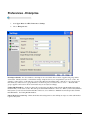
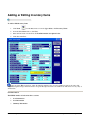
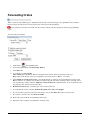
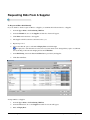
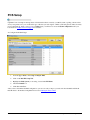
1.
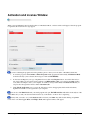
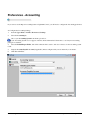
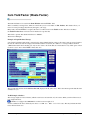
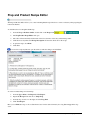
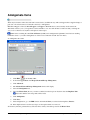
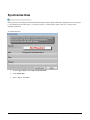
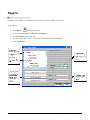
Click Prep
2.
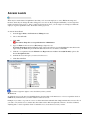
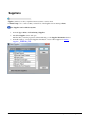
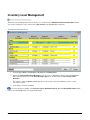
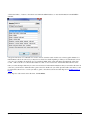
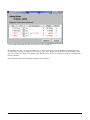
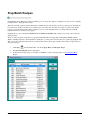
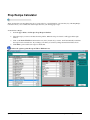
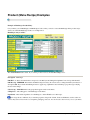
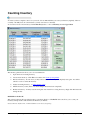
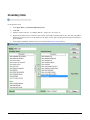
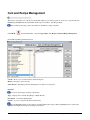
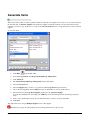
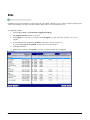
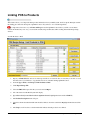
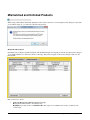
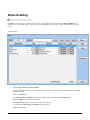
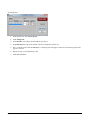
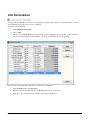
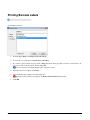
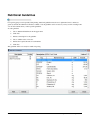
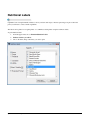
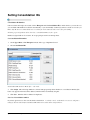
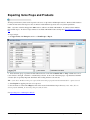
The Select Prep Recipe window will appear.
3.
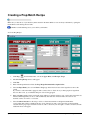
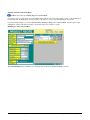
Double click on a Prep recipe to view/edit or click New to create a new Prep recipe. See Creating Prep/Batch
Recipes
94 • Prep/Batch Recipes
from the Button Bar, or from the Upper Menu, click Recipes | Preps
Optimum Control Help File