1
5
5
Configuration
D-Link Web Smart Switch User Manual
Configuration
The features and functions of the D-Link SmartPro Switch can be configured for optimum use through the
Web-based Management Utility.
Smart Wizard Configuration
After a successful login, the Smart Wizard will guide you through essential settings of the D-Link Web Smart
Switch. If you do not plan to change anything, click Exit to leave the Wizard and enter the Web Interface. You
can also skip it by clicking Don’t show Smart Wizard next time for the next time you logon to the Web-based
Management.
IP Information
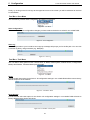
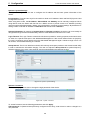
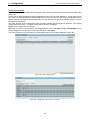
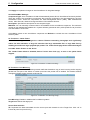
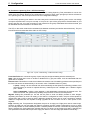
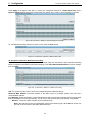
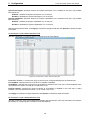
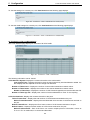
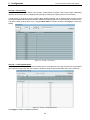
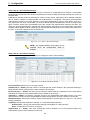
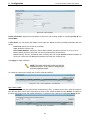
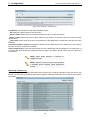
IP Information will guide you to do basic configurations on 3 steps for the IP Information, access password, and SNMP. If
you are not changing the settings, click on Exit to go back to the main page. Select Static, DHCP or BOOTP, and
type the desired new IP Address, select the Netmask and type the Gateway address, then click the Apply
button to enter the next Password setting page. (No need to enter IP Address, Netmask and Gateway of
DHCP and BOOTP selection.)
Figure 5.1 – IP Information in Smart Wizard
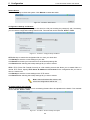
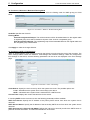
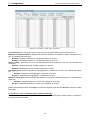
Password Settings
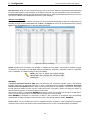
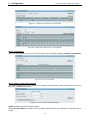
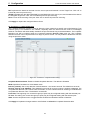
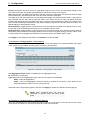
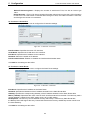
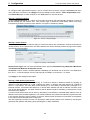
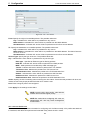
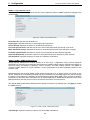
Type the desired new password in the Password box and again in the Confirm Password, then click the
Next button to the SNMP setting page.
18
5
Configuration
D-Link Web Smart Switch User Manual
Figure 5.2 – Password setting in Smart Wizard
SNMP Settings
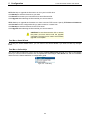
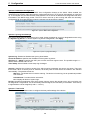
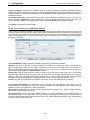
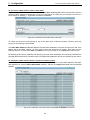
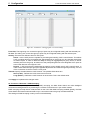
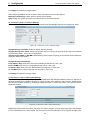
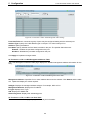
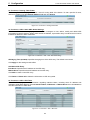
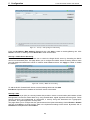
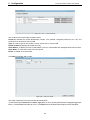
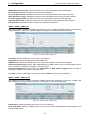
The SNMP Setting allows you to quickly enable/disable the SNMP function. The default SNMP Setting is
Disabled. Click Enabled and then click Apply to make it effective..
Figure 5.3 – SNMP Setting in Smart Wizard
NOTE: Changing the system IP address will
disconnect you from the current connection.
Please enter the correct IP address in the Web
browser again and make sure your PC is in the
same subnet with the switch. See Login
Web-based
Management
for
a
detailed
description.
19
5
Configuration
D-Link Web Smart Switch User Manual
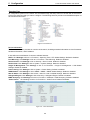
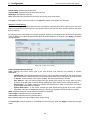
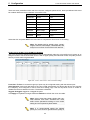
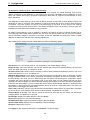
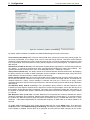
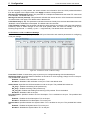
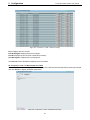
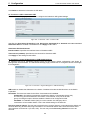
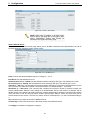
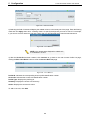
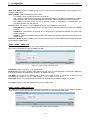
If you want to change the IP settings, click OK and start a new web browser.
Figure 1 – Confirm the changes of IP address in Smart Wizard
Web-based Management
After clicking the Exit button in Smart Wizard you will see the screen below:
Figure 5.4 – Web-based Management
The above image is the Web-based Management screen. The three main areas are the Tool Bar on top, the
Function Tree, and the Main Configuration Screen.
The Tool Bar provides a quick and convenient way for essential utility functions like firmware and
configuration management.
By choosing different functions in the Function Tree, you can change all the settings in the Main
Configuration Screen. The main configuration screen will show the current status of your Switch by clicking
the model name on top of the function tree.
At the upper right corner of the screen the username and current IP address will be displayed.
Under the username is the Logout button. Click this to end this session.
NOTE: If you close the web browser without
clicking the Logout button first, then it will be seen
as an abnormal exit and the login session will still
be occupied.
20
5
Configuration
D-Link Web Smart Switch User Manual
Finally, by clicking on the D-Link logo at the upper-left corner of the screen you will be redirected to the local
D-Link website.
Tool Bar > Save Menu
The Save Menu provides Save Configuration and Save Log functions.
Figure 5.5 – Save Menu
Save Configuration
Select to save the entire configuration changes you have made to the device to switch’s non-volatile RAM.
Figure 5.6 – Save Configuration
Save Log
Save the log entries to your local drive and a pop-up message will prompt you for the file path. You can view
or edit the log file by using text editor (e.g. Notepad).
Figure 5.7 – Save Log
Tool Bar > Tool Menu
The Tool Menu offers global function controls such as Reset, Reset System, Reboot Device, Configuration
Backup and Restore, Firmware Backup and Upgrade.
Figure 5.8 – Tool Menu
Reset
Provide a safe reset option for the Switch. All configuration settings in non-volatile RAM will be reset to factory
default except for the IP address.
Figure 5.9 – Tool Menu > Reset
Reset System
Provide another safe reset option for the Switch. All configuration settings in non-volatile RAM will reset to
factory default and the Switch will reboot.
Figure 5.10 – Tool Menu > Reset System
21
5
Configuration
D-Link Web Smart Switch User Manual
Reboot Device
Provide a safe way to reboot the system. Click Reboot to restart the switch.
Figure 5.11 – Tool Menu > Reboot Device
Configuration Backup and Restore
Allow the current configuration settings to be saved to a file (not including the password), and if necessary,
you can restore configuration settings from this file. Two methods can be selected: HTTP or TFTP.
Figure 5.12 – Tool Menu > Configure Backup and Restore
HTTP: Backup or restore the configuration file to or from your local drive.
Click Backup to save the current settings to your disk.
Click Browse to browse your inventories for a saved backup settings file.
Click Restore after selecting the backup settings file you want to restore.
TFTP: TFTP (Trivial File Transfer Protocol) is a file transfer protocol that allows you to transfer files to a
remote TFTP server. Specify TFTP Server IP Address and File Name for the configuration file you want to
save to / restore from.
Click Backup to save the current settings to the TFTP server.
Click Restore after selecting the backup settings file you want to restore.
Note: Switch will reboot after restore, and
all current configurations will be lost
Firmware Backup and Upgrade
Allow for the firmware to be saved, or for an existing firmware file to be uploaded to the Switch. Two methods
can be selected: HTTP or TFTP.
Figure 5.13 – Tool Menu > Firmware Backup and Upload
22
5
Configuration
D-Link Web Smart Switch User Manual
HTTP: Backup or upgrade the firmware to or from your local PC drive.
Click Backup to save the firmware to your disk.
Click Browse to browse your inventories for a saved firmware file.
Click Upgrade after selecting the firmware file you want to restore.
TFTP: Backup or upgrade the firmware to or from a remote TFTP server. Specify TFTP Server IP Address
and File Name for the configuration file you want to save to / restore from.
Click Backup to save the firmware to the TFTP server.
Click Upgrade after selecting the firmware file you want to restore.
CAUTION: Do not disconnect the PC or remove
the power cord from device until the upgrade
completes. The Switch may crash if the Firmware
upgrade is incomplete.
Tool Bar > Smart Wizard
By clicking the Smart Wizard button, you can return to the Smart Wizard if you wish to make any changes
there.
Tool Bar > Online Help
The Online Help provides two ways of online support: Online Support Site will lead you to the D-Link website
where you can find online resources such as updated firmware images; User Guide can offer an immediate
reference for the feature definition or configuration guide.
Figure 5.14 – Online Help
23
5
Configuration
D-Link Web Smart Switch User Manual
Figure 5.15 – User Guide Micro Site
24
5
Configuration
D-Link Web Smart Switch User Manual
Function Tree
All configuration options on the switch are accessed through the Setup menu on the left side of the screen.
Click on the setup item that you want to configure. The following sections provide more detailed description of
each feature and function.
Figure 5.16 –Function Tree
Device Information
The Device Information provides an overview of the switch, including essential information such as firmware &
hardware information, and IP address.
It also offers an overall status of common software features:
RSTP: Click Settings to link to L2 Functions > Spanning Tree > STP Global Settings. Default is disabled.
Port Mirroring: Click Settings to link to L2 Functions > Port Mirroring. Default is disabled.
Storm Control: Click Settings to link to Security > Storm Control. Default is disabled.
DHCP Client: Click Settings to link to System > System Settings. Default is disabled.
Single IP Management: Click Settings to link to L3 Functions > Single IP Management > SIM Global
Settings. Default is disabled.
Power Saving: Click Settings to link to System > Power Saving. Default is enabled.
SNMP Status: Click Settings to link to SNMP > SNMP > SNMP Global Settings. Default is disabled.
802.1X Status: Click Settings to link to AAA > 802.1X > 802.1X Global Settings. Default is disabled.
Safeguard Engine: Click Settings to link to Security > Safeguard Engine. Default is enabled.
IGMP Snooping: Click Settings to link to L2 Functions > Multicast > IGMP Snooping. Default is disabled.
Jumbo Frame: Click Settings to link to L2 Functions > Jumbo Frame. Default is disabled.
Figure 5.17 – Device Information
25
5
Configuration
D-Link Web Smart Switch User Manual
System > System Settings
The System Setting allows the user to configure the IP address and the basic system information of the
Switch.
IP Information: There are two ways for the switch to obtain an IP address: Static and DHCP (Dynamic Host
Configuration Protocol).
When using static mode, the IP Address, Subnet Mask and Gateway can be manually configured. When
using DHCP mode, the Switch will first look for a DHCP server to provide it with an IP address (including
network mask and default gateway) before using the default or previously entered settings. By default the IP
setting is static mode with IP address is 10.90.90.90 and subnet mask is 255.0.0.0.
System Information: By entering a System Name and System Location, the device can more easily be
recognized through the SmartConsole Utility and from other Web-Smart devices on the LAN.
Login Timeout: The Login Timeout controls the idle time-out period for security purposes, and when there is
no action for a specific time span in the Web-based Management. If the current session times out (expires),
the user is required a re-login before using the Web-based Management again. Selective range is from 3 to
30 minutes, and the default setting is 5 minutes.
Group Interval: The D-Link Web Smart Switch will routinely send report packets to the SmartConsole Utility
in order to maintain the information integrity. The user can adjust the Group Interval to optimal frequency.
Selective range is from 120 to 1225 seconds, and 0 means disabling the reporting function.
Figure 5.18 – System > System Settings
System > Password
The Password page allows user to change the login password of the device.
Figure 5.19 – System > Password
To set the Password, set the following parameters and click Apply:
Old Password: If a password was previously configured for this entry, enter it here in order to change it to a
new password.
26
5
Configuration
D-Link Web Smart Switch User Manual
New Password: Enter the new password that you wish to set on the Switch to authenticate users attempting
to access Administrator Level privileges on the Switch. The user may set a password of up to 20 characters.
Confirm Password: Confirm the new password entered above. Entering a different password here from the
one set in the New Local Enabled field will result in a fail message.
System > Port Settings
In the Port Setting page, the status of all ports can be monitored and adjusted for optimum configuration. By
selecting a range of ports (From Port and To Port), the Speed can be set for all selected ports by clicking
Apply. Press the Refresh button to view the latest information.
Figure 5.20 – System > Port Settings
Speed: Gigabit Fiber connections can operate in 1000M Full Force Mode, Auto Mode or Disabled. Copper
connections can operate in Forced Mode settings (1000M Full, 100M Full, 100M Half, 10M Full, 10M Half),
Auto, or Disabled. The default setting for all ports is Auto.
NOTE: Be sure to adjust port speed settings
appropriately after changing the connected cable
media types.
MDI/MDIX:
A medium dependent interface (MDI) port is an Ethernet port connection typically used on the Network
Interface Card (NIC) or Integrated NIC port on a PC. Switches and hubs usually use Medium dependent
interface crossover (MDIX) interface. When connecting the Switch to end stations, user have to use straight
through Ethernet cables to make sure the Tx/Rx pairs match up properly. When connecting the Switch to
other networking devices, a crossover cable must be used.
This switch provides a configurable MDI/MDIX function for users. The switches can be set as an MDI port in
order to connect to other hubs or switches without an Ethernet crossover cable.
Auto MDI/MDIX is designed on the switch to detect if the connection is backwards, and automatically
chooses MDI or MDIX to properly match the connection. The default setting is “Auto” MDI/MDIX.
Flow Control: You can enable this function to mitigate the traffic congestion. Ports configured for full-duplex
use 802.3x flow control, half-duplex ports use backpressure flow control. The default setting is Disabled.
27
5
Configuration
D-Link Web Smart Switch User Manual
System > DHCP Auto Configuration
This page allows you to enable the DHCP Auto Configuration feature on the Switch. When enabled, the
Switch becomes a DHCP client and gets the configuration file from a TFTP server automatically on next boot
up. To accomplish this, the DHCP server must deliver the TFTP server IP address and configuration file name
information in the DHCP reply packet. The TFTP server must be up and running and store the necessary
configuration file in its base directory when the request is received from the Switch.
Figure 5.21 – System > DHCP Auto Configuration
System > SysLog Host Settings
The SysLog Host Settings page allows user to send Syslog messages to up to four designated servers using
the System Log Server. To set the System Log Server configuration, click Apply.
Figure 5.22 – System > SysLog Host Settings
System Log: Enabled or Disabled the SysLog Host feature.
Server IP Address: Specifies the IP address of the system log server.
UDP Port (1 - 65535): Specifies the UDP port to which the server logs are sent. The possible range is 1 –
65535, and the default value is 514.
Time Stamp: Select Enable to time stamp log messages.
Severity: Specifies the minimum severity from which warning messages are sent to the server. There are
three levels. When a severity level is selected, all severity level choices above the selection are selected
automatically. The possible levels are:
Warning - The lowest level of a device warning. The device is functioning, but an operational problem
has occurred.
Informational - Provides device information.
All - Displays all levels of system logs.
Facility: Specifies an application from which system logs are sent to the remote server. Only one facility can
be assigned to a single server. If a second facility level is assigned, the first facility is overwritten. There are up
to eight facilities can be assigned (Local 0 ~ Local 7).
System > Time Profile
The Time Profile page allows users to configure the time profile settings of the device.
Figure 5.23 – System > Time Profile Settings
28
5
Configuration
D-Link Web Smart Switch User Manual
Profile Name: Specifies the profile name.
Time(HH MM): Specifies the Start Time and End Time.
Weekdays: Specifies the work day.
Date: Select Date and specifies the From Day and To Day of the time profile.
Click Add to create a new time profile or click Delete to delete a time profile from the table.
System > Power Saving
The Power Saving mode feature reduces power consumption automatically when the RJ-45 port is link down
or the connected devices are turned off. Less power will be consumed also when the short cable is used (less
than 20 meters).
By reducing power consumption, less heat is produced, resulting in extended product life and lower operating
costs. By default, the Cable Length Detection and Link Status Detection are enabled. Click Apply to make the
change effective.
Figure 5.24 – System > Power Saving
Advanced Power Saving Settings:
Type: Specifies the Power Saving type to be LED Shut-off, Port Shut-off, Port Standby or System
Hibernation.
LED Shut-off - The LED Shut-off gets high priority. If the user select LED Shut-off, the profile function
will not take effect. It means the LED can not be turned on after Time Profile time’s up when the state
is disabled. On the contrary, if the LED is enabled, the Time Profile function will work.
Port Shut-off - The Port Shut-off state has high priority (the priority rule is the same as LED.)
Therefore, if the Port Shut-off sate is already disabled the Time Profile function will not take effect.
Port Standby - The system changes to standby state and wait for a wake up event. Each port on the
system enters sleep state by schedule.
System Hibernation - In this mode, switches get most power-saving figures since main chipsets
(both MAC and PHY) are disabled for all ports, and energy required to power the CPU is minimal.
State: Specifies the power saving state to be Enabled or Disabled.
Time Profile 1: Specifies the time profile or None.
Time Profile 2: Specifies the time profile or None.
Port: Specifies the ports to be configure of the Power Saving.
Click Select All configure all ports, or click Clear to uncheck all port. Then click Apply to implement changes
made.
29
5
Configuration
D-Link Web Smart Switch User Manual
VLAN > 802.1Q VLAN
A VLAN is a group of ports that can be anywhere in the network, but communicate as though they were in the
same area.
VLANs can be easily organized to reflect department groups (such as R&D, Marketing), usage groups (such
as e-mail), or multicast groups (multimedia applications such as video conferencing), and therefore help to
simplify network management by allowing users to move devices to a new VLAN without having to change
any physical connections.
The IEEE 802.1Q VLAN Configuration page provides powerful VID management functions. The original
settings have the VID as 1, no default name, and all ports as “Untagged”
Delete: Click to delete the VLAN group.
Add: Click to create a new VID group, assigning ports from 01 to 28 as Untag, Tag, or Not Member. A port
can be untagged in only one VID. To save the VID group, click Apply.
You may change the name accordingly to the desired groups, such as R&D, Marketing, email, etc.
Figure 5.25 – VLAN > 802.1Q VLAN
Figure 5.26 – Configuration > 802.1Q VLAN > Add VID
30
5
Configuration
D-Link Web Smart Switch User Manual
Figure 5.27 – Configuration > 802.1Q VLAN > Example VIDs
Figure 5.28 – Configuration > 802.1Q VLAN > VID Assignments
VLAN > VLAN Status
The VLAN Status page is for user to search the VLAN which has already existed by VLAN ID or VLAN Name.
Figure 5.29 – VLAN > VLAN Status
VLAN > GVRP > GVRP Global Settings
The GVRP Global Settings page allows user to configure the GARP timer values for application join, leave,
and leave_all GARP timer values.
Figure 5.30 – VLAN > GVRP > GVRP Global Settings
GVRP: Disabled or Enabled the GVRP status.
Join Time (100-100000): Indicates the time in milliseconds that PDUs are transmitted. The default value is
200ms.
31
5
Configuration
D-Link Web Smart Switch User Manual
Leave Time (100-100000): Indicates the amount of time in milliseconds that the device waits before leaving
its GARP state. The leave time is activated by a leave all time message sent/received, and cancelled by the
Join message. The default value is 600ms.
Leave_All Time (100-100000): Used to confirm the port within the VLAN. The time in milliseconds between
messages sent. The default value is 10000ms.
Click Apply to implement changes made.
NOTE: Leave time must be greater than or equal
to three times the join time.
Leave_all time must be greater than
the leave time.
VLAN > GVRP > GVRP Port Settings
The GVRP Port Settings page allows user to determine whether the Switch will share its VLAN configuration
information with other GARP VLAN Registration Protocol (GVRP) enabled switches. In addition, Ingress
Checking can be used to limit traffic by filtering incoming packets whose PVID does not match the PVID of the
port. Results can be seen in the table under the configuration settings, as seen below.
Figure 5.31 – VLAN > GVRP > GVRP Port Settings
From Port/To Port: These two fields allow user to specify the range of ports that will be included in the
Port-based VLAN that user is creating using the 802.1Q Port Settings page.
PVID(1-4094): The read-only field in the 802.1Q Port Table shows the current PVID assignment for each port,
which may be manually assigned to a VLAN when created in the Settings table. The Switch's default is to
assign all ports to the default VLAN with a VID of 1. The PVID is used by the port to tag outgoing, untagged
packets, and to make filtering decisions about incoming packets. If the port is specified to accept only tagged
frames - as tagging, and an untagged packet is forwarded to the port for transmission, the port will add an
802.1Q tag using the PVID to write the VID in the tag. When the packet arrives at its destination, the receiving
device will use the PVID to make VLAN forwarding decisions. If the port receives a packet, and Ingress
filtering is enabled, the port will compare the VID of the incoming packet to its PVID. If the two are unequal,
the port will drop the packet. If the two are equal, the port will receive the packet.
GVRP: The Group VLAN Registration Protocol (GVRP) enables the port to dynamically become a member of
a VLAN. GVRP is Disabled by default.
32
5
Configuration
D-Link Web Smart Switch User Manual
Ingress Checking: This field can be toggled using the space bar between Enabled and Disabled. Enabled
enables the port to compare the VID tag of an incoming packet with the PVID number assigned to the port. If
the two are different, the port filters (drops) the packet. Disabled disables ingress filtering. Ingress Checking is
Disabled by default.
Acceptable Frame Type: This field denotes the type of frame that will be accepted by the port. The user may
choose between Tagged Only, which means only VLAN tagged frames will be accepted, and Admit_All,
which mean both tagged and untagged frames will be accepted. Admit_All is enabled by default.
Click Apply to implement changes made.
VLAN > Voice VLAN > Voice VLAN Global Settings
Voice VLAN is a feature that allows you to automatically place the voice traffic from IP phone to an assigned
VLAN to enhance the VoIP service. With a higher priority and individual VLAN, the quality and the security of
VoIP traffic are guaranteed. The Voice VLAN function will only insert the Voice VLAN tag to untagged packets
under corresponding ports. If a VoIP packet comes with a VLAN tag, the Voice VLAN function won’t replace
the original VLAN tag.
Figure 5.32 – VLAN > Voice VLAN > Voice VLAN Global Settings
Voice VLAN State: Select to Enable or Disable Voice VLAN. The default is Disabled.
VLAN ID: The ID of VLAN that you want to assign voice traffic to. You must first create a VLAN from the
802.1Q VLAN page before you can assign a dedicated Voice VLAN. The member port you configured in
802.1Q VLAN setting page will be the static member port of voice VLAN. To dynamically add ports into the
voice VLAN, please enable the Auto Detection function
Aging Time: Enter a period of time in hours to remove a port from voice VLAN if the port is an automatic
VLAN member. When the last voice device stops sending traffic and the MAC address of this voice device is
aged out, the voice VLAN aging timer will be started. The port will be removed from the voice VLAN after
expiration of voice VLAN aging timer. Selectable range is from 1 to 120 hours and default is 1 hour.
Priority: The 802.1p priority levels of the traffic in the Voice VLAN. The default priority is highest.
Voice VLAN OUI Settings: this allows the user to configure the user-defined voice traffic’s OUI. An
Organizationally Unique Identifier (OUI) is the first three bytes of the MAC address. This identifier uniquely
identifies a vendor, manufacturer, or other organization.
Default OUI: Pre-defined OUI values, including brand names of 3COM, Cisco, Veritel, Pingtel, Siemens,
NEC/Philips, Huawei3COM, and Avaya.
User defined OUI: You can manually create a Telephony OUI with a description. The maximum number of
user defined OUIs is 10. It will occupy one ACL rule when selecting user defined OUI by default, and to
configure one user-defined OUI will take extra one ACL rule. System will auto generate an ACL profile (Profile
ID: 51) for all the Voice VLAN rules.
33
5
Configuration
D-Link Web Smart Switch User Manual
There are some pre-defined OUIs and when the user configures personal OUI, these pre-defined OUIs must
be avoided. Below are the pre-defined voice traffic’s OUI:
OUI
Vendor
Mnemonic Name
00:E0:BB
3COM
3com
00:03:6B
Cisco
cisco
00:E0:75
Veritel
veritel
00:D0:1E
Pingtel
pingtel
00:01:E3
Siemens
siemens
00:60:B9
NEC/ Philips
nec&philips
00:0F:E2
Huawei-3COM
huawei&3com
00:09:6E
Avaya
avaya
Select the OUI and press Add to the lower table to complete the Auto Voice VLAN setting.
Note: The default OUI for 3COM, Cisco, Veritel,
Pingtel, Siemens, NEC/Philips, Huawei3COM, and
Avaya is not common for all of their VoIP devices.
VLAN > Voice VLAN > Voice VLAN Port Settings
The Voice VLAN Port Settings page allows users to automatically place the voice traffic from IP phone to an
assigned VLAN to enhance the VoIP service. With a higher priority and individual VLAN, the quality and the
security of VoIP traffic are guaranteed.
Figure 5.33 – VLAN > Voice VLAN > Voice VLAN Port Settings
From Port / To Port: A consecutive group of ports may be configured starting with the selected port.
Auto Detection: Switch will add ports to the voice VLAN automatically if it detects the device OUI matches
the Telephony OUI configured in Voice VLAN OUI Setting page. Use the drop-down menu to enable or
disable the OUI auto detection function. The default is Disabled
Tagged / Untagged: tagged or untagged the ports.
Click Apply to implement changes made and Refresh to refresh the voice vlan table.
Note: Voice VLAN has higher priority than any
other features even QoS. Therefore the voice
traffic will be operated according to Voice VLAN
setting and not impacted by QoS feature.
Note: It is recommended setting the highest
priority for Voice VLAN to guarantee the quality of
34
5
Configuration
D-Link Web Smart Switch User Manual
VoIP traffic.
VLAN > Voice VLAN > Voice Device List
The Voice Device List page displays the information of Voice VLAN.
Figure 5.34 – VLAN > Voice VLAN > Voice Device List
Select a port or all ports and click Search to display the Voice Device information in the table.
VLAN > Auto Surveillance VLAN
Similar as Voice VLAN, Auto Surveillance VLAN is a feature that allows you to automatically place the video
traffic from D-Link IP cameras to an assigned VLAN to enhance the IP surveillance service. With a higher
priority and individual VLAN, the quality and the security of surveillance traffic are guaranteed. The Auto
Surveillance VLAN function will check the source OUI/MAC address / VLAN ID on the incoming packets. If it
matches specified MAC address / VLAN ID, the packets will pass through switch with desired priority.
Figure 5.35 – VLAN > Auto Surveillance VLAN
Auto Surveillance VLAN Global Settings:
Auto Surveillance VLAN State: Select to enable or disable Auto Surveillance VLAN. The default is Disabled.
VLAN ID: By default, the VLAN ID 4094 was created as Auto Surveillance VLAN. You also can create
another Auto Surveillance VLAN by selecting a VLAN ID that you have created a VLAN from the 802.1Q
VLAN page. The member port you configured in 802.1Q VLAN setting page will be the static member port of
Auto Surveillance VLAN.
Priority: Specifies the priority level of Auto Surveillance VLAN on the Switch. The possible values are Highest,
High, Medium and Low. The default priority is High.
Tagged Uplink/Downlink Port: Specifies the port or ports to be tagged uplink port or downlink port for the
Auto Surveillance VLAN.
35
5
Configuration
D-Link Web Smart Switch User Manual
Click Apply to implement changes of Auto Surveillance VLAN global settings.
User-defined MAC Settings:
Component Type: Auto Surveillance VLAN will automatically detect D-Link Surveillance Devices by default.
There are another five surveillance components that could be configured to be auto-detected by the Auto
Surveillance VLAN. These five components are Video Management Server (VMS), VMS Client/Remote
viewer, Video Encoder, Network Storage and Other IP Surveillance Devices.
Description: Specifies the description for the component type.
MAC/OUI: You can manually create an MAC or OUI address for the surveillance component. The maximum
number of user defined MAC address is 5. System will auto generate an ACL profile (Profile ID: 56) for all the
Auto Surveillance VLAN rules.
Click Add to create a new surveillance component and Refresh to refresh the Auto Surveillance VLAN
summary table.
L2 Functions > Jumbo Frame
Jumbo Frame support is designed to enhance Ethernet networking throughput and significantly
reduce the CPU utilization of large file transfers like large multimedia files or large data files by
enabling more efficient larger payloads per packet. The Jumbo Frame page allows network managers
to enable Jumbo Frames on the device.
The Jumbo Frame default is disabled, Select Enabled then click Apply to turn on the jumbo frame
support.
Figure 5.36 – L2 Functions > Jumbo Frame Settings
L2 Functions > Port Mirroring
Port Mirroring is a method of monitoring network traffic that forwards a copy of each incoming and/or outgoing
packet from one port of the Switch to another port where the packet can be studied. This enables network
managers to better monitor network performances.
Figure 5.37 – L2 Functions > Port Mirroring Settings
Port Mirroring: Enables or disables the Port Mirroring status.
Target Port: Defines the target port.
Source Port Selection:
TX: Duplicates the data transmitted from the source port and forwards it to the Target Port. Click “all” to
include all ports into port mirroring.
36
5
Configuration
D-Link Web Smart Switch User Manual
RX: Duplicates the data that received from the source port and forwards it to the Target Port. Click “all” to
include all ports into port mirroring.
TX/RX: Duplicate both the data transmitted from and data sent to the source port, and forwards all the data to
the assigned Target Port. Click “all” to include all ports into port mirroring.
None: Turns off the mirroring of the port. Click “all” to remove all ports from mirroring.
Click Apply to capture the configured Source Ports.
L2 Functions > Loopback Detection
The Loopback Detection function is used to detect the loop created by a specific port while Spanning Tree
Protocol (STP) is not enabled in the network, especially when the down links are hubs or unmanaged
switches. The Switch will automatically shutdown the port and sends a log to the administrator. The Loopback
Detection port will be unlocked when the Loopback Detection Recover Time times out. The Loopback
Detection function can be implemented on a range of ports at a time. You may enable or disable this function
using the pull-down menu.
Figure 5.38 – L2 Functions > Loopback Detection Settings
Loopback Detection State: Enable or disable loopback detection. The default is Disabled.
Mode: Specifies Port-based or VLAN-based mode.
Interval (1-32767): Set a Loop detection Interval between 1 and 32767 seconds. The default is 2 seconds.
Recover Time (0 or 60-1000000): Time allowed (in seconds) for recovery when a Loopback is detected. The
Loop Detection Recover Time can be set at 0 seconds, or 60 to 1000000 seconds. Entering 0 will disable the
Loop Detection Recover Time. The default is 60 seconds.
From Port: The beginning of a consecutive group of ports may be configured starting with the selected port.
To Port: The ending of a consecutive group of ports may be configured starting with the selected port.
State: Use the drop-down menu to toggle between Enabled and Disabled. Default is Disabled.
Click Apply to implement changes made or click Refresh to refresh the Loopback Detection table.
37
5
Configuration
D-Link Web Smart Switch User Manual
L2 Functions > MAC Address Table > Static MAC
This feature provides two distinct functions. The Disable Auto Learning table allows turning off the function
of learning MAC address automatically, if a port isn't specified as an uplink port (for example, connects to a
DHCP Server or Gateway). By default, this feature is Disabled.
Figure 5.39 – L2 Functions > MAC Address Table > Static MAC
To initiate the removal of auto-learning for any of the uplink ports, enable this feature, and then select the
port(s) for auto learning to be disabled.
The Static MAC Address Lists table displays the static MAC addresses connected, as well as the VID. Click
Add to add a new MAC address, you also need to select the assigned Port number. Enter both the Mac
Address and VID, and then Click Add. Click Delete to remove one entry or click Delete all to clear the list.
By disabling Auto Learning capability and specifying the static MAC addresses, the network is protected from
potential threats like hackers, because traffic from illegal MAC addresses will not be forwarded by the Switch.
L2 Functions > MAC Address Table > Dynamic Forwarding Table
For each port, this table displays the MAC address learned by the Switch. To add a MAC address to the Static
Mac Address List, click the Add to Static MAC checkbox, and then click Apply associated with the identified
address.
Figure 5.40 – L2 Functions > MAC Address Table > Dynamic Forwarding Table
38
5
Configuration
D-Link Web Smart Switch User Manual
L2 Functions > Spanning Tree > STP Global Settings
The Switch implements two versions of the Spanning Tree Protocol, the Rapid Spanning Tree Protocol
(RSTP) as defined by the IEEE 802.1w specification and a version compatible with the IEEE 802.1D STP.
RSTP can operate with legacy equipment implementing IEEE 802.1D, however the advantages of using
RSTP will be lost.
The IEEE 802.1w Rapid Spanning Tree Protocol (RSTP) evolved from the 802.1D STP standard. RSTP was
developed in order to overcome some limitations of STP that impede the function of some recent switching
innovations. The basic function and much of the terminology is the same as STP. Most of the settings
configured for STP are also used for RSTP. This section introduces some new Spanning Tree concepts and
illustrates the main differences between the two protocols.
By default, Rapid Spanning Tree is disabled. If enabled, the Switch will listen for BPDU packets and its
accompanying Hello packet. BPDU packets are sent even if a BPDU packet was not received. Therefore,
each link between bridges is sensitive to the status of the link. Ultimately this difference results in faster
detection of failed links, and thus faster topology adjustment.
After enabling STP, setting the STP Global Setting includes the following options.
Figure 5.41 – L2 Functions > Spanning Tree > STP Global Settings
STP Version: You can choose RSTP or STP Compatible. The default setting is RSTP.
Bridge Priority: This value between 0 and 61410 specifies the priority for forwarding packets: the lower the
value, the higher the priority. The default is 32768.
TX Hold Count (1-10): Used to set the maximum number of Hello packets transmitted per interval. The count
can be specified from 1 to 10. The default is 6.
Maximum Age (6-40 sec): This value may be set to ensure that old information does not endlessly circulate
through redundant paths in the network, preventing the effective propagation of the new information. Set by
the Root Bridge, this value will aid in determining that the Switch has spanning tree configuration values
consistent with other devices on the bridged LAN. If the value ages out and a BPDU has still not been
received from the Root Bridge, the Switch will start sending its own BPDU to all other switches for permission
to become the Root Bridge. If it turns out that the Switch has the lowest Bridge Identifier, it will become the
Root Bridge. A time interval may be chosen between 6 and 40 seconds. The default value is 20. (Max Age
has to have a value bigger than Hello Time)
Hello Time (1-10 sec): The user may set the time interval between transmissions of configuration messages
by the root device, thus stating that the Switch is still functioning. The default is 2 seconds.
Forward Delay (4-30 sec): This sets the maximum amount of time that the root device will wait before
changing states. The default is 15 seconds.
Root Bridge: Displays the MAC address of the Root Bridge.
Root Cost: Displays the cost of the Root Bridge.
Root Maximum Age: Displays the Maximum Age of the Root Bridge.
Root Forward Delay: Displays the Forward Delay of the Root Bridge.
Root port: Displays the root port.
Click Apply for the settings to take effect. Click Refresh to renew the page.
39
5
Configuration
D-Link Web Smart Switch User Manual
L2 Functions > Spanning Tree > STP Port Settings
STP can be set up on a port per port basis. In addition to setting Spanning Tree parameters for use on the
switch level, the Switch allows for the configuration of groups of ports, each port-group of which will have its
own spanning tree, and will require some of its own configuration settings.
An STP Group spanning tree works in the same way as the switch-level spanning tree, but the root bridge
concept is replaced with a root port concept. A root port is a port of the group that is elected based on port
priority and port cost, to be the connection to the network for the group. Redundant links will be blocked, just
as redundant links are blocked on the switch level.
The STP on the switch level blocks redundant links between switches (and similar network devices). The port
level STP will block redundant links within an STP Group.
Figure 5.42 – System > SNMP Settings > SNMP Global Port Settings
From Port/To Port: A consecutive group of ports may be configured starting with the selected port.
State: Use the drop-down menu to enable or disable STP by per-port based. It will be selectable after the
global STP is enabled.
External Cost: This defines a metric that indicates the relative cost of forwarding packets to the specified port
list. Port cost can be set automatically or as a metric value. Thedefault value is 0 (auto).
0 (auto) - Setting 0 for the external cost will automatically set the speed for forwarding packets to the
specified port(s) in the list for optimal efficiency. Default port cost: 100Mbps port = 200000. Gigabit
port = 20000.
Value 1-200000000 - Define a value between 1 and 200000000 to determine the external cost. The
lower the number, the greater the probability the port will be chosen to forward packets.
Migrate: Setting this parameter as Yes will set the ports to send out BPDU packets to other bridges,
requesting information on their STP setting. If the Switch is configured for RSTP, the port will be capable to
migrate from 802.1d STP to 802.1w RSTP. Migration should be set as yes on ports connected to network
stations or segments that are capable of being upgraded to 802.1w RSTP on all or some portion of the
segment.
Edge: Selecting the True parameter designates the port as an edge port. Edge ports cannot create loops,
however an edge port can lose edge port status if a topology change creates a potential for a loop. An edge
port normally should not receive BPDU packets. If a BPDU packet is received, it automatically loses edge port
status. Selecting the False parameter indicates that the port does not have edge port status. Selecting the
Auto parameter indicates that the port have edge port status or not have edge port status automatically.
40
5
Configuration
D-Link Web Smart Switch User Manual
Priority: Specify the priority of each port. Selectable range is from 0 to 240, and the default setting is 128.
The lower the number, the greater the probability the port will be chosen as a root port.
P2P: Choosing the True parameter indicates a point-to-point (P2P) shared link. P2P ports are similar to edge
ports however they are restricted in that a P2P port must operate in full-duplex.
Like edge ports, P2P ports transition to a forwarding state rapidly thus benefiting from RSTP. A p2p value of
false indicates that the port cannot have p2p status. Auto allows the port to have p2p status whenever
possible and operate as if the p2p status were true. If the port cannot maintain this status, (for example if the
port is forced to half-duplex operation) the p2p status changes to operate as if the p2p value were False. The
default setting for this parameter is Auto.
Restricted Role: Toggle between True and False to set the restricted role state of the packet. If set to True,
the port will never be selected to be the Root port. The default value is False.
Restricted TCN: Toggle between True and False to set the restricted TCN of the packet. Topology Change
Notification (TCN) is a BPDU that a bridge sends out to its root port to signal a topology change. If set to True,
it stops the port from propagating received TCN and to other ports. The default value is False.
Click Apply for the settings to take effect. Click Refresh to renew the page.
L2 Functions > Link Aggregation > Port Trunking
The Trunking function enables the combining of two or more ports together to increase bandwidth. Up to eight
Trunk groups may be created, and each group consists up to eight ports.
Figure 5.43 – L2 Functions > Link Aggregation > Port Trunking
Link Aggregation State: Enable or Disable the Link Aggregation state.
ID: Specifies the Trunking ID.
Type: Specifies the Link Aggregation type. There are two types can be selected:
Static - Static link aggregation.
LACP - LACP (Link Aggregation Control Protocol) is enabled on the device. LACP allows for the
automatic detection of links in a Port Trunking Group.
Select the ports to be grouped together, and then click Apply to activate the selected Trunking groups.
NOTE: Each combined trunk port must be
connected to devices within the same VLAN
group.
L2 Functions > Link Aggregation > LACP Port Settings
The LACP Port Settings is used to create port trunking groups on the Switch. The user may set which ports
will be active and passive in processing and sending LACP control frames
41
5
Configuration
D-Link Web Smart Switch User Manual
Figure 5.44 – L2 Functions > Link Aggregation > LACP Port Settings
From Port: The beginning of a consecutive group of ports may be configured starting with the selected port.
To Port: The ending of a consecutive group of ports may be configured starting with the selected port.
Activity: There are two different roles of LACP ports:
Active - Active LACP ports are capable of processing and sending LACP control frames. This allows
LACP compliant devices to negotiate the aggregated link so the group may be changed dynamically
as needs require. In order to utilize the ability to change an aggregated port group, that is, to add or
subtract ports from the group, at least one of the participating devices must designate LACP ports as
active. Both devices must support LACP.
Passive - LACP ports that are designated as passive cannot initially send LACP control frames. In
order to allow the linked port group to negotiate adjustments and make changes dynamically, one end
of the connection must have "active" LACP ports.
Timeout: Specify the administrative LACP timeout. The possible field values are:
Short (3 Sec) - Defines the LACP timeout as 3 seconds.
Long (90 Sec) - Defines the LACP timeout as 90 seconds. This is the default value.
Click Apply to implement the changes made.
L2 Functions > Multicast > IGMP Snooping
With Internet Group Management Protocol (IGMP) snooping, the Web Smart Switch can make intelligent
multicast forwarding decisions by examining the contents of each frame’s Layer 2 MAC header.
IGMP snooping can help reduce cluttered traffic on the LAN. With IGMP snooping enabled globally, the Web
Smart Switch will forward multicast traffic only to connections that have group members attached.
The settings of IGMP snooping is set by each VLAN individually.
42
5
Configuration
D-Link Web Smart Switch User Manual
Figure 5.45 – L2 Functions > Multicast > IGMP Snooping
By default, IGMP is disabled. If enabled, the IGMP Global Settings will need to be entered:
Host Timeout (130-153025 sec): This is the interval after which a learned host port entry will be purged. For
each host port learned, a 'Port Purge Timer' runs for 'Host Port Purge Interval'. This timer will be restarted
whenever a report message from host is received over that port. If no report messages are received for 'Host
Port Purge Interval' time, the learned host entry will be purged from the multicast group. The default value is
260 seconds.
Robustness Variable (2-255 sec): The Robustness Variable allows adjustment for the expected packet loss
on a subnet. If a subnet is expected to be lossy, the Robustness Variable may need to be increased. The
Robustness Variable cannot be set to zero, and it SHOULD NOT be. Default is 2 seconds.
Query Interval (60-600 sec): The Query Interval is the interval between General Queries sent. By adjusting
the Query Interval, the number of IGMP messages can be increased or decreased; larger values will cause
IGMP Queries to be sent less often. Default value is 125 seconds.
Router Timeout (60-600 sec): This is the interval after which a learned router port entry will be purged. For
each router port learned, a 'Router Port Purge Timer' runs for 'Router Port Purge Interval'. This timer will be
restarted whenever a Query control message is received over that port. If there are no Query control
messages received for 'Router Port Purge Interval' time, the learned router port entry will be purged. Default is
260 seconds.
Last Member Query Interval (1-25 sec): The Last Member Query Interval is the Max Response Time
inserted into Group-Specific Queries sent in response to Leave Group messages, and is also the amount of
time between Group-Specific Query messages. This value may be adjusted to modify the "leave latency" of
the network. A reduced value results in reduced time to detect the loss of the last member of a group. Default
is 1 second.
Max Response Time (10-25 sec): The Max Response Time specifies the maximum allowed time before
sending a responding report message. Adjusting this setting effects the "leave latency", or the time between
the moment the last host leaves a group and when the multicast server is notified that there are no more
members. It also allows adjustments for controlling the frequency of IGMP traffic on a subnet. Default is 10
seconds.
To enable IGMP snooping for a given VLAN, select enable and click on the Apply button. Then press the
VLAN ID number under IGMP Snooping VLAN Setting, and select the State, Querier State and Fast Leave
to be enabled or disabled, and the ports to be assigned as router ports for IGMP snooping for the VLAN.
43
5
Configuration
D-Link Web Smart Switch User Manual
Press Apply for changes to take effect. A router port configured manually is a Static Router Port, and a
Dynamic Router Port is dynamically configured by the Switch when a query control message is received.
Figure 5.46 –L2 Functions > Multicast > IGMP Snooping VLAN Settings
To view the Multicast Entry Table for a given VLAN, press the View button.
Figure 5.47 –L2 Functions > Multicast > Multicast Entry Table
L2 Functions > Multicast > Multicast Forwarding
The Multicast Forwarding page displays all of the entries made into the Switch’s static multicast forwarding
table. To implement the Multicast Forwarding Settings, input VID, Multicast MAC Address and port settings,
then click Add.
Figure 5.48 – L2 Functaions > Multicast > Multicast Forwarding
VID: The VLAN ID of the VLAN to which the corresponding MAC address belongs.
Multicast MAC Address: The MAC address of the static source of multicast packets. This must be a
multicast MAC address.
Port Settings: Allows the selection of ports that will be members of the static multicast group and ports either
that are forbidden from joining dynamically, or that can join the multicast group dynamically, using GMRP.
Member - The port is a static member of the multicast group.
None - No restrictions on the port dynamically joining the multicast group. When None is chosen, the
port will not be a member of the Static Multicast Group.
44
5
Configuration
D-Link Web Smart Switch User Manual
L2 Functions > Multicast > Multicast Filtering Mode
The Multicast Filtering Mode function allows users to select the filtering mode for IGMP group per VLAN
basis.
Figure 5.49 – L2 Functions > Multicast > Multicast Filtering Mode
VLAN ID: Specifies the VLAN ID.
Filtering Mode:
Forward Unregistered Groups: The multicast stream will be forwarded based on the register table
in registered group, but it will be flooded to all ports of the VLAN in unregistered group.
Filter Unregistered Groups: The registered group will be forwarded based on the register table and
the unregister group will be filtered.
Click Apply to make the change effective.
L2 Functions > SNTP > Time Settings
SNTP or Simple Network Time Protocol is used by the Switch to synchronize the clock of the computer. The
SNTP settings folders contain two windows: Time Settings and TimeZone Settings. Users can configure the
time settings for the switch, and the following parameters can be set or are displayed in the Time Settings
page.
Figure 5.50 – L2 Functions > SNTP > Time Settings
Clock Source: Specify the clock source by which the system time is set. The possible options are:
Local - Indicates that the system time is set locally by the device.
SNTP - Indicates that the system time is retrieved from a SNTP server.
Current Time: Displays the current date and time for the switch.
If choosing SNTP for the clock source, then the following parameters will be available:
SNTP First Server: Specify the IP address of the primary SNTP server from which the system time is
retrieved.
SNTP Second Server: Specify the IP address of the secondary SNTP server from which the system time is
retrieved.
SNTP Poll Interval in Seconds (30-99999): Defines the interval (in seconds) at which the SNTP server is
polled for Unicast information. The Poll Interval default is 30 seconds.
45
5
Configuration
D-Link Web Smart Switch User Manual
Click Apply to implement changes made.
When selecting Local for the clock source, users can select from one of two options:
Manually Time Settings: Users input the system time manually.
Sync To PC: The system time will be synchronized from the local computer.
L2 Functions > SNTP > TimeZone Settings
The TimeZone Setting Page is used to configure time zones and Daylight Savings time settings for SNTP.
Figure 5.51 – L2 Functions > SNTP > TimeZone Settings
Daylight Saving Time State: Enable or disable the DST Settings.
Daylight Saving Time Offset: Use this drop-down menu to specify the amount of time that will constitute
your local DST offset - 30, 60, 90, or 120 minutes.
Time Zone Offset GMT +/- HH:MM: Use these drop-down menus to specify your local time zone's offset from
Greenwich Mean Time (GMT.)
Daylight Saving Time Settings:
From: Month / Day: Enter the month DST and date DST will start on, each year.
From: HH:MM: Enter the time of day that DST will start on, each year.
To: Month / Day: Enter the month DST and date DST will end on, each year.
To: HH:MM: Enter the time of day that DST will end on, each year.
Click Apply to implement changes made.
L2 Functions > LLDP > LLDP Global Settings
LLDP (Link Layer Discovery Protocol) provides IEEE 802.1AB standards-based method for switches to
advertise themselves to neighbor devices, as well as to learn about neighbor LLDP devices. SNMP utilities
can learn the network topology by obtaining the MIB information in each LLDP device. The LLDP function is
enabled by default.
Figure 5.52 –L2 Functions> LLDP > LLDP Global Settings
LLDP: When this function is Enabled, the switch can start to transmit, receive and process the LLDP packets.
For the advertisement of LLDP packets, the switch announces the information to its neighbor through ports.
46
5
Configuration
D-Link Web Smart Switch User Manual
For the receiving of LLDP packets, the switch will learn the information from the LLDP packets advertised
from the neighbor in the neighbor table. Click Apply to make the change effective.
Message TX Hold Multiplier (2-10): This parameter is a multiplier that determines the actual TTL value used
in an LLDPDU. The default value is 4.
Message TX Interval (5-32768): This parameter indicates the interval at which LLDP frames are transmitted
on behalf of this LLDP agent. The default value is 30 seconds.
LLDP ReInit Delay (1-10): This parameter indicates the amount of delay from the time adminStatus becomes
"disabled" until re-initialization is attempted. The default value is 2 seconds.
LLDP TX Delay (1-8192): This parameter indicates the delay between successive LLDP frame transmissions
initiated by value or status changes in the LLDP local systems MIB. The value for txDelay is set by the
following range formula: 1 < txDelay < (0.25 °— msgTxInterval). The default value is 2 seconds.
L2 Functions > LLDP > LLDP Port Settings
The Basic LLDP Port Settings page displays LLDP port information and contains parameters for configuring
LLDP port settings.
Figure 5.53 –L2 Functions> LLDP > LLDP Port Settings
From Port/ To Port: A consecutive group of ports may be configured starting with the selected port.
Notification State: Specifies whether notification is sent when an LLDP topology change occurs on the port.
The possible field values are:
Enabled – Enables LLDP notification on the port.
Disabled – Disables LLDP notification on the port. This is the default value.
Admin Status: Specifies the LLDP transmission mode on the port. The possible field values are:
TX_Only – Enables transmitting LLDP packets only.
RX_Only – Enables receiving LLDP packets only.
TX_and_RX – Enables transmitting and receiving LLDP packets. This is the default.
Disabled – Disables LLDP on the port.
Port Description: Specifies whether the Port Description TLV is enabled on the port. The possible field
values are:
Enabled – Enables the Port Description TLV on the port.
Disabled – Disables the Port Description TLV on the port.
System Name: Specifies whether the System Name TLV is enabled on the port. The possible field values
are:
Enabled – Enables the System Name TLV on the port.
Disabled – Disables the System Name TLV on the port.
47
5
Configuration
D-Link Web Smart Switch User Manual
System Description: Specifies whether the System Description TLV is enabled on the port. The possible
field values are:
Enabled – Enables the System Description TLV on the port.
Disabled – Disables the System Description TLV on the port.
System Capabilities: Specifies whether the System Capabilities TLV is enabled on the port. The possible
field values are:
Enabled – Enables the System Capabilities TLV on the port.
Disabled – Disables the System Capabilities TLV on the port.
Define these parameter fields. Click Apply to implement changes made and click Refresh to refresh the table
information.
L2 Functions > LLDP > 802.1 Extension TLV
This 802.1 Extension TLV page is used to configure the LLDP Port settings.
Figure 5.54 – L2 Functions > LLDP > 802.1 Extension TLV
From Port / To Port : A consecutive group of ports may be configured starting with the selected port.
Port VLAN ID : Specifies the Port VLAN ID to be enabled or disabled.
VLAN Name : Specifies the VLAN name to be enabled or disabled in the LLDP port. If select Enabled, users
can specifies the content of VLAN ID or VLAN Name or all.
Protocol Identity : Specifies the Protocol Identity to be enabled or disabled in the LLDP port. If select
Enabled, users can specifies the EAPOL, LACP, GVRP, STP or ALL.
Click Apply to implement changes made and click Refresh to refresh the table information.
L2 Functions > LLDP > 802.3 Extension TLV
The 802.3 Extension LLDP Port Settings page displays 802.3 Extension LLDP port information and contains
parameters for configuring 802.3 Extension LLDP port settings.
48
5
Configuration
D-Link Web Smart Switch User Manual
Figure 5.55 – L2 Functions > LLDP > 802.3 extension TLV
From Port/To Port: A consecutive group of ports may be configured starting with the selected port.
MAC/PHY Configuration/Status: Specifies whether the MAC/PHY Configuration Status is enabled on the
port. The possible field values are:
Enabled – Enables the MAC/PHY Configuration Status on the port.
Disabled – Disables the MAC/PHY Configuration Status on the port.
Power via MDI: Advertises the Power via MDI implementations supported by the port. The possible field
values are:
Enabled – Enables the Power via MDI configured on the port.
Disabled – Disables the Power via MDI configured on the port.
Link Aggregation: Specifies whether the link aggregation is enabled on the port. The possible field values
are:
Enabled – Enables the link aggregation configured on the port.
Disabled – Disables the link aggregation configured on the port.
Maximum Frame Size: Specifies whether the Maximum Frame Size is enabled on the port. The possible field
values are:
Enabled – Enables the Maximum Frame Size configured on the port.
Disabled – Disables the Maximum Frame Size configured on the port.
Define these parameter fields. Click Apply to implement changes made and click Refresh to refresh the table
information.
L2 Functions > LLDP > LLDP Management Address Settings
The LLDP Management Address Settings allows the user to set management address which is included in
LLDP information transmitted.
49
5
Configuration
D-Link Web Smart Switch User Manual
Figure 5.56 – L2 Functions > LLDP >LLDP Management Address Settings
From Port/To Port: A consecutive group of ports may be configured starting with the selected port.
Address Type: Specify the LLDP address type on the port. The value is always IPv4.
Address: Specify the address.
Port State: Specify whether the Port State is enabled n the port. The possible field values are:
Enabled – Enables the port state configured on the port.
Disabled – Disables the port state configured on the port.
Click Apply to implement changes made.
L2 Functions > LLDP > LLDP Management Address Table
The LLDP Management Address Table page displays the detailed management address information for the
entry.
Figure 5.57 – L2 Functions > LLDP >LLDP Management Address Table
Management Address: Specifies IPv4 or MAC address then enter the address. Click Search and the table
will update and display the values required.
Subtype: Displays the managed address subtype. For example, MAC or IPv4.
Management Address: Displays the IP address.
IF Type: Displays the IF Type.
OID: Displays the SNMP OID.
Advertising Ports: Displays the advertising ports.
L2 Functions > LLDP > LLDP Local Port Table
The LLDP Local Port Table page displays LLDP local port information.
50
5
Configuration
D-Link Web Smart Switch User Manual
Figure 5.58 – L2 Functions > LLDP > LLDP Port Settings
Port : Displays the port number.
Port ID Subtype: Displays the port ID subtype.
Port ID: Displays the port ID (Unit number/Port number).
Port Description: Displays the port description.
Click View Normal or Detailed to displays more information.
L2 Functions > LLDP > LLDP Remote Port Table
This LLDP Remote Port Table page is used to display the LLDP Remote Port Brief Table. Select port number
and click Search to display additional information.
Figure 5.59 – L2 Functions > LLDP > LLDP Remote Port Table
51
5
Configuration
D-Link Web Smart Switch User Manual
To view the settings for a remote port, click View Normal and the following page displays.
Figure 5.60 – L2 Functions > LLDP > LLDP Remote Port Table(Normal)
To view the detail settings for a remote port, click View Detailed and the following page displays.
Figure 5.61 – L2 Functions > LLDP > LLDP Remote Port Table(Detailed)
L2 Functions > LLDP > LLDP Statistics
The LLDP Statistics page displays an overview of all LLDP traffic.
Figure 5.62 – L2 Functions > LLDP > LLDP Statistics
The following information can be viewed:
LLDP Statistics System: Displays the counters that refer to the whole switch.
Last Change Time – Displays the time for when the last change entry was last deleted or added. It is
also displays the time elapsed since last change was detected.
Number of Table Insert – Displays the number of new entries inserted since switch reboot.
Number of Table Delete – Displays the number of new entries deleted since switch reboot.
Number of Table Drop – Displays the number of LLDP frames dropped due to that the table was full.
Number of Table Age Out – Displays the number of entries deleted due to Time-To-Live expiring.
LLDP Port Statistics: Displays the counters that refer to the ports.
TxPort FramesTotal – Displays the total number of LLDP frames transmitted on the port.
RxPort FramesDiscarded – Displays the total discarded frame number of LLDP frames received on
the port.
RxPort FramesErrors – Displays the Error frame number of LLDP frames received on the port.
RxPort Frames – Displays the total number of LLDP frames received on the port.
RxPortTLVsDiscarded – Each LLDP frame can contain multiple pieces of information, known as
TLVs. If a TLV is malformed, it is counted and discarded.
52
5
Configuration
D-Link Web Smart Switch User Manual
RxPortTLVsUnrecognized – Displays the number of well-formed TLVs, but with an known type
value.
RxPort Ageouts – Each LLDP frame contains information about how long time the LLDP information
is valid. If no new LLDP frame is received within the age out time, the LLDP information is removed,
and the Age-Out counter is incremented.
L3 Functions > IP Interface
The IP Interface page provides user to configure the IP Interface settings.
Figure 5.63 – L3 Functions > IP Interface
Interface Name: Specifies the name of IP interface.
VLAN Name: Specifies the VLAN name of IP interface.
IP Address: Specifies the IP address for the interface.
Netmask: Select the netmask of IP address.
Interface Admin State: Enables or disables the interface administration state.
Click Add for the settings to take effect.
L3 Functions > Static Route
The Static Route page provides user to configure the Static Route settings.
Figure 5.64 – L3 Functions > Static Route
IP Address: Specifies the IP address of the Static Route.
Netmask: Specifies the Netmask of the IP address entered into the Static Route table.
Gateway: Specifies the corresponding Gateway of the IP address entered into the Static Route table.
Metric (1-65535): Represents the metric value of the IP interface entered into the table. This field may read a
number between 1-65535 for an OSPF setting, and 1-16 for a RIP setting.
Backup State: The user may choose between Primary and Backup. If the Primary Static Route fails,
the Backup Route will support the entry. Please take note that the Primary and Backup entries cannot have
the same Gateway.
Click Add for the settings to take effect.
53
5
Configuration
D-Link Web Smart Switch User Manual
L3 Functions > Routing Table Finder
The Routing Table Finder page shows the current IP routing table of the Switch. To find a specific IP route,
enter an IP address into the Network Address field and click Search.
Figure 5.65 – L3 Functions > Routing Table Finder
L3 Functions > ARP > Static ARP Global Settings
The Static ARP Global Settings page allows network managers to view, define, modify and delete ARP
information for specific devices. When static entries are defined, a permanent entry is entered and is used to
translate IP address to MAC addresses.
Figure 5.66 – L3 Functions > ARP > Static ARP Global Settings
ARP Aging Time (0-65535): Specifies the aging time of the ARP entry. The default is 5 minutes.
Click Apply for the settings to take effect.
Add Static ARP Entry:
IP Address: Specifies the IP address of the ARP entry.
MAC Address: Specifies the MAC address of the ARP entry.
Click Add to create a new ARP entry.
Click Delete or Delete All to delete the information of ARP entry table.
L3 Functions > ARP > ARP Table
The ARP Table page provides information regarding Interface Name, including which IP address was
mapped to what MAC address. Entered Interface Name, IP Address or MAC Address then click Search to
view the information of ARP table.
Figure 5.67 – L3 Functions > ARP > ARP Table
54
5
Configuration
D-Link Web Smart Switch User Manual
Click Delete to delete the information of ARP table.
L3 Functions > ARP > Gratuitous ARP
The Gratuitous ARP page provides users to configure the Gratuitous ARP global settings.
Figure 5.68 – L3 Functions > ARP > Gratuitous ARP
Specifies the Send when IP Interface is up, Send when duplicated IP is detected and Learn received
Gratuitous ARP are enabled or disabled then click Apply to take effect.
Gratuitous ARP Send Interval:
Interface Name: Specifies the Interface Name of Gratuitous ARP.
Time Interval (0-65535): Specifies the time interval for Gratuitous ARP.
Click Apply for the settings to take effect.
L3 Functions > Single IP Management > SIM Global Settings
All switches are set as Candidate switches (CaS) as their factory default configuration and Single IP
Management will be disabled. The SIM Global Settings page provides user to change the device to be single
IP management.
Figure 5.69 – L3 Functions > Single IP Management > SIM Global Settings
SIM: enable or disable the SIM state on the Switch. Disabled will render all SIM functions on the Switch
inoperable.
Role State: There are two states for the Role: Commander and Candidate.
Commander: Choosing this parameter will make the Switch a Commander Switch (CS).
The user may join other switches to this Switch, over Ethernet, to be part of its SIM
group. Choosing this option will also enable the Switch to be configured for SIM.
Candidate: A Candidate Switch (CaS) is not the member of a SIM group but is
connected to a Commander Switch. This is the default setting for the SIM role.
Discovery Interval (30-90): The user may set the discovery protocol interval, in seconds that the Switch will
send out discovery packets. Returning information to a Commander Switch will include information about
other switches connected to it. (Ex. MS, CaS). The user may set the Discovery Interval from 30 to 90
seconds.
55
5
Configuration
D-Link Web Smart Switch User Manual
Hold Time (100-255): This parameter may be set for the time, in seconds the Switch will hold information sent
to it from other switches, utilizing the Discovery Interval. The user may set the hold time from 100 to 255
seconds.
Click Apply for the settings to take effect.
NOTE: The function
management switch.
does
not
work
with
QoS > Bandwidth Control
The Bandwidth Control page allows network managers to define the bandwidth settings for a specified port’s
transmitting and receiving data rates.
Figure 5.70 – QoS > Bandwidth Control
From Port / To Port: A consecutive group of ports may be configured starting with the selected port.
Type: This drop-down menu allows you to select between RX (receive), TX (transmit), and Both. This
setting will determine whether the bandwidth ceiling is applied to receiving, transmitting, or both
receiving and transmitting packets.
No Limit: This drop-down menu allows you to specify that the selected port will have no bandwidth limit.
Enabled disables the limit.
Rate (64-1024000): This field allows you to enter the data rate, in Kbits per second, will be the limit for the
selected port. The value is between 64 and 1024000.
Click Apply to set the bandwidth control for the selected ports.
QoS > 802.1p/DSCP
QoS is an implementation of the IEEE 802.1p standard that allows network administrators to reserve
bandwidth for important functions that require a larger bandwidth or that might have a higher priority, such as
VoIP (voice-over Internet Protocol), web browsing applications, file server applications or video conferencing.
Thus with larger bandwidth, less critical traffic is limited, and therefore excessive bandwidth can be saved.
The following figure displays the status of Quality of Service priority levels of each port, higher priority means
the traffic from this port will be first handled by the switch. For packets that are untagged, the switch will
assign the priority depending on your configuration.
56
5
Configuration
D-Link Web Smart Switch User Manual
Figure 5.71 – QoS > 802.1p/DSCP
Select QoS Mode: Specifies the QoS mode to be 802.1p or DSCP.
Queuing Mechanism:
Strict Priority: Denoting a Strict scheduling will set the highest queue to be emptied first while the
other queues will follow the weighted round-robin scheduling scheme
WRR: Use the weighted round-robin (WRR) algorithm to handle packets in an even distribution in
priority classes of service.
Click Apply for the settings to take effect.
From Port / To Port: Defines the port range which the port packet priorities are defined.
Priority: Defines the priority assigned to the port. The priority are Highest, High, Medium and Low.
Click Apply for the settings to take effect.
Security > Trusted Host
Use Trusted Host function to manage the switch from a remote station. You can enter up to ten designated
management stations networks by defining the IP Address/Netmask as seen in the figure below.
Figure 5.72 Security > Trusted Host
Click Apply to enable or disable the Trusted Host feature. Type in the IP Address and select Netmask then
click Add button to create a Trusted Host IP.
To delete the IP address, simply click the Delete button.
57
5
Configuration
D-Link Web Smart Switch User Manual
Security > Port Security
Port Security is a security feature that prevents unauthorized computers (with source MAC addresses)
unknown to the Switch prior to stopping auto-learning processing from gaining access to the network.
A given ports’ (or a range of ports') dynamic MAC address learning can be stopped such that the current
source MAC addresses entered into the MAC address forwarding table can not be changed once the port lock
is enabled. Using the drop-down menu, change Admin State to Enabled, and then click Apply to confirm the
setting.
Figure 5.73 – Security > Port Security
Security > Traffic Segmentation
This feature provides administrators to limit traffic flow from a single port to a group of ports on a single Switch.
This method of segmenting the flow of traffic is similar to using VLANs to limit traffic, but is more restrictive.
Figure 5.74 – Security > Traffic Segmentation
Click Apply to enable or disable this feature.
58
5
Configuration
D-Link Web Smart Switch User Manual
To configure traffic segmentation specify a port or All ports from the switch, using the From Port pull-down
menu and select To Port then click Apply to enter the settings into the Switch’s Traffic Segmentation table.
Click Select All button to check all ports or click Clear button to uncheck all ports.
Security > Safeguard Engine
D-Link’s Safeguard Engine is a robust and innovative technology that automatically throttles the impact of
packet flooding into the switch's CPU. This function helps to protect the Web-Smart Switch from being
interrupted by malicious viruses or worm attacks. This option is enabled by default.
Figure 5.75 – Security > Safeguard Engine
Security > Storm Control
The Storm Control feature provides the ability to control the receive rate of broadcast, multicast, and unknown
unicast packets. Once a packet storm has been detected, the Switch will drop packets coming into the Switch
until the storm has subsided.
Figure 5.76 – Security > Storm Control
Storm Control Type: User can select the different Storm type from Broadcast Only, Multicast & Broadcast
and Broadcast & Multicast & Unknown Unicast.
Threshold: If storm control is enabled (default is disabled), the threshold can be set here. The threshold is
from of 64 ~ 1,024,000 Kbit per second, with steps (N) of 64Kbps. N can be from 1 to 16000.
Click Apply for the settings to take effect.
Security > ARP Spoofing Prevention
ARP spoofing, also known as ARP poisoning, is a method to attack an Ethernet network by allowing an
attacker to sniff data frames on a LAN, modifying the traffic, or stopping the traffic (known as a Denial of
Service – DoS attack). The main idea of ARP spoofing is to send fake or spoofed ARP messages to an
Ethernet network. It associates the attacker's or random MAC address with the IP address of another node
such as the default gateway. Any traffic meant for that IP address would be mistakenly re-directed to the node
specified by the attacker.
A common DoS attack today can be done by associating a nonexistent or specified MAC address to the IP
address of the network’s default gateway. The malicious attacker only needs to broadcast one gratuitous ARP
to the network claiming to be the gateway, so that the whole network operation is turned down as all packets
to the Internet will be directed to the wrong node.
The ARP Spoofing Prevention function can discard the ARP Spoofing Attack in the network by checking the
gratuitous ARP packets and filtering those with illegal IP or MAC addresses.
59
5
Configuration
D-Link Web Smart Switch User Manual
Figure 5.77 – Security > ARP Spoofing Prevention Setting
Enter the IP Address, MAC Address, Ports and then click Add to create a checking/filtering rule. Click
Delete to remove an existing rule and Delete All to clear all the entries.
Security > DHCP Server Screening
DHCP Server Screening function allows user to restrict the illegal DHCP server by discarding the DHCP
service from distrusted ports. This page allows you to configure the DHCP Server Screening state for each
port and designed trusted DHCP server IP address. Select Ports and then click Apply to enable or disable
the function.
Figure 5.78 – Security > DHCP Server Screening
To add the DHCP Trusted DHCP Server, set the following fields and click Add.
IP Address: Specifies the IP address of the DHCP server to be trusted.
Security > SSL
Secure Sockets Layer (SSL) is a security feature that provides a secure communication path between a Web
Management host and the Switch Web UI by using authentication, digital signatures and encryption. These
security functions are implemented by Ciphersuite, a security string that determines the cryptographic
parameters, encryption algorithms and key sizes.
This page allows you to configure the SSL global state and the Ciphersuite settings. Select Enable or Disable
and then click Apply to change the SSL state or the Ciphersuite settings of the Switch. By default, SSL is
Disabled and all Ciphersuites are Enabled.
60
5
Configuration
D-Link Web Smart Switch User Manual
Figure 5.79 – Security > SSL Settings
NOTE: When SSL is enabled, it will take longer
time to open a web page due to encryption. After
saving configuration, please wait around 10
seconds for the system summery page.
AAA > RADIUS Server
The Authentication RADIUS server page allows user to facilitate centralized user administration as well as
providing protection against a sniffing, active hacker.
Figure 5.80 – AAA > RADIUS Server
Index: Choose the desired RADIUS server to configure: 1, 2 or 3.
IP Address: Set the RADIUS server IP.
Authentication Port (1 - 65535): Set the RADIUS authentic server(s) UDP port. The default port is 1812.
Accounting Port (1 - 65535): Set the RADIUS account server(s) UDP port. The default port is 1813.
Timeout (1 – 255 sec): This field will set the time the Switch will wait for a response of authentication from the
user. The user may set a time between 1 and 255 seconds. The default setting is 5 seconds.
Retransmit (1 – 255 times): This command will configure the maximum number of times the Switch will
accept authentication attempts. Users failing to be authenticated after the set amount of attempts will be
denied access to the Switch and will be locked out of further authentication attempts. Command line interface
users will have to wait 60 seconds before another authentication attempt. Telnet and web users will be
disconnected from the Switch. The user may set the number of attempts from 1 to 255. The default setting is
2.
Key: Set the key the same as that of the RADIUS server.
Confirm Key: Confirm the shared key is the same as that of the RADIUS server.
Click Apply to implement configuration changes.
61
5
Configuration
D-Link Web Smart Switch User Manual
AAA > 802.1X > 802.1X Global Settings
Network switches provide easy and open access to resources, by simply attaching a client PC. Unfortunately
this automatic configuration also allows unauthorized personnel to easily intrude and possibly gain access to
sensitive data.
IEEE-802.1X provides a security standard for network access control, especially in Wi-Fi wireless networks.
802.1X holds a network port disconnected until authentication is completed. The switch uses Extensible
Authentication Protocol over LANs (EAPOL) to exchange authentication protocol client identity (such as a
user name) with the client, and forward it to another remote RADIUS authentication server to verify access
rights. The EAP packet from the RADIUS server also contains the authentication method to be used. The
client can reject the authentication method and request another, depending on the configuration of the client
software and the RADIUS server. Depending on the authenticated results, the port is either made available to
the user, or the user is denied access to the network.
Figure 5.81 – AAA > 802.1X > 802.1X Global Settings
NOTE: The Forward EAPOL PDU option is not
workable when the Authentication State is
Enabled.
AAA > 802.1X > 802.1X Port Settings
The 802.1X Port Settings page provide users to configure the 802.1X Port settings..
Figure 5.82 – AAA > 802.1X > 802.1X Port Settings
From Port/To Port: Enter the port or ports to be set.
QuietPeriod (0 – 65535): Sets the number of seconds that the switch remains in the quiet state following a
failed authentication exchange with the client. Default is 60 seconds.
ServerTimeout (1 – 65535): Sets the amount of time the switch waits for a response from the client before
resending the response to the authentication server. Default is 30 seconds.
TxPeriod (1 – 65535): This sets the TxPeriod of time for the authenticator PAE state machine. This value
determines the period of an EAP Request/Identity packet transmitted to the client. Default is 30 seconds.
ReAuthentication: Determines whether regular reauthentication will take place on this port. The default
setting is Disabled.
Capability: Indicates the capability of the 802.1X. The possible field values are:
Authenticator – Specify the Authenticator settings to be applied on a per-port basis.
None – Disable 802.1X functions on the port.
SuppTimeout (1 – 65535): This value determines timeout conditions in the exchanges between the
Authenticator and the client. Default is 30 seconds.
62
5
Configuration
D-Link Web Smart Switch User Manual
MaxReq (1 – 10): This parameter specifies the maximum number of times that the switch retransmits an EAP
request (md-5challnege) to the client before it times out the authentication session. Default is 2 times.
ReAuthPeriod (1 – 65535): A constant that defines a nonzero number of seconds between periodic
reauthentication of the client. The default setting is 3600 seconds.
Port Control: This allows user to control the port authorization state.
Select ForceAuthorized to disable 802.1X and cause the port to transition to the authorized state
without any authentication exchange required. This means the port transmits and receives normal
traffic without 802.1X-based authentication of the client.
If ForceUnauthorized is selected, the port will remain in the unauthorized state, ignoring all attempts
by the client to authenticate. The Switch cannot provide authentication services to the client through
the interface.
If Auto is selected, it will enable 802.1X and cause the port to begin in the unauthorized state,
allowing only EAPOL frames to be sent and received through the port. The authentication process
begins when the link state of the port transitions from down to up, or when an EAPOL-start frame is
received. The Switch then requests the identity of the client and begins relaying authentication
messages between the client and the authentication server.
The default setting is Auto.
Direction: Sets the administrative-controlled direction on the port. The possible field values are:
Both – Specify the control is exerted over both incoming and outgoing traffic through the controlled
port selected in the first field.
In – Disables the support in the present firmware release.
Click Apply to implement configuration changes.
AAA > 802.1X > 802.1X User
The 802.1X User page allows user to set different local users on the Switch. Enter a 802.1X User name,
Password and Confirm Password. Properly configured local users will be displayed in the table.
Figure 5.83 – AAA > 802.1X > 802.1X User
Click Add to add a new 802.1X user.
ACL > ACL Wizard
Access Control List (ACL) allows you to establish criteria to determine whether or not the Switch will forward
packets based on the information contained in each packet's header. This criteria can be specified on a basis
of the MAC address, or IP address.
The ACL Configuration Wizard will aid with the creation of access profiles and ACL Rules. The ACL Wizard
will create the access rule and profile automatically. For DGS-1500-20/28, the maximum usable profiles are
50 and with 200 Rules in total for the switch. For DGS-1500-52, the maximum usable profiles are 50 and with
450 Rules in total for the switch.
63
5
Configuration
D-Link Web Smart Switch User Manual
Figure 5.84 – ACL > ACL Wizard
From: Specify the origin of accessible packets. The possible values are:
Any - Indicates ACL action will be on packets from any source.
MAC Address - Indicates ACL action will be on packets from this MAC address.
IPv4 Addresses - Indicates ACL action will be on packets from this IPv4 source address.
To: Specify the destination of accessible packets. The possible values are:
Any - Indicates ACL action will be on packets from any source.
MAC Address - Indicates ACL action will be on packets from this MAC address. The field of format is
xx-xx-xx-xx-xx-xx.
IPv4 Addresses - Indicates ACL action will be on packets from this IPv4 source address.
Service Type: Specify the type of service. The possible values are:
Any - Indicates ACL action will be on packets from any service type.
Ether type - Specifies an Ethernet type for filtering packets.
ICMP All - Indicates ACL action will be on packets from ICMP packets.
IGMP - IGMP packets can be filtered by IGMP message type.
TCP All - Indicates ACL action will be on packets from TCP Packets.
TCP Source Port - Matches the packet to the TCP Source Port.
TCP Destination Port - Matches the packet to the TCP Destination Port.
UDP All - Indicates ACL action will be on packets from UDP Packets.
UDP Source Port - Matches the packet to the UDP Source Port.
UDP Destination Port - Matches the packet to the UDP Destination Port.
Action: Specify the ACL forwarding action matching the rule criteria. Permit forwards packets if all other ACL
criteria are met. Deny drops packets if all other ACL criteria is met.
Port: Enter a range of ports to be configured.
Press Apply for the settings to take effect.
NOTE: Once the ACL rules conflict, rules with the
smaller rule ID will take higher priority.
NOTE: Be careful when configuring ACL rules, an
inappropriate ACL rule may cause management
access failure.
ACL > Access Profile List
The Access Profile List provides information for configuring ACL Profiles manually. ACL profiles are attached
to interfaces, and define how packets are forwarded if they match the ACL criteria.
64
5
Configuration
D-Link Web Smart Switch User Manual
Figure 5.85 – ACL > Access Profile List
The contents of Access Profile List table include:
Profile ID: Indicates the profile Identification number. The possible configured profile IDs are 1~50, and
profile ID 51 is reserved for Voice VLAN.
Type: The owner type of ACL profile; it can be normal ACL or Voice VLAN.
Profile Summary: Displays the profile summary.
Show Details: To display an ACL’s profile details. The ACL profile details are displayed below the ACL table.
Show Rules: To show the access rule in this profile.
Delete: To delete an access profile.
Click Add to manually add a profile:
Figure 5.86 – Add Access Profile
The steps of adding an access profile are described below:
1) After selecting the Profile ID and Frame Type (MAC or IPv4), specify attributes like Untagged/Tagged (for
MAC), or ICMP/IGMP/TCP/UDP (for IPv4). Click Select and a simplified frame diagram will be displayed.
65
5
Configuration
D-Link Web Smart Switch User Manual
Figure 5.87 – Add Access Profile
2) Selecting the field of interest will display the related columns in the lower part of the page. Enter the filtering
mask and click Apply when done. A filtering mask is to specify the digit that you want to check. For example,
if you want to check a network of 192.168.1.0/24, then you should enter the IP mask as 255.255.255.0.
Figure 5.88 – Access Rule List
NOTE: You cannot select Payload in a MAC ACL,
or L2 Header in IP ACL.
3) After the Profile ID has been created, click Continue to go back to the main Access Profile List page,
clicking the Edit / New Rules button to enter the Access Rule List page.
Figure 5.89 – Access Rule List
Profile ID: Indicates the corresponding access profile Identification number.
Access ID: Indicates the access rule Identification number.
Profile Type: Displays the profile type.
Summary: Displays the access rule summary.
Action: Displays the access rule action.
To add a new rule, click Add:
66
5
Configuration
D-Link Web Smart Switch User Manual
Figure 5.90 – Add Access Rule
Profile Information displays the information to which the rule is being added to, including Profile ID and
Source MAC.
In Rule Detail, you can specify the details of an access rule. Below are all the possible parameters that can
be set.
Access ID: Specify the Access ID (1-65535).
Type: Display the type of rule.
Source MAC Address: Specify the Source MAC address, the field of format is xx-xx-xx-xx-xx-xx.
Ports: Specify the switch ports that you want to implement the access rule to.
Action: Specify the ACL forwarding action matching the rule criteria. Permit forwards packets if all
other ACL criteria are met. Deny drops packets if all other ACL criteria is met.
Click Apply to make it effective.
NOTE: The switch begins the access rule with the
smallest access ID, so be careful in assigning the
ID for the expected results.
To modify an existing rule, please click on the Access ID hyperlink.
Figure 5.91 – ACL > Access Profile List > Access Rule List
ACL > ACL Finder
This page is used to help find a previously configured ACL entry. To search for an entry, enter the profile ID
from the drop-down menu, select a port that you wish to view, define the state and click Search. The table on
the lower half of the screen will display the entries. To delete an entry click the corresponding Delete button.
Figure 5.92 – ACL > ACL Finder
67
5
Configuration
D-Link Web Smart Switch User Manual
SNMP > Trap to SmartConsole
The Trap to SmartConsole page allows user the set the difference status of SNMP notifications trapped to the
Smartconsole.
Figure 5.93 – SNMP > Trap to SmartConsole
Destination IP: Specifies the destination IP.
Illegal Login: Specifies the device to send illegal login notifications.
Device Bootup: Specifies the device to send bootup notifications.
Port Link Up/Link Down: Specifies the device to send notifications when port linkup or link down.
RSTP Port State Change: Specifies the device to send notifications when RSTP port state changes.
Firmware Upgrade State: Specifies the device to send notifications when firmware upgrades.
Duplicate IP Detected: Specifies the device to send notifications when duplicate IP were detected.
CPU Utilization: Specifies the device to send CPU utilization notifications.
SNMP > SNMP > SNMP Global Settings
Simple Network Management Protocol (SNMP) is an OSI Layer 7 (Application Layer) protocol designed
specifically for managing and monitoring network devices. SNMP enables network management stations to
read and modify the settings of gateways, routers, switches, and other network devices. Use SNMP to
configure system features for proper operation, monitor performance and detect potential problems in the
Switch or LAN.
Managed devices that support SNMP include software (referred to as an agent), which runs locally on the
device. A defined set of variables (managed objects) is maintained by the SNMP agent and used to manage
the device. These objects are defined in a Management Information Base (MIB), which provides a standard
presentation of the information controlled by the on-board SNMP agent. SNMP defines both the format of the
MIB specifications and the protocol used to access this information over the network.
The default SNMP global state is disabled. Select Enable and select Trap Settings then click Apply to enable
the SNMP function.
Figure 5.94 – SNMP > SNMP > SNMP Global Settings
Trap Settings: Specifies whether the device can send SNMP notifications.
68
5
Configuration
D-Link Web Smart Switch User Manual
SNMP Authentication Traps: Specifies the device to send authentication failure notifications.
Device Bootup: Specifies the device to send bootup notifications.
Port Link Up/Link Down: Specifies the device to send notifications when port linkup or link down.
RSTP Port State Change: Specifies the device to send notifications when RSTP port state changes.
Firmware Upgrade State: Specifies the device to send notifications when firmware upgrades.
Duplicate IP Detected: Specifies the device to send notifications when duplicate IP were detected.
CPU Utilization: Specifies the device to send CPU utilization notifications.
SNMP > SNMP > SNMP User
This page is used to maintain the SNMP user table for the use of SNMPv3. SNMPv3 allows or restricts users
using the MIB OID, and also encrypts the SNMP messages sent out between users and Switch.
Figure 5.95 – SNMP > SNMP > SNMP User
User Name: Enter a SNMP user name of up to 32 characters.
Group Name: Specify the SNMP group of the SNMP user.
SNMP Version: Specify the SNMP version of the user. Only SNMPv3 encrypts the messages.
Auth-Protocol/Password: Specify either HMAC-MD5-96 or HMAC-SHA to be the authentication protocol.
Enter a password for SNMPv3 encryption in the right column.
Priv-Protocol/Password: Specify either no authorization or DES 56-bit encryption and then enter a
password for SNMPv3 encryption in the right column.
Click Add to create a new SNMP user account, and click Delete to remove any existing data.
SNMP > SNMP > SNMP Group
The SNMP Group page is used to maintain the SNMP Group Table associating to the users in SNMP User
Table. SNMPv3 can control MIB access policy, security policy for a user group directly.
Figure 5.96 – SNMP > SNMP > SNMP Group
Group Name: Specify the SNMP user group of up to 32 characters.
Read View Name: Specify a SNMP group name for users that are allowed SNMP read privileges to the
Switch's SNMP agent.
69
5
Configuration
D-Link Web Smart Switch User Manual
Write View Name: Specify a SNMP group name for users that are allowed SNMP write privileges to the
Switch's SNMP agent.
Security Model: Select the SNMP security model.
v1 - SNMPv1 does not support the security features.
v2c - SNMPv2 supports both centralized and distributed network management strategies. It includes
improvements in the Structure of Management Information (SMI) and adds some security features.
v3 - SNMPv3 provides secure access to devices through a combination of authentication and
encrypting packets over the network.
Security Level: This function is only available when you select SNMPv3 security level.
NoAuthNoPriv - No authorization and no encryption for packets sent between the Switch and SNMP
manager.
AuthNoPriv - Authorization is required, but no encryption for packets sent between the Switch and
SNMP manager.
AuthPriv – Both authorization and encryption are required for packets sent between the Switch and
SNMP manger.
Notify View Name: Specify a SNMP group name for users that can receive SNMP trap messages generated
by the Switch's SNMP agent.
SNMP > SNMP > SNMP View
The SNMP View page allows user to maintain SNMP views to community strings that define the MIB objects
which can be accessed by a remote SNMP manager.
Figure 5.97 – SNMP > SNMP > SNMP View Table
View Name: Name of the view, up to 32 characters.
Subtree OID: The Object Identifier (OID) Subtree for the view. The OID identifies an object tree (MIB tree)
that will be included or excluded from access by an SNMP manager.
OID Mask: The mask of the Subtree OID. 1 means this object number is concerned, 0 means do not
concerned. For example 1.3.6.1.2.1.1 with mask 1.1.1.1.1.1.0 means 1.3.6.1.2.1.X.
View Type: Specify the configured OID is Included or Excluded that a SNMP manager can access.
Click Add to create a new view, Delete to remove an existing view.
SNMP > SNMP > SNMP Community
The SNMP Community page is used to maintain the SNMP community string of the switch. SNMP managers
using the same community string are permitted to gain access to the Switch's SNMP agent.
Figure 5.98 – SNMP > SNMP > SNMP Community
70
5
Configuration
D-Link Web Smart Switch User Manual
Community Name: Name of the community string
User Name (View Policy): Specify the read/write or read-only level permission for the MIB objects accessible
to the SNMP community.
Click Add to create a new SNMP community, Delete to remove an existing community.
SNMP > SNMP > SNMP Host
The SNMP Host page is to configure the SNMP trap recipients.
Figure 5.99 – SNMP > SNMP > SNMP Host
Host IP Address: Specify the IP address of SNMP management host.
SNMP Version: Specify the SNMP version to be used to the management host.
Community String/SNMPv3 User Name: Specify the community string or SNMPv3 user name for the
management host.
Click Apply to create a new SNMP host, Delete to remove an existing host.
SNMP > SNMP > SNMP Engine ID
The Engine ID is a unique identifier used to identify the SNMPv3 engine on the Switch.
Input the Engine ID then click Apply to apply the changes and click Default resets to default value.
Figure 5.100 – SNMP > SNMP > SNMP Engine ID
SNMP > RMON > RMON Global Settings
Users can enable and disable remote monitoring (RMON) status for the SNMP function on the Switch. In
addition, RMON Rising and Falling Alarm Traps can be enabled and disabled. Click Apply to make effects.
Figure 5.101 – SNMP > RMON > RMON Global Settings
SNMP > RMON > RMON Statistics
The RMON Ethernet Statistics Configuration page displays the information of RMON Ethernet Statistics and
allows the user to configure the settings.
Figure 5.102 – SNMP > RMON > RMON Statistics
71
5
Configuration
D-Link Web Smart Switch User Manual
The RMON Ethernet Statistics Configuration contains the following fields:
Index (1 - 65535): Indicates the RMON Ethernet Statistics entry number.
Port: Specifies the port from which the RMON information was taken.
Owner: Displays the RMON station or user that requested the RMON information.
Click Add to make the configurations take effects.
SNMP > RMON > RMON History
The RMON History Control Configuration page contains information about samples of data taken from ports.
For example, the samples may include interface definitions or polling periods.
Figure 5.103 – SNMP > RMON > RMON History
The History Control Configuration contains the following fields:
Index (1 - 65535): Indicates the history control entry number.
Port: Specifies the port from which the RMON information was taken.
Buckets Requested (1 ~ 50): Specifies the number of buckets that the device saves.
Interval (1 ~ 3600): Indicates in seconds the time period that samplings are taken from the ports. The field
range is 1-3600. The default is 1800 seconds (equal to 30 minutes).
Owner: Displays the RMON station or user that requested the RMON information.
Click Add to make the configurations take effects.
SNMP > RMON > RMON Alarm
The RMON Alarm Configuration page allows the user to configure the network alarms. Network alarms occur
when a network problem, or event, is detected.
Figure 5.104 – SNMP > RMON > RMON Alarm
The configuration contains the following fields:
Index (1 - 65535): Indicates a specific alarm.
Variable: Specify the selected MIB variable value.
Rising Threshold (0 ~ 2^31-1): Displays the rising counter value that triggers the rising threshold alarm.
Rising Event Index (1 ~ 65535): Displays the event that triggers the specific alarm. The possible field values are user
defined RMON events.
Owner: Displays the device or user that defined the alarm.
72
5
Configuration
D-Link Web Smart Switch User Manual
Interval (1 ~ 2^31-1): Defines the alarm interval time in seconds.
Sample type: Defines the sampling method for the selected variable and comparing the value against the
thresholds. The possible field values are:
Delta value – Subtracts the last sampled value from the current value. The difference in the values is
compared to the threshold.
Absolute value – Compares the values directly with the thresholds at the end of the sampling
interval.
Falling Threshold (0 ~ 2^31-1): Displays the falling counter value that triggers the falling threshold alarm.
Falling Event Index (1 ~ 65535): Displays the event that triggers the specific alarm. The possible field values are user
defined RMON events.
Click Add to make the configurations take effects.
SNMP > RMON > RMON Event
The RMON Event Configuration page contains fields for defining, modifying and viewing RMON events
statistics.
Figure 5.105 – SNMP > RMON > RMON Event
The RMON Events Page contains the following fields:
Index (1~ 65535): Displays the event.
Description: Specifies the user-defined event description.
Type: Specifies the event type. The possible values are:
None – Indicates that no event occurred.
Log – Indicates that the event is a log entry.
SNMP Trap – Indicates that the event is a trap.
Log and Trap – Indicates that the event is both a log entry and a trap.
Community: Specifies the community to which the event belongs.
Owner: Specifies the time that the event occurred.
Click Add to add a new RMON event.
Monitoring > Port Statistics
The Port Statistics screen displays the status of each port packet count.
73
5
Configuration
D-Link Web Smart Switch User Manual
Figure 5.106 – Monitoring > Port Statistics
Refresh: Renews the details collected and displayed.
Clear: To reset the details displayed.
TxOK: Number of packets transmitted successfully.
RxOK: Number of packets received successfully.
TxError: Number of transmitted packets resulting in error.
RxError: Number of received packets resulting in error.
To view the statistics of individual ports, click one of the linked port numbers for details.
Figure 5.107 – Monitoring > Port Statistics
Back: Go back to the Statistics main page.
Refresh: To renew the details collected and displayed.
Clear: To reset the details displayed.
Monitoring > Cable Diagnostics
The Cable Diagnostics is designed primarily for administrators and customer service representatives to
examine the copper cable quality. It rapidly determines the type of cable errors occurred in the cable.
Select a port and then click the Test Now button to start the diagnosis.
74
5
Configuration
D-Link Web Smart Switch User Manual
Figure 5.108 – Monitoring > Cable Diagnostic
Test Result: The description of the cable diagnostic results.
‧OK means the cable is good for the connection.
‧Short in Cable means the wires of the RJ45 cable may be in contact somewhere.
‧Open in Cable means the wires of RJ45 cable may be broken, or the other end of the cable is simply
disconnected.
‧Test Failed means some other errors occurred during cable diagnostics. Please select the same port and
test again.
Cable Fault Distance (meters): Indicates the distance of the cable fault from the Switch port, if the cable is
less than 2 meters, it will show “No Cable”.
Cable Length (meter): If the test result shows OK, then cable length will be indicated for the total length of
the cable. The cable lengths are categorized into four types: <50 meters, 50~80 meters, 80~100 meters and
>100 meters.
NOTE: Cable length detection is effective on
Gigabit ports only.
NOTE: Please be sure that Power Saving feature
is disabled before enabling Cable Diagnostics
function.
Monitoring > System Log
The System Log page provides information about system logs, including information when the device was
booted, how the ports are operating, when users logged in, when sessions timed out, as well as other system
information.
Figure 5.109 – Monitoring > System Log
75
5
Configuration
D-Link Web Smart Switch User Manual
ID: Displays an incremented counter of the System Log entry. The Maximum entries are 500.
Time: Displays the time in days, hours, and minutes the log was entered.
Log Description: Displays a description event recorded.
Severity: Displays a severity level of the event recorded.
Click Refresh to renew the page, and click Clear to clean out all log entries.
76