1
(2) Press SAVE (Left) soft key to confirm selection.
f.
Re: When Set “On,” the handset match the Caller ID with the phone book
entries, once matched, the LCD screen will display the name or
nickname instead of pure Caller ID info (needs Caller ID service from
local telephone company).
Press 6 to set Language:
(1)
Use
or
to scroll through option 1~3 (1. English, 2. Spanish,
3. French). Default is “English.”
(2) Press SAVE (Left) soft key to confirm selection.
g.
Press 7 to set Custom Name:
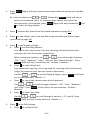
(1) Enter characters using the Character Table and method discussed in the
Phone book section.
(2) Use
or
to move the cursor backward or forward to insert
(to the left of the cursor) or delete (the character above the cursor, or
left of the cursor if cursor is on the right of the last character).
(3) Press SAVE (Left) soft key to confirm setting.
Re: Once entering the custom name, the greeting of the LCD in standby
mode will be changed as entered.
Default greeting is “DuraFon-SIP”
h.
Press 8 to Change Password:
(1) Enter original (4-digits) of handset then press OK (Left) soft key when
entering this menu.
(2) Enter new password (4-digits) then press SAVE (Left) soft key to confirm
new password.
i.
7.
Press 9 to set Headset Ring: See Headset Ring operation on Page 50.
Press 6 to set Base Settings:
When entering this menu, you must enter Base PIN code first (4-digits).
Re: The PIN code is for Base Settings. Default is “0000.”
a Press 1 to set Assign Next HS:
(1) Enter 2-digit handset ID then press OK (Left) soft key.
(2) When registering a new handset, the base will assign the specific
handset ID, which is assigned in advance to the new handset.
b. Press 2 to set Clear HS:
~66~