1
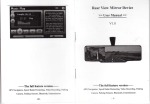
Rear View
Mirror Device
>> User Manual <<
v1.0
_The
full feature
version_
GPS Navigation, Speed Radar Dectecting, Video Recording, Parking
Camera, Parking Sensors, Bluetooth, Entertainment
-l-
fr
CONTENTS
WELCOME
J
CIIAPTER I BEGINNING USE
4
LI
Appearance
4
1.2 Installation
6
1.3 Basic Use
11
1.4 System Main Interface and Major Functions
;1,
1.5 Digital video recording*
1i
1.6 Radar detecting
1.7 Parking radar and
video
t2
t4
t4
l5
Thanks for using the device. With navigation as the major
function, it supports GPS Navigatior, speed Radar Dectecting,
Video Recording, Parking Camera, parking Sensors, Bluetooth,
Entertainment.
You may use the GPS navigator anytime anywhere, for
example while driving, walking or cycling. Its navigation
and amusement functions
wili enrich your life
CTIAPTER II GPS
20
2.1Map
20
2.2 Navigation with Speed RadarAlarm
2t
2-3 Reception
25
fNote] : Explanation of relevant subjects
26
[Relevant Information]: Extra information
CTIAPTER
III INTEMACE AND OPERATION
and work!
To frrlly exert the functions of the device and to understand
the operation details, please read the manual carefully.
You may see,the bllowing supplemental inforrnation in the
manual.
of
relevant
subjects
[Attention]: Precautions or wamings of relevant subjects.
Please pay attention to this information and follow the
instructions to avoid devabtating:iirfluence on yourself qnd
others.
[*]: Optional tunctisn
H
r
pter I Beginning Use
Component
is chapter introduces the appearance, components and
operations of the device.
l.l
I
LCD
witl
louch panel
Appearance
effect figure below is subject to the material object.
lable Slot
Mounting,
2 Cable
I Displey & touch panel
3
rracket
Explanation
fhe touch pannel is capacitive
y'cc, GND,Video
in, Parking
power
rnd Reversed
lixed the mirror device
Mount
Sensitive
Buttons
3
buttons.
0:
mng
E:
Switch displaying
push to power on/off
.
M,o,6,>,A,v:used
ir
'ecording video, please view 1.7.2.
t
D!'R.
cemera
10 Radar
receivewindow
11
TFcard for map
[F card
vlaps,video,music. Up to 32GB.
ipeaker
'laying sounds
ipeaker
?laying sounds
3PS antenna
luilt
lamera
in GPS antenna
Megapixels camera
raffic video
for
recordin5
o
I
Det€cting
Receive and detecting the sigral fron
rindows
he speed radar
itorage card
IF
1
card, record yideo, support up t(
]2GB.
12 Installation
The following steps
must
be opereted by professional
technicians of the vehicle.
Step 1: Remove the original rearyiew mirror of the car
matching from the front windshield; and then follow the
reveme steps to properly install this product. Different
models are supported by the rear-view rhirror bracket,the
following picture only show Honda cars.
Step 2: Find out the ACC power connector. Most of the
vehicles fuse box is basically installed in the following
three positions:
l, The plaque , which is in the car hood on the driver's side.
2,The glove box, which is in front ofVice driver's
seat.
3, The co-pilot air conditioning vent of the front foot
In this process, it is important to note that the cut don,t
fully grasp the situation, don,t make pull the fuse that
would make rumecessary trouble - mistakenly lit the light
of the failure of the vehicle (above operation by
professional automotive technician or experience of the
owners of operations, such as human enors cause this
product to any failure, are excluded from the warranty
-6-
Hi
ffr
F
t'
I
category).
Red line to ACC 12v
Step 3: Connecting cables on the front:
l,
The power supply line (red line)
Bhckline to GNI)
is
connectted
to the
Blue line to parking light 12V
Yellow RCA to parkhg cameri
ACC long power.
2, The negative wire (black line) is connectted to the public
side
of the fuse box, or closely connected to any metal
parts in the body.
3, The reversing the signal line (blue
line)
is connectted
to insurance box reversing power fuse.
To ensure that wiring is correct, you can power on the car,
if the rear-view mirror button backlight light, it means you
have the correct wiring.
Step 5: Install the parking qlmera:
Step 4: Alignment the line:
l) to find the install universal camera (or the appropriate
location of the car with a special camera), if the punch
camera camera insert hole saw hole after a fixed, if it is
with butterfly screws.
All of the electrical connector with insulating black tape
tied to prevent a short circuit or accidental loosening.
Followed by demolition of interior parts: first remove the
rubber seal, clawed through the roof and A-pillar trim, and
then wire buried. Then has been good to connect the wires
2) directly from the reversing headlight lead, camera power
supply line along the car taillight line placement, and tied
from the fuse box behind the leads into the A-pillar sealing
strips along the body and then received through the roofin
the windshield above the rearview mirror on. The same
with cable ties, parallel supply line (red positive, black
negative) on the reversing light. Note that the distinction
color cable sleeve or insulating tape wrapped. Finally, the
3) Carefirlly
troughwill
achieve the best results.
be sticking out of the harness buckle.
between positive and negative.
adjust the allowed reversing horizons to
Step 6: Install the parking sensors:
-8-
I
-9-
l) the probe horizontally mounted in the appropriate hole
on the installation location, the best height of 50 to 60 cm,
1.3 Basic Use
the spacing of the probe according to the number and
The device can automatically run when the car is start.
installation location of the horizontal width.
2) reversing radar power supply line (red positive, black
negative) in parallel with the reversing lights on.
Press the power key
3) Start the car and hang into the reverse parking sensor
into operation, the car slowly retrogression to move in a
will be able to detect and display
the object distance, otherwise check the probe installed
certain object, the system
1.3.1 Powering on/off
for at least two seconds can power it
on or off.
1.3.2 Restarting the System
When the system does not response, also can press the
power key to restart the system.
[Relevant Information] The following situations might lead
to no response of the system.
l. Delay or stagnancy in interface switching;
correctly.
2. Failure of function activation with overlong execution;
1.3.3 Using T-FLASH Card
Copy mapping applications, map data and media files in a
T-FLASH card. Insert the card in the corresponding slot.
[Note]
l. Do not take out the T-FLASH
card while
an
navigation program is being run or a media file is
being played.
2. To avoid drop or crash ofthe T:FLASH card, do not
exert heavy pressure on it or bend it.
3. Avoid using or storing the T-FLASH card in high
temperature, high humidity or direct sunlight. Keep the
card away from liquid or corrosive substance.
- 10-
4. Mind the direction while inserting the T-FLASH
card to avoid damaging the slot or the card.
1.4 System Main Interface and
The main fi.rnctions are listed as below.
Function
Explanation
Major trunctions
\!hen power on the device, it will enter the'system main
Navigation
Tap
to
enable navigation and detecting
radar function
interface shown below.
X, K, KA,KU, New K,
Radar
Support
alarm
band.
Video
Support HD 720P video recording,
built in million pixel camera.
recorder
Laser
Parking
Support the reversing camera and parking
system
sensors
Music
WMA9 and WAV files supported;
Random, sequence and cycle play
input, display the image
and
distance on the screen
player
supported
Movie
player
WMY ASF andAVI files supported;
Adjustment of playing progress, pause
and fuIl-screen play supported
E-book
TXT files reading supporting page
selection
Flash
SWF files supported;
Wallpaper
Set Desktop Wallpaper
FM
FM channel to adjust the power
Calculator
Units can be calculated
-13-
Unit
The unit conversion
corner
Gps info
Recorded signal
screen the lower right corner to the upside down image.
Theme
Theme settings
Photo
JPG, GIF, BMP and PNG files supported;
Photo rotation, zoom inlout and auto play
1.7 Digital video recording*
When the device run on, the system also auto start to
browser
supported
of your display can flip the image, click on
the
recording video. The default display screen is WNCE. Tap
E
to
,*it"h
displaying wince and recording video. Click
Explorer
Go to the desktop
Gobang
Gobang games
the upper left comer of your display can
BoxMan
BoxMan games
click on the screen the lower right corner to the upside
down image.
flip the image,
Snake
Snake games
Nav path
Navigation path specified
1.7.1 Features
Volume
Set Volume
High-definition: Video Size can be set to high-dehnition
Backlight
Set
Language
Set Language
Datetime
Time and date settings
Continuous recording without interruption: The
proprietary file format to reach without a break, do not
Factoty
reveal seconds continuous recording, and ensure not to
i Factoty
I Sys info
; Bluetooth
backlight brightness
Check the latest information
Bluetooth setup operation
1.5 Parking sensors
*
HD 720P (1280x720/30FPS) or VGA (640x480/30FPS,).
miss any important scenes.
Automatic cycle coverage: When the memory card is full,
it will automatically overwrite the first image to start
replication of new video clips.
Please view in the user manual of parking sensors.
Lock important moment in the video: encountered a
1.6 Parking camera*
critical moment, press the latch button from the image
within 60 seconds after pressing the moment of the first 60
seconds and will be locked preserved and not be
After the device runs on, it can display the reversing image
When the car hanging'irto ,"u"rr". Click the upper left
-15-
overwritten.
iI
to Videc
Eesy to use: do not need complex setting
used for the first
just want to date and time set, and
then start the engine
automatically recording stop recording
Rec
Stop
after shutdown.
it
Playback function: the movie itself has
a display, you can
preview the video screen and playback
MENU
,I
illr'rl
o
LOCK
$i
is
& EnterMenu to Single
show
Lock
Unlock
no
two mode: Record mode and playback mode.
&Enter
oK*{
video
tIP
^..
udio
Go to
R
On/Off
Up
rrevius clip
LCD
Next
3o to play nexl
On/Otr
clup*
clip
Up
Down
*itt *oG p."rio*
When setting date or time, Up and DOWN
can
add/sub the value.
Video Rec
oK*
pla)
clip*
*: Now,if don't release
tA" trrttor, it
**:
&Back to
video playback
clip
or next untill release the button.
Stop Playback
Unlock
Start to
mode
Y
1.7.2 Buttons define
"*
Menu
Playback
support for 4 - 32GB, video uses a proprietary
frle forrnat,
please SQPlayer or native formatted to
use the memory
Th"*
Exit
Record
PLAY
formatting.
Stop Playback VIenu,Bacl
Stop
Voice: support recording and playback.
there
&Exi
Enter
video clip
Storage media: requires the use of high_speed
TF card,
if
Save
&
Menu
provide evidence of the most convincing
image.
card before use, and can not be used
&
Enter
video clips.
MJPG video format each screen in the film
are
independent and complete real images,
not H.264 or
MPEG4 predict calculated from the screen, you
can
Record
Save
pLAy
can swith to next group,the
order is Year, Month, Day, Hour, Minute,second.
When it is Second, click pLAy can save
the setting
and return tu the main menu.
/: No action.
1.73 Locked key explaination
The system has kept IGB room for locked video. It allow
lhe users locked the video more than 3 times. When the
locked button has been pushed, the system will auto
storage 60 seconds previous and 60 seconds next 720P
E
image(or l20seconds VGA) to the room. These video data
tr cann't be replaced. When the locked room is full, user can
Hi
rmlocked the old one in playback mode or through Sqplay
tool.
Menu
Sub Menu
Video
640 x 480
Size
l28O x72O
Time
YYYY/MM/DD
Setup
HH:MM:SS
Format
TV Out
Description
ffi.f++r
Frequency
.5
50Hz
Set the frequency
60llz
ofvideo
rror message define
trrror Message Description
Solution
ilo Card
Dectect no card
fush in a card
lard Protected
)ard is protected
lard Error
lrror occur when reading
Jnlock and push in
o: R.eplace a
new one
lard size tot
Jize is smaller than 4GB,sr llease use
imall
:ann't record
lard
Set the video size
Set date and time
Format the TF
No
card
NTSC
Set the fomat
4GB
or
arger
lard is not formatted
yet,s( iormot it
firstly
:ann't record
sizt
Jard size is
changed,st
:hanged
:ann't record
lensor FAIL
Jensor Initialize
llease backup
thr
lata and format it.
ar
letum to repair
:xception occurs,so cann'
'ecord
of
)rotec slot
TV out
PAL
no'
brmatted
lard
Yes
Audio
On
Set for recording
Record
otr
audio
Language
English
Set the language
-18-
f.
for menu
writingthecard
1-7.4 Menu item deline
Main
trf,g+i
full lhere is no room for mort Jnlock some ir
ocked video
tlo Video
tTo
video
rlayback mode
fust to record
l.E Speed radar detecting*
2.2 Navigation
with Speed RadarAlarm
Please ensure that there are no other obstacles (except
the
windshield) on the front of the radar receiver windowUser
can set parameters of the radar alarming on the setting
,", m to enable navigation
function.
screen. the software has built in the memory
card (or local
memory).If user use the replacementmemory card,please
contact your dealer to authorize a new memory card
ID to
use. Before use the new version please operate that:
Enter
the route of \menu \ Settings \ navigation path, select
the \
SDMMC
\ P43 2 \ P43 2,EXE, double_click to save the
path and exit.
II GPS
Various navigation mapping applications can be installed
in
Chapter
the GPS navigator, which position the navigator via the
satellite receiver and display it on t$e map. Set a
destination, and the system will automatically work
out the
best path to help the user reach the destination
safely and
quickly.
2.1Map
Due to transportation development, inconformity
between
products and real traftic information will
occur a period
after product release. please drive according to road
condition and abide by traffrc regulations.
-20 -
-2t-
and detecting radar
,"0
.m
to add current position as a alarm camera
location, you can choose which the type of the alarm
camera is in the next windows.
Name
Icon
Traffrc
Explanation
t"rl
Traffice light Alarm on/
la]
CameraAlarm on/
K
Display alarm tips on
off
Lighting
Camera
,"0 .m
to delete the current position from
the
alarm location list.
,"0 @
Spot
to
enter the setting menu, and set the
l'alue for speed radar detecting funtion.
al..--
t'*::
lt
I.
the
upper left corner
Display alarm tips on
to enter navigation map. Navigation paths
are for reference only, and the user may decide whether
to
follow them.
,* @
off
Alarm
the
upper rightcorner
.
Display alarm tips on
the
lower left comer
Display alarm tips on the
lower right comer
-23-
ffi'
ii;
Preview
fup
D
km/h
Speed
Navi B
Navi C
When car speed is smallar
than the value, The alarm
Add the speed value
mm
w
&t:
NaviA
re
re
Sub the speed value
Select
A
as current excutived
A will
navi program, Navi
display on title bar.
Select B as current excutived
navi prograrn, Navi
A will
Volume
ffi
E
EI
2.3 Reception
High and crowded structures (such as inside of tunnels,
display on title bar.
space between high buildings, underground car parks
and
Select B as current excutived
under viaducts), weather change or satellite signals tumoff
A will
may influence sipal reception, resulting in positioning
navi program, Navi
failure, inaccurate positioning, navigation failure or system
display on title bar.
Paths
to set the navigationpaths forA, B or C.
does not prompt
of
Silence
ffi
Specifu
the path
navigation A, B, and C
Volume discrease
of
frrnction abnormity.
With stereoscopic maps, instant animation, voice prompt
and text prompt of the navigation system, you will
appreciate its unique chann and enjoy a great kip.
Volume increase
Different navigation maps may have different operation
methods. Please follow instructions of corresponding
navigation mapping applications.
-25 -
[Note] Before using the GPS navigator, please purchase
and install mapping applications and appoint file paths. For
lH
Minimize the music player
Minimize
and return
III
Interface and Operation
3.1 Music Player
,"0
m
a
6X
in the system main interface to enter the music
a
K8
interface as shown below.
Media
interface.
setting methods please refer to 2.2 Setting Navigation Path.
Chapter
to the
Play
Continue playing the paused/
Pause
Pause
stopped music.
the music
.being
played.
Stop
Set
Stop the music being played.
play
Select sequence, random or
sequence
cycle play.
Previous
Play the previous music.
AI
Next
Play the next music.
X
Volume
Drag it leftward to tum down
Y
or rightward to turn up
re
E
Icon
g
Name
Close
Explanation
Close the music player.
-26
-
D
B
the
volume.
Progress
Drag it leftward or rightward
to play from a previous or
future moment.
Music list
Enter
it to select
music to
play.
Time
Display the run time.
Equalizer
Enter the equalizer.
_'r1 -
f"p T
in the interface Music Play to enter the Music
list shown
as below.
Icon
g
*o Hl
Close
Close the Music List
it upward/ downward to view
music. .
II
Scroll
Drag
all
Add one
Add a piece of music on the left list
E
Add all
to the play list on the right.
Add all the music on the left list to
the play list on the right.
E
Delete
in the video player interface shown as below..
Explanation
Name
bar
ET
3.2 Movie Player
one
Select one piece of music in the play
list and tap the icon to delete it.
Delete
Delete all the music in the play list.
Icon
E
ry
Explanation
Name
Close
Close the video player.
Previous
Play the previous film.
film
fI
a
Y
ry
Play
Continue playing
paused/ stopped music.
Next film
Play the next film.
Stop
Stop the film being played.
Video
Enter
folder
play.
all
-28-
the
-29-
it to select a film to
Progress
Drag the sliding block
leftward to play from a
previous moment or
rightward coming moment.
Volume
Drag
it
leftward
to
Scroll bar
l
upward./
block
downward to view
all the frles inside the folder.
EEM
Film
name&
format
turn
down or rightward to turn
Drag the sliding
Film name and its format
3.4 E-book Reader
up the volume.
M
Time
Display the play time and
the music duration.
Tap
r-l
I
,r, kil
in the Media
interrace
to
enter the reader
interface shown as below.
in the Video Player interface to enter the video
folder shown as below.
He had stopped his pacing, his eyes moving over Ron.
"Do you :hink
I
could have a look at the mt?" he said
evenly.
"What?" said Ron. "What's Scabbers got
Icon
Name
]]IMTJIr}^TI
File name&
Current
format
format.
Close
Close the reader.
g
-30-
to do wkh
k?"
Explanation
- 31 -
file name and
Scroll bar
Drag the sliding block
upward/ downward to
view all content of the
Folder
I
r
Previous
Read the previous page.
Next
Read the next page.
ET
Setting
E
m
in the e-book reader
interface
to enter the
setting interface shown as below
e-book.
E
I
T"p
Enter the e-book folder to
select an e-book to read.
Select a text theme, font,
word size and bold type.
New
Select partial text and tap
bookmark
the icon to create a
bookmark.
Bookmark
Enter the bookmark list to
list
select or delete
a
bookrnark.
,s
Page/ total
pages
Current pagel total pages
in the e-book reader interface to enter the e-book
folder shown as below.
-32-
Tap
E to view created boohnarks in the interface
Bookmark List shown
Icon
g
@
Name
Close
Explanation
Close current folder.
Drag the scroll bar and select a bookmark on the left list.
Retum
Return to the previous folder.
Tap
Scroll bar
Drag the sliding block upward/
downward to view all TXT files.
to delete the bookmark.
tl
H
File
I
create a bookmarLr
Etr
to go to the page with the bookmark or tap
E
3.5 Flash player
The file name and format.
,* ffi *
name&
format
b
of
as below.
the Flash player interface shown
below.
locate
a
page by taping
I
o. dragging the scroll bar in the reader interface
drag to select text content. Tap
f
when it is on. Tap
or
and
OK
to finish.
-34-
-35-
as
E
E
3.6 Wallpaper
Tup
m *
the
Wallpaper interface shown
as below.
Close
Exit the FM Setting.
Save
Save current setting.
Use
Tick in the box to
FM
FM function.
enable
Frequ
ency
rightward (or tap
E1
to
increase the frequency and
leftward (or tap H; to
reduce tlre frequency. The
frequency range
is
88.00
Mhz-108.00 Mhz.
3.9 Calculator
interface shown as below.
-36-
,", m
,,
the calculator interface shown as below.
3.12 GPS
info
the GPS info interface shown as below.
3.10 Unit
,",
ffil ,,
the Unit interface shown as below.
rup
K
to prompt a dialog as below
Tap
OK to reset the GPS satellite or tap Cancel to exit.
3.13 Theme
,* E rn the Theme interface shown as below
Icon
Name
E
Previous
fl
,r, kl
browser interface shown
below.
as
in
the
folder.
View the next photo in the folder.
Zoomin
Scale up current photo.
Zoom out
Scale down current photo.
re
Rotate
Rotate current photo 90"clockwise.
rufl
Auto play
Cycle play all the photos
K
in the photo
View the preview photo
Next
rn
3.14 Photo Browser
Explanation
E
in the
folder from current photo.
Folder
Enter the photo folder to select
a
photo.
I
-40-
Close
Close the browser and retum to the
Media interface.
-4t-
fup
EI
in the browser interface to enter the photo folder
shown as below.
Icon
g
E
Name
Explanation
Close
Close the current folder.
Retum
Retum to the previous folder.
Scroll bar
Drag the sliding block to view all
the photos.
&l
3.15 Explore
,"n
ffit
Embedded CE 6.t
3.16 Gobang
,r, m
in the Gobang interface shown as below.
in the Explore interface shown as below.
-43-
3.18 Nav path
,"n
m
in the photo browser interface shown
as
below.
3.17 Snake
in the Snake interface shown as below.
m
a
address and
E to
save tne sefiln
Tap to select a map address.
Tick in the box to run the set
navigation map when the
navigator is powered on.
3.19 Volune
,"0
ffi *,n.
photo browser interface shown
below.
-45-
as
Exit the backlight setting.
g
EWr
Close
Exit the volume setting.
Volume
Ten volume grades
(from
mute to maximum) available.
Tap
r
to
decrease the volume
backlight.
nw
by grade.
Sounds
Tap
it to
for taps
Tap
it
again
Tap X or f
n music
power-on music or disable it.
to
Auto backlight shutoff after
off
service stop
for a
period.
l0s, 30s, lm, 2m and 3m.
'l or X to view the
Tap
options in cycle or select
to disable the
Power-o
Auto
The options are always On,
enable the function.
function.
rc
select
one.
3.2l Language
3.20 Backlight
,", m
Drag leftward to turn down
or rightward to turn uP the
*, ffi
in the photo browser interface shown
-46-
as
below.
in the photo browser interface shown
as
below.
In the above interface, tap
E o. E
to set the year, month,
day, hour and minute.
[Note]: Time format options are 12-hour and 24-hour.
Setting the system time zone
In the above interface, tap - or l to select a time zdne.
For example, select "(GMT+08:00) Beijing, Chongqing,
Hong Kong, Urumqi" for China.
3.23 Sys info
tl
Tap
I
or
X
to select a system language and tap
E
to
save the selection.
Tap
hc
'-ili;
in the photo browser interface shown
as
below.
3.22Datettme
,r, ffi
in the photo browser interface shown
as
below
3.24 Bluetooth
3ri
,1ffi
Setting the system date and time
Tap
ari"rar{!
in the Bluetooth interface shown
-49-
as
below
i
I
Tap
(Ls
in the Search interface shown
as
below.
in the To connect a Bluetooth
shown as below.
-50-
-51 -
interface
Tap
&
*
outgoing call
the phoneBook interface shown as below.
,"0 E& Click interface for
access
to the phone the
following figure shown.
rrp
-52-
ll
l
&l
PhoneKeyboard
,"n
MI
PhoneKeyboard
,,r E
Incoming call
Keyboard
t* &tr
Visit the website
Tap
!F
EI
to access the networh Select "Yes", then as shown.
Select the nerwork state
Tap
-56-
Selection asked whether using a mobile phone
&
Bluetooth settings
Click on the icon
t*
B
Click on the icon
Click on the
icon '{,
, to ircoess musrc
and disconnected
-s8-
-59-
full feature
version-
GPS Navigation, Speed Radar Dectecting, Video Recording, Parking
-The
. Camera,
Parking Sensors, Bluetooth, Entertainment