1
TOP
Contents
Index
Chapter 2 How to Use ScandAll PRO
2.9 Useful Post-Scan Functions
Marking Thumbnails
This function is useful to distinguish a certain desired image
from others.
The procedure is as follows:
3
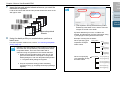
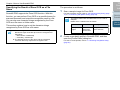
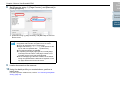
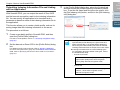
After marking the desired image, select an option from the
following:
Menu option
Overview of
ScandAll PRO
Used to...
Previous Marked Page
Display the previous marked page.
Next Marked Page
Display the next marked page.
1
Load a document on the scanner and perform a scan.
First Marked Page
Display the first marked page.
2
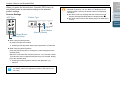
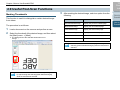
Select the thumbnail of the desired image, and then select
the [Mark] menu J [Mark].
Last Marked Page
Display the last marked page.
Unmark
Unmark the selected thumbnail.
Unmark All
Unmark all thumbnails.
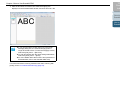
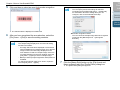
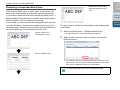
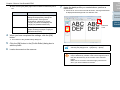
D The background of the selected thumbnail turns to
orange.
Introduction
How to Use
ScandAll PRO
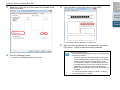
You can also unmark a thumbnail by right-clicking and
selecting [Unmark Selected Pages] while the thumbnail is
selected.
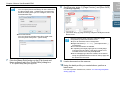
You can also mark a thumbnail with orange background
by right-clicking and selecting [Mark Selected Pages]
while the thumbnail is selected.
53