1
DA11000 User Manual
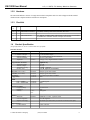
4.1
1-Ch, 1.0 GSPS, PCI Arbitrary Waveform Generator
Introduction
Our primary objective in designing software drivers is to get the user up and running as quickly as possible. While the
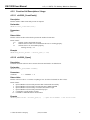
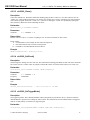
details on individual function calls are listed in sections 4.3.x, the programming examples in section 4.4.x will show
you how to include them into your programs. Please note that function calls are the same whether you are calling
them under Windows 98, ME, NT4, 2000, or XP.
4.2
4.2.1
Driver Installation
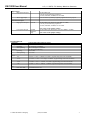
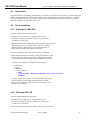
Windows 98 / ME / NT4
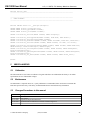
1) Do not install DA11000 card at this time.
2) UnZip all files into directory "C:\temp\da11000\" (create
directories if needed) You can move and/or copy the files later
to a directory of your choice.
3) Run da11000_Register_Win98_ME_NT4.bat. This will copy the Kernel
driver windrvr6.sys to "c:\<windir>\system32\drivers\" directory
and will register the Kernel driver in the Windows Registry so
that it starts up each time the computer is rebooted.
4) Power off computer. Insert DA11000 card. Power up computer.
5) When OS asks for Driver File point to "Chase_DA11000.inf". If OS
does not ask for file, then check hardware configuration and update
if not listed properly under "Jungo" in Device Manager (see below).
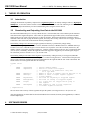
To check to see which driver is installed, do the following:
=> Control Panel
=> System
=> Hardware
=> Device Manager
=> Jungo
Chase_DA11000
WinDriver
(Both this and WinDriver below should be present)
If you see another driver in place of "Chase_DA11000", then right
click the first device under Jungo and click properties. Update
the driver by pointing to "Chase_DA11000". You may have to go
through a series of menus.
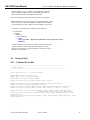
4.2.2
Windows 2000 / XP
1) Do not install DA11000 card at this time.
2) UnZip all files into directory "C:\temp\da11000\" (create
directories if needed) You can move and/or copy the files later
to a directory of your choice.
3) Run da11000_Register_Win2000_XP.bat. This will copy the Kernel
© Chase Scientific Company
(360) 221-8455
14