1
M
V
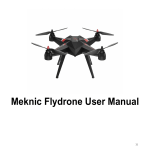
DRONE 3
A quick start guide
Contents
System overview
4
What’s in the box
5
Caring for your Hoverbike drone
6
Unfolding and folding
6
YOU AND YOUR DRONE
7
Remember - Safety First
8
First Time Setup
9
Binding your radio transmitter
9
Binding your radio transmitter to Pixhawk with Orange RX SBUS receiver
9
Using a Spektrum remote (satellite) receiver
10
Calibrating your transmitter in Mission Planner
11
Charging batteries
12
How the controls work
12
WARNING LIGHTS AND SOUNDS
14
The Pixhawk LED and sound meanings
14
The Pixhawk failsafe lights and sounds
14
First time ready to fly
15
BEFORE EVERY FLIGHT
17
Start up
17
Arm for flight
18
Different flying modes
19
‘Loiter’ mode
19
‘Stabilize’ mode
19
‘Acro’ mode
19
About the hoverbike Drone
20
Contents
System overview
System overview 4
In the box
5
The Hoverbike Drone is an unconventional quadcopter due to the overlapping blades
and protective propeller ducts. However, under the covers it is functionally no different
to a traditional quadcopter. It has 4 brushless DC motors that drive the carbon fibre
Caring for Drone 6
propellers. These are driven by 30A motor speed controllers, and these speed control-
You + Drone
7
lers are in turn controlled by the Pixhawk flight controller.
Safety first
8
BIRD’S EYE VIEW
First time setup 9
Batteries
12
Controls
12
Warning signals 14
First flight
15
Every flight
17
Flying modes
19
About Drone
20
FRONT
(blue ducts)
REAR
(black ducts)
Payload bay
Carbon fibre ducts
Speed controllers
Landing gear
(options available)
SIDE VIEW
GPS
Arming button
4
What’s in the box
The Hoverbike drone will arrive folded - see page 6 for unfolding instructions.
Contents
System overview 4
In the box
5
Caring for Drone 6
You + Drone
7
Safety first
8
First time setup 9
Macro micro
microcontroller
USB cable
Batteries
Micro SD
adapter
Batteries
12
Controls
12
Warning signals 14
First flight
15
Every flight
17
Flying modes
19
About Drone
20
2mm hex
key
Pixhawk interface
cables for optional
external hardware
The Hoverbike Drone will arrive with all the parts placed appropriately as shown on the
image below (the middle section with plates off).
Orange RX SBUS Pixhawk
Battery
Speed
controller
Macro micro
GPS
5
Contents
Caring for your Hoverbike drone
System overview 4
Unfolding and folding
In the box
5
To fold, release the pins on the bottom side, then fold section over top.
Caring for Drone 6
You + Drone
7
Safety first
8
First time setup 9
Batteries
12
Controls
12
Warning signals 14
First flight
15
Every flight
17
Flying modes
19
About Drone
20
Release the pins on the top side and partially fold section under.
Fold legs out and complete folding of section under.
Reverse the process to unfold.
Water and dirt
Please keep you Hoverbike Drone dry and clean. Dust and particulates can enter into
the motor and bearings which can reduce the working life of your motors.
Structural integrity
Just like on a full size helicopter, you should pre-flight check your Hoverbike Drone
before powering on. This would include checking for the following items:
• All screws tight
• Structural fatigue, such as cracks or bends due to heavy landings/crashes
• Motor bearings and mounts
• Propeller mounts
• Plugs and general condition of wires
• Correct operation of flight controller on startup
6
YOU AND YOUR DRONE
Contents
The Hoverbike Drone can be thought of as these three distinct items:
System overview 4
• Vehicle flight controller (vehicle’s brains)
In the box
• Vehicle receiver (vehicle’s mouth and ears)
5
Caring for Drone 6
• Your radio transmitter (your mouth and ears)
You use your radio transmitter (say a Spektrum DX6i, your phone, etc.) to talk to the
You + Drone
7
Hoverbike Drone receiver. The Hoverbike Drone receiver hears this and then tells the
Safety first
8
vehicle flight controller what you want it to do. Now, just like talking to a person, there
are limits on the distance to which you can communicate with your Hoverbike Drone.
First time setup 9
Batteries
12
how far you can communicate with your vehicle’s receiver. Luckily, our Hoverbike
Controls
12
Drone can return to home if you go too far from one another. Please see https://
Warning signals 14
Please read your specifications on your choice of radio transmitter to determine just
pixhawk.org/users/rc_failsafe for how to setup your failsafe mode. However, it is best
practice not to rely on this feature as many environmental conditions can change or
obstruct your Hoverbike drone on its blind automated trip home!
Receiver - receives
signal from your radio
transmitter and translates it to the flight
controller.
Flight controller hears the signal from
the receiver and tells
the Hoverbike Drone
what you want it to
do.
First flight
15
Every flight
17
Flying modes
19
About Drone
20
You use your radio
transmitter to tell the
Drone what you want
it to do.
7
Contents
System overview 4
In the box
5
Caring for Drone 6
Remember - Safety First
Blades
The Hoverbike Drone uses carbon fibre propeller blades which are incredibly
You + Drone
7
strong. Even when they spin at low speeds they are fast and sharp enough to
Safety first
8
lose a finger.
First time setup 9
Batteries
12
Controls
12
Warning signals 14
Where to fly
Always fly outside and in an open area, and in line of sight with your drone.
Flying over or near people and animals
Where possible, do not to fly over or close to people or property. Although the
First flight
15
Every flight
17
still weighs over 3kg when fully equipped for flight and can weigh up to 6kg! This
Flying modes
19
can be a very dangerous object when either falling controlled or uncontrolled
About Drone
20
Hoverbike Drone is comparatively light to other drones of similar lift and size, it
from the air. Although Malloy Aeronautics has tried to engineer a highly reliable
system, there is always the chance that something could go wrong.
Children and animals have a fascination for drones of all types so keep landing
and takeoff areas well clear. Ensure at all time you have somewhere safe to land
in an emergency. Please check your local aviation regulations related to drones
and/or RC helicopters.
Please: Always fly your Hoverbike Drone with the thought in the back of your
mind that something may happen, and buffer yourself and your surroundings
accordingly.
Environmental
Wind speed and gusting is always a problem for drones and this Hoverbike
Drone is no exception. If you are unsure about the conditions it is best not to
fly. Work gradually up in experience with different wind speeds and gusting so
that you are confident in all conditions.
GPS satellites are not always in line of sight or atmospheric conditions may be
such that your drone cannot lock onto sufficient GPS satellites before or during
flight. Be ready to assume manual control if your drone loses GPS lock (by default it is set to land if GPS lock is lost while in a flight mode that uses it, and will
start to descend down onto whatever objects or surface is below).
8
ALL INSTRUCTIONS HERE RELATE TO MODE 2 RADIO TRANSMITTER
Contents
System overview 4
In the box
First Time Setup
5
In order to fly your Hoverbike Drone for the first time you will need to link and cali-
Caring for Drone 6
brate your radio transmitter to the drone. To do this you will need:
You + Drone
7
Safety first
8
• Your chosen radio transmitter (Spektrum, Hitec, Futaba, etc.)
• A computer (laptop/pc) that can run the Mission Planner software (download from
the web at http://ardupilot.com/downloads/?did=82)
• Your Hoverbike drone of course!
You will also need to ensure your batteries are charged. If you are new to RC (radio
control) drones then you will probably need to purchase a battery charger. Please see
page 12 (‘Charging batteries’) in this document for more information.
Binding your radio transmitter
Binding is the process in which your radio transmitter is paired with a corresponding
vehicle receiver so that a control link is made between the two. This needs to be done
First time setup 9
Batteries
12
Controls
12
Warning signals 14
First flight
15
Every flight
17
Flying modes
19
About Drone
20
before you are able to control your Hoverbike Drone. The Hoverbike Drone will be
shipped with an Orange RX receiver, ready to bind to your Spektrum radio transmitter.
If you don’t have a Spektrum radio transmitter, you will need to replace the Orange RX
receiver with the one that corresponds to your radio transmitter.
Binding your radio transmitter to Pixhawk with Orange
RX SBUS receiver
Plug the bind plug in to the receiver’s bind/SBus channel
and the signal cable to one of the other channels (to
provide power to the the Orange RX receiver).
Connect the Pixhawk via
the USB cable to your
PC (this will power the
receiver). The receiver
should be blinking rapidly
showing that it is ready to
bind.
Receiver:
9
Contents
System overview 4
In the box
5
Caring for Drone 6
You + Drone
7
Safety first
8
First time setup 9
Batteries
12
Controls
12
Warning signals 14
First flight
15
Every flight
17
Flying modes
19
About Drone
20
Caution: ensure your throttle stick and throttle trim is all
the way down on your transmitter with the other sticks
centered. The receiver remembers these stick positions and if the receiver loses signal from your transmitter it will send these stick positions
to the Pixhawk. The throttle trim needs to be lower than usual minimum
throttle to tell the Pixhawk to go into failsafe mode.
Whilst holding the bind/switch button, power on your
transmitter (see your radio transmitter manual for
details). Continue to hold the bind switch/button, the red
light on the receiver should go solid after a few seconds.
The receiver light MUST go solid for the bind process to
be successful.
Receiver:
You can now release the bind button on your transmitter.
Unplug the bind plug from the receiver and plug the signal cable back in the bind/SBus port. The bind process is
finished.
Return the throttle trim to centre.
Put the bind plug somewhere safe for if you need to bind a different transmitter to
your Hoverbike Drone.
Optional:
Using a Spektrum remote (satellite) receiver
• A DSM2 receiver that supports a satellite receiver is currently required for binding.
• Plug the satellite receiver and the bind plug and the Pixhawk into the DSM2 receiver.
• Connect the Hoverbike Drone via the USB cable. The receiver should be blinking
rapidly showing that they are ready to bind.
• Caution: ensure your throttle is all the way down on your radio transmitter. Whilst
holding the bind/switch button, power on your transmitter (see your radio transmitter manual for details). Continue to hold the bind switch/button, the red light
on the receiver should go solid after a few seconds. The receiver light MUST go
solid for the bind process to be successful.
• You can now release the bind button on your radio transmitter.
• Unplug the DSM2 receiver from the Pixhawk and unplug the remote receiver from
the DSM2 receiver
• Finally, plug the remote receiver into the Pixhawk SPKT/DSM on the front face.
• Place the receiver somewhere safe for if you need to bind a different transmitter
to your remote/satellite receiver. Note: The channel mapping is different for the Spektrum Satellite receiver and will require changing in Mission Planner.
10
Calibrating your transmitter in Mission Planner
It is required that you calibrate your radio transmitter with the Pixhawk flight controller so that the Pixhawk flight controller can learn all your radio’s control endpoints by
Contents
System overview 4
moving all stick and switches to their extreme positions. Also, refer to the Pixhawk manual
In the box
available at:
Caring for Drone 6
http://3drobotics.com/wp-content/uploads/2014/03/pixhawk-manual-rev7.pdf
You + Drone
7
Safety first
8
Install the Mission Planner software on your computer
and connect the Pixhawk via the USB cable. The Mission
Planner software can be found on the 3DR website or
via the following link:
http://ardupilot.com/downloads/?did=82
First time setup 9
Mission Planner allows you to configure and tune the
flight controller and to program GPS waypoints of which
your Hoverbike Drone can then fly. You can also download and analyze logged data.
When you first connect the Pixhawk to your computer,
your computer should install the drivers required. Once
the drivers are installed and the Pixhawk is initialized, it
should light up and the buzzer should tune.
5
Batteries
12
Controls
12
Warning signals 14
Pixhawk:
First flight
15
Every flight
17
Flying modes
19
About Drone
20
To connect to your Hoverbike
Drone, go to the top left of
your screen, and with AUTO
selected in the drop down,
click ‘connect’ to connect
your Hoverbike Drone to the
computer.
Click the Initial Setup tab at
the top of the Mission Planner
page.
Select the Mandatory
Hardware tab down the
left hand side where you
should see Radio Calibration.
11
Contents
Follow the radio calibration procedure as described in Mission Planner.
System overview 4
In the box
5
All other stages of the setup have been done for you. You are now ready to fly your
own Hoverbike Drone.
Caring for Drone 6
You + Drone
7
Safety first
8
First time setup 9
Batteries
12
Controls
12
Warning signals 14
Unplug USB cable from both the Pixhawk and the PC.
Charging batteries
Batteries must be charged before use. The batteries are constructed from 6 lithium
polymer cells giving 22.2 Volts and 25.2 Volts when fully charged without a load. The
capacity of each battery supplied with the Hoverbike Drone is 3000 mAh. If available,
First flight
15
it is recommended to set the charge current to 3 Amps and never to charge at over 15
Every flight
17
Amps. We recommend charging with the balance leads connected.
Flying modes
19
About Drone
20
When flying from two or more batteries in parallel, you need to ensure that the batteries have the same voltage (voltage per number of cells), energy capacity (mAH) and
power capacity (C rating). Always check that the pack voltage is the same as the others
(+/- 200mV).
It is always best practice to label your batteries as a pair and to charge them both fully
before flight.
Do not drain more than 80% of the batteries capacity.
How the controls work
MODE 2
Left stick:
- throttle
- yaw
12
Right stick:
- pitch
- roll
Throttle (height). Makes the Hoverbike Drone go up and down.
Contents
System overview 4
In the box
5
Caring for Drone 6
You + Drone
7
Safety first
8
First time setup 9
Yaw (turn). Makes the Hoverbike Drone turn.
Batteries
12
Controls
12
Warning signals 14
First flight
15
Every flight
17
Flying modes
19
About Drone
20
Pitch (forward). Makes the Hoverbike Drone go forward and backward.
Roll (side). Makes the Hoverbike Drone go sideways.
13
Contents
WARNING LIGHTS AND SOUNDS
System overview 4
In the box
5
The Pixhawk LED and sound meanings
Caring for Drone 6
You + Drone
7
Safety first
8
Flashing red and blue.
Initializing. Please wait.
Double flashing yellow.
Error. System refuses to
arm.
First time setup 9
Batteries
12
Controls
12
Flashing blue.
Disarmed.
Searching for GPS. Autopilot, loiter, and returnto-launch modes require
GPS lock.
Warning signals 14
First flight
15
Every flight
17
Flying modes
19
About Drone
20
Flashing green.
Disarmed.
GPS lock acquired. Ready
to arm. Quick double tone
when disarming from the
armed state.
Solid green. Plus single
long tone.
Armed with GPS lock.
Ready to fly!
The Pixhawk failsafe lights and sounds
Flashing yellow:
RC failsafe activated.
Flashing yellow plus quick
repeating tone:
Battery failsafe activated.
Flashing yellow and blue
plus high-high-high-low
tone:
GPS glitch or GPS failsafe
14
First time ready to fly
Contents
For your maiden flight and until you are confident with the controls, it is recommended
that you fly your Hoverbike Drone in ‘loiter’ mode, this is how the Hoverbike Drone will
arrive to you. In ‘loiter’ mode the flight controller will take care of keeping your Hoverbike Drone in the same place and at the same altitude but you have control of where it
can go. Flight modes are controlled with Channel 5 on your transmitter - please see:
http://copter.ardupilot.com/wiki/flight-modes/.
Read also the next section ‘Before every flight’.
System overview 4
Take your Hoverbike Drone to an open flying area (half a soccer field is a good minimum size). You should choose a day with light or no wind, and the area should be clear
of people and obstacles.
Ensure that the locking pins used for folding the drone
are secured
In the box
5
Caring for Drone 6
You + Drone
7
Safety first
8
First time setup 9
Batteries
12
Controls
12
Warning signals 14
First flight
15
Every flight
17
Flying modes
19
About Drone
20
Place your Hoverbike Drone on the ground and lift battery plates off, plug in BOTH
batteries.
You should hear a tune from the Pixhawk buzzer. The
arming button light will flash.
Pixhawk:
Arming button:
Now leave the Hoverbike Drone whilst the Pixhawk
flashes red and blue. It should not be moved or knocked
at this stage.
Pixhawk:
Once you hear and
see the above then the
battery cover plates can
be replaced. (If desired
the plates can be left off.
However, ensure the batteries are secured.)
15
Contents
System overview 4
In the box
5
Caring for Drone 6
You + Drone
7
Safety first
8
First time setup 9
Batteries
12
Controls
12
Warning signals 14
First flight
15
Every flight
17
Flying modes
19
About Drone
20
Do not move the Hoverbike Drone from this position;
it should be left until the light on the Pixhawk flashes
green. This time is required for GPS satellites to be acquired and for the home position to be logged, and the
flashing green indicates that the correct number of satellites are acquired. The Hoverbike Drone will return to
this position if commanded by you or by radio failure to
return to launch (RTL), so make sure it is not positioned
close to any thing that it may land on or fly into.
Pixhawk:
Now that the green light
is flashing your Hoverbike
Drone is ready to fly. Hold
the arming button until the
button lights up solid red
and the motors sing out
another tune, the motors
should then remain quiet.
Arming button:
Hold the yaw (left stick of your transmitter) fully to the
right and down until you hear a long tone from the Pixhawk buzzer and the Pixhawk light goes solid green.
Pixhawk:
Motors:
Pixhawk:
Your hoverbike drone is now armed and ready to fly.
FLIGHT
This procedure is the same for every flight:
Slowly raise the throttle. Once above half throttle your Hoverbike Drone will take to
flight. This may happen rapidly so keep a safe distance.
Once your Hoverbike Drone has ascended to around a meter or two slowly reduce the
throttle so that the Hoverbike Drone hovers.
You can control your Hoverbike Drone with the right hand transmitter stick, twist it
around by moving the left stick left or right (yaw) and move it up or down by moving
the left stick up and down (height).
To land, slowly lower the throttle stick until your drone is safely back on the ground.
Please refer to ‘How controls work on page 13.
16
BEFORE EVERY FLIGHT
Below are the required steps for every flight. See unfolding/folding instructions on page 6.
System overview 4
In the box
Start up
5
Caring for Drone 6
Note: Loiter mode is heavily dependent on the accelerometers being well calibrated. To check the calibration of your Hoverbike Drone’s accelerometers connect it to
Mission Planner and check the artificial horizon in the Flight D ata tab. The artificial
horizon should match the red lines and the red arrows should point to zero ±1˚ when
your Hoverbike Drone is on a flat and level surface.
Although we will have calibrated your accelerometers before shipping please check
this before your first flight. If it is not completely level please re calibrate your accelerometers using the Initial Setup - Accelerometer Calibration tab in Mission Planner.
CORRECT
Contents
WRONG
You + Drone
7
Safety first
8
First time setup 9
Batteries
12
Controls
12
Warning signals 14
First flight
15
Every flight
17
Flying modes
19
About Drone
20
Ensure that the locking pins used for folding the Hoverbike Drone are secured.
Connect the batteries.
Ensure that batteries are fully charged and strapped in.
17
Contents
System overview 4
In the box
Leave the drone whilst the Pixhawk flashes red and blue,
it should not be disrupted at this stage (after connecting
the battery).
Pixhawk:
After connecting the batteries you should hear the motors start beeping, quickly followed by a tune from the
Pixhawk buzzer. The motors will continue to sound and
the arming button light will flash red.
Motors:
5
Caring for Drone 6
You + Drone
7
Safety first
8
Pixhawk:
First time setup 9
Batteries
12
Controls
12
Arming button:
Warning signals 14
First flight
15
Every flight
17
Flying modes
19
About Drone
20
Once you hear and see the above then secure the cover
plates.
Leave the Hoverbike Drone until the Pixhawk flashes
green (acquires GPS satellites).
Pixhawk:
Arm for flight
Hold the arming button
on the side until the
button lights up solid red
and the motors sing out a
tune, the motors should
then remain quiet.
Arming button:
Hold the yaw (left stick of
your transmitter) fully to
the right and down until
you hear a long tone from
the Pixhawk buzzer and
the Pixhawk light goes
solid green.
Pixhawk:
Motors:
Your HOVERBIKE Drone is now armed and ready to fly!
18
Different flying modes
Contents
‘Loiter’ mode
System overview 4
‘Loiter’ automatically attempts to maintain the current location, heading and altitude.
In the box
The pilot may fly the Hoverbike Drone in ‘loiter’ mode as if it were in ‘manual’ mode.
Caring for Drone 6
Centering the sticks (pitch, roll, yaw) will continue to hold position. Good GPS signal,
5
You + Drone
7
achieving good loiter performance.
Safety first
8
The pilot can control the position of the Hoverbike drone with the control sticks.
First time setup 9
low magnetic interference on the compass and low vibrations are all important in
• Horizontal location can be adjusted with the Roll and Pitch control (right) stick with
the default maximum horizontal speed being 5m/s. When the pilot centres the
sticks the Hoverbike Drone will slow to a stop.
Batteries
12
Controls
12
• Altitude can be controlled with the Throttle control stick as in AltHold mode
Warning signals 14
• The heading can be adjusted with the Yaw control stick
First flight
15
Every flight
17
Flying modes
19
About Drone
20
‘Stabilize’ mode
Some level of experience is necessary for this mode.
• Stabilize mode allows you to fly your vehicle manually, but self-levels the roll and
pitch axis. Pilot’s roll and pitch input controls the flight angle of the Hoverbike
Drone. When the pilot centres the roll and pitch stick, the vehicle automatically
levels itself.
• Pilot will need to regularly input roll and pitch commands to keep the vehicle in
place as it is not being held in position with GPS as in ‘loiter’ mode.
• Pilot’s yaw input controls the rate of change of the heading. When the pilot releases the yaw stick the vehicle will maintain its current heading.
• Pilot’s throttle input controls the average motor speed meaning that constant adjustment of the throttle is required to maintain altitude. If the pilot puts the throttle completely down the motors will go to their minimum rate and, if the vehicle is
flying, it will lose altitude control and tumble.
‘Acro’ mode
High level of experience is necessary for this mode.
‘Acro’ mode (‘Rate’ mode) uses the radio transmitter sticks to control the angular velocity of the Hoverbike Drone. Release the sticks and the vehicle will maintain its current
attitude and will not return to level. ‘Acro’ mode is useful for aerobatics such as flips or
rolls, or aerial photography (FPV) when smooth and fast control is desired.
The throttle is completely manual with no compensation for tilt angle of the vehicle. If
the pilot puts the throttle completely down the motors will go to their minimum rate.
Warning: ‘Acro’ is the most difficult flight mode to master and you can look forward to
crashing multiple times before you get the hang of it. If you are unexperienced, please
research more on ‘Acro’ mode.
19
Contents
Please see:
System overview 4
In the box
5
Caring for Drone 6
You + Drone
7
Safety first
8
First time setup 9
Batteries
12
Controls
12
Warning signals 14
http://copter.ardupilot.com/wiki/flight-modes/
for information on flight modes available: Stabilize, Alt Hold, Loiter (& OF_loiter), RTL
(Return-to-Launch), Auto.
Additional flight modes: Acro, Sport, Drift, Guided, Circle, Position, Land, Follow Me,
Simple and Super Simple.
About the hoverbike Drone
Batteries
The Hoverbike Drone requires 6S batteries (6 cell Lithium), as it needs the 22.2V to
drive the motors and propellers at the correct RPM. Using a lower cell count/battery
First flight
15
voltage will cause the Hoverbike Drone to be underpowered due to the slower spin-
Every flight
17
ning propellers. To ensure long flight times, a high energy density battery is preferred.
Flying modes
19
About Drone
20
To achieve 14 minutes flight time with no load you will need 6000mAh batteries. This
could be either 1x 6000mAh 6S or 2x 3000mAh 6S. To increase flight time to 19 minutes you will need to either increase the pack mAh or put more packs in parallel. The
Hoverbike Drone is currently wired up to accept two packs in parallel.
As this is a quadcopter, a high power density (C rating) is not required. The peak
current draw with the standard two packs (3000mAh) in parallel is less than 45A. This
means that the batteries are using just over 1/3rd the rated current of a 20C pack.
Flight controller
The Hoverbike Drone uses the Pixhawk flight controller. We tested our own flight controller and the DJI flight controller and found the Pixhawk to be the superior controller
in terms of functionality, control and user interaction. If you want to find out more
about this controller, please see http://store.3drobotics.com/products/3dr-pixhawk.
Speed controllers
The Hoverbike Drone uses 30A speed controllers. These speed controllers are opto-isolated, which means that they have control electronics buffered from the 22V
power rail by opto-isolators.
These motor controllers can be swapped out with any other common brand of speed
controller if the user is experienced enough and has the desire to modify their drone.
It must be said however that if one does modify their drone, Malloy Aeronautics will
not uphold any warranty or liability.
Brushless motors
The brushless motors we use are a 550W peak, 20A continuous, 6 cell capable.
Propellers
The propellers are 356mm (14”) carbon fibre.
20
Contents
Wiring
The stock wiring system takes power from two 6S battery packs in parallel and passes
this through a power module. This power module does two things. The first is to monitor the voltage and current to tell the Pixhawk flight controller what the current state
System overview 4
In the box
5
of the batteries is. The second thing is to convert a little of the voltage to 5V to power
Caring for Drone 6
the flight controller. After the power passes through the power module it continues on
You + Drone
7
Safety first
8
to the motor speed controllers to drive the motors.
First time setup 9
Spares
You can purchase the following spares from our website:
Motors
Motor speed controllers
Propellers
Ducting
Landing gear
(skids and folding legs)
Flight controller
GPS
Macro micro
Carry bag
Batteries
12
Controls
12
Warning signals 14
First flight
15
Every flight
17
Flying modes
19
About Drone
20
21
Contents
Links
System overview 4
In the box
5
Pixhawk
http://store.3drobotics.com/products/3dr-pixhawk
Caring for Drone 6
Pixhawk user manual
You + Drone
7
http://3drobotics.com/wp-content/uploads/2014/03/pixhawk-manual-rev7.pdf
Safety first
8
First time setup 9
Batteries
12
Controls
12
Warning signals 14
First flight
15
Every flight
17
Flying modes
19
About Drone
20
Pixhawk failsafe mode setup
https://pixhawk.org/users/rc_failsafe
Mission Planner
http://ardupilot.com/downloads/?did=82
Flying modes
http://copter.ardupilot.com/wiki/flight-modes/
Support + inquiries
For customer support and inquiries please do not hesitate to contact us at:
[email protected]
+44 (0) 1628822477
+44 (0) 7741035576
Monday to Friday 9:00 - 17:00 (timezone = UK, +0 UTC/GMT, summertime + 1hr)
happy flying!
The Hoverbike Team
22
M
V
WWW.HOVER-BIKE.COM