1
The admin of BaseSpace Onsite has the following tasks:
} Manage analysis, notifications, storage, users, system health, planned runs, software
updates, and alarms using the Admin Panel. For more information, see Manage
BaseSpace Onsite on page 51.
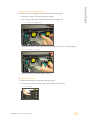
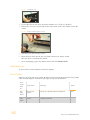
} Replace hard drive or power supply. For more information, see Replacement
Procedures on page 54.
In addition, BaseSpace Onsite sends an email alert if there is an issue with your system.
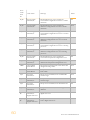
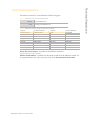
Error Codes on page 56 provides a list of possible codes and descriptions to help you
troubleshoot.
Manage BaseSpace Onsite
If you have admin privileges, the Account drop-down list provides access to the Admin
Panel. The Admin Panel allows you to manage analysis, notifications, storage, users,
system health, planned runs, software updates, and alarms.
Manage Analysis
On the Analysis page, you see the analyses that are currently running, and the analyses
that are queued. You can sort the analyses by the column headers.
You can perform the following actions:
} Select an active analysis and click Stop to stop the analysis.
} Select a queued analysis and click Remove to remove the analysis from the queue.
} Click Settings to set the administrator notifications you get through email.
Manage Storage
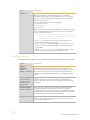
The Storage page contains 3 tabs:
} Active Storage—Provides an overview of the total amount of active storage used and
free, and the storage by user. Active samples, runs, and analyses are stored on the
BaseSpace Onsite system, and can be used for analysis. At the bottom, you see the
list of active samples, runs, and analyses stored; you can sort this list by clicking the
column headers. Any changes that add or remove data usually take 3–5 minutes to
be reflected in the pie chart. Active samples, runs and analyses are stored on the
BaseSpace Onsite system, and can be used for analysis.
NOTE
If there are many merged samples and copied samples on the system, the usage peruser values are overestimated in the Storage Use By Owners pie chart. The Total
Active Storage is not affected.
}
}
Archive Storage—Provides an overview of the archived analyses. Archived samples,
runs, and analyses are stored on the archive system, and cannot be used for analysis
on BaseSpace Onsite without restoring. At the bottom, you see the list of archived
samples, runs, and analyses; you can sort this list by clicking the column headers.
Deleted Items—Provides an overview of the items that have been deleted. At the
bottom, you see the list of deleted samples, runs, and analyses; you can sort this list
by clicking the column headers. You can restore these items to active storage, or
purge them from BaseSpace Onsite, which deletes them permanently.
BaseSpace Onsite v1.0 LT System Guide
51
Admin Tasks
Admin Tasks