1
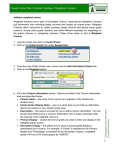
 Adding an Announcement to Your Blackboard Course Since the Announcements page is the first thing students see when they enter your course, it is a good vehicle for alerting students to new course information. We recommend creating a welcome announcement that students will see the first time they access your course site at the beginning of the semester as well as continued use throughout the semester. Overview By default, the Announcements area is your course’s entry
point, and this prominence makes the Announcements area a
useful communication tool. If you want to remind students of
important information or alert them to updates you have made to
your course, you can place that information here. You can also
add a link to a specific area, tool, folder, or piece of content from
an Announcement, directing students to the current task at
hand. Encouraging your students to check Announcements for
the latest course-related information is a good alternative to
using email.
Creating an Announcement in Blackboard 1.
Log into your course and click on the Control Panel.
3. Choose the Add Announcement button at the top of the Announcement page.
Wilmington University Online Created 10/06/2008 2. In the Course Tools section, click the Announcements link.
1 Adding a Faculty Profile to your Blackboard Course 4. Complete the Add Announcement form, which has four sections:
1. Announcement Information:
A. Type in a subject for the announcement in the box marked Subject.
B. Type the content of your announcement in the box marked Message.
2. Options:
A. Permanent announcement? By default, announcements are displayed
in reverse chronological order, with the newest announcements at the
top. Only announcements from the last 7 days are displayed on the main
announcements page. If you want to display a welcome announcement at
the top of the announcements section for the entire semester, select the
Yes radio button to make the announcement “Permanent.” Selecting the
No radio button will create an announcement that appears in
chronological order.
B. Date Restrictions: Choose the dates between which you’d like a nonpermanent announcement to appear. You can create announcements
well in advance of when they appear for students, if desired.
3. Course Link: You can create a link from your announcement to another section
of your course site (such as a quiz or a reading). Click on the Browse button to
select a location in your course site to which to link.
4. Email Announcement: If you’d like your announcement to be emailed to users
immediately, choose this option. Note: do not use this with announcements you
are creating in advance of when students will see the message.
5. Click on the Submit button when you are done. You will see a receipt telling you that the
For more information . . .
Additional support for Blackboard tools can be found at http://esupport.wilmu.edu, by clicking on the Help! button in Blackboard, at http://www.wilmu.edu/instructionaltech/index.aspx and
in the User Manual linked from the Control Panel in Blackboard.
Wilmington University Online item has been updated. Click on the OK button. You should now see the announcement you
just created.
2